How to Analyze Google Drive Videos with Gemini
Using Gemini to analyze videos stored in Google Drive is a game-changer for anyone working with video content regularly. Instead of sitting through entire videos from start to finish, Gemini does the heavy lifting—it can parse, analyze, and summarize video content, pinpoint key arguments, answer specific questions, and pull out critical information in minutes. What's interesting here is how much time this actually saves when you're dealing with lengthy training videos, lectures, or meetings.
This guide walks you through the complete process of analyzing Google Drive videos with Gemini, plus we've included a collection of useful prompts to maximize the tool's potential.
How to Analyze Google Drive Videos with Gemini
Important: This feature requires a Pro account, and you'll want to switch your interface to English for best results.
Step 1:
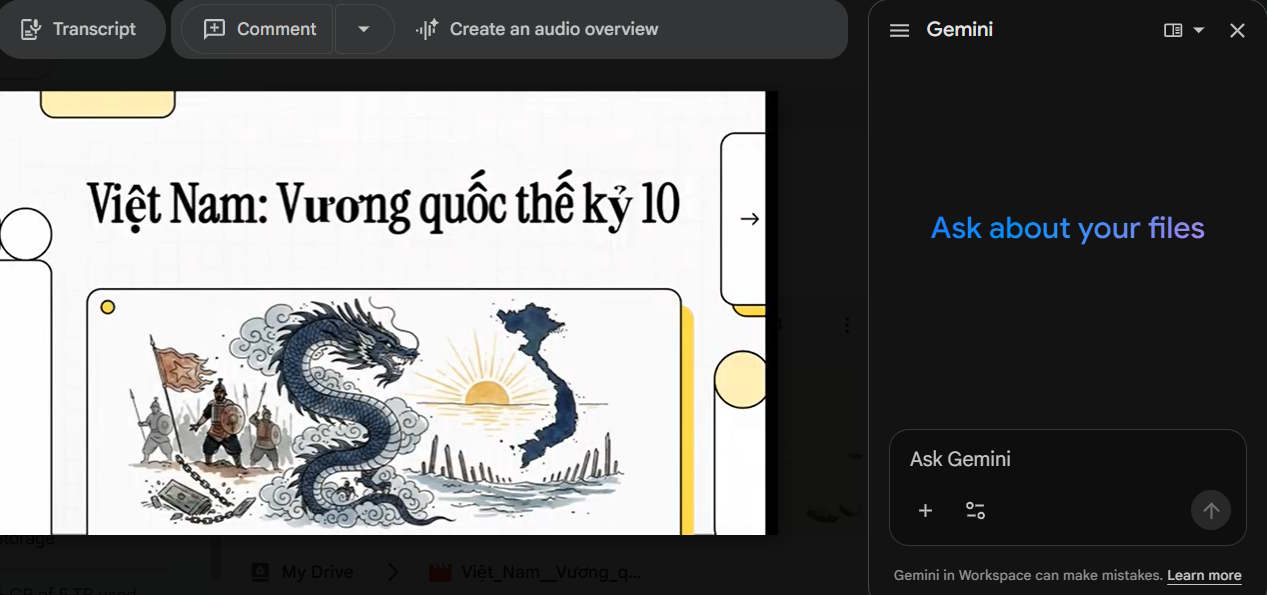
Open any video in Google Drive and you'll spot the Gemini chat panel along with several options. Start by clicking on "Create an audio overview" to generate a spoken summary of your video.
Step 2:
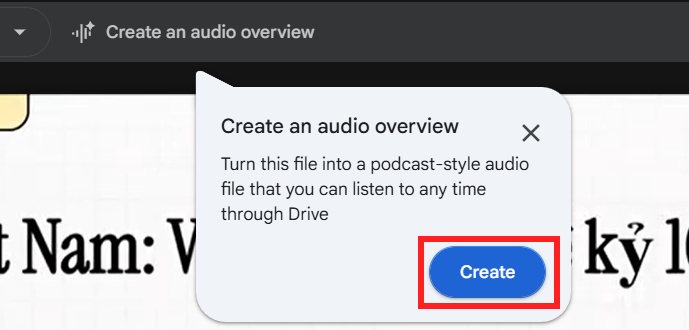
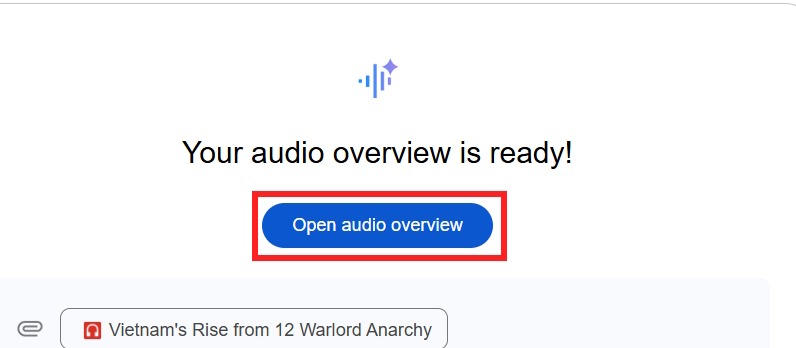
Next, tap the "Create" button to kick off the audio overview generation process.
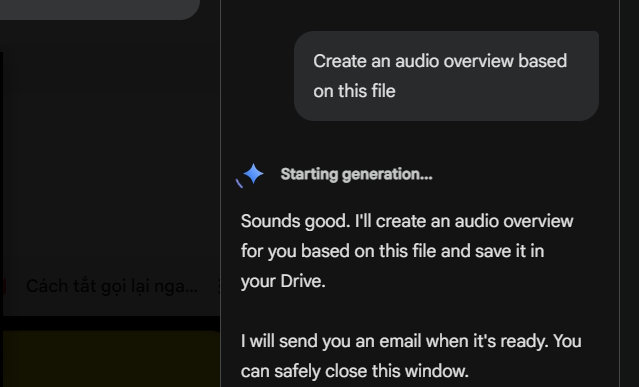
Gemini gets to work on the right side of the screen, processing the video and creating your audio summary. The file automatically saves to your Drive, and you'll receive an email notification once it's done.
Simply open the file to listen to your video summary. Keep in mind that this feature currently only supports English.
Step 3:
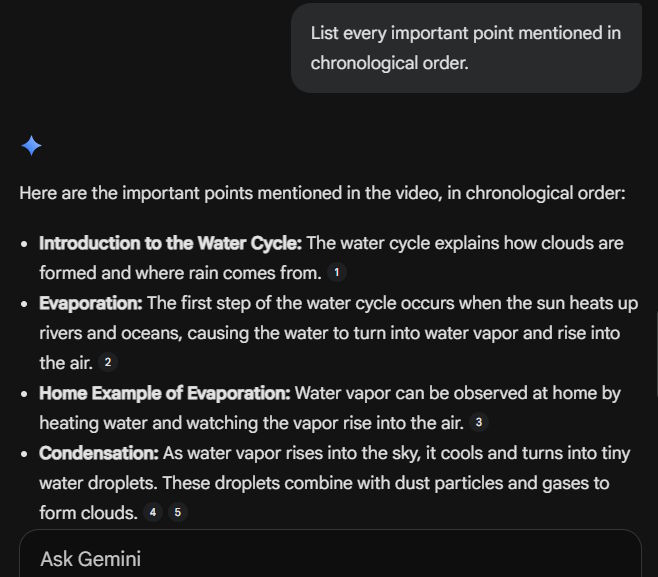
In the Gemini chat box, type in commands to ask Gemini for a deeper analysis of your video.
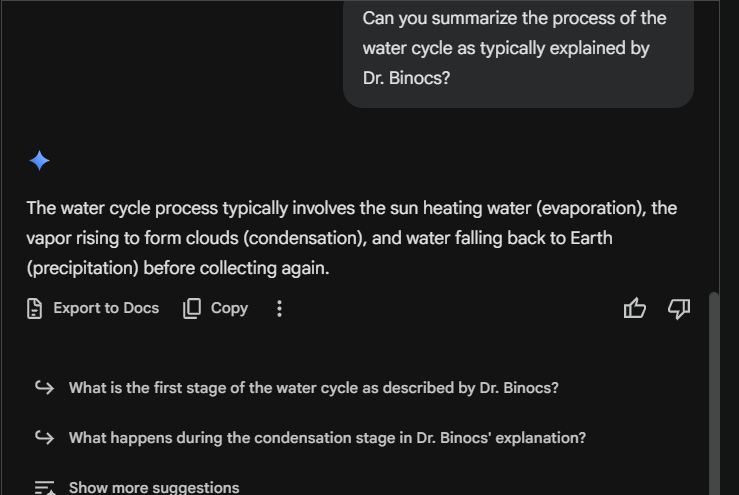
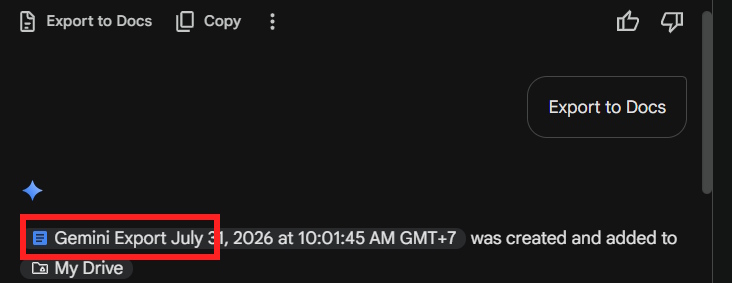
You can also use the pre-written prompts that Gemini suggests. Each response includes an option to export to Docs, making it easy to save your analysis.
Click on the report file and you'll jump straight to Google Docs for further editing if needed.
Not sure what to ask? Gemini provides suggested questions tailored to your video's content.
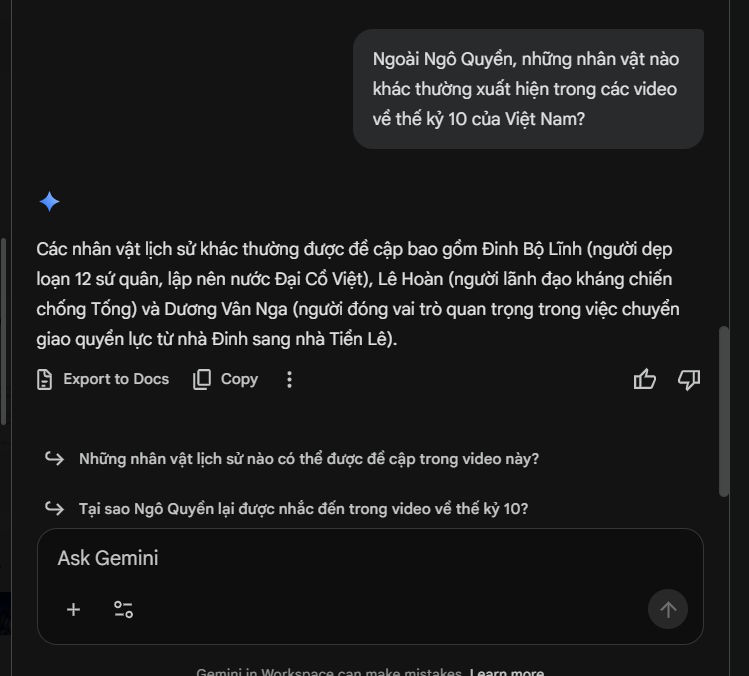
Click "Show few suggestions" to reveal more analysis questions for your video.
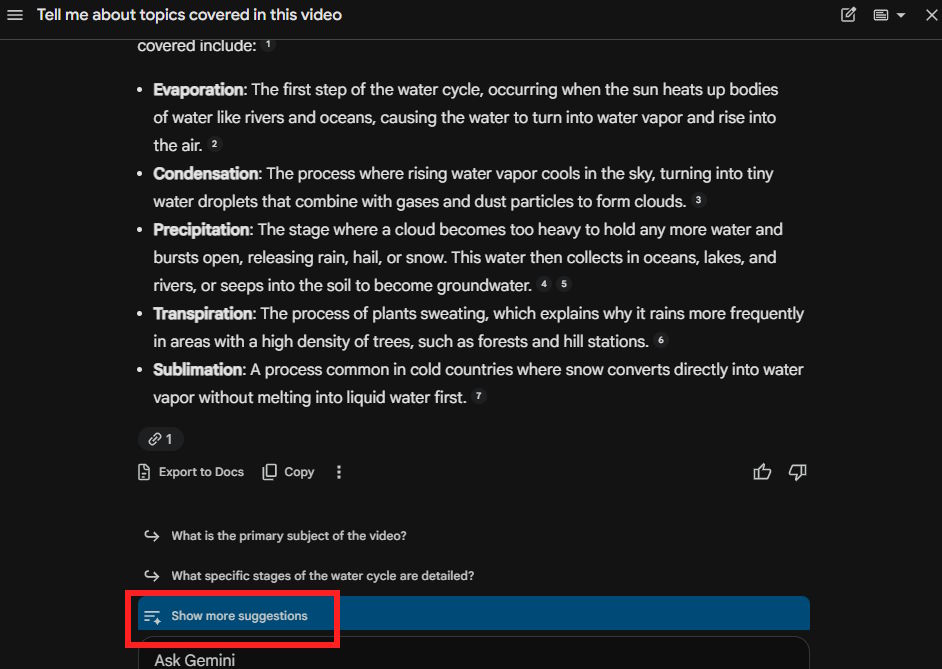
When crafting your own questions, be specific and direct. The clearer your prompt, the more accurate Gemini's response will be.
Step 4:
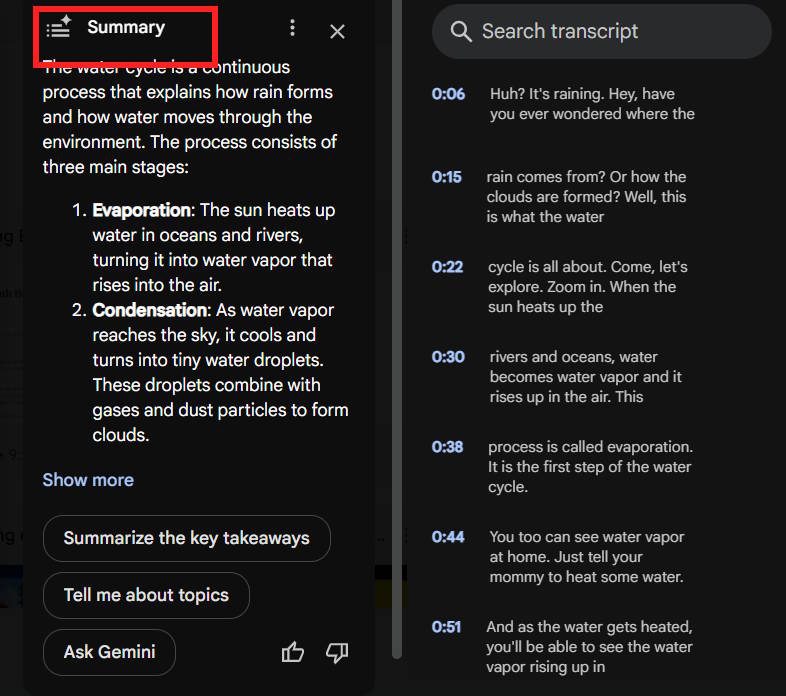
Click the "Transcript" button and Gemini displays a structured summary of your video with clearly organized key points.
Prompts for Getting the Best Video Analysis Results
Summarize the Video Content
Summarize this video in a clear and concise way. Highlight the main topics, key points, and important conclusions.Perform a Detailed Content Analysis
Analyze this video in detail. Explain the main ideas, key arguments, supporting evidence, and overall message presented in the video.Extract Critical Information
Extract all important information from this video, including names, dates, numbers, statistics, important events, and key takeaways.Generate Meeting Notes
Create well-structured meeting notes from this video. Organize the content into headings, bullet points, action items, and decisions.Produce a Complete Transcript
Generate a complete transcript of this video. Preserve the original wording as accurately as possible.Create an Action Items List
Identify all action items mentioned in this video. Present them as a checklist and include deadlines or responsible persons if available.Simplify Complex Content
Explain the content of this video in simple language. Break down complex concepts into easy-to-understand explanations.Build a Timeline with Timestamps
Create a timeline of this video with timestamps and describe what happens in each section.Evaluate Video Quality
Evaluate this video. Identify its strengths, weaknesses, missing information, and provide suggestions for improvement.Ask Specific Questions
You can pose targeted questions after Gemini has analyzed your video.
Example prompts:
- What is the main purpose of this video?
- What are the most important takeaways from this video?
- What problems are discussed in this video, and what solutions are proposed?
- What happens between minute 05:00 and 08:00?
- List every important point mentioned in chronological order.
Pro Tips for More Accurate Responses
Combine multiple requests in a single prompt to get richer results. Here's an example:
Summarize this video, identify the key takeaways, extract all important facts, generate a timeline with timestamps, and list all action items mentioned.Description: Learn how to use Gemini AI to analyze, summarize, and extract insights from videos in Google Drive efficiently.

No Comment to " How to Analyze Google Drive Videos with Gemini "