How to Import Google Slides into Google Vids and Create Professional Videos
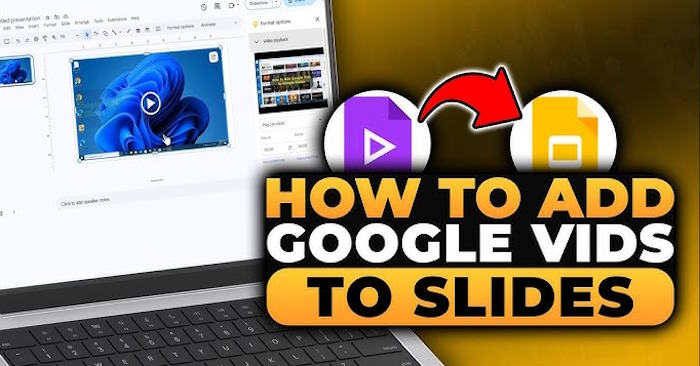
Already have a presentation sitting in Google Slides? You don't need to rebuild everything from scratch to turn it into a video. Google Vids lets you import your slides directly and transform them into a finished video in minutes. What's interesting here is that you can skip the tedious process of recreating your content—just port it over and let the platform handle the heavy lifting.
Once your slides are imported, you're free to customize layouts, add transitions, insert images and video clips, add voiceovers, or leverage AI features to polish everything. This approach works perfectly for training videos, how-to guides, product demos, or business reports. In this guide, we'll walk you through converting your Google Slides into a professional video using Google Vids, covering all the editing options that'll make your final product stand out.
Step-by-Step Guide: Importing Google Slides into Google Vids
Step 1:
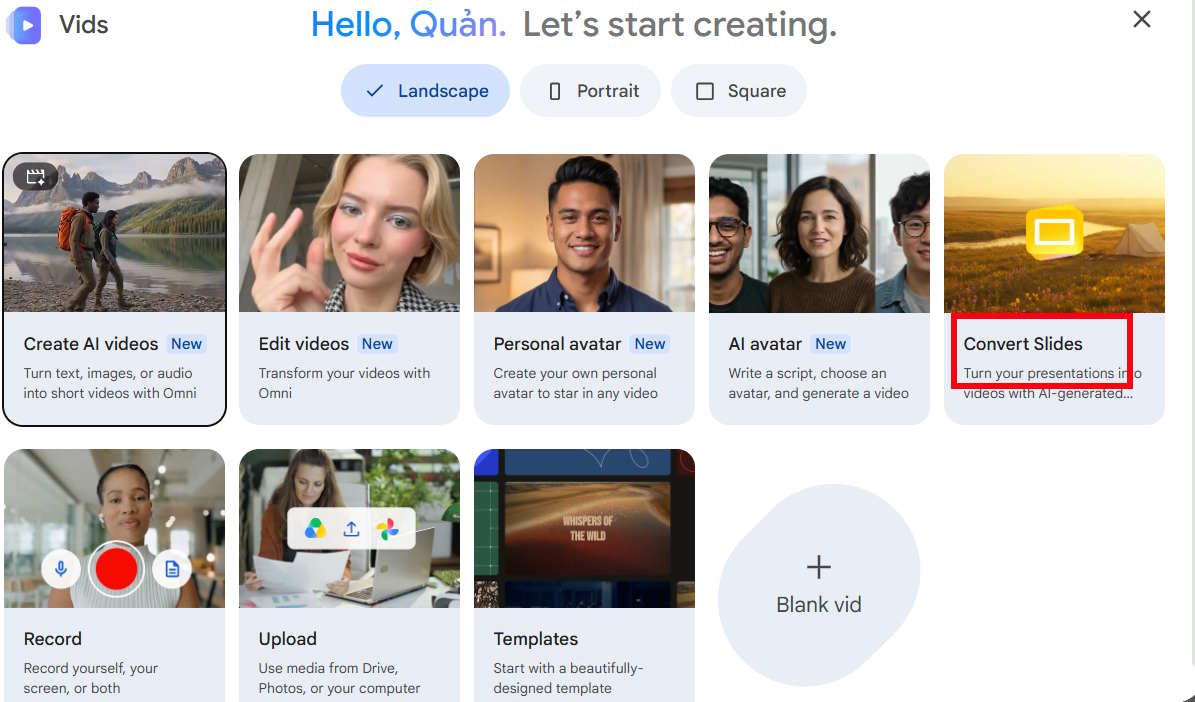
When you open Google Vids, you'll see a video creation prompt like the one below. Click on Convert Slides to get started.
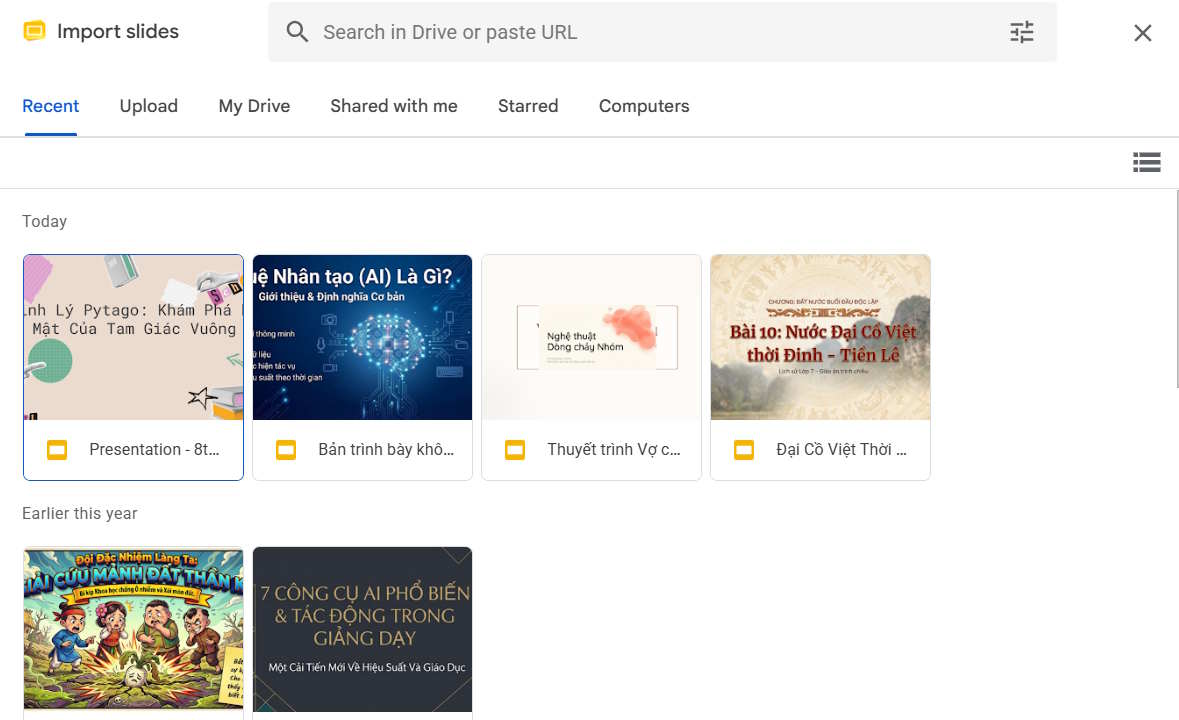
Google Drive will open, letting you quickly locate the presentation you want to use through the available options below.
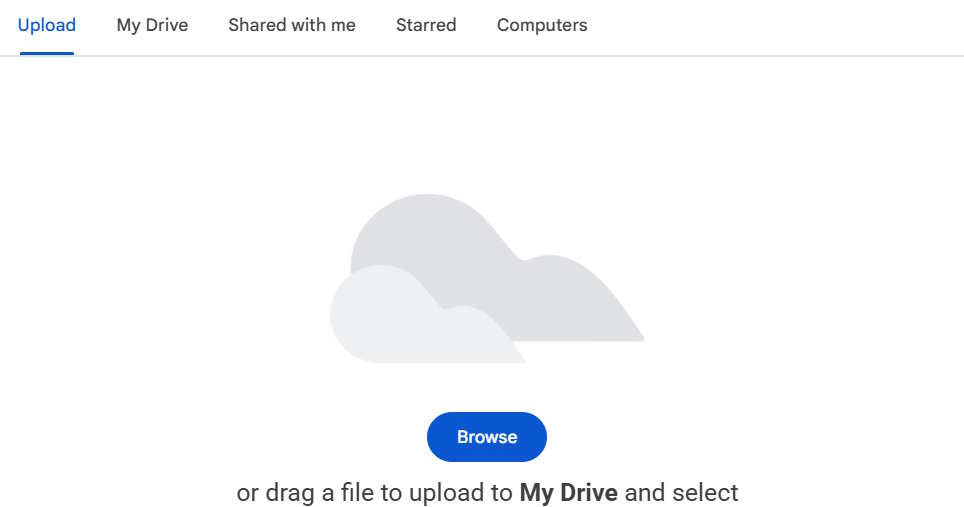
Alternatively, you can click Upload to add your slides directly into Google Vids.
Step 2:
After selecting your presentation, you'll see every slide displayed individually. Check the boxes for slides you want to include in your video, uncheck any you want to skip. Once you've made your selections, hit Continue.
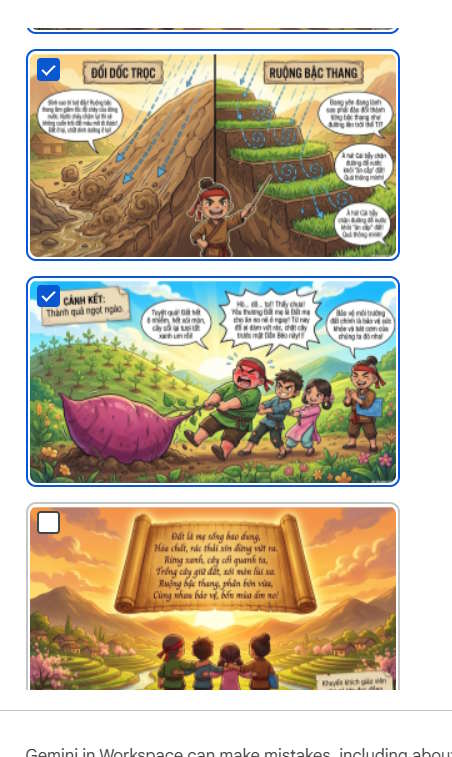
Step 3:
On the next screen, enable AI narration, auto-generated scripts, background music, and effects. This generates professional content automatically—no extra work needed on your end.

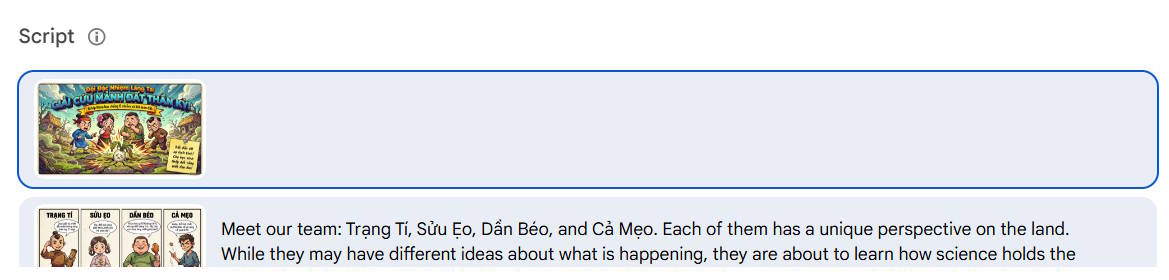
You'll immediately see AI-generated scripts for each slide. If you don't like what Google Vids created, click the X to remove it.
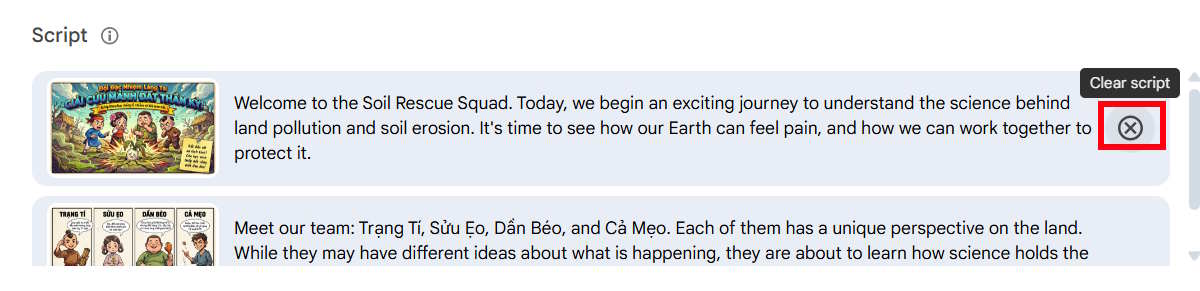
You can also write custom narration scripts directly in Google Vids if you prefer.
Step 4:
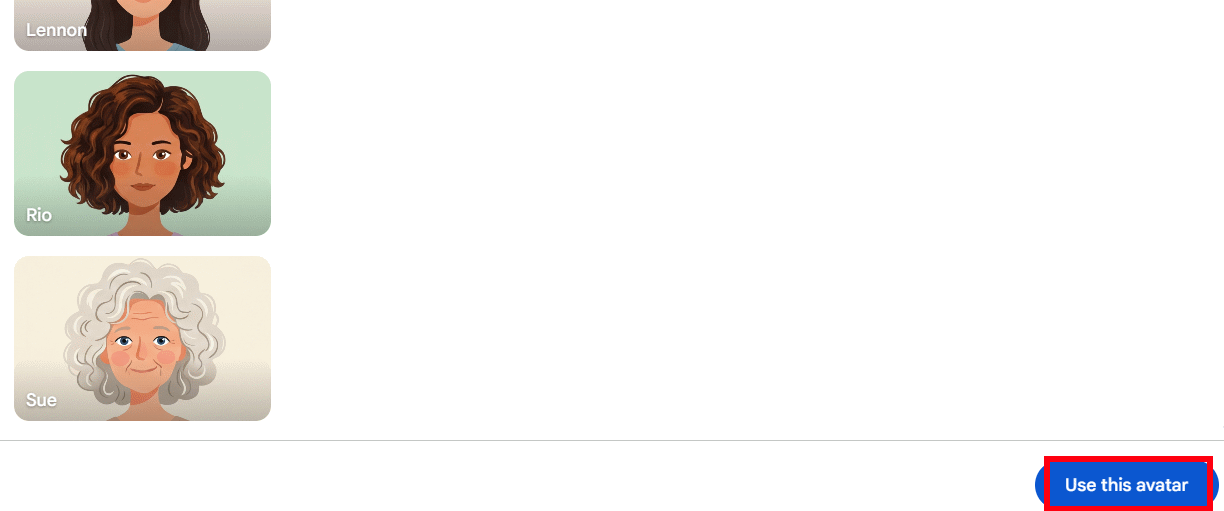
Scroll down to the Narration section. Here you choose between AI voice-only narration or pairing it with an animated AI avatar. Google Vids selects a default character for you, but you can change it by clicking the pencil icon.
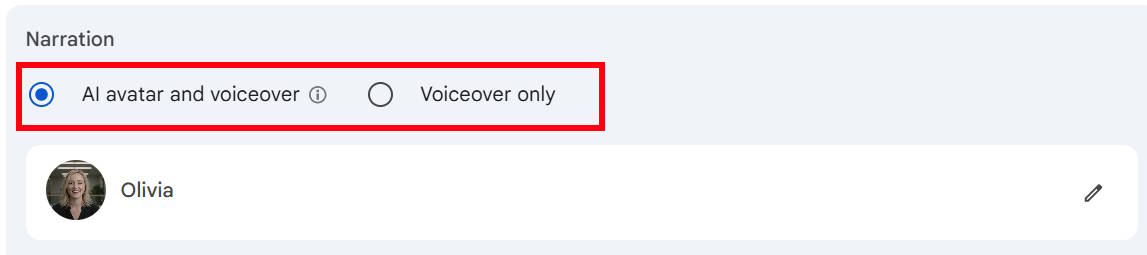
In the character selection window, pick an avatar that matches your video's tone, then click Use this avatar to confirm.
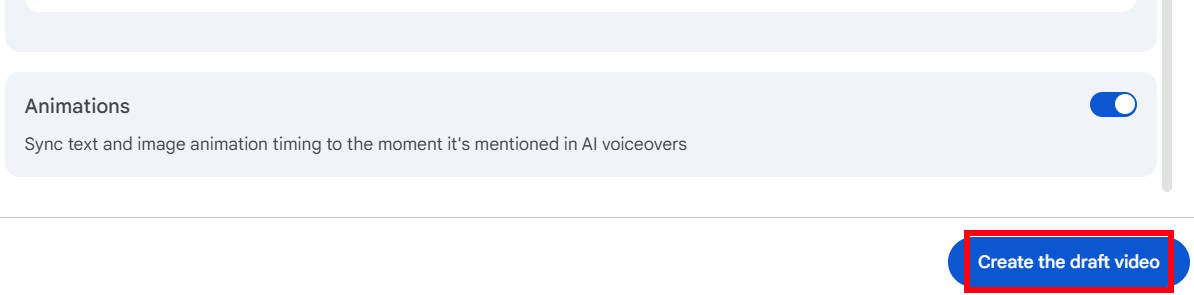
Enable animation sync under Animations to match the avatar's movements with the narration, then click Create the draft video.
Step 5:
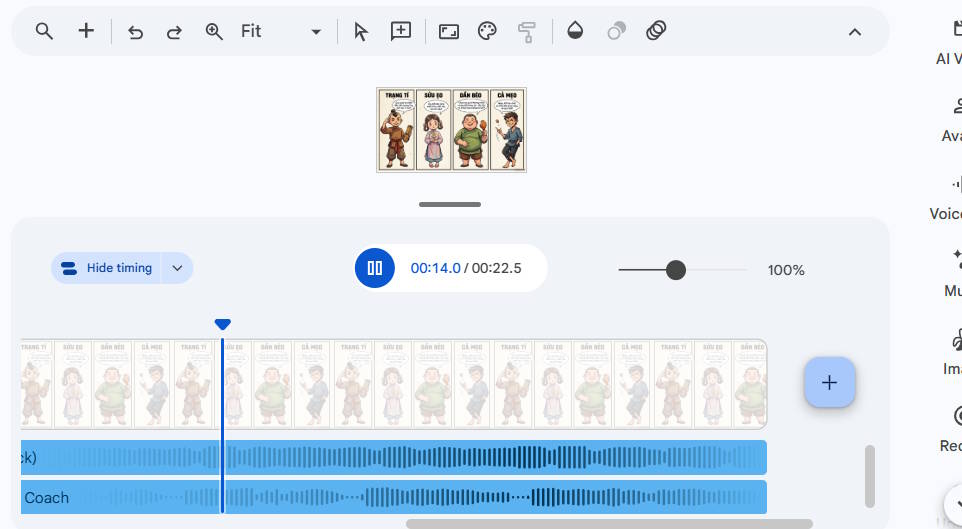
Wait while Google Vids renders the avatar and generates each scene. This typically takes a few minutes, so be patient. Once it's done, you can adjust transition effects for any scene if the defaults don't suit your style.
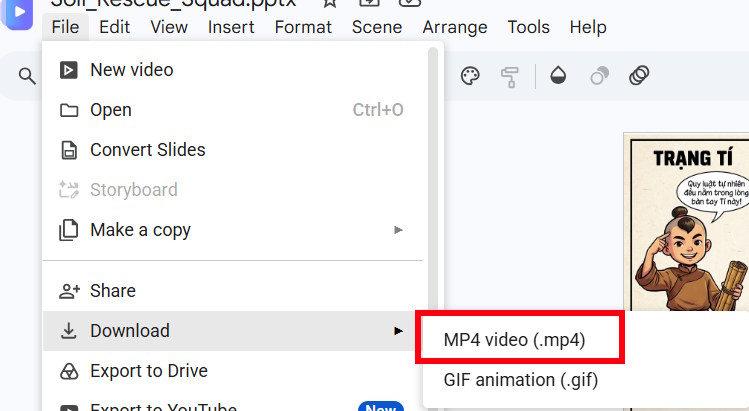
When your video is complete, go to File and select the download option to export your AI video from Google Vids.
Key Considerations When Importing Google Slides into Google Vids
To ensure a smooth import process and minimize errors, keep these points in mind:
Finalize your Google Slides content before importing. Review text, images, and layout to reduce editing time after everything lands in Google Vids.
Make sure your presentation is saved to Google Drive. Google Vids can only access Google Slides files you have permission to view.
Check file sharing permissions. If you're using a presentation created by someone else, ensure you have viewing or editing access so you can import it into Google Vids.
Review each slide after import. Some elements like transitions, animations, or custom layouts from your original Google Slides may not translate perfectly into Google Vids.
Add multimedia elements after importing. Once your slides are in Google Vids, you can insert additional videos, images, background music, voiceovers, or use AI features to make your video more dynamic and polished.
Preview the entire video before publishing. After finalizing your edits, play through the complete video to verify the layout, content, effects, and ensure every slide displays exactly as intended.
Description: Learn how to convert your Google Slides presentations into polished videos using Google Vids with AI narration, avatars, and effects.
Related Articles
- Bases: Obsidian's New Plugin Finally Closes the Gap Notion Left Behind
- 10 Real Business Problems AI Can Actually Solve Right Now
- How to Enable or Disable AI Watermarks in Windows Photos
- What Makes Google Flow Agent Special? Complete Guide to AI Video Creation
- Running Qwen 3.5 Locally on a Single GPU: Complete Setup Guide

No Comment to " How to Import Google Slides into Google Vids and Create Professional Videos "