Complete Guide to Building Google Docs Tables with Gemini

Beyond basic content creation and editing, Gemini in Google Docs can generate polished tables in seconds using straightforward natural language prompts. No manual formatting needed.
Gemini adapts to whatever table structure you need. Just describe your purpose—whether you need a project tracker, comparison chart, or data list—specify your column count, and the AI suggests an appropriate layout ready to insert directly into your document. Here's everything you need to know about building tables with Gemini in Google Docs.
How to Create Tables in Google Docs with Gemini
Step 1:
Click the Gemini icon in your Docs interface and describe the table you want to create.

Wait a moment and your table appears directly in the Google Docs editor.
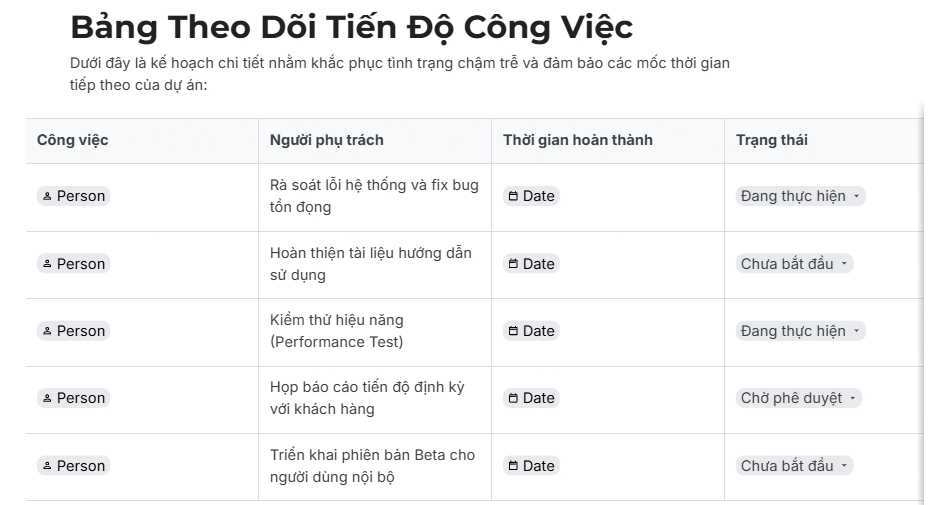
Fill in the table cells with your content to match your original specifications.
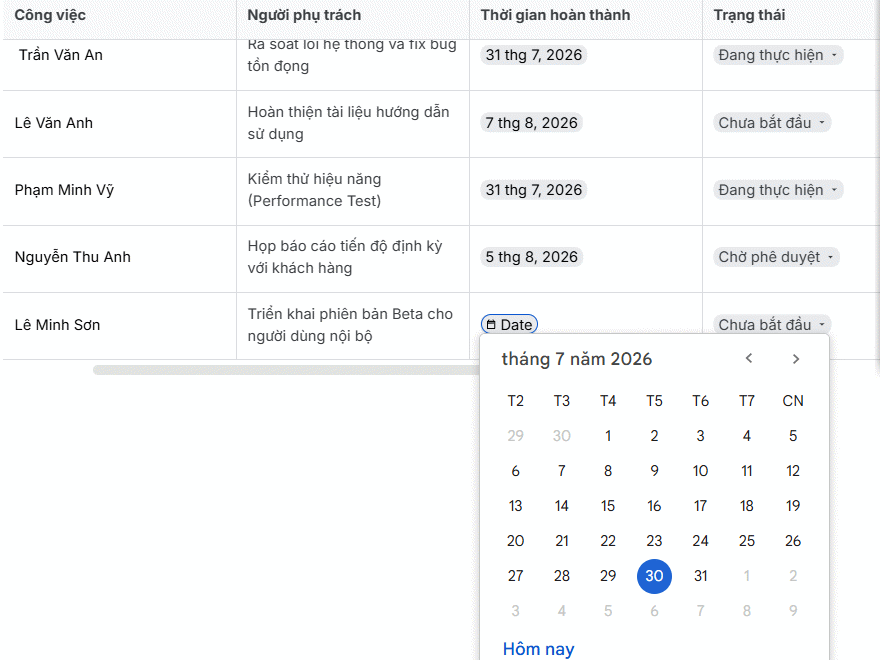
Step 2:
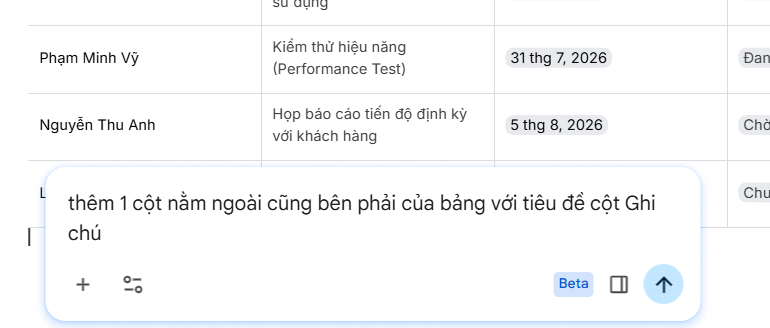
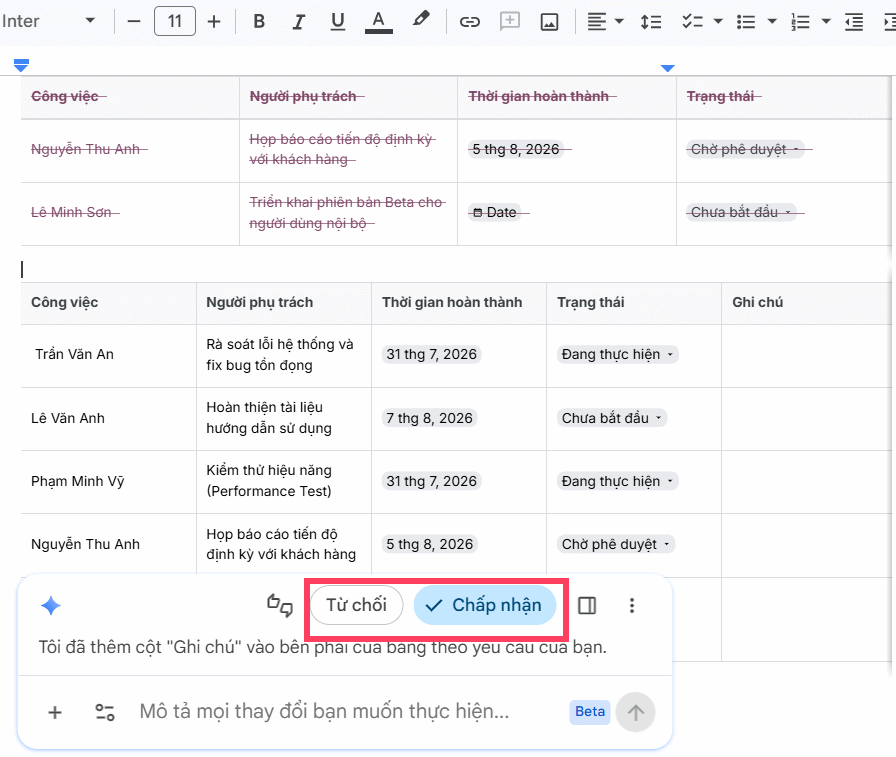
Once your table is created, you can ask Gemini to modify it—add columns, reorganize data, whatever you need. The clearer your request, the better Gemini executes it.
If you're happy with the revised table, click Accept to replace the old version. If not, select Reject and try again.
Here are other table operations you can request:
- Add new columns.
- Remove unnecessary columns.
- Insert additional data.
- Reorganize table structure.
- Rewrite headers.
- Improve readability.
Step 3:
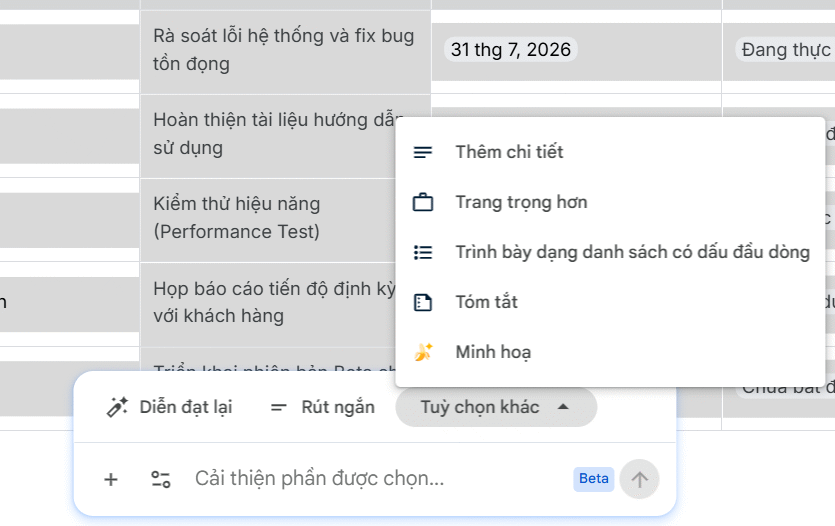
Highlight any data in the table and you'll see options to refine content if needed.
Converting Text into Tables with Gemini
Gemini isn't limited to creating tables from scratch. It can also transform existing text into structured tables. What's interesting here is how useful this becomes when you're dealing with documents containing lists, comparisons, or unorganized data that begs for better structure.
Highlight the text you want to convert into a table, then use this prompt.
Convert this paragraph into a clearly structured table.Other useful commands:
Organize information from the above content into a table with appropriate columns.
- Transform this list into a table with columns for: [specify column names]
- Analyze the content and create a comparison table between items.
- Restructure this content as a table for easier tracking.
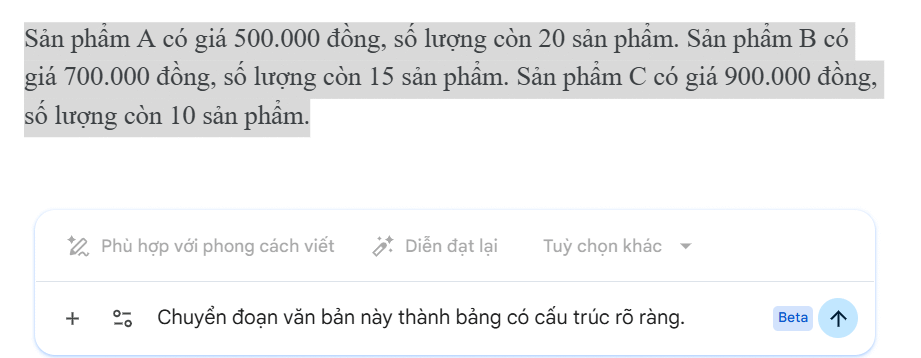
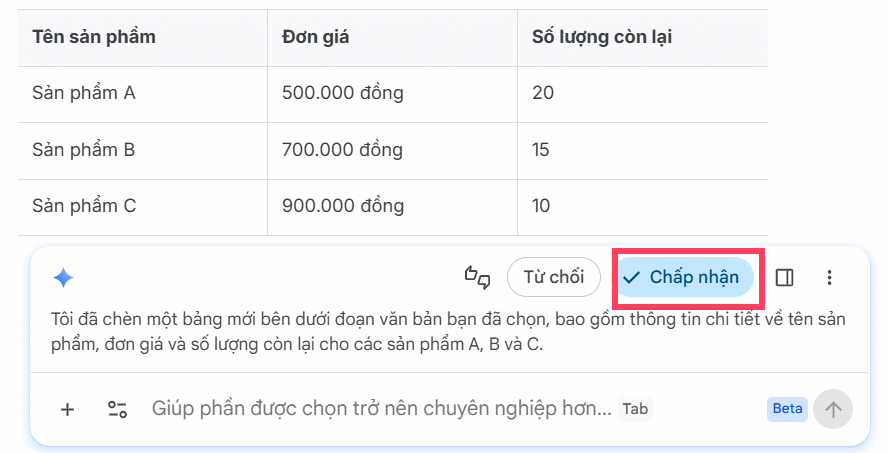
Gemini generates and inserts the table at your original content location. Click Accept to place it into your document.
Effective Gemini Prompts for Google Docs Tables
To get Gemini to build exactly what you need, describe your content clearly, specify column requirements, mention what data should appear, and explain the table's purpose.
Simple task tracking table
Create a task tracking table with columns: Task Name, Owner, Deadline, Status.Weekly project plan table
Create a one-week project plan table with columns: Day, Tasks, Assigned To, Results.Feature comparison table
Create a comparison table between Google Docs and Microsoft Word using criteria: Features, Advantages, Disadvantages, and Cost.Product inventory table
Create a product list table with columns: Product Name, Price, Quantity, Description.Or:
Convert this customer list into a table with columns: Full Name, Phone, Email, Notes.Converting existing content
Transform the above content into a table with columns organized for easy reference.Or:
Analyze this paragraph and create a summary table highlighting key information.Purpose-specific table formats
You can also request tables designed for specific business needs.
Example:
Create a revenue report table with columns: Month, Revenue, Expenses, Profit, Notes.Or:
Create a class schedule table with columns: Day, Subject, Time, Room Number.Tips for writing prompts that Gemini understands better
- State the exact number of columns you need.
- Name each column explicitly.
- Explain what the table will be used for.
- Request additions or removals if the result isn't quite right.
- Feel free to ask for revisions after the table is generated.
Description: Learn how to create, edit, and convert text into structured tables in Google Docs using Gemini AI with simple commands.

No Comment to " Complete Guide to Building Google Docs Tables with Gemini "