Using Gemini in Google Docs: AI-Powered Writing That Actually Saves Time
Google Docs has evolved far beyond a simple online text editor. Google has integrated Gemini—its powerful AI assistant—directly into the platform, transforming how we write. With natural language understanding at its core, Gemini can help you draft content, rewrite passages, fix grammar, summarize information, and develop ideas with just a few simple commands. What's interesting here is how seamlessly it works within your existing workflow.
Instead of staring at a blank page wondering how to start a blog post, email, or report, you can now ask Gemini for instant assistance right inside your document. This fundamentally changes how writers approach content creation. In this guide, we'll walk you through using Gemini in Google Docs to generate AI-powered text from start to finish.
How to Create Text in Google Docs Using Gemini
Step 1:
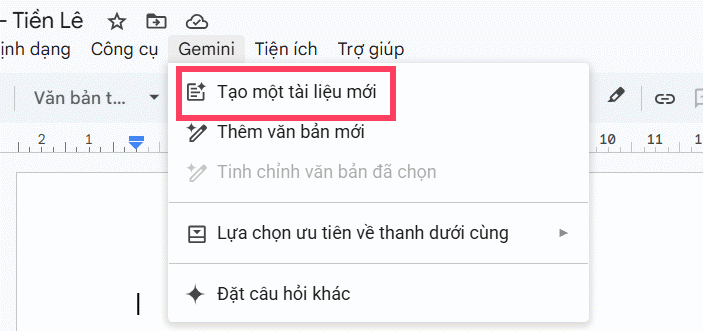
Open Google Docs and click on the Gemini option, then select Create a new document.
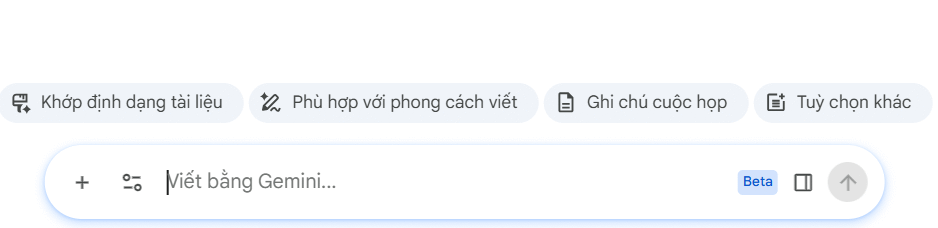
At the bottom of your document, you'll see Gemini's text generation tool. Here's where you describe what you want to create. Enter your request in English to generate content, which can then be displayed in Vietnamese or any language you prefer.
Step 2:
After submitting your idea, Gemini generates content that matches your specifications. Once you have this initial draft, you can customize the formatting to your liking.
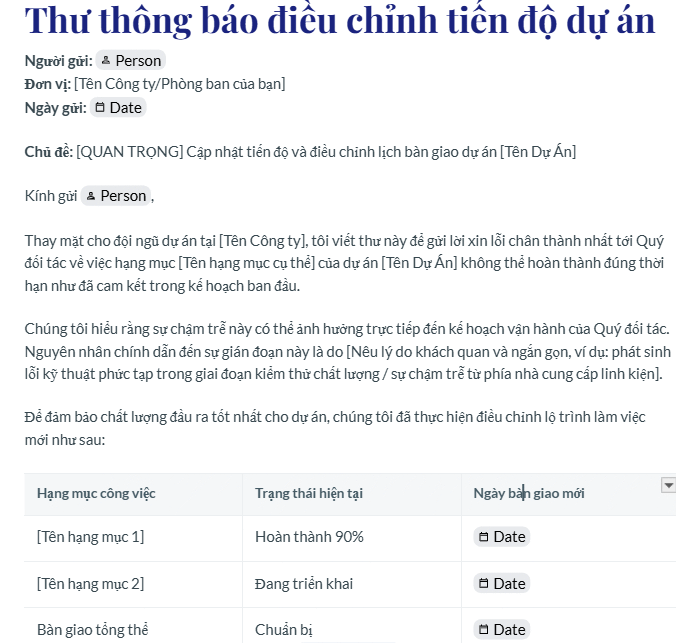
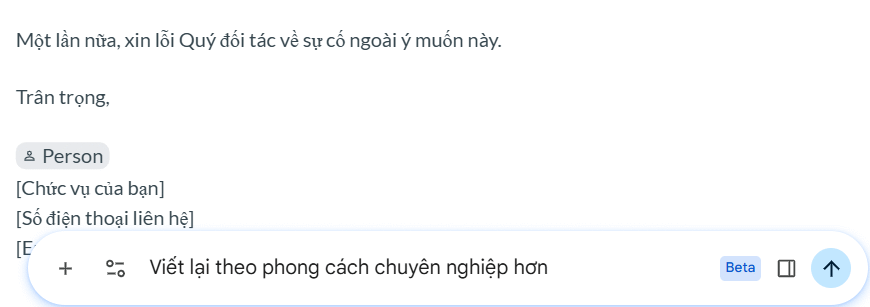
You can ask Gemini to adjust the tone, edit specific sections, or even generate new content like images for your document to enhance your work. Common edits include:
- Rewriting sentences for clarity
- Fixing spelling and grammar errors
- Making content more professional
- Condensing text for brevity
- Expanding ideas with additional details
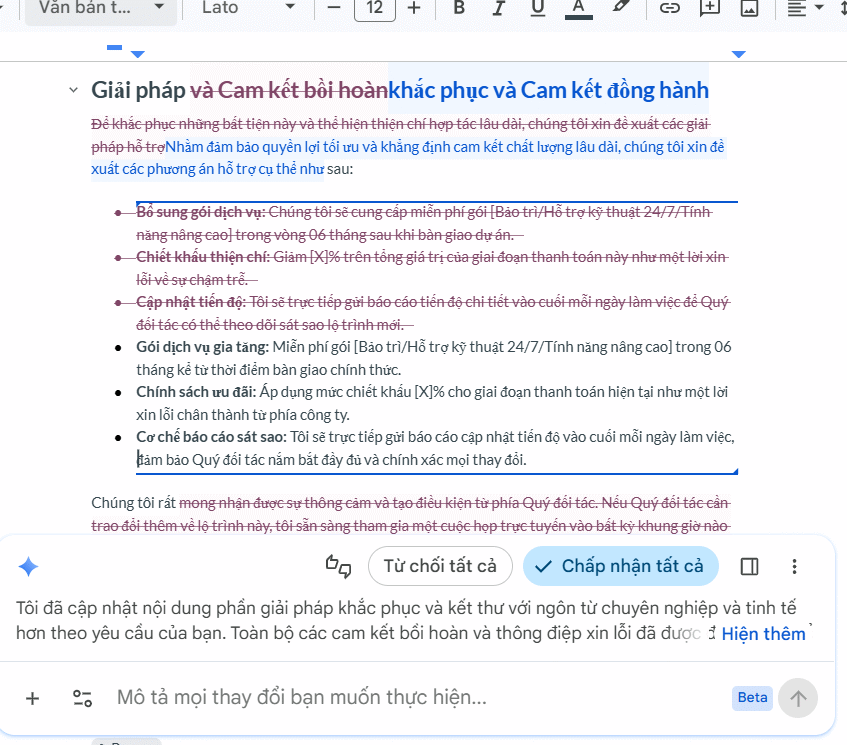
Gemini regenerates the text completely, showing new content in blue and striking through the old version so you can easily compare. When you're satisfied with the revision, click Accept all.
Step 3:
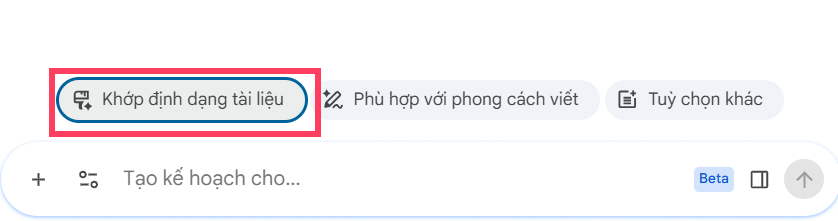
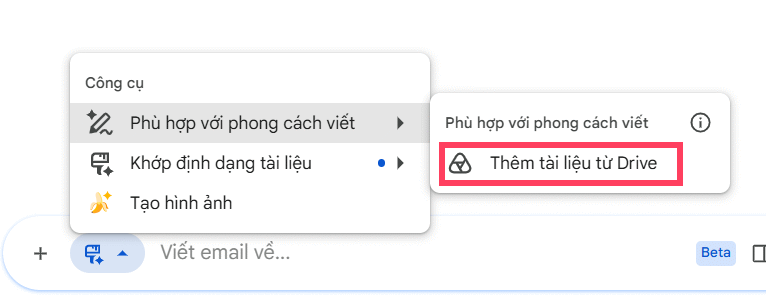
Here's a clever feature: Gemini can mirror the formatting of existing documents to create similar documents on new topics. Click Match document format and select a Docs file to use as your style guide.
Need to switch to a different template? Click the Match document format icon and select Choose a different document.
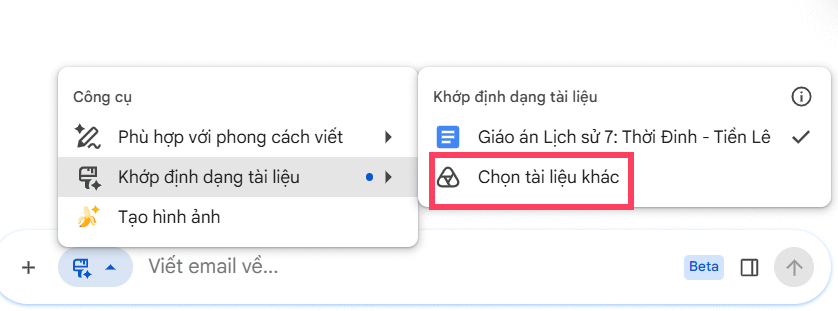
You can also choose a template document so that Gemini generates new content following that style reference.
Step 4:
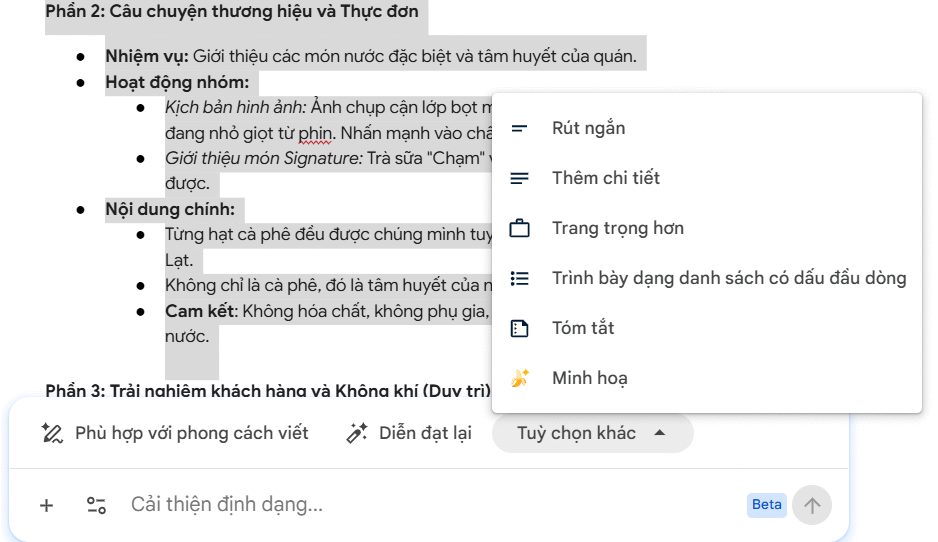
When you highlight text in your document, Gemini offers additional customization options in the More options menu. Simply click your desired edit and Gemini applies it instantly, or type a custom instruction for more specific changes.
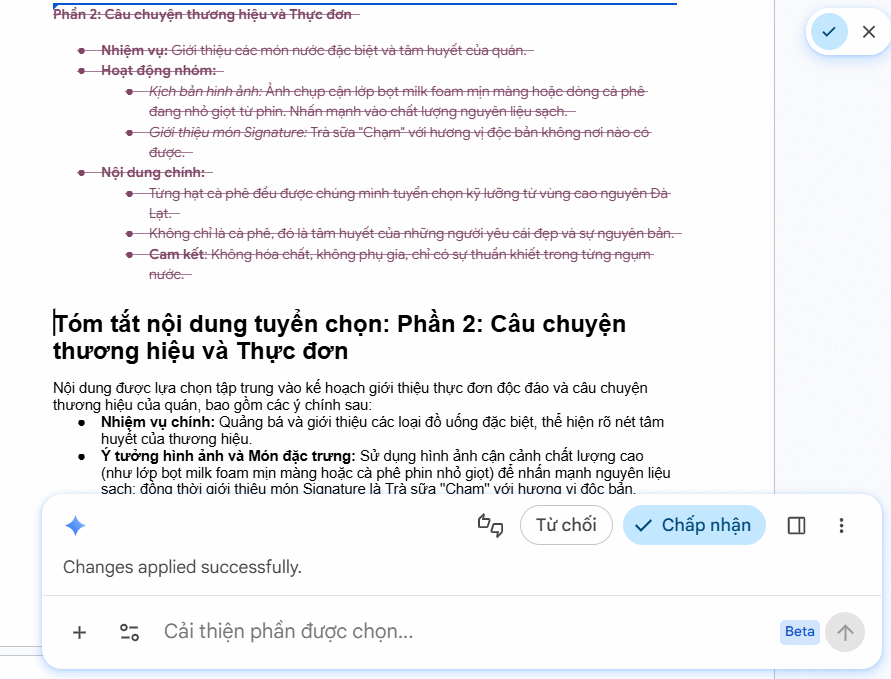
A summary version of your content also appears below, letting you decide whether to use it. If you want to replace your current text with the summary, just click Accept.
How to Write Better Gemini Prompts for Google Docs
An effective text generation prompt typically includes five core elements:
Action (What you want) + Topic (Subject) + Audience (Who it's for) + Style (Tone) + Length (How long)
Keep these best practices in mind:
- Be as specific as possible in your request
- Define a clear role for Gemini: Assigning specific roles helps Gemini match the right tone and perspective
- Specify your desired output format: Gemini will structure content as lists, tables, or outlines rather than generic paragraphs
- Request multiple rounds of refinement
After Gemini creates your initial content, continue refining with requests like:
- Rewrite this in a more professional tone
- Condense this to the main points and make it easier to scan
- Expand this section and add real-world examples
- Polish these sentences to improve flow and readability
- Make the introduction more compelling to grab reader attention
- Adjust the tone to suit a corporate audience
- Convert this into a bulleted list format
- Summarize this document down to the five most important takeaways
- Check for spelling, grammar, and suggest ways to improve the writing
- Rewrite this for beginners using simpler language
Description: Learn how to harness Gemini's AI capabilities in Google Docs to generate, edit, and refine content faster than ever before.
Related Articles
- Master Content Writing and Editing with Dola AI
- Master Gemini Spark: Complete Guide to Automating Google Workspace with AI Agents
- Google's DiffusionGemma: A Radically Different Approach to Text Generation
- How to Change Gemini Live's Voice to Your Preferred Option
- Master ElevenLabs v3: Creating Emotionally Expressive AI Voices

No Comment to " Using Gemini in Google Docs: AI-Powered Writing That Actually Saves Time "