Best AI Tools for Teachers: Lesson Plans, Presentations & Greeting Cards

Vietnam's Teachers' Day on November 20th is a time to celebrate educators—but it's also when many teachers scramble to prepare lessons, design slides, create learning materials, and craft greeting cards. These tasks eat up hours, especially when you want content that's accurate, engaging, and tailored to different student abilities.
AI tools for teachers can handle much of this workload. Instead of starting from scratch, you can feed AI your learning objectives, subject, student age group, and lesson duration to get a draft. Then you customize it to match your actual curriculum and students.
Here's our guide to the best AI tools for teachers, organized by task—from building lesson plans and creating exercises to designing slides and visuals for November 20th celebrations. Each tool includes real-world examples, pricing info, and important notes about using AI responsibly in education.
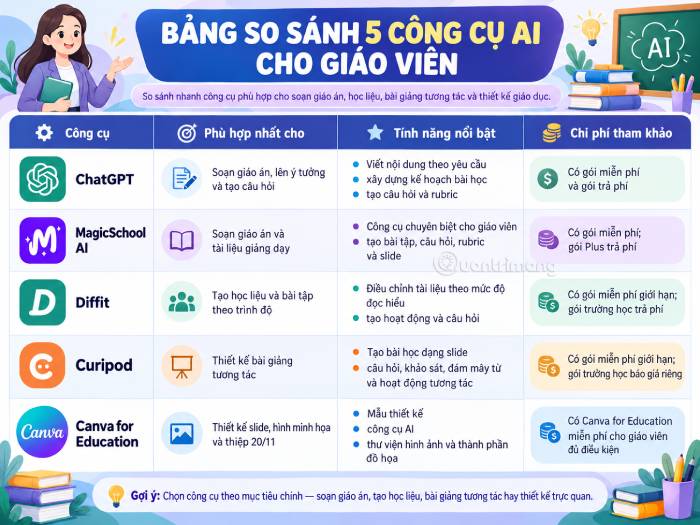
Essential AI Tools for Teachers on Teachers' Day
- ChatGPT – Versatile AI for Lesson Planning
- MagicSchool AI – Built for Teaching Tasks
- Diffit – Adapt Materials by Student Level
- Curipod – Interactive Lessons & Classroom Activities
- Canva for Education – Design Slides, Graphics & Cards
- Which AI Tool Should You Pick?
- Why Teachers Need AI Right Now
- What AI Can Actually Do for Teachers
- Copyright & Student Data Security When Using AI
ChatGPT – Versatile AI for Lesson Planning
Strengths
- Works across subjects and many teaching tasks.
- You can refine answers through conversation.
- Great for quickly generating multiple lesson approaches or quiz questions.
Limitations
- AI can include false information, weak examples, or incorrect answers.
- Auto-generated lesson plans may not fit your school's curriculum or standards.
- Don't assume all advanced features are free.
ChatGPT is a general-purpose AI assistant that supports teachers from planning through creating teaching materials. You describe your subject, topic, student age, and lesson length to get a draft lesson plan, discussion questions, or reinforcement activities.
The real strength here is iteration. You can ask ChatGPT to shorten content, increase question difficulty, add relatable examples, or turn a concept into a hands-on exercise. That back-and-forth saves hours compared to starting from nothing.
Key capabilities:
- Build structured lesson plans by objective and duration.
- Generate multiple-choice, essay, and discussion questions.
- Create worksheets, rubrics, and group activity guides.
- Adjust explanations to match student level.
- Brainstorm ideas for extracurricular activities and November 20th events.
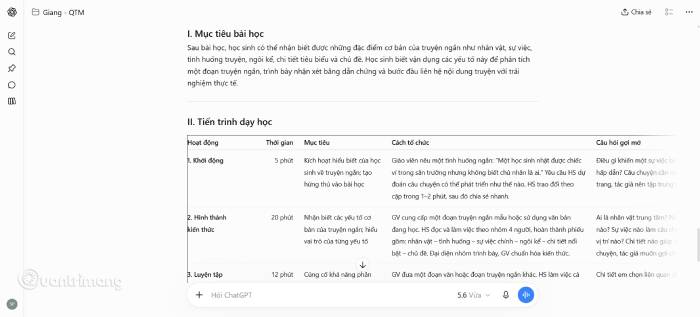
Real-world example:
You're a literature teacher preparing a 45-minute lesson on short stories for 8th graders. Instead of building everything yourself, you could prompt ChatGPT with something like:
Act as an ELA teacher. Create a 45-minute lesson plan on short stories for grade 8. Break it into: opening activity, concept introduction, practice, and application. For each section, include learning goals, instructions, thought-provoking questions, and student deliverables. End with 5 comprehension check questions.
ChatGPT produces a structured draft. You then adjust it to match the actual text you're teaching, your school's requirements, and what you know about your class's actual abilities.
- Best for: Teachers who need lesson concepts, full lesson plans, quiz questions, and custom versions for different classes.
- Cost: Free tier available; paid plans unlock more features, usage limits, and document handling depend on your subscription.
- Important note: Don't paste full names, grades, report cards, or identifying student info into your personal AI account without permission. Always verify answers, sources, and content fit before using it in class.
MagicSchool AI – Built for Teaching Tasks
Strengths
- Many tools designed specifically for education work.
- Cuts lesson prep and material creation time.
- Ideal for teachers who need different types of learning materials regularly.
Limitations
- Some tools lean toward foreign school systems rather than local curricula.
- Generated content still needs checking and adjustment.
- Advanced features and usage limits depend on your plan.
Unlike a general chatbot, MagicSchool AI focuses on what teachers do every day. The platform offers dedicated tools for lesson planning, creating worksheets, building quiz questions, writing rubrics, and preparing presentations.
The task-based approach makes it easier to find what you need instead of writing prompts from scratch every time.
Key capabilities:
- Design lesson plans by theme and objective.
- Generate multiple-choice and assessment questions.
- Build worksheets, rubrics, and student support materials.
- Suggest differentiated activities by skill level.
- Help create presentations and classroom resources.
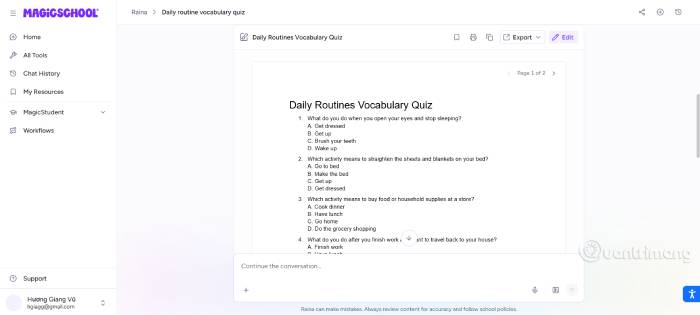
Real-world example:
You're an English teacher who needs a vocabulary quiz for 6th graders. You use MagicSchool's question builder, provide your word list, and ask for 10 multiple-choice items, 5 fill-in-the-blank questions, and answer keys with explanations.
After AI generates the content, you review word usage, grammar, difficulty level, and lesson alignment before adding it to your actual test.
- Best for: Teachers who want to generate lesson plans, exercises, questions, and assessment rubrics using education-specific tools.
- Cost: Free tier with standard limits. Plus plan adds more usage and advanced features. School and district plans have custom pricing.
- Important note: Check that materials match your actual curriculum. If using student data, stick to accounts and settings your school has approved. Follow your school's data protection policies.
Diffit – Adapt Materials by Student Level
Strengths
- Useful for differentiating materials across student ability levels.
- Reuse existing content instead of starting over.
- Export materials for editing or printing.
Limitations
- Doesn't replace your own assessment of student ability.
- Simplified content can lose nuance or important details.
- Export and resource options depend on your plan.
Every classroom has students with different reading levels and learning speeds. Diffit helps you turn one piece of content into materials matched to different student needs.
Start with a topic, text passage, PDF, link, or video transcript. The tool generates adapted reading materials, questions, and activities that you can continue to edit.
Key capabilities:
- Create learning materials from topics or existing content.
- Adjust reading difficulty levels.
- Generate questions and practice activities.
- Convert, edit, and translate materials.
- Export to PDF or office-compatible formats (depends on plan).
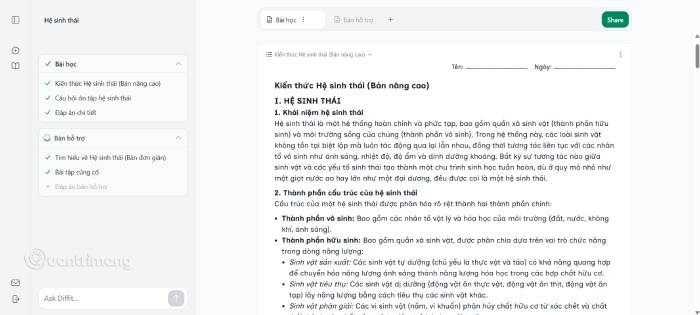
Real-world example:
You're teaching ecosystems in science to a class with mixed reading ability. You take an introductory article about ecosystems and upload it to Diffit. You request two versions: one with short sentences and simpler vocabulary for students who need support, and another with inference questions for advanced readers.
Check that scientific terms are preserved accurately, then use both versions in the same lesson.
- Best for: Teachers who need to adapt readings, exercises, and questions for students at different levels.
- Cost: Free tier with limits. Diffit for Schools offers additional features, export options, and material management; pricing based on scale.
- Important note: Verify accuracy after simplifying—key concepts shouldn't disappear. Don't upload student records or files with identifying info unless you have proper authorization.
Curipod – Interactive Lessons & Classroom Activities
Strengths
- Combines slides with interactive activities.
- Collect student feedback in real time during class.
- Great for lessons that need discussion, response, and quick checks.
Limitations
- Requires devices and reliable connectivity.
- Learning the lesson design takes practice.
- Free tier limits weekly live sessions and some advanced features.
Curipod helps you build slide-based lessons that include interactive activities. Instead of lecture-and-view, students answer open questions, take polls, create word clouds, or draw and respond.
This works well when you want more student participation, quick understanding checks, or to spark classroom discussion.
Key capabilities:
- Create lessons and slides with AI assistance.
- Add multiple-choice, open-ended, and survey questions.
- Run word cloud and drawing activities.
- Collect answers for class discussion.
- Get AI feedback on some activities.
Real-world example:
In a biology lesson about environmental issues, you start with an opening question: "What human action do you think most impacts your local environment?"
Students submit answers. You review the top responses and use them to launch the lesson. At the end of class, you add a multiple-choice question and an activity where students propose environmental solutions to check understanding.
- Best for: Teachers who want to turn presentations into activities with real student participation.
- Cost: Free tier for teachers. School and district plans include additional features; custom pricing available.
- Important note: Review AI-generated content before presenting it. If students participate directly, check how the platform handles responses and user data. Avoid asking students for unnecessary personal information.
Canva for Education – Design Slides, Graphics & Cards
Strengths
- User-friendly, no design skills needed.
- Tons of templates for lessons and school events.
- Create teaching materials, slides, and November 20th cards.
Limitations
- Some templates, assets, and AI features require paid access.
- Beautiful design doesn't guarantee accurate teaching content.
- AI-generated images or text sometimes have errors, especially with non-Latin script.
Canva is a visual design tool perfect for non-designers. With Canva for Education and built-in AI features (depending on your plan), you can create presentation slides, design graphics, build infographics, or make Teachers' Day greeting cards.
What's interesting here is the template library and visual editing. Start with a ready-made design, swap colors, images, and text to match your subject or school style.
Key capabilities:
- Design presentation slides and posters.
- Create infographics, diagrams, and worksheets.
- Use AI to help generate content or images (varies by plan).
- Make Teachers' Day greeting cards.
- Share and collaborate on designs.
Real-world example: Design a Teachers' Day card
You want to create an elegant Teachers' Day card. Use Canva to pick a template, ask AI to suggest appreciation messages and layout ideas, then adjust colors, fonts, and images to your taste.
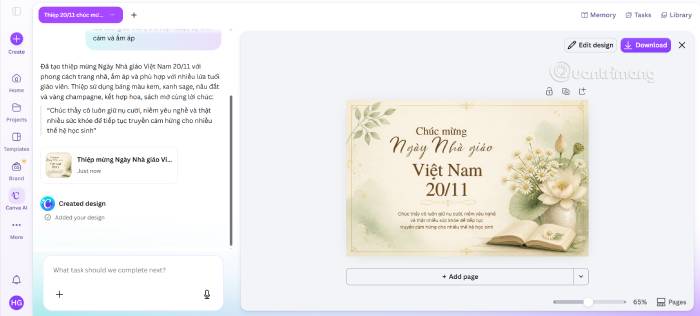
Sample prompt for message suggestions:
Write 5 Teachers' Day appreciation messages in English. Use sincere, heartfelt language. Keep each under 35 words—perfect for printing on greeting cards students give to teachers. Avoid clichés. Make each one distinct.
Pick the message that fits best, add it to your design, and carefully check spelling, punctuation, and layout before printing.
- Best for: Teachers who need polished presentations, diagrams, worksheets, and greeting cards.
- Cost: Free and paid tiers available. Canva for Education offers free access to eligible teachers under education program terms.
- Important note: Check image and font licenses. Content through Canva for Education is licensed for educational, non-commercial use—not every asset is free for commercial purposes.
Which AI Tool Should You Pick?
You don't need all five tools. Start with the task that takes the most time, then choose the right tool.
| Your Need | Try This Tool | How to Use It |
|---|---|---|
| Quick lesson planning | ChatGPT or MagicSchool AI | Provide subject, grade, objectives, and length to generate a draft |
| Create quiz questions | ChatGPT or MagicSchool AI | Request questions at different cognitive levels |
| Adapt readings by level | Diffit | Create multiple versions with varying difficulty |
| Build interactive lessons | Curipod | Combine slides with questions, polls, and response activities |
| Design slides and graphics | Canva for Education | Start with templates, customize layout and images |
| Make Teachers' Day cards | Canva + ChatGPT | Use ChatGPT for messages, Canva for card design |
Budget-friendly approach:
- Start free: Try ChatGPT free tier, MagicSchool AI, Diffit, Curipod, or Canva for Education if you qualify.
- If you write lessons constantly: Prioritize ChatGPT or MagicSchool AI.
- Mixed ability classes: Try Diffit to build differentiated materials.
- Want interactive lessons: Choose Curipod for more student engagement.
- Need visual polish: Go with Canva for Education.
How to combine tools in one lesson:
- Create content: Use ChatGPT or MagicSchool AI to draft your lesson plan, questions, and activities.
- Adapt materials: Use Diffit to create versions for different skill levels if needed.
- Design and organize: Use Canva to finish your slides, or Curipod to add interactive elements.
You don't need to follow all these steps for every lesson. Use only what genuinely saves time or improves student learning.
Why Teachers Need AI Right Now
The numbers tell a story of exhaustion
- 10+ hours weekly on work outside classroom time
- 3-5 hours weekly just on grading
- 44% of teachers consider leaving the profession within 5 years
The teacher time crisis
Teachers report that 70% of their non-teaching hours go to grading, planning, and admin work. The remaining 30% covers parent communication, professional development, and classroom management. There's almost no buffer—one unexpected issue can derail an entire week. AI tools can reclaim over 5 hours weekly, directly addressing the number-one cause of teacher burnout.
What AI Can Actually Do for Teachers
Beyond the marketing hype, AI genuinely saves teacher time.
Real time-saving applications
- Grading: AI drafts feedback; you personalize it (saves 3–5 hours/week)
- Lesson planning: AI suggests activities and assessments (saves 2–3 hours/week)
- Content creation: AI templates and generated content ready to customize (saves 1–2 hours/week)
- Email: AI drafts messages; you edit (saves 30 min/week)
Total impact
- 5–11 hours/week recovered when using AI tools strategically. That's a full workday back for yourself.
- Teaching & Assessment: Auto-generate interactive lessons and formative assessments from your content. Real-time data shows which students have mastered skills.
- Engagement & Motivation: Turn review and testing into games. Ensure 100% participation. Provide instant results and fuel healthy competition.
- Content & Materials: AI creates professional-looking visuals and converts lectures into study guides. No design skills required.
Copyright & Student Data Security When Using AI
AI speeds up work, but you must follow school policy and protect student privacy.
1. Verify content before using it
AI can invent facts, suggest weak questions, or give wrong answers. Cross-check against textbooks, academic sources, and curriculum standards before classroom use.
2. Protect student personal data
Don't enter full names, addresses, phone numbers, grades tied to identities, or personal records into AI tools without approval. If you discuss a situation, use anonymous data and share only what's essential.
3. Review each platform's data policies
Different AI tools handle data differently. Read privacy policies, education account terms, and your school's requirements before uploading anything. MagicSchool AI publishes education-specific data protections. Diffit states it doesn't collect student data. Curipod says it doesn't use teacher and student data to train its AI. Still, always check current terms and your account settings.
4. Respect copyright and licenses
Check the license for any image, font, or material from online libraries. Know the difference between educational-use rights and commercial rights.
5. Don't rely entirely on AI decisions
AI is a helper, not a replacement for teacher judgment. Decisions about grading, student feedback, or teaching method changes need professional review.
Description: Explore top AI tools that help teachers create lesson plans, design slides, build interactive lessons, and craft greeting cards faster.
Related Articles
- How to Use Copilot to Schedule Reminders and Calendar Events
- How to Edit Videos in Google Flow: A Complete Guide
- Generate Schedule Images with a Single AI Command
- Meta's New AI Can Generate Deepfakes From Your Instagram Photos—Here's How to Protect Yourself
- 10 Strategies to Future-Proof Your Career in the AI Era

No Comment to " Best AI Tools for Teachers: Lesson Plans, Presentations & Greeting Cards "