AI News

  • Loading...
Browsing Category " Troubleshooting "

How to remove "Transparent box" bugs on Windows 11


When you work on PC or playing something on Windows 11, this randomly appears. No corrupt files, no virus. Just a weird but annoying bug.

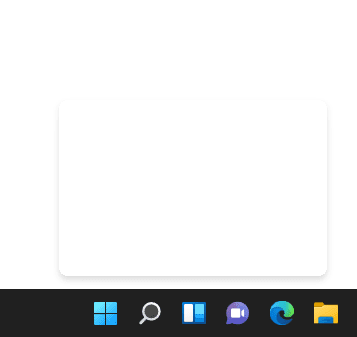
That is a transparent box opens and cannot close it. Causing this display region not to be accessible with the mouse, closing the process causes it to restart and the problem is solved.
Beside, when you move my cursor to this box it's starts showing a loading icon. 


A "Transparent box" showing above Taskbar


How to do:

And This is  a temporary solution help to you remove Transparent box on Taskbar Windows 11

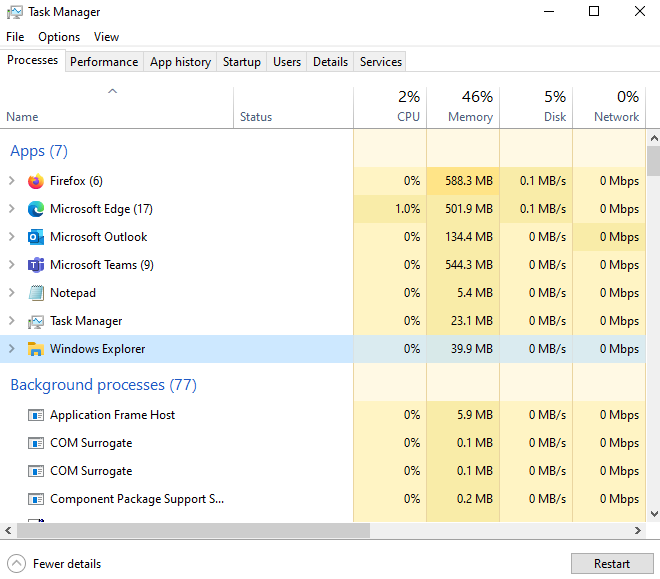
Step 1: Open Task Manager (or Windows + Shift + Esc), go to Process tab  


➤ Useful Keyboard Shortcuts for Windows 11


Step 2: Then scroll down and find Windows Explorer running.
Step 3: Please Restart it.


Restart to Windows Explorer


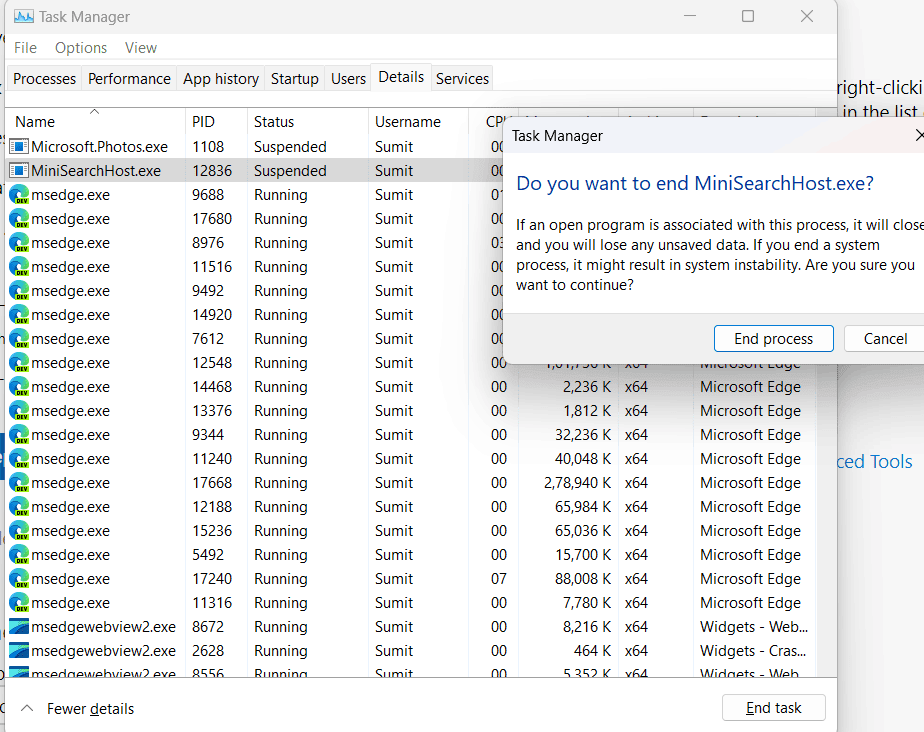
Step 4: Still on Task Manager, move to Details tab.
Step 5: Find and disbale MiniSearchHost.exe


Right click and choose End task


Finished. In addition, try reinstalling Windows 11 and update to the latest version to completely fix the above error. 

➤ KB5010414 - Outstanding improvements update on Windows 11 

Can fix Error 0x80240439 Windows Update on Windows 10?


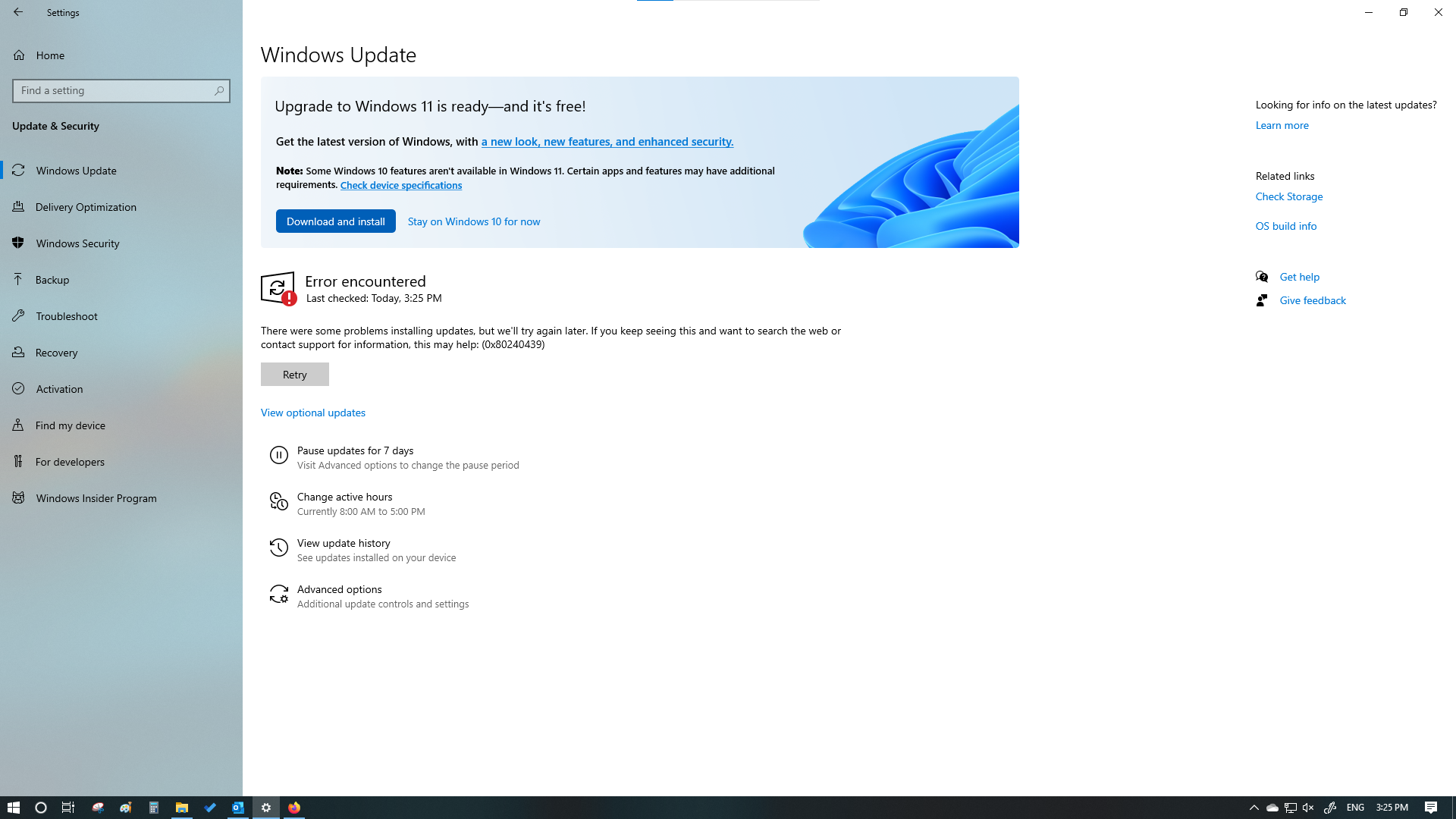
This article is for users who are really looking forward to fixing Windows Update error 0x80240439 on Windows 10. Specifically, the error is as follows:

There were some problems installing updates, but we’ll try again later. If you keep seeing this and want to search the web or contact support for information, this may help: (0x80240439).


I have tried many ways to fix error 0x80240439. However, this error cannot be fixed. The methods I have tried are as follows:

1. Stop/Start update service by Command line 

net stop wuauserv
net stop appidsvc
net stop cryptsvc

net start wuauserv
net start appidsvc
net start cryptsvc

2. Clear files & folder on folder C:\Windows\Software Distribution


3. Restart Windows Update service on services.msc


4. Using DISM on Command line


dism /online /cleanup-image /ScanHealth
dism /online /cleanup-image /CheckHealth
dism /online /cleanup-image /RestoreHealth

5. Using SFC on Command line

sfc /scannow
chkdsk /f C:

6. Run Windows Update Troubleshooter

7. Update latest version Windows by Media Creation Tool
(I updated from Windows 10 PRO version 20H2 to 21H2)


8. Reset proxy (updated 08 March 2022)

I have had success with this method on customer computer. Try resetting the proxy server settings by following the steps below: 

Step 1: Open Command Prompt (by run as Administrator)

Step 2: Type command and hit Enter: netsh winhttp reset proxy

If you have tried the methods or 1 of the above and cannot fix the error 0x80240439. I advise you not to try and waste time to fix this error anymore. Because there are many reasons causing above error. The most common ones include corrupted Windows files, incomplete installation of a Windows Update, and a broken Windows Update.

If you are someone who wants perfection (like me). I recommend that you re-install Windows 10 to the latest version to completely fix the above error. I believe, you have tried to fix the error but this is a system error or a file loss in the system. You can hardly fix it completely.

 
If you have a good and effective solution, please comment below or send it to QTitHow. Thanks for reading the article.

Fixed "Feeds" was taking more than 30 GB of RAM


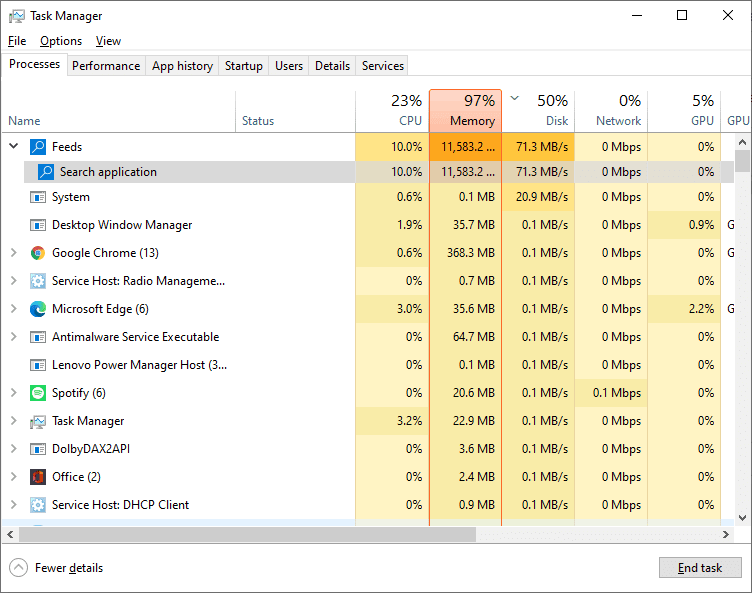
The problem has been reported by many, but not all users. This issue is: Feeds/ Search application using all of the RAM in Task Manager on Windows 10.  


➤ What is the Feeds in task manager


Specifically, the computer runs very slowly compared to normal. And when opened Task Manager to see that System, Feeds (Search application) is using CPU and Disk quite heavily and as much ram that it can to pin it to 97- 100%.


Currently, Microsoft has not found the cause or specific solution to fix the above error. A lot of users have wondered and asked for a fix (it happens a lot on Lenovo, Dell, strong configuration as well as normal machine configuration). 

Temporarily, we have a few measures below that will help you fix the above error: 


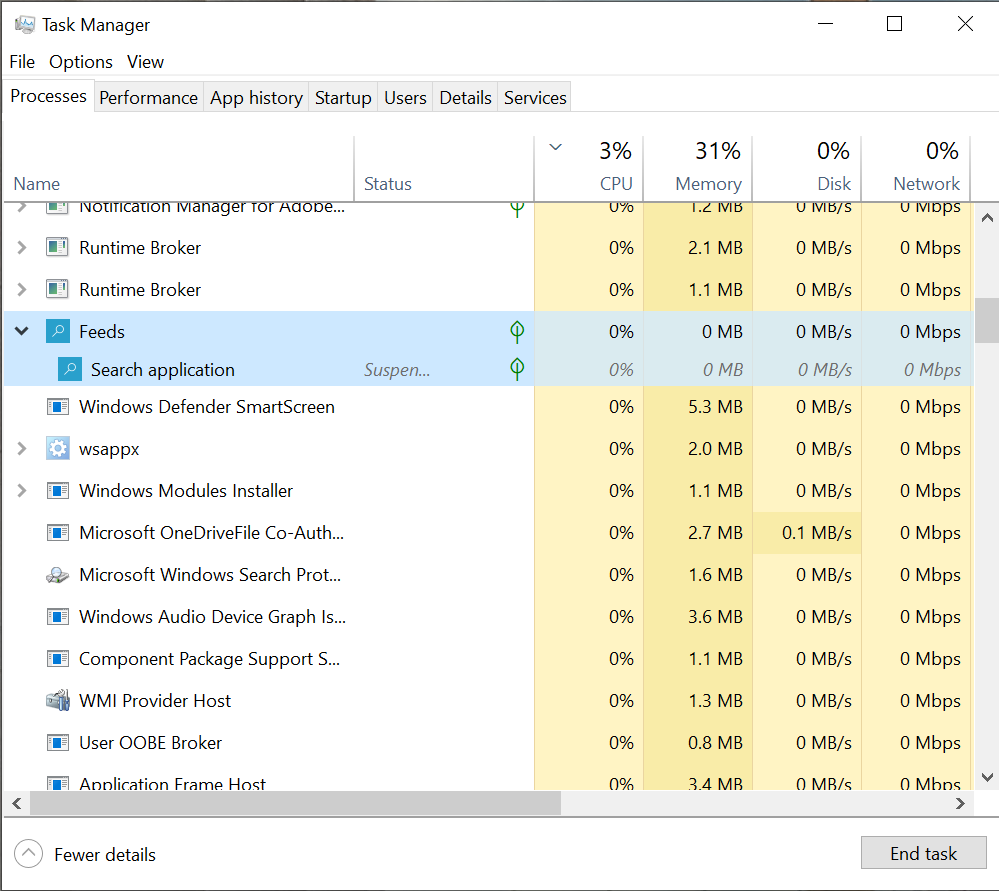
Step 1: Open Task Manager > Disable/End task to Feeds/ Search application.


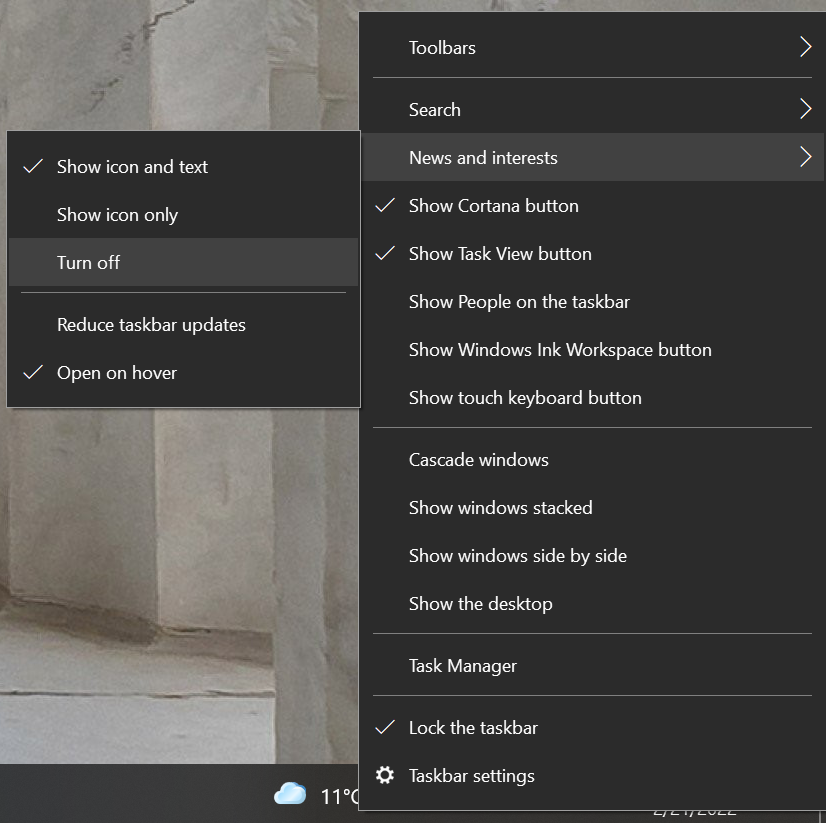
Step 2: Turn off News and Interests on taskbar.

➤  How to customize News and Interest


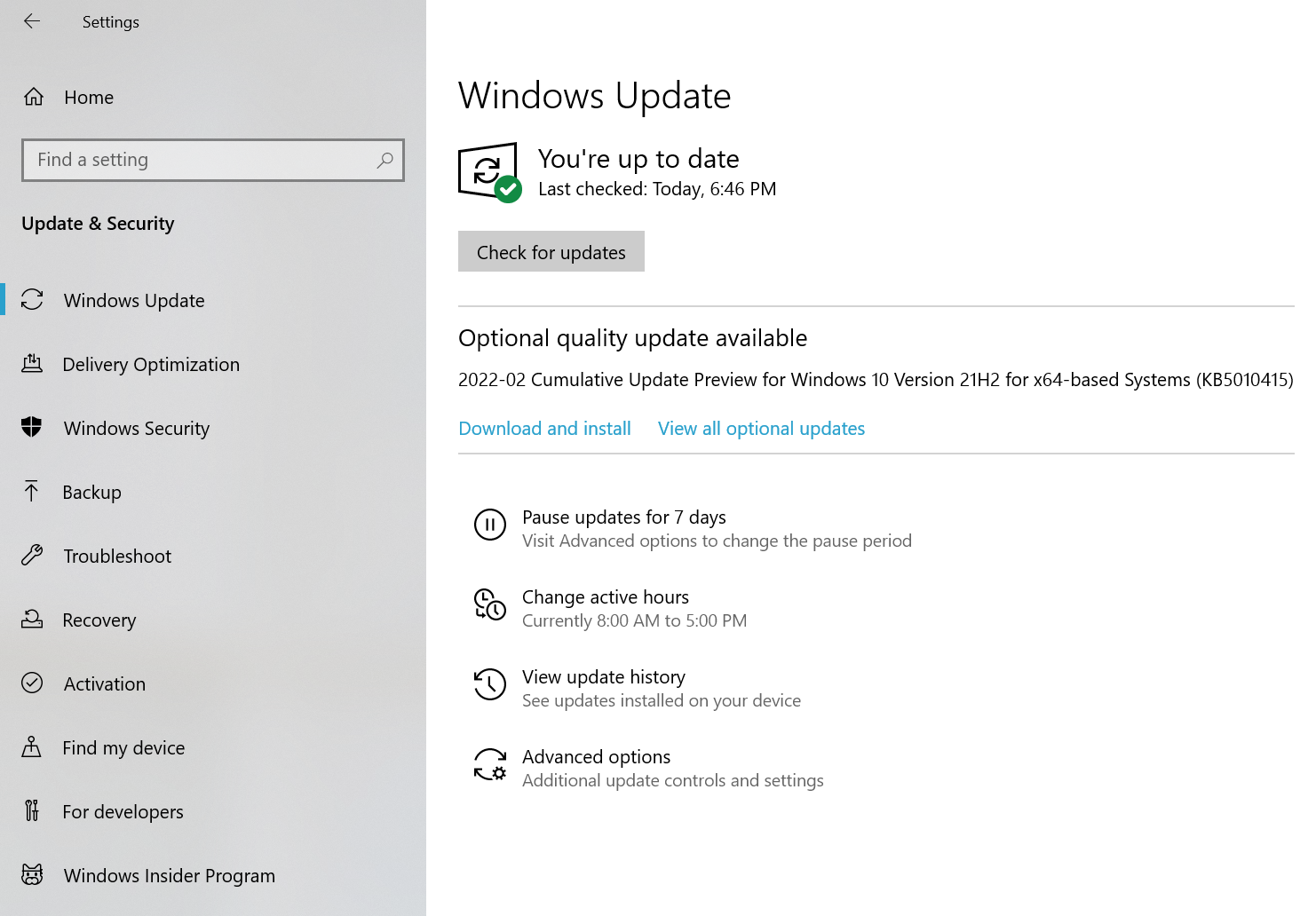
Step 3: Run & installed latest Windows Updates. At this point you should update KB5010415 Windows 10 Updates - The "C" preview updates on 15th February 2022
You can get this update by check for update on windows 10 or  download directly from Microsoft Update Catalog.


With the above 3 steps, many users were able to temporarily fix error Feeds using all ram. Please give it a try and let me know the results. If you have any problem, please comment below or send a question on QTitHow Fanpage. Alternatively, you can watch a video tutorial from QTitHow on Youtube here.


“Your Microsoft Exchange administrator has blocked the version of Outlook that you are using. Contact your administrator for assistance.”


Hi Everyone,

Users will see the following error message in Outlook: 

“Your Microsoft Exchange administrator has blocked the version of Outlook that you are using. Contact your administrator for assistance.” 


➤ Download & Install Microsoft 365 Apps by Office Deployment Tool


Outlook will now be disabled or trying to connect. You CAN NOT send and receive any email.

The reason is that you are using Microsoft 365 (email service) on Office (Outlook) 2007, 2010, 2013. Detail as below:

"After November 1, 2021, only Outlook 2013 Service Pack 1 (with latest fixes) and later will be able to connect to Microsoft 365 services. It’s worth noting here that Outlook 2007, 2010, and Office 2013 versions earlier than 15.0.4971.1000 *and Office 2016 versions earlier than 16.0.4600.1000 aren’t supported"


If you are using Office 2007, 2010 please note the following times, your Outlook will not be able to connect to Mail Exchange (Microsoft 365):

  • The block will start rolling out on November 1st 2021 for users on Outlook 2007 and will proceed in a phased rollout. 
  • The block has started rolling out for Outlook 2010 users on January 11, 2022 and will proceed in a phased rollout.


Outlook users will see the following error message in Outlook, when they experience the block that we are rolling out: “Your Microsoft Exchange administrator has blocked the version of Outlook that you are using. Contact your administrator for assistance.”

Why are we blocking old versions? 

Older versions of Outlook, such as Outlook 2007 and 2010 are incompatible with the following upcoming service changes, which is prompting this controlled block: 

  1. Support for basic authentication is ending to increase the security of Microsoft 365 by relying on modern authentication protocols, which are not only more secure, but also provide compliance and policy controls to help you manage your data. 
  2. We’re working on adding support for HTTP/2 in Microsoft 365. HTTP/2 is a full duplex protocol, which decreases latency through header compression and request multiplexing. On the service side, we’ll be able to better prioritize requests and more effectively push data to clients. 
  3. It can be a challenge to stay current, but there are many reasons why staying current is a good idea: 
  4. Security fixes will protect your devices against known vulnerabilities. 
  5. Reliability – over the last five years we’ve eliminated 75% of crashes in Outlook! 
  6. Updated versions have all the coolest new features to make your life easier!


Solution

Users can immediately start using Outlook on the web through a browser on their Windows (or any other) device. This is temporary solution.

I recommend switching to Office 365 or higher versions of Office like Office 2019 or Office 2021. 

➤ Download & Install Microsoft 365 Apps by Office Deployment Tool

➤ How to download & install Office Standard 2019


Outlook on the web

Upgrade guidance

  • For Office 2007 and 2010, use the roadmaps listed below to move to Microsoft 365 Apps. If your organization is highly regulated or uses devices that can’t take updates, consider Office 2019
  • For Office 2013, move to Version 15.0.4971.1000 of Office 2013 (Service Pack 1 with the October 2017 Update)  
  • For Office 2016, move to Version 16.0.4600.1000 of Office 2016 (With the November 2017 Update, KB4051890)
  • Office 2007 end of support roadmap 
  • Office 2010 end of support roadmap

Conclusion

Above is all information related to this error. If you or your company are using Microsoft 365 services on Office software versions 2013, 2010, 2007, please pay attention.

KB5010793 - Patch fix L2TP VPN connections


Microsoft released KB5010793 (On 17th January 2022) fixed VPN connectivity, Windows Server Domain Controllers restarting.


I/ Overview
On 17th January 2022, Microsoft released KB5010793 Windows Updates to fix security vulnerabilities and bugs for Windows 10 (OS Builds 19042.1469, 19043.1469, and 19044.1469) Out-of-band.

KB5010793 Out-of-band was released shortly after update KB5009543 was released on January 2022.
This update is primarily intended to fix bugs from update KB5009543 (Release 11th January 2022):

  • Updates a known issue that affects VPN connections. 
  • Updates a known issue that causes unexpected restarts on Windows Server domain controllers.


This is an extremely quick and urgent action from Microsoft. Perhaps the above errors have affected many users. Especially business users.
If you are having trouble with KB5009543 Windows Update, please update to this latest update soon.

II/ Known issues in this update 

1. After installing this update, when connecting to devices in an untrusted domain using Remote Desktop, connections might fail to authenticate when using smart card authentication. You might receive the prompt, "Your credentials did not work. The credentials that were used to connect to [device name] did not work. Please enter new credentials." and "The login attempt failed" in red.

Workaround: This issue is resolved using Known Issue Rollback (KIR)


III/ How to get this update 

1. Check for and install update on Windows 10
2. Download & Install KB5010793 directly from Microsoft Update Catalog.

IV/ How to remove update 

Method 1: Windows users can remove the KB5010793 updates using the Command Prompt.

>> You can see detail guide how to remove update on Windows 10 by Command Prompt

Method 2: Use Settings to remove KB5010793 update.

>> You can see detail guide how to remove windows update by Settings

Method 3: Use DISM tool to remove KB5010793 update.

>> You can see detail guide how to remove windows update by DISM Tool


V/ Information about update 

Release Date: January/17/2022 


VI/ Pay attention 

In case you can't install this update and get an error. Please uninstall updates on Windows 10.


REMINDER from Microsoft:
Windows 10, version 2004 reached end of servicing on December 14, 2021. To continue receiving security and quality updates, Microsoft recommends that you update to the latest version of Windows 10.

To update to one of the newer versions of Windows 10, please download and install as below:

Important: Use EKB KB5003791 to update to Windows 10, version 21H2.
Important: Use EKB KB5000736 to update to Windows 10, version 21H1.
Important: Use EKB KB4562830 to update to Windows 10, version 20H2.

KB5009543 Windows 10 Updates released 11th January 2022


I/ Overview
On 11th January 2022, Microsoft released KB5009543 Windows Updates to fix security vulnerabilities and bugs for Windows 10 (Version: OS Builds 19042.1466, 19043.1466, and 19044.1466).

Updates a known issue that affects Japanese Input Method Editors (IME). Text you enter might appear out of order or the text cursor might move unexpectedly in apps that use the multibyte character set (MBCS).

II/ Big problem in this update - KB5009543

1. Symptom

Updates break L2TP connections: After installing this update, IP Security (IPSEC) connections that contain a Vendor ID might fail. VPN connections using Layer 2 Tunneling Protocol (L2TP) or IP security Internet Key Exchange (IPSEC IKE) might also be affected.

When attempting to connect to a VPN device, they are shown an error stating:

"Can't connect to VPN. The L2TP connection attempt failed because the security layer encountered a processing error during initial negotiations with the remote computer,"

The bug is not affecting all VPN devices and seems only to be affecting users using the built-in Windows VPN client to make the connection.

2. Workaround
To mitigate the issue for some VPNs, you can disable Vendor ID within the server-side settings. Note Not all VPN servers have the option to disable Vendor ID from being used. We are presently investigating and will provide an update in an upcoming release.


3. Updates and patches

KB5010793 (Updated January 17 2022) - Patch fix L2TP VPN connections & issue that causes unexpected restarts on Windows Server domain controllers.

III/ Other Symptom

1. After installing this update, when connecting to devices in an untrusted domain using Remote Desktop, connections might fail to authenticate when using smart card authentication. You might receive the prompt, "Your credentials did not work. The credentials that were used to connect to [device name] did not work. Please enter new credentials." and "The login attempt failed" in red.

Workaround: This issue is resolved using Known Issue Rollback (KIR)

2. After installing this update on domain controllers (DCs), affected versions of Windows Servers might restart unexpectedly.
Workaround: Microsoft will provide an update in an upcoming release.

IV/ How to get this update

1. Check for and install update on Windows 10
2. Download & Install KB5009543 directly from Microsoft Update Catalog.

V/ How to remove update

Method 1: Windows users can remove the KB5009543 updates using the Command Prompt.

>> You can see detail guide how to remove update on Windows 10 by Command Prompt 

Method 2: Use Settings to remove KB5009543 update.

>> You can see detail guide how to remove windows update by Settings

Method 3: Use DISM tool to remove KB5010793 update.

>> You can see detail guide how to remove windows update by DISM Tool


VI/ Information about update: 

Release Date: January/11/2022


REMINDER from Microsoft:
Windows 10, version 2004 reached end of servicing on December 14, 2021. To continue receiving security and quality updates, Microsoft recommends that you update to the latest version of Windows 10.

To update to one of the newer versions of Windows 10, please download and install as below:

Important: Use EKB KB5003791 to update to Windows 10, version 21H2.
Important: Use EKB KB5000736 to update to Windows 10, version 21H1.
Important: Use EKB KB4562830 to update to Windows 10, version 20H2.

Fix bug KB5008212 makes Outlook can't search recent Emails


Since the Microsoft update KB5008212 was installed December 2021, you can not search recent emails on Outlook, right?
This is an acknowledged issue from Microsoft. Currently there is no official patch to fix the above error. Microsoft has proposed a unique method to temporarily help you to search email in Outlook as usual. See details below.

Step 1:
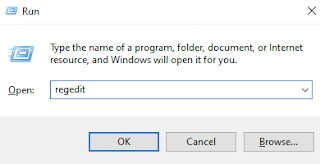
Go to Run by press Windows (hotkey) + R. Then type regedit, and then click OK. This will open the registry editor.


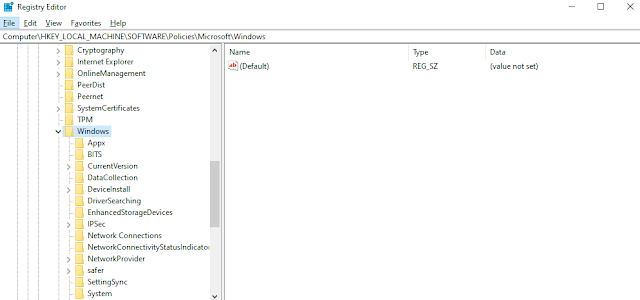
Step 2: Find this subkey in the registry and then click it:

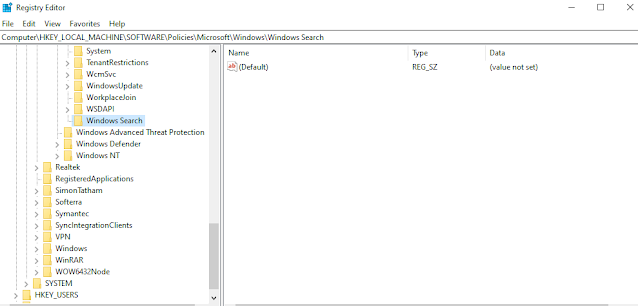
HKEY_LOCAL_MACHINE\SOFTWARE\Policies\Microsoft\Windows


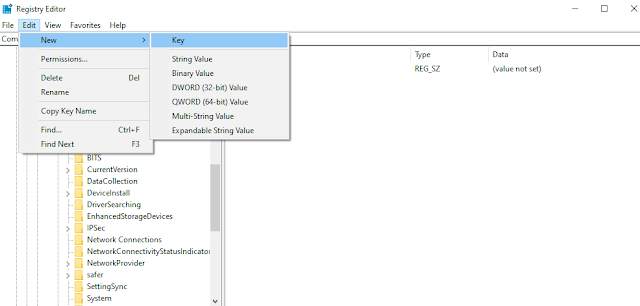
Step 3: Click Edit > New > Key and set name the new key Windows Search.


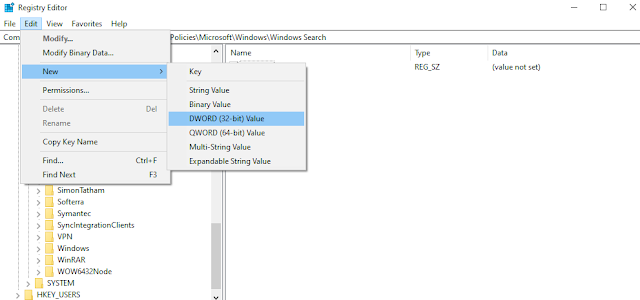
Step 4: Select the new Windows Search key. Click Edit > New > DWORD Value. Type PreventIndexingOutlook for the name of the DWORD, and then press Enter.


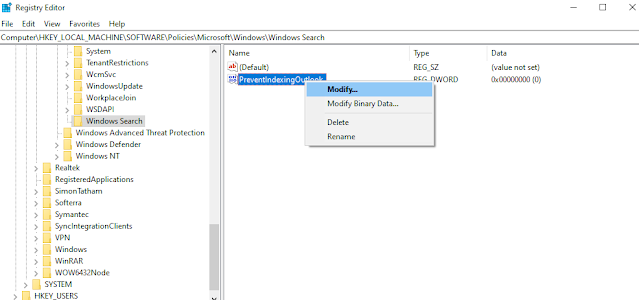
Step 5: Right-click PreventIndexingOutlook, and then click Modify. In the Value data box, type 1 to enable the registry entry, and then click OK.


Step 6: Exit Registry Editor, and then restart your computer. And search email on Outlook once again.

If the correct cause is you after installing the update KB5008212. Then surely this way will help you fix the inability to find emails on Outlook.

In case the search engine on Outlook or Windows is too completely disabled, please see the instructions in another QTitHow article. Thank you.


Unique Way to fix 0x8007000d Windows Update 10


When you trying to update for Windows 10 Version 20H1, 20H2 for x64-based Systems (KB4598242, KB4596242) You can getting error message:

"Some update files are missing or have problems. We'll try to download the update again later.
Error code: (0x8007000d)"


If you read this article of QTitHow, you will surely succeed up to 95% and not spend too much time on this problem anymore.
We only present to users only 1 solution to fix error (0x8007000d) on Windows 10. Please read and follow the instructions.

How to do:

Before implementing this solution, please do the following basic steps:
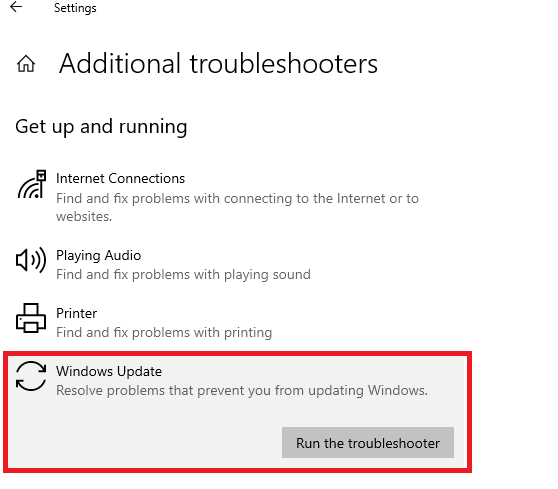
Setting > Update & Security > Troubleshoot > Additional troubleshooters > click Windows Update and click Run the troubleshooter.  

You can do as detail image as below:


And finally follow the 3 steps below to make this special solution:

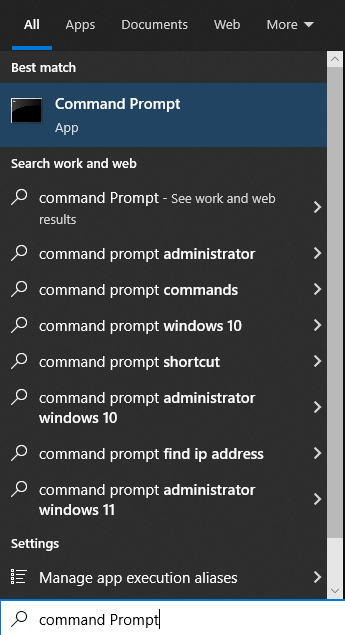
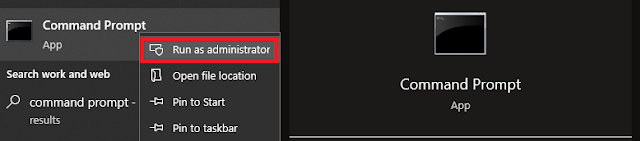
Step 1: Press Windows hotkey & type Command Prompt. Then right click choose Run as Administrator.


Step 2: Please copy & paste command line as below. And then Enter:

dism /online /remove-capability /capabilityname:Analog.Holographic.Desktop~~~~0.0.1.0


Step 3: Restart to PC. Run Windows Update to check once again.

Up to this point, this is the most effective method to fix error 0x8007000d. With just 3 steps you can fix code 0x8007000d (successfully up to 97%) this common error on Windows 10.
If have any question and idea, please comment as below. Thank you.

3 Effective Ways to fix Error 0xc1900101 when Updated Windows 10,11


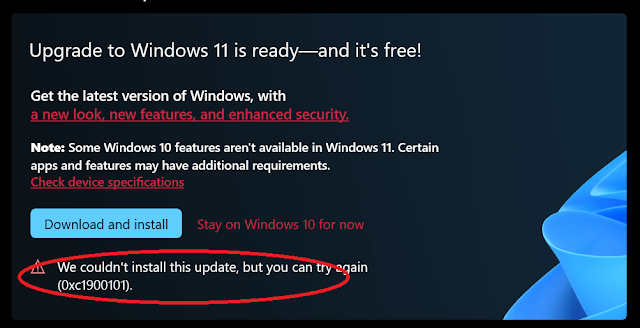
Error 0xc1900101  - This error is not only very common for Windows 10 users, but occurs when installing to Windows 11.
The error codes you may encounter are as follows:

0xC1900101 - 0x2000c
0xC1900101 - 0x20017
0xC1900101 - 0x30018
0xC1900101 - 0x3000D
0xC1900101 - 0x4000D
0xC1900101 - 0x40017


This error occurs when:

1. Trying to install the new Windows 11 update from Windows Update, but I keep getting error 0xc1900101.

The installation starts, and after a couple restarts, it says:

"Attempting to recover installation"
"Undoing changes made to your computer"
"We couldn't install Windows 11"
"We couldn't install this update, but you can try again"


And then geeted with error 0xc1900101 on Windows Update.


2. When Update Windows 10 (version 20h2, 2004...)


I have consulted many articles of authors on the internet to fix this error. However, there is no one method that is really 100% effective. But in this article, I will introduce you to the 3 most effective methods for you to try to fix this error.

Method 1: This should be called a series of methods (common on forums) for you to try your luck. Please try to follow the 5 steps below:

Step 1: Check the capacity of the hard drive (especially the system drive - C drive). Please upgrade and expand the hard drive if it is not eligible for the update
Step 2: Uninstall Third-party Antivirus programs
Step 3: Update or Re-Install Drivers (adapter networks, ethernet, display...)    
Step 4: Run SFC Scan   
Step 5: Run DISM Scan
Step 6: Update BIOS (latest version - remember that please update via official manufacture of your PC)

All the above 6 steps, I will not guide you in detail. Please refer to my articles on this website or internet.

Method 2: Applied for ASUS laptop, device

In case your computer (ASUS model) cannot upgrade or install to Windows 11. Please do the following: 

You must prevent Windows Update from automatically reinstalling the above driver, or else you will get the 0xc1900101 code again. Please see do as below:

Step 1:
Press Windows + X (hotkeys)


Step 2: Select System. Under Related settings choose Advanced system settings


Step 3:
Go to Hardware tab. In category Device Installation Settings click Device Installation Settings


Step 4: Select No (your device might not work as expected)  to prevent the automatically download of manufacturers apps...


Step 5: Delete the driver under Device manager. Restart the computer

Note that this method only applies to ASUS computers.

Method 3: Classic but effective

In case you have done all the ways but cannot fix the above error. Please apply this ancient method to fix in Windows 10 or installed Windows 11.

Step 1: Please wiped the hard drive (SSD, HDD, nNVMe) clean (removed all partitions)
Step 2: Install with a fresh copy of Windows 10 (21H1) on a USB 3.0 flash drive.
Step 3: Installed Windows 11 (by upgraded from Windows Update or use assistant software as Microsoft's guide)

With this method, I think you can achieve 97% success. Some users have to replace the hard drive to completely fix the above error 0xc1900101. This is a problem that Microsoft is gradually having to overcome and upgrade in the next upgrades. 

If you succeed at any step, how, any solution above. Please comment below.

5 Steps to Solved error 0x800f020b on Windows Update


Recently we frequently receive user questions about the 0x800f020b error message during Windows update. Specifically, the error is as follows:

"There were some problems while installing updates, but we’ll try again later. If you keep seeing this and want to search for information, this may help: (0x800f020b)"

After synthesizing the ideas and solutions, QTitHow has 0x800f020ba solution to completely overcome the above error.
Here are 5 simple steps to help you fix the error 0x800f020b.

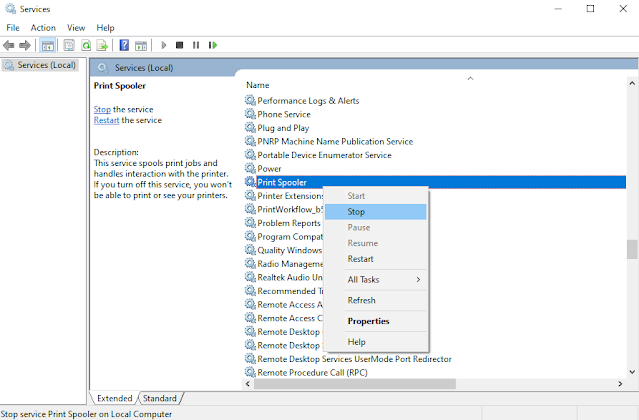
Step 1: Open Run (by Windows + R hotkey) and type services.msc, then Enter. Find and stop the Printer Spooler service.
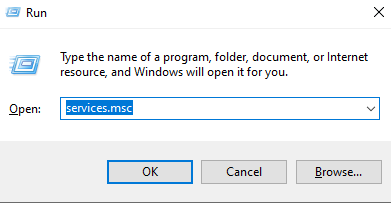


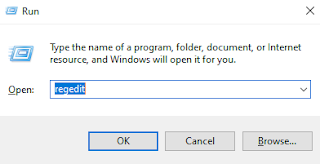
Step 2: Open Run and type Regedit and go to link as below:

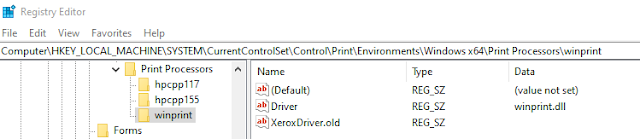
"Computer\HKEY_LOCAL_MACHINE\SYSTEM\CurrentControlSet\Control\Print\Environments\Windows x64\Print Processors\winprint"

At here, please find your printer driver there under the printer processors, rename it to .old.


Step 3: Start the Printer Spooler service (as step 1)

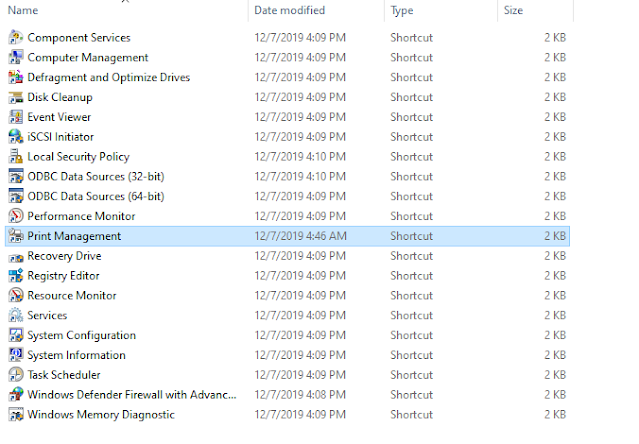
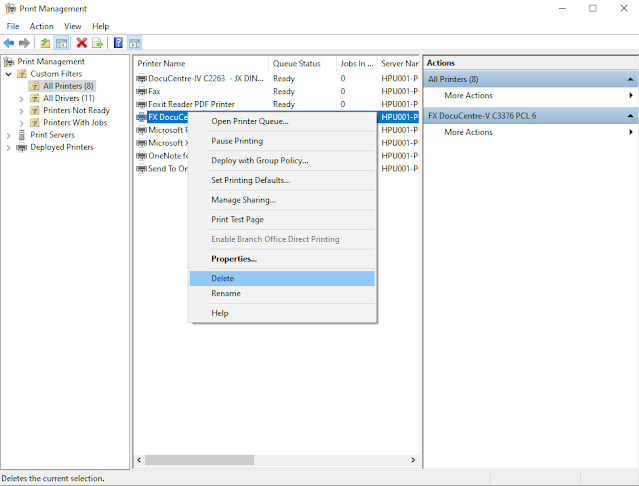
Step 4: Search to "Windows Administrative Tools" by click Windows icon (in the bottom left corner of the screen). Open Print Management.


Step 5: Double click to all drivers and delete your printer driver.


Finished, please restart and update windows again. It will work back to normal.
97% of users have success with this method to fix error code 0x800f020b, how about you. Please comment below.

Copyright © 2016 QTitHow All Rights Reserved