How to Generate AI Videos with Seedance 2.5 Using Dola AI

Seedance 2.5 delivers impressive video quality, but generating multiple versions can quickly drain your credit balance. That's where Dola Chat comes in—it offers a streamlined approach that lets you experiment with the model's video generation capabilities right within a familiar chat interface.
Want to test Seedance 2.5's video generation potential? Start with any image and transform it into an animated scene through Dola AI. In this walkthrough, we'll take a classroom photo featuring a teacher and students, then add detailed motion descriptions, facial expressions, and camera angles to help the AI craft a more natural-looking scene.
Creating Videos on Dola AI with Seedance 2.5
Step 1:
First, prepare the image you want to convert. In this example, we're using a photo of a teacher standing in front of a class. The key here is selecting high-resolution images with clear subjects and uncomplicated compositions—this makes it easier for the AI to process movement effectively.
Next, head to the website below and create an account to get started.
https://www.dola.com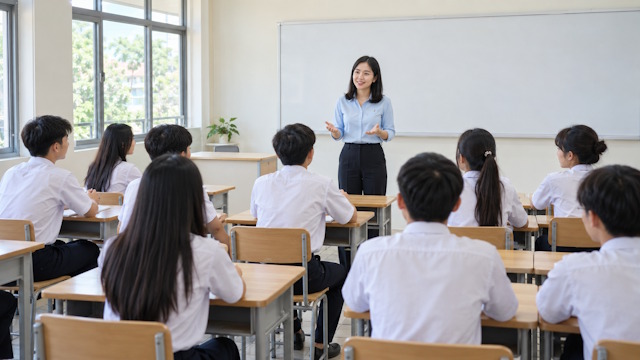
Step 2:
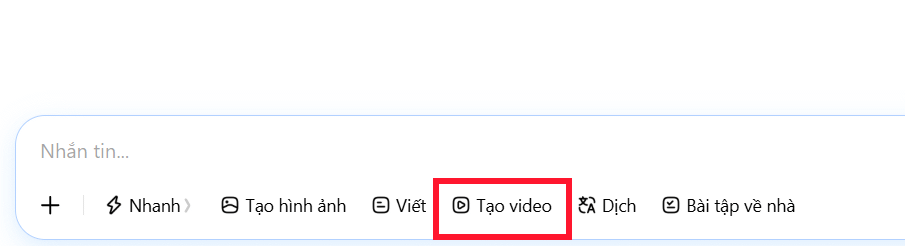
In the chat window, select the video creation mode on Dola AI.
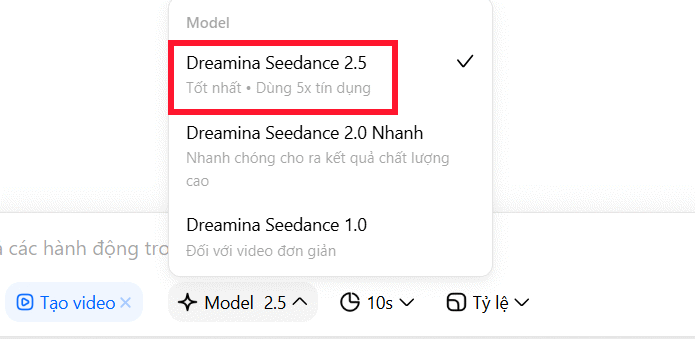
Now choose your video generation model. Keep in mind that selecting Seedance 2.5 will consume credits. Free accounts receive a starter credit allocation, which should cover one video generation.
Step 3:
Select your desired video length from the options provided.
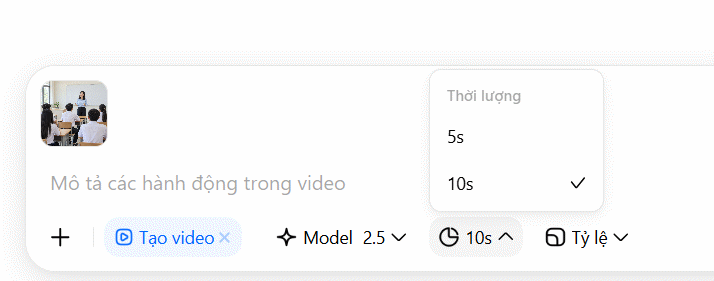
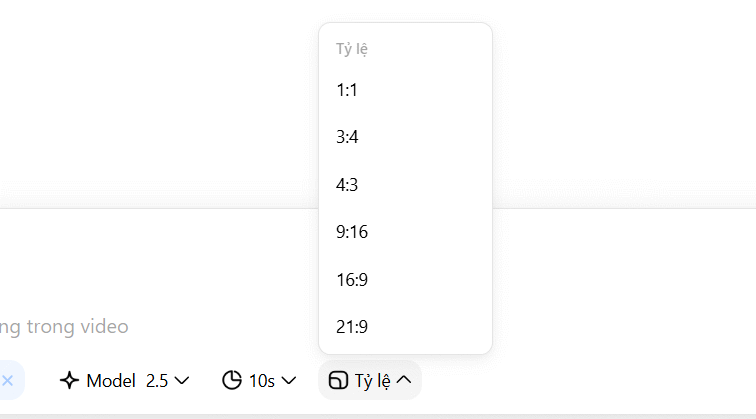
Next, choose your video aspect ratio from the available formats.
Step 4:
Upload your image to Dola AI by clicking the plus icon, then enter your video generation prompt. Here's where the magic happens—be specific about how you want characters and the camera to move.
Don't waste time re-describing the entire image. Instead, focus on the actions, expressions, interactions, and camera movements you want to see.
The teacher smiles warmly while delivering the lesson, speaking and gesturing naturally to engage the class. A student in the front row raises their hand to answer; the teacher turns to look at them and nods encouragingly. Other students smile and watch attentively. The camera slowly moves closer to the teacher, then smoothly pans to the student answering the question. Facial expressions appear natural with engaged eye contact, hand gestures look authentic, and the overall classroom atmosphere feels warm and energetic. Keep the characters' original identities, faces, and clothing from the reference image.Once your prompt is ready, review the reference image and all your video settings, then hit generate. Seedance 2.5 will now use your image and description to produce the corresponding video.
Step 5:
Wait a moment, and your AI-generated video will be ready to view on Dola AI.
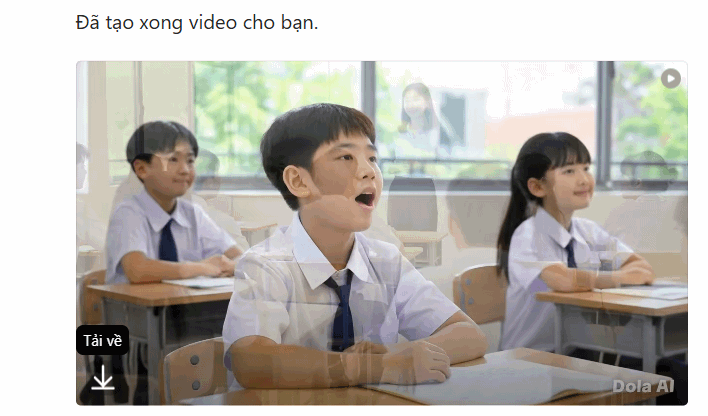
Not satisfied with the results? Refine different elements in your prompt to dial in the perfect output. For instance, if characters move too dramatically, ask for smoother, more natural motion. If the camera shifts too much, explicitly request stable framing.
One thing to note: you'll need to wait until the next day for your free account credits to refresh. Once you're happy with your video, click the Download button to save it.
Description: Master Seedance 2.5 video generation on Dola AI. Step-by-step guide to transform images into dynamic videos with detailed prompts.
Related Articles
- The 5 Best AI Recruitment Tools to Transform Your Hiring Process
- How to Change Gemini Live's Voice to Your Preferred Option
- Gemini Now Lets You Create Images by Speaking—No Typing Required
- What is Google Sheets Canvas? Turn Your Spreadsheet into an Interactive Dashboard
- 80+ ChatGPT Image Prompts: Transform Any Photo Into Any Style

No Comment to " How to Generate AI Videos with Seedance 2.5 Using Dola AI "