How to Change Gemini Live's Voice to Your Preferred Option
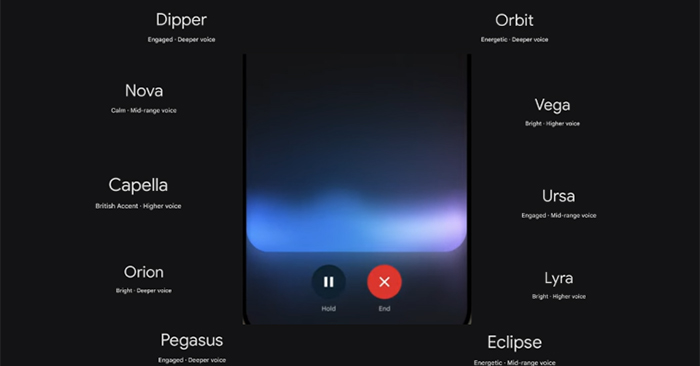
Gemini Live lets you have hands-free conversations with Google's AI assistant—no typing required. What's particularly useful is that you can generate images using voice commands on Gemini Live without having to type out traditional text prompts.
Beyond that functionality, you have complete control over which voice the assistant uses. Gemini offers multiple voice options depending on your language setting, each with its own unique tone and personality. Here's how to switch voices on your mobile device.
Changing Your Gemini Live Voice on Mobile
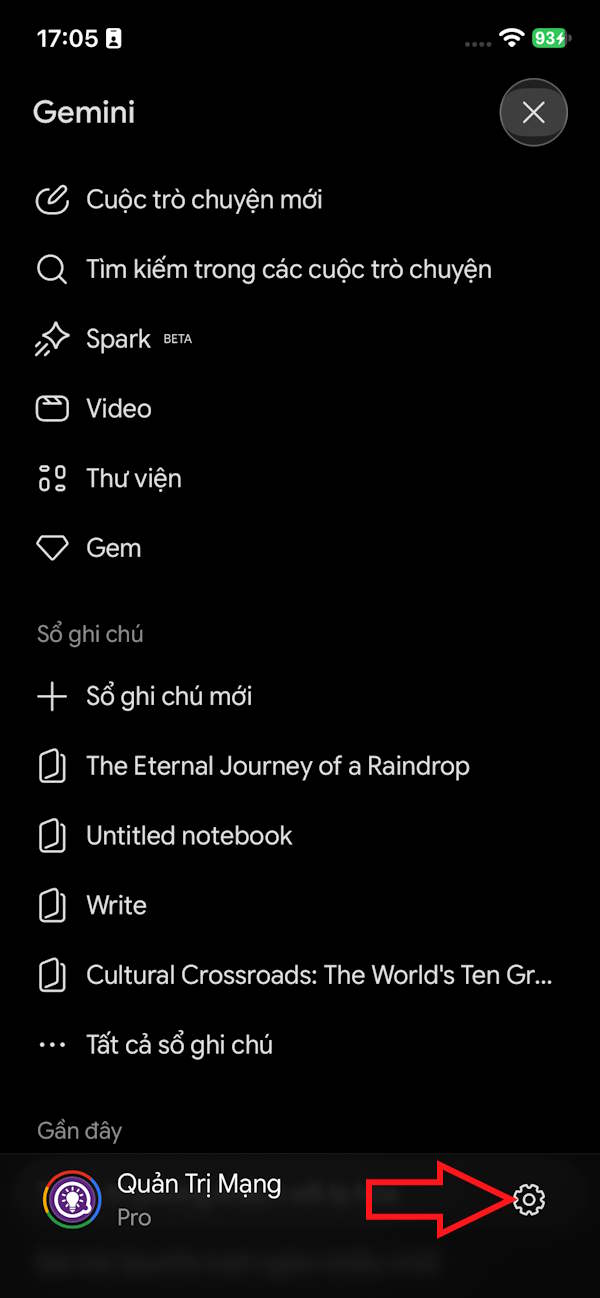
Step 1:
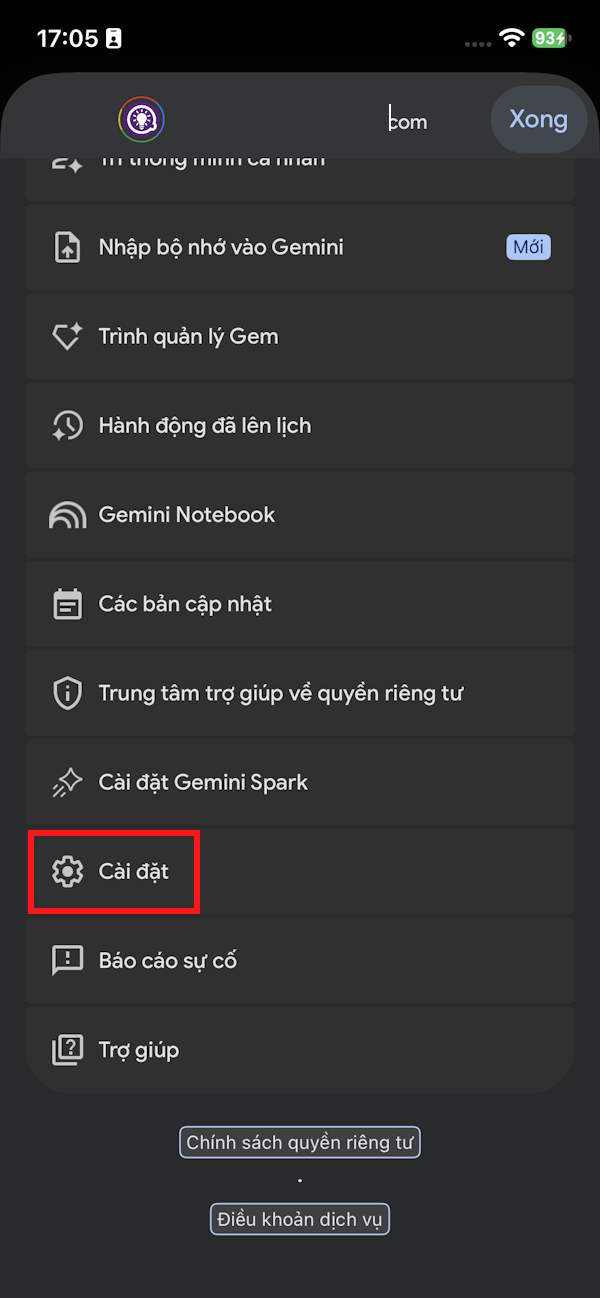
Tap the gear icon in the Gemini interface to access settings. Then select Settings from the menu below.
Step 2:
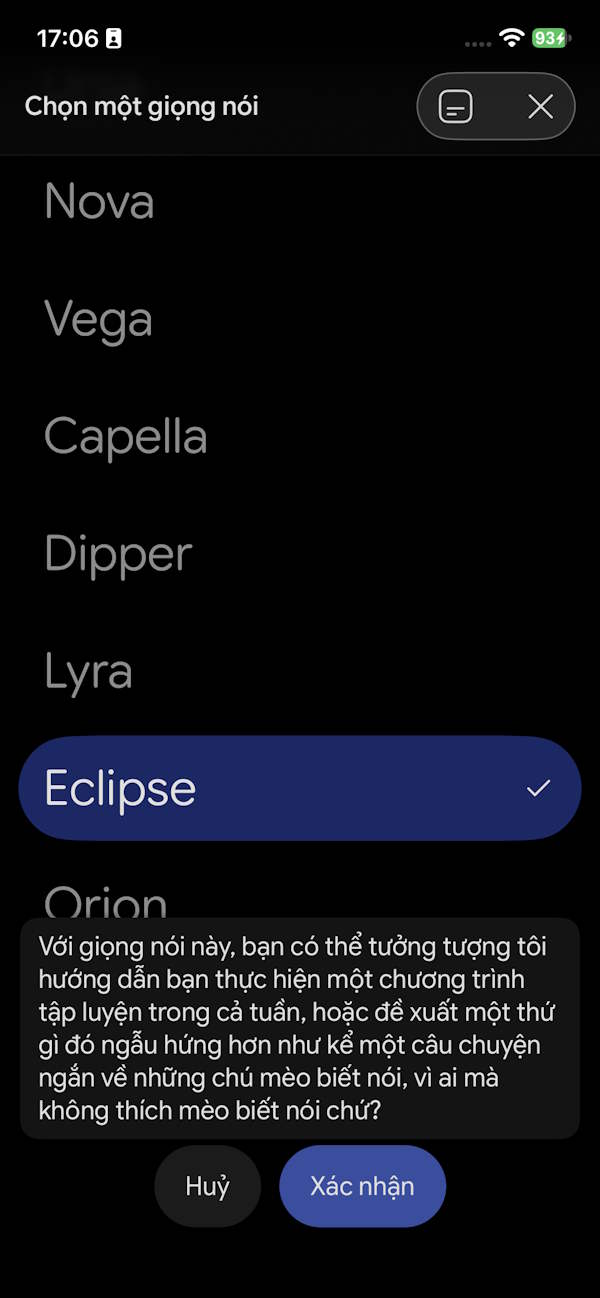
In the settings menu, tap on Gemini Voice to adjust your preferences. You'll see all the available voice options supported for your region and language.
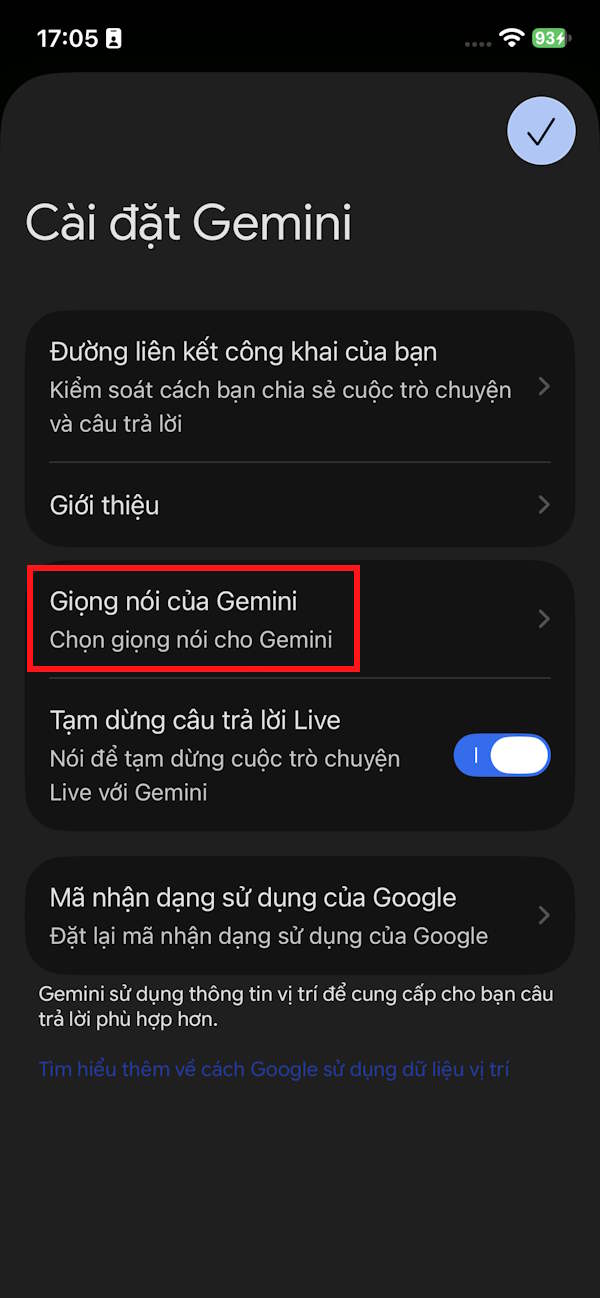
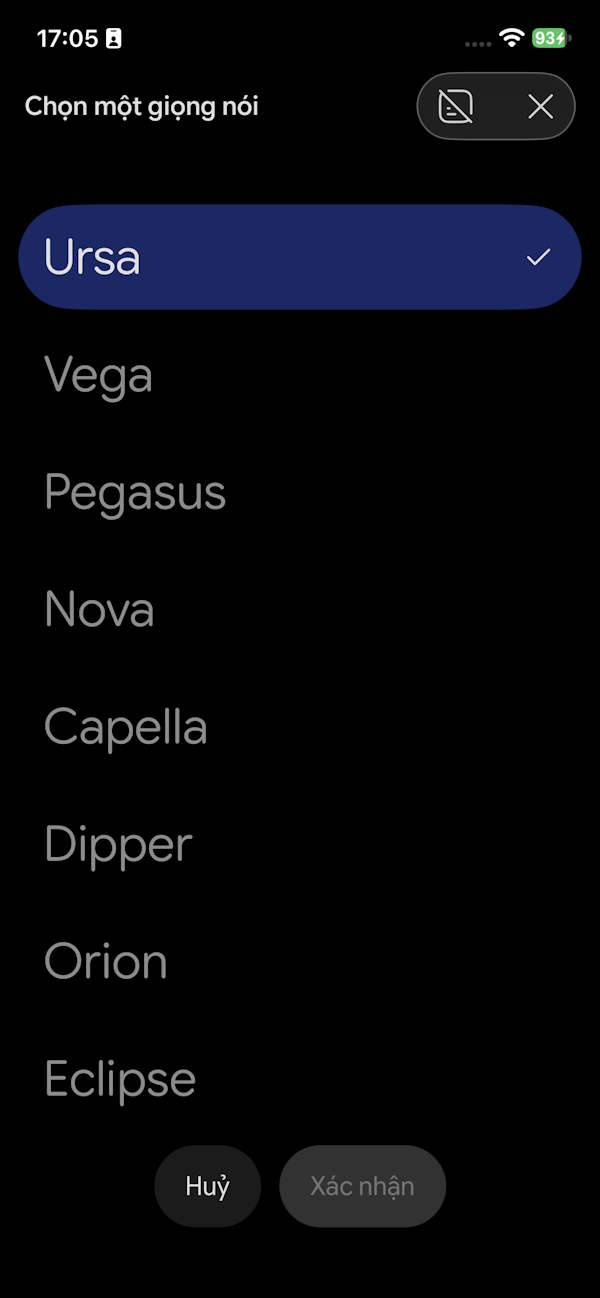
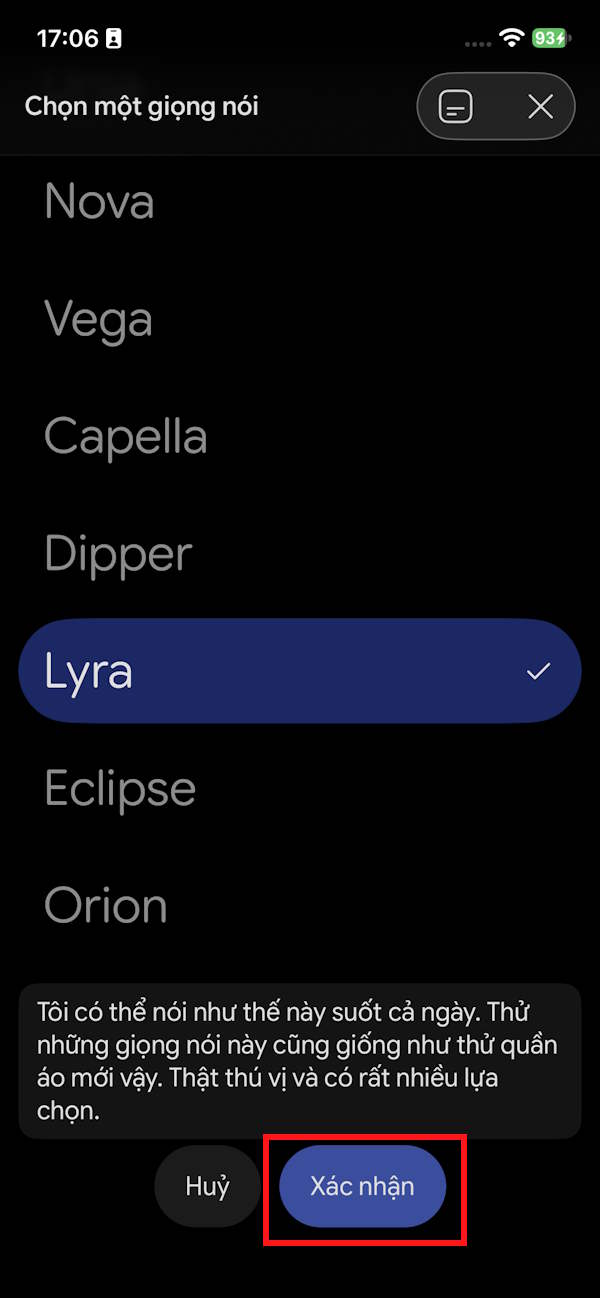
Select a voice to hear a preview, then tap Confirm to apply the new voice to Gemini Live.
Important Notes About Changing Gemini Voices
If you've opened Gemini Settings but can't find the voice change option, there are a few possible reasons. The real concern is that voice options remain limited by language and account eligibility. Google notes that voice customization isn't available for all languages, and you need to be signed into the Gemini app to access this feature.
Here's the good news: you don't need a paid subscription to change voices. Free Gemini users can switch voices too—as long as both your account and language are supported. That said, Google is rolling out Gemini Live updates gradually, so voice options may not be universal yet.
If your account and language meet the requirements but you still don't see the option, make sure your Gemini app is running the latest version from your device's app store.
Description: Learn how to switch between different voice options in Gemini Live on your phone with this step-by-step guide.
Related Articles
- Bases: Obsidian's New Plugin Finally Closes the Gap Notion Left Behind
- Master Claude Projects: Build Your Personal AI Assistant Space
- Four Missing Features That Would Make NotebookLM Even Better
- How to Enable or Disable AI Watermarks in Windows Photos
- Talk to ChatGPT Using Your Voice: A Complete Guide

No Comment to " How to Change Gemini Live's Voice to Your Preferred Option "