Getting Started with Gemini Live: Your Guide to Voice Conversations with Google's AI
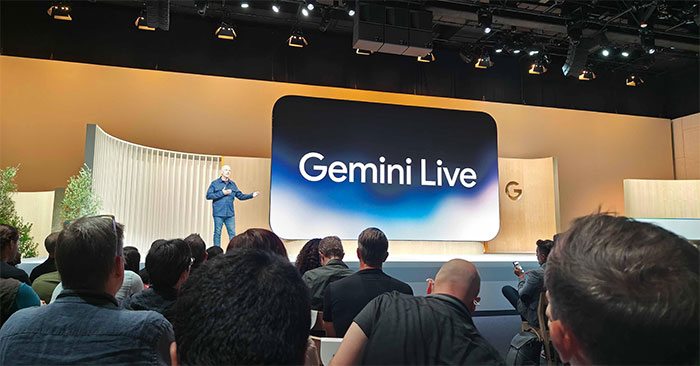
Google's Gemini Live voice mode is now available across all account types and devices, letting you have natural, hands-free conversations with AI. Instead of typing out every question, you can simply speak to Gemini—ask it to find information, create images, answer questions, and more using just your voice. What's interesting here is that Gemini Live goes beyond simple Q&A. It can view your screen in real-time, access your phone's camera to identify objects, and even maintain conversations as you switch between apps. Below, we'll walk you through everything you need to know about using Gemini Live on your phone and its standout features.
In This Guide
What is Gemini Live?
Gemini Live is Google's voice-based chat mode that lets you have real-time conversations with AI without constantly typing. Instead of manually entering queries on your keyboard, you speak naturally and get instant responses. During a Gemini Live session, you can ask the AI to brainstorm ideas, research topics, generate images, solve problems, or simply have a natural back-and-forth conversation.
This opens up countless use cases: generating creative concepts, studying difficult subjects, practicing a foreign language, preparing for job interviews, planning projects, or just getting quick voice answers to everyday questions. The experience feels less robotic and more like talking to an actual person.
How to Start a Voice Chat on Gemini Live
Step 1:
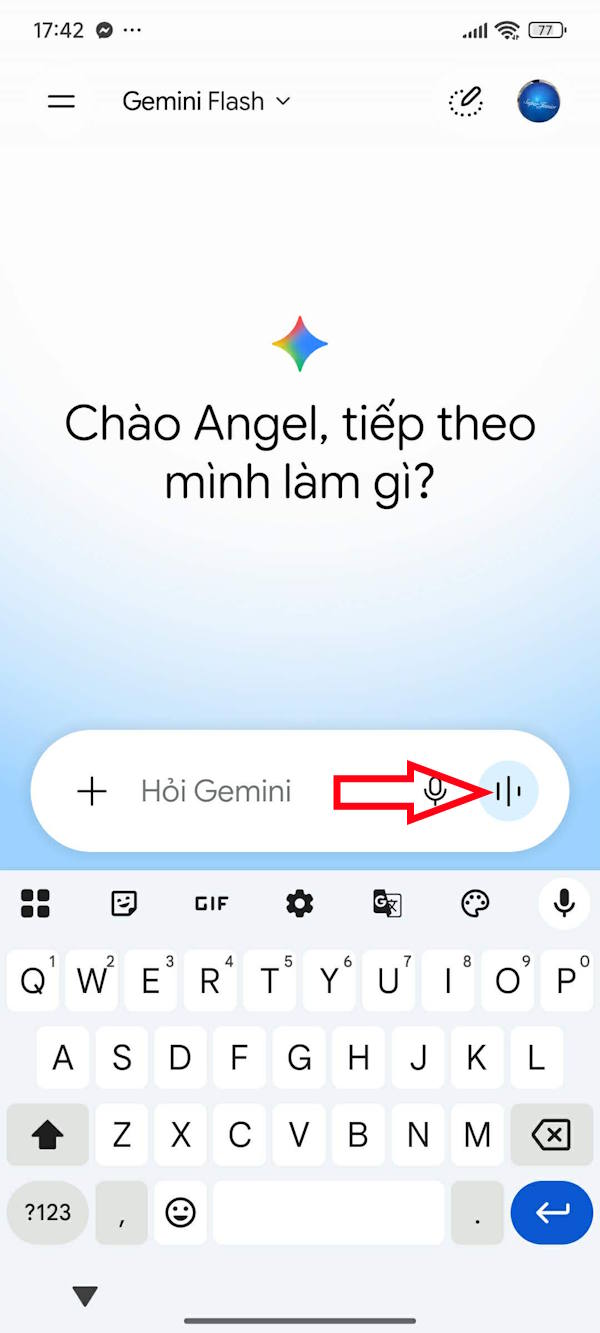
Open the Gemini app and look for the blue Live icon in the input field at the bottom. Tap it to activate Gemini Live. If this is your first time using voice chat, you'll see a permission request for microphone access—grant it to proceed.
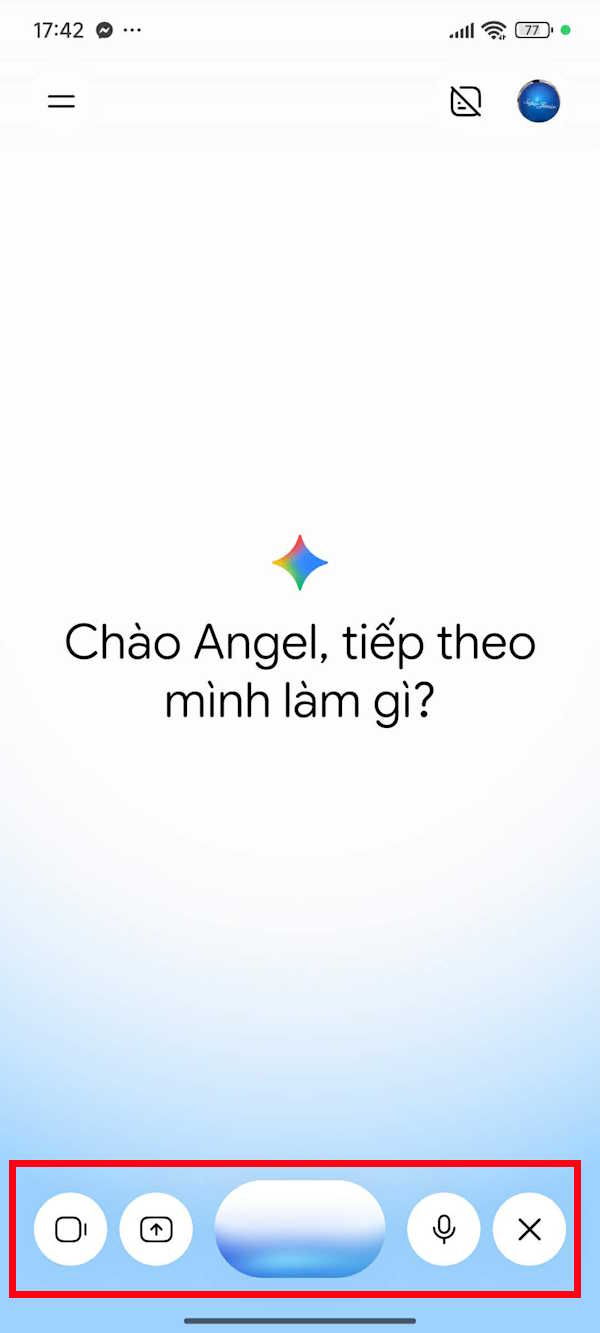
Once activated, you'll see control icons for all the main Gemini Live features below the input area.
Step 2:
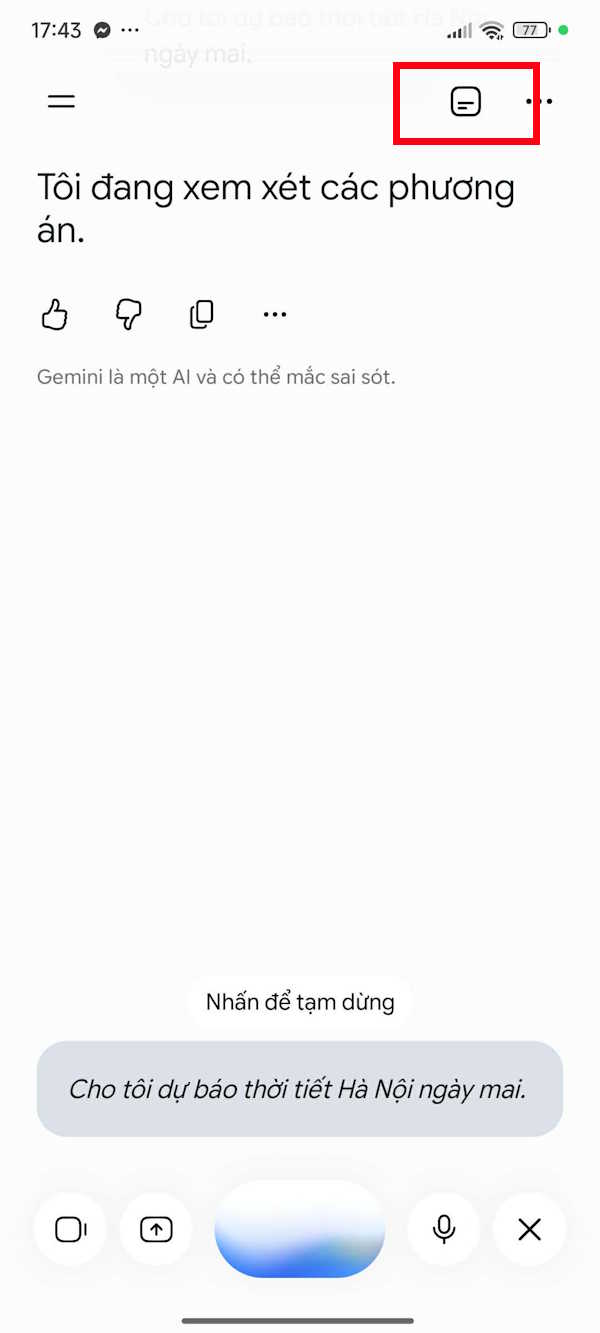
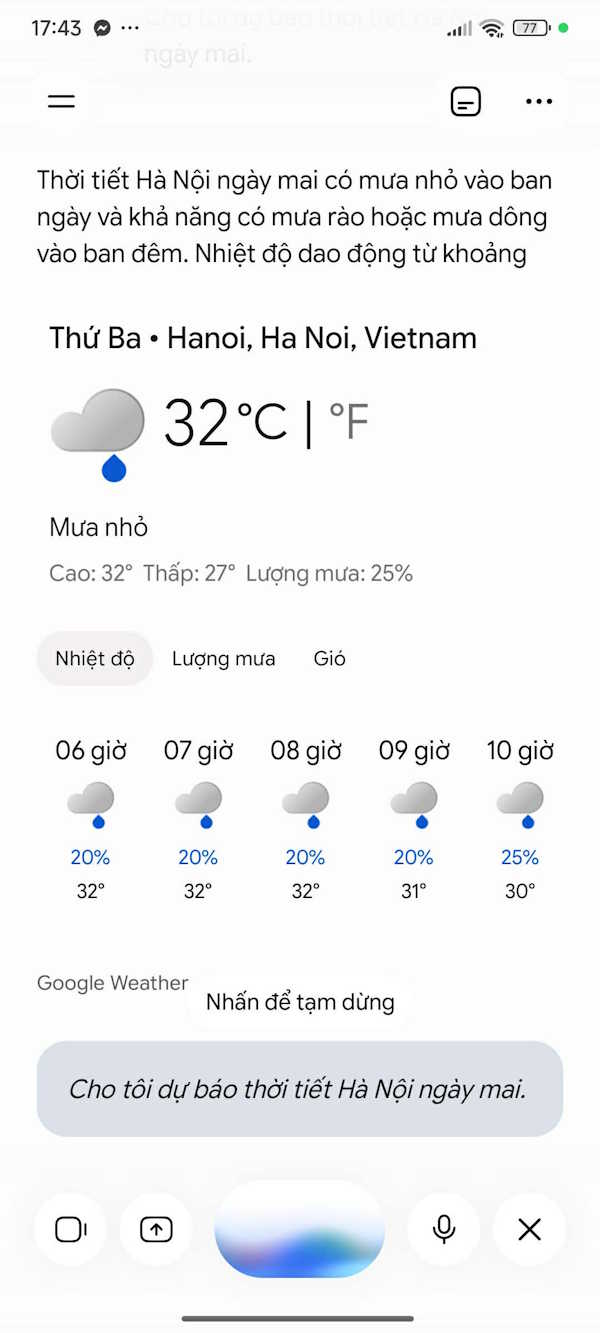
Now you're ready to start talking. Give Gemini commands, ask questions, or share ideas—and it will respond with both voice and text. During the conversation, you can pause the microphone with the pause button, or end the session entirely with the stop button. In the top-right corner, you'll find a toggle to turn captions on and off for both your voice input and Gemini's responses.
Everything Gemini says also appears in the chat transcript below, so you have a complete record of your conversation.
Step 3:
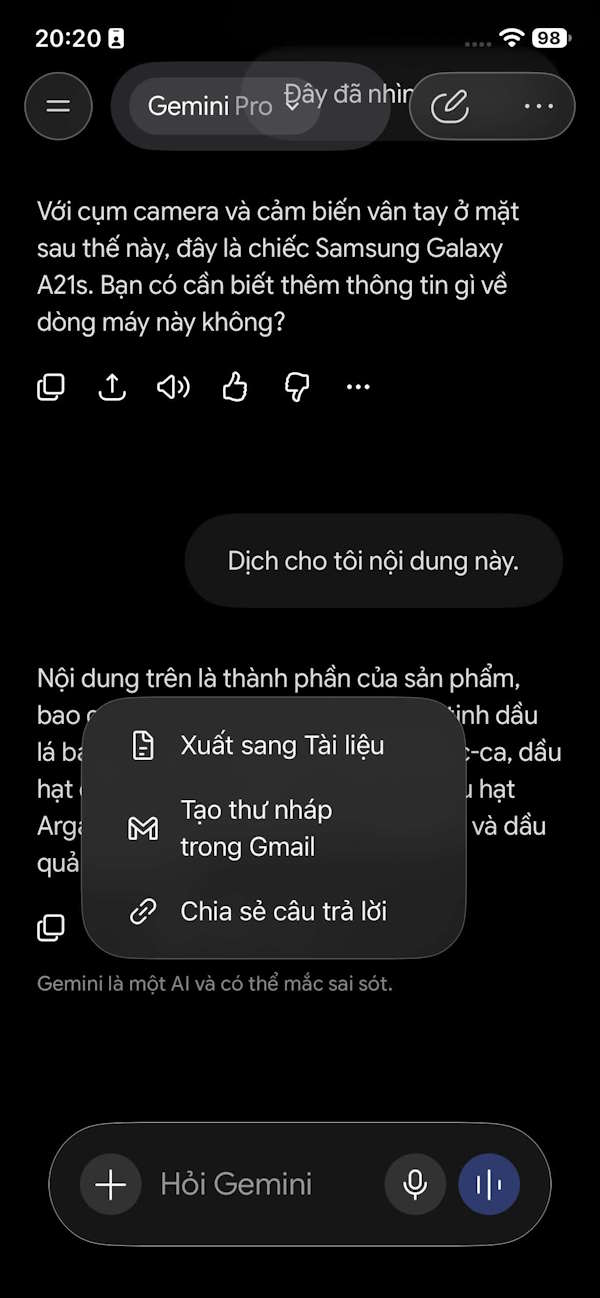
The beauty of the chat history is that you can review the entire conversation later and find specific responses you may have missed. Just like in regular Gemini chat mode, you can download Gemini Live responses for future reference.
Hit the download icon and select your preferred file format to save the content.
Screen Sharing on Gemini Live
One of Gemini Live's most powerful features is the ability to see what's displayed on your phone screen. This is incredibly useful when you need to explain a website, find a specific setting in an app, or ask questions about content you're currently reading.
To share your screen, tap the screen-share icon in the Gemini Live interface and select the option to share your full display.
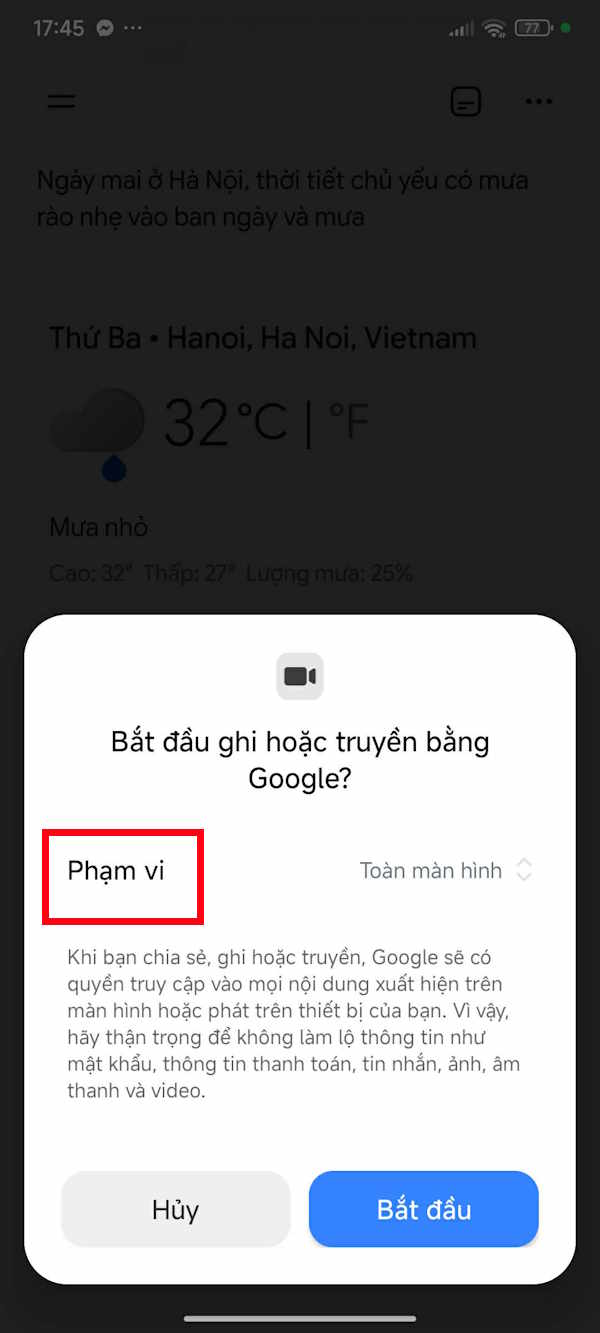
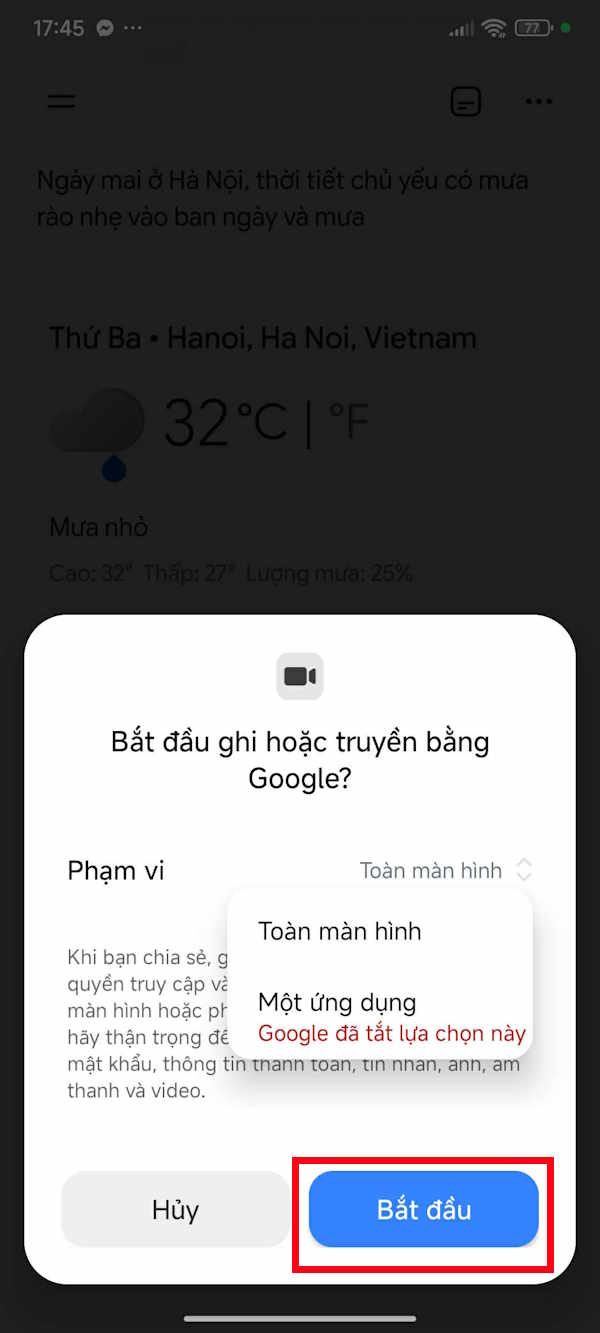
Here's the important part: your entire phone display gets shared with Gemini, not just a single app or specific area. The real concern is making sure sensitive information isn't accidentally visible. Check your screen carefully before enabling sharing to avoid exposing passwords, banking details, or personal data.
For example, you could open a webpage in your browser and ask Gemini to summarize the article for you. Gemini will analyze what it sees and respond with spoken feedback.
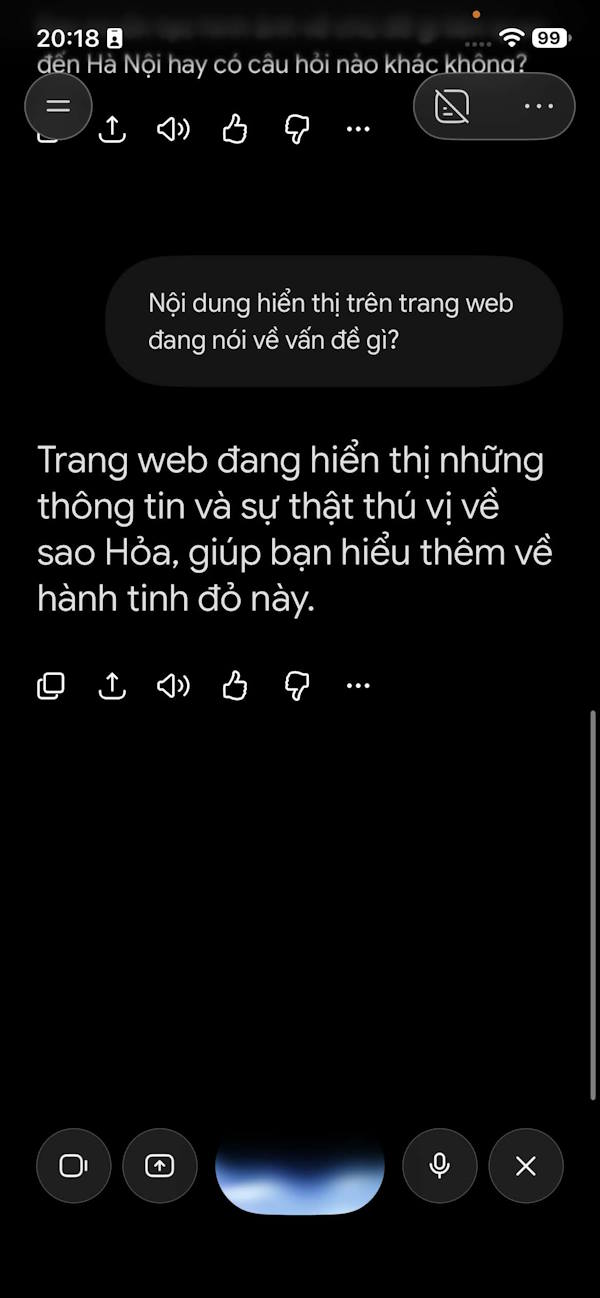
Note that screen sharing stops if you pause Gemini Live or lock your phone. If you want to resume sharing, you'll need to enable it again.
Using Your Phone's Camera with Gemini Live
During a Gemini Live conversation, tap the camera icon to let Gemini see what your phone's camera is pointing at. You can then move the camera around while asking questions about objects in view, and Gemini will identify and discuss them in real-time.
For instance, point your camera at the back of your phone and ask Gemini to identify the model and specs. If Gemini needs a better angle, it will ask you to adjust the camera position.
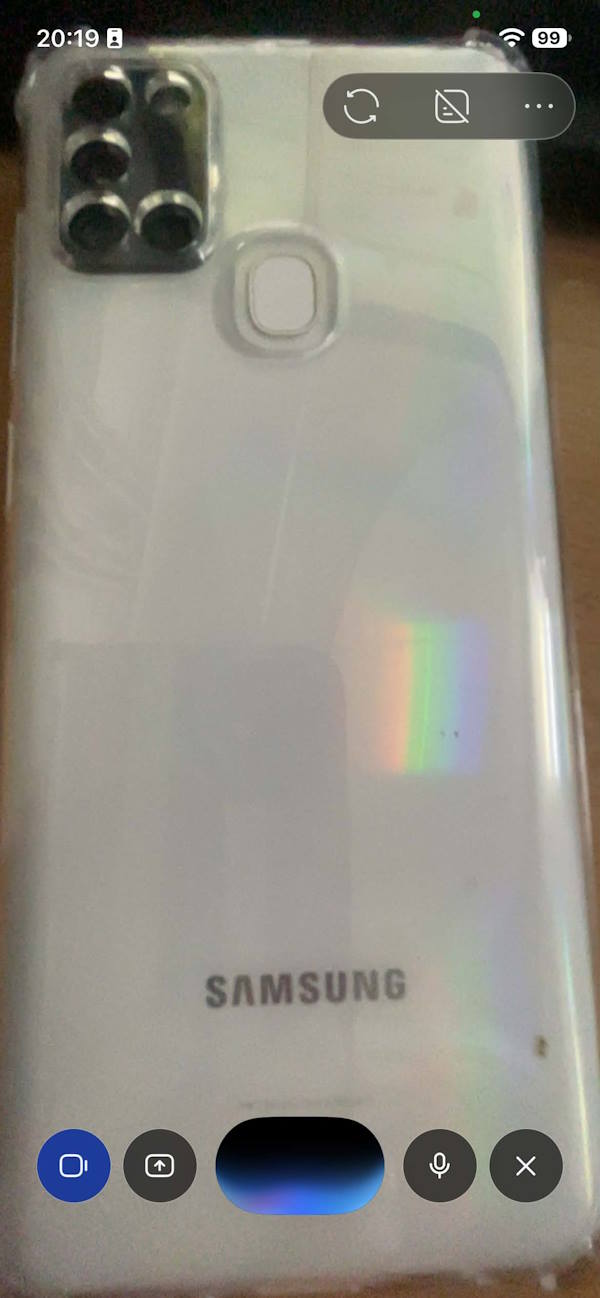
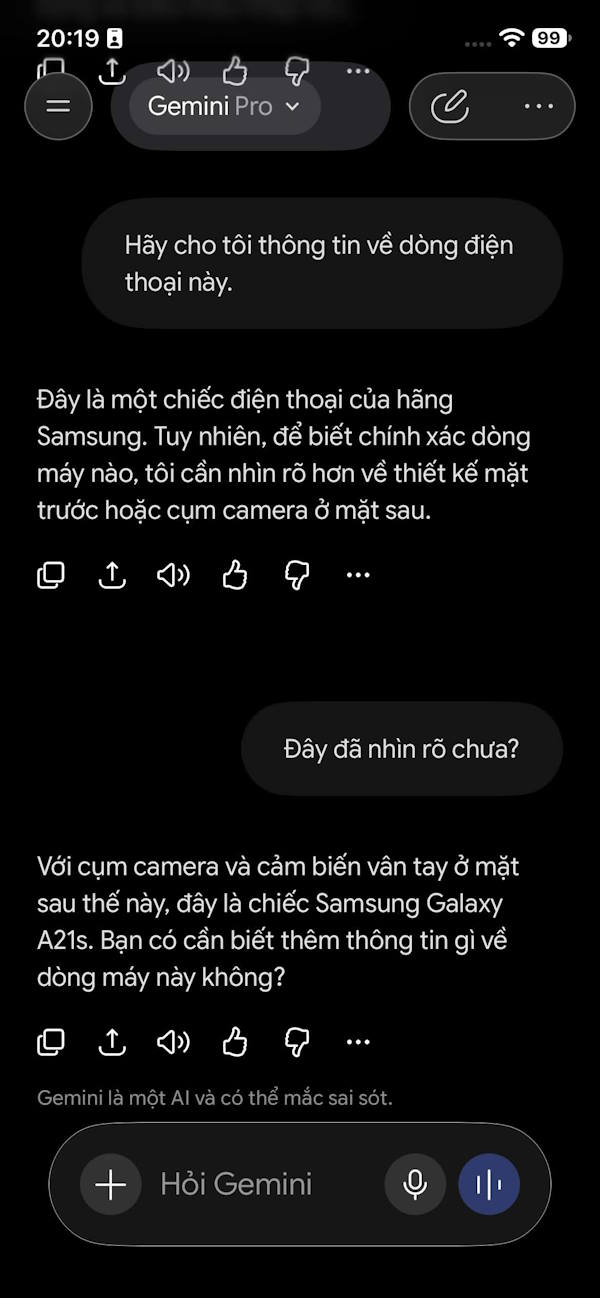
Captions appear directly on your screen alongside Gemini's spoken response, so you get both audio and text feedback simultaneously.
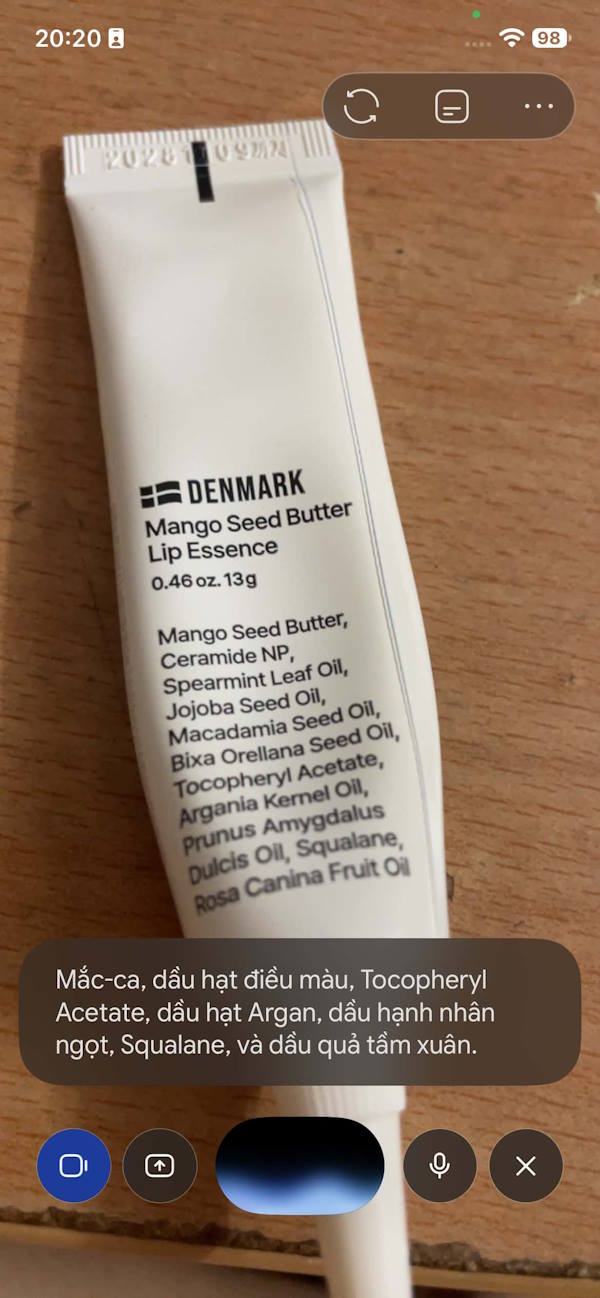
You can also switch between front and rear cameras as needed. The camera automatically shuts off in certain situations—like when you exit the Gemini app or lock your phone screen.
Connected Apps on Gemini Live
Gemini Live now supports several integrated apps and services that extend its functionality. Depending on your account, device, and region, you may have access to Google Calendar, Google Keep, Google Tasks, Google Home, Google Maps, Spotify, YouTube, YouTube Music, and various Samsung and Android apps.
For example, you can ask Gemini to find a song based on your mood or preference, and it can open that song directly in YouTube Music—all through voice commands.
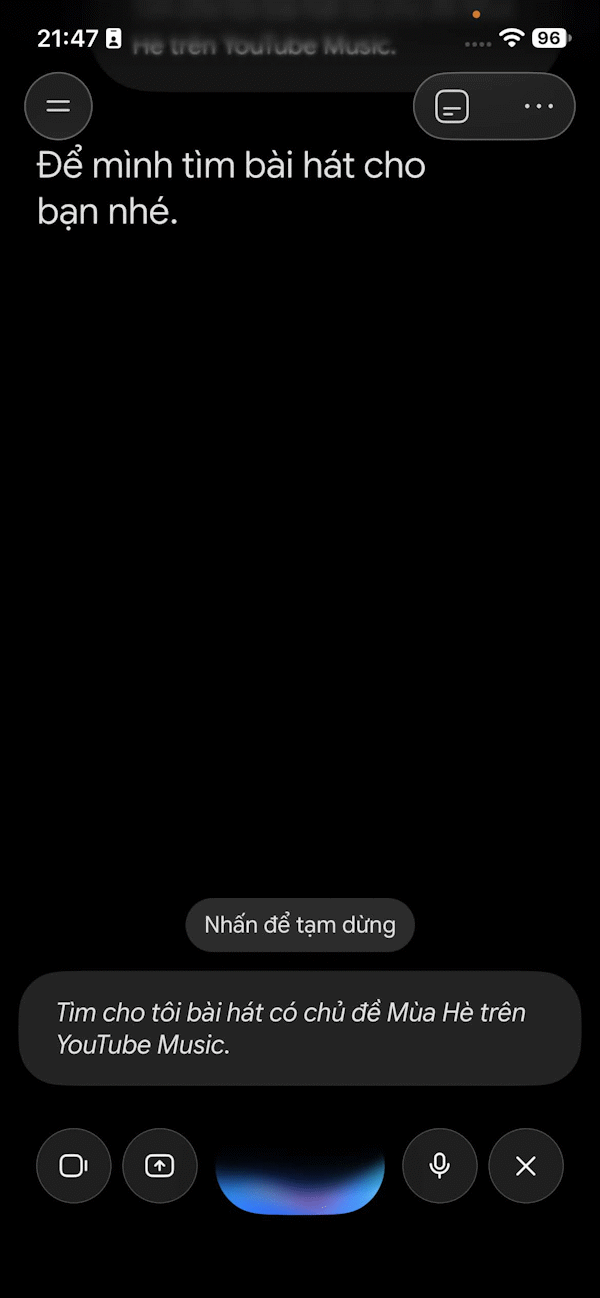
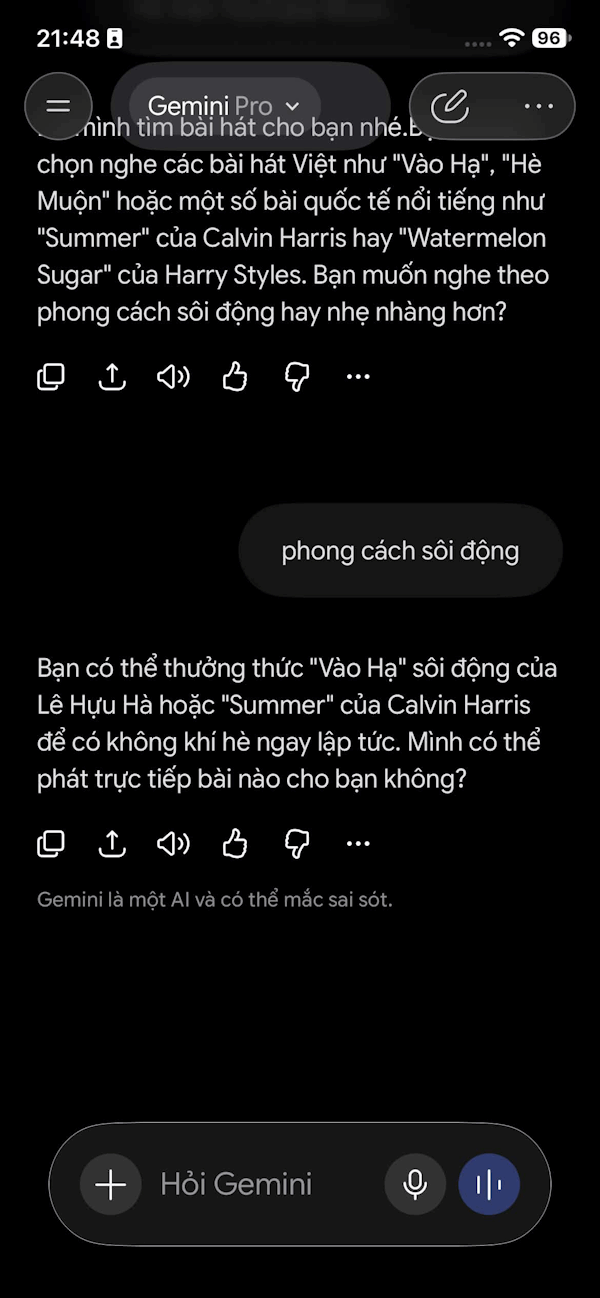
To manage your connected apps on Gemini Live, check out the dedicated guide on app management. Note that Google is rolling out connected apps gradually, so not all accounts have access to the full feature set yet.
Creating Images by Voice on Gemini Live
This is a newer feature available to Gemini Pro subscribers—the ability to generate and edit images using voice commands alone. No need to type out detailed prompts. Gemini Live listens to your spoken request, creates the image, and displays it on your screen and in the chat so you can save it whenever you're ready.
For a detailed walkthrough, see the full guide on generating images by voice with Gemini
Important Privacy Considerations
Gemini Live requires microphone access, and depending on which features you use, it may also access your camera or screen content. Be mindful about what information you're sharing with the AI.
Before turning on screen sharing, make sure you close any apps or windows displaying passwords, OTP codes, banking information, or other sensitive personal data. Google has confirmed that screen sharing sends your entire display to Gemini—not just a portion of it.
Similarly, if you're using the camera or recording conversations with other people present, respect their privacy by asking permission before involving them in a Gemini Live session.
Description: Master Gemini Live's voice chat features, screen sharing, camera control, and image generation. A complete walkthrough for mobile users.
Related Articles
- The Best AI Programming Tools You Should Know About in 2024
- Best Tools for Running LLM Models on Your Personal Computer
- Copilot Studio Now Lets You Connect Bing Custom Search as an Agent Knowledge Source
- Why Claude Cowork Is Being Hailed as 2026's Biggest AI Breakthrough
- Create Seamless Repeating Patterns with PatternedAI in Canva

No Comment to " Getting Started with Gemini Live: Your Guide to Voice Conversations with Google's AI "