AI News

  • Loading...
Browsing Category " Tech News "

Let AI Extract the Key Questions From Your Long Documents

Let AI Extract the Key Questions From Your Long Documents

Long documents packed with information make it surprisingly hard to figure out what actually matters for studying. Instead of rereading everything multiple times, try uploading your material to an AI tool and let it pull out the critical questions you need to master. What's interesting here is that this approach forces your brain to organize knowledge differently—you're learning through key questions rather than passive reading. It also helps you spot gaps in your understanding and self-test your knowledge way faster. Here's how to generate essential study questions using AI.

How to Study Documents Through Key Questions

Step 1:

Start by uploading your document to Gemini Notebook (NotebookLM), ChatGPT, or Gemini.
Upload document to AI tool

Then paste the prompt below to generate key questions. This extracts core content and helps you grasp material faster by summarizing main ideas through AI-generated questions.

You are an expert in content analysis and question design.

Read through my entire document carefully and identify [NUMBER] of the most critical questions that readers must answer to fully understand and grasp the core content of this material.

Input information:

Topic: [TOPIC]
Target audience: [AUDIENCE]
Purpose: [LEARNING / REVIEW / RESEARCH / APPLICATION / SUMMARY]
Areas to explore deeper: [IF ANY]

Required principles:

Use only information from the provided document.
Do not add external assumptions or information beyond the source.
Avoid creating duplicate questions.
If the document lacks sufficient information to answer a question, state this clearly.

Question categories to prioritize:

Core concepts, key information, or foundational principles.
Major content points, arguments, or important details.
Connections and relationships between different concepts.
How to apply, implement, or use the information.
Analysis, explanation, and deep understanding of the material.

Distribute questions based on actual content and purpose—each category doesn't need equal representation.

For each question, provide:

The question itself
Why this question matters
Content needed to answer it
Brief answer based on the document
Relevant section, chapter, page, or reference

Finally:

Rank questions from most to least important.
Flag questions requiring deepest analysis.
Prioritize questions with practical value that help readers truly understand the material.

Note for Educators

If you're using this prompt for teaching purposes, adjust the Role, Target Audience, and Purpose fields to match your specific class level and learning objectives. You can also add cognitive level requirements to ensure questions align with your students' abilities.

1. AI's Role

You are an expert educator and assessment question designer focused on evaluating student comprehension.

2. Target Audience Section

Student level: [CLASS/LEVEL]

Example: Student level: Grade 7

3. Purpose Section

For educators, use:

Purpose: [REVIEW / ASSESSMENT / KNOWLEDGE REINFORCEMENT / CLASS DISCUSSION]

4. Question Criteria Section

You can add:

Student ability to apply knowledge to exercises or real-world scenarios appropriate for their level.

And include:

Ensure questions match student cognitive level and lesson objectives.

Step 2:

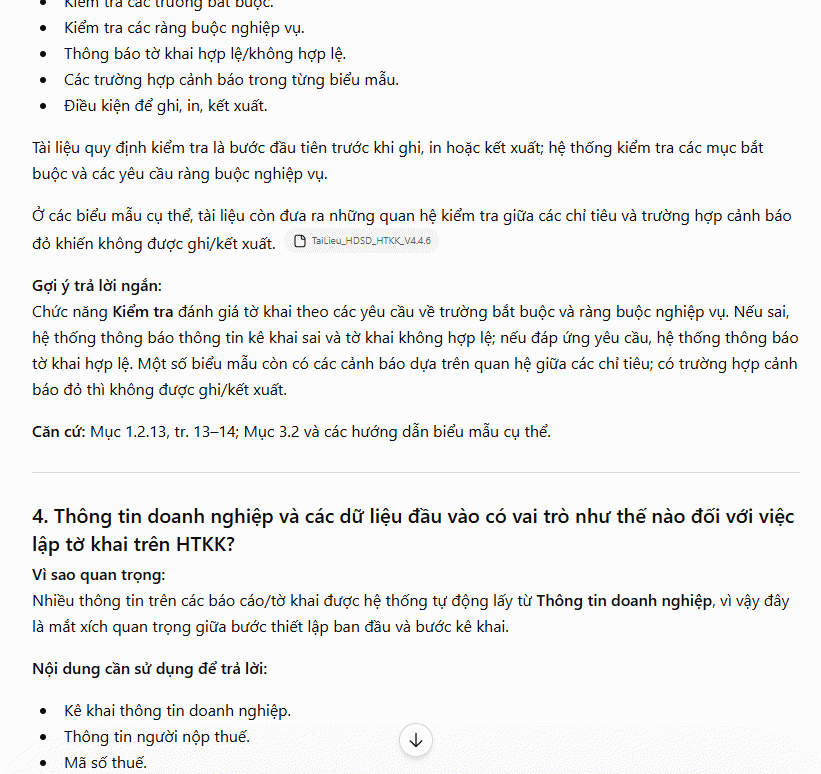
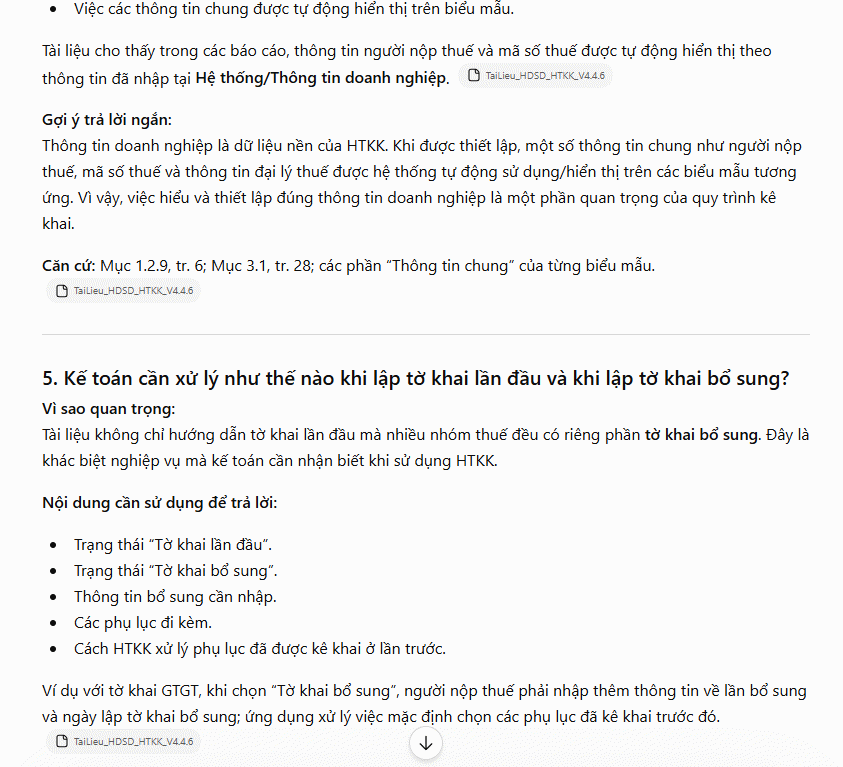
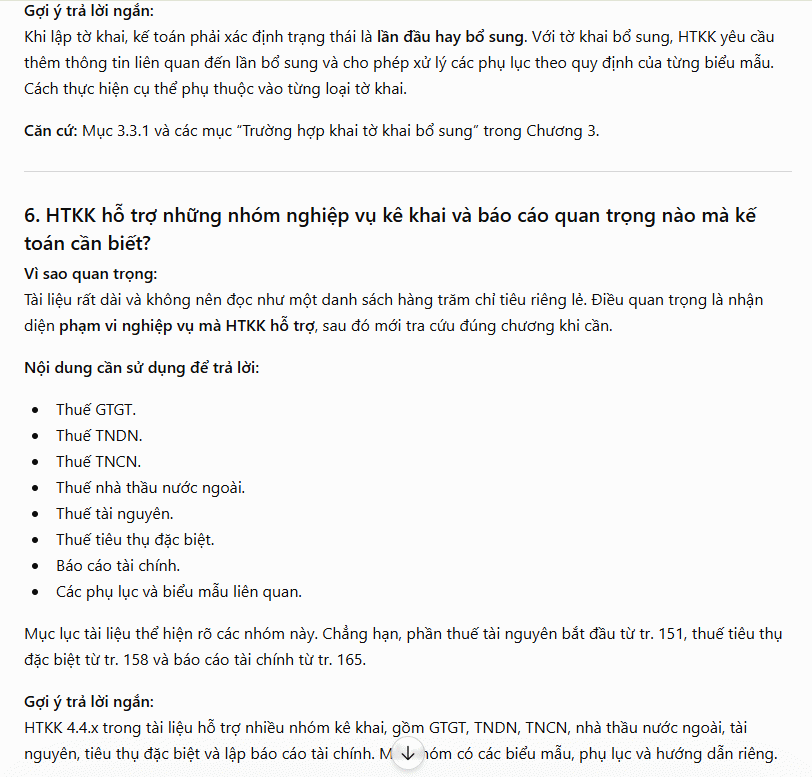
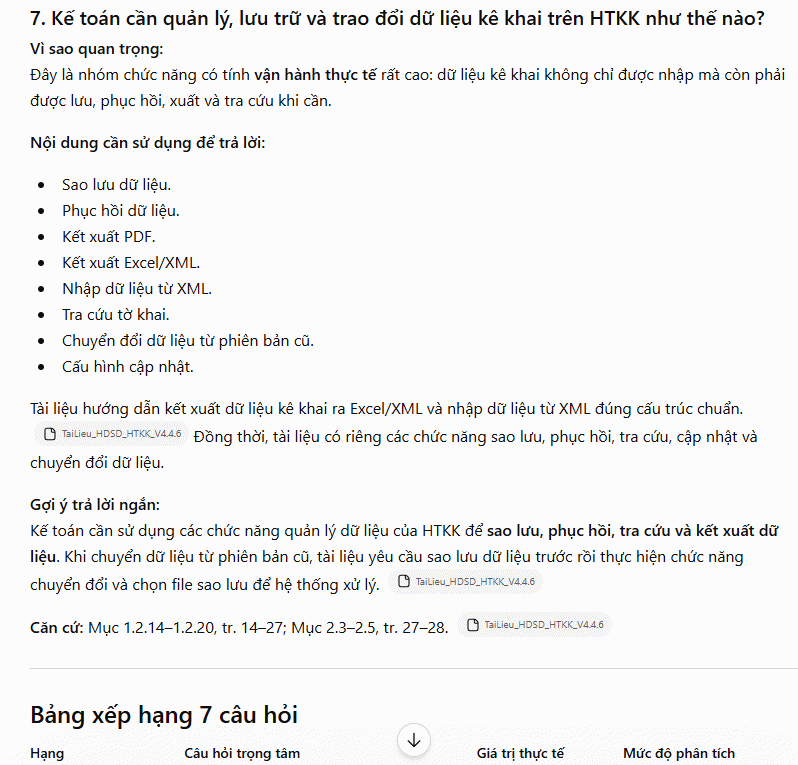
You'll then receive generated questions. For example, if your source document is a software manual, the AI will generate questions that help you understand the content and extract key information efficiently.
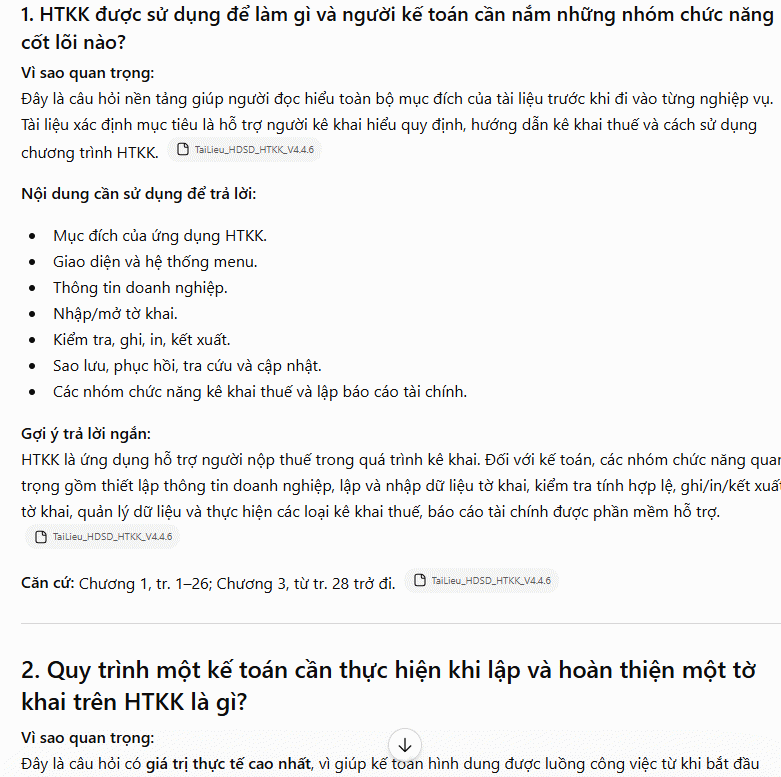
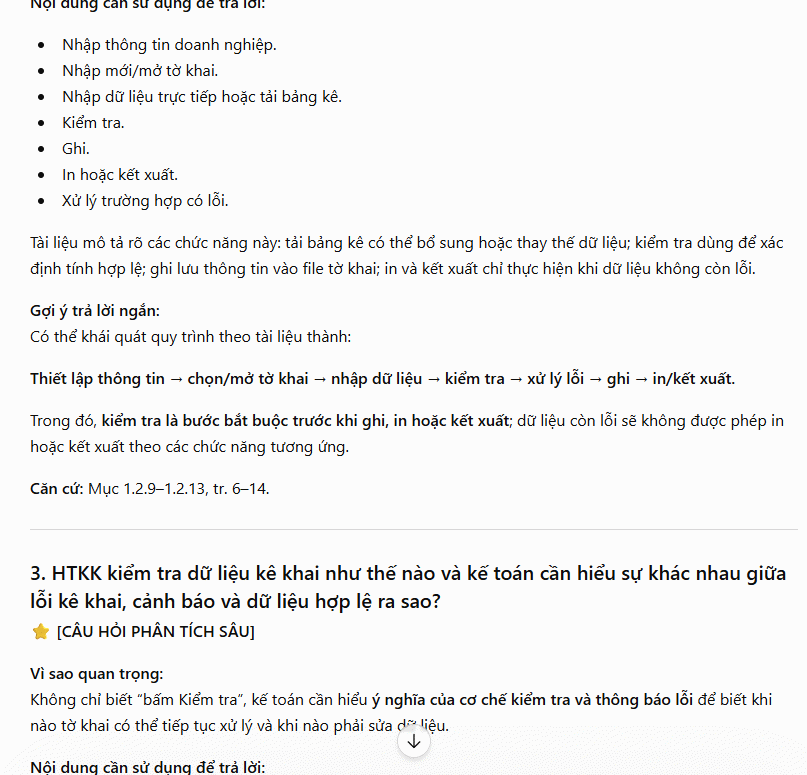
Deploy questions from document
Understand document through questions
Document content from questions
Question content
Extract document information
Receive questions
Evaluate questions

Description: Use AI to automatically generate essential study questions from lengthy documents. Save time and learn faster with smart content analysis.

Related Articles

Why You Should Consider Ditching LM Studio for Jan, the Open-Source Alternative

Why You Should Consider Ditching LM Studio for Jan, the Open-Source Alternative

LM Studio has become the go-to application for running large language models locally on your machine. It's intuitive, polished, and requires zero terminal knowledge — just a few clicks and you're running any AI model you want. For anyone seeking the benefits of local LLM deployment, it's genuinely one of the best tools out there. But here's the thing: despite being free, LM Studio isn't open-source. While some components carry open licenses, the application itself remains proprietary software. For a tool that could become central to your entire local AI workflow, the risk of unexpected licensing changes whenever the parent company decides is a concern that drives many users elsewhere — straight to Jan.

Why Jan is a genuinely competitive LM Studio alternative

Jan is a desktop application that lets you run large language models entirely offline — functionally similar to LM Studio, but with a crucial difference. It's not just completely free; it's fully open-source with all code available on GitHub. No licensing surprises. No proprietary lockdowns. No fine print to worry about.

The interface mirrors ChatGPT's design, which lands somewhere between refreshing and derivative depending on your preference. What's interesting here is that this deliberate design choice makes Jan feel immediately familiar to anyone exploring local AI for the first time. The interface is clean, organized, and requires zero developer expertise to navigate. You get a chat window, a model hub, and straightforward settings — exactly what you need.

If you're switching from LM Studio, the model library will feel right at home. You can browse and download popular open-source models — Llama, Gemma, Mistral, Qwen, DeepSeek, and many others — directly within the application. Each model includes tags indicating hardware compatibility and performance expectations, so you'll know upfront whether it'll run smoothly on your setup.

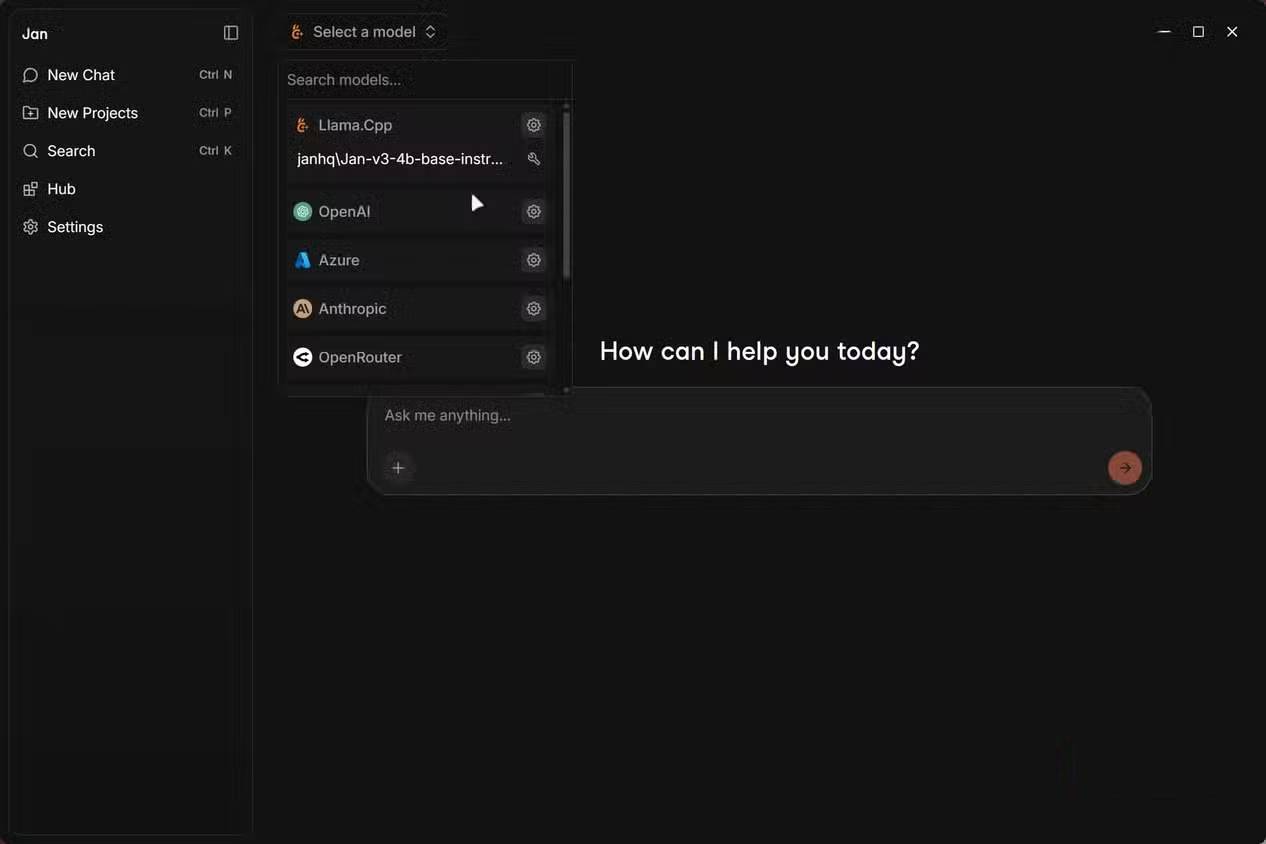
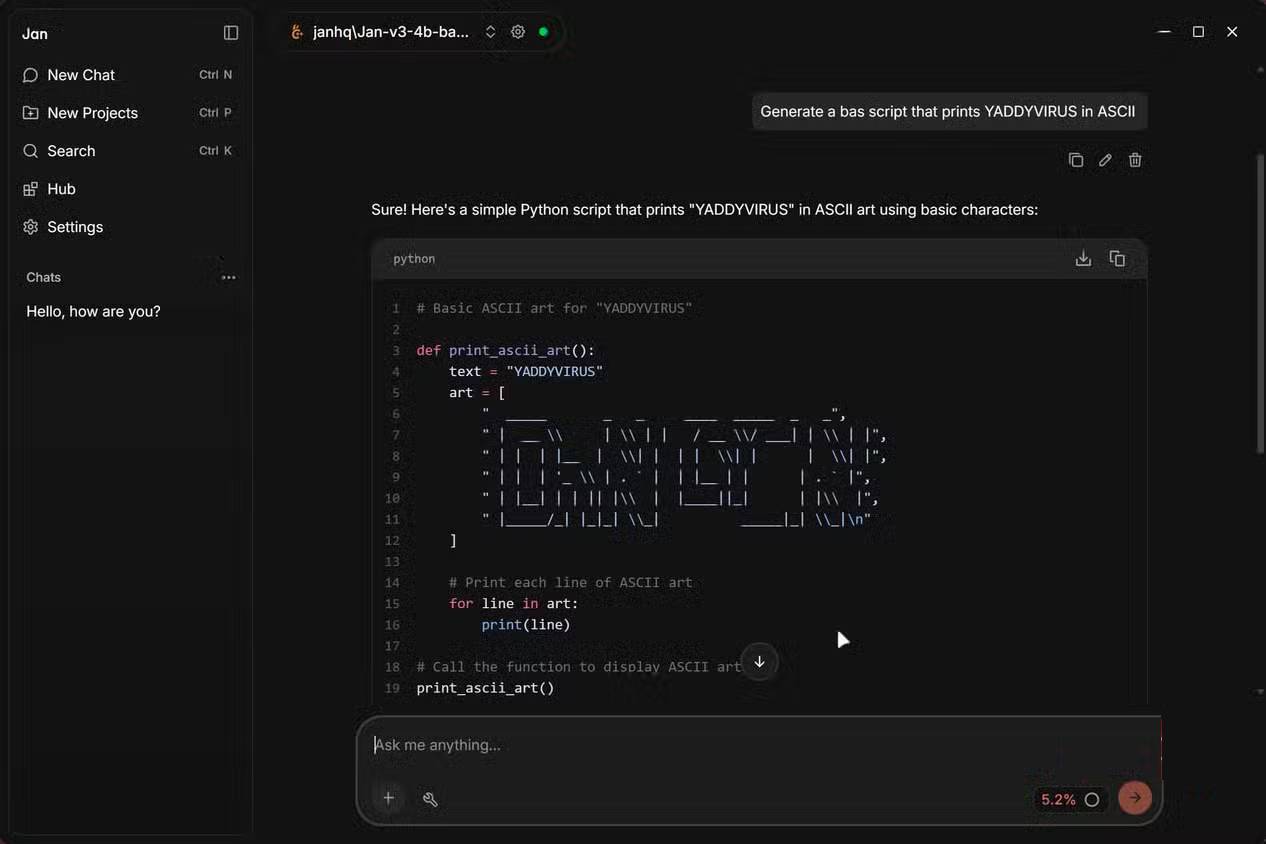
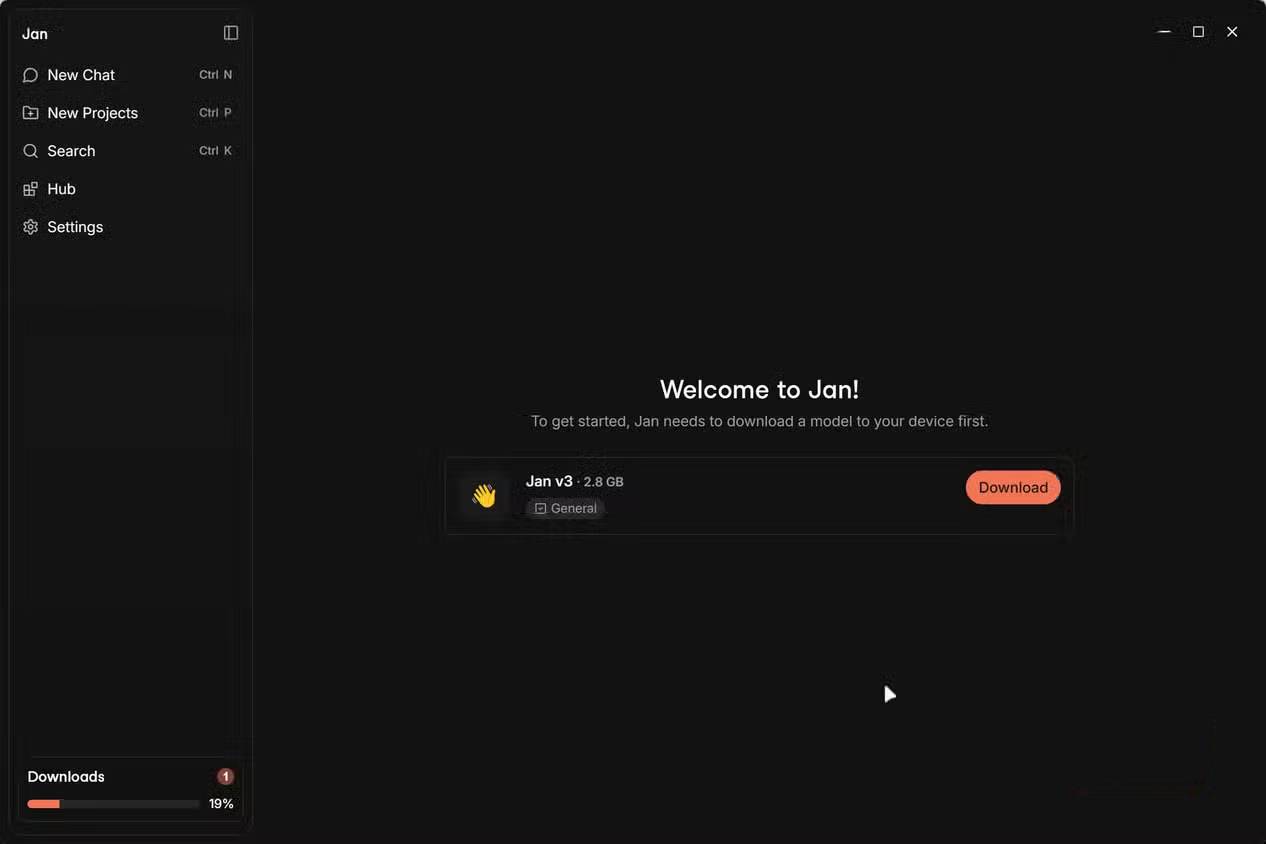
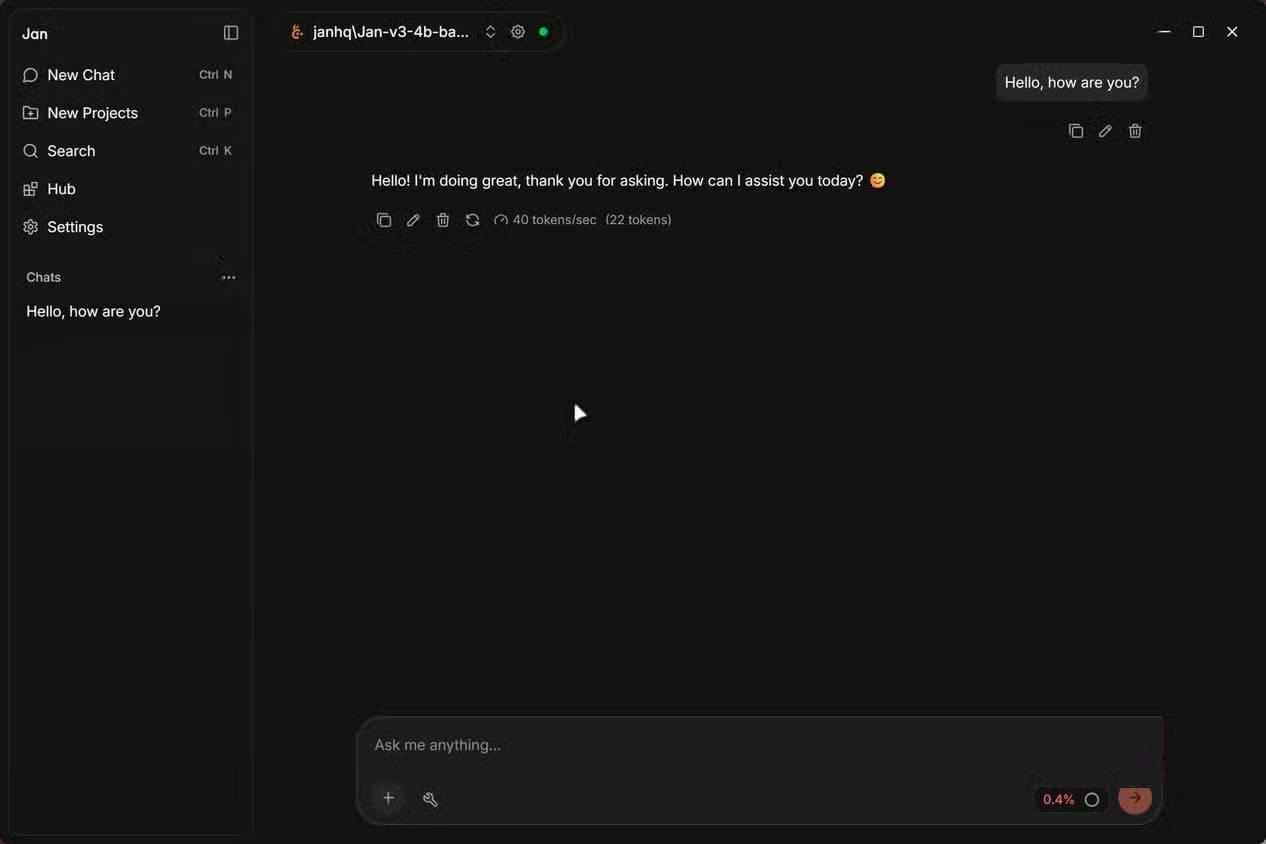
Jan interface open on Windows 11

Jan includes an OpenAI-compatible API server. This is genuinely powerful — you can point other tools like Cursor, Open WebUI, custom scripts, or applications you're developing at Jan's local server and interact with it exactly as you would with OpenAI's API. Perfect for prototyping and testing code before you commit to paid API calls. The server also supports CORS out of the box, making web project integration seamless.

Performance-wise, Jan sits right alongside LM Studio. Token usage is comparable, inference engines work essentially the same way, and you get built-in extensions if you want to expand functionality further.

The privacy advantages are substantial and real

Local models, zero cloud, zero surprises

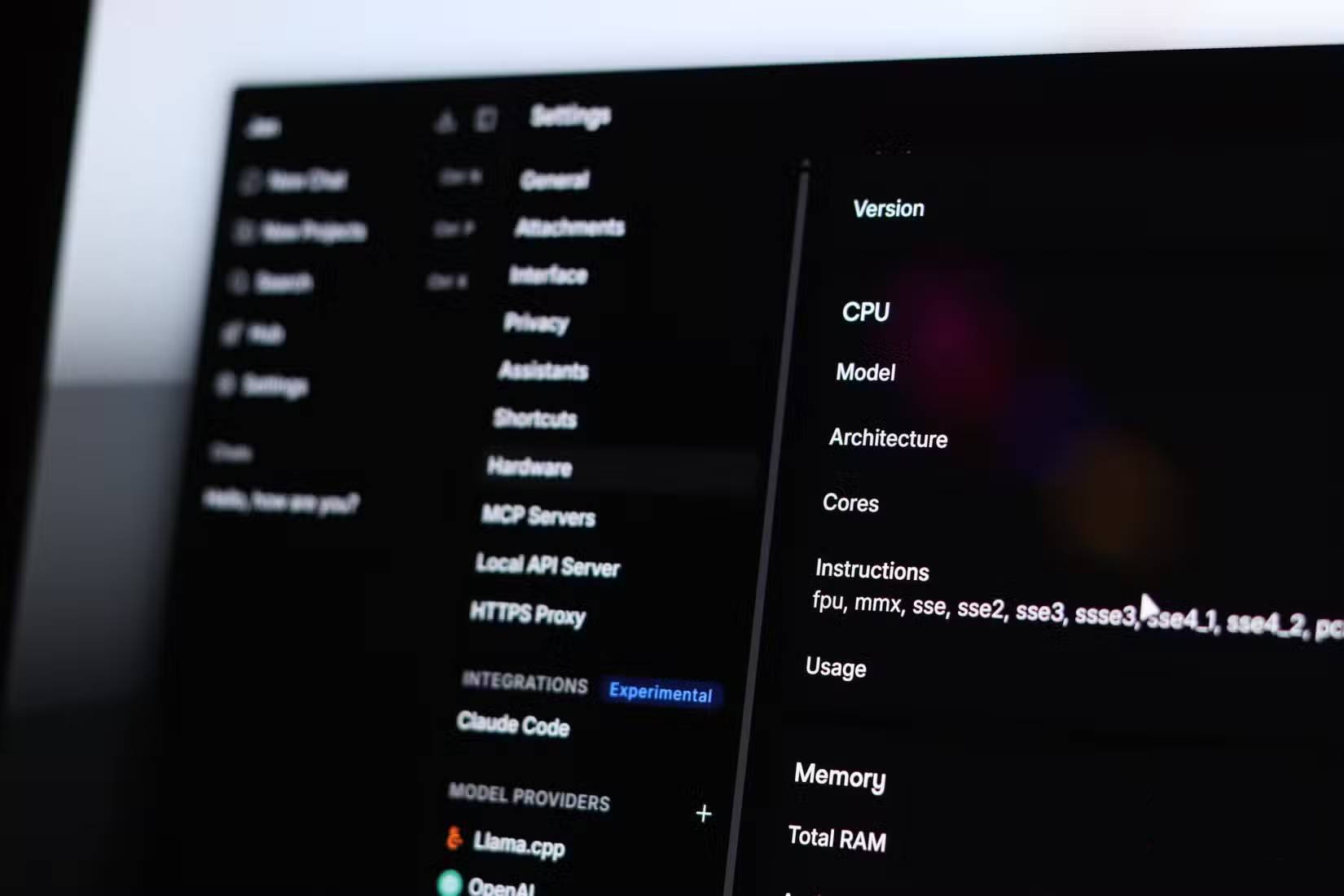
Jan and LM Studio open on a laptop

Running AI locally has always been a privacy-first choice, but Jan takes that commitment further. Everything stays on your machine: your preferences, chat history, model parameters, and the models themselves. No account creation. No telemetry worries. No cloud dependency. You get a completely isolated AI experience if that's what you want.

There are two tradeoffs here. First, you're limited by your hardware's capabilities. Second, open-source LLMs aren't always competitive with commercial cloud models — they won't handle every task equally well. That's just reality.

Jan solves this elegantly by supporting remote APIs from OpenAI, Anthropic, Claude, and others. You don't have to choose between local and cloud — the default is local (and private), but you can switch to cloud models whenever a task demands it. It's flexibility without compromise.

Jan isn't perfect yet

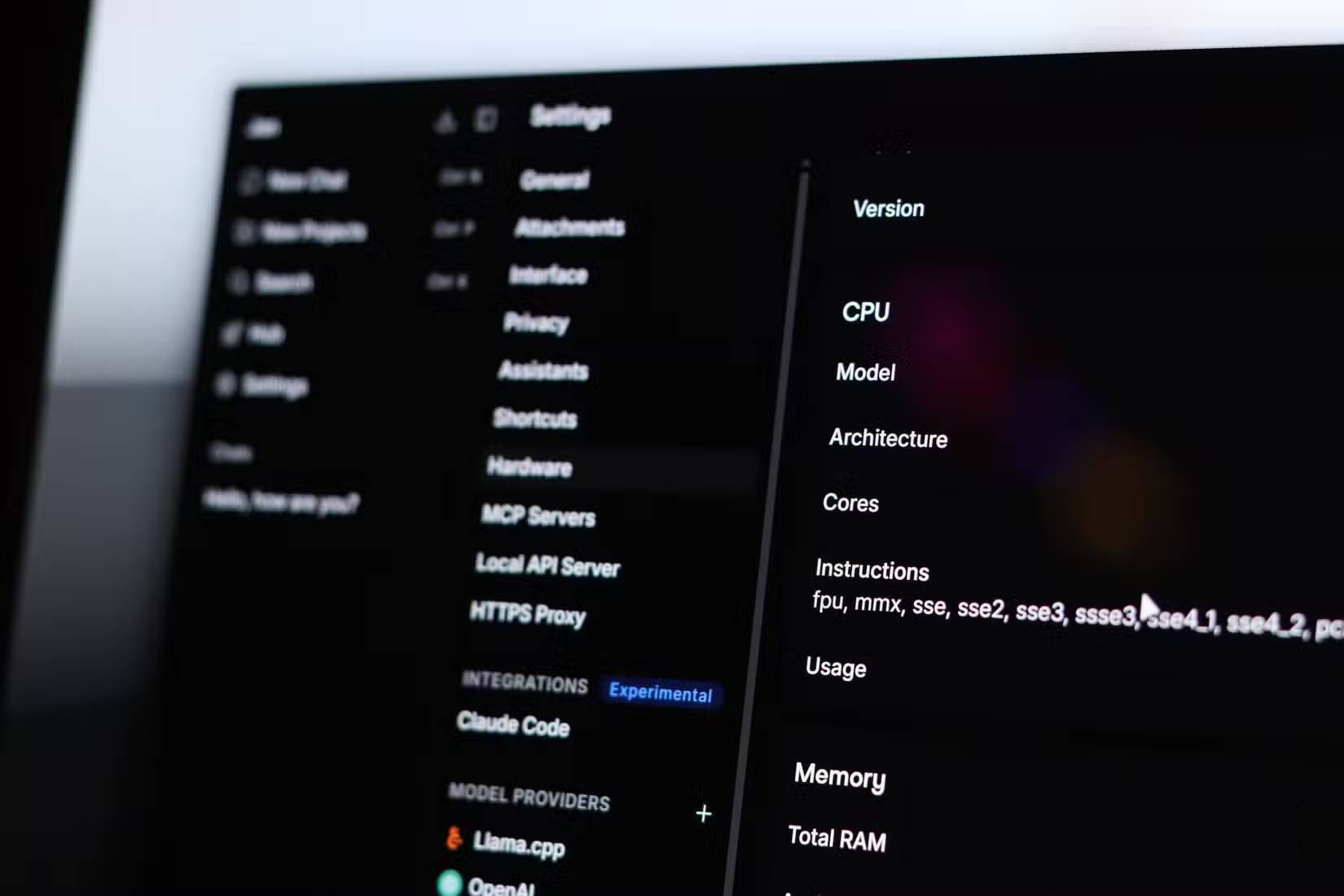
Jan's GPU configuration settings

Coming from LM Studio, you'll notice missing depth in certain areas. GPU layer configuration is less intuitive here than in LM Studio. Document analysis features also feel more polished in LM Studio. Jan is catching up, but if you're someone who tweaks every inference parameter manually, LM Studio still has the edge.

If you're a command-line person, Ollama outperforms both LM Studio and Jan. Startup speed-wise, these two GUI-based LLM tools are roughly equivalent but slower than Ollama. Jan occupies the middle ground: more transparent than LM Studio, more user-friendly than Ollama.

Jan is quietly becoming the default LM Studio replacement

There's little friction in switching from LM Studio to Jan. The transition takes minimal time, and your models and data migrate smoothly. The real difference is ownership. With Jan, you control your entire local AI stack completely. There won't be sudden licensing changes or unexpected policy shifts catching you off guard.

In everyday use, Jan delivers everything LM Studio does, plus the peace of mind that comes with actual software ownership. You get all the control and advantages you need without any hidden complications down the road.


Description: Explore why Jan is gaining traction as a privacy-focused, open-source replacement for LM Studio in local AI workflows.

Related Articles

8 Powerful Ways to Leverage ChatGPT for Your Instagram Strategy

8 Powerful Ways to Leverage ChatGPT for Your Instagram Strategy

ChatGPT can handle much of the heavy lifting involved in preparing Instagram content. It can brainstorm angles, structure carousel posts, draft compelling captions, and craft thoughtful responses to comments. Just remember: always review the output before publishing—AI-generated content needs a human touch.

This guide walks through eight proven methods to supercharge your Instagram presence with ChatGPT, complete with real output examples and ready-to-use prompts for each approach.

1. Generate Compelling Quotes and Sayings

ChatGPT excels at creating short, original statements perfect for standalone Instagram posts or as individual carousel slides. The AI can produce variations quickly and in different tones.

Important note: Never ask ChatGPT to attribute quotes to real people. If you want to use an actual famous quote, verify the exact wording, author, and original source yourself.

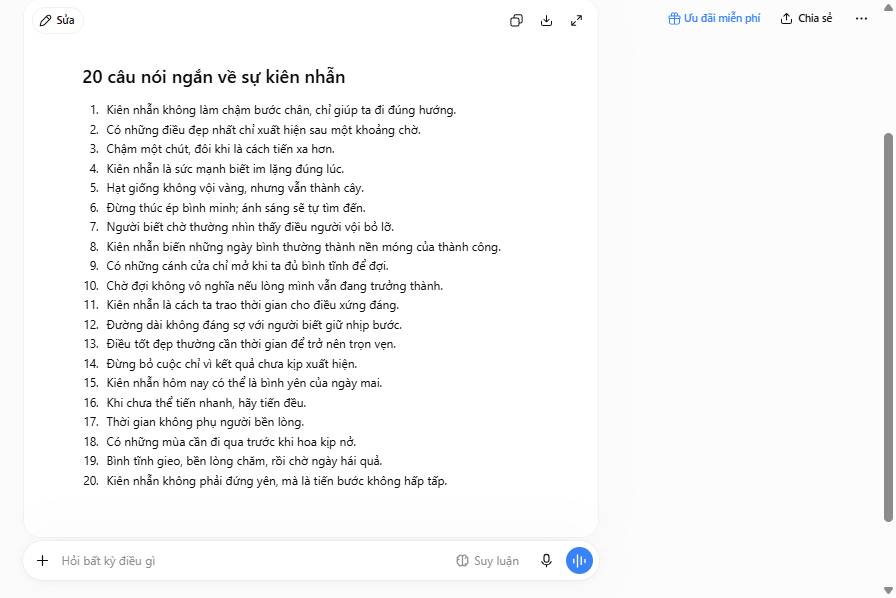
This prompt has proven effective:

Write 20 short, original sayings about [topic].

Don't attribute them to anyone or recycle famous quotes. Keep each statement under 15 words and vary the phrasing.

ChatGPT tạo ra những câu trích dẫn gợi suy nghĩ cho Instagram
ChatGPT creates thought-provoking quotes for Instagram

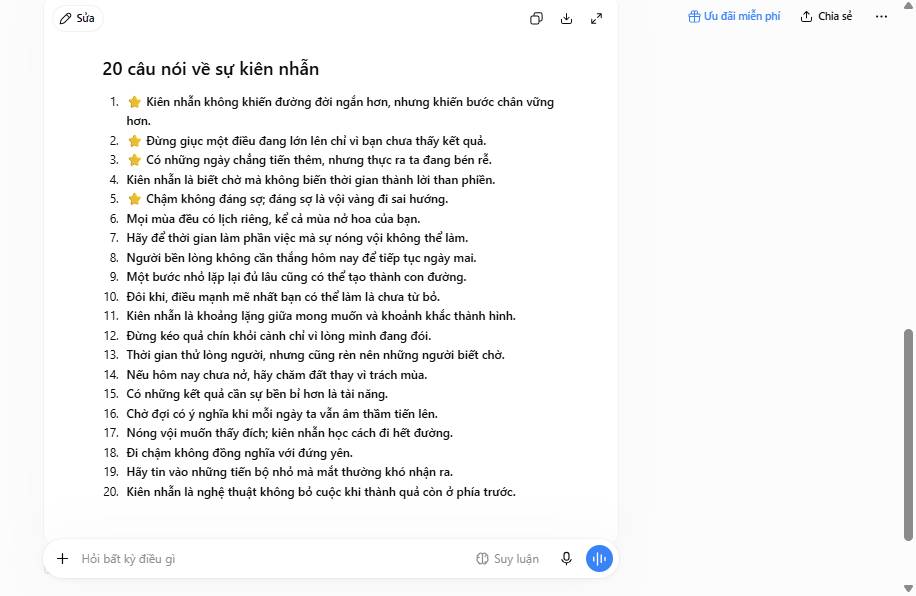
You can also request topic-specific variations:

Write 20 original, unattributed sayings about [topic]. Vary the tone and sentence structure. Highlight the 5 strongest options.
ChatGPT đã tạo ra các câu trích dẫn Instagram về sự kiên nhẫn.
ChatGPT generates Instagram quotes on perseverance

2. Repurpose Blog Posts into Carousel Posts

One of ChatGPT's strongest uses is content recycling. Transform your existing blog articles into engaging carousel posts—it's an efficient way to squeeze more value from what you've already written.

Tip: Specifying slide count is optional. You can let ChatGPT decide the number of slides.

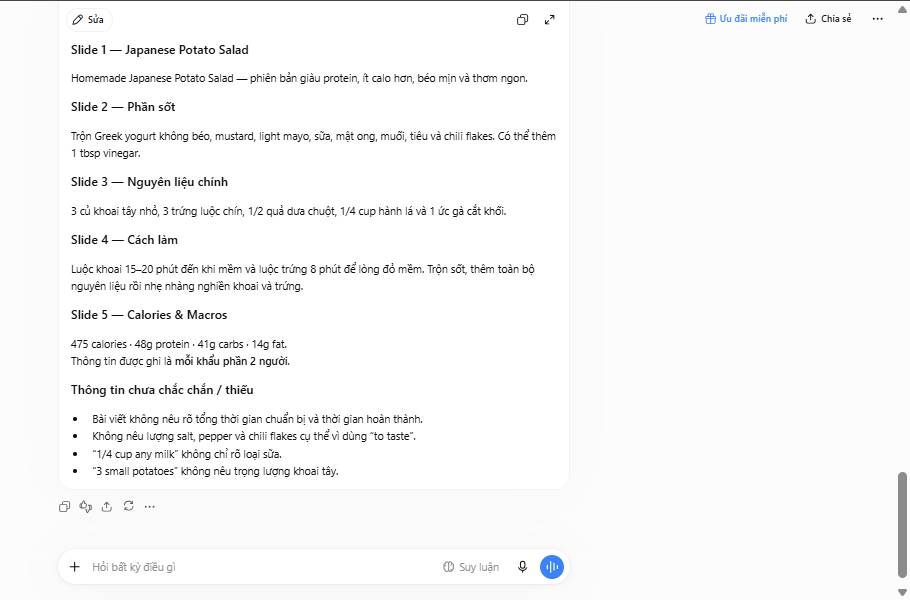
Create an Instagram carousel post with [number] slides from the article below.

Use only statements from the pasted article. Don't fabricate statistics, quotes, or sources. Write a short headline for each slide and keep it to no more than two sentences. List any uncertain or missing information separately at the end:

[paste blog article]

Here's what the output looks like when applied to a blog piece about ChatGPT:

Tạo bài đăng dạng carousel trên Instagram từ bài viết trên blog với ChatGPT
Transform blog posts into carousel-ready content with ChatGPT

3. Identify Discussion Topics in Your Niche

Want more engagement on your Instagram? Focus on topics that spark conversation in your field. ChatGPT can identify these discussion starters instantly.

Use this straightforward prompt:

Create a list of 20 discussion topics commonly debated in [field/specialty].
Tìm chủ đề thảo luận cho Instagram với ChatGPT
Find conversation-starting topics with ChatGPT

Want to go deeper? Ask for more controversial angles:

Create a list of 20 controversial discussion topics in [field].

Treat these lists as starting points, not gospel. Validate actual interest using your Instagram Insights, real comments from followers, and current sources from your industry. What's interesting here is that ChatGPT gives you a foundation to build from—but your audience data is what ultimately matters.

4. Create Poll Ideas

Polls are engagement gold. ChatGPT can rapid-fire poll concepts tailored to your niche:

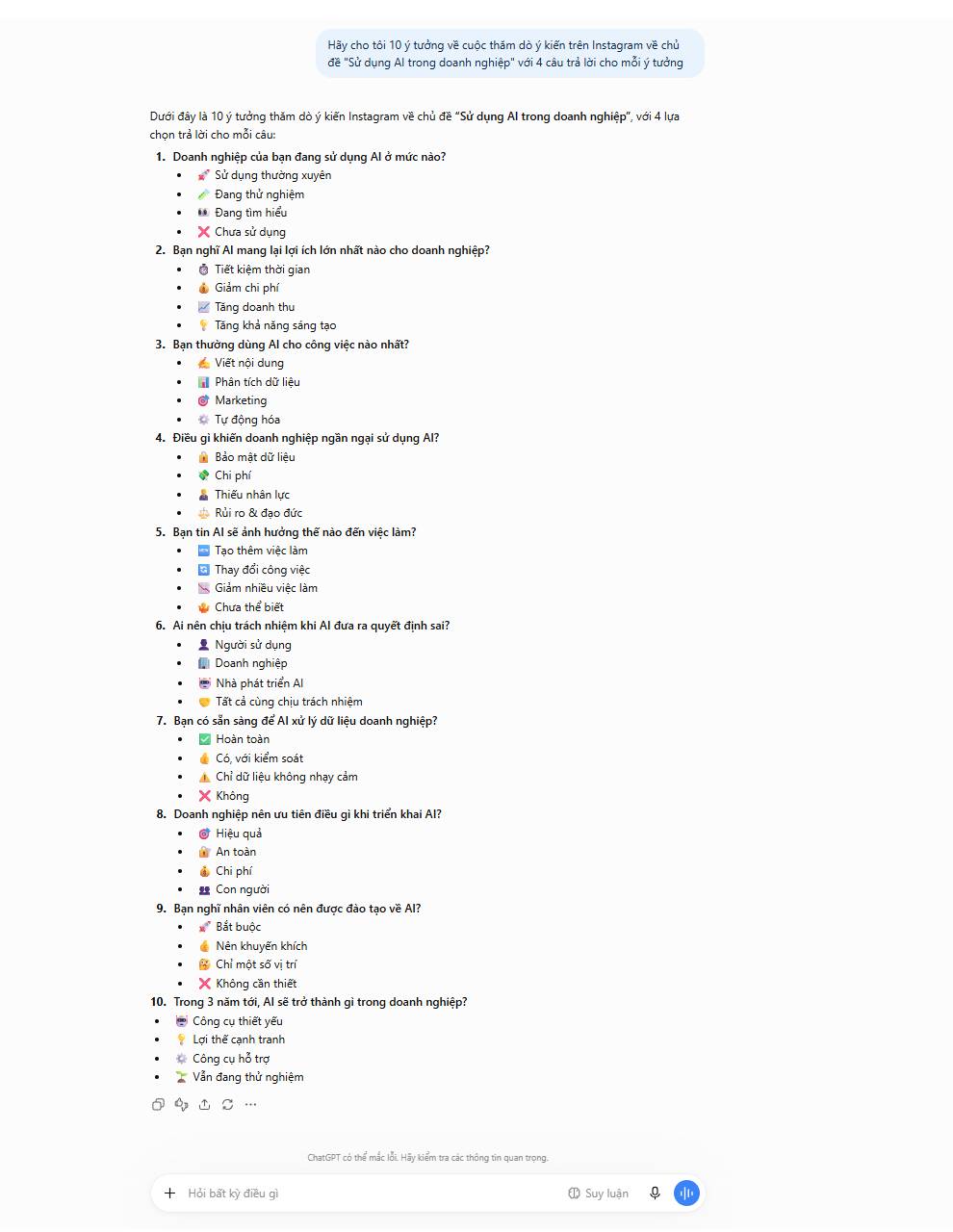
Give me 10 Instagram poll ideas about [topic] with 4 answer choices for each one
ChatGPT tạo ra các ý tưởng cho các cuộc thăm dò ý kiến ​​trên Instagram
ChatGPT generates poll ideas for Instagram Stories

5. Draft Responses to Challenging Comments

Negative comments, passive-aggressive remarks, or just plain odd feedback—they happen to everyone. Responding professionally is critical for maintaining credibility. ChatGPT can help you craft thoughtful replies without sounding defensive or cold.

Critical note: Strip out names, usernames, contact info, and personal details before pasting comments into any AI tool. For complaints, legal threats, and sensitive cases, handle responses with direct human oversight.

Write a short, friendly response to the comment below. Keep it to 3 sentences max. Add relevant emojis.

If the comment is critical, respond with a growth mindset rather than defensiveness. Avoid making major concessions, big promises, or overly specific commitments:

[paste comment]
ChatGPT phản hồi bình luận trên Instagram
Let ChatGPT help draft professional comment replies

6. Brainstorm Post Ideas

Stuck on what to post next? With millions of Instagram users competing for attention, quality content is everything. ChatGPT accelerates the ideation process:

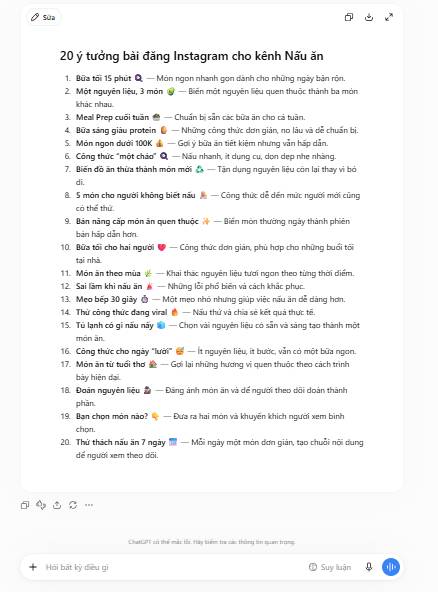
I manage an Instagram account about [topic]. My audience is [describe target audience]. Generate a list of 20 Instagram post ideas.
ChatGPT tạo ý tưởng cho bài đăng Instagram
ChatGPT brainstorms post angles for your audience

7. Generate Reel Concepts

The same formula works for Reels. Instagram's video format is where reach happens right now, so dedicated Reel ideas are worth their weight in engagement:

I manage an Instagram account about [topic]. My audience is [describe target audience]. Generate a list of 20 Instagram Reel ideas.
ChatGPT tạo ý tưởng cho Instagram Reels
ChatGPT generates video ideas for Instagram Reels

8. Build a Content Editorial Calendar

Beyond suggesting individual posts and Reels, ChatGPT can construct a full editorial calendar for you. This is where you start working strategically instead of reactively:

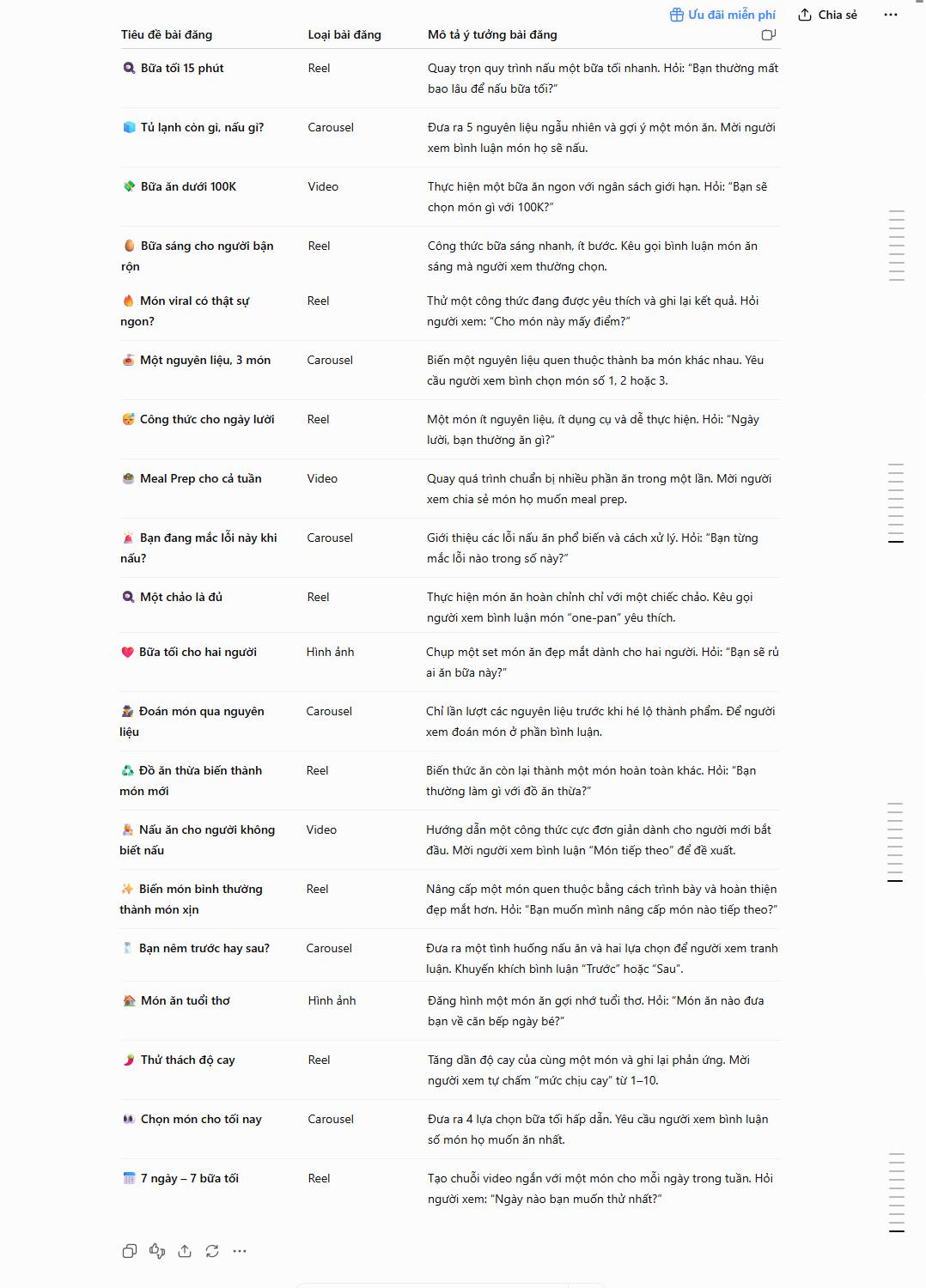
Create a table with 20 Instagram post ideas about [topic] targeting [audience]. Include these columns:

- Post Headline
- Post Type (Video, Reel, Carousel, Image)
- Post Concept Description

Find unique, interesting ideas that encourage viewers to take action [desired action, e.g., comment on the post]. Return only the table—no introduction or extra text.
Tạo lịch biên tập nội dung Instagram với ChatGPT
Build a month-long content strategy with ChatGPT

Remember: ChatGPT doesn't pull live data from your Instagram Insights or reflect real-time platform changes. Always verify statistics, trending topics, links, and feature names before hitting publish. The real concern is relying too heavily on AI without grounding it in your actual audience data.


Description: Discover practical ChatGPT techniques for Instagram content creation, from generating captions to building editorial calendars.

Related Articles

5 Essential AI Agent Research Papers You Should Read

5 Essential AI Agent Research Papers You Should Read

The field of agentic AI is moving at breakneck speed. You'll encounter agents that wield tools, agents with memory systems, planning-focused agents, agents that coordinate with other agents, and agents that explore their environments autonomously. It's easy to get lost in the noise—especially when you start with lengthy survey papers. Here's a better approach: dig into a handful of landmark research papers, each tackling one core concept that powers today's AI agents. That's exactly what we've done below.

1. ReAct: Synergizing Reasoning and Acting in Language Models

Authors: Shunyu Yao, Jeffrey Zhao, Dian Yu, Nan Du, Izhak Shafran, Karthik Narasimhan, Yuan Cao

This is the ideal starting point if you want to grasp how AI agents fundamentally work. The core insight is simple but powerful: an agent shouldn't just reason, and it shouldn't just act—it needs to do both simultaneously. ReAct introduces a prompting framework where language models alternate between reasoning steps and action steps. Reasoning helps the model plan ahead, track progress, and handle errors, while actions let it interface with the outside world: search APIs, knowledge bases, decision-making systems.

What's important here is that most modern AI agents operate on this same basic loop: think → act → observe → update → repeat. If you want to understand the foundation of LLM-based agents, this paper is your mandatory first read.

2. Toolformer: Language Models Can Teach Themselves to Use Tools

Authors: Timo Schick, Jane Dwivedi-Yu, Roberto Dessì, Roberta Raileanu, Maria Lomeli, Luke Zettlemoyer, Nicola Cancedda, Thomas Scialom

Tool use is arguably the most transformative capability an AI agent can have. A language model might excel at writing and reasoning, yet struggle with arithmetic, information lookup, translation, or real-time data. Toolformer investigates how a language model can teach itself to call external APIs using self-supervised learning—no explicit human annotation required.

The model learns to determine when to invoke a tool, which tool to use, what parameters to pass, and how to integrate the results into its final response. The researchers tested with calculators, search engines, translation systems, calendars, and Q&A databases.

The real breakthrough with Toolformer is this shift in perspective: from "LLMs as text generators" to "LLMs as decision-making systems that recognize when external help is needed." That's a fundamental change.

3. Generative Agents: Interactive Simulacra of Human Behavior

Authors: Joon Sung Park, Joseph C. O'Brien, Carrie J. Cai, Meredith Ringel Morris, Percy Liang, Michael S. Bernstein

This paper is genuinely captivating because it feels like watching a tiny AI society actually function. The researchers created generative agents capable of simulating realistic human behavior in an interactive environment inspired by The Sims.

These agents wake up, make plans, remember past experiences, reflect on them, chat with other agents, and coordinate to accomplish goals. The architecture rests on three pillars: memory, reflection, and planning.

What's fascinating is that agent behavior isn't just about completing a single task. It's about continuity: what an agent remembers, how it updates its beliefs, and how past events shape future decisions. If you want to understand why memory and reflection matter in agent design, this is an excellent entry point.

4. Voyager: An Open-Ended Embodied Agent with Large Language Models

Authors: Guanzhi Wang, Yuqi Xie, Yunfan Jiang, Ajay Mandlekar, Chaowei Xiao, Yuke Zhu, Linxi Jim Fan, Anima Anandkumar

Voyager takes AI agents into embodied, interactive worlds—specifically, Minecraft. Rather than solving a single fixed task and stopping, Voyager continuously explores, discovers new things, and builds a reusable skill library.

The architecture combines three critical pieces: an automatic curriculum that generates exploration tasks, a skill library storing executable behaviors, and an iterative prompting mechanism that uses environmental feedback and execution errors to improve performance.

This paper illustrates what a long-horizon agent needs: continuous learning from environmental feedback, skill reuse, and gradual improvement. It marks a shift from one-off task completion toward systems that explore, learn, and accumulate skills over time.

5. AutoGen: Enabling Next-Gen LLM Applications via Multi-Agent Conversation

Authors: Qingyun Wu, Gagan Bansal, Jieyu Zhang, Yiran Wu, Beibin Li, Erkang Zhu, Li Jiang, Xiaoyun Zhang, Shaokun Zhang, Jiale Liu, Ahmed Awadallah, Ryen W. White, Doug Burger, Chi Wang

Many real-world problems are too large or complex for a single agent to handle efficiently. AutoGen presents a framework where multiple agents converse and collaborate to solve tasks. Agents can take on different roles, use tools, involve humans, execute code, and coordinate through dialogue.

The paper demonstrates applications across programming, mathematics, Q&A, operations research, and decision-making. The key insight is this transition: from a lone assistant to a team of specialized agents working in concert.

If ReAct explains the basic agent loop, AutoGen shows how that loop scales into a coordinated team.


Together, these five papers provide a solid foundation for understanding modern AI agents:

  • ReAct explains the reasoning-and-action loop.
  • Toolformer shows how models learn to use tools.
  • Generative Agents covers memory, reflection, and believable behavior.
  • Voyager demonstrates long-horizon learning and skill building in dynamic environments.
  • AutoGen shows how multiple agents coordinate together.

Don't worry about memorizing implementation details on your first read. Focus on the central ideas. Once you've grasped these five papers, most modern AI agent systems will suddenly feel much more approachable. They're typically built by combining familiar components: reasoning, action, tools, memory, feedback, planning, and coordination.


Description: Explore the foundational research papers that explain how modern AI agents work, from reasoning frameworks to multi-agent collaboration.

Related Articles

Essential Tips for Getting Started with Obsidian

Essential Tips for Getting Started with Obsidian

There's a concept in Ivan Illich's classic book "Tools for Conviviality" that perfectly captures what makes certain tools special: a convivial tool is one that empowers users to maintain autonomy, independence, and creativity. Think of a simple hammer or screwdriver. You can use them countless ways, they don't require specialized knowledge to operate or repair, and they don't lock you into buying complementary products. A hammer doesn't create artificial demand for a specific type of nail.

In the world of note-taking apps, Obsidian might just be the closest thing to a truly convivial tool. Once you grasp the fundamentals, you'll discover the ways to use it feel almost limitless. Many people start by tracking their reading, but what really hooks them is that Obsidian refuses to dictate how you should work. It doesn't push you toward one "correct" workflow—it actually encourages experimentation.

Obsidian Won't Tell You How to Use It

And it won't force you into a rigid system either

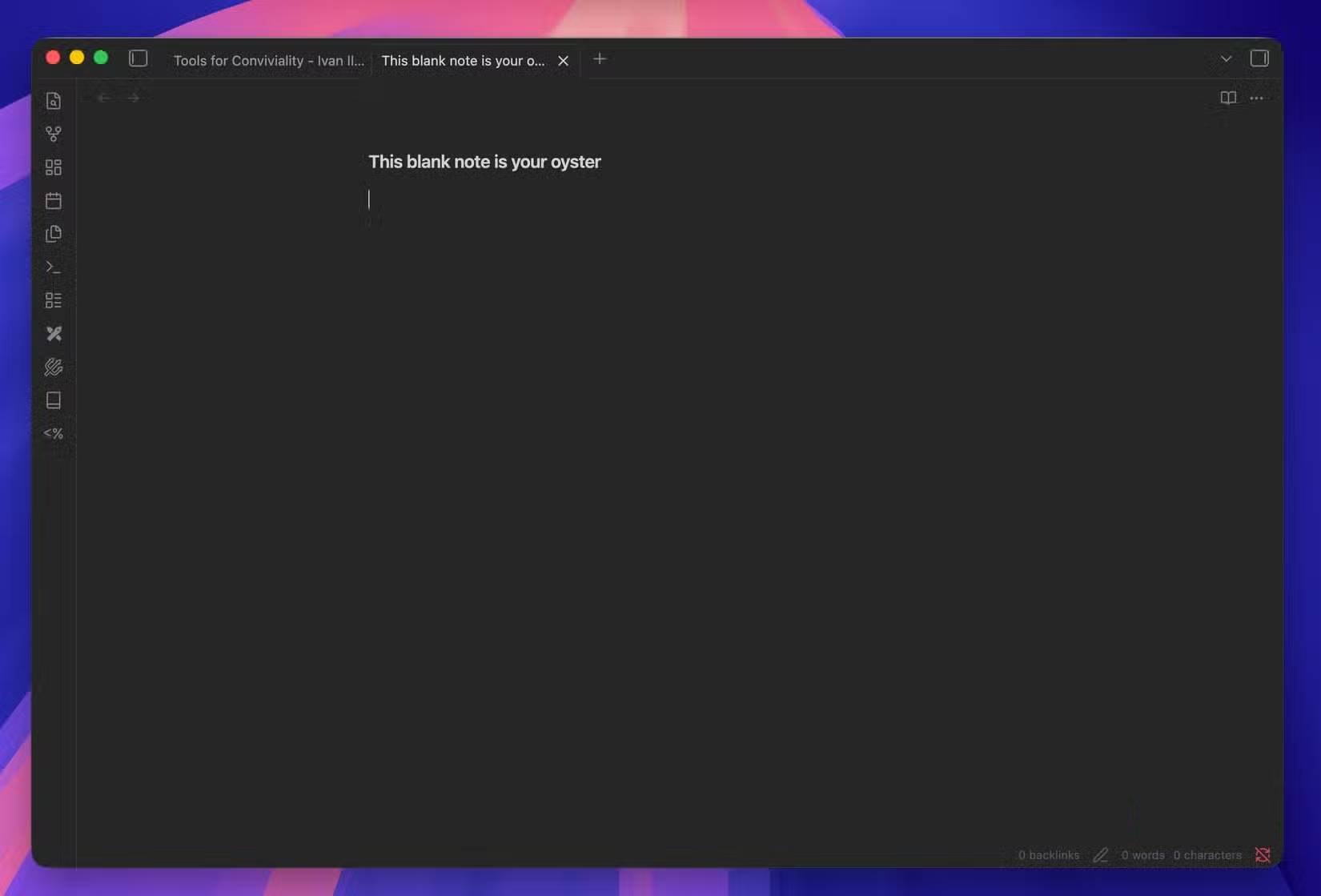
A blank note page in Obsidian

Most other note-taking apps steer you in a specific direction. Notion wants you building databases. Evernote pushes web-clipping. Apple Notes encourages quick jottings of random observations. Obsidian? You get a blank Markdown file and the freedom to shape it however you need. That's precisely why people love it. Markdown is plain text—you're not locked into any app's proprietary format. You get just enough structure to stay organized without the bloat.

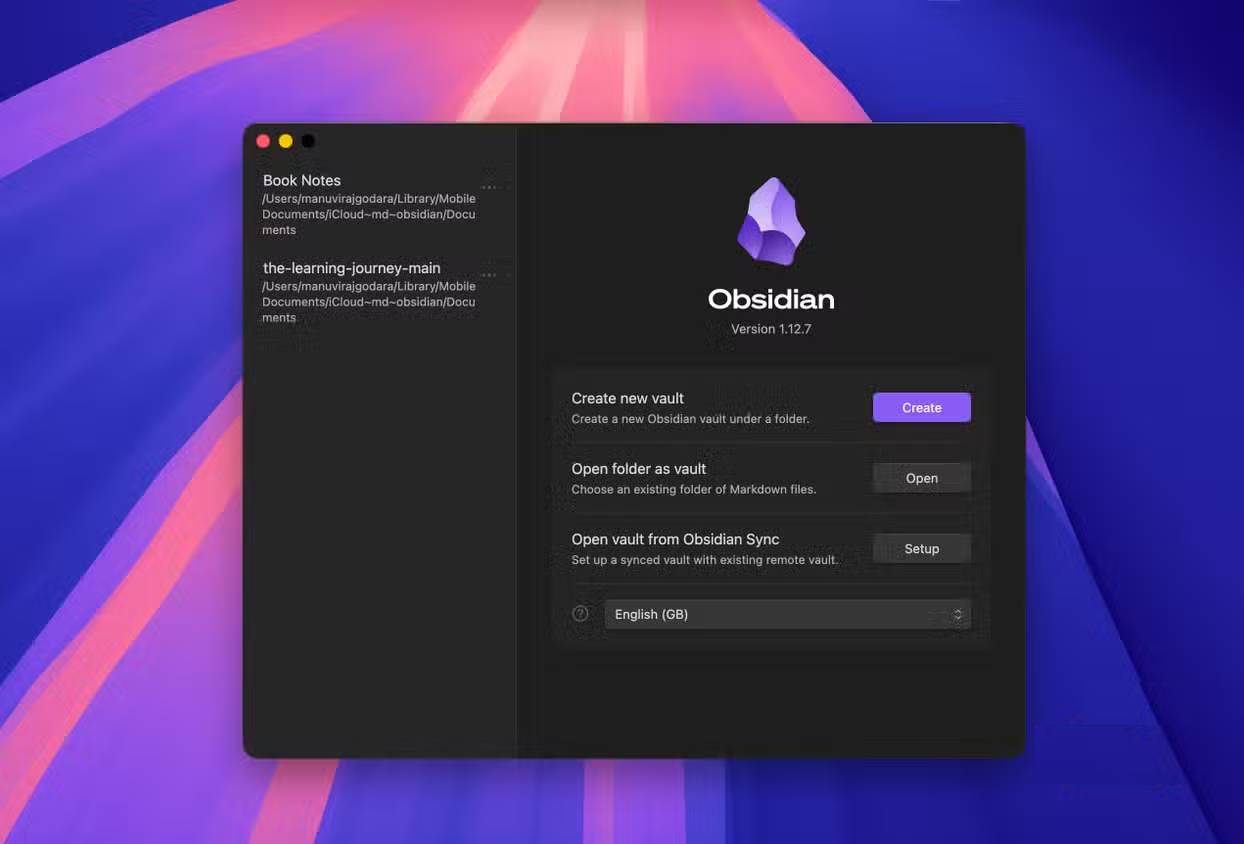
Obsidian's basic hierarchy is straightforward: Vault (storage container) > Folder > Note. You might create one vault for book tracking and another for article ideas. But here's the thing—folders aren't mandatory. You can link notes in countless other ways. Got a note that fits multiple thought streams? Link it to each instead of forcing it into a single folder. The system adapts to how you think, not the other way around.

Technically, an Obsidian Vault is just a folder on your computer containing .md files. You could open them in Notepad if you wanted. Need your notes on multiple devices? You can pay for Obsidian Sync, or simply store your vault in a cloud-synced folder. That's fundamentally different from Notion or Evernote, which use proprietary formats that often lead to data loss when you switch apps.

Obsidian Rewards Exploration

Both of the app itself and the connections between your notes

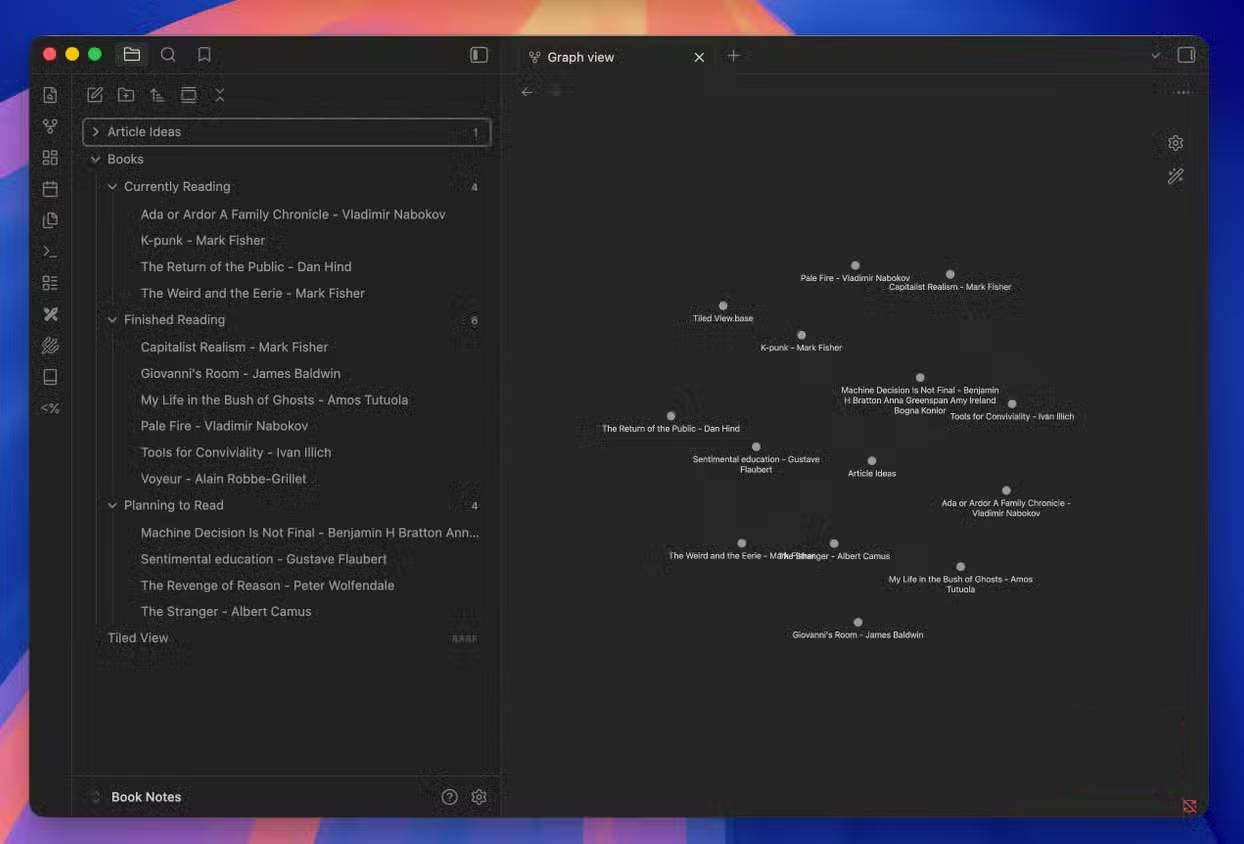
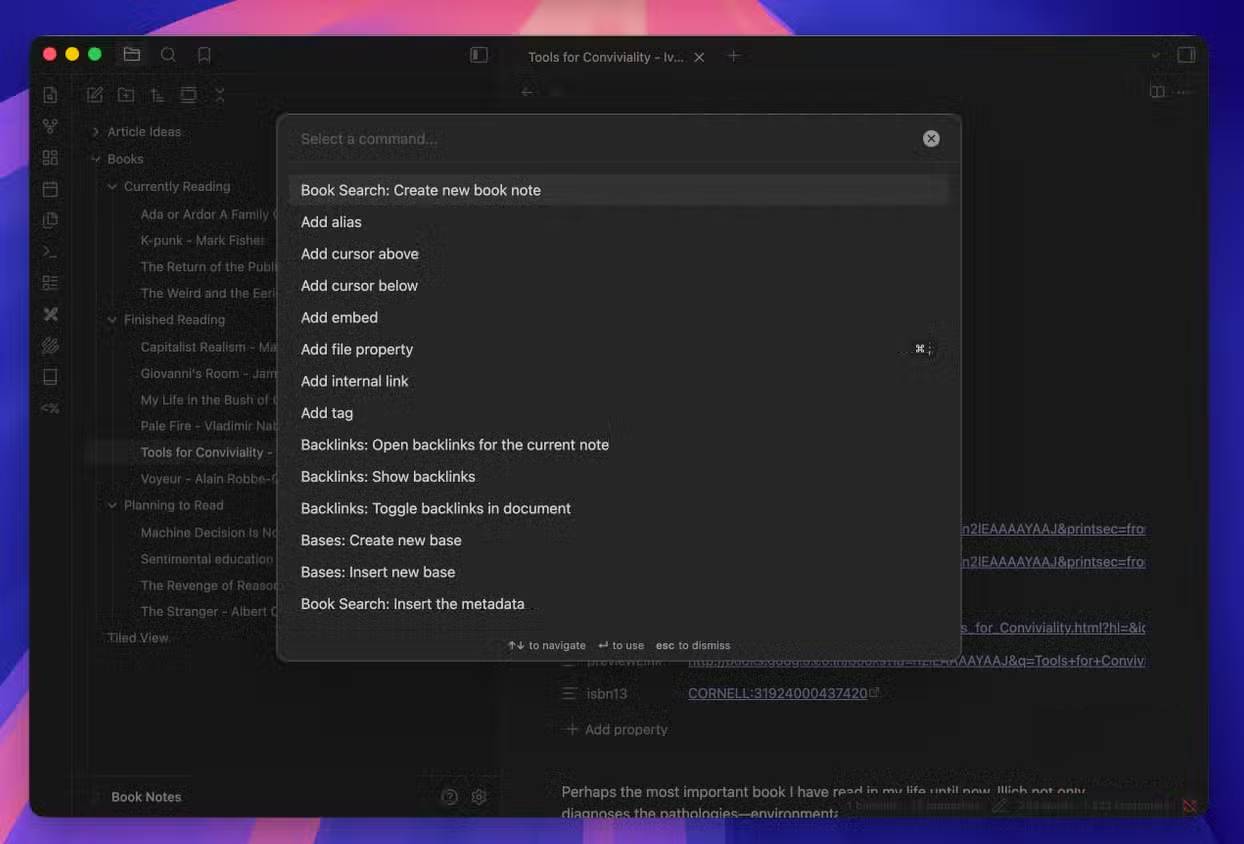
Obsidian gradually reveals its depth as you use it. Someone might start tracking books, then realize they want to capture article ideas too—especially since inspiration often strikes while reading. Obsidian makes linking these thoughts effortless. You create a new note in your book vault, jot down the idea, and create a backlink to relevant book notes. To link notes? Just type the note name inside double brackets: [[ ]]. That's it. Switch to Graph View and you'll see a visual map of how your notes interconnect.

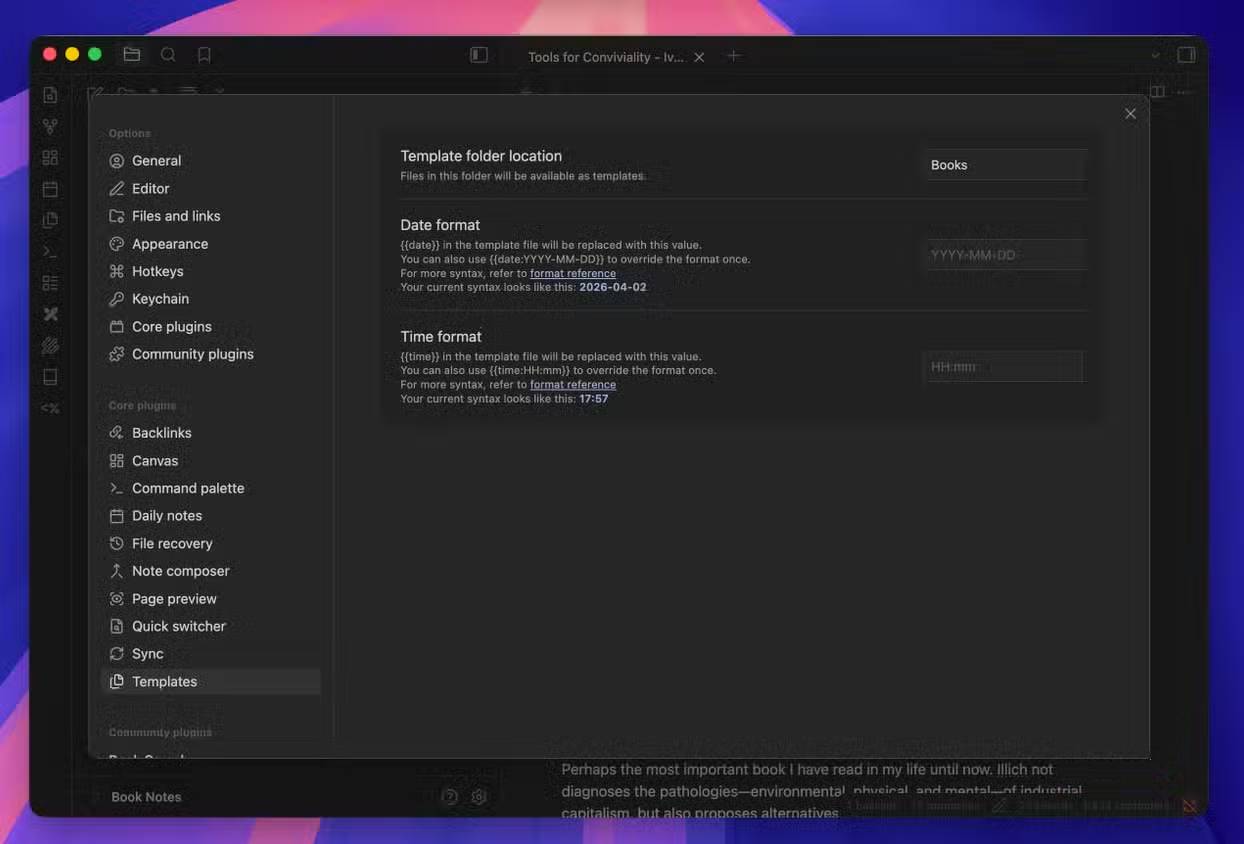
The Templates feature eliminates repetitive work. Say you're creating notes for article ideas. Each one has the same structure: title, key concepts, outline, sources. Instead of retyping this framework every time, set it up as a template once. Now you're like someone coloring in a pre-drawn picture—the structure's already there, you just fill in the details.

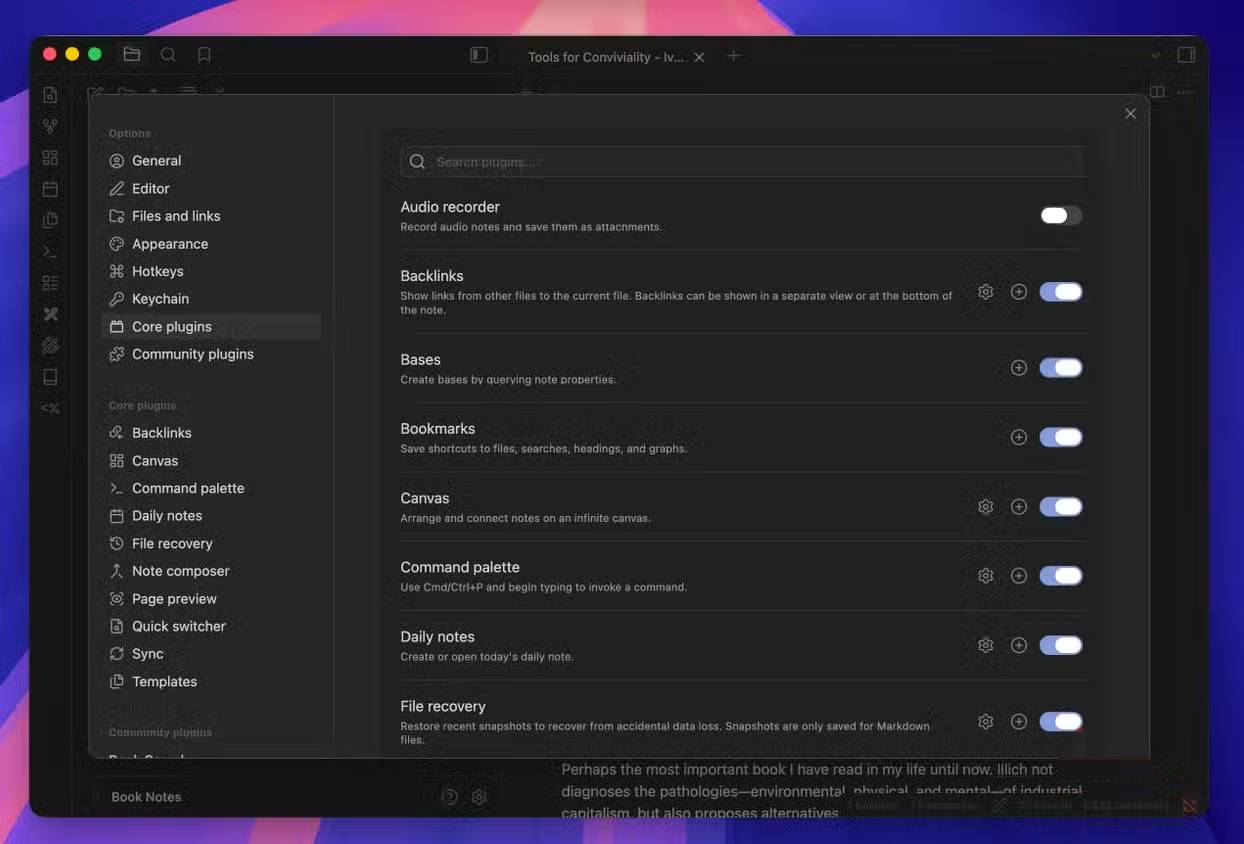
What if you want to do something the base app doesn't support? Community Plugins have you covered. Want to draw, create diagrams, visualize notes differently, or connect external services? There's a plugin for it. And when you open that vault on a new computer, Obsidian automatically downloads and installs the plugins you've already set up.

Don't Get Overwhelmed by What Others Are Doing

Obsidian has a learning curve, but it's gentler than you might think

Online discussions about Obsidian often feature elaborate note-taking systems with dozens of community plugins doing complex tasks. Reading that stuff can feel intimidating—you might think you need to build a complete "second brain" on day one. Here's the reality: you don't. The learning curve is shorter than you expect. Those complex systems are just combinations of simple ones stacked together. Start with the simple foundations first. Master those, then build up. What's interesting here is that the simplicity is the feature, not a limitation you'll quickly outgrow.


Description: Learn what makes Obsidian different from other note-taking apps and how to use it effectively as a beginner.

Related Articles

How to Link Spotify with Google Gemini: A Complete Setup Guide

How to Link Spotify with Google Gemini: A Complete Setup Guide

Integrating connected apps into Gemini unlocks a significantly better user experience. Once you pair Spotify with Gemini on your phone, the AI assistant becomes your personal music curator. You can search for and play songs, albums, playlists, or podcasts using simple natural language commands—just ask Gemini to "play that Taylor Swift song" or "find me a podcast about technology."

What's interesting here is that you don't need to open Spotify separately to hunt through your library. Gemini handles the heavy lifting for you. Here's everything you need to know about connecting these two platforms.

What Can Gemini Do with Spotify?

Once Spotify is linked to Gemini, you can use voice commands to trigger several actions.

Playing Music

You can ask Gemini to play:

  • A specific album.
  • A song by a particular artist.
  • A Spotify playlist.
  • Music that matches a mood, activity, or genre.

Example commands:

  1. Play the album [album name] on Spotify.
  2. Play [song name] by [artist name] on Spotify.
  3. Play my Spotify playlist called [playlist name].
  4. Play music for [activity] on Spotify.

Searching for Music

You can request searches for an artist's discography, find songs by lyrics, or discover playlists based on genre, mood, or activity type.

Example commands:

  • Find songs by [artist name].
  • Find the song with the lyrics "[lyrics snippet]".
  • Find me a chill Spotify playlist for relaxing.

Finding and Playing Podcasts

Gemini also lets you search for and play podcasts directly through Spotify.

Example commands:

  • Play the podcast [podcast name] on Spotify.
  • Play the latest episode of [podcast name] on Spotify.
  • Find me a podcast about [topic] on Spotify.

How to Connect Spotify to Gemini

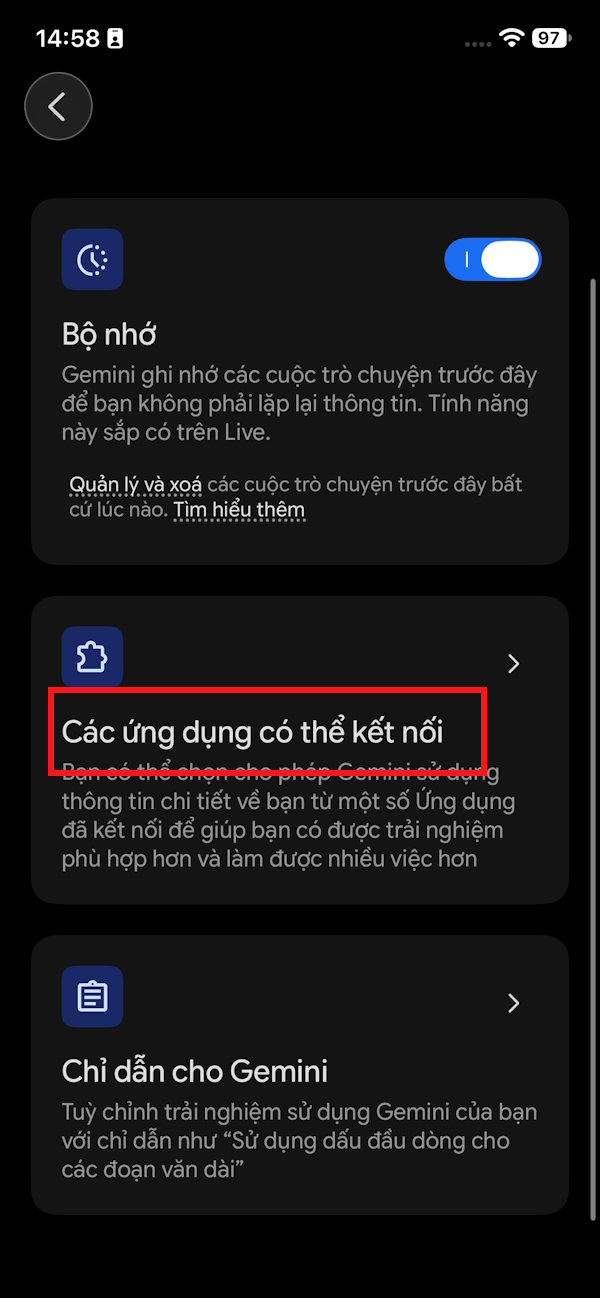
Step 1:

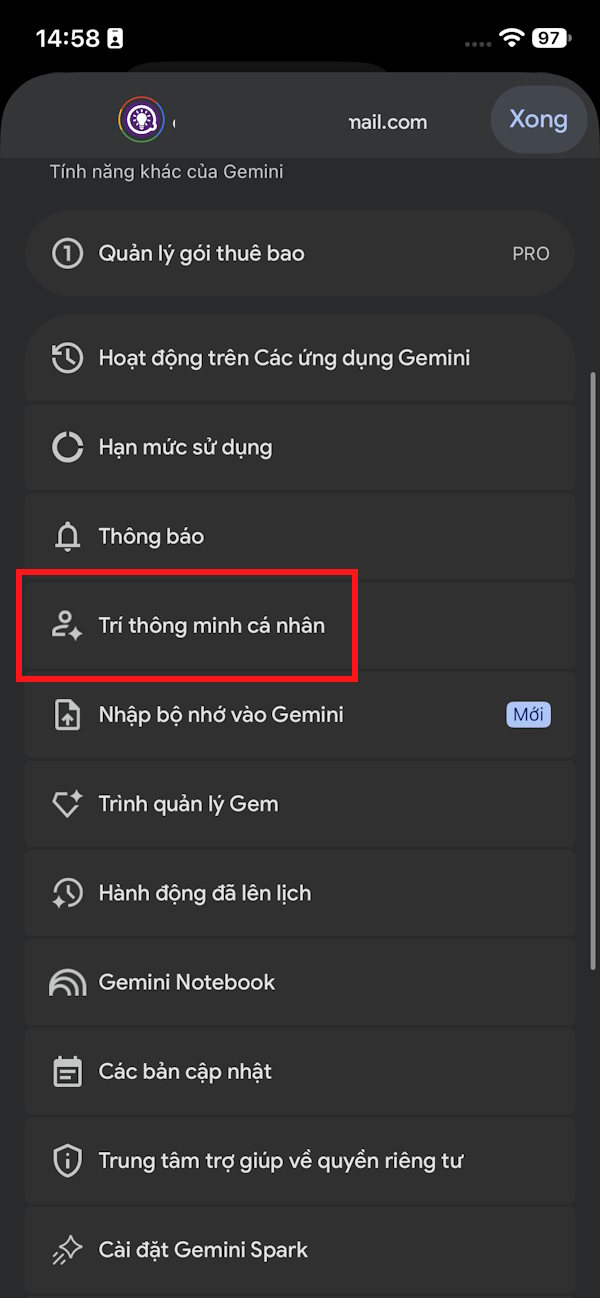
Open Gemini and tap on Your AI Personalizations. Next, select Connected apps.

Step 2:

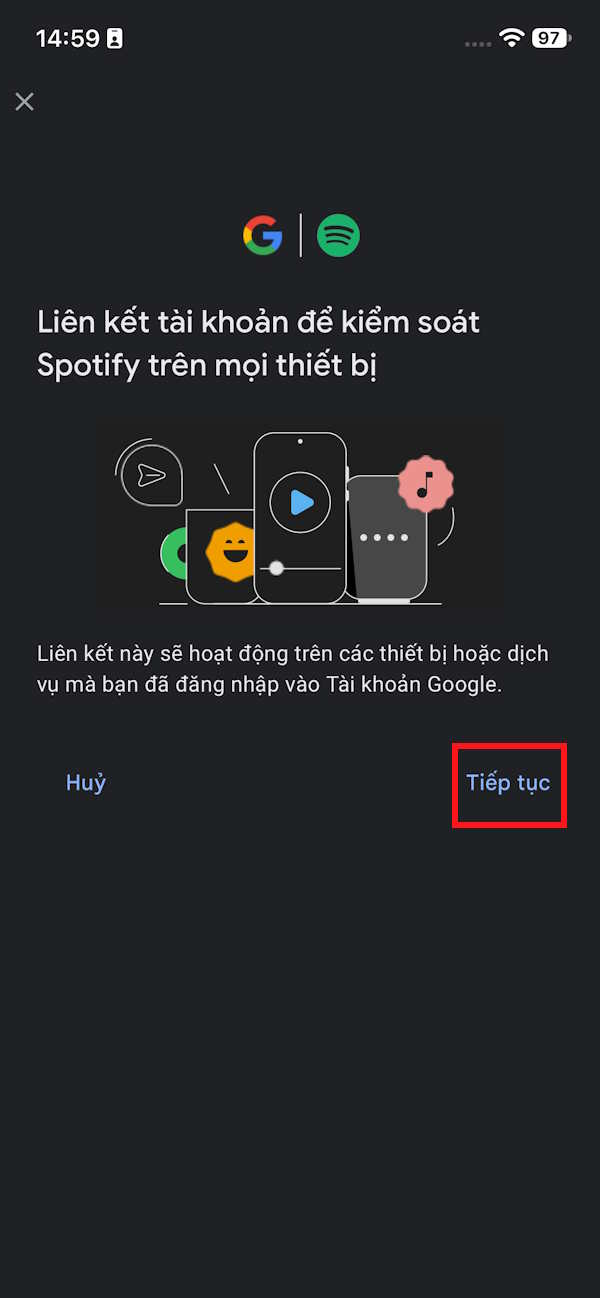
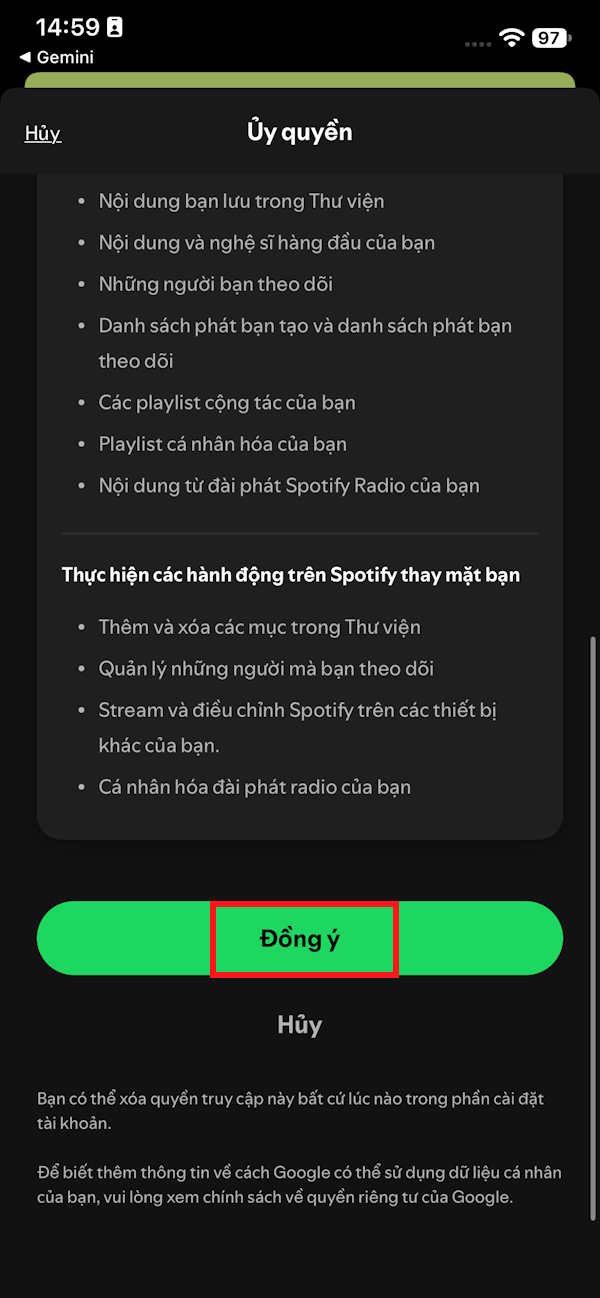
In the apps list, find Spotify and then enable it. You'll see a connection interface appear where you need to complete the linking process.

After successful linking, you'll see Spotify marked as active and ready to use.

How to Use Spotify on Gemini

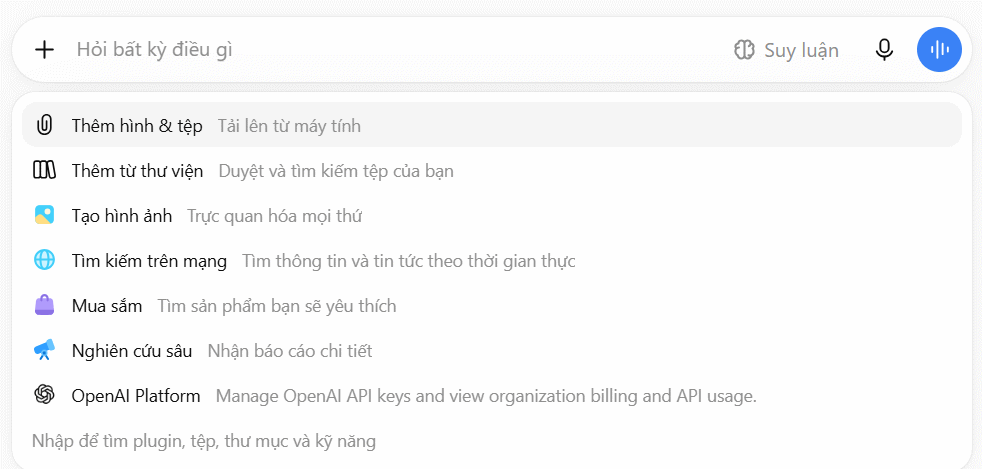
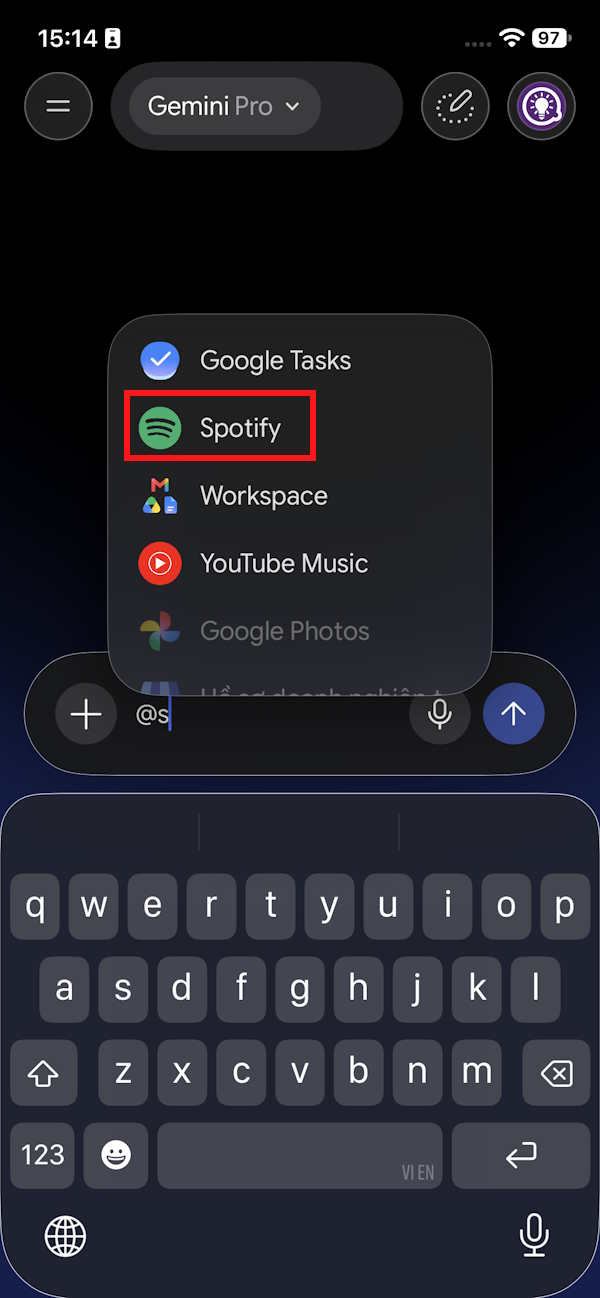
Back in the main Gemini chat, type @ in the message box, then tap Spotify to activate it. Now enter your request and wait for Gemini to respond with results.

Keep in mind that Gemini cannot yet perform certain Spotify actions directly through this connection:

  • Create new Spotify playlists.
  • Create Spotify radio stations.
  • Control playback with commands like pause, resume, skip, or go back to the previous track through the Spotify Connected App.

Here's something crucial: Spotify will only play specific songs or podcasts you request if you have a Premium subscription. This means connecting Spotify to Gemini doesn't guarantee that all playback features work the same way on a free account. The real concern is that free users get limited functionality here.

Free account holders can only search for general information through Gemini.

Search Spotify information on Gemini

What Can Spotify Free Users Do with Gemini?

There's a significant gap between what Spotify Free and Premium users can accomplish with Gemini.

  • Spotify Free: Search for songs, artists, playlists, and podcasts only.
  • Spotify Premium: Search capabilities plus the ability to actually play the exact songs or podcasts you request.

1. Find Songs by a Specific Artist

Example: Find all Taylor Swift songs on Spotify.

2. Find Songs Using Lyrics

Example: Find the song with the lyrics "..." on Spotify.

3. Search for Playlists by Genre, Mood, or Activity

Examples:

  • Find relaxation music playlists on Spotify.
  • Find workout music playlists on Spotify.
  • Find jazz music playlists on Spotify.

4. Search for Podcasts by Topic

Examples:


Description: Connect Spotify to Gemini and control your music with natural voice commands. Full step-by-step guide included.

Related Articles

Copyright © 2016 QTitHow All Rights Reserved