How to Share Gemini Conversations and Manage Public Links

Gemini lets you share conversations with others, turning them into collaborative experiences. Once you generate a shareable link, anyone with that URL can view the entire chat history—and even jump in to continue the discussion. What's interesting here is that you don't need to send the link directly to each person; it works more like a public document. Here's how to share your Gemini conversations and manage those public links.
Sharing Gemini Conversations on Mobile
Step 1:
Open Gemini on your phone and type your question or command. Hit send. Once Gemini responds, look for the share icon below the response.
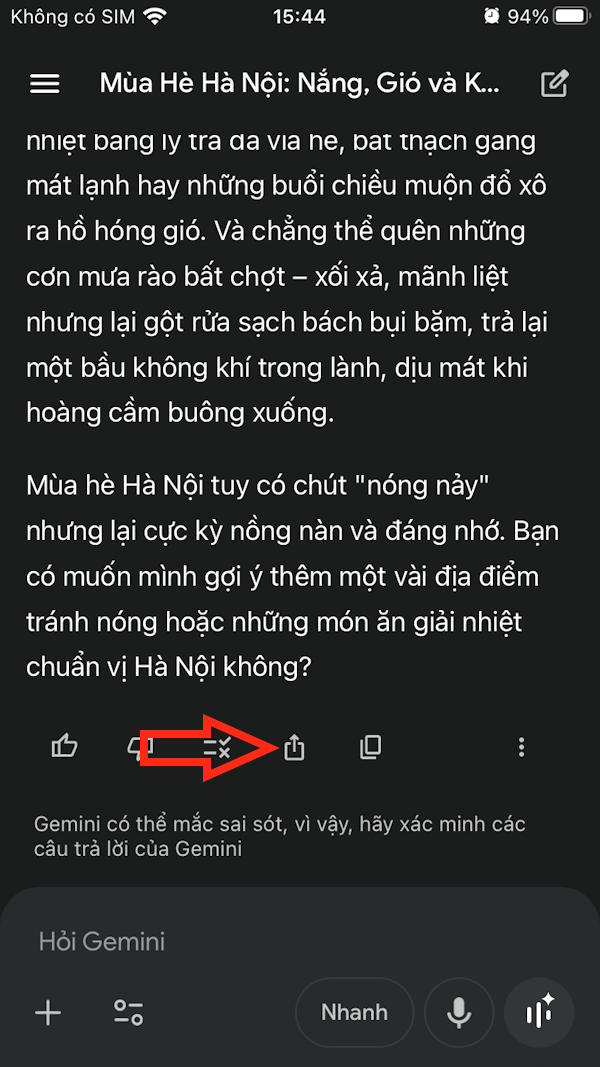
Step 2:
You'll see multiple sharing options appear on screen. Pick your preferred method—email, messaging apps, social media, whatever works for you. Once the recipient gets the link, they can open it directly to continue the conversation.
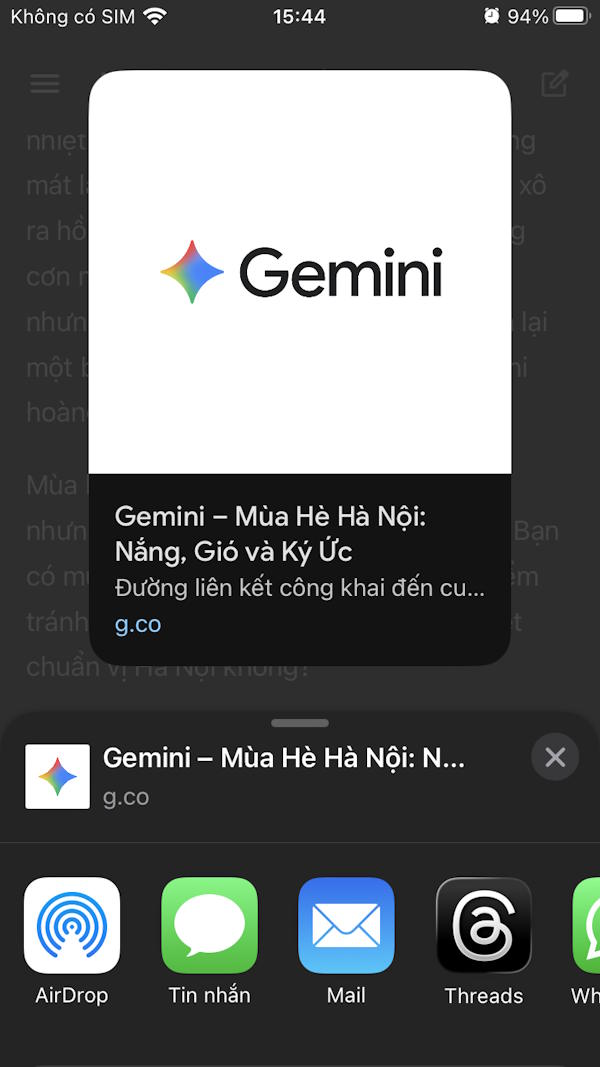
Sharing Gemini Conversations on Desktop
Step 1:
Head over to Gemini and have your chat as usual. Find the conversation you want to share and click the share icon.
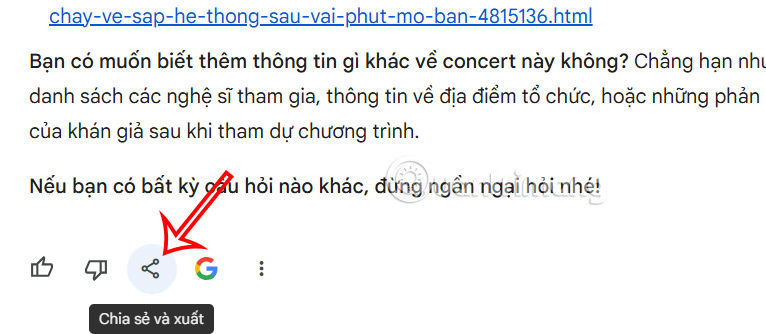
Step 2:
A menu with sharing options appears. Click Share to proceed.
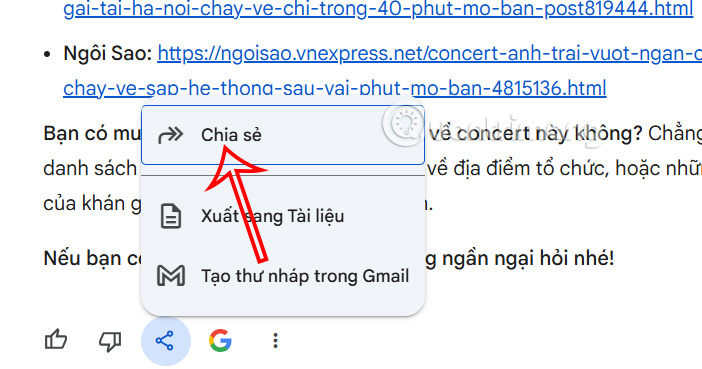
Step 3:
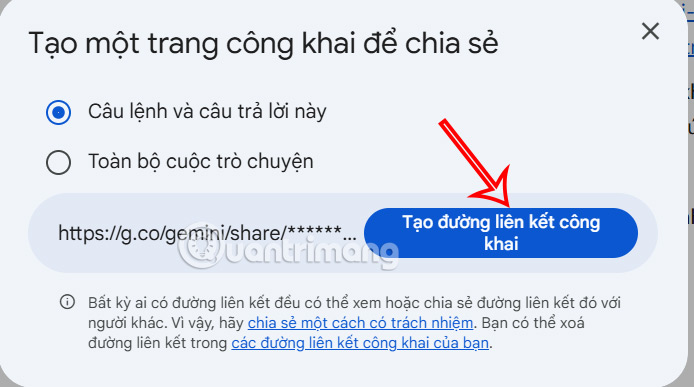
Now you choose what to share. You can share just a specific message or the entire conversation thread. Make your selection, then hit Create public link. The link automatically copies to your clipboard—ready to paste wherever you need it.
Step 4:
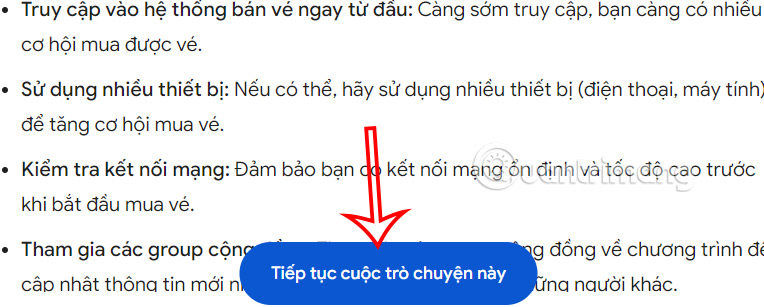
When someone clicks your link, they land on the conversation. To join in, they simply click Continue this conversation.
Managing Your Gemini Public Links
Gemini's public link feature is handy, but you'll want to keep tabs on what's shared. Over time, you might accumulate links you no longer need or want to revoke access to old conversations. Google built in a dedicated management section so you can review, monitor, and delete public links whenever you want.
The real concern is control—once a link exists, anyone with it can view your chat. So managing your shared conversations is essential.
Step 1:
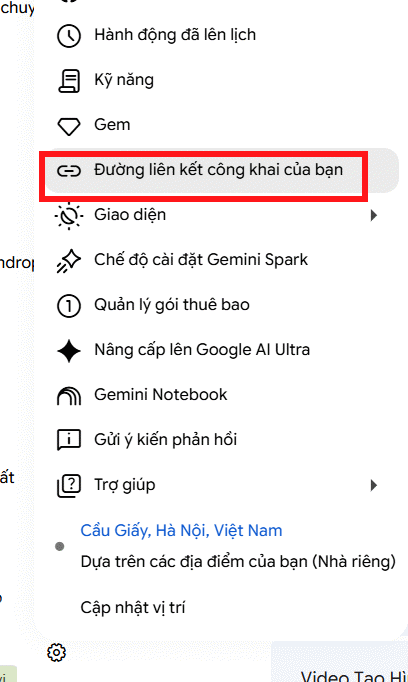
On desktop Gemini, click the settings gear icon and select Your public links.
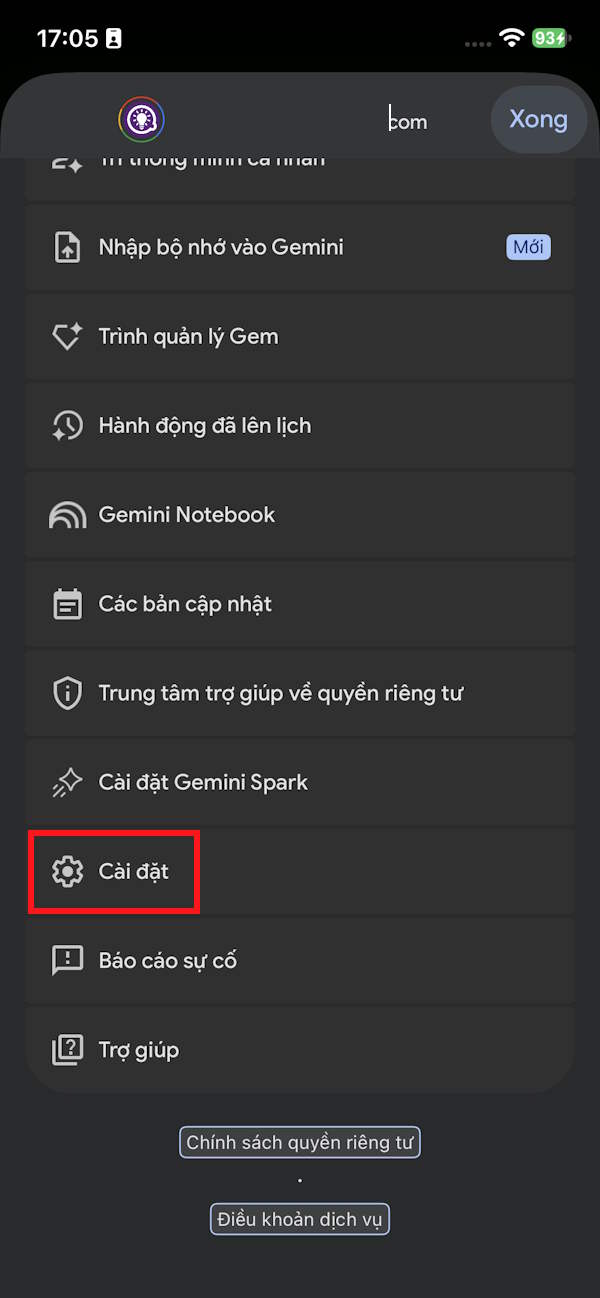
On mobile, tap the settings gear icon, then Settings. From there, tap Your public links.
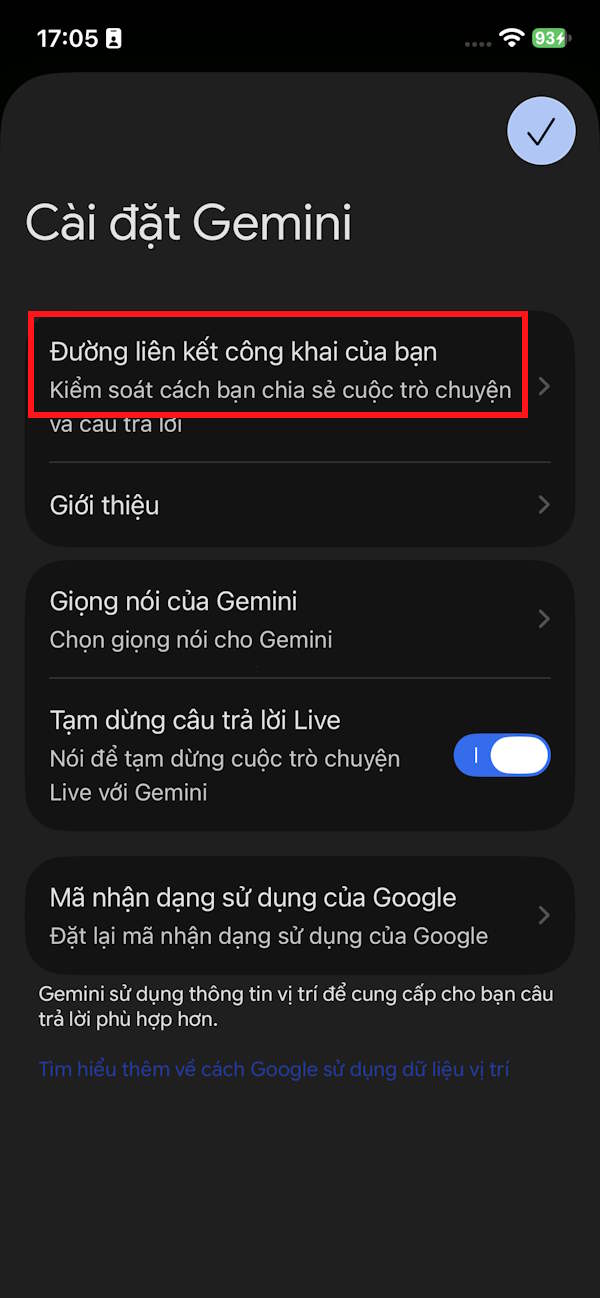
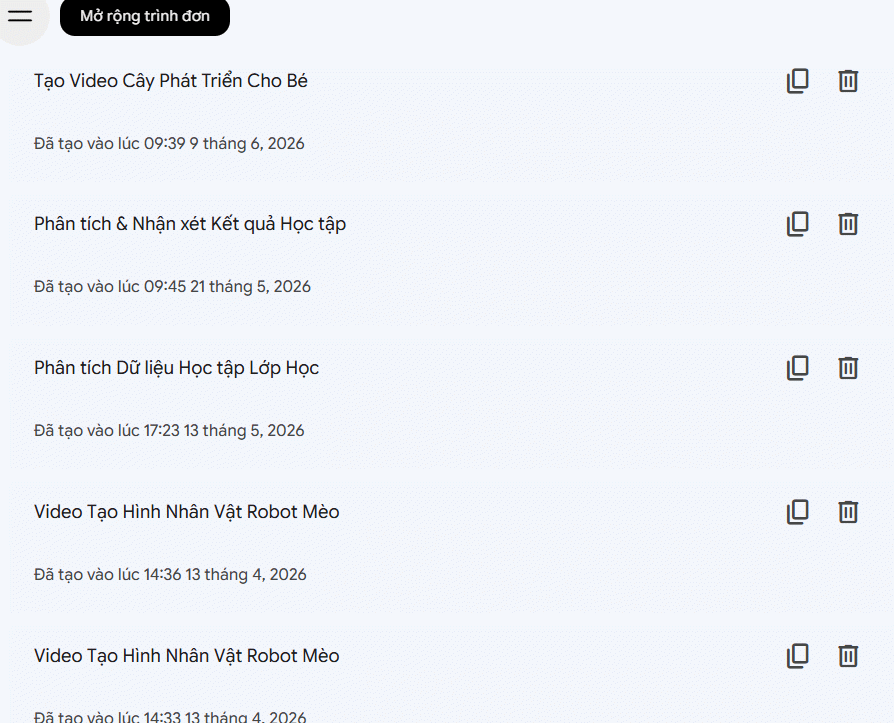
Step 2:
You'll now see a complete list of all conversations you've shared on Gemini.
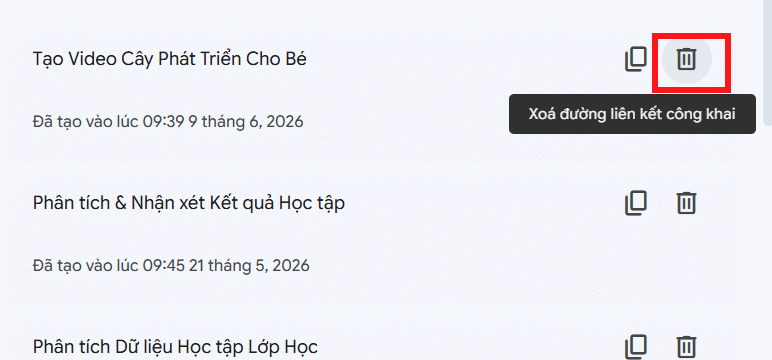
Want to remove a specific conversation from public access? Just click the trash icon next to it.
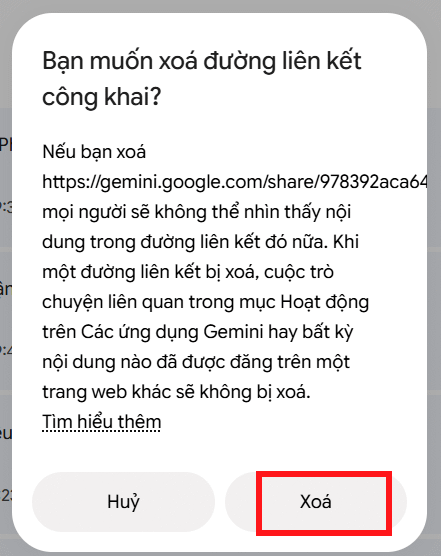
You'll get a notification that the conversation will no longer be visible to people with the old link. Hit Delete to confirm the removal.
Step 3:
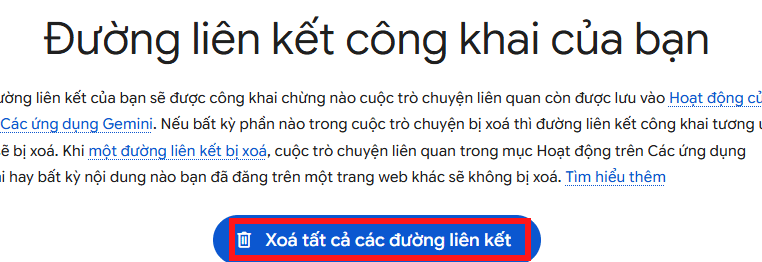
To wipe out all your public links at once, click Delete all links.
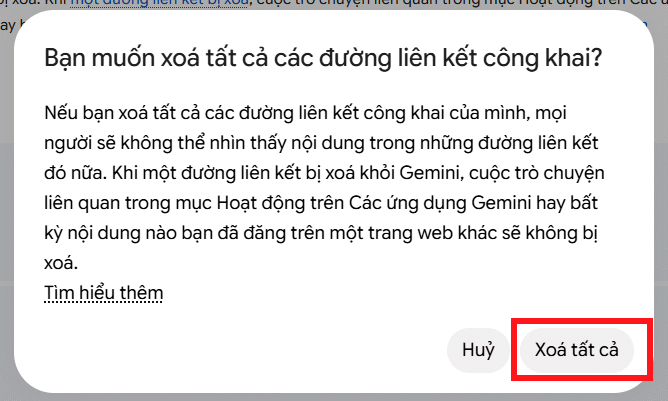
Confirm by hitting Delete all to remove every public link you've created.
Important Notes About Deleting Public Links
What happens when you delete a shared link?
Removing a public link triggers several specific changes:
- The link stops working: Anyone who had the link will see an error message saying the conversation no longer exists. They'll be redirected to the main Gemini interface.
- Third-party posts aren't deleted: If you posted the link on Facebook, your website, a forum, or anywhere else online, deleting the link won't remove those posts. You have to manually delete them wherever you shared them.
- Your original conversation stays: Deleting a public link doesn't remove the conversation from your Gemini Apps Activity. If you want to completely erase the chat, you need to delete it separately from your activity history.
- Other users aren't affected: If someone continued the conversation in their own Gemini account, removing your public link won't delete their copy of that chat. They keep their version regardless.
Why do public links disappear on their own?
Sometimes a public link stops working without you doing anything. This happens when the underlying conversation gets deleted from your Gemini Apps Activity. Several things can cause this:
- You manually deleted the conversation from your activity.
- Google automatically deleted it based on your activity retention settings.
- You removed the conversation from your recent chats or unpinned it.
If a public link suddenly stops working, check your Gemini Apps Activity to see if the original conversation is still there. That's usually the culprit.
Description: Learn how to share Gemini chat conversations via public links on mobile and desktop, plus how to manage and delete shared links.
Related Articles
- Microsoft Finally Delivers True Native Copilot App for Windows 11 With Practical New Features
- Microsoft Launches Copilot Health to Make Sense of Your Wearable Device Data
- China's First Gaming Billionaire Now Chasing Artificial General Intelligence
- This Android Gaming Phone Just Shattered Smartphone Battery Life Records
- AI Healthcare Adoption Surges: 70% of Medical Organizations Now Deploy AI Systems

No Comment to " How to Share Gemini Conversations and Manage Public Links "