4 Essential Tweaks to Make Before Starting a Fresh Obsidian Vault
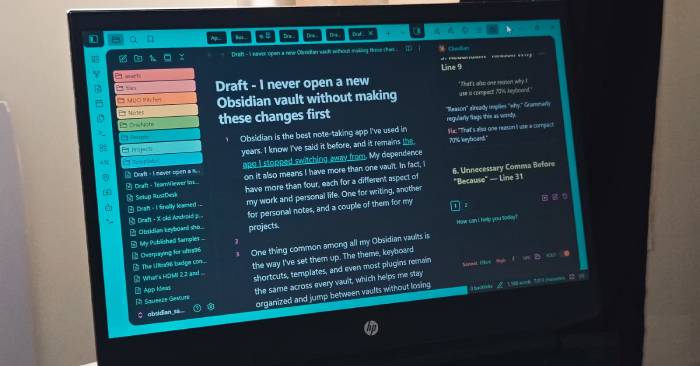
Obsidian has become the note-taking app of choice for writers and knowledge workers everywhere. The beauty of Obsidian is that you can create multiple vaults—separate workspaces for different parts of your life. Maybe one vault handles your writing projects, another captures personal notes, and others manage specific work initiatives. What matters is getting them right from the start.
Here's what's interesting: most Obsidian users want their vaults to feel consistent. Themes, keyboard shortcuts, templates, and plugins should feel familiar across all your vaults. This consistency means you spend less time learning new systems and more time actually working. The good news? Initial setup takes just minutes, but the payoff lasts forever.
Hotkeys Come First—Master Keyboard Navigation
Speed up your writing workflow with custom keyboard shortcuts
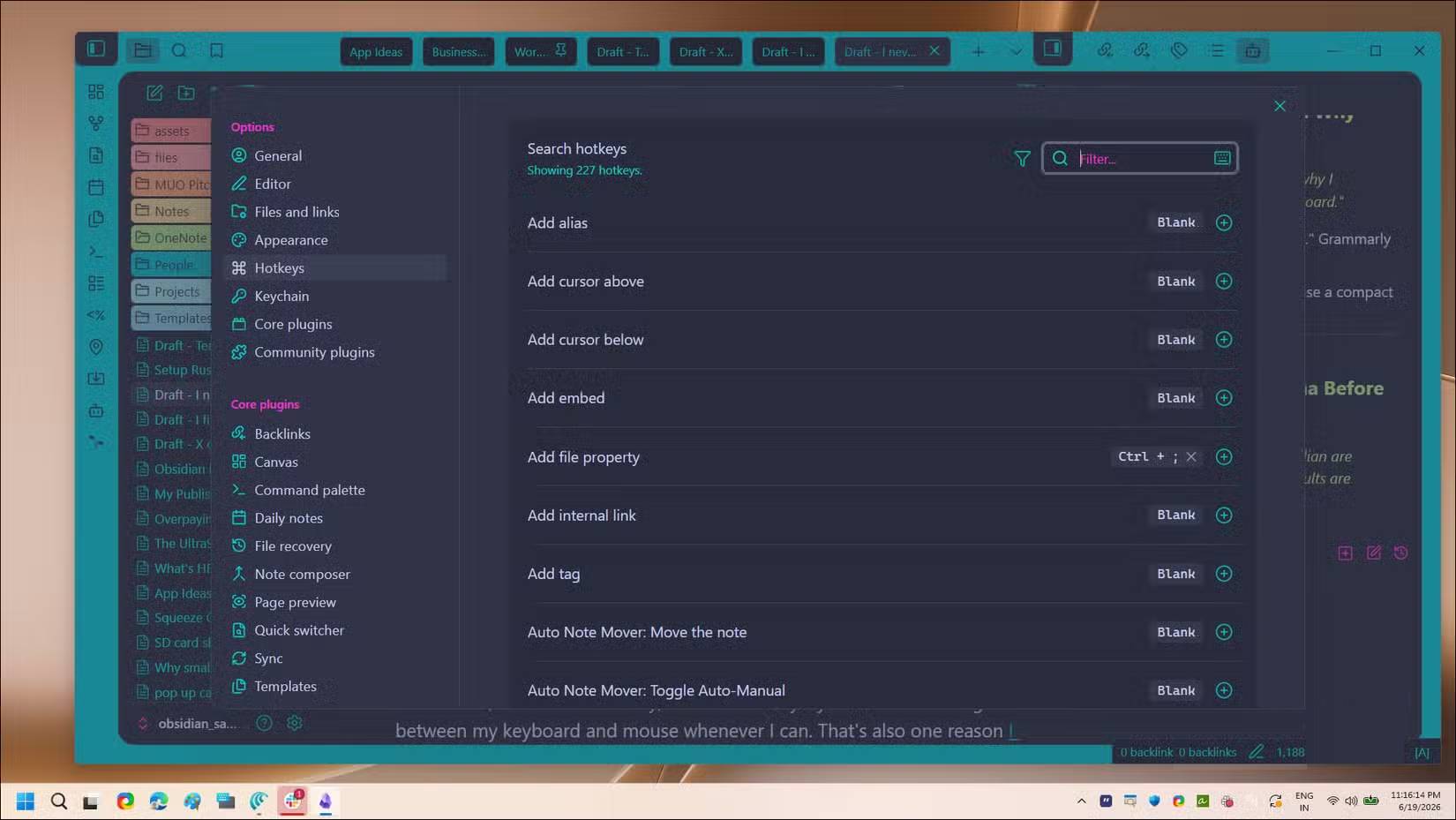
If you spend several hours a day writing, you'll instinctively want to keep your hands on the keyboard. Reaching for the mouse breaks your flow. That's why many writers prefer compact 70% keyboards—and why hotkey setup should be your first priority in any new vault.
Go to Settings > Hotkeys to configure yours. Obsidian ships with sensible defaults, but a few custom shortcuts make a world of difference. Ctrl + P opens the Command Palette—the fastest way to execute any command by name. Ctrl + O launches the Quick Switcher, letting you jump between notes without touching the sidebar. Ctrl + E toggles between edit and preview modes—something you'll use constantly when reviewing drafts.
Add two more daily essentials: Ctrl + Shift + F searches across your entire vault, and Ctrl + K inserts markdown links without typing the syntax manually. If you often work with multiple notes open at once, holding Ctrl while clicking links opens them in new tabs instead of replacing your current view. Your active note stays put.
These aren't exotic shortcuts, but setting them up immediately means you can navigate your vault almost entirely from the keyboard. Before you write a single note, lock in these hotkeys across every vault you create.
Theme—Make Your Workspace Inviting
Pick a visual style that makes you actually want to open the app
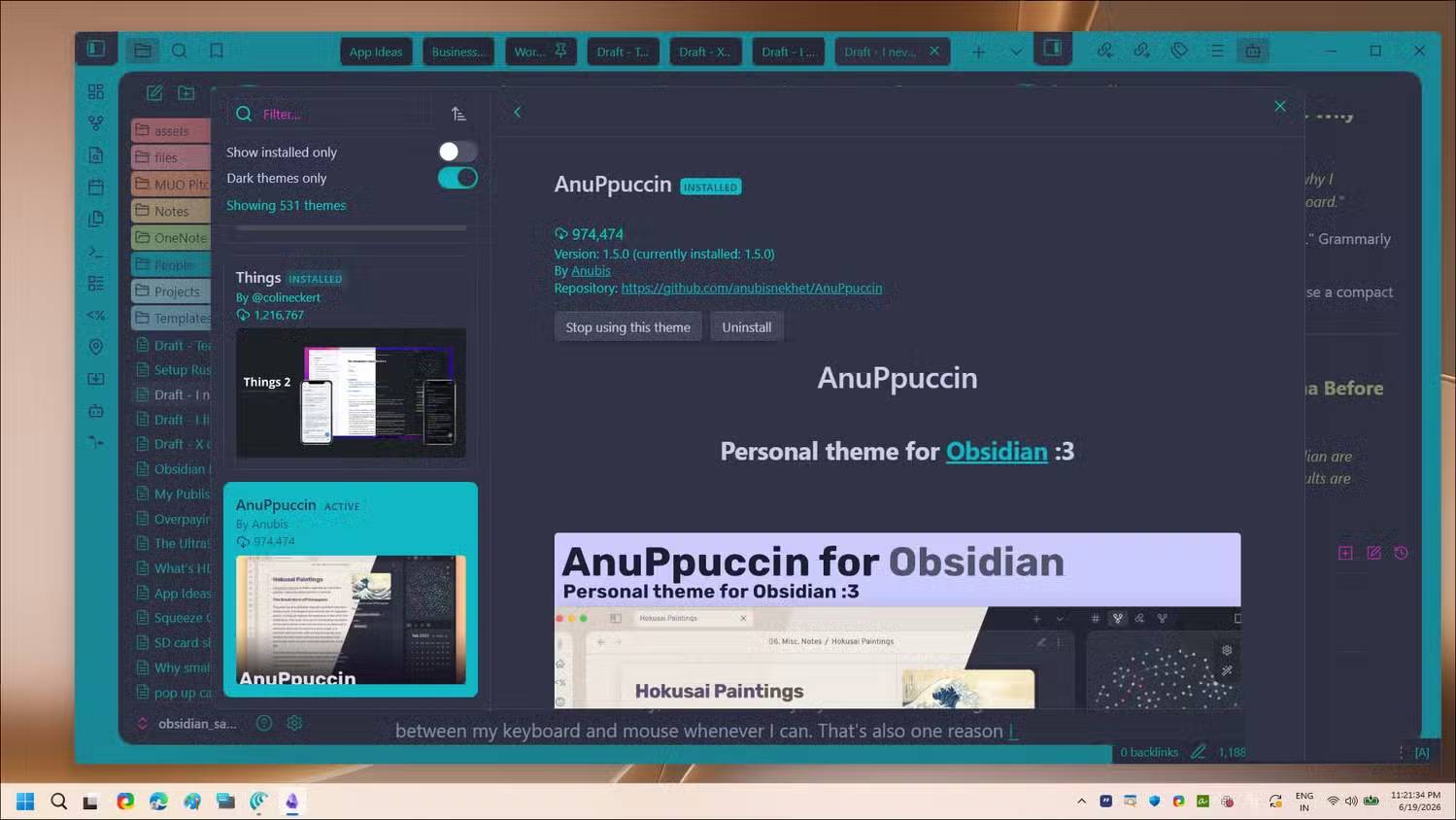
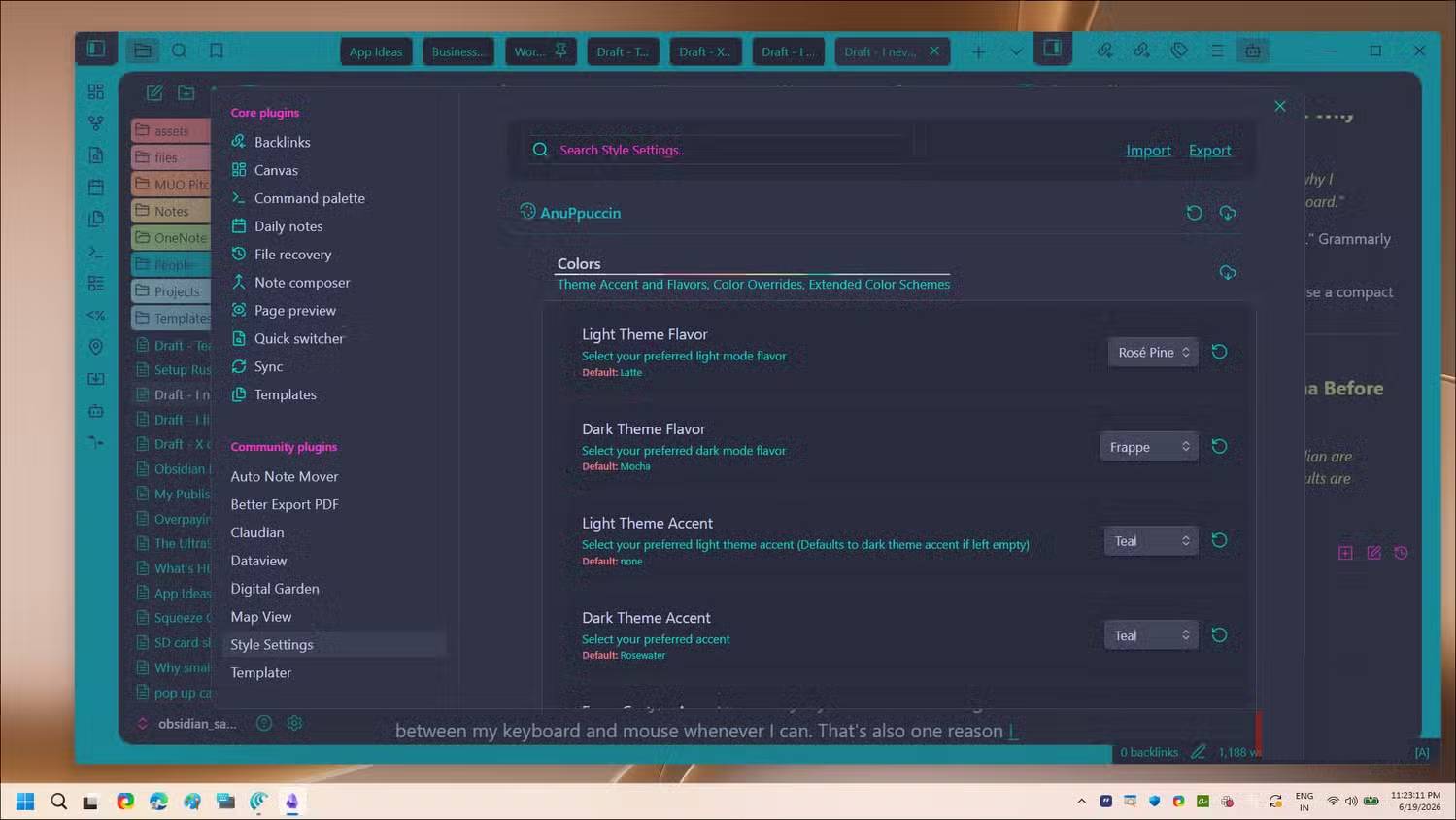
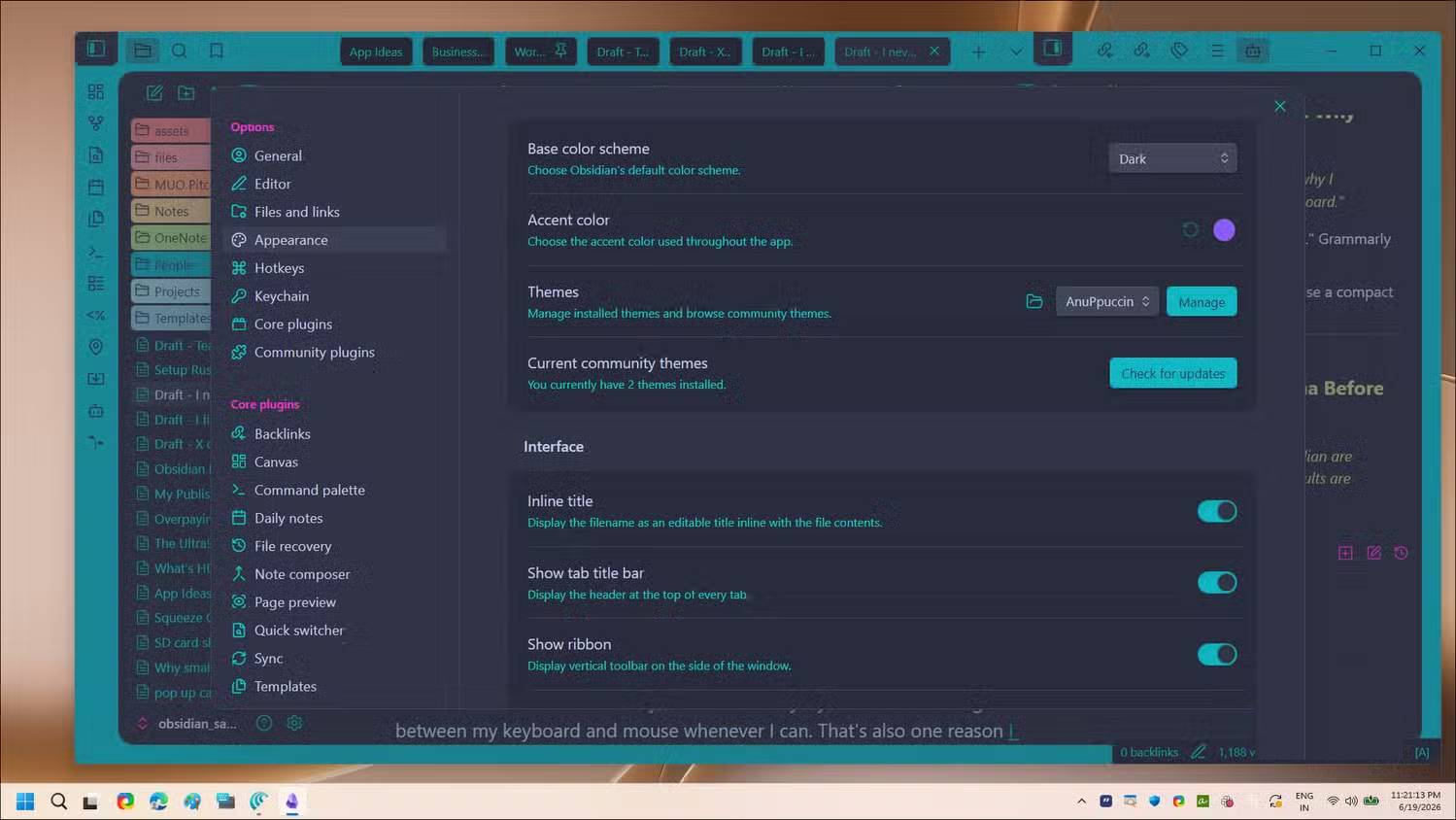
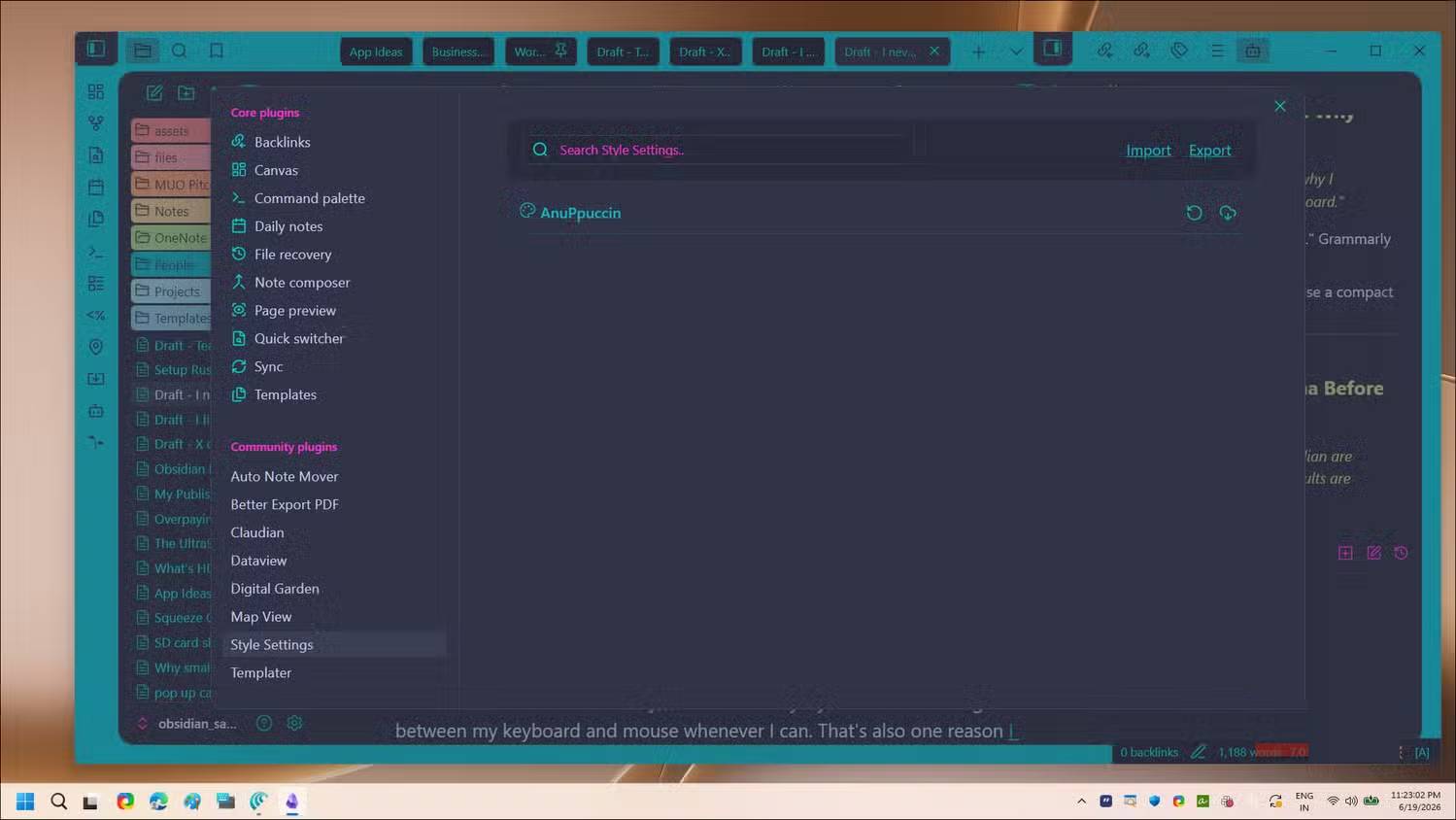
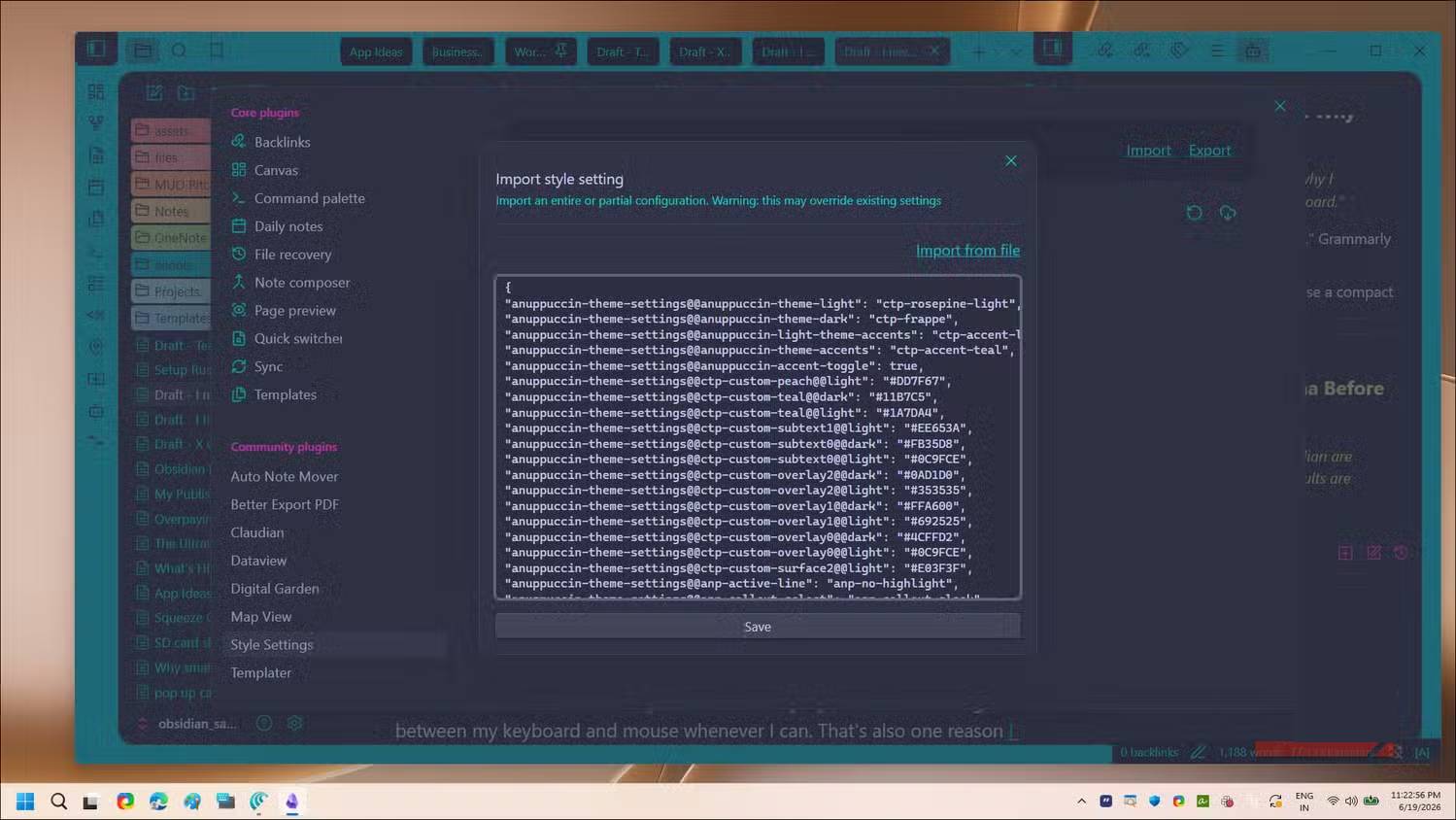
Most people skip theme customization, but a polished workspace feels significantly more welcoming than Obsidian's default gray aesthetic. Take the customized AnuPpuccin theme shown here—a Reddit user named SamBorgman refined it by layering CSS through the Style Settings plugin. The result? Clear visual separation between the sidebar, open notes, tabs, and editing area. It actually looks like you want to use it.
You'll find themes under Settings > Appearance > Themes > Manage. AnuPpuccin ranks in the top 3 most-downloaded themes in the Obsidian community. Theme preference is personal—some people prefer minimal, monochrome designs, and Obsidian has plenty of those. The real goal is choosing something that makes you *want* to open the app, not something you merely tolerate.
Install the Style Settings plugin alongside any theme you select. Most popular themes ship with additional options through this plugin—accent colors, font sizes, sidebar layout tweaks—so you can fine-tune your interface without touching CSS manually.
Configure Bookmarks—Quick Access to Your Most-Used Notes
Keep frequently-accessed notes one click away in your sidebar
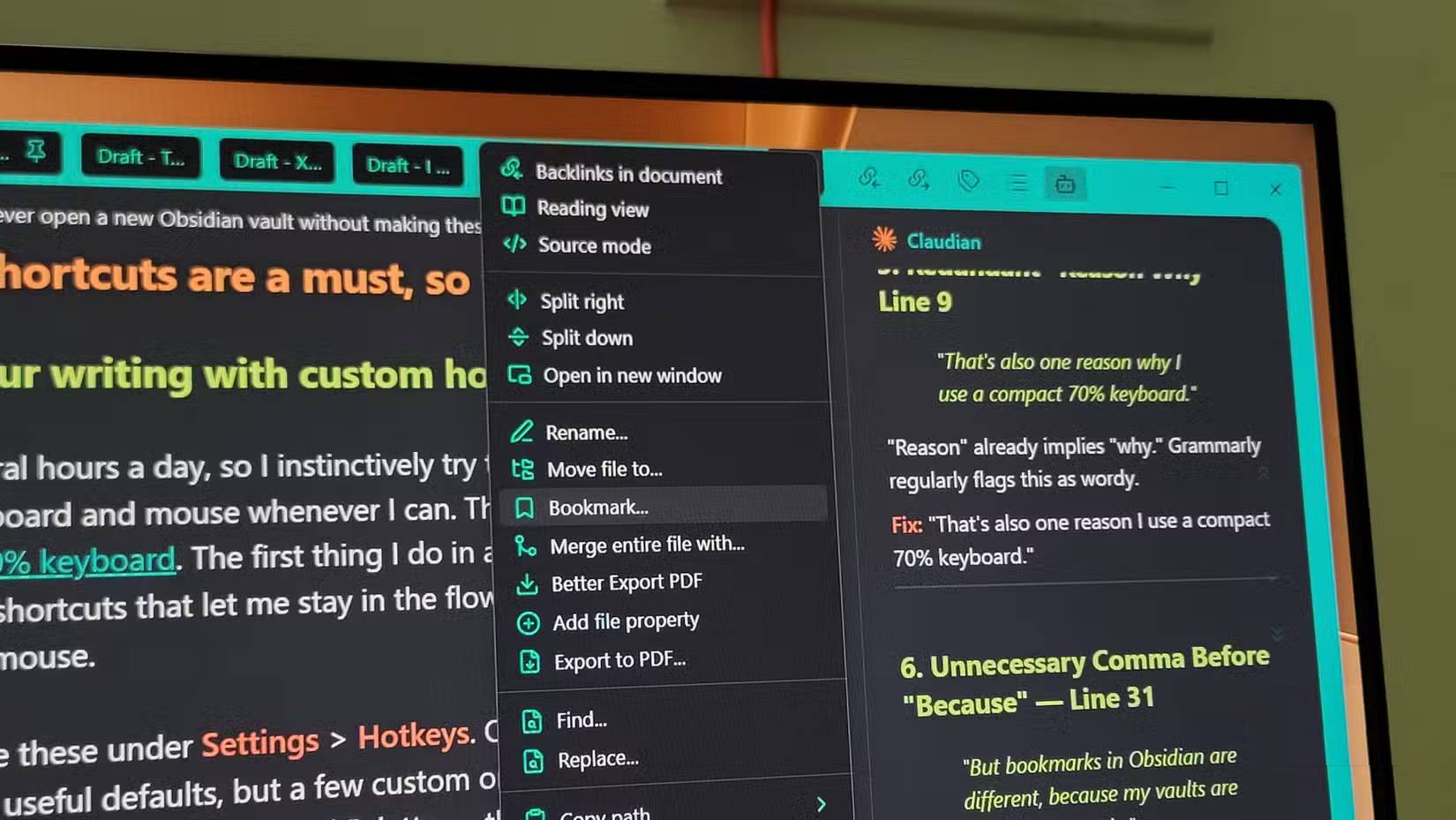
Browser bookmarks accumulate and get forgotten within weeks. Obsidian bookmarks are different—each vault is focused and intentional, not the sprawling mess of the open web. Every vault has a handful of notes you open nearly daily, and bookmarks keep them visible in your sidebar without cluttering things.
These typically include publishing checklists, idea capture lists, "do tomorrow" notes for urgent tasks, and anything you're afraid you'll forget if it's not immediately visible. The secret to usefulness? Keep the list short.
Bookmarking is simple. Right-click any note in the file explorer and select Bookmark. Or open the Command Palette with Ctrl + P and search "bookmark". Once bookmarked, the note appears in your sidebar's Bookmarks panel. Pin it, and it stays put. Most people pin their most important notes at the very top of the left sidebar, above the file manager, so they're the first thing you see when you open the vault.
Plugins—More Doesn't Mean Better
A few essential plugins beat a hundred redundant ones
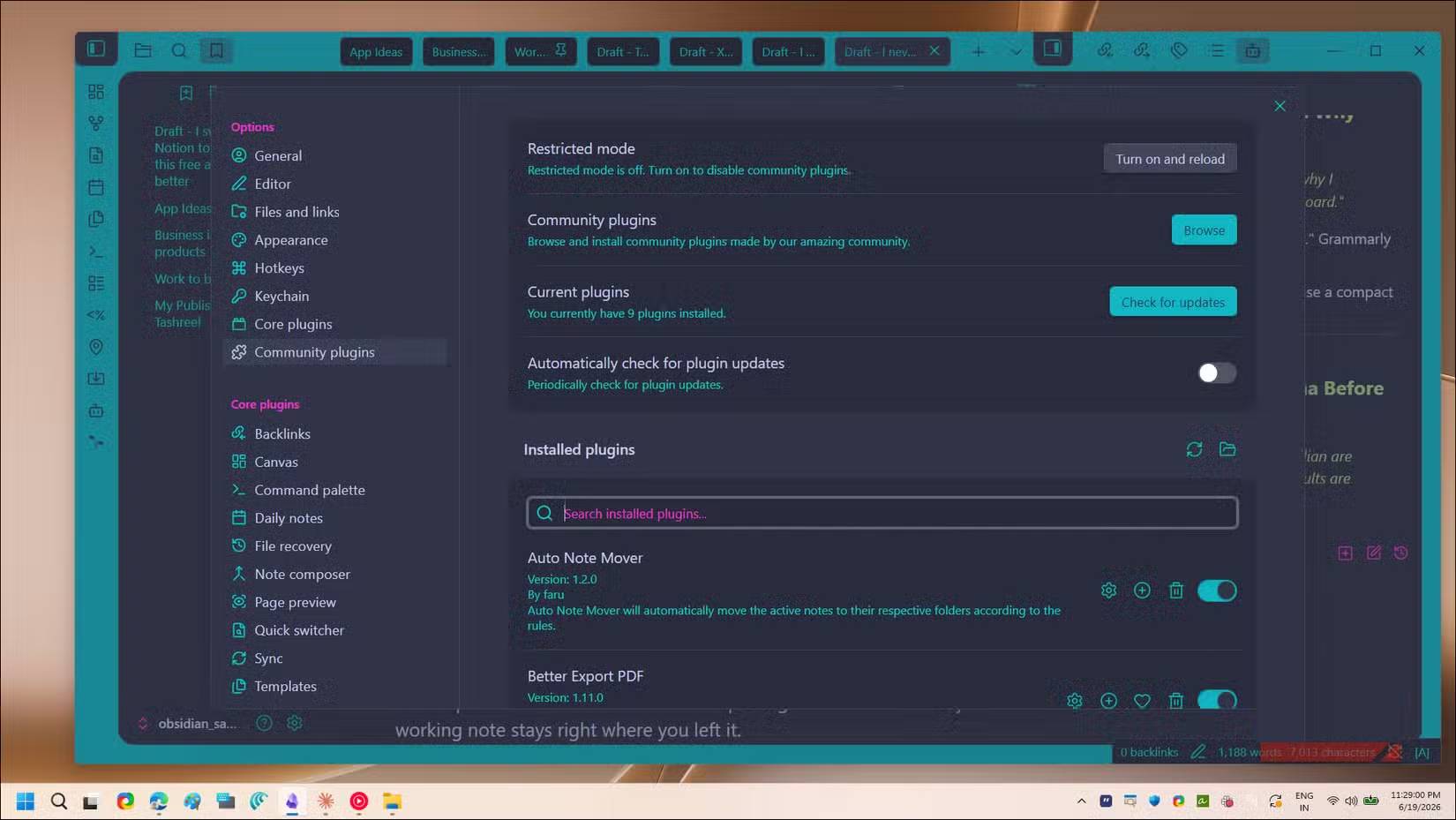
The plugin ecosystem is what makes Obsidian flexible and powerful. But here's the problem: too many plugins slow things down instead of speeding them up. Keep your plugin list ruthlessly minimal. Only install what you'd genuinely miss if it disappeared.
Obsidian Digital Garden tops the usage list because it lets you publish your vault as a live website without paying for Obsidian Publish—perfect for sharing selected notes publicly while keeping the rest private. Tasks tracks to-dos within your notes with due dates and filters. Quick Switcher++ supercharges the default switcher with title and symbol searching inside notes—a lifesaver once your vault grows beyond a few hundred files.
Markdown Table Editor transforms working with tables from painful to painless. Try formatting markdown tables by hand and you'll understand—columns quickly misalign and become unreadable. This plugin handles it intuitively. Obsidian Git automatically backs up your vault to a Git repository on a regular schedule, running silently in the background and maintaining version history you never have to touch. Claudian connects Claude AI directly inside Obsidian, valuable for brainstorming and drafting without leaving the app.
That's it—just six plugins across most vaults. Despite experimenting with dozens of others over the years, people consistently return to this core toolkit because each one solves a specific problem you'll encounter repeatedly.
Setup Pays Dividends in Focus Time
Each of these changes takes only a few minutes, but combined they transform a fresh vault into something that feels familiar and worn-in instantly. You'll spend less time hunting and clicking, and far more time actually writing.
This setup might not suit everyone. Some choices here—especially the theme and plugin list—reflect a writer's workflow. Your vault might need completely different tools depending on whether you're using Obsidian for research, project management, or personal journaling. But the core principle stays the same: nail down the fundamentals early so you can spend time *using* your vault instead of configuring it.
Description: Set up your new Obsidian vault properly from day one. Learn which hotkeys, themes, bookmarks, and plugins will save you hours of frustration.
Related Articles
- 10 ChatGPT Shortcuts That Unlock Hidden Productivity
- Which Smartphones Emit the Highest Radiation Levels Today
- Building Integrated Lesson Plans and Appendices with Digital Literacy, Defense Education, and Moral Education in NotebookLM
- Over 11 Million Android Devices Infected with Malware Distributed Through Google Play
- AI Healthcare Adoption Surges: 70% of Medical Organizations Now Deploy AI Systems

No Comment to " 4 Essential Tweaks to Make Before Starting a Fresh Obsidian Vault "