Turn Long Documents Into Stunning Presentations: NotebookLM + Canva Guide

Converting lengthy PDF documents into engaging presentations used to feel like a chore. But combine NotebookLM (Google's AI-powered note-taking tool) with Canva, and you can generate professionally designed slides complete with animations and visual effects in just minutes. Here's a streamlined 7-step process to transform your lectures, reports, and study materials into polished digital presentations.
How to Build Presentation Slides Using NotebookLM with Your Existing Content
Step 1: Prepare and Optimize Your Source Material
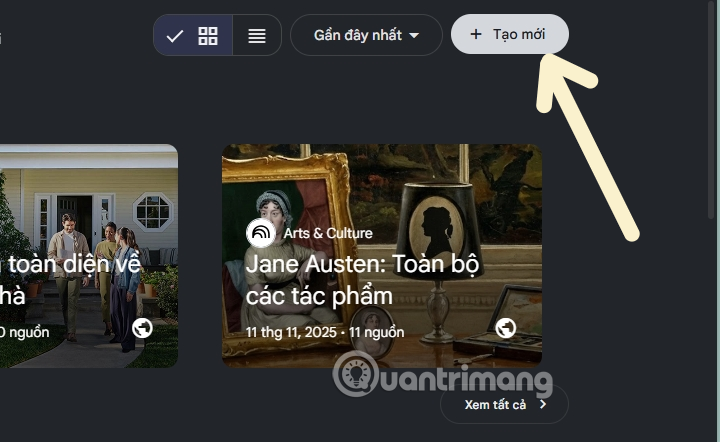
Head over to NotebookLM and select Create New. Next, upload your document—whether that's a PDF, plain text file, or content from elsewhere—to establish your source material. NotebookLM will use this as the foundation for generating your slides.
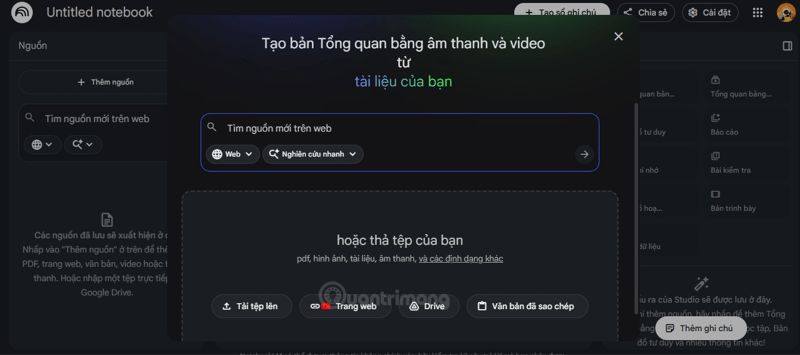
NotebookLM gives you several upload options: drag files from your computer, pull from Google Drive, paste a web URL, or simply paste text you've copied. Choose whatever works best for your workflow.
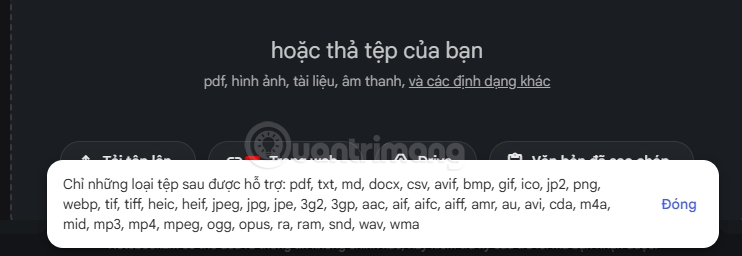
NotebookLM supports a variety of file formats for this step.
- Pro tip for complex data: If your document includes heavy math formulas or messy tables, run it through Gemini first to extract the content as plain text. Then paste that cleaned-up version into NotebookLM so the AI correctly interprets the structure.
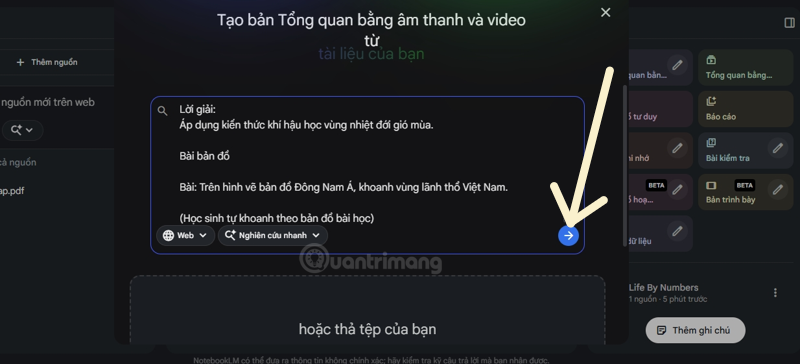
Select the Paste Text option to add content you've already prepared.

Copy your text, paste it into the input field, and hit the save arrow to confirm your source.
Step 2: Generate Your Presentation with AI
Once your source material is loaded, find the Presentations section in NotebookLM and click the pencil icon to define your preferred design style.
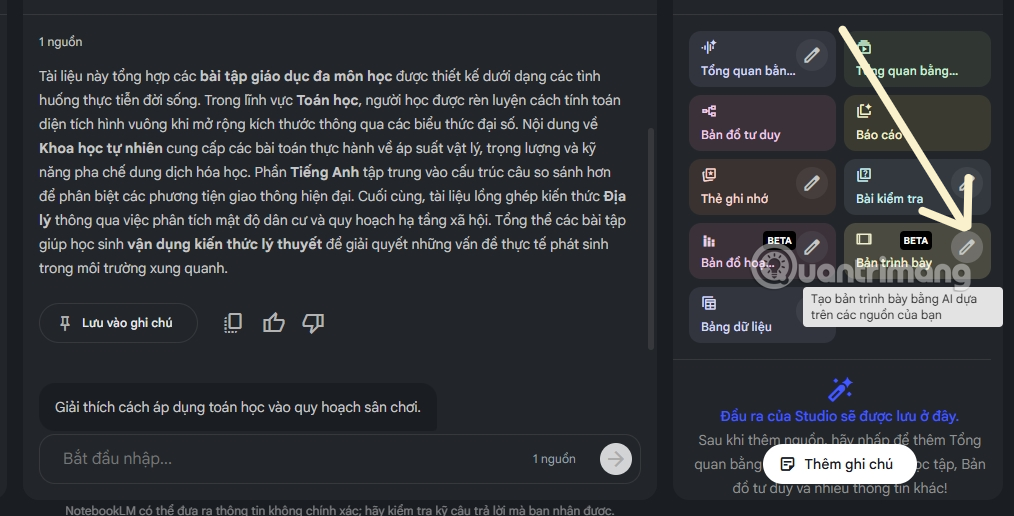
Customization: Write a detailed description of the style you want. Examples include: "Minimalist modern aesthetic," "Professional education colors," or "Retro vintage vibes." Be specific—the more detail you provide, the better the AI results. Then click Create.
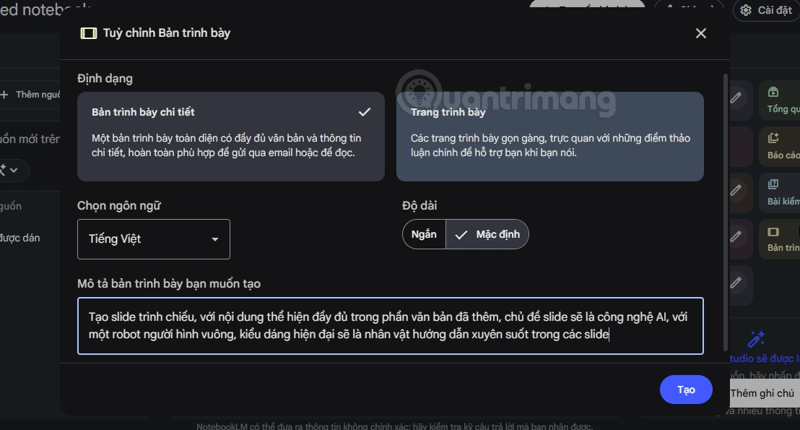
Processing time: Give the AI roughly 15–20 minutes to design your complete slide deck layout based on your content.
Step 3: Review and Export as PDF
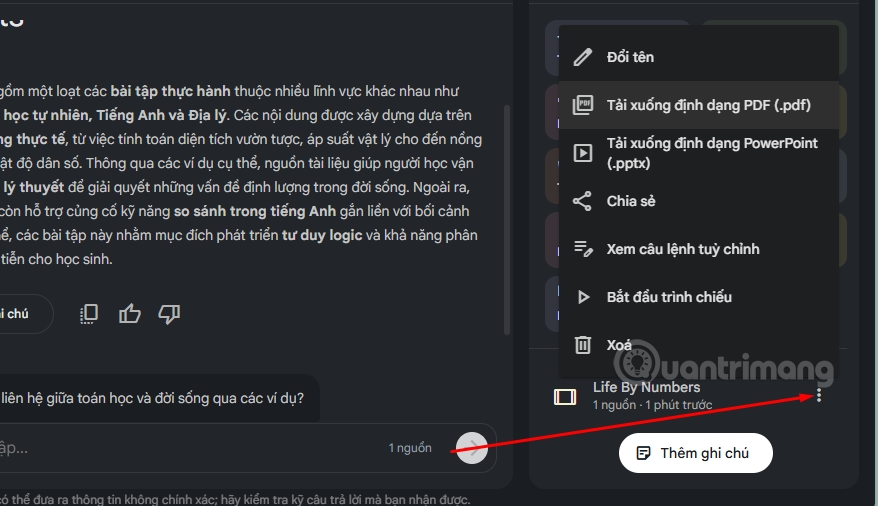
Once the AI finishes, review every slide carefully.
-
Smart editing approach: Collect all your corrections and make them in one edit session only. Multiple rounds of revisions on NotebookLM can degrade image resolution. Note: This advanced editing is available to Gemini Premium subscribers.
-
When you're happy with the result, download your presentation as a PDF file.
Step 4: Import Your PDF into Canva for Refinement
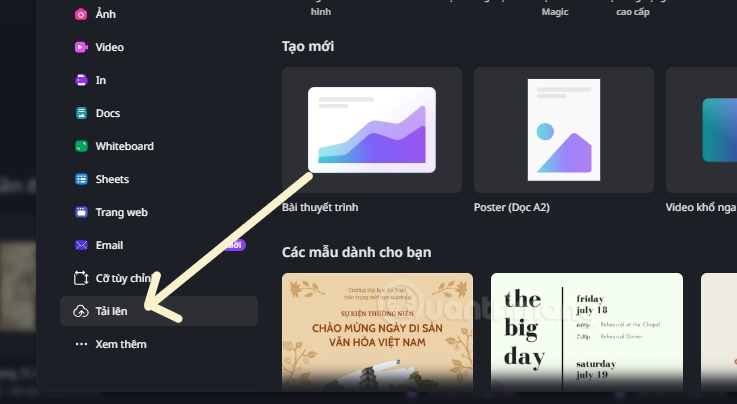
Open Canva and click Create.
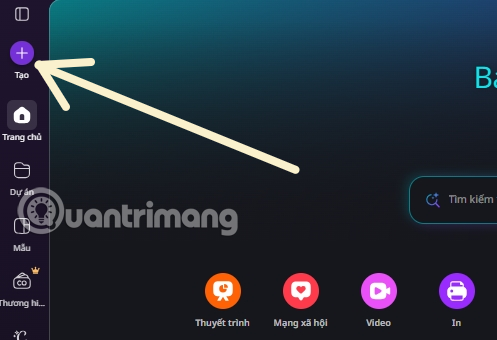
Select Upload and choose the PDF presentation you just exported.
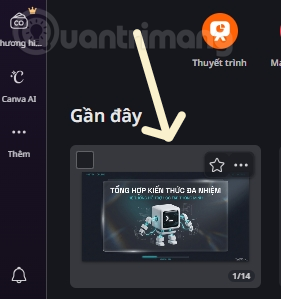
Click on your uploaded file to open it for editing.
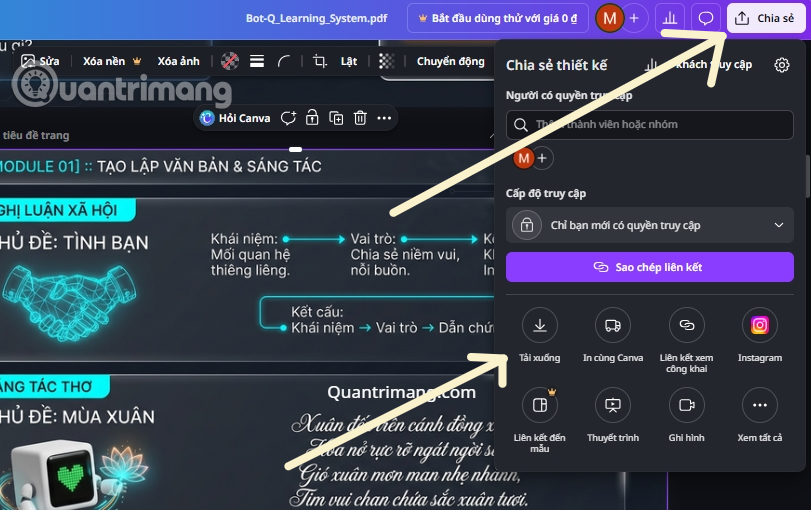
Canva's free tools let you add text, stickers, and other elements to refine each slide. Once you're done enhancing, click Share and Download.
-
For deeper editing, use Canva AI: Click on a slide, select Edit → Magic Studio → choose Grab Text.
-
This converts static text (which was previously just an image) into editable text objects.
Step 5: Format and Fine-Tune Your Text
AI text extraction sometimes shifts fonts or sizes. You'll want to:
- Select fonts that match your brand guidelines or lesson theme for visual consistency.
- Adjust font size, line spacing, and positioning to maintain both aesthetics and readability.
Mastering the Art of Prompting AI for Better Slides
To move beyond "good enough" slides to truly polished presentations, the secret is how you write your instructions (prompts) for NotebookLM and Canva. Instead of vague commands, try this approach:
- 1. Define your audience and tone: Rather than "Make slides about Math," try: "Create a statistics presentation for 12th-grade students using scientific language that's still accessible and relatable to everyday life." The AI will automatically pick vocabulary that fits your audience.
- 2. Lock in your color scheme upfront: Specify your palette in the style description: "Use soft pastel blues and white as the primary colors to create a clean, modern feel that keeps viewers focused on formulas and data."
- 3. Leverage Canva's Magic Switch: Once your file is in Canva, don't skip the Magic Switch feature. If you need your presentation across multiple platforms, this tool automatically resizes your deck from horizontal (standard presentation) to vertical (TikTok/Reels) or square (Facebook) formats without manually repositioning each element.
Why This Combination Is the 2026 Trend
- Saves 80% of your time: Instead of manually typing every line and hunting for images, AI handles the heavy lifting. You become the director, adding the final polish and emotional touches.
- Higher engagement: Swapping static slides for animated visuals keeps viewers engaged and dramatically boosts information retention through visual storytelling.
- No design expertise required: You don't need Photoshop or video editing skills. Every action is drag-and-drop, guided by AI suggestions.
Description: Learn how to convert PDFs into professional presentations using NotebookLM and Canva. Follow our 7-step workflow to create visually engaging slides in
Related Articles
- Why Claude Cowork Is Being Hailed as 2026's Biggest AI Breakthrough
- Best AI Image Upscaling Tools to Boost Your Photo Resolution in 2026
- 10 Strategies to Future-Proof Your Career in the AI Era
- 7 Surprising Tasks AI Assistants Can Actually Handle for You Right Now
- Create Seamless Repeating Patterns with PatternedAI in Canva

No Comment to " Turn Long Documents Into Stunning Presentations: NotebookLM + Canva Guide "