Build Parent-Teacher Meeting Slides in Minutes Using Canva AI
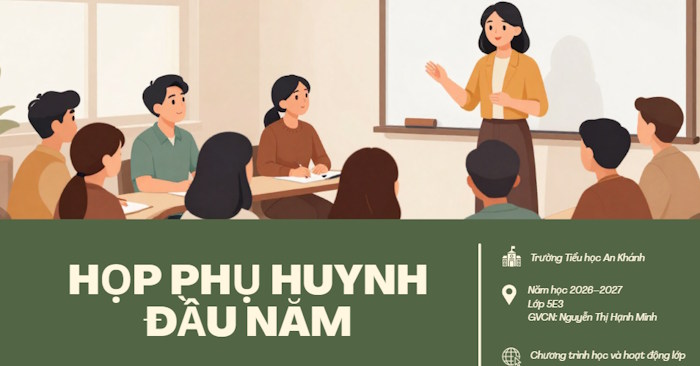
Teachers often spend hours formatting parent-teacher meeting materials. What if you could convert your existing notes—whether as text or images—into polished presentation slides with just a single command? That's exactly what Canva AI makes possible.
Canva AI streamlines this process by generating professionally styled slides with complete layouts, requiring minimal tweaking afterward. The best part? You retain full control to customize the content however you like once the AI finishes its work. Here's how to create your parent-teacher meeting presentation using Canva.
How to Generate Parent-Teacher Meeting Slides from Your Script on Canva
Step 1:
Start by preparing your parent-teacher meeting outline for the school year. You can capture this as an image or text document to summarize key talking points. An effective meeting script should typically include:
- Teacher introduction and classroom overview
- Meeting objectives and agenda
- General class status and performance
- Classroom rules and policies
- Academic goals for the year
- Discussion topics for parents
- Guidelines for parent-teacher collaboration
- Q&A and closing remarks
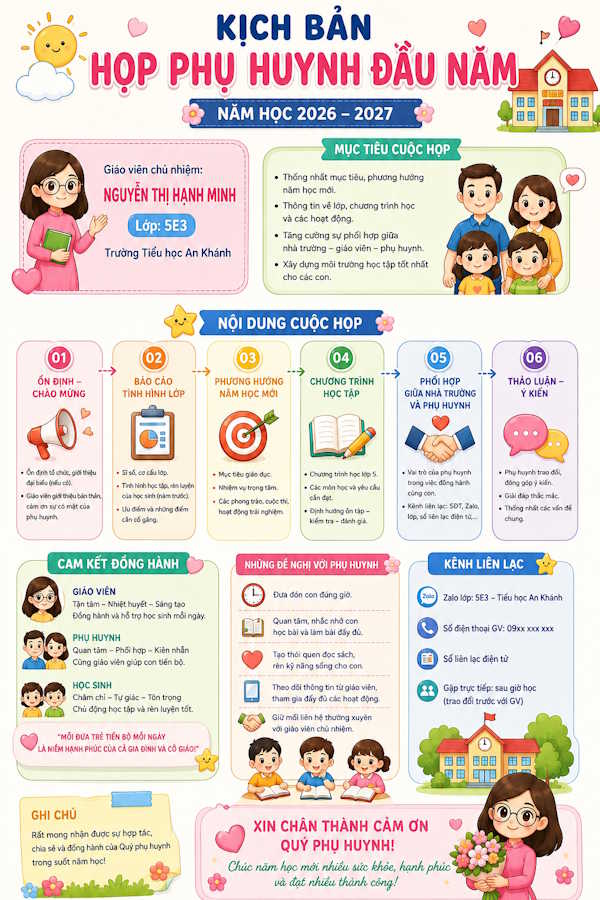
Next, upload your meeting notes or image to ChatGPT, then use the prompt below to structure your presentation slides. You can specify your preferred slide style—whether formal and professional, warm and approachable, minimalist and clean, or modern with infographics.
Using the parent-teacher meeting script provided, transform the content into a presentation outline with X slides.

Preserve all original information and key points without adding or removing anything. Organize content in a logical meeting flow, with each slide featuring a clear title and concise, easy-to-present bullet points.

If content doesn't fill X slides, break down existing sections further rather than creating new information. Maintain a professional, coherent design suitable for both teachers and parents.
Convert this parent-teacher meeting script into an 8–10 slide presentation. Each slide should have a concise title, clearly defined key points, and content formatted for easy reading during presentation. Arrange slides logically from opening remarks through main content to final Q&A. Don't introduce any information beyond what's in the original script. Suggest relevant visual elements for each slide.Step 2:
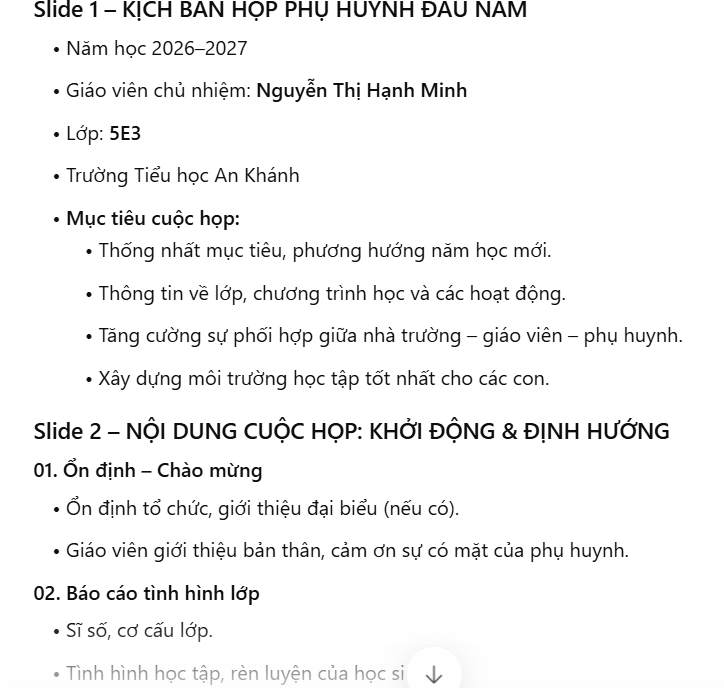
ChatGPT will then provide you with fully structured slide content matching your requested slide count.
Step 3:
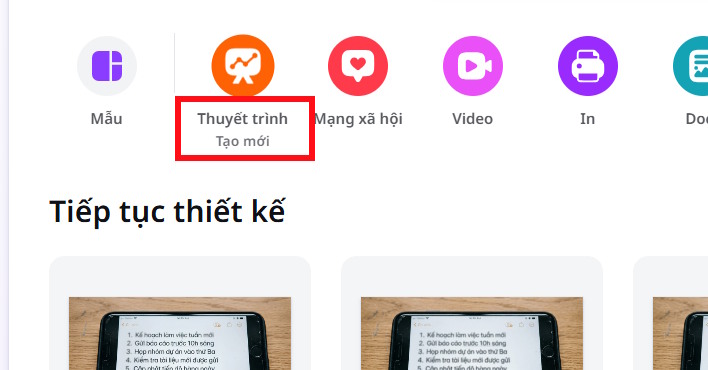
Open Canva AI and select Presentations from the main menu to begin creating your slideshow.
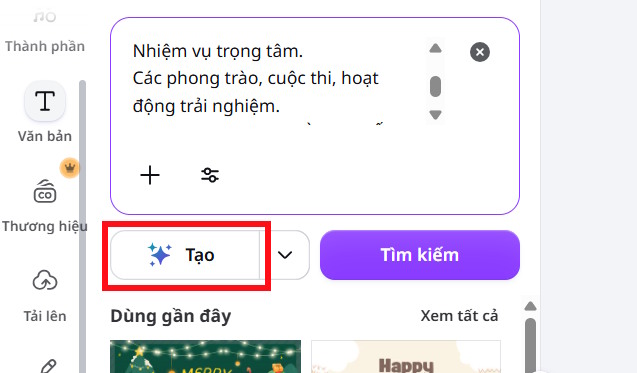
Click on Canva AI or paste the ChatGPT content directly into the AI slide design box, then click Create to generate your slides.
Step 4:
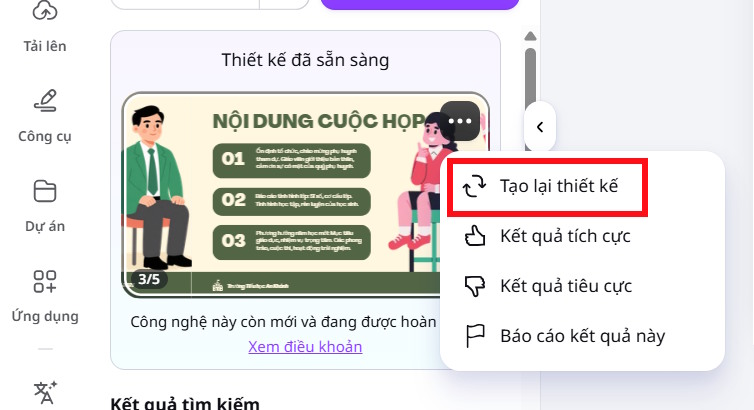
Wait for Canva AI to generate your presentation. Once complete, you'll see your slides displayed. Review each page, and if you'd like different styling, click the three-dot menu and select Regenerate slide.
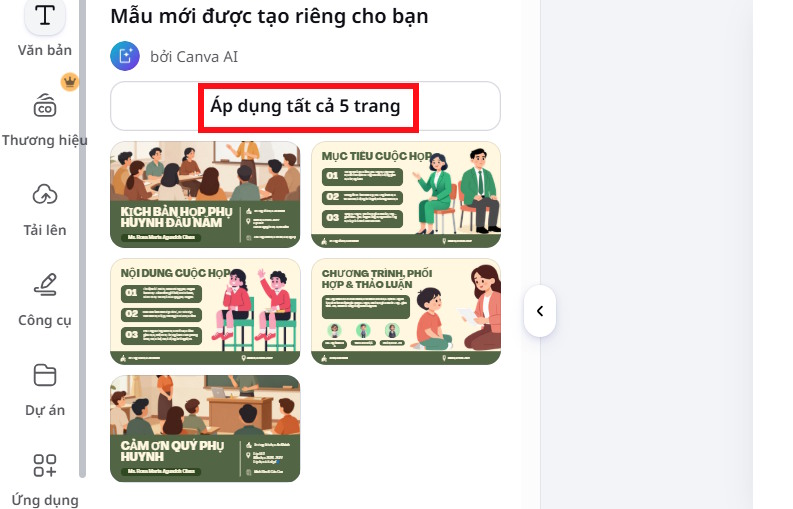
Select a slide design you like, then click Apply to all pages to import it into your Canva project.
Step 5:
Now comes the fine-tuning. Review each slide's content, make any necessary edits, upload classroom photos if needed, and adjust formatting as desired.
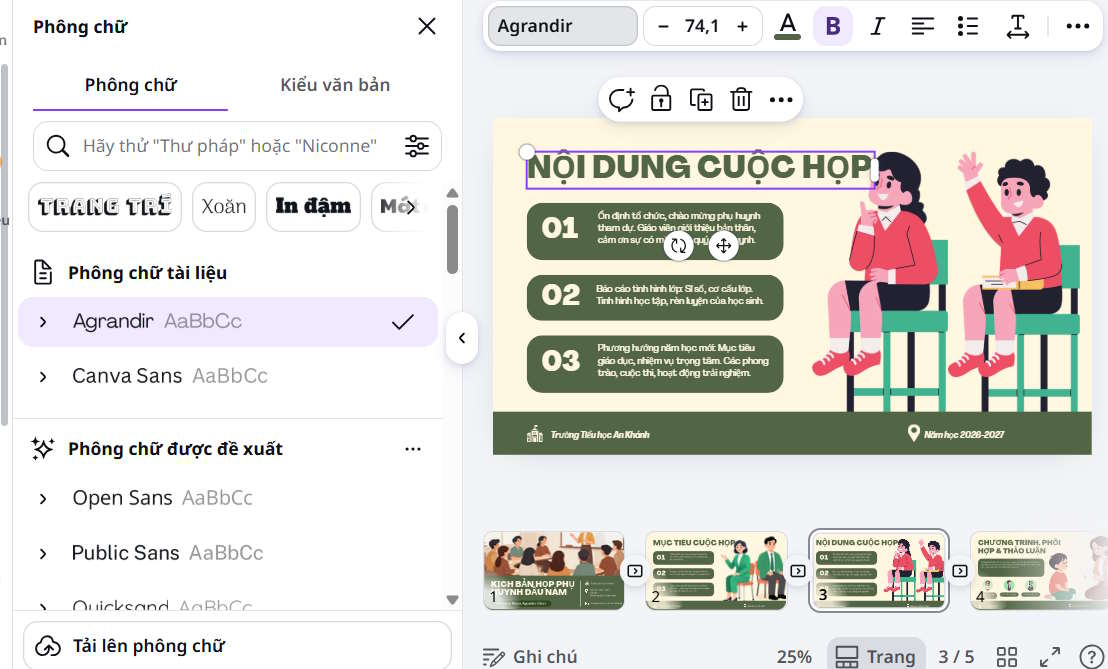
Once you're satisfied with your presentation, simply download the file and you're done.
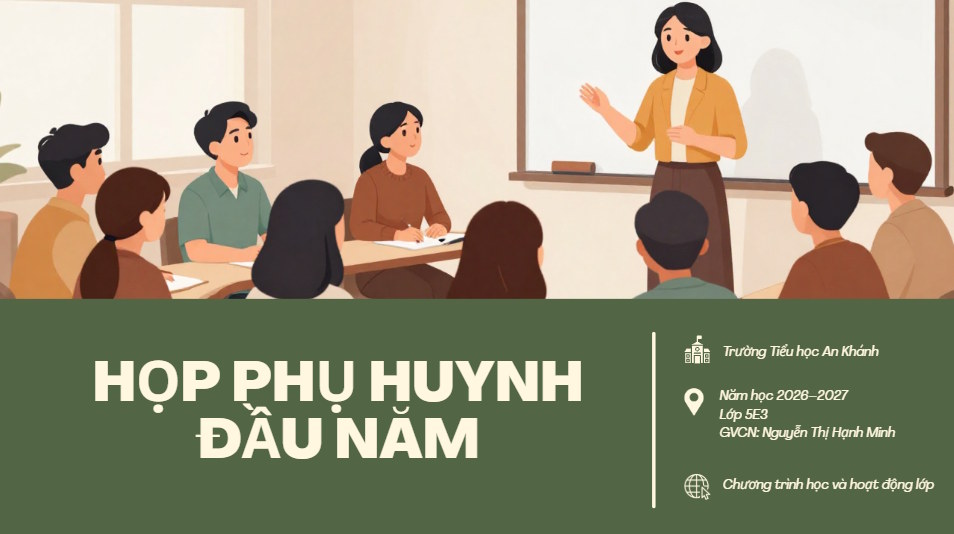
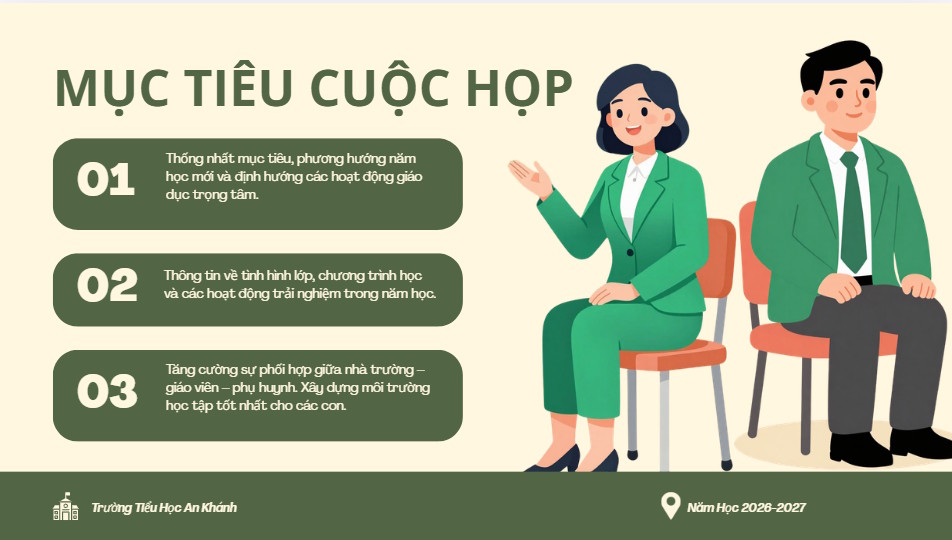
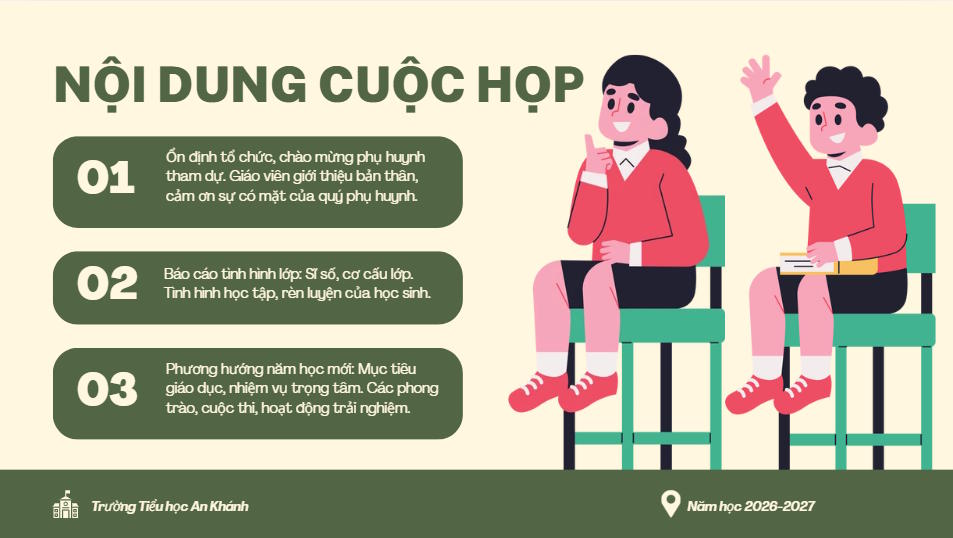
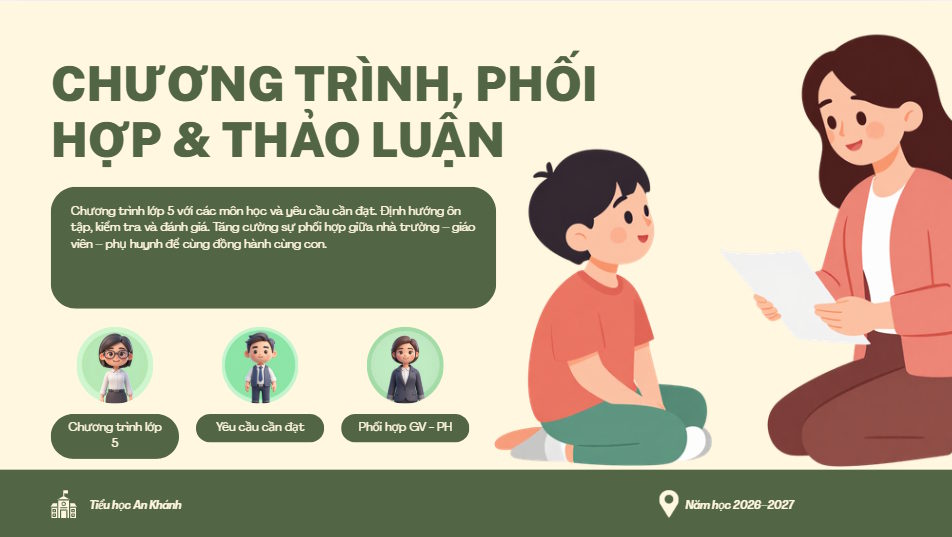
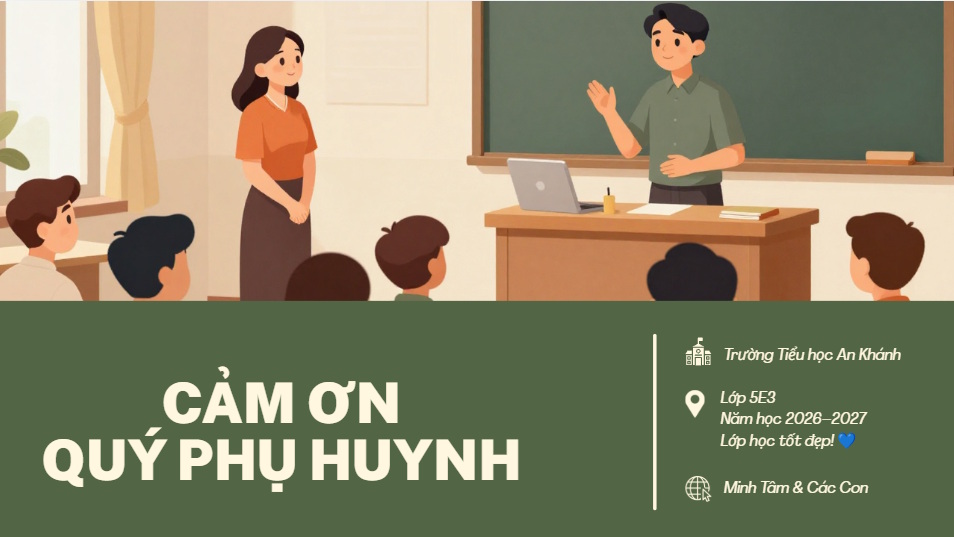
Description: Transform your meeting notes into professional presentation slides automatically with Canva AI. Step-by-step guide for educators.
Related Articles
- ChatGPT vs Meta AI: Which AI Chatbot Actually Wins?
- How to Seamlessly Transfer Conversations Between ChatGPT, Claude, and Gemini Using ThreadPort
- Why Quizlet Beats Gemini and ChatGPT for Actual Learning
- Claude vs ChatGPT: Which AI Chatbot Should You Actually Use?
- Talk to ChatGPT Using Your Voice: A Complete Guide

No Comment to " Build Parent-Teacher Meeting Slides in Minutes Using Canva AI "