Talk to ChatGPT Using Your Voice: A Complete Guide
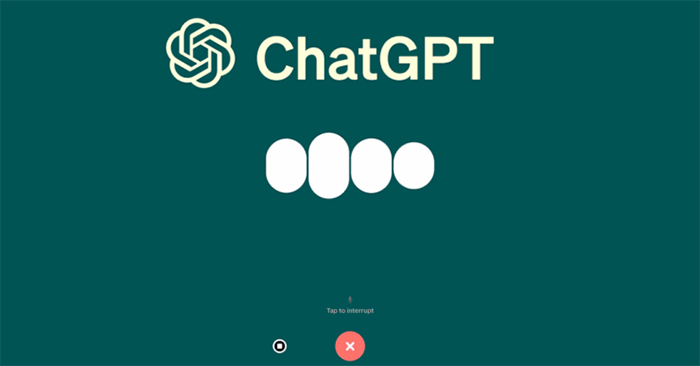
Tired of typing out every question? You can now have a natural conversation with ChatGPT using your voice—similar to voice chatting on Gemini. The AI listens to your question, processes it, and responds aloud. What's interesting here is how this transforms the interaction from a typing exercise into something that feels more like a real conversation.
ChatGPT Voice is available on both the mobile app and web browser. Use it for Q&A sessions, research, studying, or just casual conversation without constantly hunting for the keyboard. Here's how to get started.
Using ChatGPT Voice on Your Phone
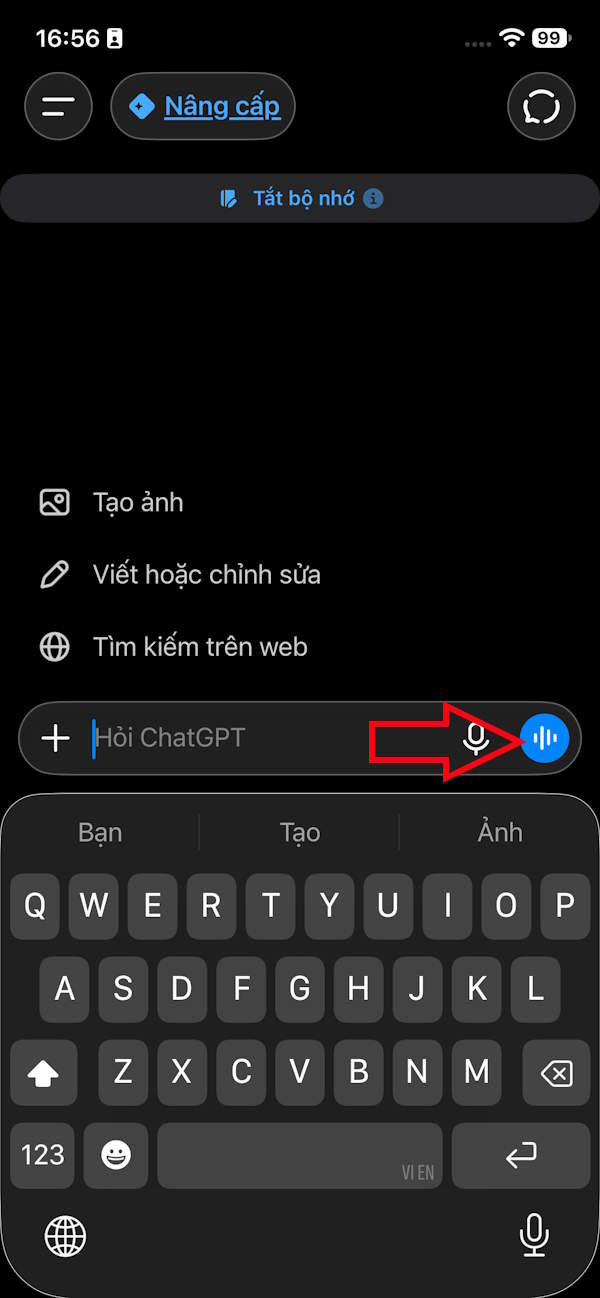
Open ChatGPT and tap the blue Voice icon to activate voice mode. If prompted, grant microphone access by selecting Allow.
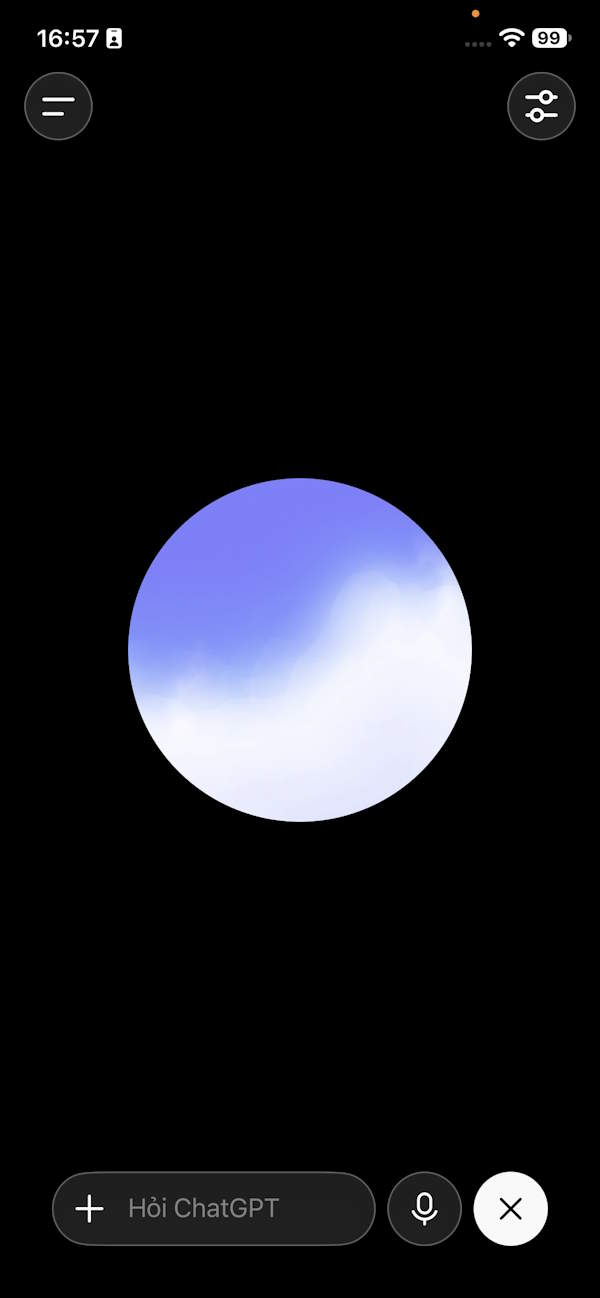
The voice interface opens. Now you can speak directly to ChatGPT about whatever's on your mind.
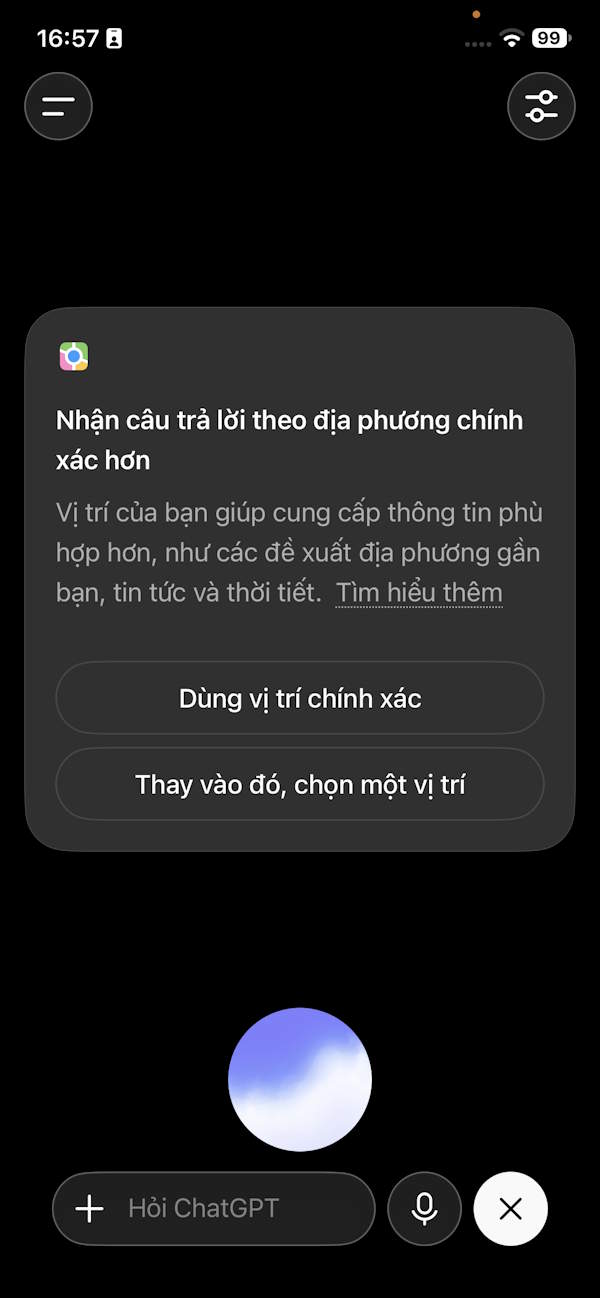
For location-based questions, ChatGPT may request access to your device's location settings. Alternatively, just mention your location in the voice command so ChatGPT understands the context.
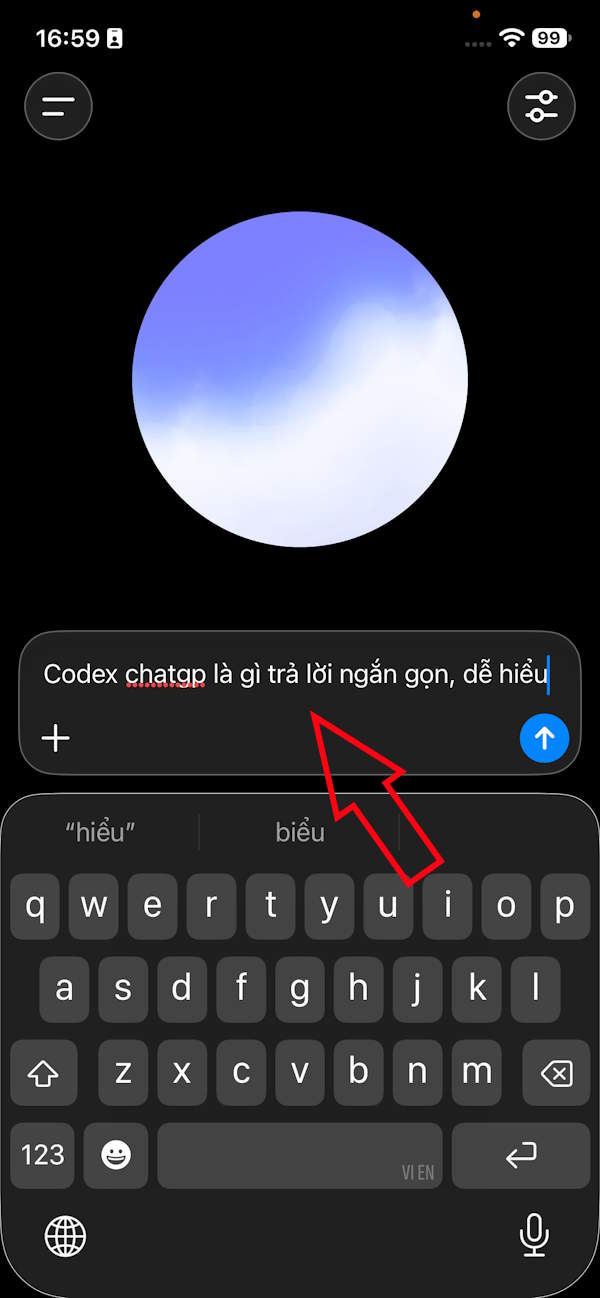
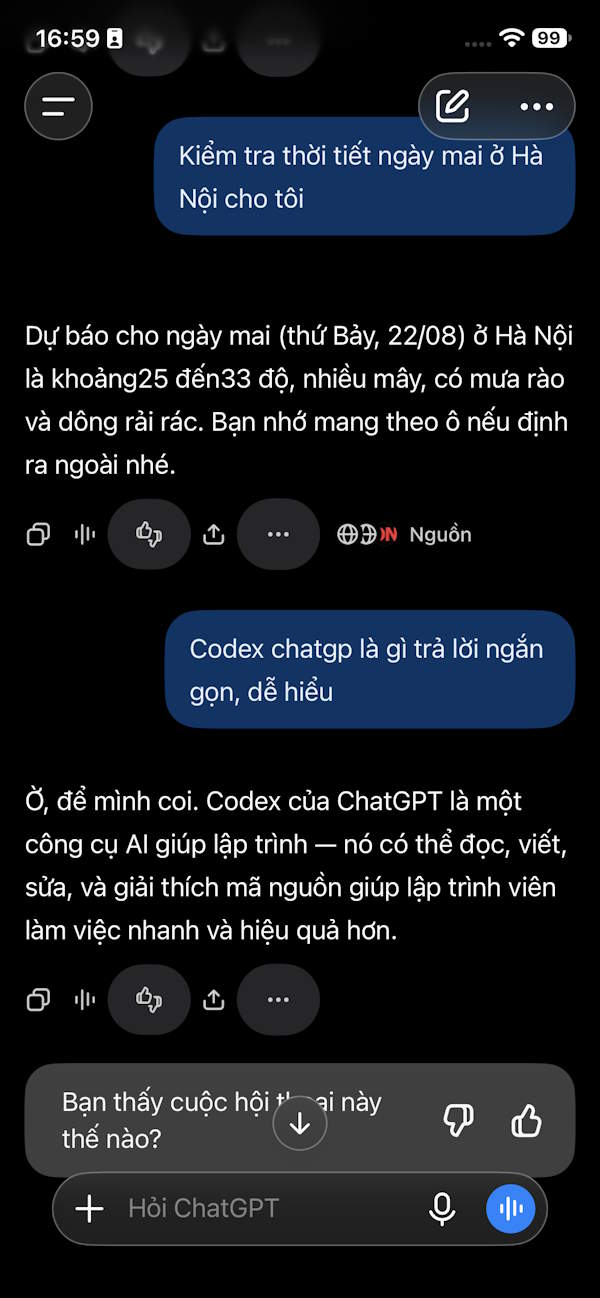
You can also type questions directly into the text box while using voice mode, and ChatGPT will respond using audio.
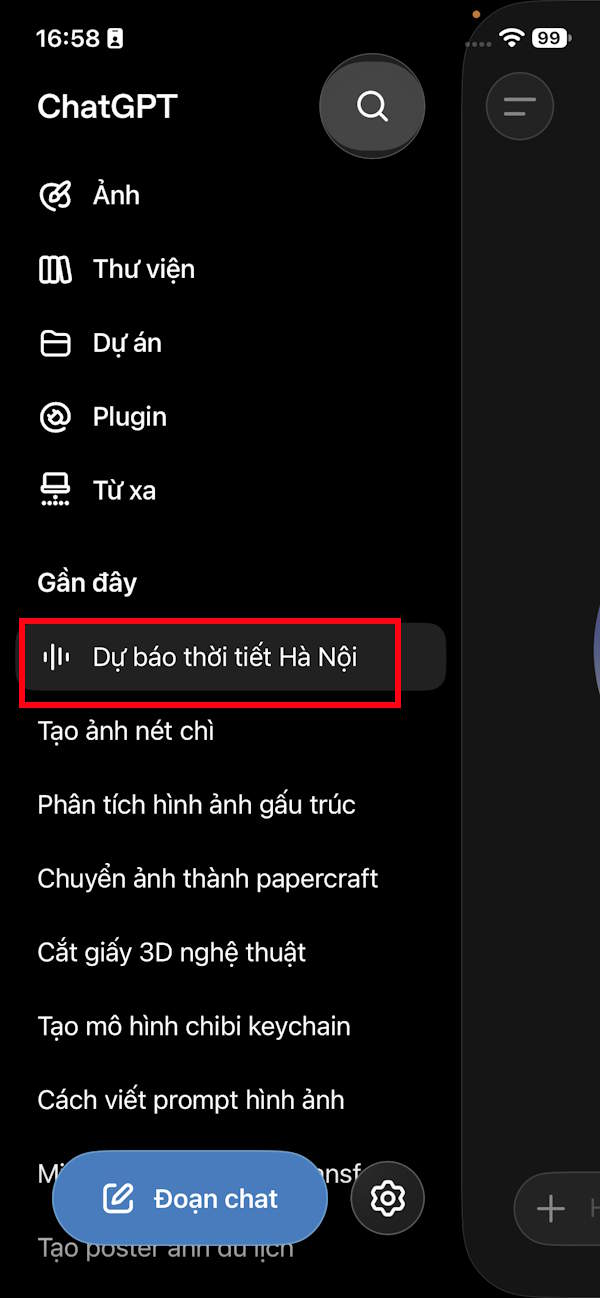
Your entire conversation history appears in the left sidebar, letting you review everything as text whenever you need it.
Using ChatGPT Voice on Your Computer
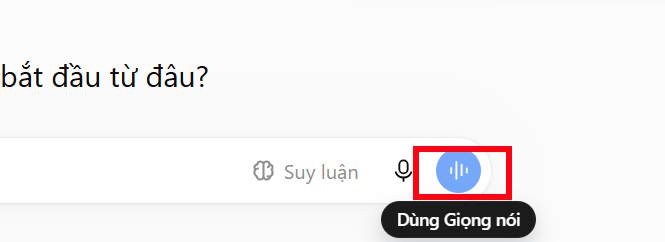
In the web version, click the blue Voice icon to get started.
Your browser will ask for microphone permission. Select your preference in the settings prompt.
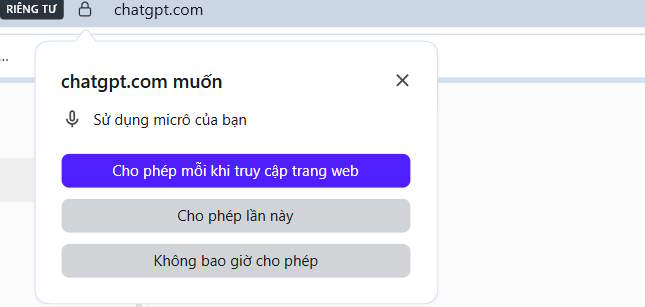
The voice chat interface appears. Speak into your microphone and ChatGPT will understand and reply. There's also a text input field at the bottom if you'd rather type.

What ChatGPT Voice Can and Cannot Do
ChatGPT Voice capabilities:
- Have natural voice conversations and ask questions
- Interrupt ChatGPT mid-response
- Listen to answers while reading the text simultaneously
- Switch to typing during a voice session
- Use web search and other features in Live mode
ChatGPT Voice limitations:
- Video and screen sharing support is inconsistent
- Not optimized for multi-person conversations
- May misrecognize speech in noisy environments
- Transcriptions don't always match spoken content exactly
- Usage limits vary by account and subscription tier
- Some features depend on your device, region, and plan type
Description: Learn how to use ChatGPT's voice feature on mobile and desktop. Chat hands-free with AI without typing.

No Comment to " Talk to ChatGPT Using Your Voice: A Complete Guide "