How to Download and Export Your ChatGPT Conversations

As you spend time using ChatGPT, you'll likely build up a collection of valuable conversations, insights, and content worth keeping. The problem? If you don't actively save this stuff, it can get lost. That's where ChatGPT's data export feature comes in handy. It lets you request a complete copy of your account data and download it to your device for backup, archiving, or future reference. Best part? The whole process takes just a few clicks in your settings.
What Does Exporting ChatGPT Data Actually Do?
The export feature is straightforward: you ask ChatGPT to generate a downloadable copy of your account information. This includes your complete conversation history plus any related account metadata.
It's particularly useful if you want to preserve important conversations, maintain a personal archive of your interactions, or review past discussions you've had with the AI.
Exporting Your Data from ChatGPT's Website
Here's the step-by-step process:
1. Go to the ChatGPT website.
2. Log in to your account.
3. Click your profile icon in the top-right corner.
4. Select Settings.
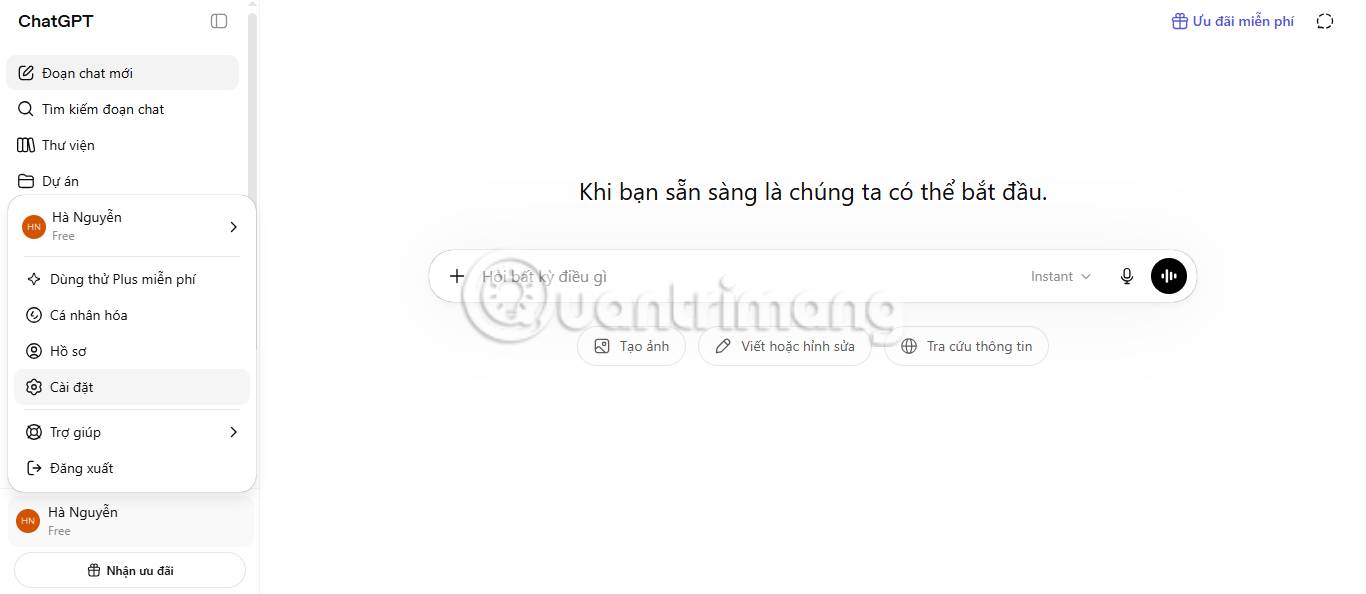
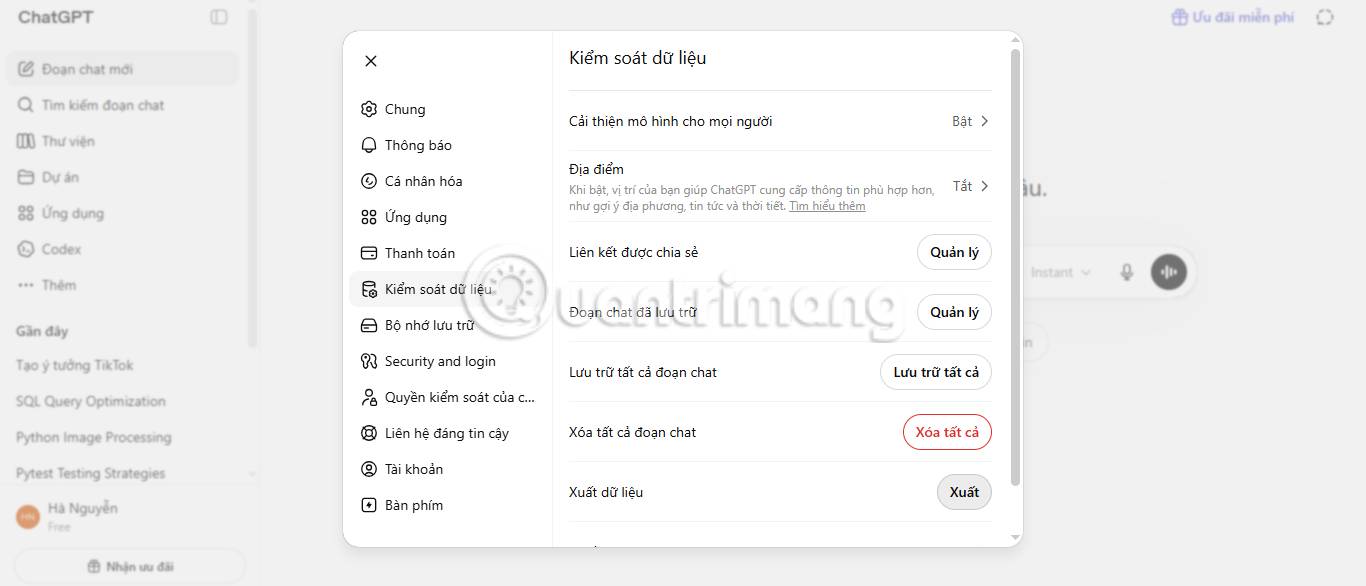
5. Click Data controls.
6. Hit the Export button next to Export data.
7. Click Confirm export.
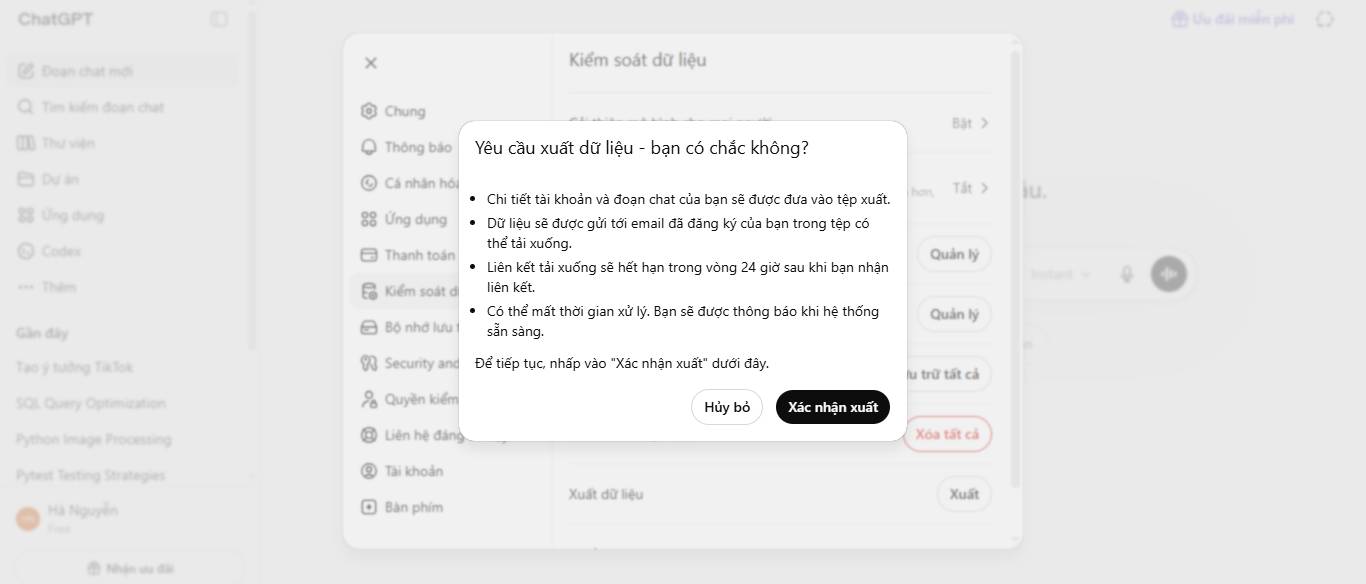
8. ChatGPT will send your data to your email address.
9. Look for an email from OpenAI with the subject line ChatGPT - Your data export is ready.
10. Open the email and click Download export data.
11. Your ChatGPT data arrives as a zip file.
12. Extract the zip file.
13. Open the chat.html file in your web browser to view your conversations.
Exporting Conversations from the ChatGPT Mobile App
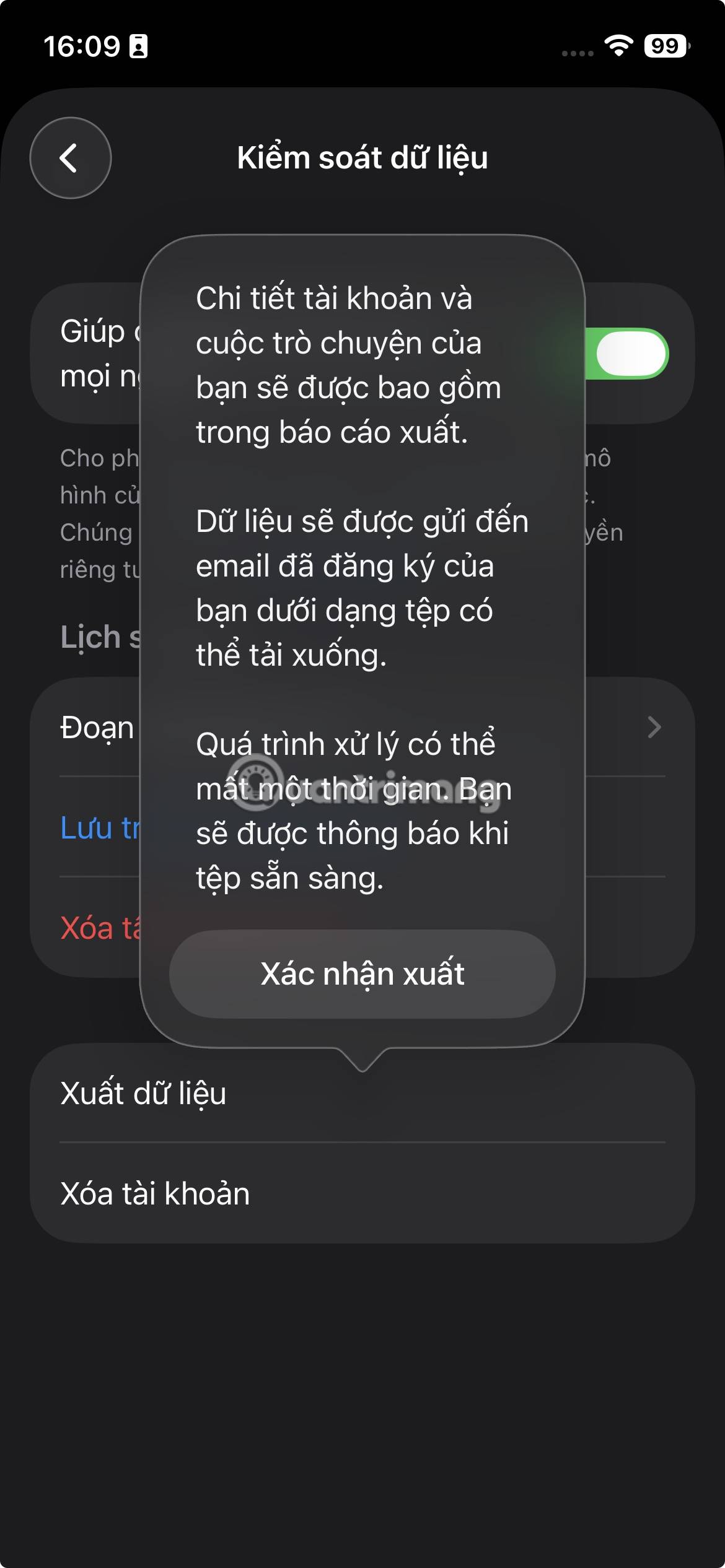
You can also request a data export directly from ChatGPT's mobile app. The system sends a downloadable zip file to your registered email address. Important thing to know: the download link expires after 24 hours, so don't sit on it.
1. Open the ChatGPT app.
2. Log into your account.
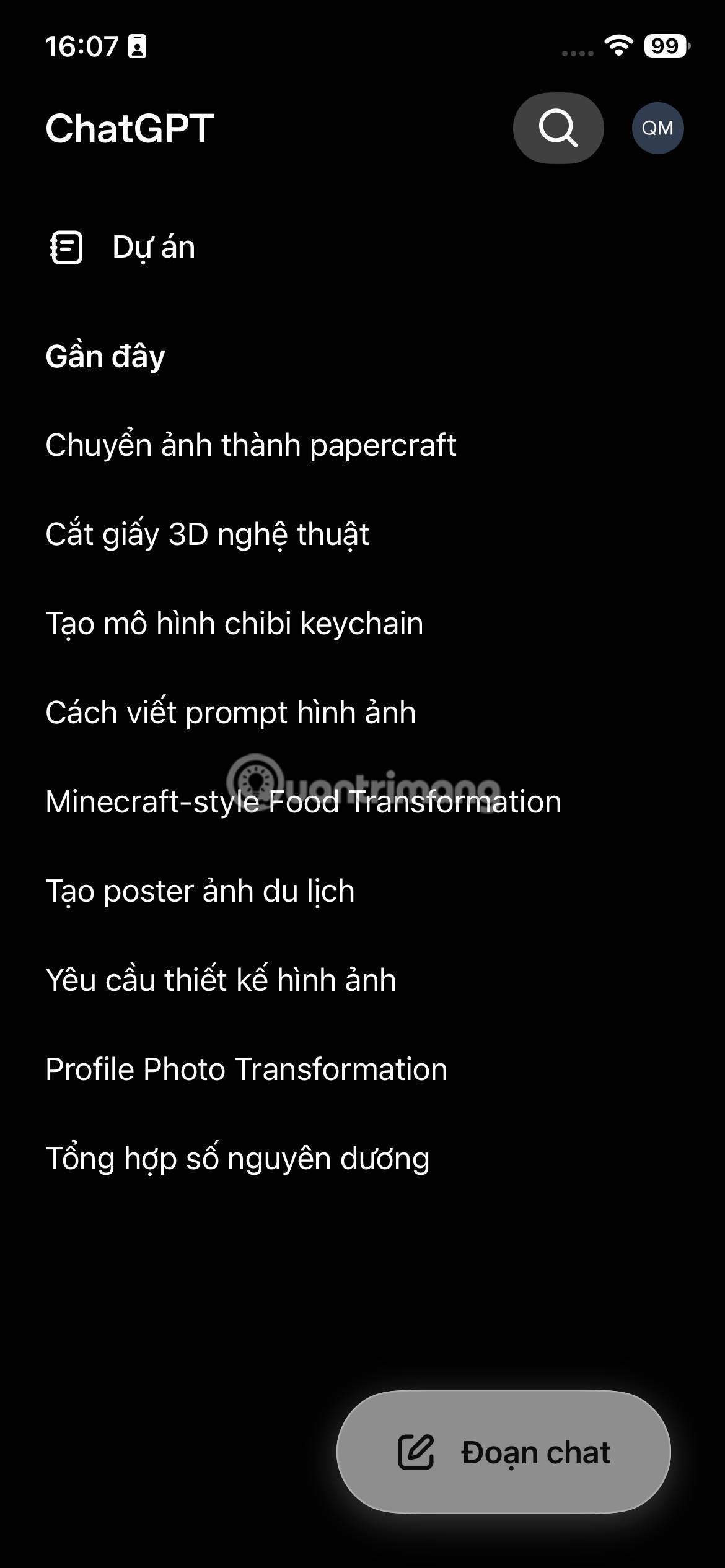
3. Tap the menu icon.
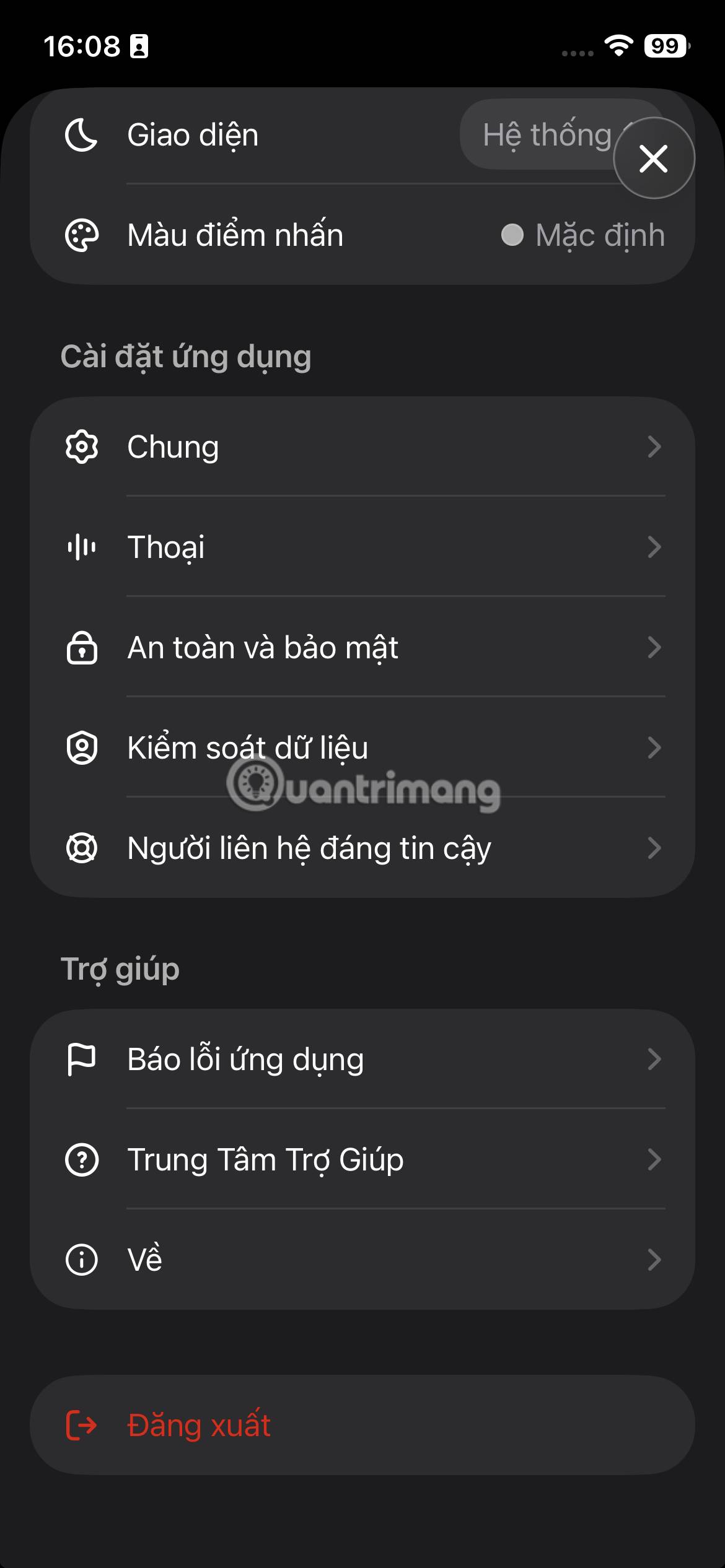
4. Tap your username at the bottom of the menu.
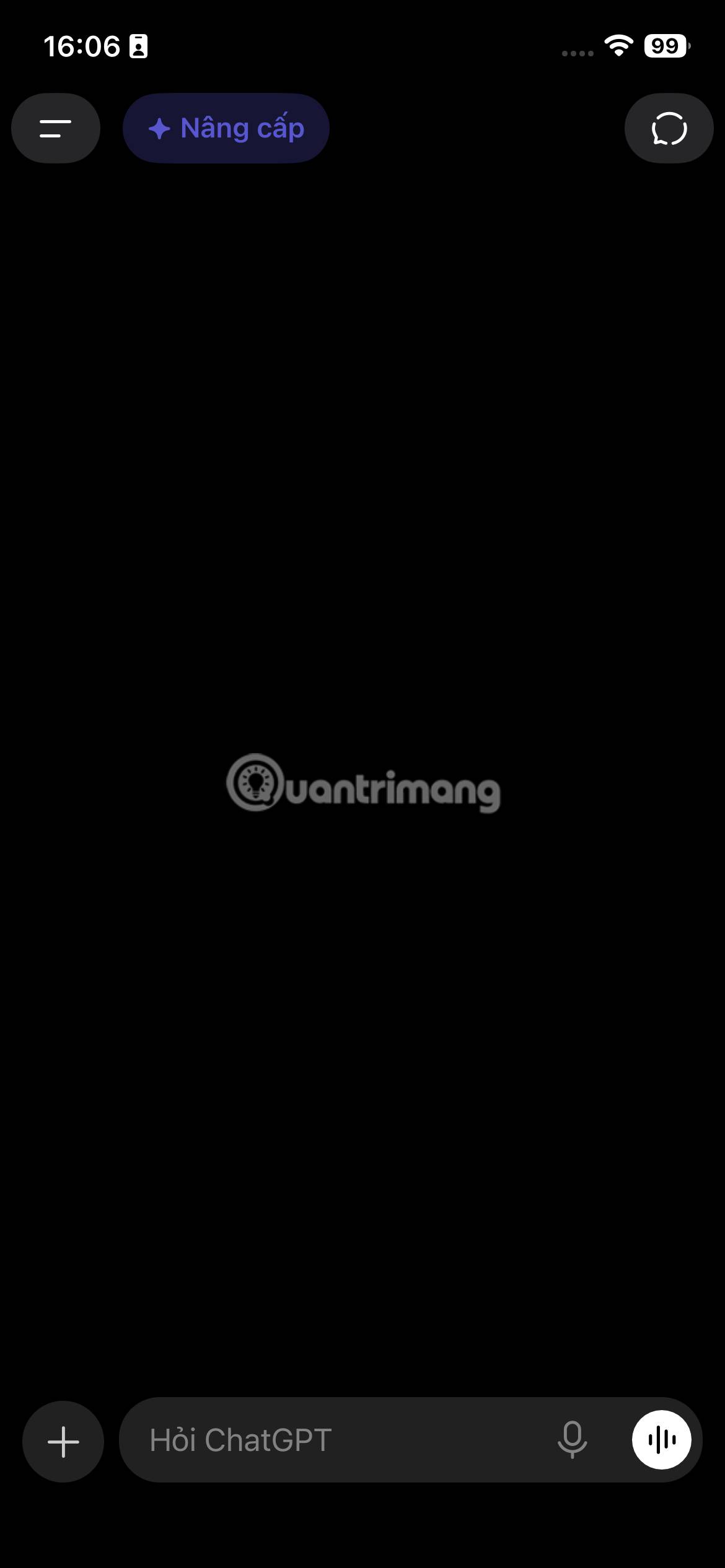
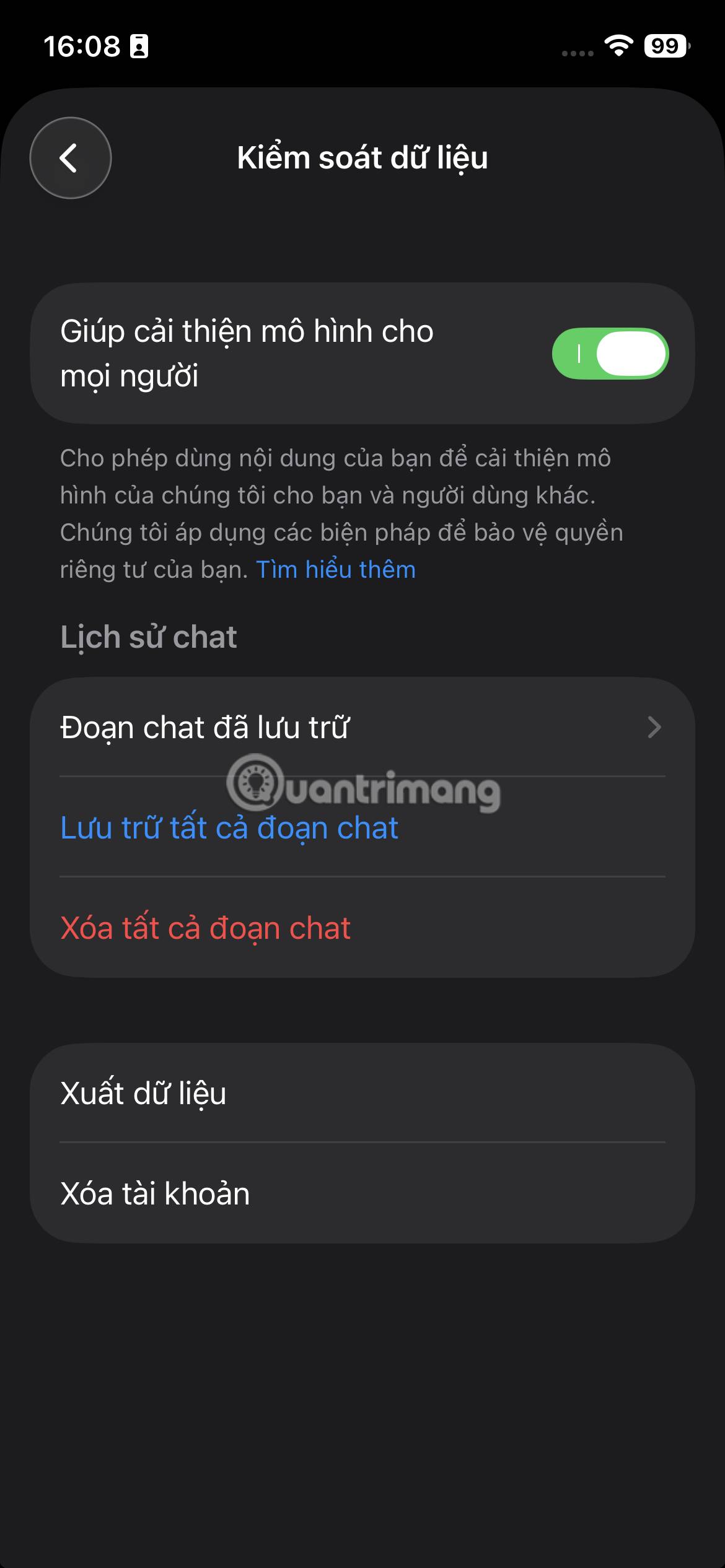
5. Tap Data controls.
6. Tap Export data under the Account section.
Important Things to Know About Exporting ChatGPT Data
- The export process isn't instant—it can take up to 7 days for ChatGPT to prepare and email your data. Once you get the email with your download link, you've got exactly 24 hours to grab the file before the link expires.
- Your downloaded ZIP file contains your complete conversation history plus all related account data.
- After you extract the files, check that everything you need is actually there. Here's the catch: exporting only gives you conversations that currently exist. Deleted chats stay deleted—you can't recover them this way.
- Double-check that you're looking at the right email. The download link goes to whichever email address is connected to your ChatGPT account.
Not receiving your export link?
Remember, the whole process can stretch up to 7 days. Check your inbox, spam folder, and promotions folder for an email from OpenAI. Make sure you're looking at the email address tied to your ChatGPT account. If your account uses phone number login instead, check your text messages for an SMS with the link.
Download link expired or won't open
Make sure you're logged into the exact same account that requested the export. And here's a reminder: those links only last 24 hours. If yours expired, just request a new export through ChatGPT's settings and try again.
Video Guide: Exporting ChatGPT Conversations
Description: Learn how to export your ChatGPT chat history and account data from the web or mobile app in a few simple steps.

No Comment to " How to Download and Export Your ChatGPT Conversations "