Gemini Now Lets You Create Images by Speaking—No Typing Required
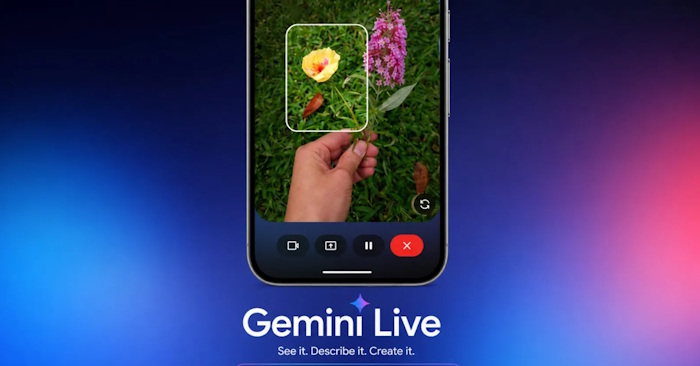
Forget typing out lengthy, complicated prompts. Gemini Live has just made image creation ridiculously simple—just speak your idea and watch it come to life. Instead of laboriously describing every detail like style, background, clothing, and color, you can now have a natural conversation with Gemini using voice commands. It's a genuinely useful upgrade if you've ever felt bogged down by the need to write perfect text prompts.
What's interesting here is that this voice-powered image creation and editing feature runs on Nano Banana 2, Gemini's image generation technology. Even when you throw a simple, vague idea at it, Gemini Live understands what you mean and delivers surprisingly polished results. So how exactly does voice-to-image work in Gemini Live? Let's break it down step by step.
How to Create Images with Gemini Live Using Your Voice
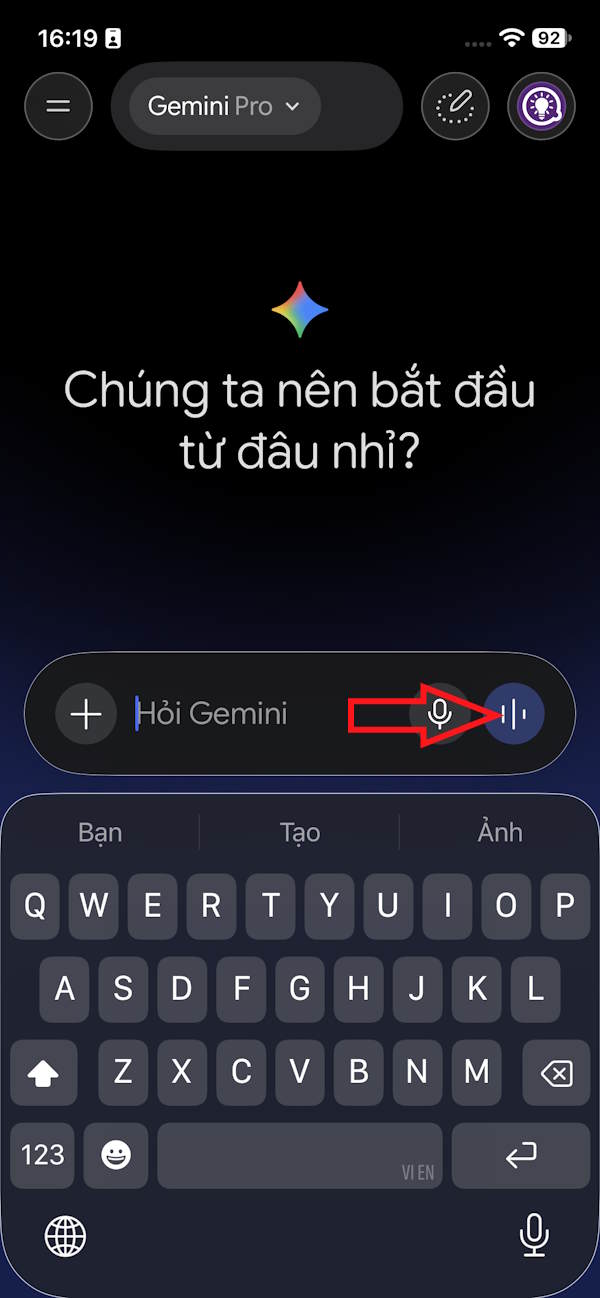
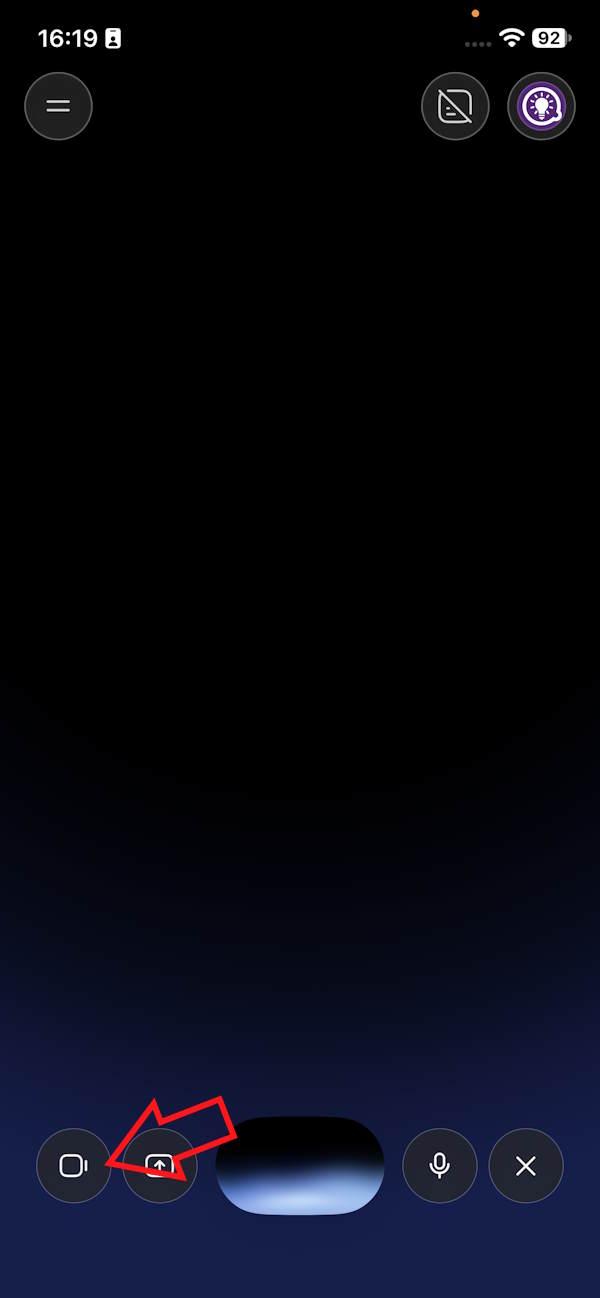
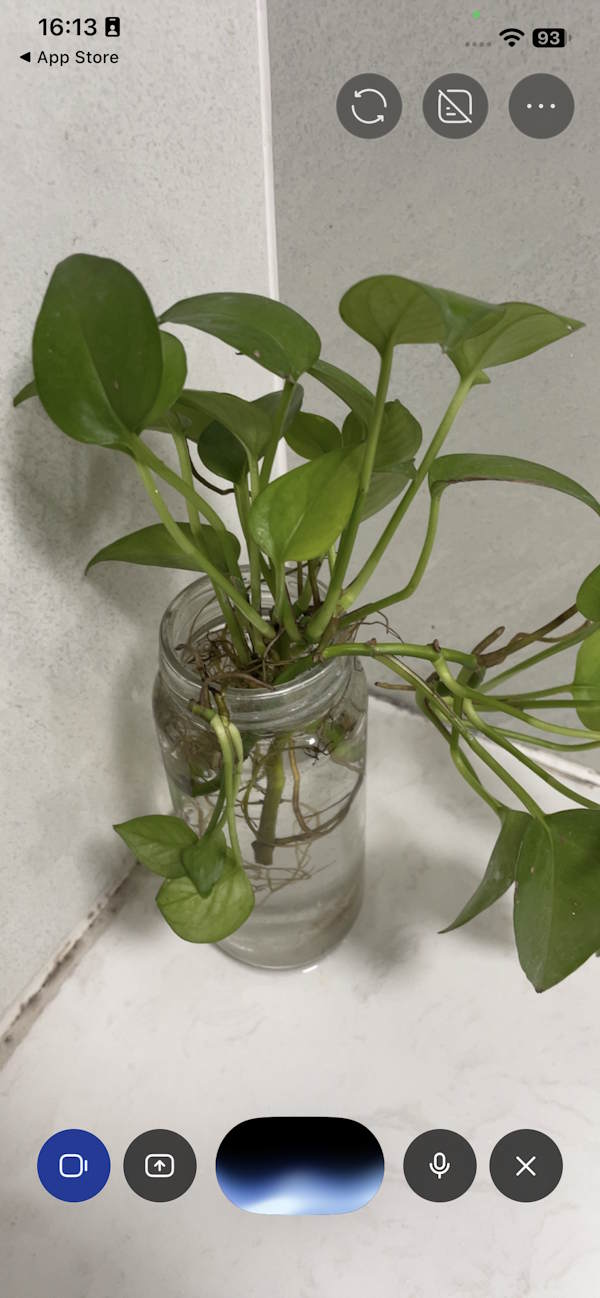
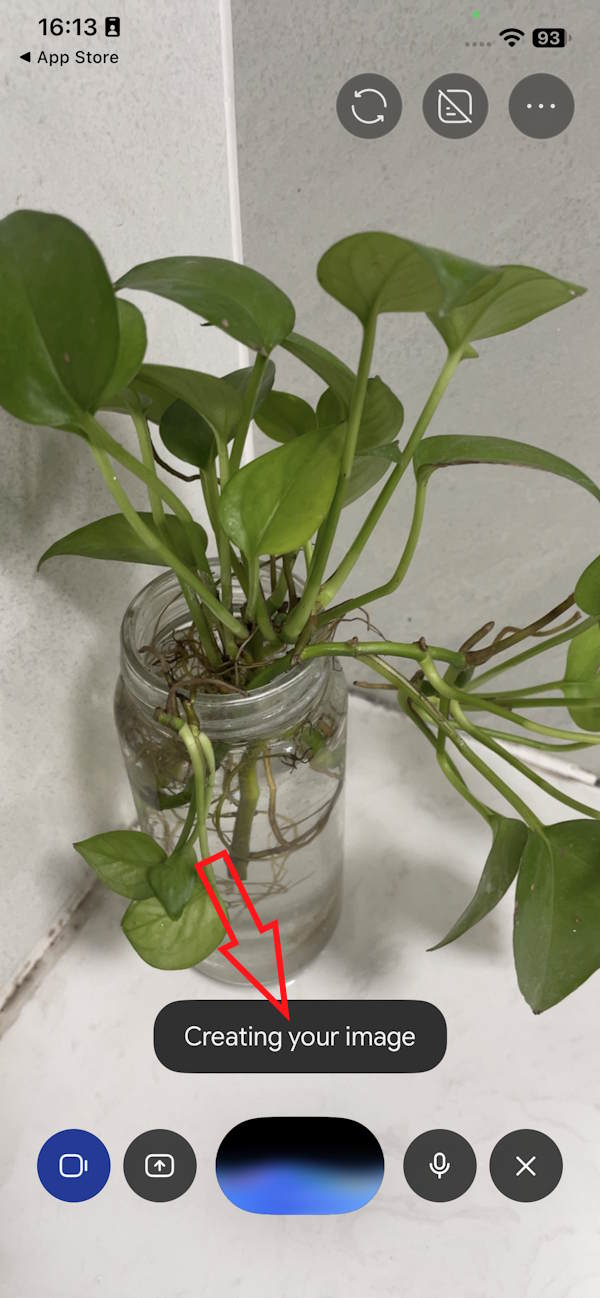
On the main Gemini interface, tap the Live icon to get started. Once you're in Gemini Live, tap the camera icon to scan an object or subject.
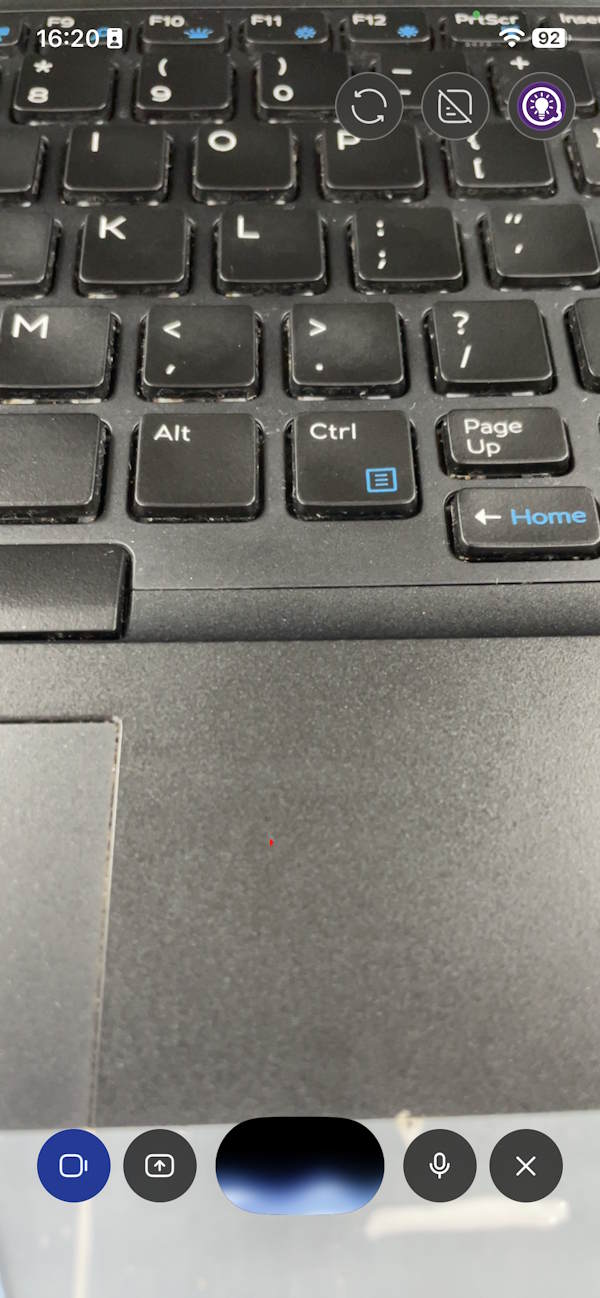
Let's say I want to create a new image of a vase through voice commands. Point your camera at the object, then clearly state what you want to create. Gemini Live will then process your request and generate fresh content based on your instructions.
Changing Style and Appearance
For example:
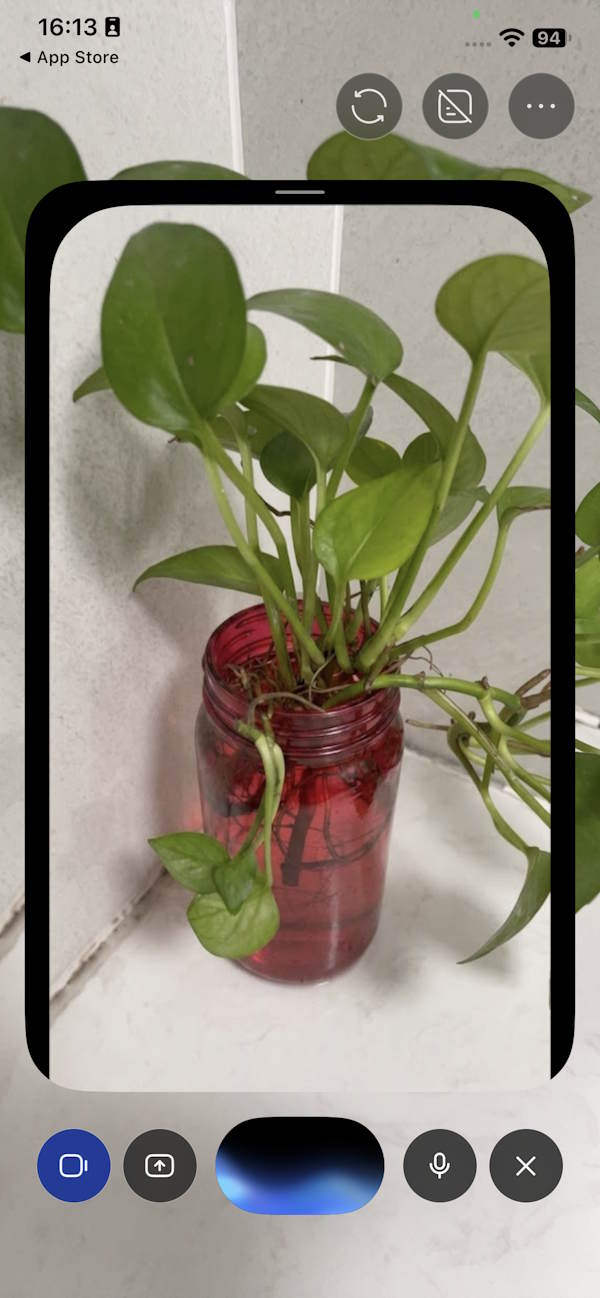
Make the vase redThe vase will instantly shift to red.
Keep the vase shape but transform it into Japanese-style pottery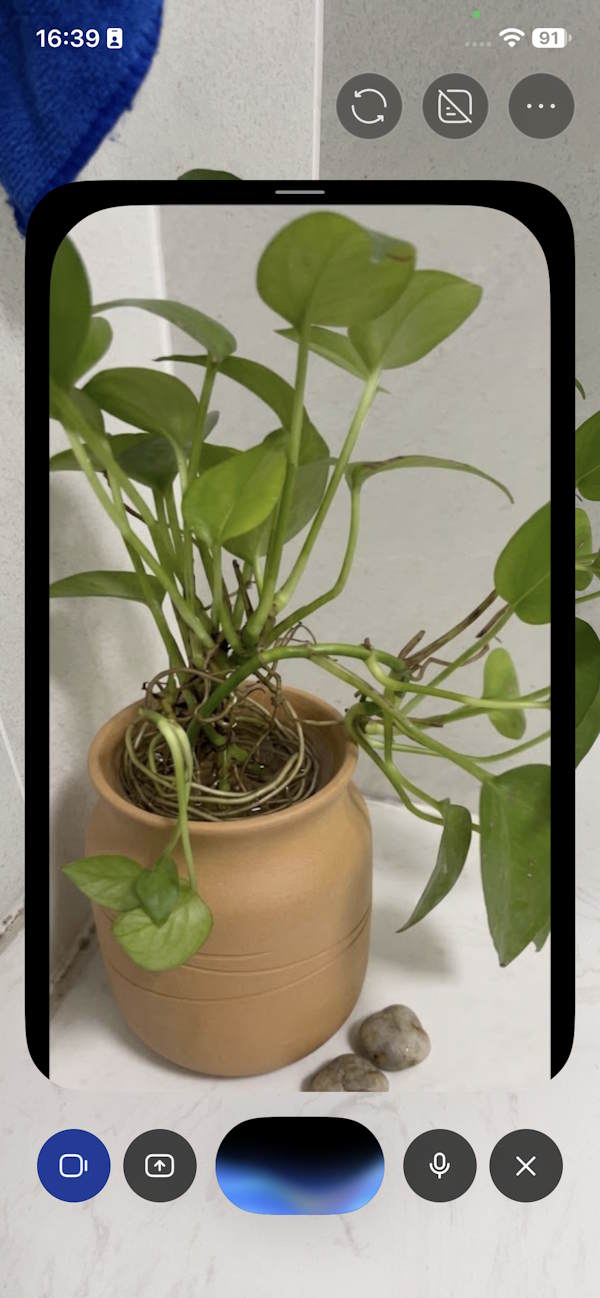
Render this image in pencil sketch style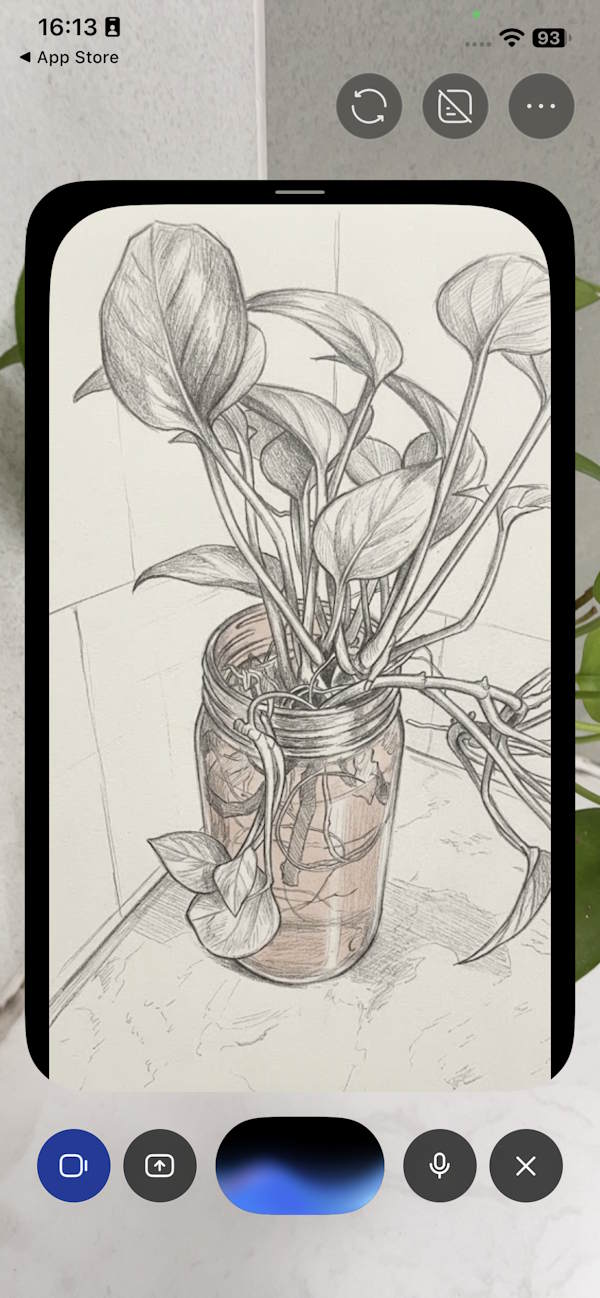
Add a chicken next to the vase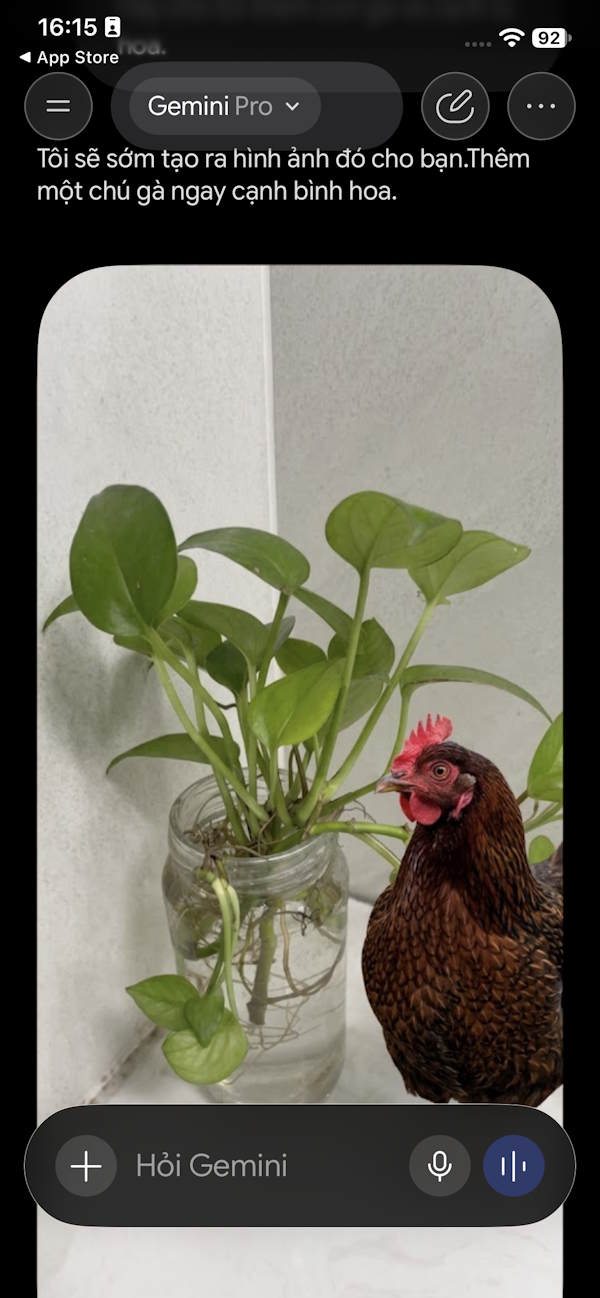
You can also experiment with commands like:
- Transform the vase into minimalist Scandinavian design
- Change the material to clear glass
- Make it look like a luxury home decor piece
- Redesign it in a futuristic style
- Keep the shape but switch the color to cobalt blue
Placing the Vase in Different Environments
Try something like:
Put the vase in a beautifully decorated modern living room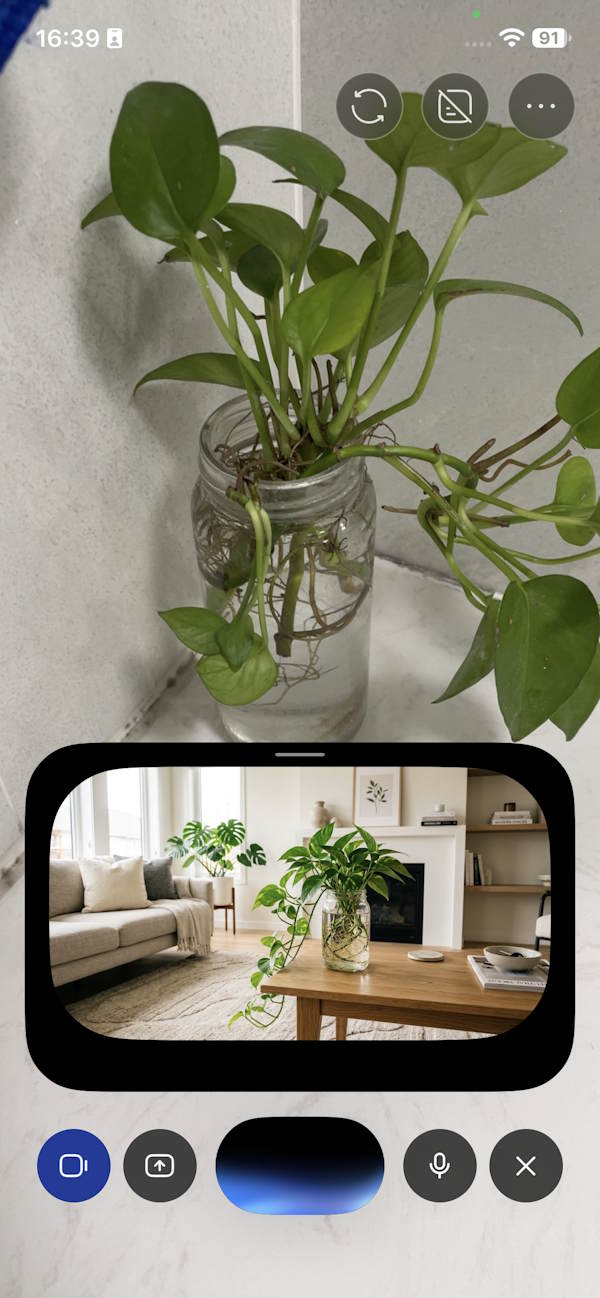
Then continue:
Now place it in a Japanese-style roomAnd follow up with:
Switch to a vintage-style coffee shop insteadYou have complete freedom to move the vase wherever your imagination takes you.
Turning the Vase into a Product Advertisement
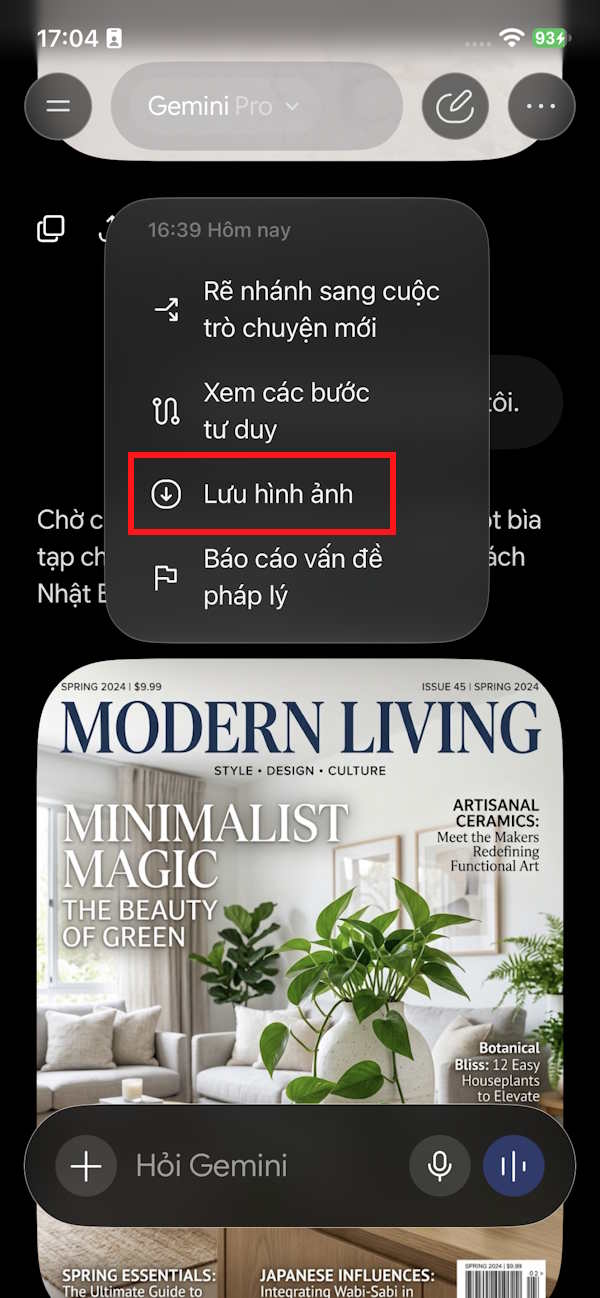
Create a magazine cover image for me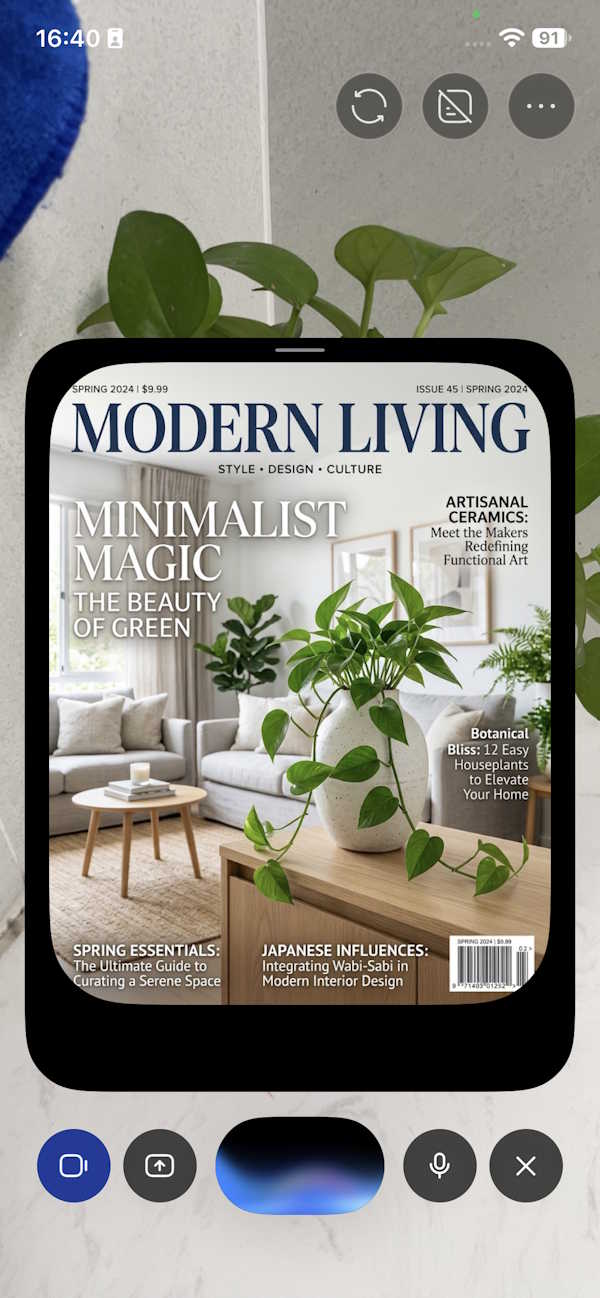
Or go more detailed:
Turn this vase into a high-end product advertisement photo—place it on a white marble table with studio lighting and a minimalist backgroundThen add:
- Add white tulips inside the vase
- Add the text 'Elegance in Every Detail' at the top
- Make it look like a luxury home brand advertisement
Your generated images will appear in the chat conversation when you exit Gemini Live. From there, you can download them.
Tips for Speaking Better Prompts to Gemini Live
Even though you're not typing traditional text prompts, you should still describe the important elements clearly. A simple formula that works:
Subject + setting + style + lighting + details to keep or change
Instead of saying: Make me a nice photo, try: Create a portrait of me in a Parisian café with a cinematic style, warm golden lighting, blurred background, and keep my face unchanged.
This descriptive approach gives Gemini way more context to nail your exact vision.
Google has also upgraded Nano Banana 2 to handle complex instructions better, maintain consistent characters, and render text within images more accurately. That means you can hand it detailed requests rather than just tossing out a one-liner.
Description: Say goodbye to long prompts. Gemini Live can now generate and edit images using just your voice. Here's how to master it.
Related Articles
- The Best AI Programming Tools You Should Know About in 2024
- 10 Strategies to Future-Proof Your Career in the AI Era
- Master Claude Projects: Build Your Personal AI Assistant Space
- Google Photos Ask Photos AI vs. Classic Search: Which Photo Finding Tool Works Better?
- The Best AI Meeting Assistants: 5 Tools That Actually Save You Time

No Comment to " Gemini Now Lets You Create Images by Speaking—No Typing Required "