How to Edit Videos in Google Flow: A Complete Guide

Creating videos in Google Flow is one thing, but what happens when the initial output doesn't match your vision? The good news: you're not stuck with your first attempt. Google Flow lets you refine videos using text-based commands that describe exactly what changes you want. Better yet, you can extend video duration while maintaining smooth transitions between scenes—a feature that really sets it apart from basic editing tools.
This guide walks you through the complete video editing workflow in Google Flow, from making adjustments to extending footage and combining multiple clips into a polished final product.
How to Edit Videos in Google Flow
Step 1:
Find the video you want to modify, then hold and drag it down into the Agent frame below. Next, enter your editing command—describe the changes you'd like to make—and submit it like a normal prompt.
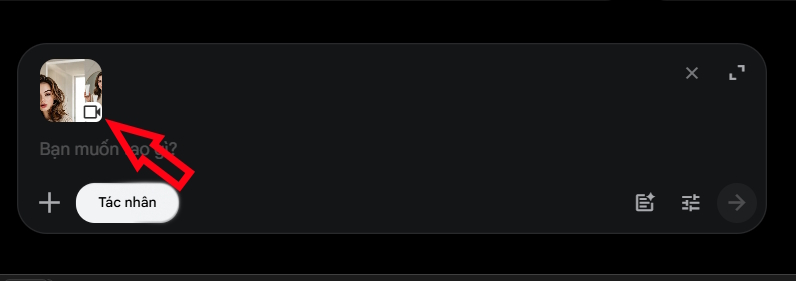
Give it a moment. You'll soon see your newly edited video appear with your requested modifications applied.
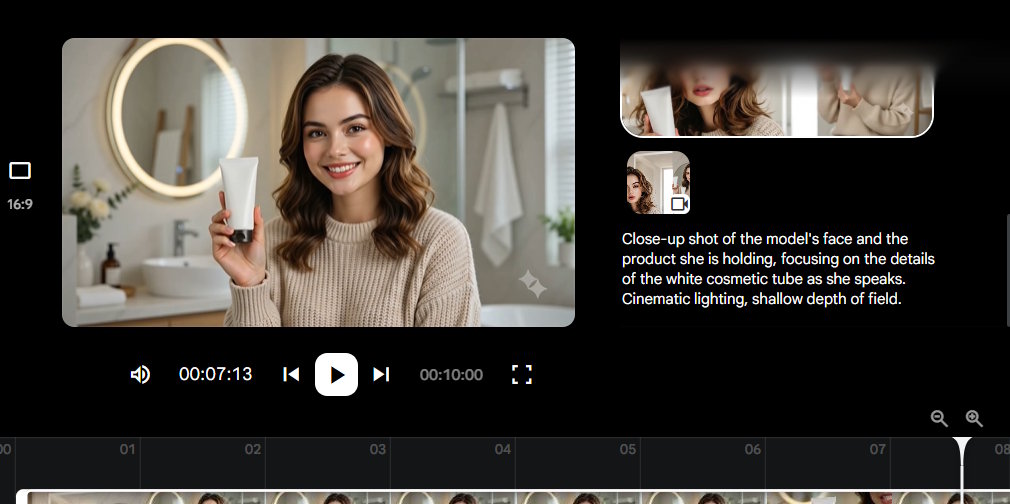
Step 2:
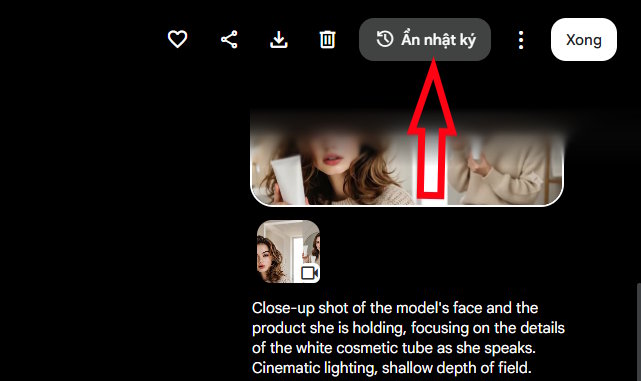
On the right side of the Google Flow interface, you'll find your complete editing history. At the top sits your original video creation command, with all subsequent edits listed below it.
Above that panel is a toggle to show or hide your creation and editing log—handy when you want a cleaner interface.
Extending Video Duration in Google Flow
Videos created with the Veo 3.1 - Lite model can be extended to add more content to existing scenes. If you need longer footage, you can generate additional material and append it to your original video.
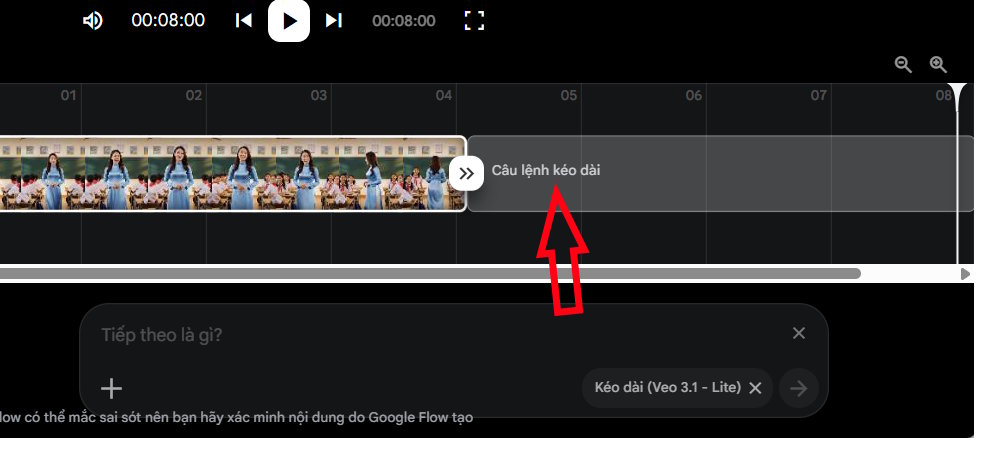
Click on the video you want to lengthen, then in the timeline section below, tap the plus icon and select Extend.
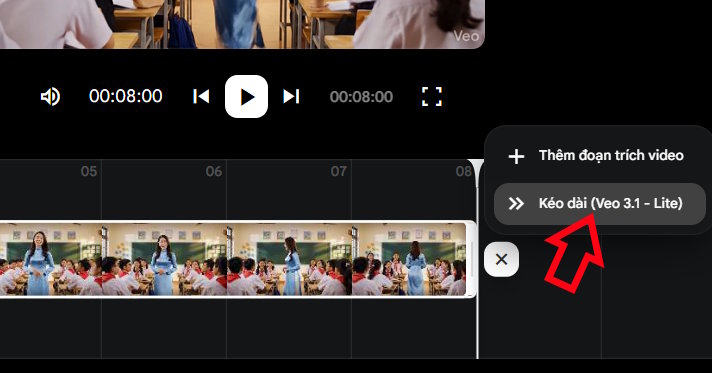
Now enter a command to develop the scene further, describing how you want to extend the duration from the original footage, then submit. Seconds later, the extended video merges seamlessly into your timeline.
One thing to note: you can't apply insertion, deletion, or camera adjustments to extended video segments.
Combining Multiple Videos in Google Flow
Beyond extending scenes within a single video, you can stitch multiple videos together directly in Flow—no external editing software required.
Step 1:
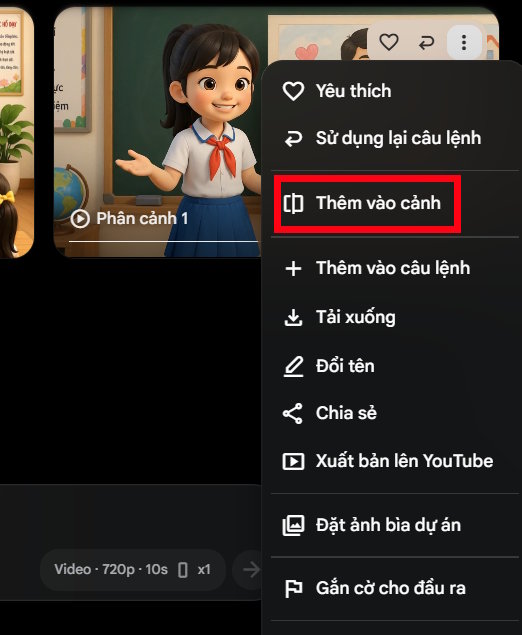
Start by renaming each video you plan to combine so you don't lose track during the process. On your first scene video, tap the three-dot menu icon and choose Add to Scene from the dropdown.
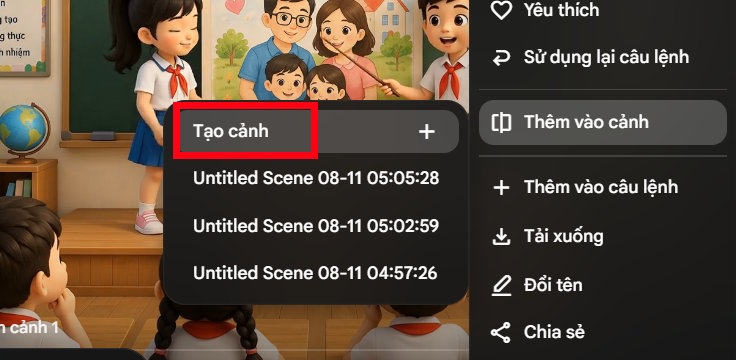
Then select Create Scene to generate a new scene from this video.
Step 2:
Flow creates a new video labeled Initial Scene. Click it to start adding your next video segment.
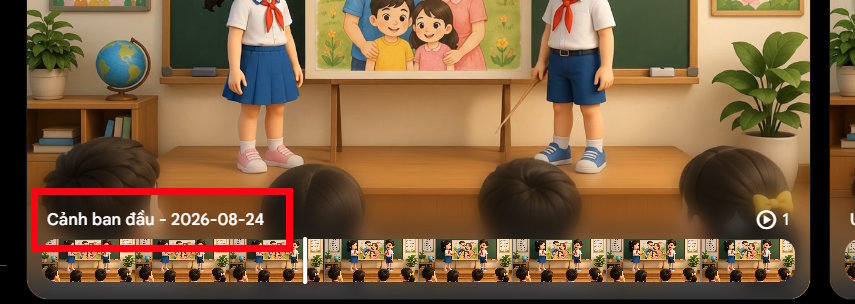
In the Initial Scene playback view, tap the plus icon and select Add Video Clip.
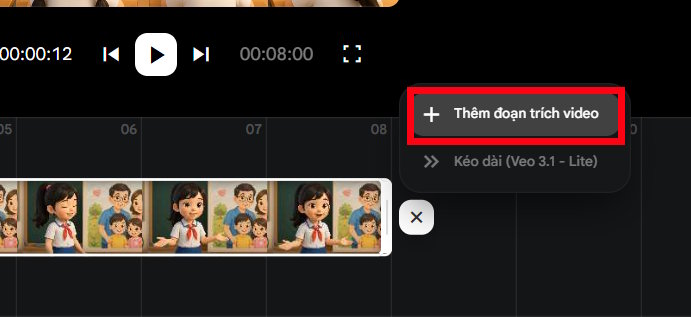
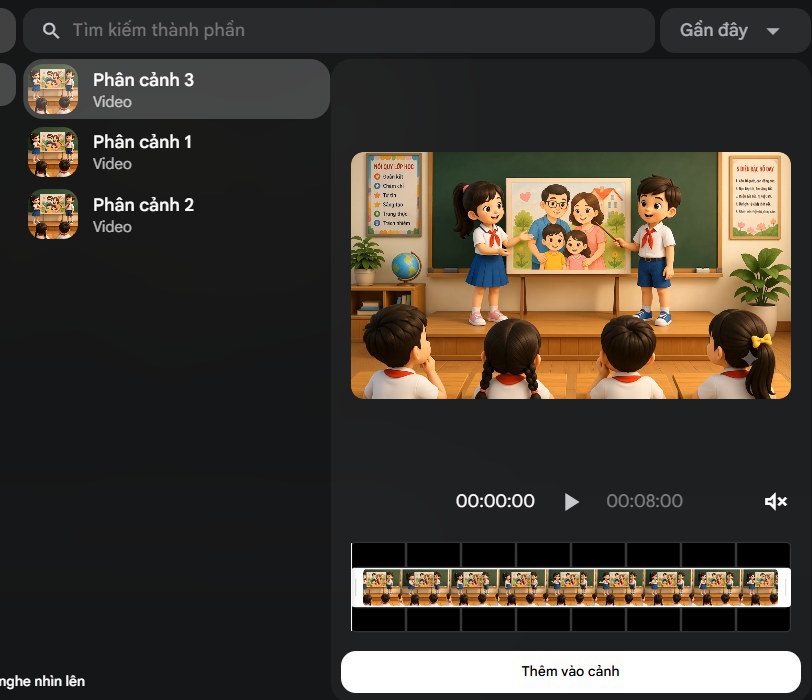
Step 3:
You'll see all videos in your current project. Add each scene sequentially to the Initial Scene to build your complete video.
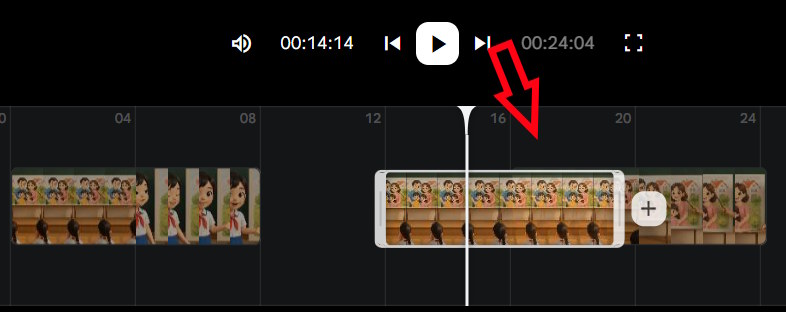
Once you've assembled your clips, you can reorder the video segments as needed by dragging them into your preferred sequence.
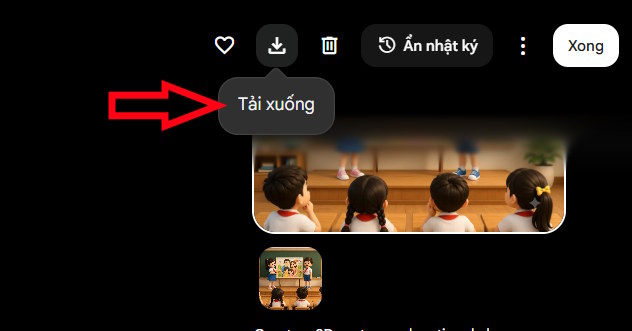
Finally, hit the download icon to save your finished video.
Description: Master video editing in Google Flow with our step-by-step guide. Learn to modify videos, extend duration, and combine multiple clips seamlessly.
Related Articles
- Where Did the Copilot Button Go? Here's Why It Disappeared from Your Office Apps
- The Best AI Tools for Teachers in 2026: A Practical Guide
- Copilot Studio Now Lets You Connect Bing Custom Search as an Agent Knowledge Source
- Claude vs ChatGPT: Which AI Chatbot Should You Actually Use?
- Google Photos Ask Photos AI vs. Classic Search: Which Photo Finding Tool Works Better?

No Comment to " How to Edit Videos in Google Flow: A Complete Guide "