What Makes Google Flow Agent Special? Complete Guide to AI Video Creation
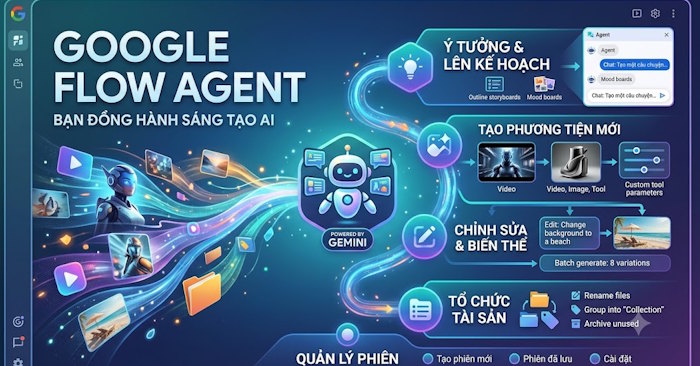
Google Flow has become increasingly familiar to AI video creators, and if you look at the command input box, you'll spot an Agent button. Here's what's interesting: Flow's Agent handles a lot of heavy lifting that many creators overlook — brainstorming, prompt writing, storyboard development — all through simple text requests. Instead of juggling multiple tools or spending hours conceptualizing, you get finished content directly within Flow. Let's break down exactly what the Agent does and how to use it effectively.
The real workflow advantage is that you move from initial concept to polished video without ever leaving the platform. No context switching, no export-import cycles, no separate brainstorming sessions. Below is a detailed walkthrough of Google Flow Agent and practical strategies for getting the most from it.
What Exactly Is Google Flow Agent?
Google Flow Agent functions as an AI assistant that guides you through the entire video creation pipeline — from ideation and storyboard construction through image/video generation, refinement, and version creation. With Agent, you can accomplish:
- Brainstorming and planning: Build scripts, develop storyboards, and transform rough ideas into actionable production plans.
- Content generation: Produce images or videos using appropriate models.
- Post-production editing: Modify existing images and videos within your project based on your specifications.
- Batch variations: Generate multiple versions of the same content simultaneously.
- Asset management: Rename, organize, or archive project resources.
- Reference materials: Upload images or videos from your computer or existing projects to give Agent additional context for better prompts.
How to Use Google Flow Agent for Video Creation
Step 1:
Create a new project. In the prompt input field, click the Agent button to activate it.
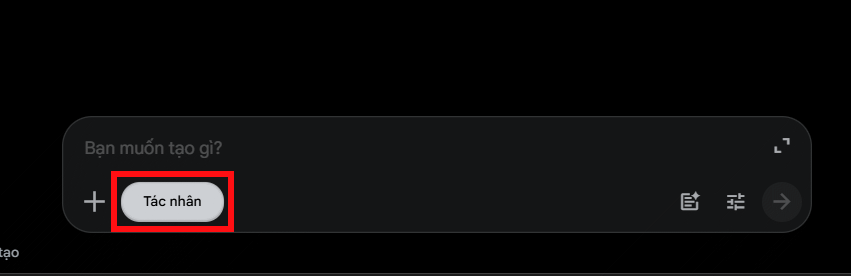
Now type your creative brief into the prompt box and hit send. Agent will develop your concept and generate initial ideas. Here's an example command:
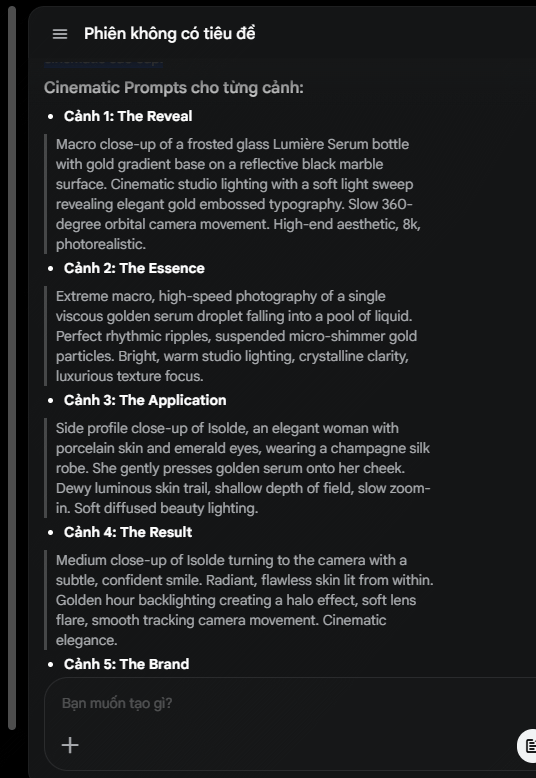
I need a 30-second luxury skincare advertisement. Create a 5-scene storyboard with consistent characters and product placement. Then write detailed prompts for each scene in cinematic style with studio lighting and smooth camera movements.Step 2:
Agent returns a complete storyboard framework based on your specifications.

On the side panel, you'll see detailed prompts for each individual scene. Every shot includes video generation instructions that maintain visual consistency and stylistic coherence across the entire sequence.
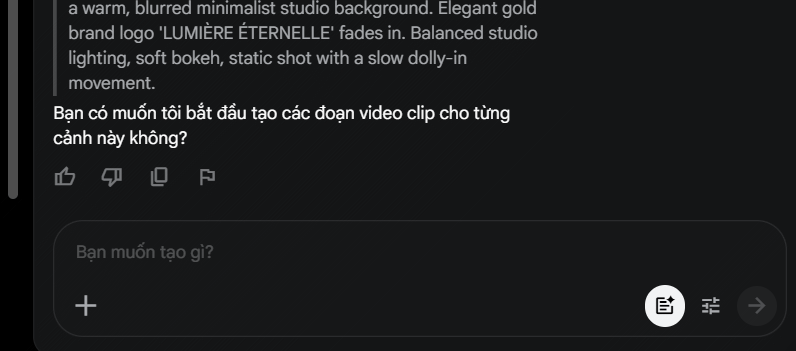
Below the storyboard, Agent asks whether you want to generate videos for each scene immediately. This eliminates the entire ideation and prompt-engineering phase — you skip straight to production.
Step 3:
You can also use Agent to generate video from existing images. Simply drag and drop an image or reference video from your computer or project library into Agent's chat window.
Then enter a video generation command like this:
Use this image as the main character and create a scene of her stepping out of a car in a nighttime city setting.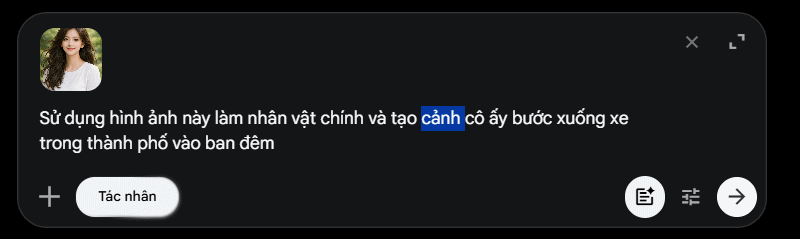
Flow immediately begins video generation and displays the credit cost so you can approve it.
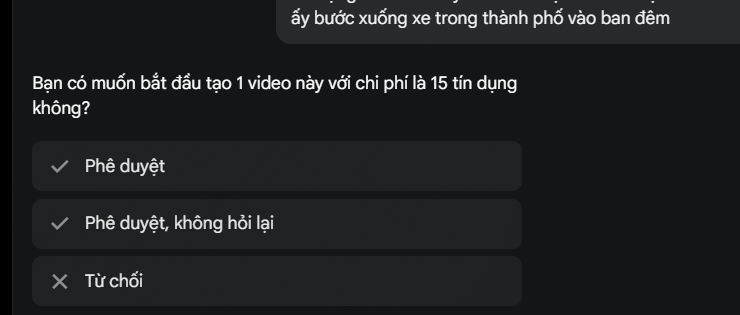
Once the video exists, request revisions through Agent commands instead of regenerating from scratch. For example:
Keep the character and setting unchanged, but change the scene from daytime to golden hour.Managing Sessions in Google Flow Agent
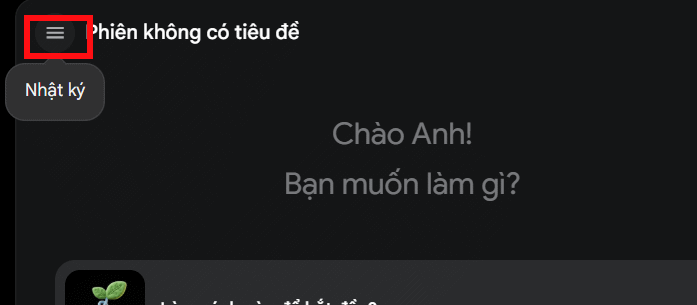
All conversations with Agent are automatically saved under a collective heading called Work Sessions. Each Work Session contains the project content you created within it.
Inside the Agent panel, click the expand icon to reveal the right sidebar. Then tap the three-line menu icon to display your session history.
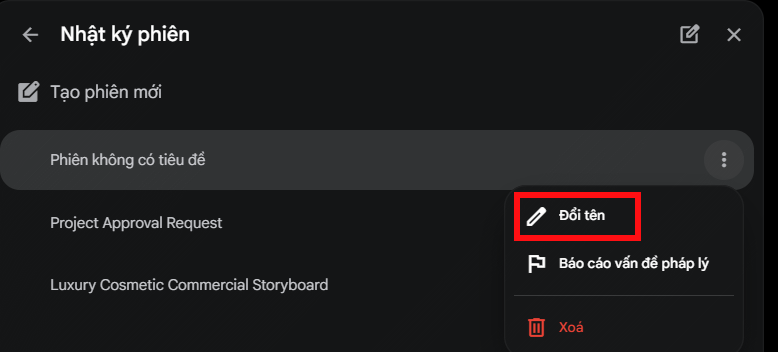
The session history appears. Click the three-dot menu on any session to access options. You can rename sessions or delete them entirely.
Customizing Agent Default Settings
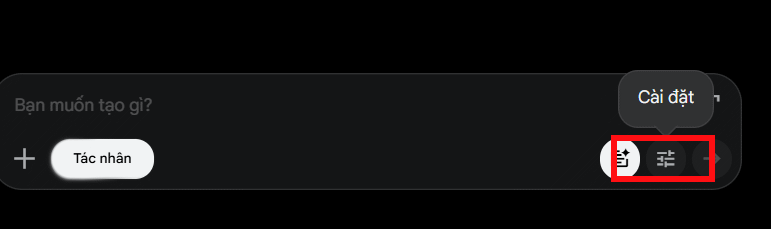
In the prompt input box, click the settings icon.
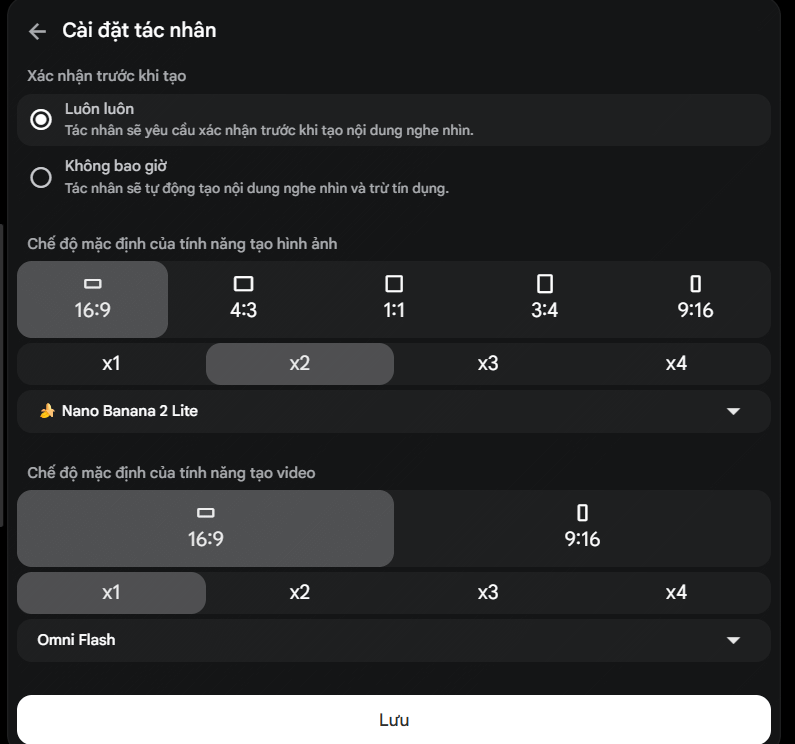
The right panel displays Agent default preferences for Google Flow. You can modify settings for image and video generation behavior, or disable approval requirements for content creation. Click Save to apply changes.
Tips for Using Google Flow Agent Effectively
Write clear, specific requests
Working with Google Flow Agent doesn't require marathon prompts, but vagueness kills results. Skip generic requests like "Create an advertisement" and instead specify what you want, the visual style, and the context. Here's the difference:
Create a 15-second cosmetics ad in cinematic style. Female model in a studio setting with soft lighting and slow camera pans.If your request feels unclear, have Agent suggest concepts first, then iterate step-by-step from there.
Maintaining consistent characters and environments
For multi-scene videos, provide reference images or video clips so Agent understands character appearance, clothing, and surroundings. Be explicit about which elements must stay constant:
Keep the character's facial features, hairstyle, clothing, and color palette identical across every scene.You can also establish custom guidelines for Agent to follow throughout the entire project.
Understanding credit limits and Agent constraints
Every image or video Agent generates consumes Google Flow credits. Don't request dozens of variations upfront. Finalize your concept, lock down character design and style direction, then proceed with batch generation. What's important here is that Agent queries themselves don't use credits, though they do have daily usage caps. Before launching a large production, review your Google AI plan, available credits, and account limits — access levels and quotas vary by subscription tier.
Description: Master Google Flow Agent for video production. Learn to generate storyboards, create videos, and manage projects with AI assistance.
Related Articles
- How to Enable or Disable AI Watermarks in Windows Photos
- Why You Should Downgrade from Copilot and Switch to Claude for Office Work
- Create a National Day Celebration Video: A Step-by-Step Guide
- How to Disable Gemini in Chrome's Search Bar
- How to Find and Use AI Prompts for Image and Video Generation on PromptHero

No Comment to " What Makes Google Flow Agent Special? Complete Guide to AI Video Creation "