Getting Started with Google Flow Music: Complete Guide to Creating Music and Playlists
Google Flow Music is making a real splash in the AI music creation space by integrating multiple Google technologies into one cohesive platform. The platform combines Lyria 3 for music generation, Gemini for conversational features, Veo for music videos, and Nano Banana for album artwork. Here's what makes it stand out: music creation through Producer AI is completely free, with tracks exceeding 2 minutes in length. Let's walk through how to get started.
How to Create Music with Google Flow Music
Step 1:
Head to Google Flow Music using the link below and log in with your Google account.
Step 2:
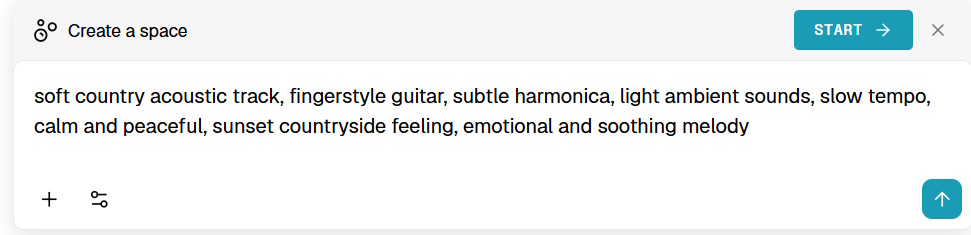
Once logged in, you'll land on the main Producer AI interface. You'll spot a text input box designed for music creation prompts. This is where the magic happens. Think about what you want: genre, style, instruments, mood—whatever suits your vision. You can even use ChatGPT to help craft the perfect prompt if you're stuck.
Check out example prompts to get inspired.
Step 3:
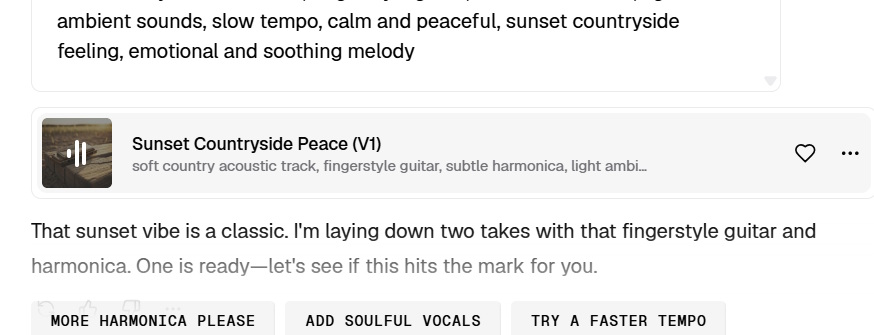
Your track is ready! Press the play button to listen to your creation.
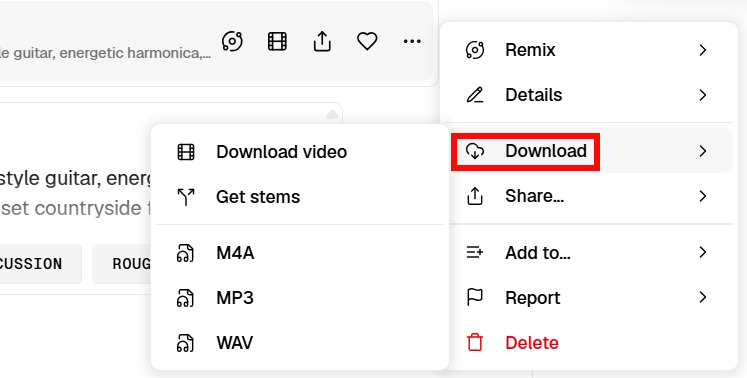
To download your track, tap the three-dot menu above the download button and select your preferred format: M4A, MP3, or WAV. Want to turn it into a video? Hit the video download button instead.
If you're going the video route, you'll get to choose from several video templates.
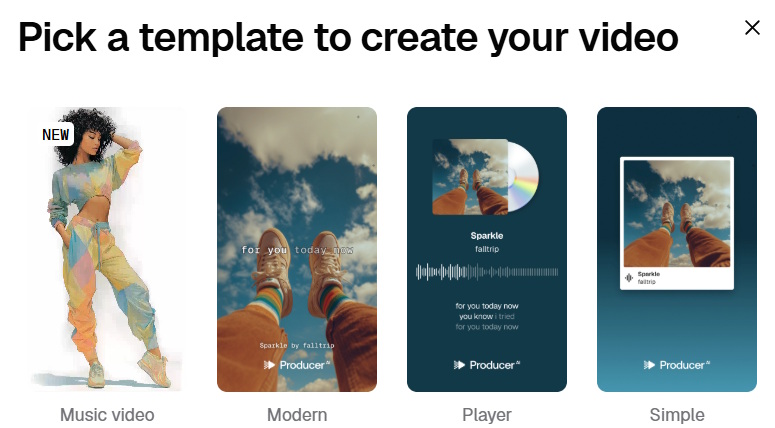
The system then generates your music video and downloads it to your device.
Step 4:
Not happy with the result? You can remix and customize it to match your preferences. Tap the three-dot menu and select Remix, then click Start Session.
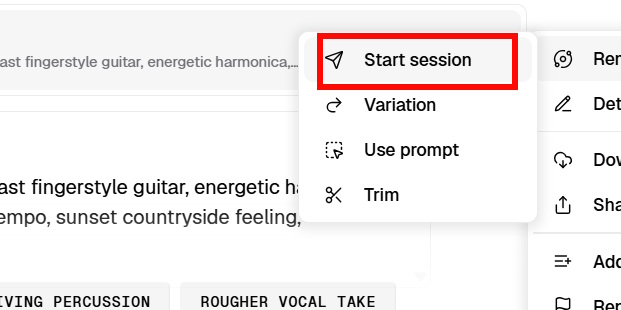
Step 5:
Now you get fine-tuning controls. Adjust the lyrics, tone, and intensity of your track, then hit Generate to create your new version.
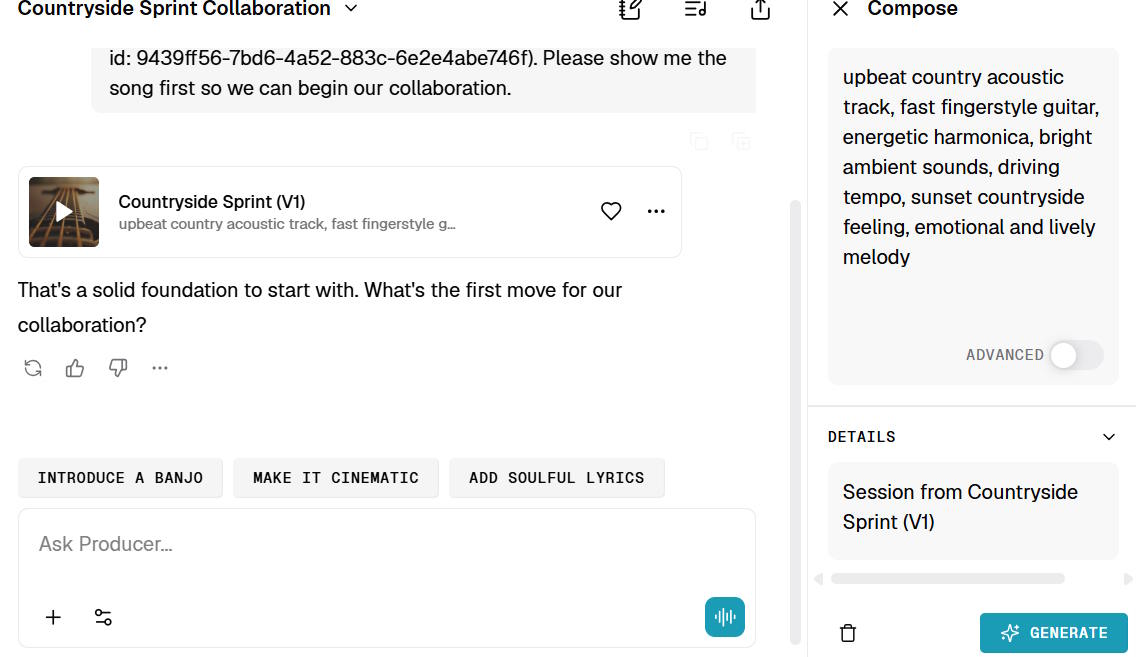
For example, add vocals and Google Flow Music will generate lyrics tailored to your song's theme.
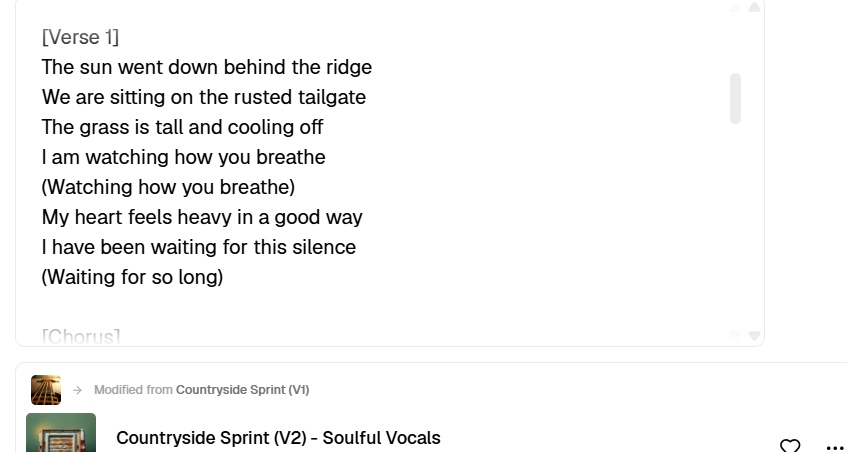
Keep in mind: free-tier music is strictly for personal use. Each track gets a unique system ID assigned by Google so you can easily identify it as AI-generated content.
Music Video Created on Google ProducerAI
Creating and Managing Playlists on Google Flow Music—Simple and Straightforward
Once you've generated music on Google Flow Music, organizing it into playlists makes management and sharing effortless. You can create a playlist, name it, add cover art and descriptions, then populate it with one or multiple tracks. What's interesting here is how intuitive the whole process is—no confusing menus or hidden options.
This section covers everything you need to know about creating and managing playlists: adding tracks, editing details, removing songs, or deleting entire playlists when you're done.
How to Create a Playlist in Google Flow Music
Step 1:
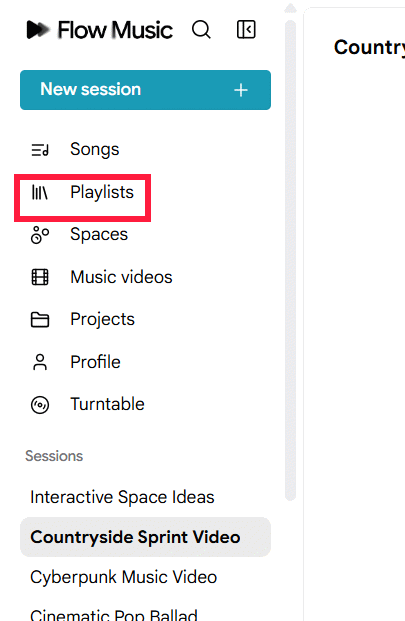
Once you have AI-generated music ready, click on Playlists in the left sidebar.
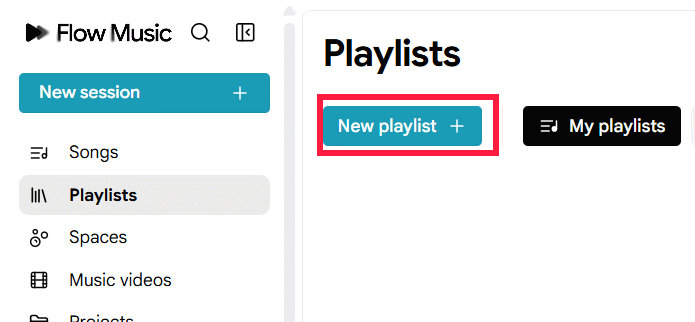
Then click New playlist to create a fresh music collection.
Step 2:
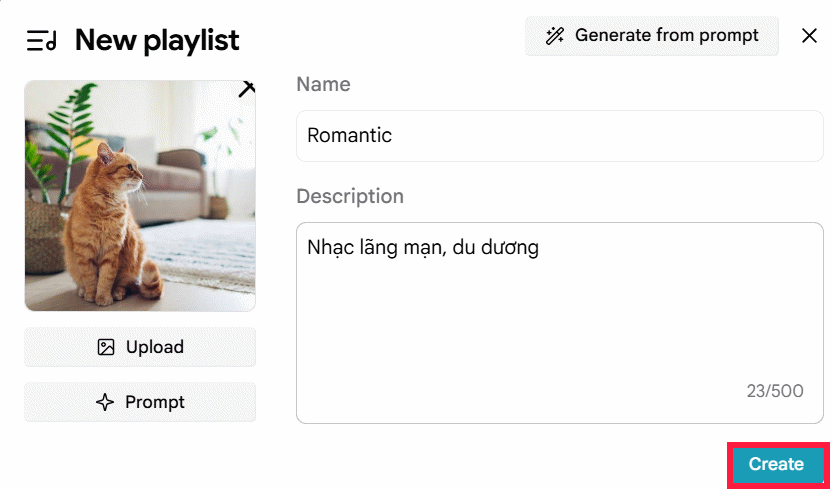
A form appears asking you to enter a name, description, and cover image for your playlist. Fill in the details and click Create to finalize.
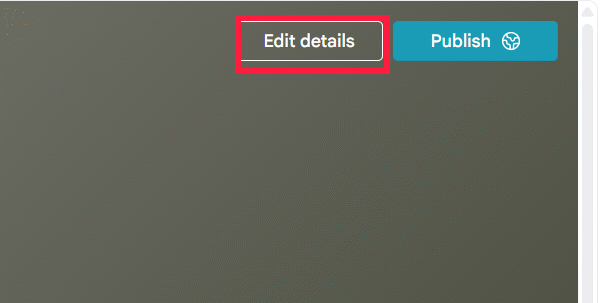
Your playlist is now live. Notice the edit options in the upper right if you want to make changes. Remember to click Save after any edits.
How to Add Music to Google Flow Music Playlists
Step 1:
Navigate to the Songs section to view all your created tracks in Google Flow Music.
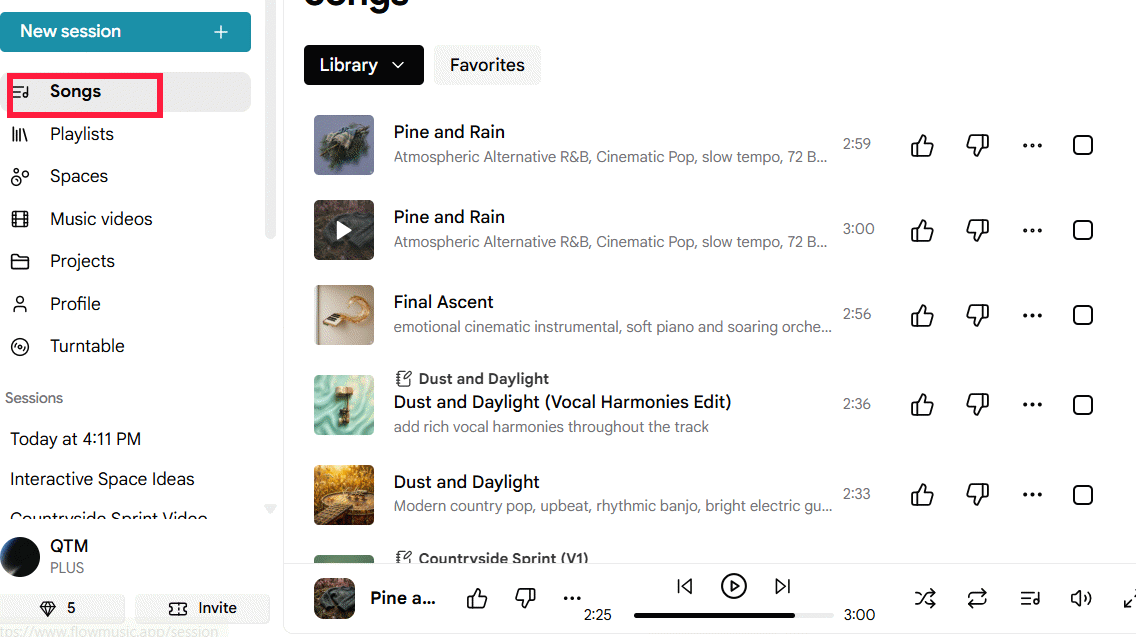
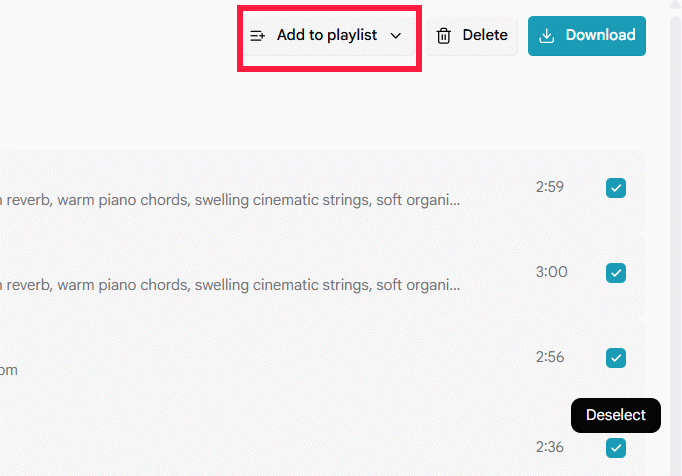
Check the boxes next to songs you want to add to your playlist, then click Add to playlist at the top right of the screen.
Step 2:
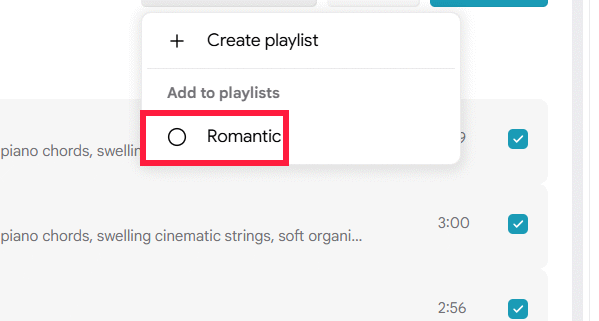
Choose an existing playlist to add them to, or create a new one if needed. That's it—your tracks are now in your playlist.
Step 3:
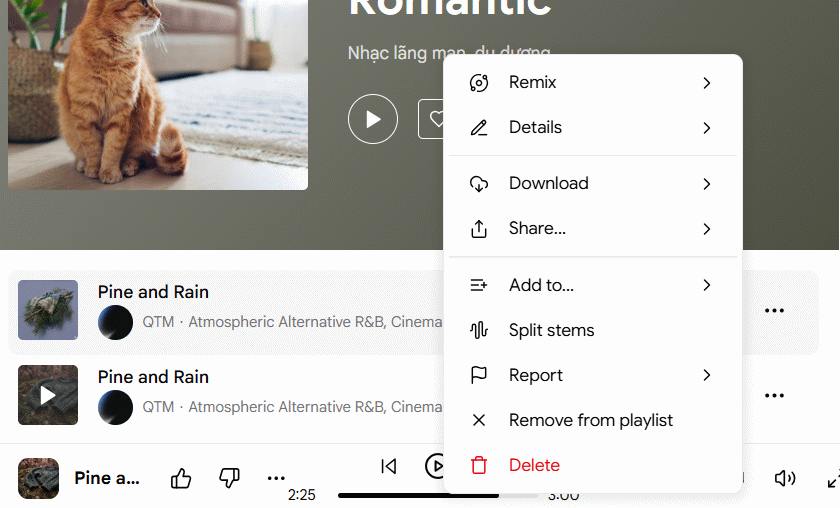
Open your playlist and tap the three-dot menu next to any track. You'll see options to remove songs, download them, share, and more.
How to Delete a Playlist on Google Flow Music
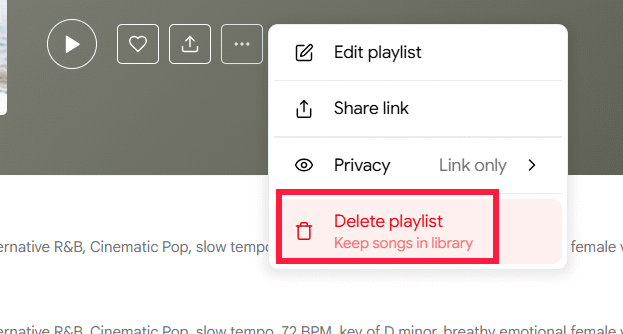
When you no longer need a playlist, removal is painless. From the playlist view, tap the three-dot menu and select Delete. Your individual tracks remain safe in Google Flow Music—only the playlist gets removed. The real concern here is that deletion is permanent, so double-check before committing.
One more thing: you can also share playlist links publicly on Google Flow Music if you want to collaborate or showcase your creations.
Description: Learn how to create AI-generated music and manage playlists on Google Flow Music. Step-by-step tutorial covering music creation, remixing, and playlis
Related Articles
- How to Use Perplexity's Learn Step by Step Mode: A Complete Guide
- The Best AI Programming Tools You Should Know About in 2024
- Resolving the Gemini Error 1076: A Complete Troubleshooting Guide
- 10 Strategies to Future-Proof Your Career in the AI Era
- The Best AI Meeting Assistants: 5 Tools That Actually Save You Time

No Comment to " Getting Started with Google Flow Music: Complete Guide to Creating Music and Playlists "