Resolving the Gemini Error 1076: A Complete Troubleshooting Guide
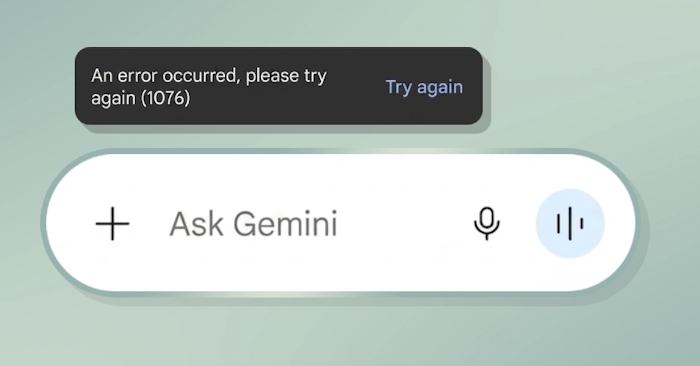
Gemini users occasionally encounter the "Something went wrong 1076" error, which can be frustrating when you're in the middle of important work. While the error message itself doesn't offer much detail, the underlying causes are often straightforward—unstable internet connections, browser cache issues, account problems, conflicting extensions, or temporary server-side glitches on Google's end. What's interesting here is that most fixes are simple enough to attempt yourself without contacting support.
If you rely on Gemini for work, studying, or content creation, understanding what triggers error 1076 and how to resolve it can save you significant time and minimize unwanted interruptions. This guide walks you through several proven methods to get Gemini working again.
What Does Gemini Error 1076 Actually Mean?
Error code 1076 is typically a temporary server-side issue originating from Google's infrastructure, or it can occur when your current conversation thread becomes excessively long. The message appears as "Something went wrong (1076)" on your screen.
Essentially, this notification tells you that Gemini encountered an unexpected problem and cannot process your request at that moment.
How to Fix Gemini Error 1076 on Android
1. Clear the Gemini App Cache
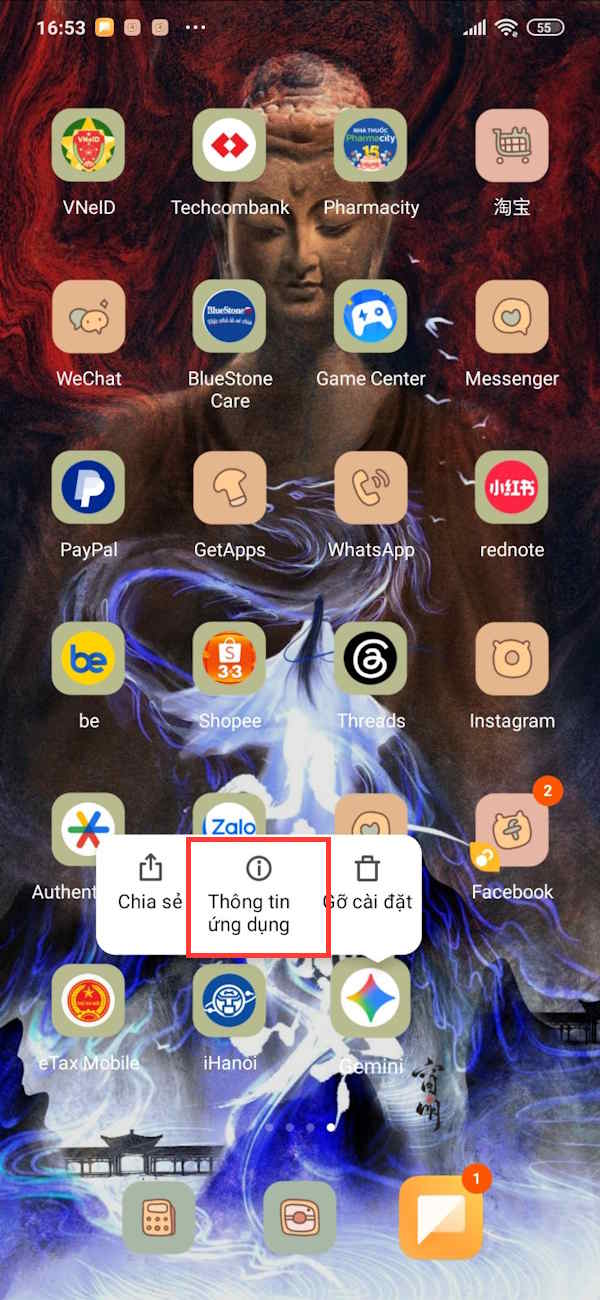
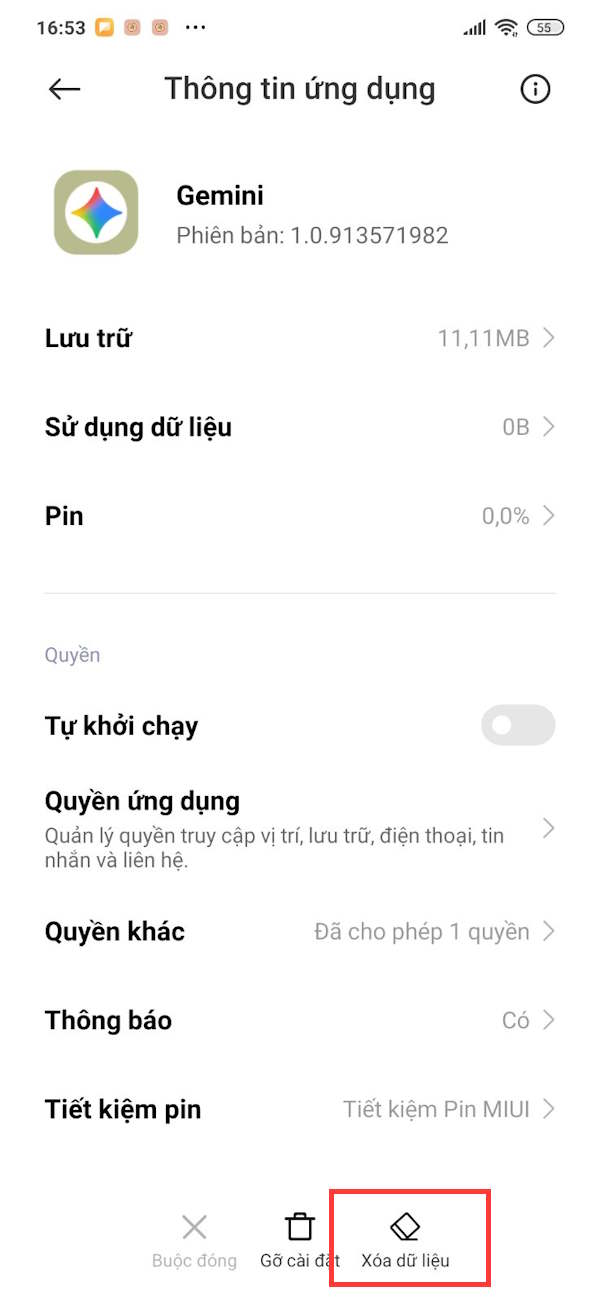
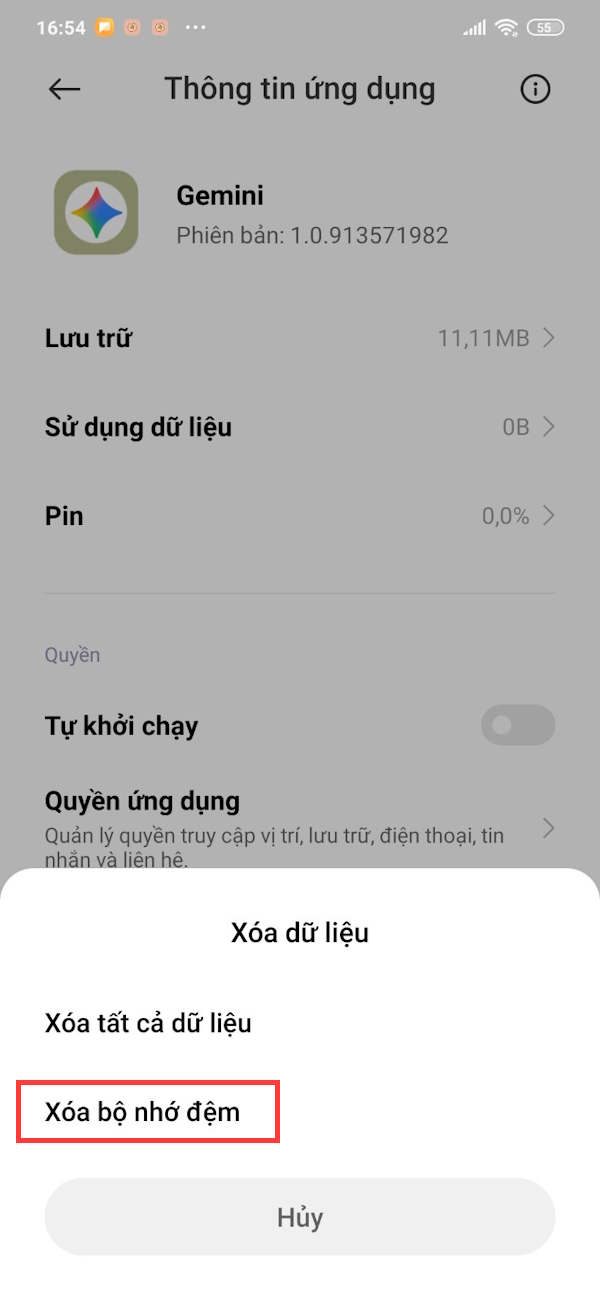
Long-press the Gemini icon on your phone, then select App Info. Once the app settings window opens, tap Clear Data and choose Clear Cache.
2. Update Gemini to the Latest Version
Check whether Gemini has a newer version available. If it does, install the update—this often patches bugs and improves stability.
Fixing Error 1076 on Your Computer
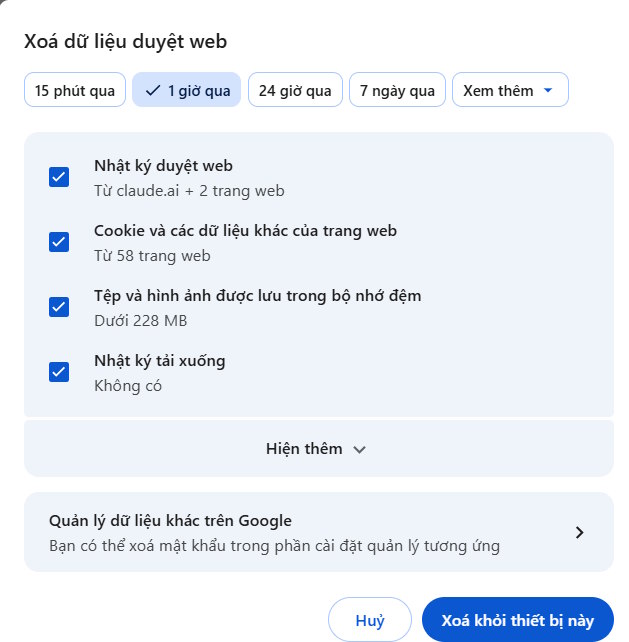
1. Clear Browser Cache and Cookies
Open your browser settings and delete both cache and cookies. This removes temporary files that may be causing conflicts.
2. Switch to Incognito or Private Mode
Try switching your browser to incognito (or private browsing) mode and accessing Gemini again with your Google account. This bypasses many extension-related issues instantly.
3. Disable VPNs, Extensions, and Ad Blockers
Review all extensions, VPNs, and ad-blocking tools installed on your browser and temporarily turn them off. The real concern is that these tools sometimes interfere with Gemini's normal operation. Once disabled, reload Gemini and test again.
4. Flush Your DNS Cache
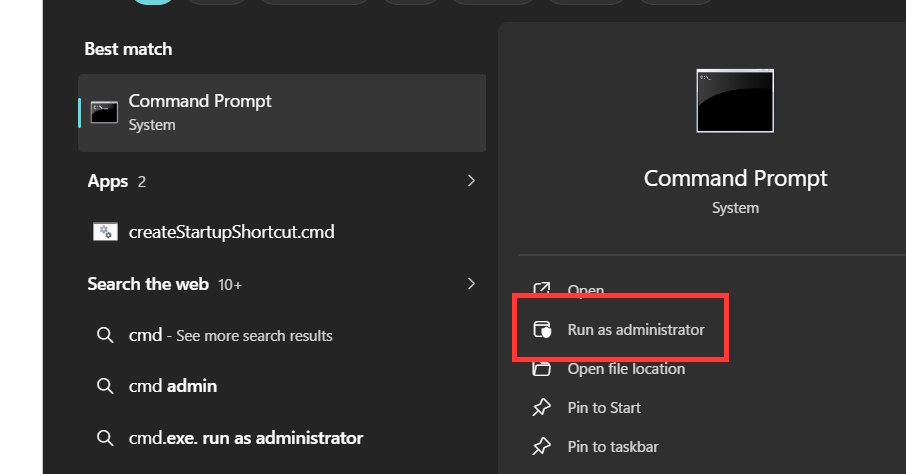
Press Windows + S, then type cmd in the search bar. Select "Run as Administrator".
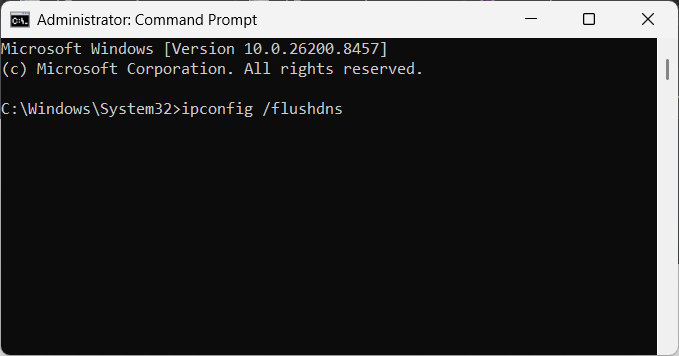
Type ipconfig /flushdns and press Enter. Wait a moment for the confirmation message "Windows IP configuration successfully flushed the DNS Resolver Cache" to appear.
General Note:
If none of these methods work, simply wait 15 to 30 minutes. Many of these issues resolve themselves automatically once Google's servers finish processing any pending updates or clear their backlog.

No Comment to " Resolving the Gemini Error 1076: A Complete Troubleshooting Guide "