Error 0x80073D26 or 0x00000001 xbox game pass


0x80073D26
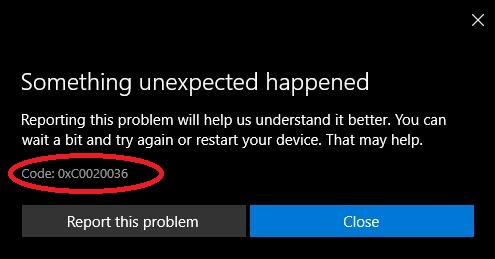
Something Unexpected Happened
Reporting this problem will help us understand it better. You can wait a bit and try again or restart your device. That may help.
You may also see error code 0x00000001 in the Xbox app when you try to install or update a game.
This article will guide you how to fix Error 0x80073D26 or 0x00000001 Xbox game pass. Please follow the steps from top to bottom.
How to do:
1. Reset the Gaming Services & App Installer apps
Step 1: Settings (using Windows+I hotkey) and go to Apps > Apps & features.
Step 2: Now, from the installed apps, locate Gaming Service.
Step 3: Click on Advanced options and then scroll down to click on the Reset button and confirm the process.
Similarly, you can reset the App installer app.
Finally, reboot your PC and see if the error is fixed now.
2. Update Windows
Step 1: Select Update & Security > Check for updates.
Step 2: Select View optional updates, and then select update KB5004476 from the list. Select Download and install.
Step 3: After updated, please restart your device.
3. Reset Xbox (Beta) & Microsoft Store
To reset the Xbox app or Microsoft Store, you can follow the below steps:
Step 1: Settings (using Windows+I hotkey) and go to Apps > Apps & features.
Step 2: Now, from the installed apps, find to Xbox or Microsoft Store
Step 3: Click on Advanced options and then scroll down to click on the Reset button and confirm the process.
Similarly, you can reset the App installer app.
Finally, reboot your PC and see if the error is fixed now.
4. Try reinstalling the Gaming Services package on your Windows 10 device
Step 1: Right-click the Start button > Windows PowerShell (Admin).
Step 2: Type the following command and press Enter:
+ Command line 1: Remove the whole Microsoft Gaming Services infrastructure:
get-appxpackage Microsoft.GamingServices | remove-AppxPackage -allusers
+ Command line 2: Reinstall the package back using the below command:
start ms-windows-store://pdp/?productid=9MWPM2CQNLHNAbove are 4 detailed steps to help you fix the error 0x80073D26 or 0x00000001 xbox game pass completely on Windows 10 or Windows 11. If you have any questions or questions, please comment below. Thank you guys.