How to Build Interactive Froggy Jumps Games on Educaplay

Froggy Jumps is an engaging interactive game available on Educaplay that transforms knowledge review into something genuinely fun and memorable. What makes this game particularly useful is how it works—players control a frog character that hops across lily pads to reach the shore, but only by answering questions correctly. The real appeal here is its versatility: it works across virtually any subject and age group, which means you can boost student engagement and retention without much extra effort.
In this guide, we'll walk you through everything you need to know about setting up your own Froggy Jumps game on Educaplay—from initial setup to publishing and sharing with your students.
Creating a Froggy Jumps Game on Educaplay: Step by Step
Step 1: Access the Platform and Select the Game Type
Start by navigating to the Educaplay resource editor at the link below. You'll need to create an account if you don't already have one.
https://www.educaplay.com/resource-editor/Once you're in the editor interface, look for and click on the Froggy Jumps game option to begin creating.

Step 2: Choose Your Question Creation Method
You'll land on the main game editor, which presents two different approaches for building your Froggy Jumps game. You can either manually input questions and answers, or leverage AI to generate them automatically.

For Manual Question Entry: Click the plus icon to add answer options, then fill in your question content and corresponding answer choices manually.

Step 3: Set Up AI-Generated Questions
If you'd prefer to have questions generated automatically, click the settings (gear) icon.

Configure the question generation parameters as shown in the image below.

Next, enter your question requirements including content details, target audience, and topic. You can upload a reference file by clicking the book icon if needed. When you're ready, click Generate to create your questions.

Step 4: Test Your Game
Give it a moment to process, and your completed Froggy Jumps game will appear. Click Start to play through it and verify everything works as intended.

During gameplay, players must select the correct answer to make the frog advance one lily pad at a time. Wrong answers cost a life, and there's a countdown timer for each question to keep things challenging. Correct answers earn points, which display in the upper right corner of the screen.

Step 5: Publish and Share Your Game
Ready to share with your students? Click the Publish button in the upper right corner.

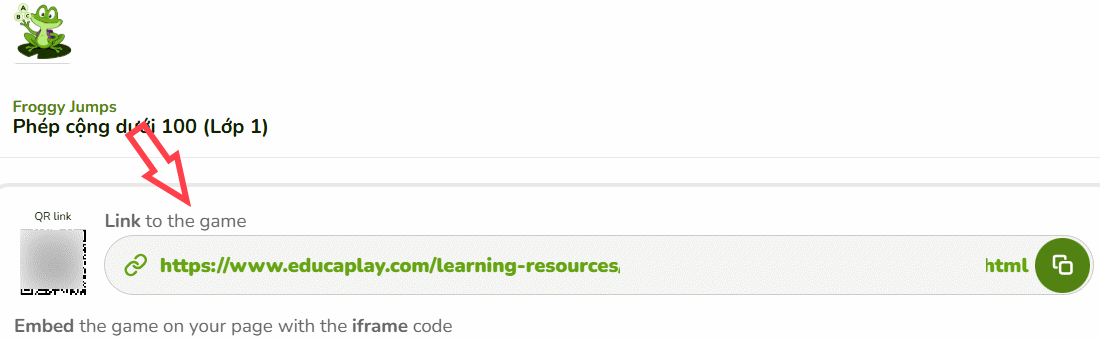
Then click the share icon to access your game's distribution options.

You'll find both a QR code and a direct URL ready to distribute to your students.
Related Articles
- 8 Effective Methods to Monitor Your Hard Drive Health and Catch Problems Early
- How to Fix the Task Host Window Blocking Windows Shutdown
- How to Restore a Windows System Using UEFI-Compatible .tib Ghost Files
- Understanding Mesh WiFi: How Does a Mesh Network System Actually Work?
- The 22 Best Tools for Creating Bootable USB Drives

No Comment to " How to Build Interactive Froggy Jumps Games on Educaplay "