Generate Student Assessment Rubrics Instantly with AI on Canva

Creating rubrics from scratch is tedious. That's where Canva's AI Rubric Maker comes in—a smart tool that generates assessment criteria templates in seconds. Instead of manually building evaluation frameworks, teachers can now leverage AI to produce structured grading rubrics based on specific criteria like content quality, technical skills, completion level, and creativity. A rubric itself is a scoring matrix used to grade assignments, projects, presentations, and other student work using predefined standards.
What makes this tool particularly useful is how it combines AI generation with Canva's design capabilities. The AI Rubric Maker generates an initial framework based on your input, then Canva lets you polish it into a visually appealing, printable format ready to share with students before they begin work. This transparency helps students understand exactly what's expected, while giving teachers a consistent evaluation framework. Here's how to set it up.
Step-by-Step Guide: Building Assessment Rubrics on Canva
Step 1: Access the AI Rubric Maker
Open Canva and tap the three-dot menu icon, then select Apps from the dropdown menu.

Type rubric into the search bar. Select the AI Rubric Maker result that appears.

Click on the AI Rubric Maker app to launch it.

You'll see an option to start with a new design or use an existing template. Choose your preference and continue.

Step 2: Configure Your Rubric Parameters
A new panel appears on the left side with input fields for your rubric settings. First, select Vietnamese as your language (or choose your preferred language for output).

Now fill in the remaining fields. For example, if you're grading student presentations, you'd add:
Learning Standards/Objectives:
Students will demonstrate the ability to construct and deliver clear presentations with accurate content, appropriate visual aids, and effective communication skills before an audience.
Task Description:
Students prepare a presentation on an assigned topic. The presentation must include an introduction, main content, conclusion, and relevant images or examples. Students should demonstrate presentation skills, explain concepts clearly, and answer questions from the teacher and peers.
When you're done entering information, click Generate.

Step 3: Add to Your Design
Wait a moment while the AI generates your evaluation criteria based on what you entered. Once the rubric appears, click Add to Design.

Your AI-generated assessment rubric is now embedded in your Canva design.
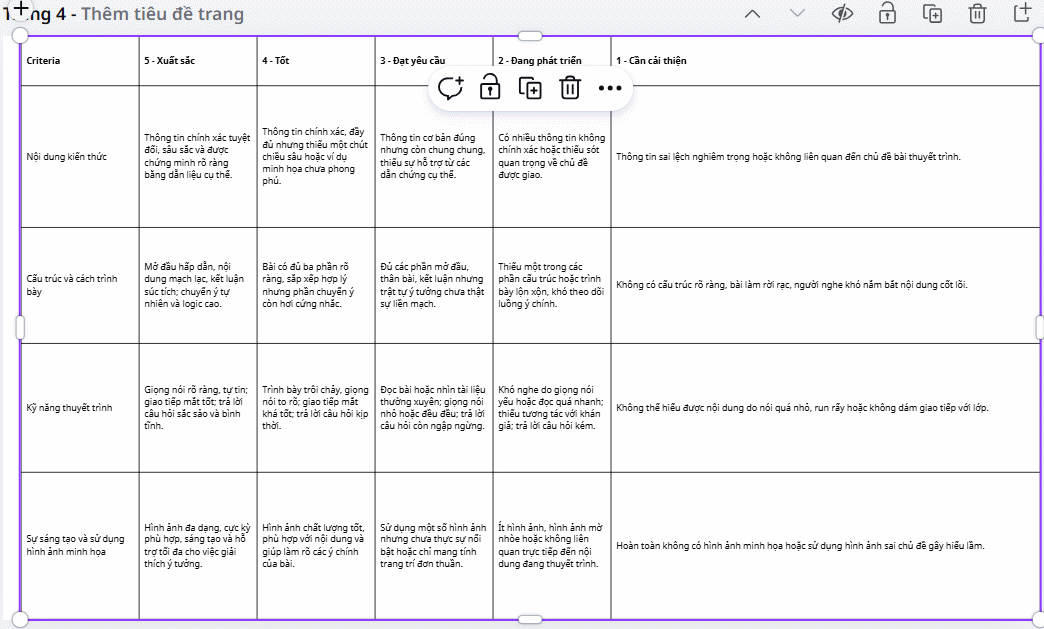
What's important here is the next part: review and edit the generated content to ensure it aligns with your curriculum and your students' skill level. The AI gives you a solid starting point, but your professional judgment should shape the final rubric.
Related Articles
- 8 Effective Methods to Monitor Your Hard Drive Health and Catch Problems Early
- How to Fix the Task Host Window Blocking Windows Shutdown
- How to Restore a Windows System Using UEFI-Compatible .tib Ghost Files
- Understanding Mesh WiFi: How Does a Mesh Network System Actually Work?
- The 22 Best Tools for Creating Bootable USB Drives

No Comment to " Generate Student Assessment Rubrics Instantly with AI on Canva "