Generate Videos from Text Using Canva's AI in Minutes
Canva's AI capabilities go beyond image generation. The platform now lets you transform text descriptions into fully-formed videos in seconds. Just describe the scene you want—the subject, setting, camera angle, lighting, and style—and Canva's AI handles the rest. What's interesting here is how much control you retain over the final output by being specific in your prompts.
This guide walks you through the entire process of creating AI-powered videos on Canva, including some pro tips for camera angles and lighting that'll make your videos look polished.
How to Create AI Videos from Text on Canva
Step 1:
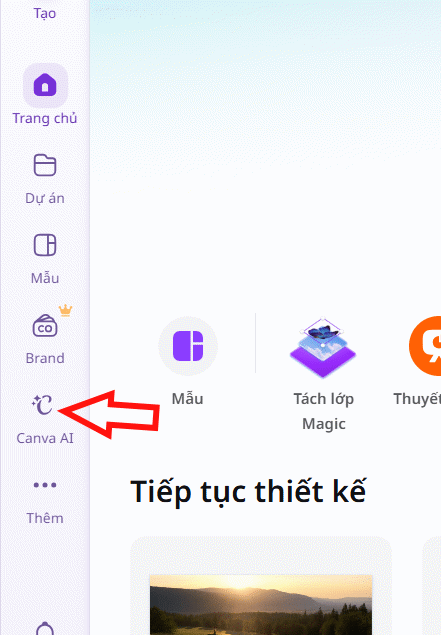
Open Canva and click on Canva AI from the left sidebar menu.
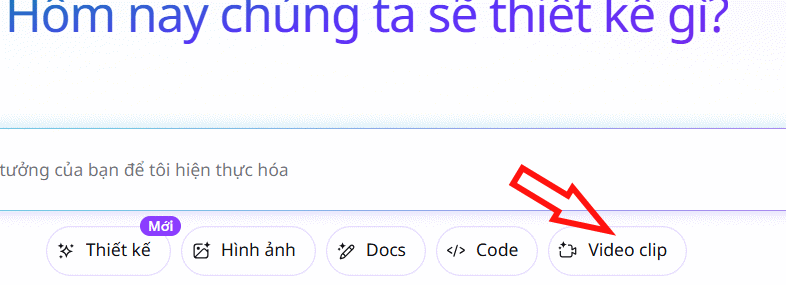
Next, look to the right side and select Video Clip to begin creating your AI video.
Step 2:
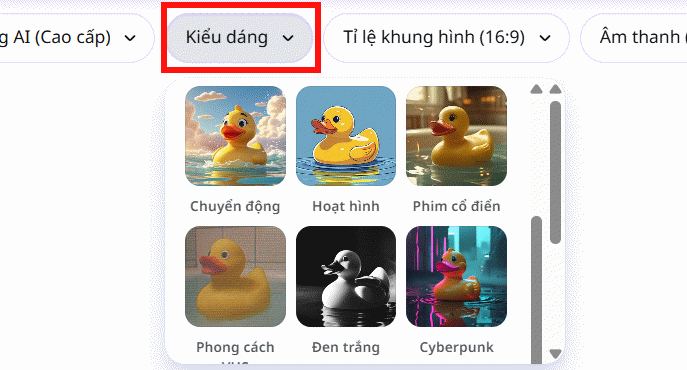
Canva presents you with several configuration options. First, choose your AI Quality level.
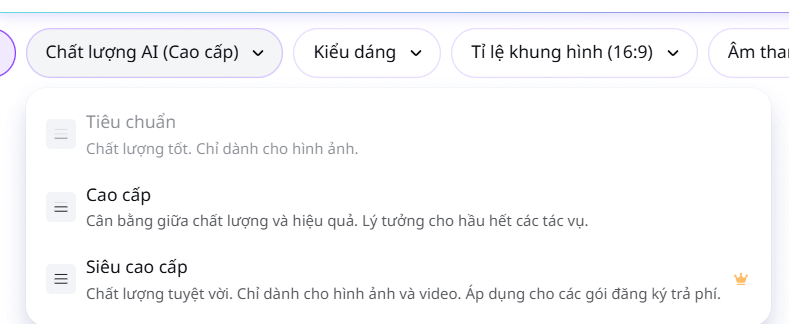
Then click Style to select the visual style for your video. The Aspect Ratio section currently defaults to 16:9 and 9:16 options, with more ratios coming soon.
Step 3:
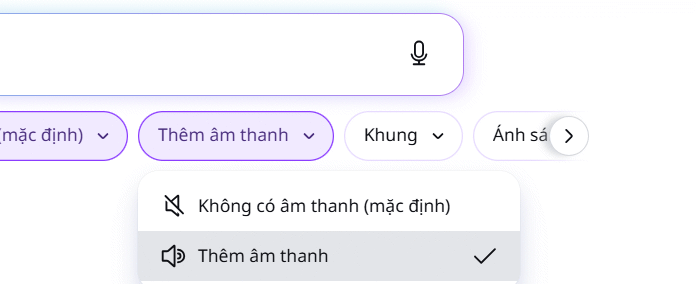
Next, decide whether to add background music to your video. Keep in mind that audio features require a paid Canva subscription.
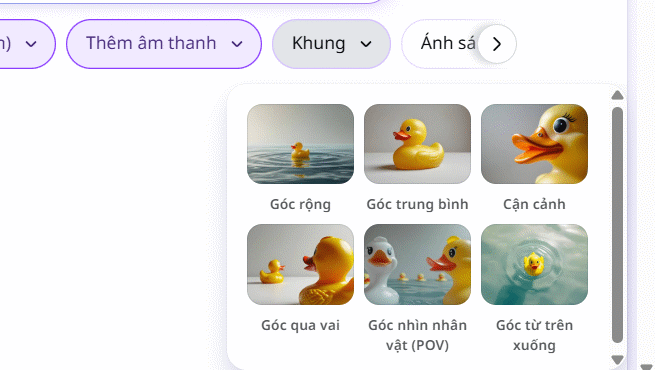
Select your preferred camera angle from the available options. If you don't see the angle you need, you can specify it in your text prompt instead.
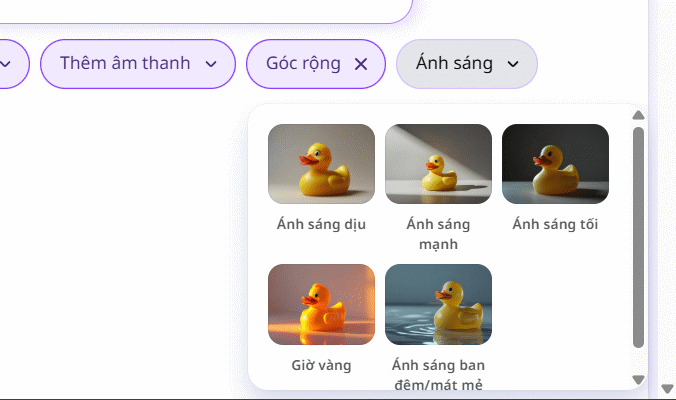
Choose your preferred lighting for the AI-generated video.
Step 4:
Now enter your text prompt to generate the video. Canva's AI processes it immediately. Once the video renders, you can download it or click Edit to make adjustments.
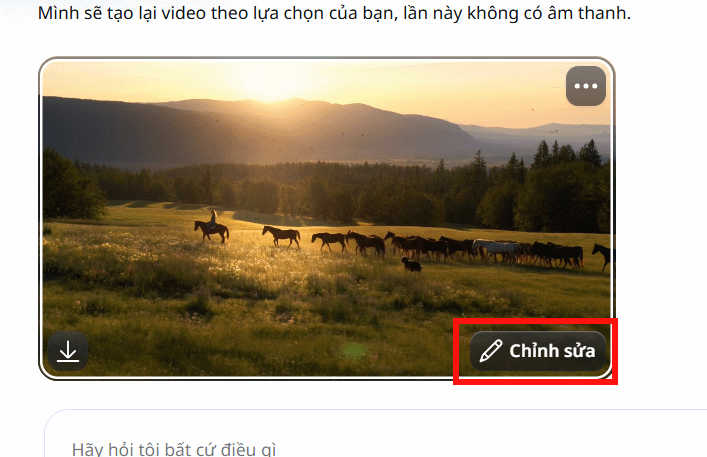
In the editing interface, trim clips, rearrange scenes, apply transitions, or add background music. Canva's built-in editing tools make it easy to refine your AI video. When you're happy with the result, download it.
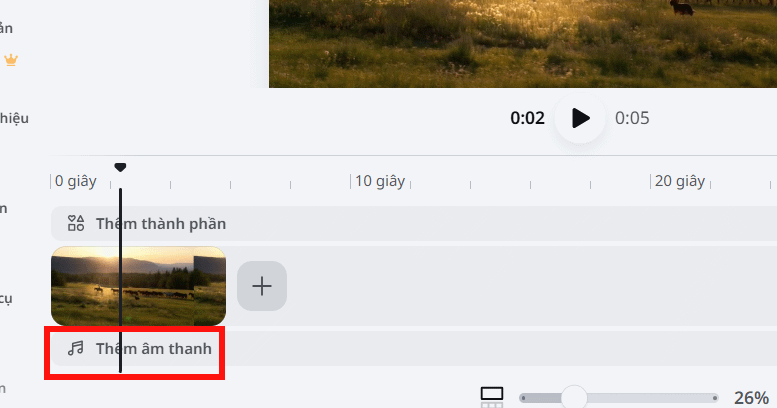
Sample AI Video Created from Text
How to Write Effective Prompts for Canva Videos
Use this simple formula:
[Subject] + [Action] + [Setting] + [Camera Angle] + [Lighting] + [Style] + [Camera Movement]
A well-written prompt should include these core elements:
- Subject: The person, animal, or object featured in the video.
- Action: What the subject is doing.
- Setting: The location and surrounding environment.
- Camera Angle: Wide shot, close-up, low angle, or overhead view.
- Lighting: Sunrise, sunset, golden hour, or natural daylight.
- Style: Realistic, cinematic, animated, 3D, and so on.
Common Questions About Canva's AI Video Generator
Should I write prompts in English or Vietnamese?
You can enter prompts in Vietnamese, but Canva works best with English. If your Vietnamese prompt doesn't produce the results you want, try translating it to English for better accuracy.
How long can AI videos be on Canva?
Currently, each video generation produces up to 8 seconds of content. The exact duration may vary depending on your Canva subscription tier.
Can I edit videos after they're generated?
Absolutely. After generation, you can trim clips, apply effects, add transitions, use filters, and incorporate additional elements using Canva's editing suite.
Description: Learn how to create stunning AI videos from text prompts on Canva. Step-by-step guide with camera angles, lighting, and editing tips.
Related Articles
- How to Disable or Minimize AI Across Google, Chrome, Gmail, Windows, Office, and iPhone
- How to Connect Claude Code to Discord Using Claude Code Channels
- Turn Google Slides Into Professional Videos With AI Scripts and Voice-Over Using Google Vids
- How to Enable Your Laptop Webcam on Windows 7, 8, 10, and 11
- How to Fix the Task Host Window Blocking Windows Shutdown

No Comment to " Generate Videos from Text Using Canva's AI in Minutes "