Turn Google Slides Into Professional Videos With AI Scripts and Voice-Over Using Google Vids
Google Vids transforms your Google Slides presentations into finished videos remarkably quickly. Select the video conversion mode, and the tool automatically generates scripts, organizes content by scene, and adds AI voice-over narration. What's interesting here is how much time you save compared to manually editing video from scratch. This is a game-changer for converting lectures, training materials, reports, presentations, and product demos into professional videos without needing complex video editing software. In this guide, we'll walk through converting Google Slides into Google Vids videos complete with AI-generated scripts and narration, so you can create polished, shareable videos in minutes.
Important note: This feature currently generates English narration only, so keep that in mind for your projects.
Step-by-Step: Converting Slides to Google Vids Videos
Step 1: Start the Conversion
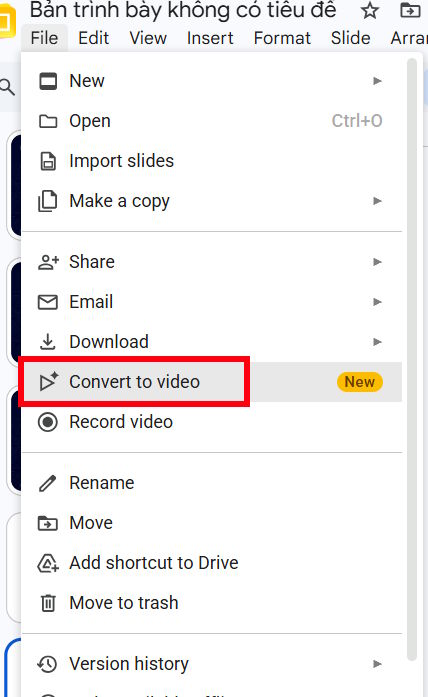
Open your presentation in Google Slides. Click File, then select Convert to video. You'll see all your slides listed.
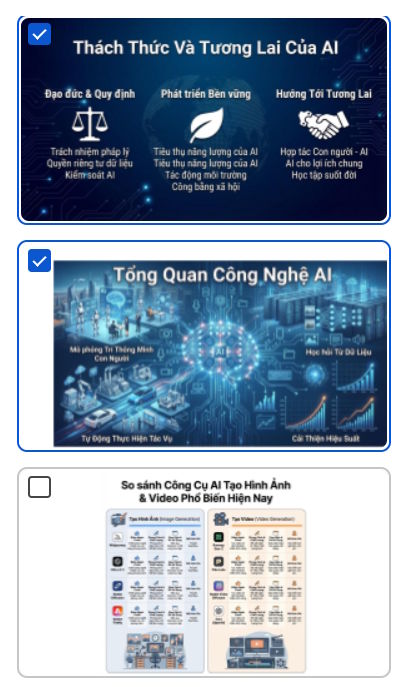
Deselect any slides you don't want included in your video.
Step 2: Enable AI Features
At the top of the screen, check that AI-powered narration, scripts, background music, and transitions are activated.
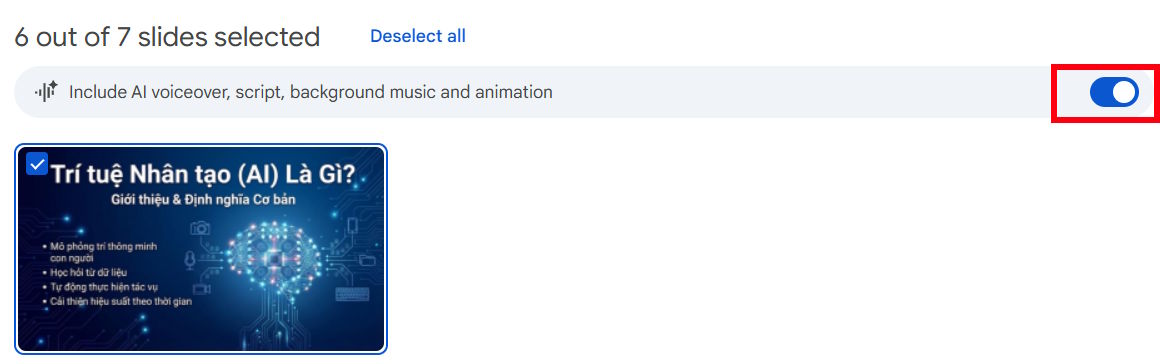
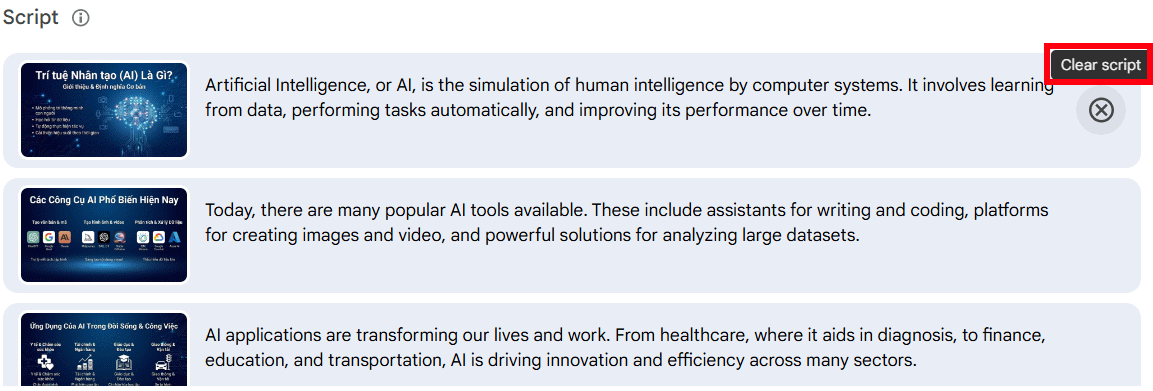
Click Continue. Google Vids will generate AI narration scripts for each scene. You can delete any scripts you don't want, or manually enter custom narration for individual scenes.
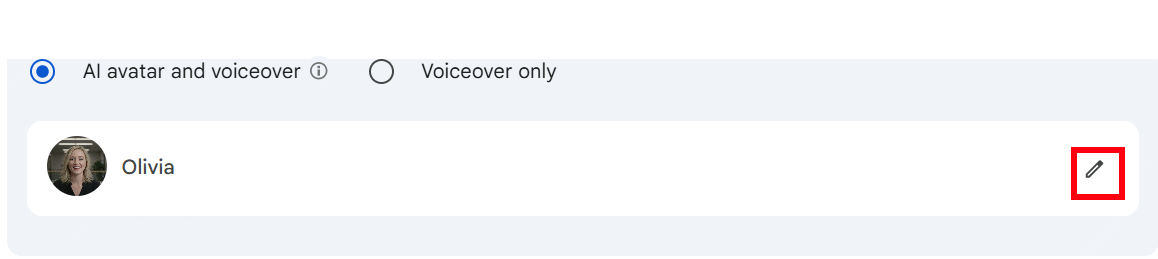
Scroll down and choose whether to use narration alone or add an AI avatar character on screen. To swap avatars, click the pencil icon.
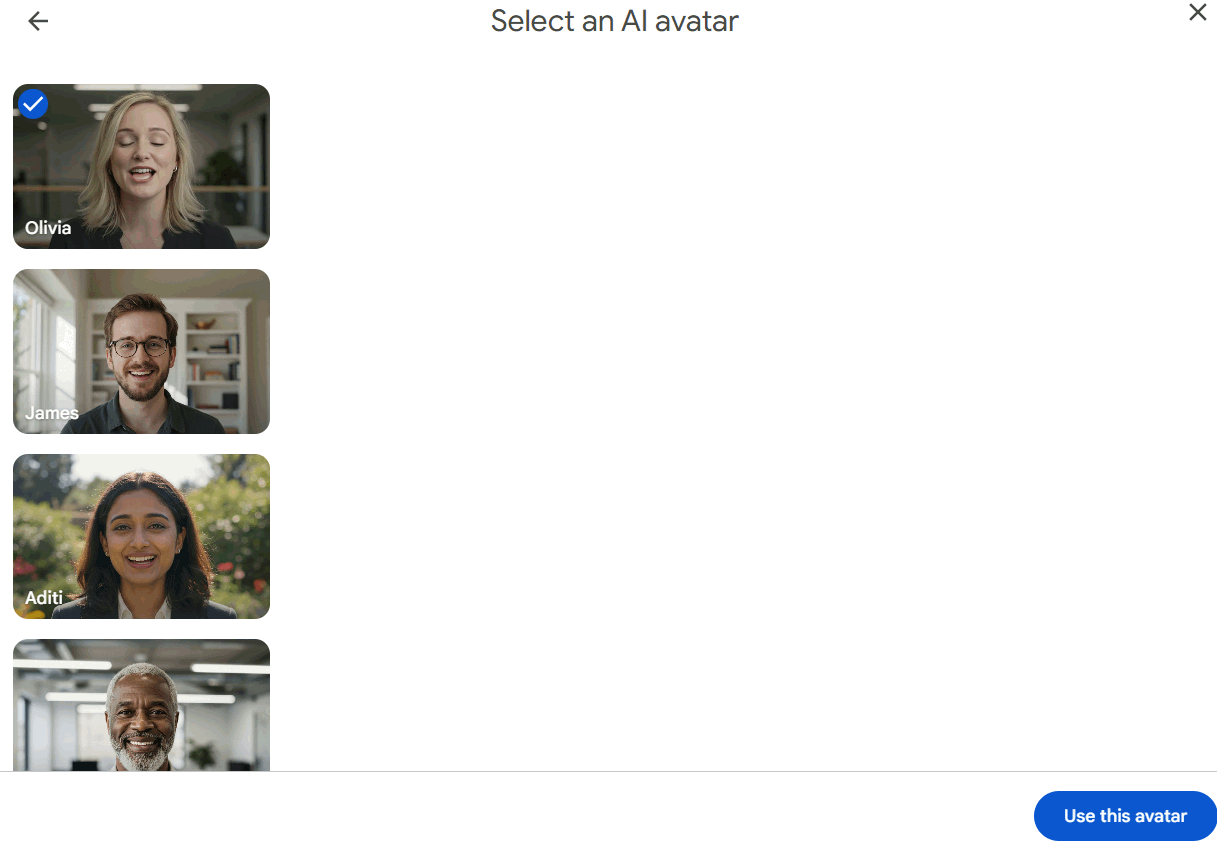
Browse the available AI presenters, select one, and hit Use this avatar to apply the change.
Step 3: Generate Your Video
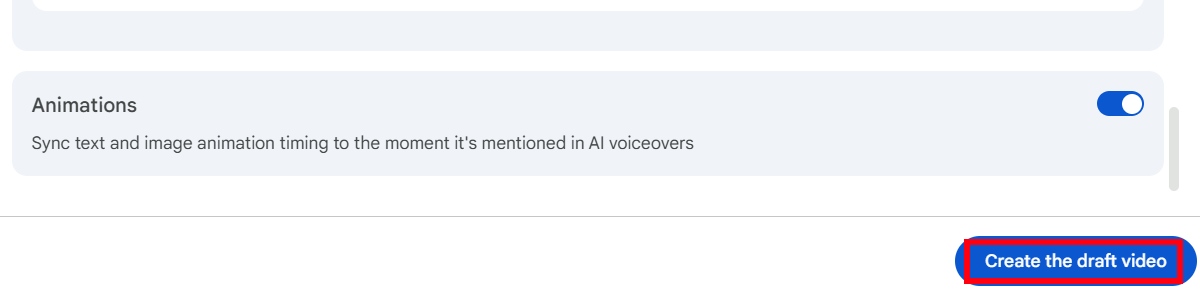
Enable Animations AI to add motion effects, then click Create the draft video to generate your AI video from the slides.
Wait a moment while Google Vids processes. Your video will appear with narration, avatar characters, and animations in each scene.
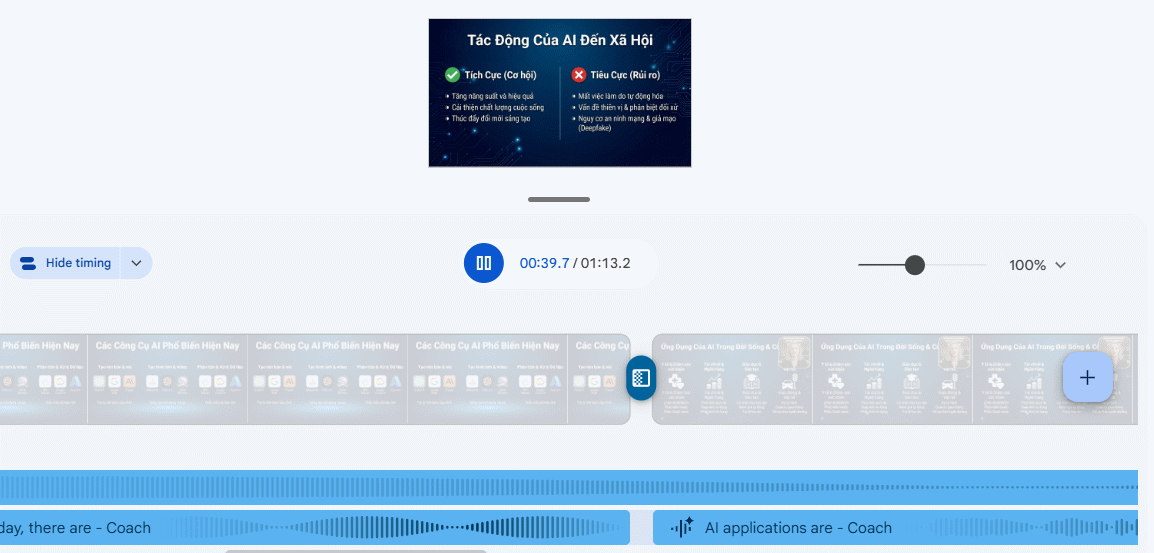
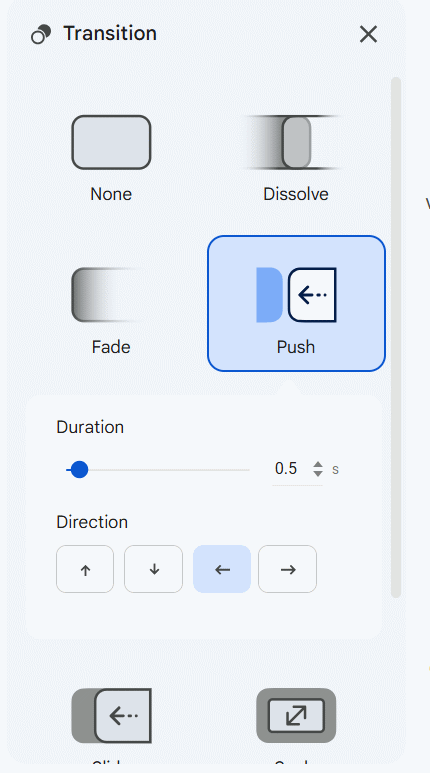
You can customize scene transitions by clicking the transition icon and selecting a new effect from the Transition menu.
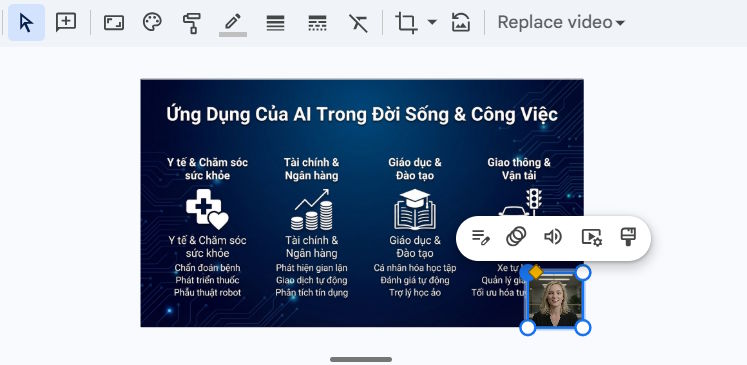
Adjust the AI avatar size and position on each scene. Click the avatar frame and drag to resize or reposition it as needed.
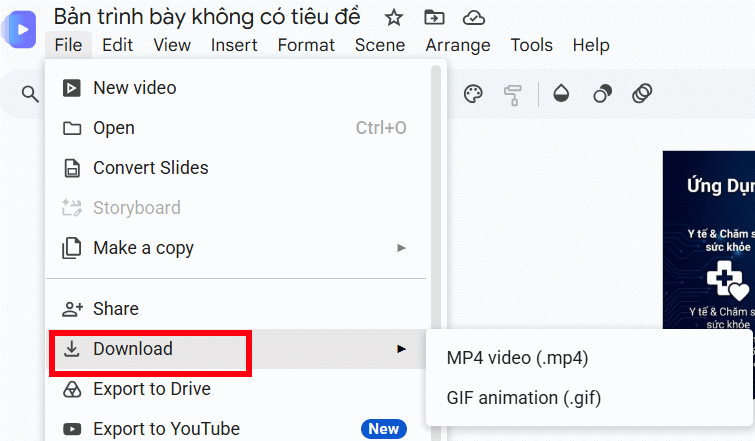
Step 4: Download Your Video
Once your video is complete, go to File and select Download to save it.
Best Practices for Converting Slides to Video
To get the best results from Google Vids, follow these guidelines:
One main idea per slide. AI analyzes each slide's content to generate narration. Keep each slide focused on a single topic or message rather than cramming in too much information.
Use clear, descriptive titles. Concise, relevant titles help AI understand your presentation structure, leading to more logical scripts and narration.
Write plain, straightforward text. Avoid abbreviations, unclear symbols, or excessive bullet points. AI might misinterpret context otherwise.
Choose relevant images. Illustrations that match your content make videos more engaging and reduce the need for post-production fixes.
Review and edit AI-generated content. Always check the scripts and narration AI creates. Adjust them to match your tone and audience.
Preview before sharing. Watch the full video start to finish before distributing it.
Frequently Asked Questions
Can Google Vids convert any Google Slides presentation?
Yes. You can use Convert to video on any Google Slides presentation. However, some animations or special layouts may not carry over perfectly after conversion.
Does Google Vids automatically create scripts?
Yes. After converting from Google Slides, Google Vids uses AI to write narration scripts based on each slide's content. You can edit the dialogue before finalizing the video.
Do I need to recreate the video if I edit my Google Slides?
Yes. Changes made to Google Slides after conversion don't automatically sync to the video you've already created. You'd need to reconvert if substantial edits are made.
Can I add images or video clips after conversion?
Yes. Once Google Vids generates your video, you can insert additional images, video clips, icons, background music, and transition effects to polish the final product.
Is the Convert to video feature free?
Feature access depends on your Google Workspace plan. If your account doesn't yet support Google Vids or AI features, the Convert to video option may not be available.
Description: Learn how to convert your Google Slides presentations into polished videos with AI-generated scripts, narration, and avatars in just a few steps.
Related Articles
- How to Create Diagrams with Canva's AI Diagram Maker
- How to Access BIOS on Different Computer Models: A Complete Guide
- Understanding Open Source AI: What Actually Counts as Open?
- 11 Ways to Open the On-Screen Keyboard in Windows 10
- 8 Effective Methods to Monitor Your Hard Drive Health and Catch Problems Early

No Comment to " Turn Google Slides Into Professional Videos With AI Scripts and Voice-Over Using Google Vids "