Using Gemini to Analyze Your Google Drive Documents

Gemini's question feature within Google Drive is an integrated AI tool that lets you query your stored files without manually opening and reading through them. It can process documents, spreadsheets, presentations, PDFs, and various other formats to summarize content, locate specific information, answer questions, or speed up data processing. What's interesting here is that you don't need to master complex syntax—just ask naturally.
This saves considerable time when dealing with large document collections and boosts your overall productivity right inside Google Drive. You work with plain language commands rather than complicated technical queries. Here's everything you need to know about using Gemini to analyze your Google Drive files effectively.
How to Analyze Google Drive Documents with Gemini
Step 1:
Click the three-dot menu next to the file you want to analyze in Drive, then select Ask Gemini from the dropdown menu.

You'll immediately see basic information about the file that Gemini has analyzed.
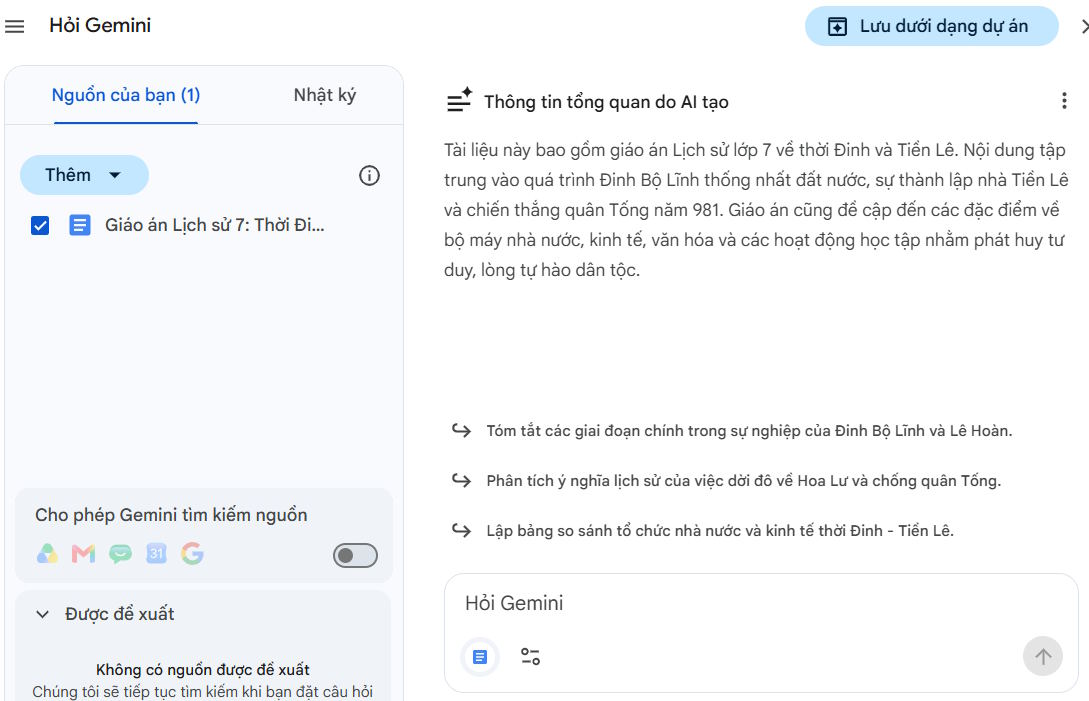
Step 2:
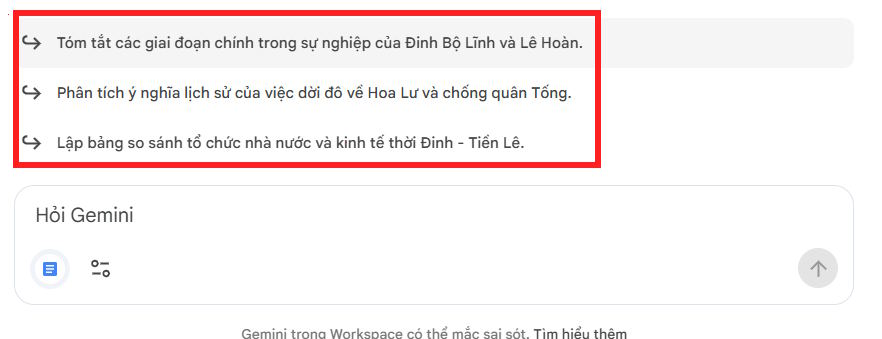
Within the Ask Gemini interface, you'll find several suggested questions to help analyze your document's content. You can use these directly to explore the information stored in your Drive files and dig deeper into specific topics.
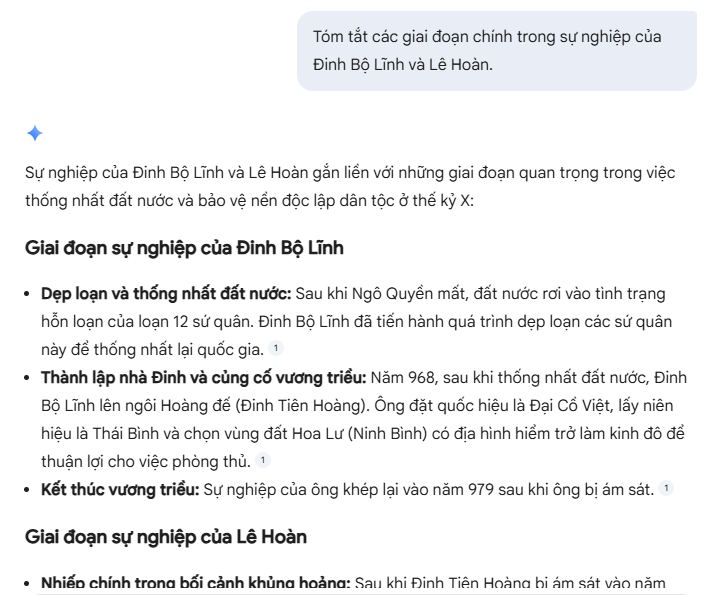
Gemini's response displays the complete analysis of your Drive document.
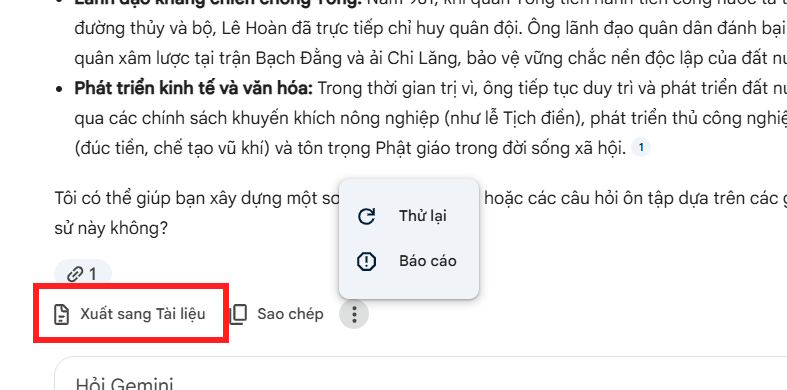
At the end of each Gemini response, you can export the analysis to Google Docs for further use and editing.
Step 3:
To add additional documents to this Ask Gemini interface, click Add and choose where to pull files from. This lets you analyze content from multiple sources simultaneously.
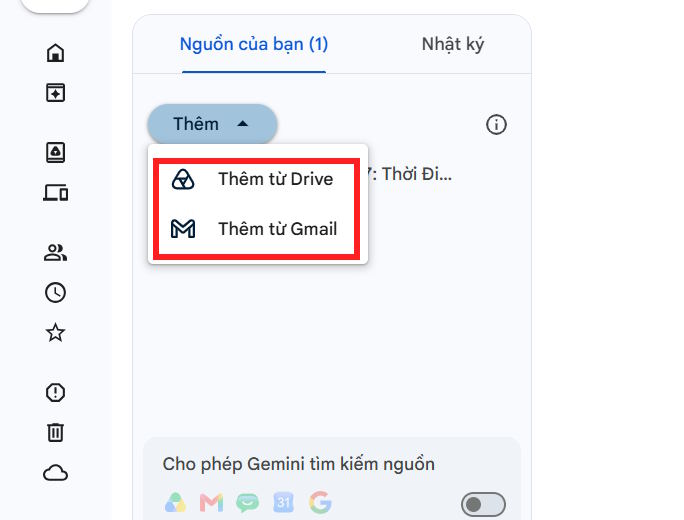
Gemini also offers toggleable source-search mode for the applications listed below. Simply disable any sources you don't want included in your analysis.

Now enter your command to analyze the Google Drive documents with Gemini.

Effective Gemini Commands for Analyzing Google Drive Files
For more accurate results, be specific about your goals, clarify the scope of information you need, and specify your preferred response format.
Summarize Document Content
Please summarize this document and highlight the most important points.Find Critical Information in a File
Identify the most critical information in this file and explain it in simple terms.Extract Key Takeaways
Analyze this document and extract the main ideas, important conclusions, and key points to remember.Create a Professional Summary
Generate a professional summary of this document with clear headings and bullet-point sections.Search for Specific Information
Find all information related to [topic] in this document and compile it for me.Explain Document Content Simply
Explain this document's content in simple, easy-to-understand language for beginners.Compare Multiple Files
Compare these files and identify similarities, differences, and key information.Analyze Reports and Business Documents
Analyze this report, highlight key findings, main trends, important concerns, and recommended actions.Generate a Task List from Your Documents
Read this document and create a prioritized task list based on required actions.Extract Data as a Table
Extract important information from this document into a table with columns for content, details, and notes.Consolidate Information Across Multiple Files
Search for documents related to [topic] in Google Drive and consolidate the most important information.Description: Learn how to leverage Gemini's AI capabilities to quickly summarize, search, and extract insights from your Google Drive files.
Related Articles
- The 9 Best AI Social Media Management Tools in 2026
- 5 Desktop Apps That Show How MCP Servers Turn Claude Into a Desktop Automation Tool
- Claude vs ChatGPT: Which AI Chatbot Should You Actually Use?
- Why Quizlet Beats Gemini and ChatGPT for Actual Learning
- How to Generate and Edit AI Images in Google Vids

No Comment to " Using Gemini to Analyze Your Google Drive Documents "