Build Parent-Teacher Meeting Slides Instantly with Canva AI
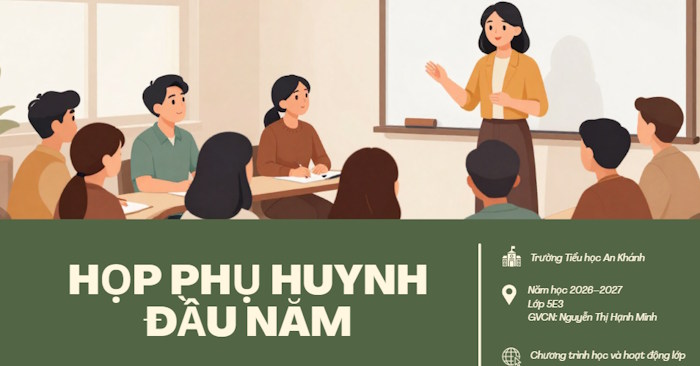
Teachers typically have a parent meeting outline ready before the school year begins—whether it's images or written content. Here's what's interesting: with just a single prompt, you can transform that material into a polished presentation slide deck. No hours of manual formatting required.
Canva AI streamlines this entire workflow. You get professionally styled layouts with complete formatting in minutes, requiring minimal tweaks afterward. The real benefit? Even after Canva AI generates your slides, you maintain full control to customize the content however you like. Let's walk through exactly how to create parent meeting slides using Canva.
How to Build Parent Meeting Slides from Your Script on Canva
Step 1:
Start by preparing your parent meeting script for the school year. You can create a visual summary of your content to capture the key points before converting it to slides. Typically, your parent meeting script should cover these elements:
- Introduction of the teacher and classroom.
- Meeting objectives.
- General class overview.
- Classroom rules and policies.
- Annual learning plan.
- Topics for parent discussion.
- Tips for teacher-parent collaboration.
- Q&A session at the end.
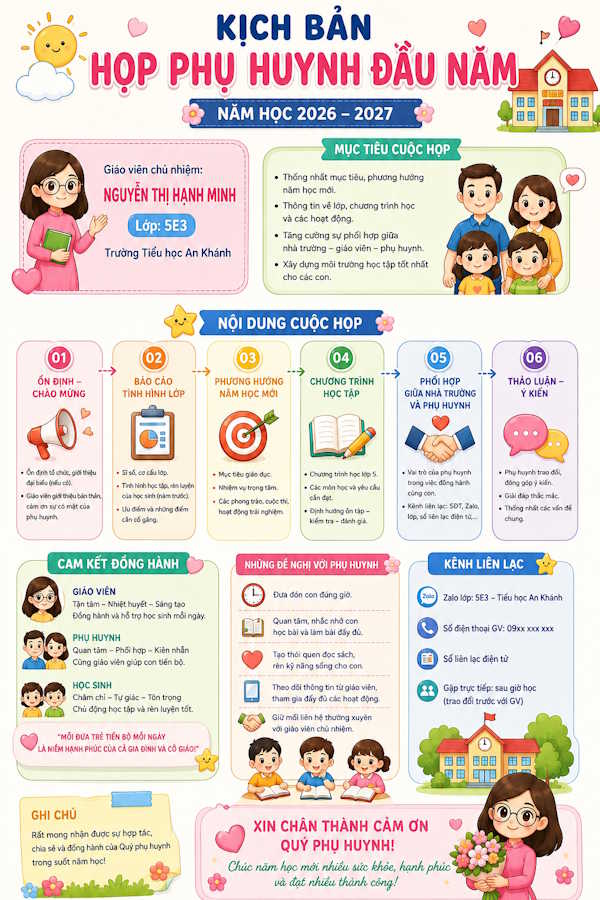
Next, upload your image or script content to ChatGPT. Then paste this prompt to structure your presentation slides. You can expand the prompt to specify your preferred style—formal and professional, warm and approachable, minimal and clean, or modern with infographics.
Based on the parent meeting script provided, convert the content into a presentation outline with x slides.

Preserve all original content and key points without adding or removing information. Organize content in a logical meeting sequence; each slide should have a clear title and concise, easy-to-present bullet points.

If content doesn't fill x slides, break down existing sections instead of creating new content. Design should be professional, coherent, and suitable for both teachers and parents.
Transform this parent meeting script into an 8-10 slide presentation. Each slide needs a concise title, clear main points, and content that's easy to read when projected. Arrange information logically from opening remarks through discussion topics and the Q&A wrap-up. Don't add information outside the original script. Suggest relevant images for each slide.Step 2:
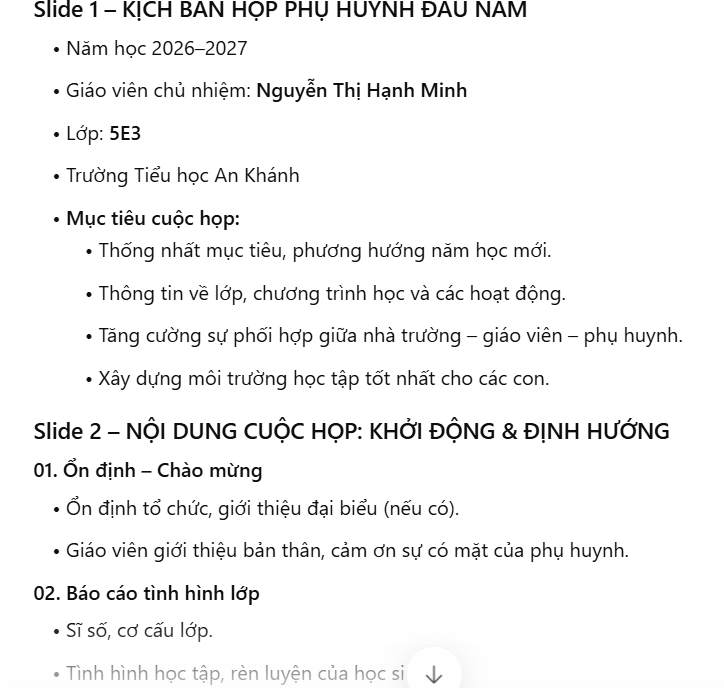
ChatGPT will now generate your slide content breakdown, structured exactly to the number of slides you specified.
Step 3:
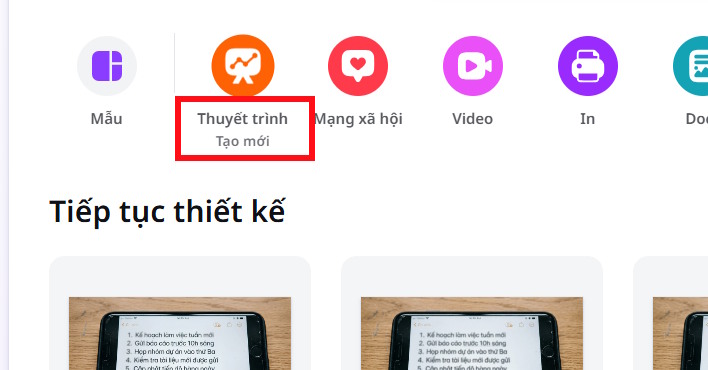
Open Canva AI and select Presentation from the main dashboard to create your slides.
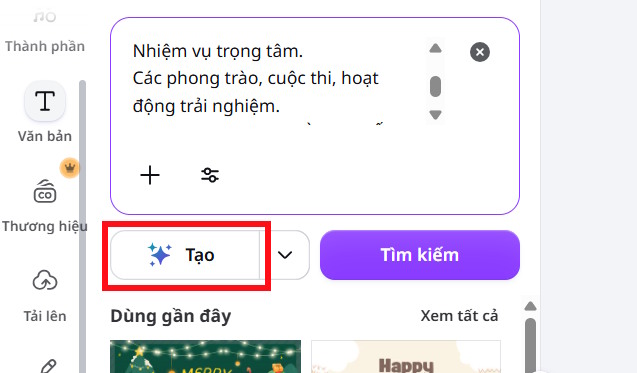
Click on Canva AI, then paste your ChatGPT-generated content directly into the AI slide design box and click Create to begin.
Step 4:
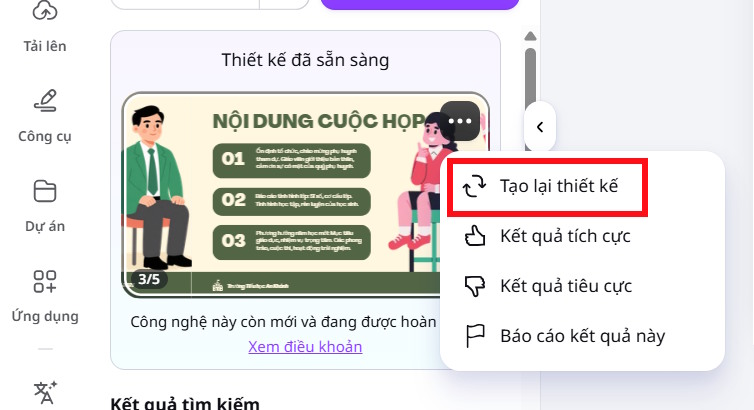
Wait for Canva AI to generate your parent meeting slides. You'll see a preview of the presentation. Review each slide—if you're not satisfied, click the three-dot menu and select Regenerate.
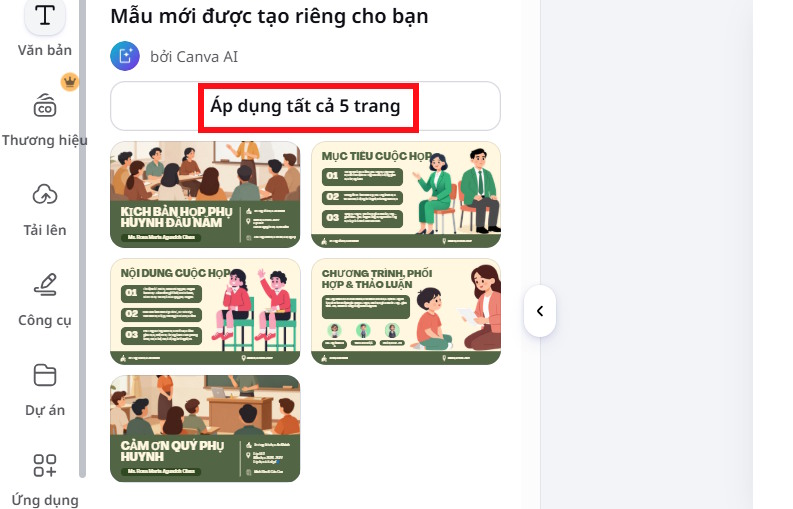
Once you're happy with the preview, click the slide and select Apply to All Pages to import it into your Canva project.
Step 5:
Go through each slide to review the content. Make any edits, upload classroom photos if needed, adjust formatting, or refine the text as you normally would in Canva.
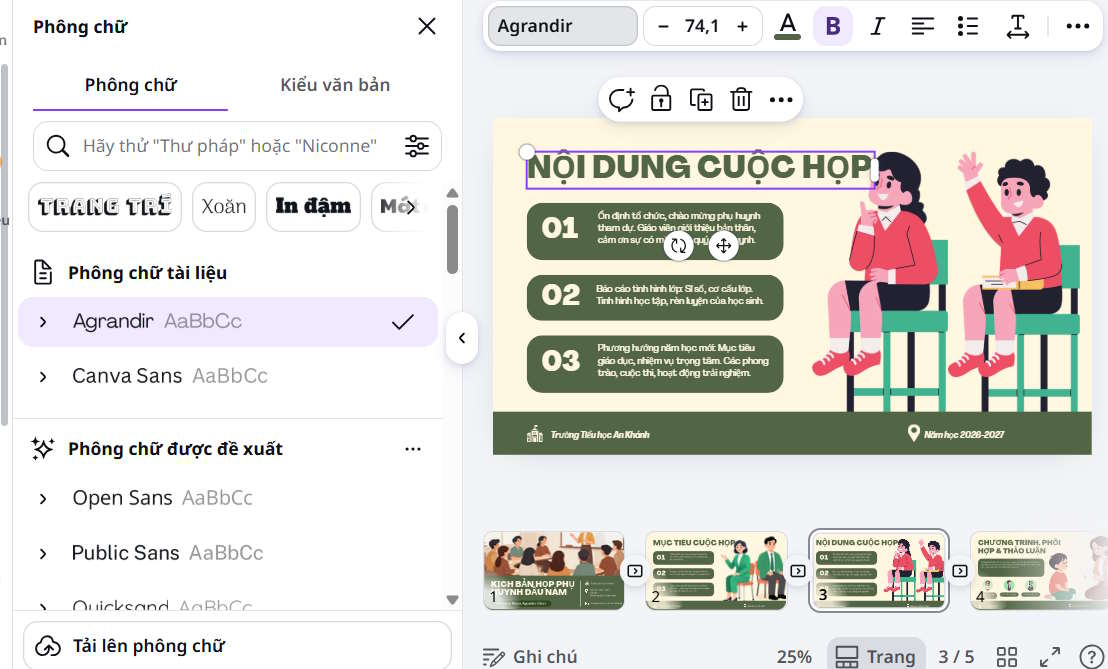
Once everything looks good, simply download your presentation.
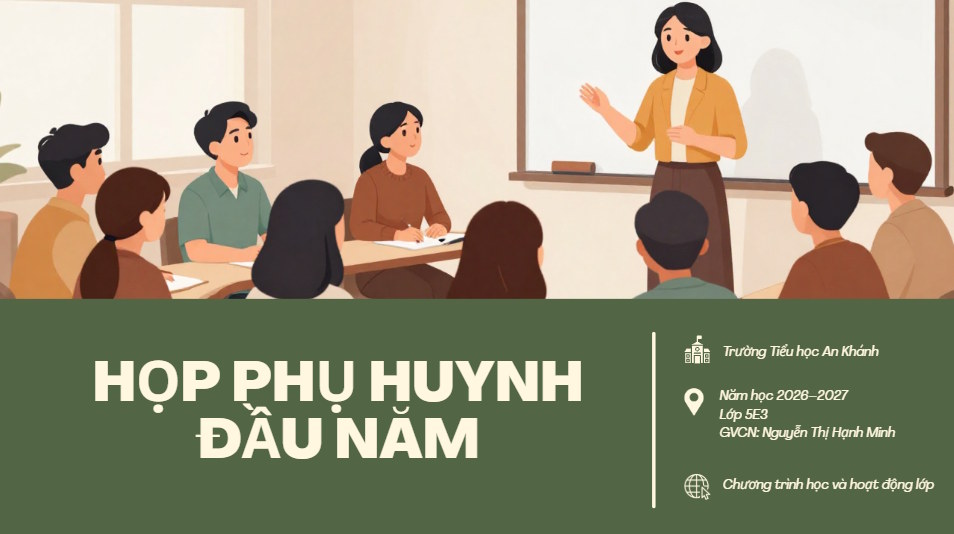
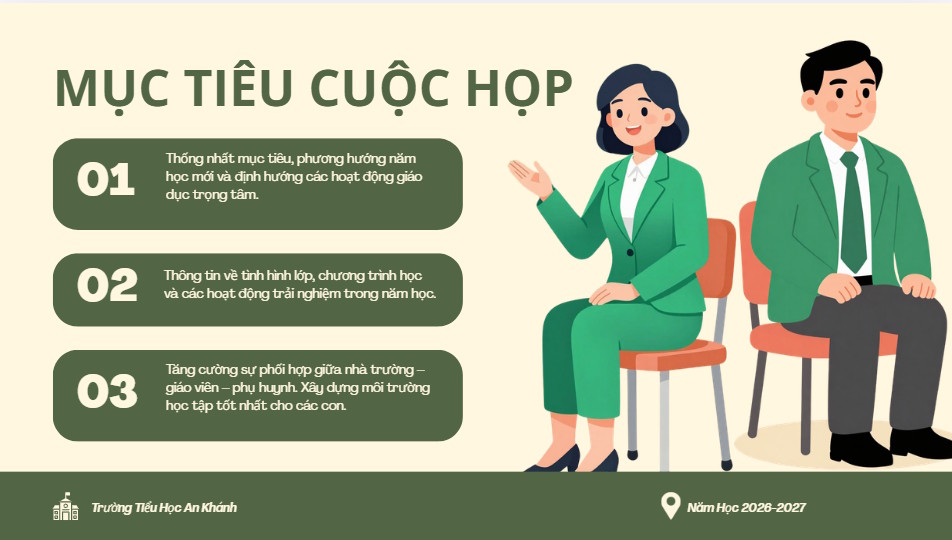
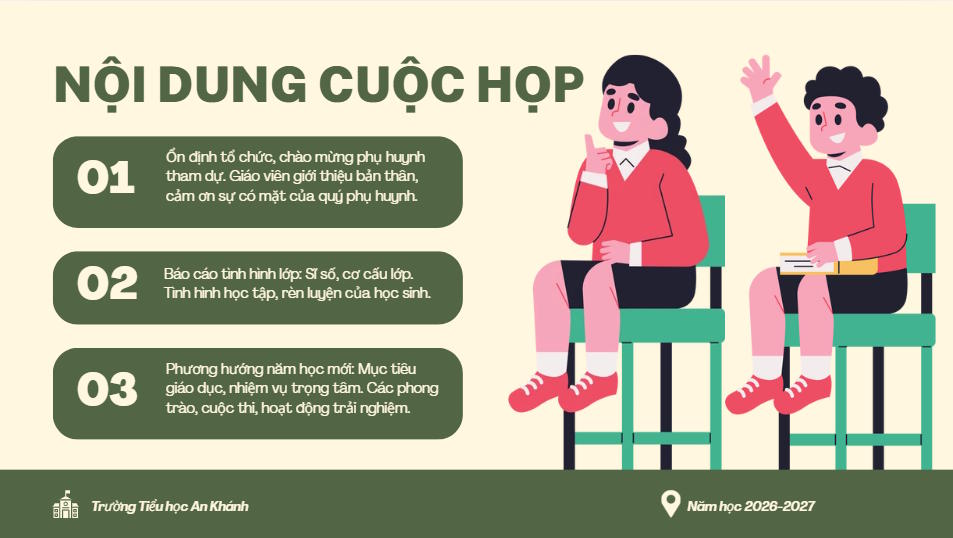
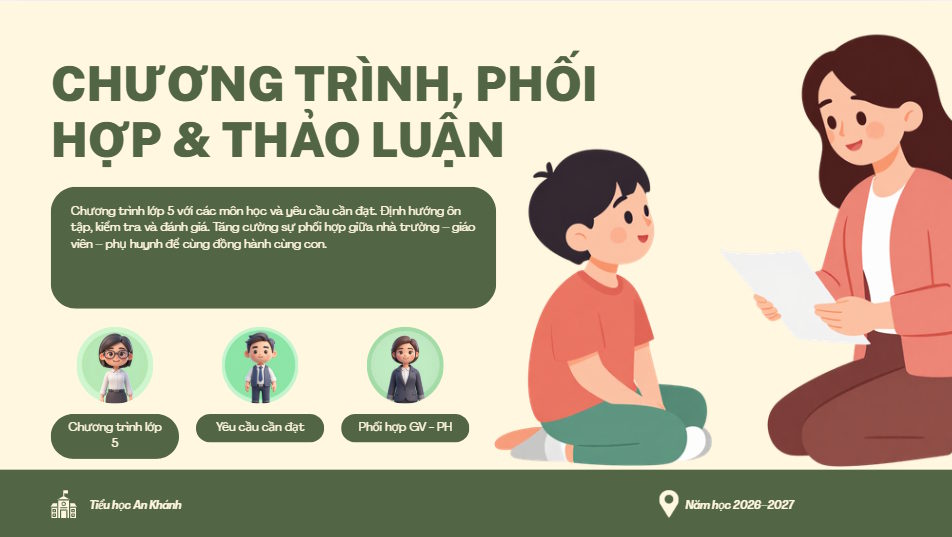
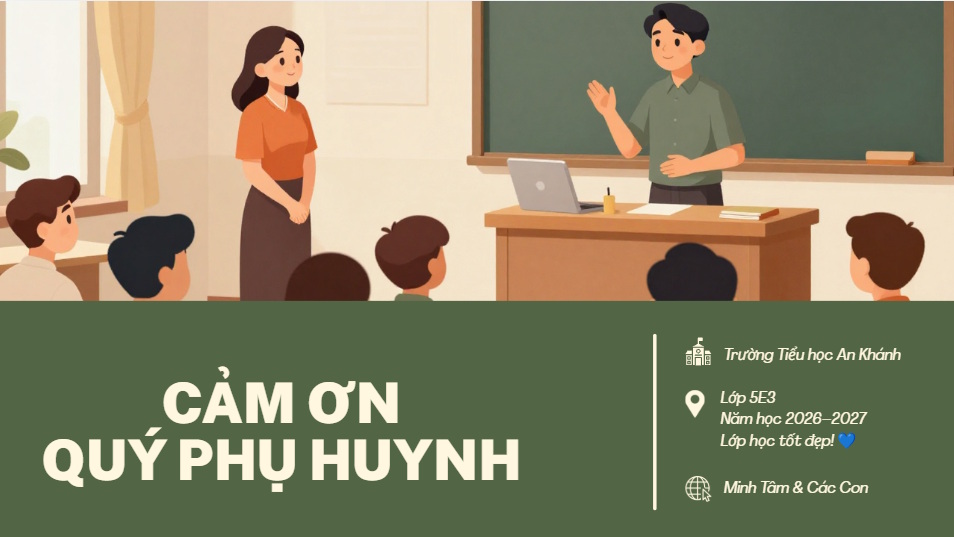
Description: Turn your parent meeting script into professional slides using Canva AI. Step-by-step guide for teachers.
Related Articles
- Getting Started with Civitai: How to Download AI Image Generation Models
- Can a Basic Phone Run ChatGPT? The Answer Might Surprise You
- We Tried Apple's DIY iPhone Battery Replacement Kit—Here's What Happened
- Using AI to Create Lesson Plans Integrated with Digital Literacy Skills
- China's First Gaming Billionaire Now Chasing Artificial General Intelligence

No Comment to " Build Parent-Teacher Meeting Slides Instantly with Canva AI "