Building and Managing Skills in Gemini Spark: A Complete Guide

Gemini Spark is a powerful feature within Gemini designed to automate workflows by defining specific processes and instructions. Here's what makes it useful: instead of repeatedly typing the same commands or entering identical parameters for similar tasks, you can build a Skill once—complete with guidelines, rules, and reference materials—and Gemini will apply it automatically whenever you need it. What's interesting here is that you can chain multiple Skills together to create sophisticated workflows that handle everything from simple, one-off tasks to complex, multi-step operations. Below, we'll walk you through creating and managing Skills in Gemini Spark.
How to Create Skills in Gemini Spark
Building a Skill through Gemini's AI Assistant
Step 1:
Start by opening Gemini and selecting Spark. Once you're there, scroll down and choose Skills from the menu.

Next to that section, you'll see Create with Gemini. Click on it to get started.

Step 2:
You'll transition to Gemini's interface, where the AI assistant helps you build your Skill. Describe the Skill you want with as much detail as possible so Gemini can properly implement it. Type your request in the input box below.

Instantly, your Skill springs to life based on your description. Below it, you'll see the command syntax for invoking this Skill.

Further down, you'll find a step-by-step workflow outline that breaks down exactly how Gemini will execute the Skill based on your description.

Using Pre-Built Templates to Create Skills
In the Skills section, under Suggestions, you'll discover ready-made templates you can use immediately.

Each template includes the core Skill content and step-by-step instructions. To create the Skill, click Create in the top right corner. You can also use these templates as examples to guide your own custom Skill development.

After a moment, Gemini Spark saves your new Skill, ready for whenever you need to use it.
Creating a Skill from Scratch with a Blank Template
In the Skills section, click on Create Manually to build a Skill entirely from scratch.

You'll see a form where you enter the Skill name at the top, followed by a section for detailed instructions on how the Skill should work. Once you've filled everything in, click Create to save it.

Managing Your Gemini Spark Skills
The Skills interface displays all the Skills you've created in Gemini Spark. To access management options for any Skill, click the three-dot menu icon next to it. A dropdown menu appears with various options.

To use a Skill right away, select Use Now. You can also edit the Skill—either with Gemini's assistance or manually.
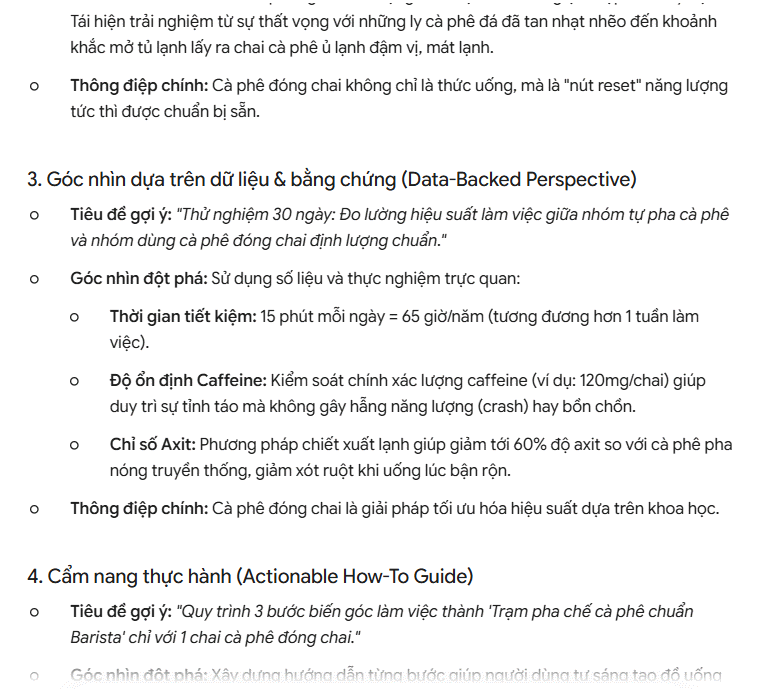
When you select Use Now, the Skill appears in chat as /skillname. You then input your specific request, and Gemini executes the Skill based on the instructions and guidelines you defined earlier. Gemini returns the output matching your request—for example, below is a Skill designed to generate marketing ideas for bottled coffee products.

The complete output follows the instructions you created for the Skill.
Related Articles
- How to Enable Your Laptop Webcam on Windows 7, 8, 10, and 11
- How to Use Notion AI for Proofreading and Grammar Checking
- How to Disable or Minimize AI Across Google, Chrome, Gmail, Windows, Office, and iPhone
- How to Disable RGB Lighting on Your Mouse and Keyboard During Shutdown
- How to Restore a Windows System Using UEFI-Compatible .tib Ghost Files

No Comment to " Building and Managing Skills in Gemini Spark: A Complete Guide "