How to Turn Off AI Features in Microsoft Edge

Microsoft's latest Windows 11 update packed Edge with a bunch of AI features. You've got Copilot sitting right there in the sidebar, plus writing assistance tools and various other AI-powered helpers designed to boost your productivity. Here's the thing though—not everyone wants these features turned on by default. If you'd rather work without them, the good news is disabling them takes just a few clicks.
The process is straightforward. All you need to do is adjust your browser's default settings. Let's walk through it step by step.
How to Disable AI Features in Edge
Step 1:
Open Edge and navigate to Settings. Look for Copilot and AI in the left sidebar and select it.
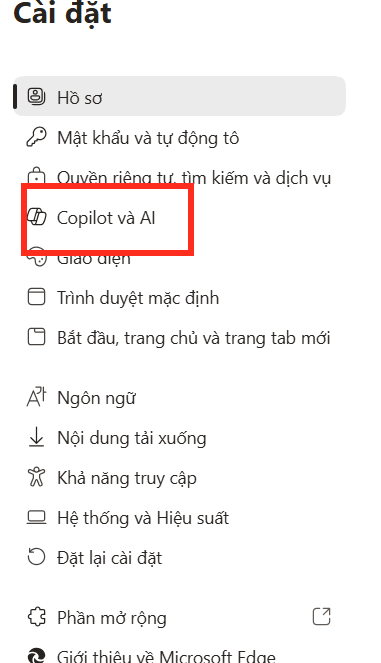
On the right side, toggle off the "Show Copilot button in toolbar" option. This removes the Copilot button from your toolbar entirely.

Step 2:
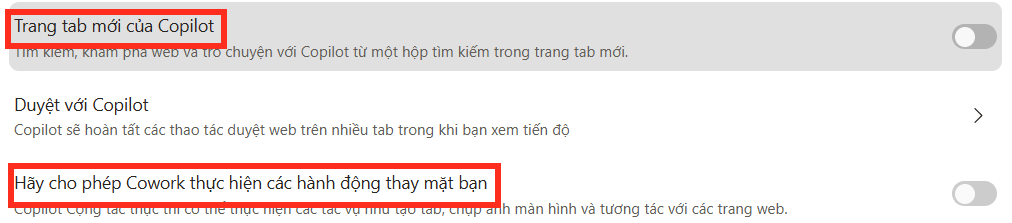
Next, disable the following options: Copilot in new tabs and Allow Copilot to take actions on your behalf, as shown below.
Step 3:
Find the Browsing with Copilot option and select it. Turn off Browsing with Copilot to complete this step.
Step 4:
Finally, click on the Writing tools section to adjust how Edge handles AI-assisted writing features.
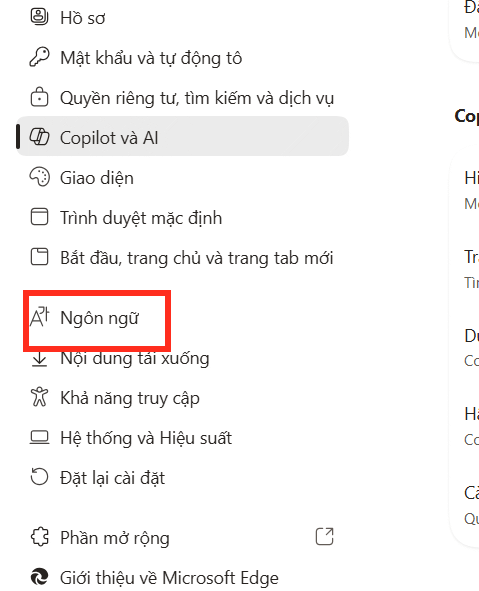
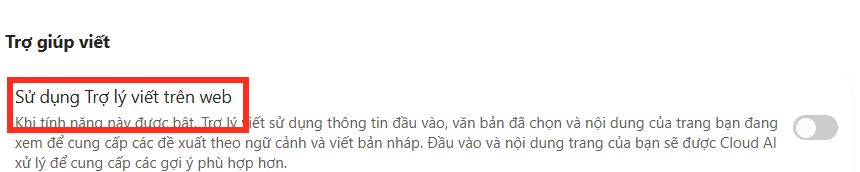
On the right, toggle off the "Use writing assistant on the web" option to disable AI writing help.
Once you've completed all these steps, Copilot and its related AI features will be fully disabled throughout your browser.
Common Questions About Disabling AI in Microsoft Edge
Can you turn off all AI features in Microsoft Edge?
Yes. Microsoft Edge lets you disable virtually every AI-powered feature, including Copilot Mode, the Copilot button, the sidebar integration, and writing assistance. You can manage all of this directly from your browser settings.
Can you completely uninstall or remove AI components from Edge?
No. You can disable or hide AI features, but you cannot fully uninstall the underlying AI components from Edge itself.
What happens when you turn off Copilot Mode?
Disabling Copilot Mode removes the AI-enhanced new tab experience. Your new tab page will revert to Edge's traditional layout.
Does turning off AI features affect browsing performance?
No. Disabling AI features simply removes the AI integrations and won't impact your browsing speed or overall performance.
Can you re-enable Copilot after turning it off?
Absolutely. You can turn Copilot or any other AI feature back on anytime by returning to settings and flipping the toggles back on.
Description: Step-by-step guide to disable Copilot and all AI-powered features in Microsoft Edge browser settings.
Related Articles
- Three Major Shifts That Will Define AI's Future Over the Next Year
- 8 Practical Use Cases Where Claude Fable 5 Actually Justifies Its Cost
- How to Use Notion AI for Proofreading and Grammar Checking
- Getting Started with AI Agents: The Fastest Way to Run Local Models
- Which Coding Agent Wins in 2026? Mistral Vibe, Claude Code, Cursor, and OpenAI Codex Head-to-Head

No Comment to " How to Turn Off AI Features in Microsoft Edge "