How to Clear Storage Space on ChatGPT
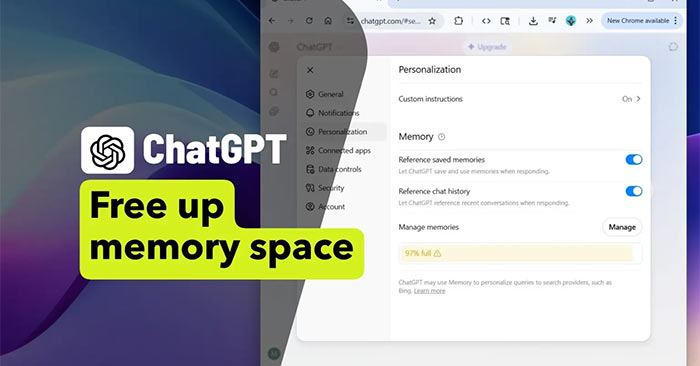
If you've been using ChatGPT and suddenly can't upload files anymore—getting that dreaded "storage full" message—it's time to do some digital housekeeping. Here's what you need to know about reclaiming that precious storage space.
ChatGPT's memory feature stores personal data tied to your account: files you've uploaded, custom instructions, writing style preferences, favorite content types, and more. When your storage hits capacity, the platform simply can't save any new information you provide. The real concern is that this happens regardless of whether you're on the free or paid plan—neither one is immune to storage limits.
What Does the ChatGPT Storage Full Message Mean?
ChatGPT's storage system keeps a record of everything you've customized about your experience: uploaded documents, generated files, your preferred tone and writing style, content categories you enjoy, and personal preferences.
When you see that storage full notification, it means ChatGPT can't accept any additional data from you. You won't be able to upload new images or files to complete your tasks. What's interesting here is that both free and premium users encounter this limitation. If you want to keep using ChatGPT without interruption, you'll need to clear out some old data.
Steps to Free Up ChatGPT Storage on Desktop
Step 1:
From the ChatGPT interface, click on your account name and then select Settings.
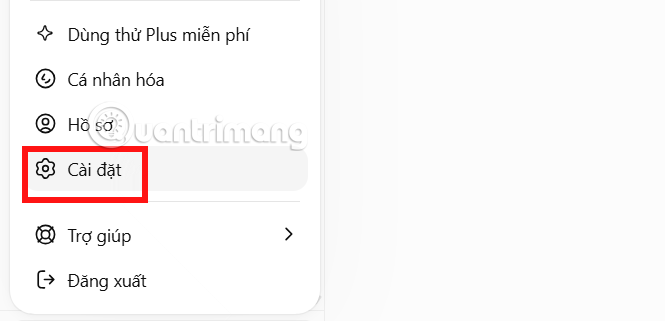
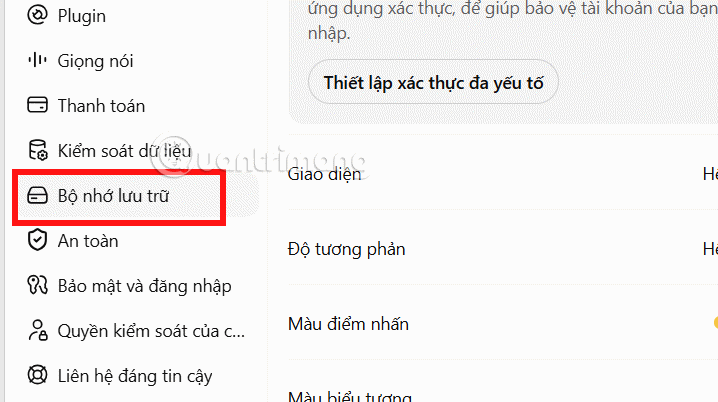
A new window opens. Look for Storage in the left sidebar menu and click it.
Step 2:
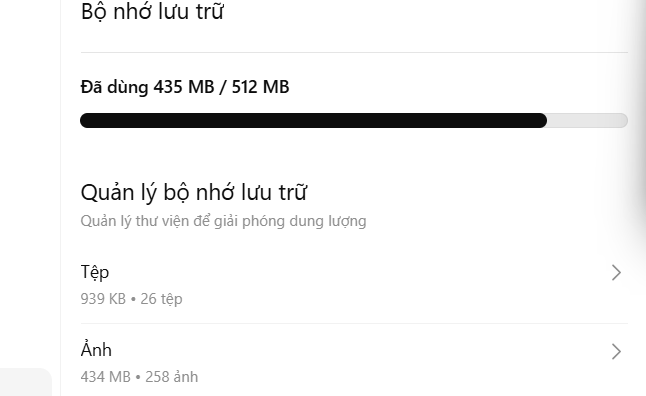
You'll see your storage management dashboard showing your current storage capacity and usage. This is where you'll manage which data to remove and free up space.
Step 3:
Click on the Files section to view all your uploaded and generated files. You'll see everything ChatGPT is currently storing for you. Select the files you no longer need, then click Delete at the top to remove them.
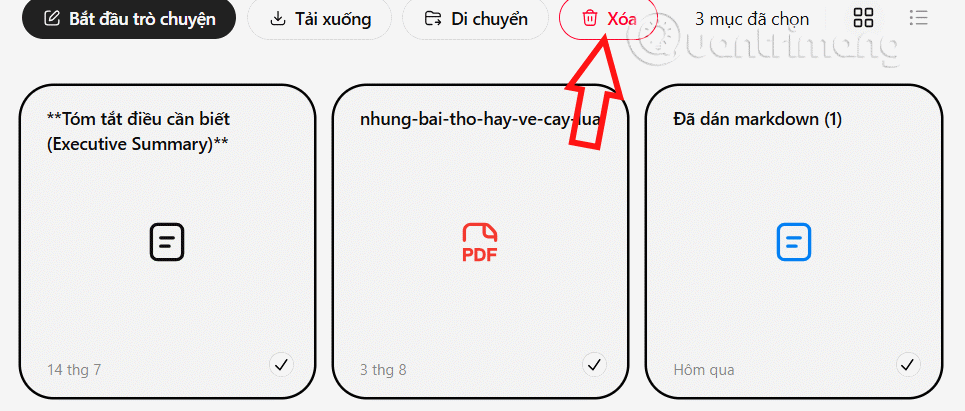
Next, go to the Images section. Select any images you're no longer using and hit Delete.
Once you've completed the cleanup, you'll notice a significant amount of storage has been freed up.

Clearing Storage Space on ChatGPT Mobile
On your mobile device, tap the gear icon in ChatGPT, then select Storage.
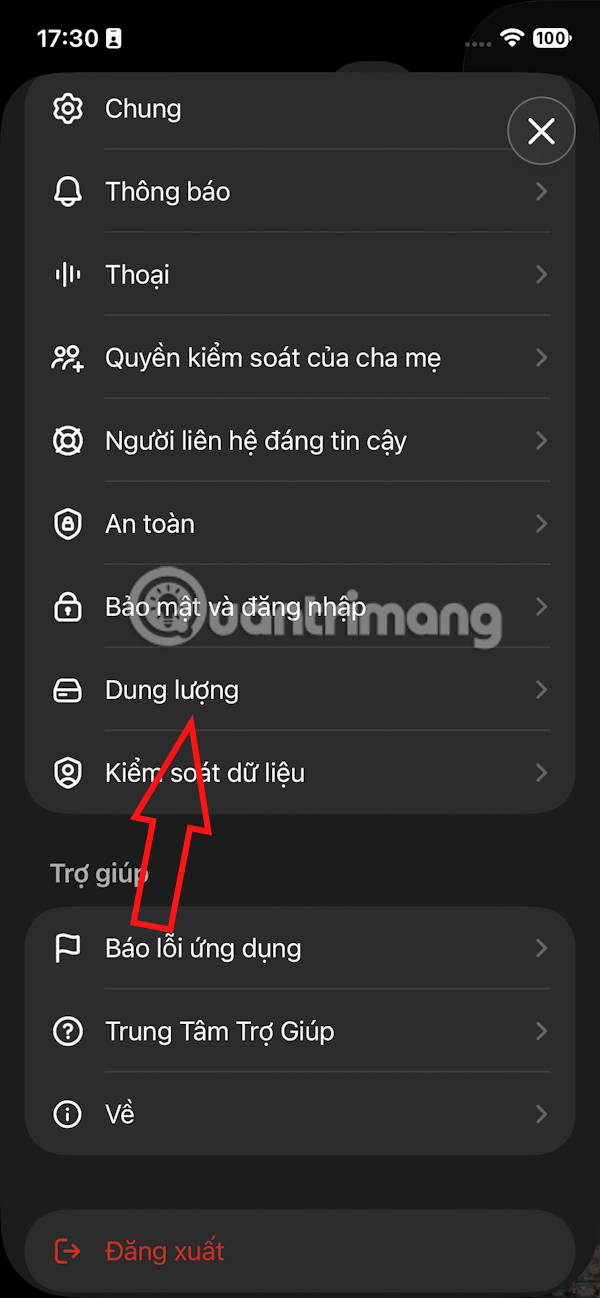
You'll see a breakdown of how much of your total storage allocation you've used.
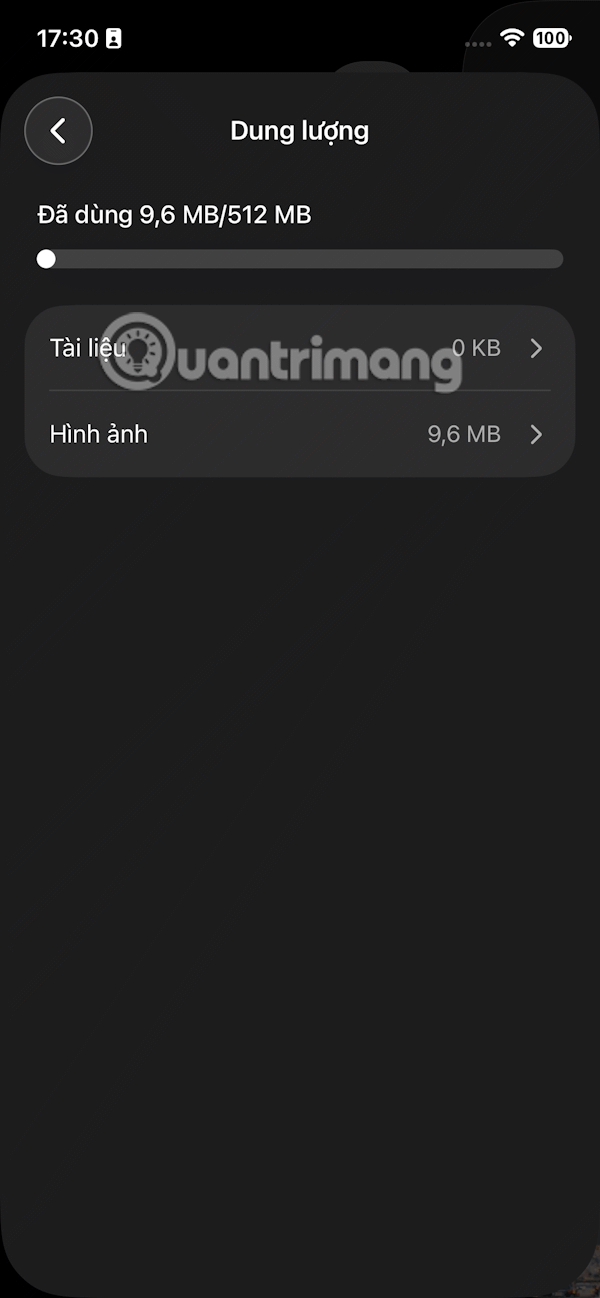
Below that, you'll find sections for Files and Images where you can delete items to free up space.

Access each section and select items to delete in order to increase your available storage on ChatGPT.

Description: Running out of ChatGPT storage? Learn how to free up space on desktop and mobile by deleting files and images.
Related Articles
- Running OpenAI Codex Directly in Google Chrome: Here's What You Need to Know
- 5 Safety Guardrails Built Into Claude Code to Stop Costly Terminal Mistakes
- Setting Up CLAUDE.md for Claude Code: Complete Guide with Templates
- 80+ ChatGPT Image Prompts: Transform Any Photo Into Any Style
- Why Claude Cowork Is Being Hailed as 2026's Biggest AI Breakthrough

No Comment to " How to Clear Storage Space on ChatGPT "