Running OpenAI Codex Directly in Google Chrome: Here's What You Need to Know
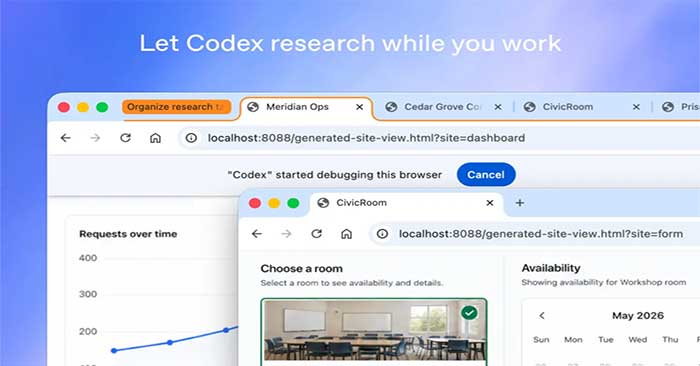
OpenAI just rolled out something genuinely useful for Codex users: the AI coding assistant can now run natively inside Google Chrome on both macOS and Windows. What's interesting here is how differently this works compared to most AI automation tools.
The key difference? Codex no longer needs to commandeer your entire browser like other computer-use AI systems do. Instead, the new Chrome extension lets it tap into your existing login sessions to interact with websites and web apps more naturally and efficiently.
This capability opens up a lot of possibilities. Codex can now handle tasks like navigating websites, filling out forms, checking dashboards, debugging browser workflows, and juggling multiple Chrome tabs simultaneously—all without wrestling for control of your screen.
What Is OpenAI Codex and Why Run It on Chrome?
Codex is OpenAI's specialized model line trained on billions of lines of public code. It's fluent in over a dozen programming languages, with particular strength in Python, JavaScript, TypeScript, Go, and SQL. The original Codex models actually powered the first version of GitHub Copilot. Today, this technology still exists within GPT-4 generation models, available through OpenAI's API and various developer tools.
When developers search for a Chrome extension for OpenAI Codex, they're typically looking for one of three things:
- An assistant that can read and explain code on any webpage—like pull requests on GitHub or answers on Stack Overflow.
- A tool for writing code directly into text fields in web-based code editors or admin panels.
- An automation layer that converts natural language instructions into working code without launching a separate chat application.
Chrome makes sense for all of this because most modern software development happens right in the browser. Cloud-based IDEs like GitHub Codespaces, Replit, and StackBlitz run entirely in a tab. Same goes for CMS dashboards, database management interfaces, and low-code app builders. If your AI assistant can't access these platforms, you're stuck doing copy-paste work all day.
One Important Limitation to Know Upfront
Here's the thing: OpenAI hasn't released an official Chrome extension called "Codex." Instead, you need to piece it together yourself—either combining an API key with a well-built extension, or using a commercial tool like GitHub Copilot's browser integration. Understanding this distinction matters because the Chrome Web Store is full of sketchy extensions making dubious claims.
How the Codex Chrome Extension Actually Works
Historically, AI agents that wanted to automate web tasks had to control the browser like a virtual machine. It's slow, clunky, and honestly pretty intrusive—the AI basically hijacks your browser.
With this new extension, Codex gets direct access to your existing Chrome login sessions. That means it can work with services like Gmail, LinkedIn, Salesforce, or enterprise web apps without requiring constant re-authentication. You stay logged in, and Codex just borrows those credentials when needed.
Another smart addition: Codex can operate across multiple Chrome tabs in the background. Related tasks get grouped into Chrome Tab Groups for easier management on your end.
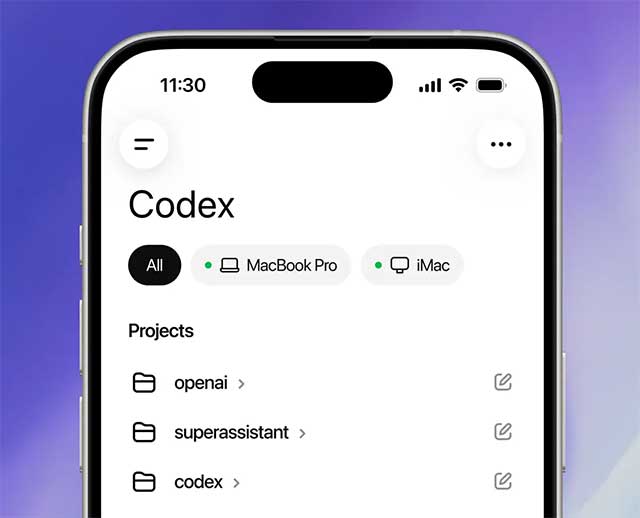
How to Install and Use Codex on Chrome
Getting started is straightforward. First, grab the Codex plugin from the Chrome Web Store.
Once installed:
- Open the Codex app
- Navigate to Plugins
- Select Chrome integration settings
- Grant the permissions Chrome asks for
After that, open Chrome and check whether the Codex extension shows a "connected" status. Once it's connected, Codex can start working directly in your browser.
The system is smart enough to pick the right tool for the job. If you need to access an already-logged-in website like Salesforce or Gmail, it'll prioritize Chrome. For localhost or development environments, it might switch to the built-in browser instead.
You can also explicitly tell Codex to use Chrome in your prompt. For example:
@Chrome open Salesforce and update the account from these call notes
If Chrome isn't running, Codex can even launch it automatically.
According to OpenAI, the new extension significantly improves how Codex handles real-world browser tasks. The AI can assist with CRM data entry, analytics dashboard reviews, internal business system operations, and web workflow debugging.
It also works with localhost, development servers, and file previews—which is particularly valuable for developers and teams building web applications.
The real concern is speed and friction. Everything happens in your actual Chrome browser, not some simulated environment. That means faster execution and a far more natural workflow compared to older automation approaches.
The Codex Chrome extension is currently available on Windows and macOS through the Codex application.
Rollout is happening across most regions globally, with the notable exceptions of the EU and UK. OpenAI says support for those regions will arrive soon.
Description: OpenAI's new Codex Chrome extension lets you automate browser tasks without taking over your whole screen. Here's how to set it up.

No Comment to " Running OpenAI Codex Directly in Google Chrome: Here's What You Need to Know "