How to Connect Google Drive to Claude and Use It Effectively
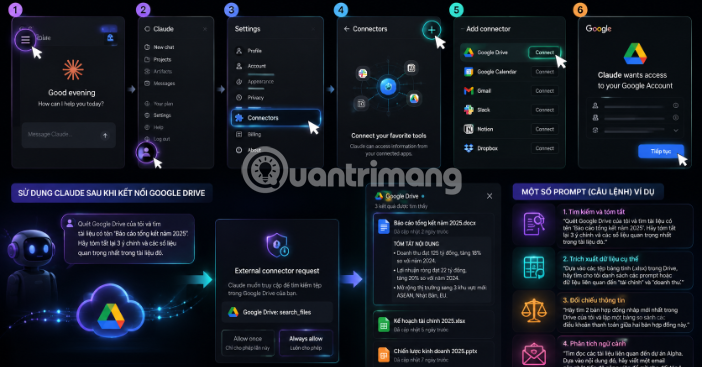
Claude AI has evolved beyond a simple chatbot. With its Connectors feature, Claude can now reach beyond the conversation window to work directly with the tools and data you use every day. Google Drive stands out as one of the most practical integrations available. This guide walks you through what Connectors actually do and shows you exactly what becomes possible when you bridge Claude and Google Drive.
What Are Connectors on Claude?
Think of Connectors as a bridge between Claude and your external apps and data sources. Instead of manually downloading files and uploading them into Claude each time you need help, you set up the connection once. Then Claude can independently find and read the documents you need, when you need them. What's interesting here is that you're no longer limited to what you paste directly into the chat—Claude becomes proactive.
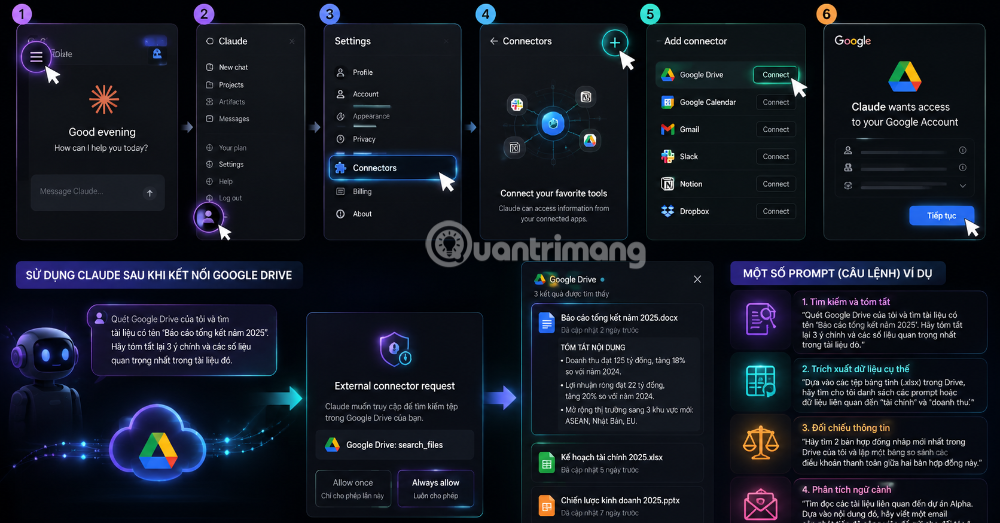
Claude now supports multiple Connector categories, spanning Google Workspace services like Gmail, Google Calendar, and Google Drive, plus other collaboration platforms. Google Drive is one of three connectors in the Google Workspace bundle—alongside Gmail and Calendar—and all three are open to every Claude user on both web and desktop apps. For Team and Enterprise plans, administrators must enable this feature at the system level before individual team members can authenticate and use it.
How to Enable and Use Google Drive in Claude
Setting Up the Google Drive Connection
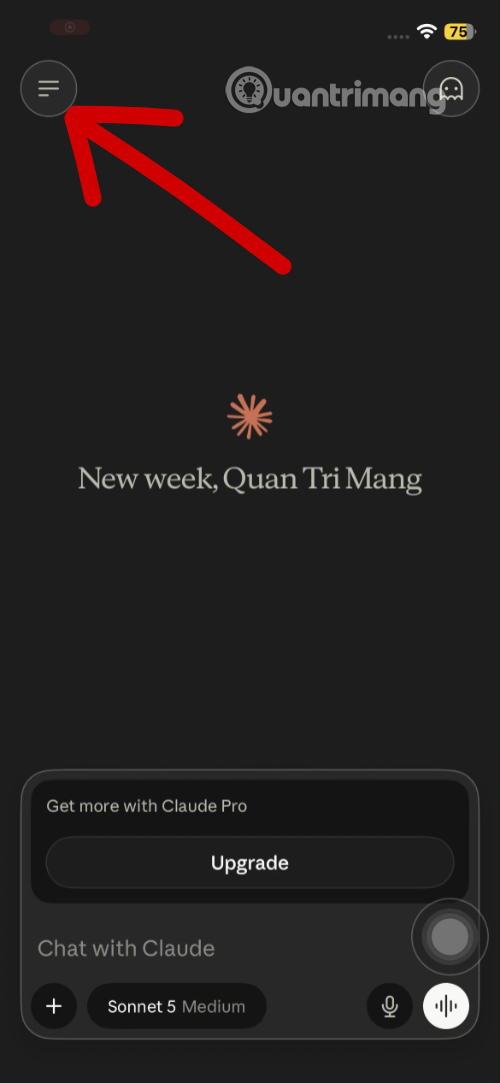
Step 1: Open Claude. On the main screen, tap the menu icon (three horizontal lines) in the top left corner.
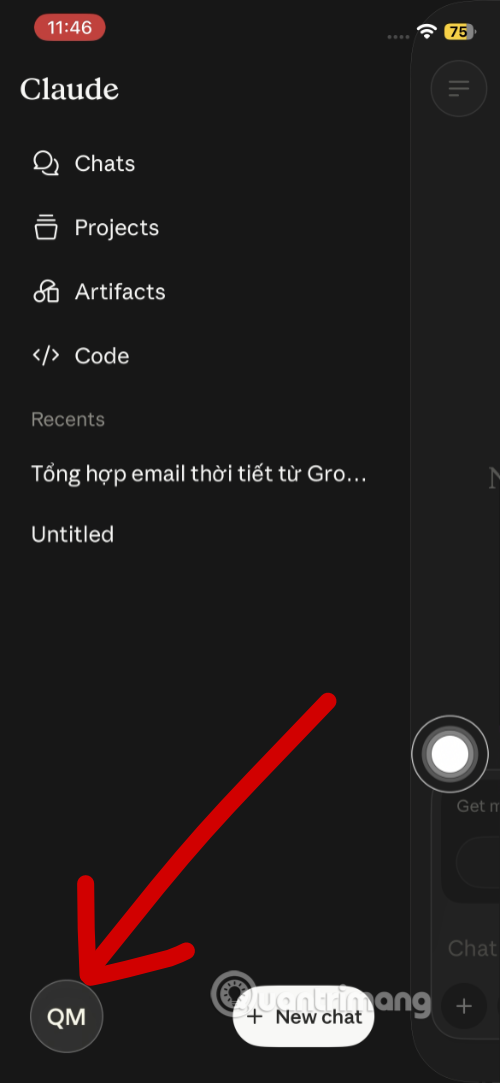
Step 2: Once the menu expands, tap your account icon (bottom left of the screen).
Step 3: In the Settings panel, select "Connectors" to manage your external integrations.
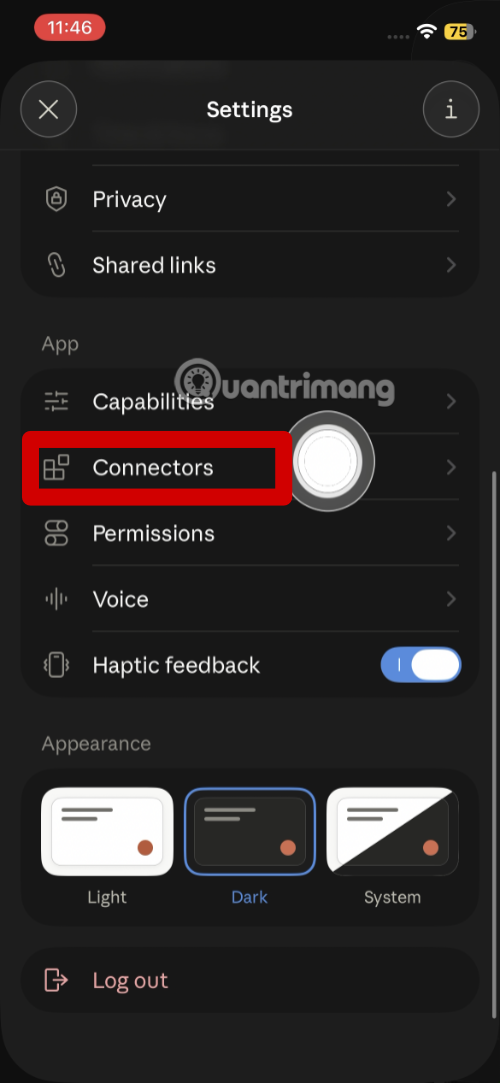
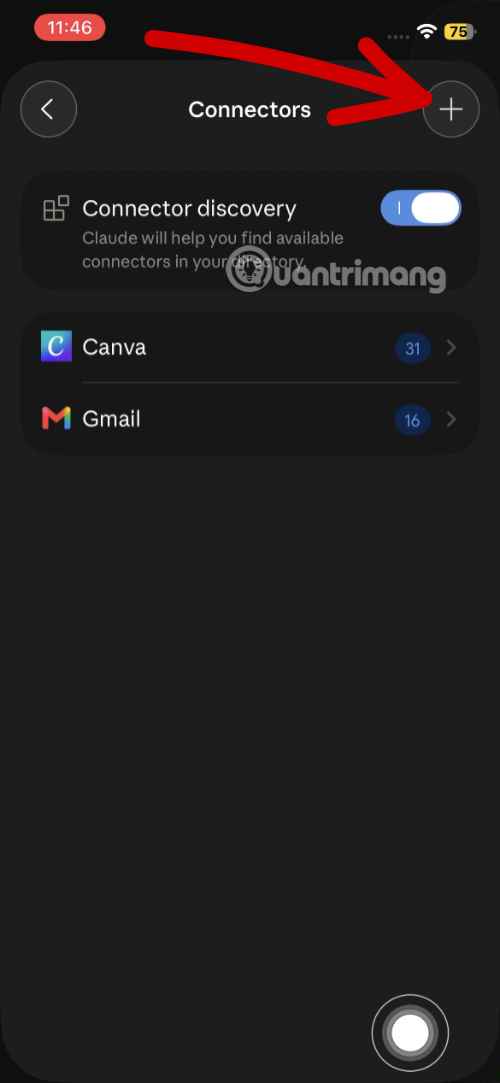
Step 4: In the Connectors view, press the plus icon (+) in the top right to add a new connection.
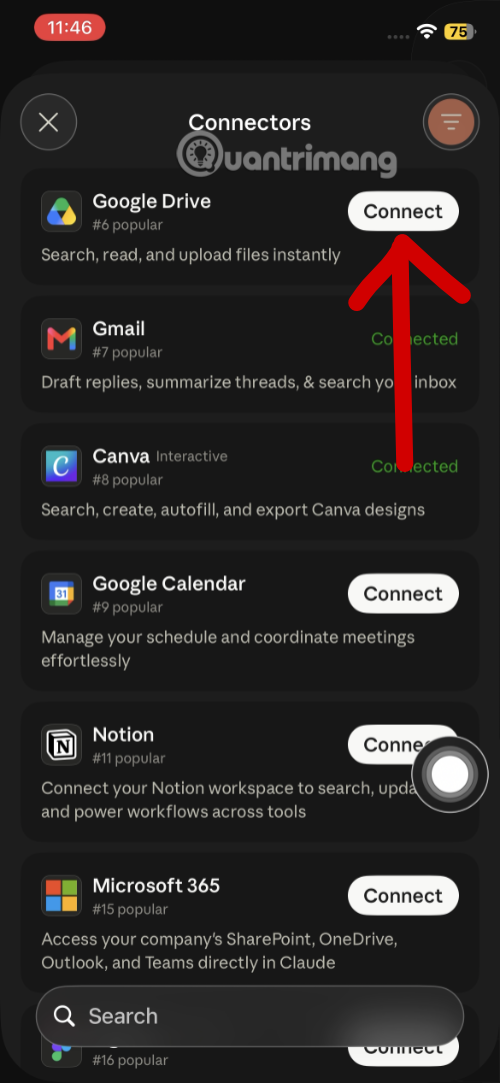
Step 5: Find "Google Drive" in the list of available apps and tap the "Connect" button next to it.
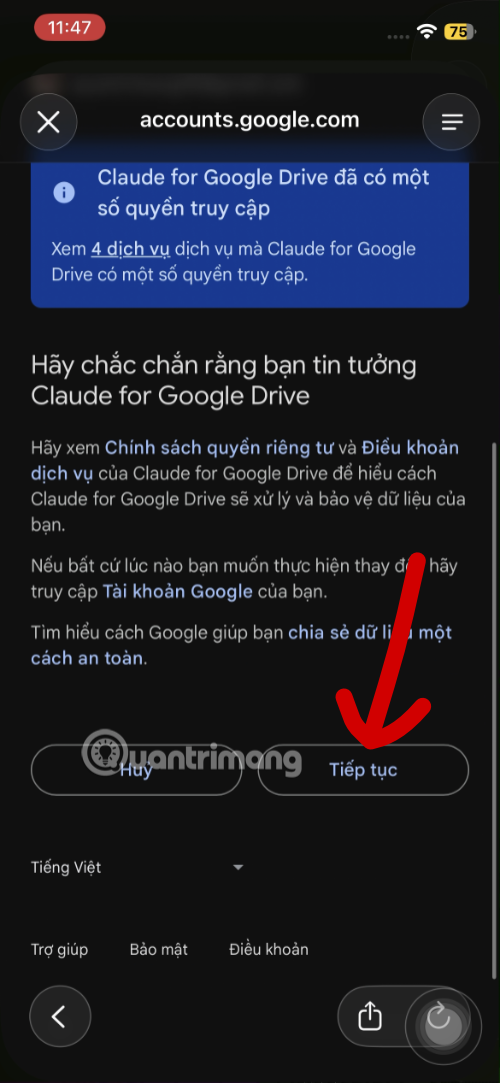
Step 6: You'll be redirected to Google's authentication page. Review the permissions Claude is requesting, then scroll down and tap "Continue" to grant access.
Using Claude After Connecting Google Drive
Once the connection is complete, return to Claude's chat interface and start asking questions about your stored files.
Enter a prompt asking Claude to search or analyze data from your Google Drive.
The first time you run a command—or whenever a new data lookup is needed—you'll see an "External connector request" notification asking for permission to access files (like Google Drive:search_files).
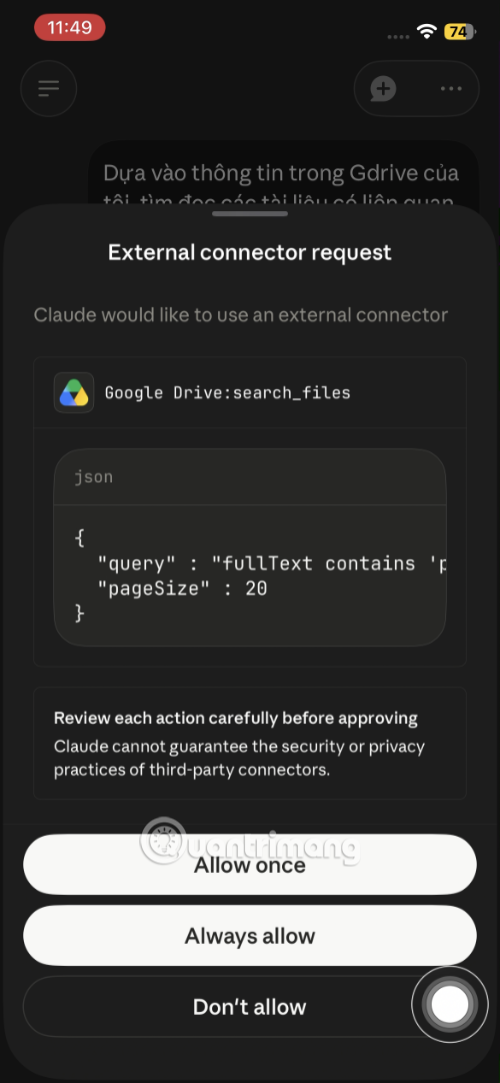
Choose either "Allow once" (just this time) or "Always allow" (for all future requests) so Claude can scan your files.
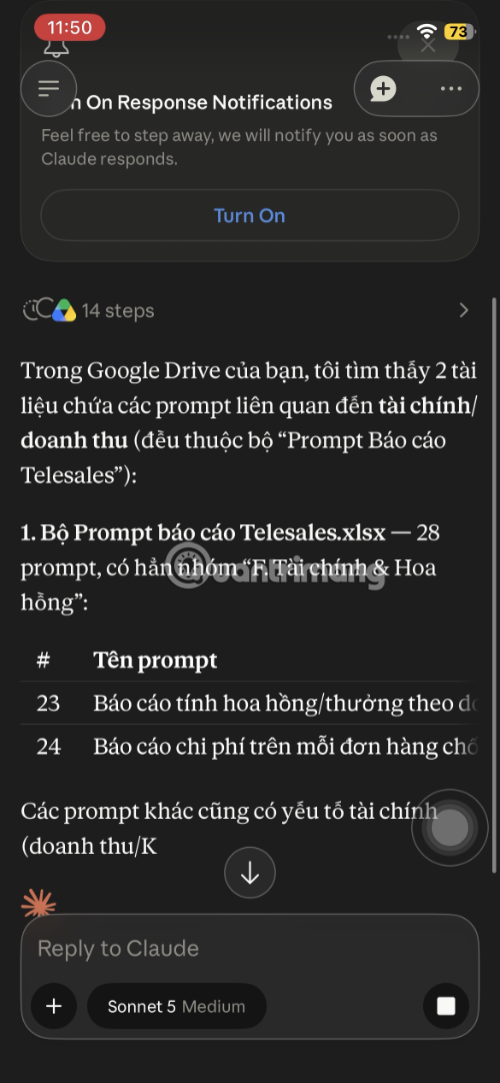
Claude will read compatible files and return detailed results, including file names and accurate excerpts pulled directly from your documents.
Sample Prompts to Try
Here are some examples of prompts you can use to unlock Claude's power with Google Drive:
- Search and Summarize: "Scan my Google Drive and find the document called 'Annual Report 2025'. Summarize the three main points and the most critical figures in that file."
- Extract Specific Data: "Look through the spreadsheets (.xlsx files) in my Drive and find me any data or entries related to 'finance' and 'revenue'."
- Compare Information: "Find the two most recent draft contracts in my Drive and create a comparison table of the payment terms between them."
- Analyze Context: "Read through all documents related to Project Alpha. Based on what you find, draft an update email to our partner summarizing the work progress."
Why Connect Google Drive to Claude?
The biggest advantage is saving time on repetitive manual work. Instead of opening Drive, hunting for the right file, downloading it, and then uploading it into Claude every single time, you collapse all that into a single question. For tasks that happen regularly—like compiling weekly reports from multiple documents or comparing different versions—letting Claude handle the retrieval makes your workflow dramatically faster and smoother.
There's also the data consistency angle. Since Google Docs added to Claude always stay synced with the latest version on your Drive, you never have to worry about analyzing outdated or broken files. This is especially valuable in team settings where multiple people are constantly editing documents.
On privacy: Claude only accesses files that your Google account has permission to view anyway. It can't reach anything beyond your existing access level in Google Workspace. Plus, Claude only pulls data when you explicitly ask, and you get to approve each action before it happens.
What You Can Actually Do With the Connection
Once connected, Claude can perform multiple Google Drive actions directly inside your conversation—not just read files you attach manually.
Search and Retrieve Documents Using Plain Language
Claude can find and fetch the exact Google Docs you need using just a description in your own words. You don't need to remember the precise filename or dig through dozens of folders. Claude can also preview file metadata—like name, last edited date—without needing to search first.
Handle Multiple File Formats
It's not limited to Google Docs. Claude reads Google Sheets, Google Slides, PDFs, images, and even Microsoft Office files (Word, Excel) stored on your Drive. With Google Sheets, Claude treats the data as a CSV table, so you can ask it to run calculations, find rows matching specific criteria, or aggregate figures—no need to open the spreadsheet yourself.
Upload Files and Create New Folders
Claude can upload any file type to Google Drive on your behalf, with optional automatic conversion to the corresponding Google format. It can also create new folders directly on your Drive—handy when you want to reorganize your documents mid-conversation without switching windows.
Add Documents Directly to Conversations or Projects
Paste a document link or pick from your recent files to add it straight into a conversation or into the knowledge base of a Claude Project you're working on. For private projects, documents linked via Google Drive always sync with the latest version, so if you edit the original file later, Claude always reads the current version without you having to re-upload.
Check Permissions and Recent Activity
Claude can list who has access to a specific file and show you recent changes across your Drive. That means you can quickly see who edited what without manually checking each file.
Save Claude-Generated Files Directly to Drive
If you've enabled code execution and file creation in Claude, anything it generates—a report, a summary table, an analysis document—can be saved straight to the folder you choose on Google Drive. No need to download and re-upload manually.
Limitations You Should Know
Claude extracts only the main text content from documents—it skips embedded images and doesn't see comments or pending edit suggestions in Google Docs. For Google Sheets, the current connection is read and analyze focused; it doesn't yet support creating new sheets, adding rows, or writing data back into existing tables. The real concern is if you need Claude to automatically update figures in a tracking file on a regular schedule—the standard Google Drive connector can't handle that kind of automation yet.
Sample Prompt to Test the Connection
Once you're connected, try this prompt to see how well Claude works with your Drive:
I have three documents in my Google Drive: meeting notes, a project brief, and a customer quote. Find and read all three, then write a summary with three sections: project background, outstanding action items that need to be handled, and any gaps or inconsistencies you spot across the documents. If you need any other files to give me a better answer, ask me before you wrap up.With a prompt like this, Claude hunts down the right documents, reads each one, and synthesizes the information exactly as you've asked—complete with clear citations showing which file each piece of information came from.
Bottom Line
Claude's Connectors feature—especially the Google Drive integration—transforms Claude from a reactive assistant into a proactive one. Instead of only working with what you feed it directly, Claude can now independently search, read, and synthesize information from your daily document library. With support for multiple file formats, file uploads, folder creation, and content syncing, this is a feature worth setting up immediately if you regularly work with Google Drive files.
Description: Learn how to link Google Drive to Claude AI and leverage its Connectors feature for seamless document access and data analysis.
Related Articles
- How to Find References in Word Using Copilot
- Midjourney vs Leonardo AI: Which AI Image Generator Should Beginners Choose?
- 4 Proven Strategies to Optimize Token Usage in Multi-Agent AI Systems
- Google AI Studio Explained: A Powerful Learning and Productivity Tool for Everyone
- What Is Base44? The Complete Guide to AI-Powered App Development

No Comment to " How to Connect Google Drive to Claude and Use It Effectively "