Setting Up and Managing Schedules in Gemini Spark: A Complete Guide

Gemini Spark lets you build process-based tasks, including scheduling complex workflows that you define. What's interesting here is how flexible the scheduling system is — you can trigger actions based on time intervals or specific conditions, giving you real control over your automation.
You can streamline your workflow by adding schedules to your tasks. Think of schedules as automatic triggers that tell Gemini Spark exactly when to step in and execute your instructions. You can set these triggers based on time intervals (like every Monday morning) or based on specific events (like when new emails arrive in your inbox).
Simply describe what you want Gemini Spark to do and when you want it done, and Spark sets up the automation instantly. Here's everything you need to know about creating and managing schedules in Gemini Spark.
Table of Contents
How to Set Up Schedules in Gemini Spark
Currently, Gemini supports three scheduling types.
- Time-based: Schedule tasks to run once, hourly, daily, weekly, monthly, or yearly.
- Gmail monitoring: Run tasks when you receive emails matching your Gmail filters.
- Topic monitoring: Track topics across multiple categories like news, finance, sports, local events, and more, then schedule tasks based on specific events.
Scheduling in Natural Language
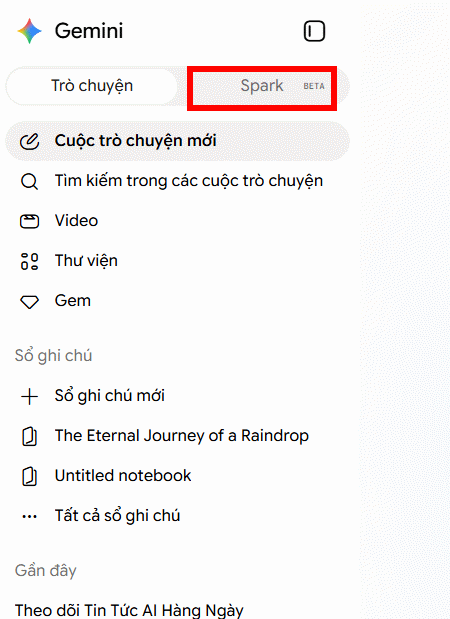
In Gemini, tap the Spark section to get started.
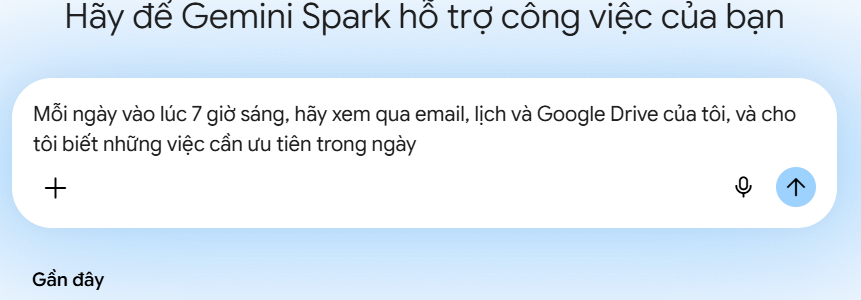
In the task description area, enter the type of schedule you want Gemini Spark to perform. Here are some example descriptions you could use:
- "Every day at 7 AM, review my emails, calendar, and Google Drive, then tell me what I should prioritize today."
- "Whenever I get an email from my manager with a task, help me work through it and draft a reply."
- "Whenever a new food event is announced in my city, send me the details and suggest specific times I could attend."
Then hit send and wait for Spark to respond.
Creating Schedules Manually
Step 1:
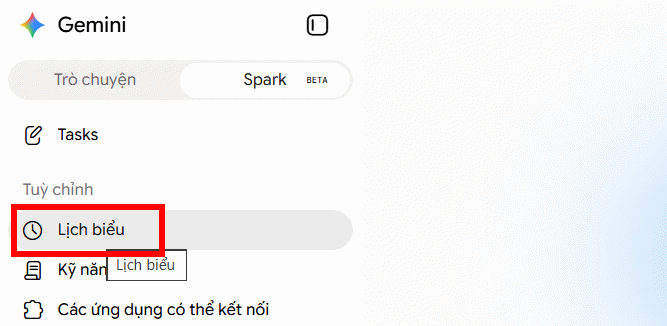
In the Gemini Spark interface, tap the Schedules section at the bottom as shown.
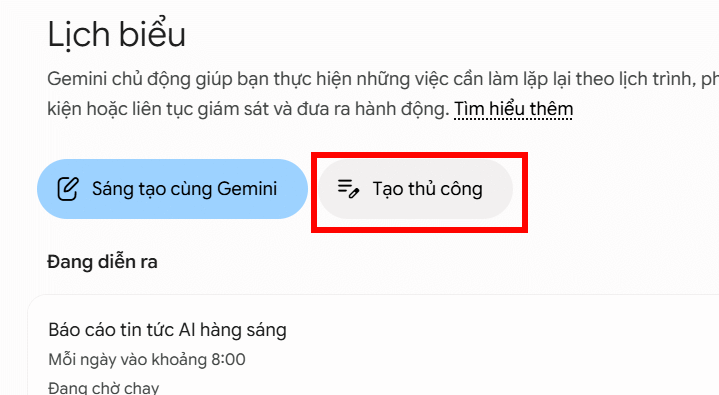
On the right side, you'll see Create manually — tap it to proceed.
Step 2:
Here, select the specific time you want the schedule to run. Choose whether it's daily, weekly, pick the day of the week, and set the exact time.
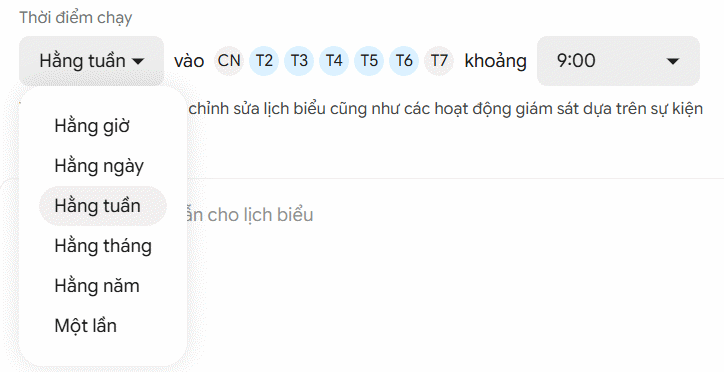
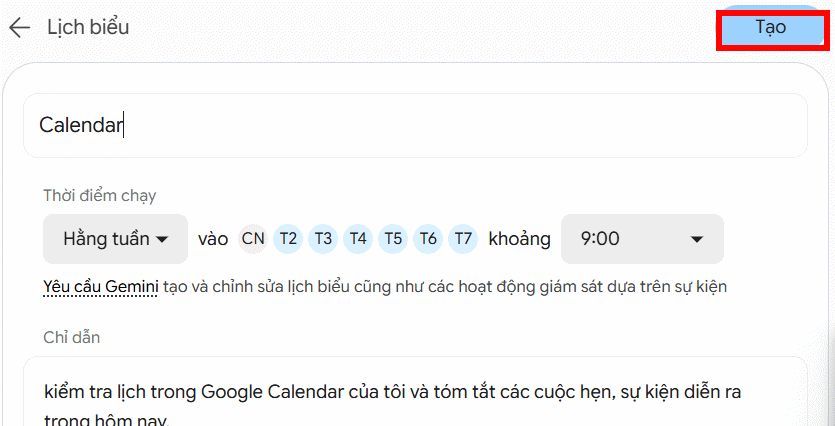
Next, enter the instructions for your schedule. Be detailed in your description so Gemini Spark can execute it accurately and efficiently.
Finally, give your schedule a name and hit the Create button in the top right corner.
Step 3:
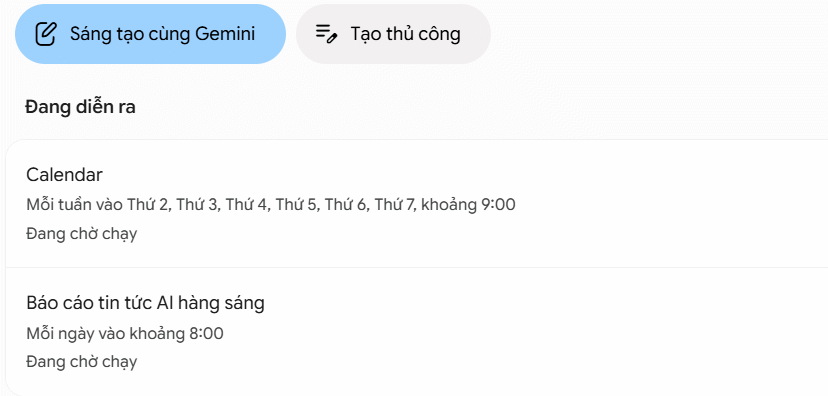
Your schedule is now created in Gemini Spark.
Managing Your Schedules in Gemini Spark
Step 1:
Open Gemini Spark and tap the Schedules section. You'll see all your schedules here — both those currently running and those waiting to execute.
Step 2:
Tap the three-dot menu icon on any schedule to see your customization options.
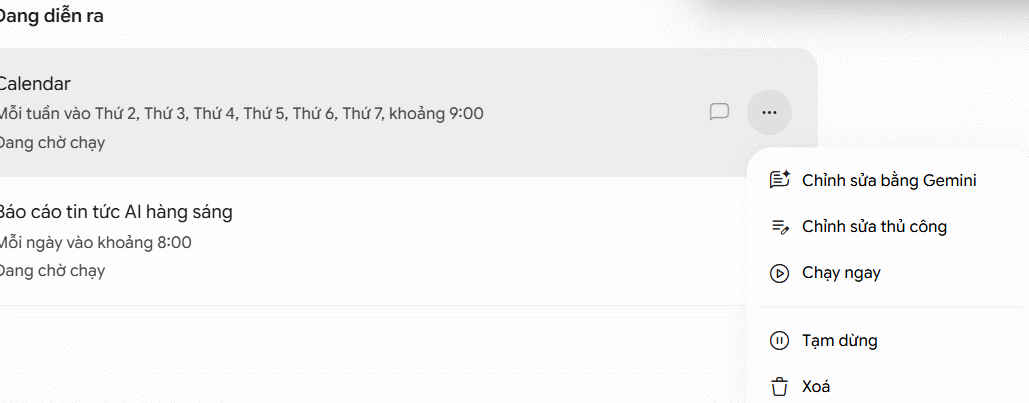
If you select Edit with Gemini, the AI will help you rebuild the workflow if you want to make changes.
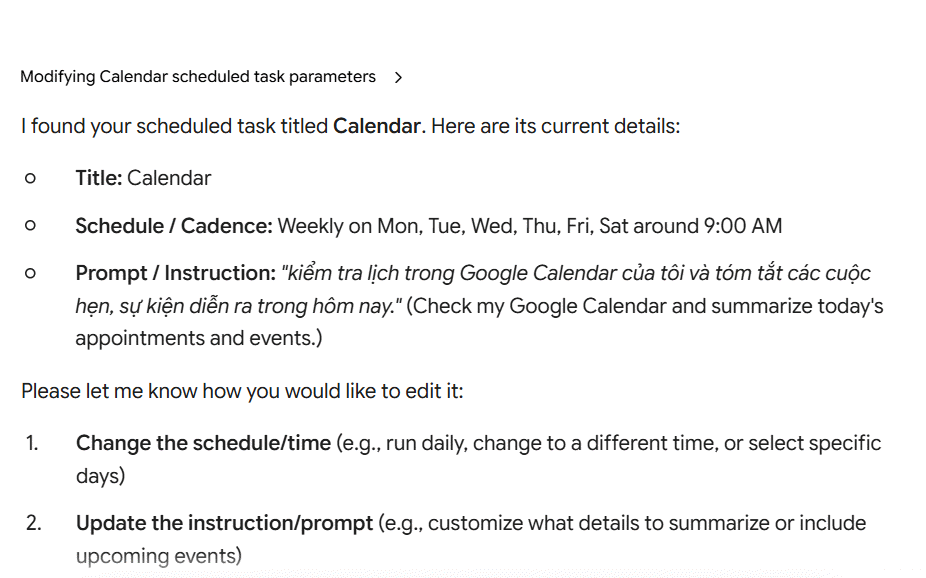
Choosing Edit manually brings you back to the manual creation interface. From there, you can update your instructions and adjust the run times as needed.
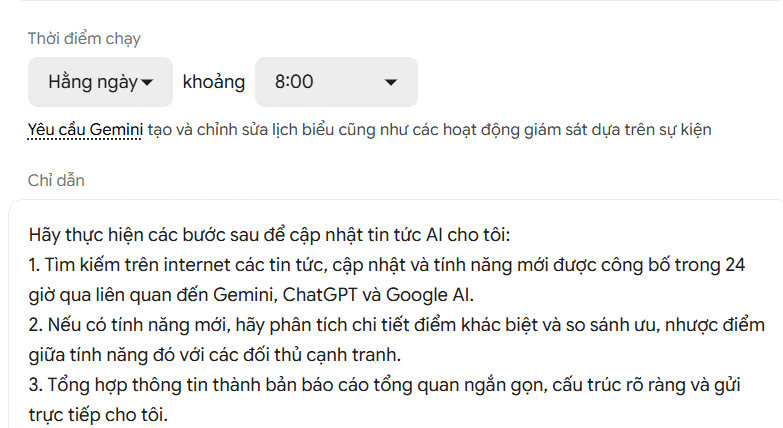
You can also tap Run now to execute a schedule immediately without waiting for the scheduled time. Or delete schedules you no longer need from Gemini Spark.
Common Issues When Creating Schedules
Unable to Create or Enable Schedules
There are several reasons why you might not be able to create or enable a schedule:
- Reached the active schedule limit: The current limit for active schedules in Gemini Spark is 50. If you've hit this limit, pause or delete an existing schedule before creating or resuming another one.
- Schedule already marked complete: Once a schedule is marked as complete, you can't edit or resume it — you can only delete it.
- Missing required fields: When creating a schedule from a template, make sure you've filled in all mandatory fields: schedule name, run time, and task instructions.
Schedules Not Running at the Right Time
The real concern is when schedules fail to run when expected. Here are some common reasons why:
- Hit your usage limit: Gemini has computational usage limits that govern how much you can interact with its tools and features. Schedules won't run if you've reached your usage limit at the time they're supposed to execute. Other features may also become unavailable when you hit this limit. Learn more about Gemini's usage limits.
- Concurrent task limit reached: You can run a maximum of 15 tasks simultaneously. Your schedule won't run if 15 tasks are already executing.
- Run times are estimates: Schedule execution times are approximate and may not run at the exact moment the time condition or event is triggered.
- Delays during peak traffic: When Gemini Apps experience high activity surges, scheduled tasks may be delayed.
Description: Learn how to create, configure, and manage automated schedules in Gemini Spark to streamline your workflow efficiently.
Related Articles
- 8 Free AI Tools Worth Using Right Now
- Create a National Day Celebration Video: A Step-by-Step Guide
- How to Make Money With AI in 2026: 8 Proven Methods for Beginners
- Microsoft Copilot vs ChatGPT: Which AI Assistant Should You Actually Use?
- Automating Complex Workflows with Claude Code's /goal Command

No Comment to " Setting Up and Managing Schedules in Gemini Spark: A Complete Guide "