How to Use Copilot in PowerPoint: A Complete Guide

Once you've integrated Copilot into Microsoft Office 365, you unlock a powerful assistant for all your office productivity tasks. PowerPoint gets particularly interesting here—Copilot helps you brainstorm creative slide concepts, polish weak content, and build professional presentations in minutes instead of hours. Below, we'll walk through exactly how to leverage Copilot's capabilities in PowerPoint to transform the way you create presentations.
In This Article
Using Copilot on PowerPoint Online
1. Build an Entire Presentation From a Single Idea
Here's what makes this feature remarkable: just type a brief description, and Copilot handles everything.
- Generates a complete presentation from scratch
- Suggests logical titles and content structure
- Distributes content across slides naturally
- Writes original text for each slide
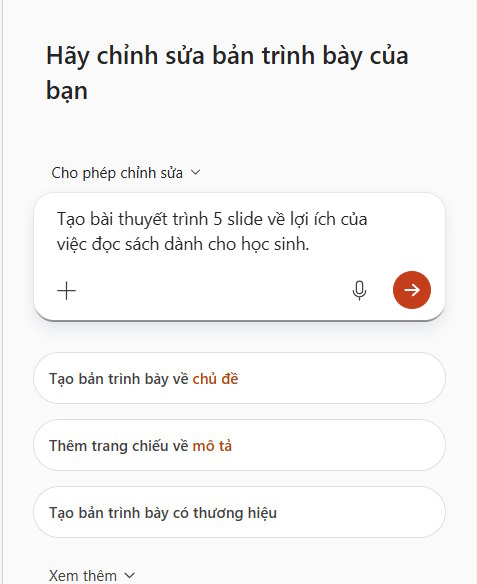
Copilot will ask clarifying questions about your preferred style and slide layout approach. Once you confirm, it creates exactly what you requested—with the right number of slides and matching your specifications. Need additional slides with specific content? Just ask, and Copilot adds them with the same professional quality.
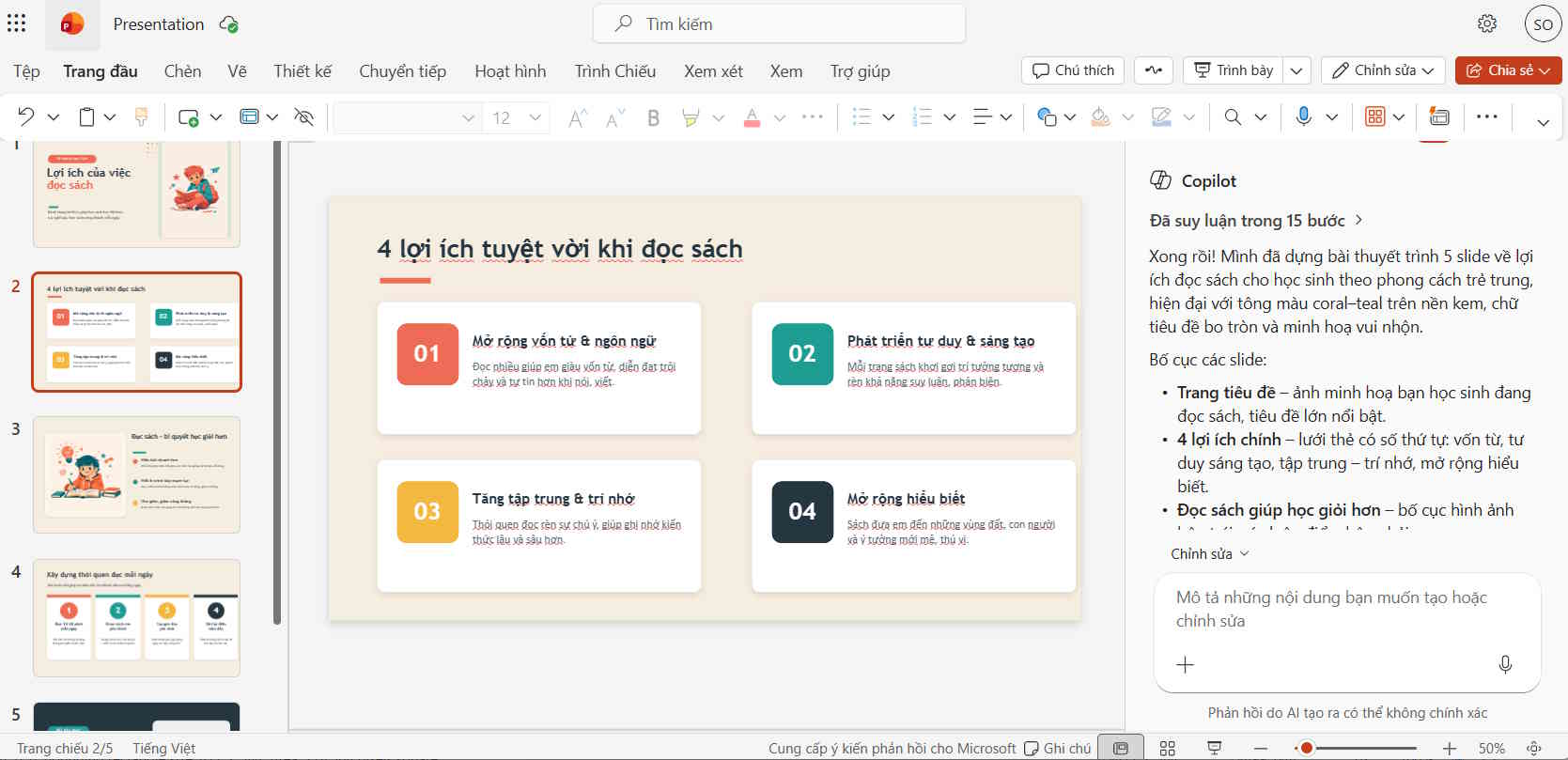
2. Convert Word Documents or PDFs Into Slides
This is particularly useful when you've got existing documentation that needs visual presentation. Upload your file or select one from your Office files, and watch Copilot work:
- Reads through your entire document
- Extracts and summarizes key information
- Transforms content into individual slides
- Preserves logical flow and structure
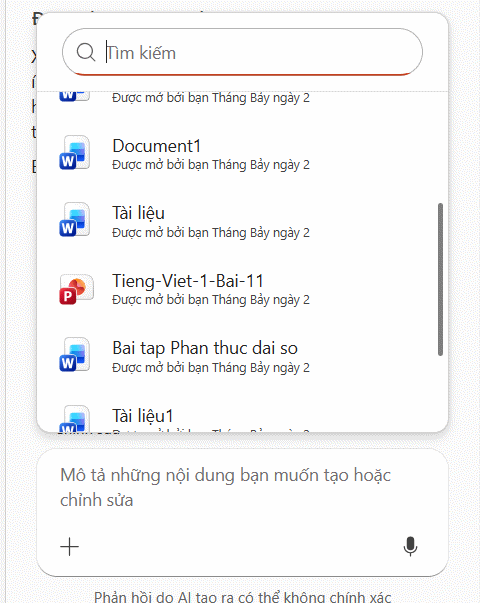
You can refine the output by providing additional instructions about how you'd like the slides organized or formatted.
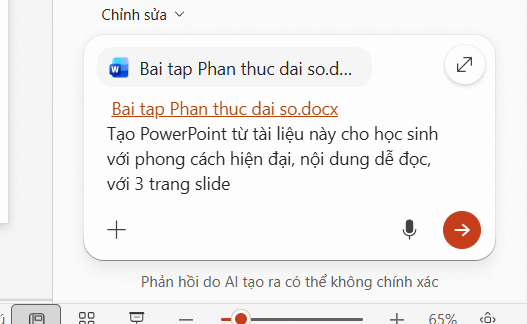
The result is a polished presentation that captures the essence of your source material.
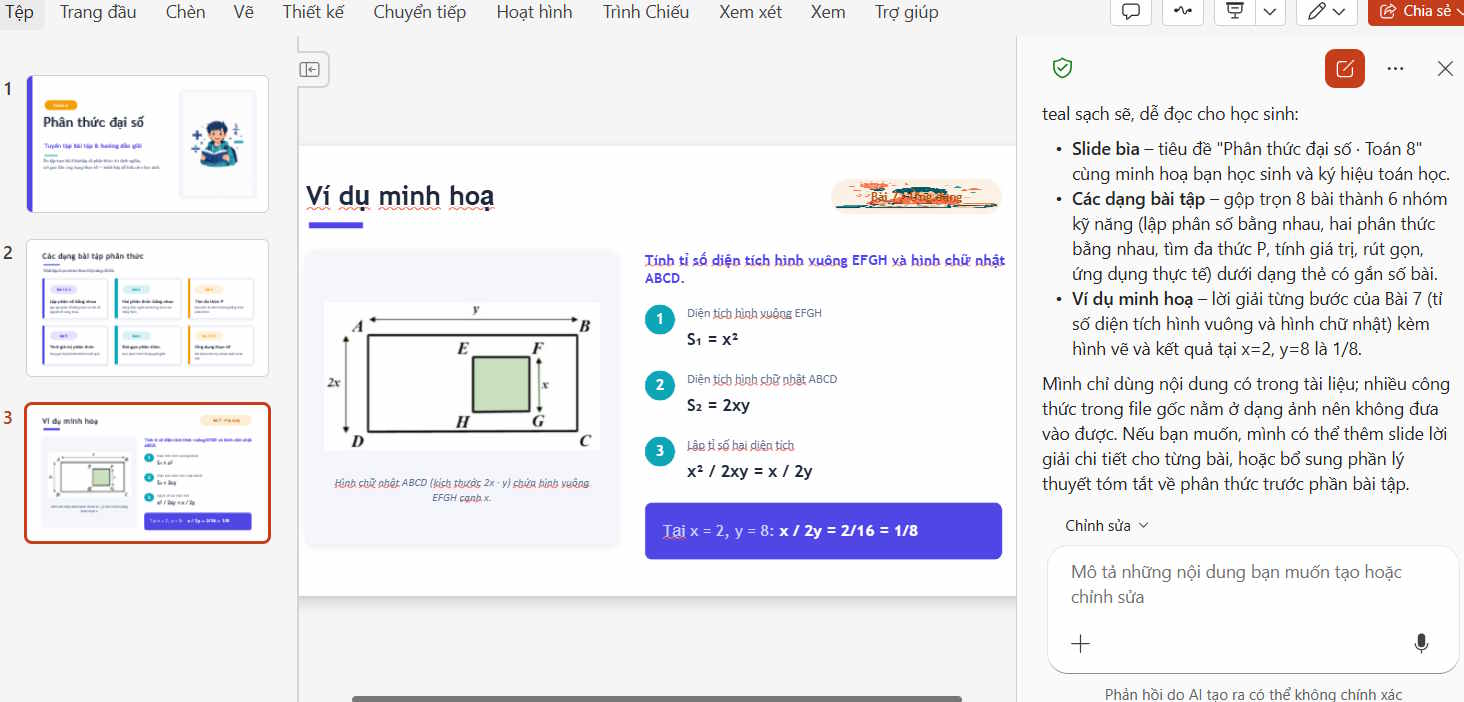
3. Generate Slide Content With Copilot
Got a slide with just a title? Copilot fills in the blanks intelligently:
- Writes descriptive paragraphs
- Creates logical bullet points
- Adds relevant examples
- Explains complex concepts simply
The key is being specific about what you need on that particular slide so Copilot delivers exactly what fits your narrative.
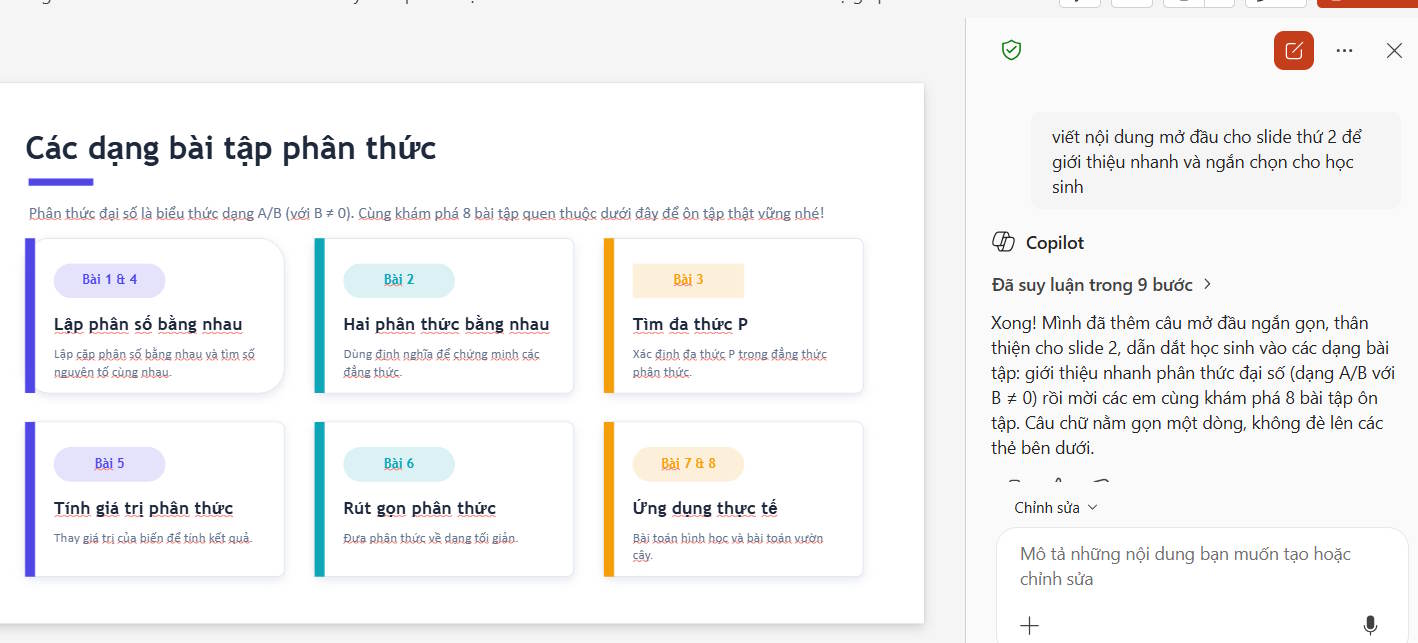
4. Condense Lengthy Slide Text
When a slide feels text-heavy and needs trimming, let Copilot streamline it:
- Compresses verbose passages without losing meaning
- Converts paragraphs into concise bullets
- Maintains impact while reducing word count
5. Rephrase Existing Slide Content
Already have content but want to adjust the tone or style? Copilot handles various approaches:
- Elevates language to a more professional register
- Makes text punchier and more concise
- Simplifies complex terminology
- Adapts tone for specific audiences
6. Generate Diagrams and Charts
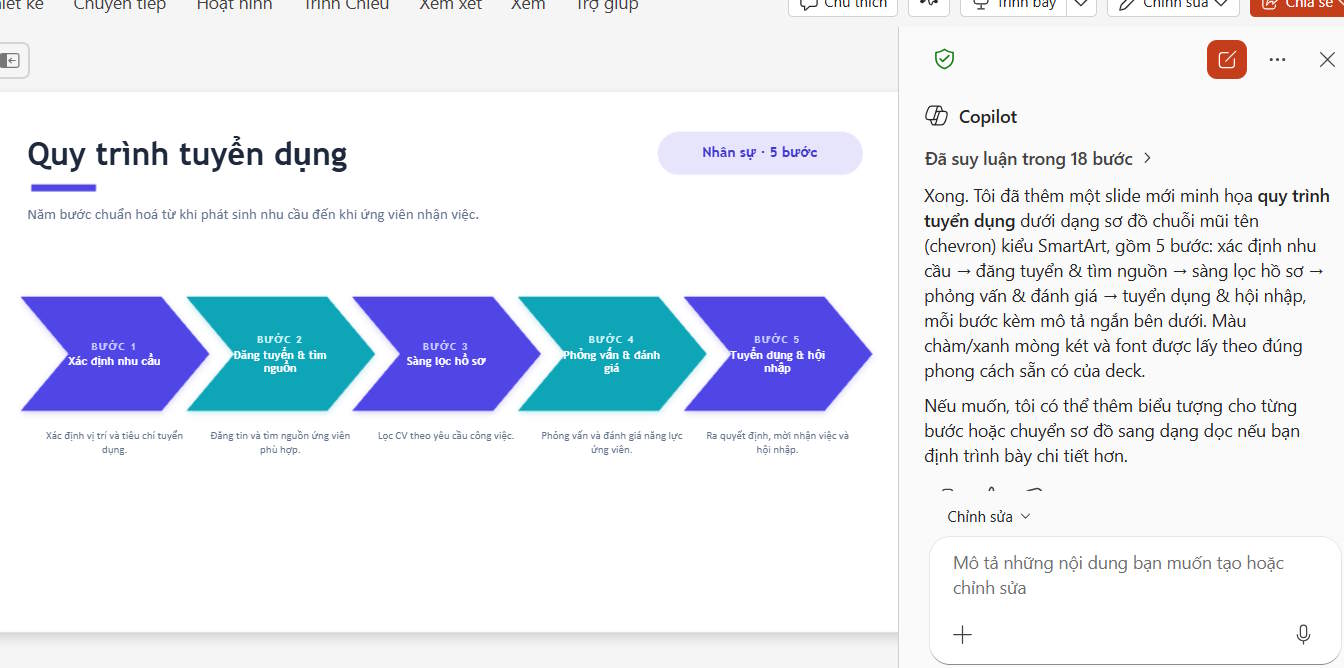
Copilot can create or suggest visual representations including:
- SmartArt graphics
- Timeline visualizations
- Process flows
- Organizational charts
- Comparison diagrams
- Bulleted lists in visual format
For example, you might request: "Create a SmartArt diagram showing the recruitment process."
What's interesting here is that Copilot doesn't just generate random diagrams—it researches your topic to ensure the diagram structure and styling match your subject matter perfectly.
Useful Prompts for Copilot in PowerPoint Online
Here are battle-tested commands that work exceptionally well with Copilot in PowerPoint Online:
Creating New Presentations
Goal: Quickly generate a full presentation from a topic.
Create an 8-slide presentation on digital transformation in business.

Create a company introduction presentation for new clients about Company ABC.

Develop a cybersecurity training presentation for office staff.
Building Presentations From Documents
Goal: Transform existing Word or PDF documents into slide decks.
Convert this Word document into a presentation and condense it to 10 slides.

Turn this report into a presentation suitable for executive leadership.

Create slides from this document that highlight the three main findings.
Writing Slide Content
Goal: Add substance to title-only slides.
Write content for the slide titled "Benefits of Cloud Computing".

Add 5 key talking points to the "Project Goals" slide.

Provide a brief explanation of artificial intelligence in simple terms.
Summarizing Content
Goal: Compress lengthy text to fit a slide format.
Condense this slide into 5 main bullet points.

Shorten this paragraph to fit on a single slide.

Convert this text block into a bulleted list.
Revising and Rephrasing
Goal: Adjust tone and style of existing content.
Rewrite this content in a professional tone.

Make this shorter and easier to understand.

Rephrase this for a high school audience.

Convert this to formal business language.
Design and Layout
Goal: Improve the visual presentation structure.
Suggest an appropriate layout for this presentation.

Split this slide into 3 separate slides for better pacing.

Rearrange these slides in logical order.

Apply a modern design aesthetic to this presentation.
Adding Visual Elements
Goal: Make presentations more visually engaging.
Suggest appropriate images for each slide.

Add icons that represent each main point.

Recommend illustrations related to digital transformation.
Creating Charts and Diagrams
Goal: Visualize data and processes.
Create a chart showing quarterly revenue by division.

Convert this description into a process flowchart.

Add a SmartArt diagram illustrating the hiring workflow.
Editing and Refinement
Goal: Speed up revisions and improvements.
Add an introductory slide at the beginning.

Remove duplicate content throughout the presentation.

Reduce this from 20 slides down to 10 slides.

Add real-world examples to support each section.
Presentation Preparation
Goal: Support the speaker with notes and frameworks.
Create speaker notes for each slide.

Write a strong conclusion for this presentation.

Suggest questions the audience might ask.

Write a 1-minute opening statement.
Translation and Language Adaptation
Goal: Localize presentations for different audiences.
Translate the entire presentation to English.

Translate this slide to Japanese.

Convert content to English while maintaining the layout.
Optimization and Enhancement
Goal: Polish and improve overall quality.
Check the entire presentation for spelling and grammar errors.

Suggest ways to make this presentation more engaging.

Reduce text on each slide while keeping the key information.

Review this presentation and suggest improvements.
Pro Tip: Structuring Your Prompts Effectively
To get the best results from Copilot, structure your commands as: Action + Topic + Quantity/Audience + Style
Here are well-structured examples:
- Create a 10-slide presentation about AI in education aimed at teachers, using a modern design approach.
- Summarize this report into 6 slides with concise bullet points that are easy to scan.
- Rewrite this content in professional language suitable for presentation to senior management.
Getting Started With Copilot in Desktop PowerPoint
Step 1: Launch Copilot
Open PowerPoint and click the Copilot icon to open the Copilot panel. Select Create a presentation, then enter your topic or idea. You can also use the microphone to dictate if you prefer voice input. When ready, hit the send button to submit your request.
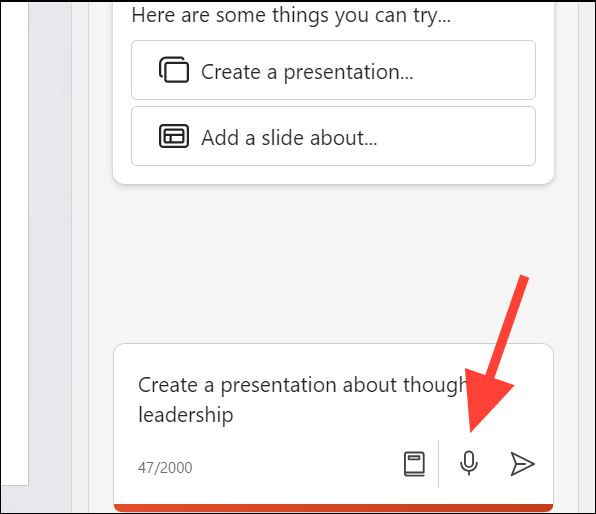
Step 2: Copilot Builds Your First Draft
Copilot immediately starts generating content. Within moments, you'll have a foundational presentation with multiple slides featuring coordinated images, text, consistent layout, and unified theme.

Step 3: Add More Slides
In the Copilot panel, click Add a slide about, then describe what content you want on the new slide. Copilot will insert the slide right after your current position.

Step 4: Organize Your Slides
Copilot adds the new slide to your deck. You retain full control to rearrange slides in whatever order works best for your narrative flow.

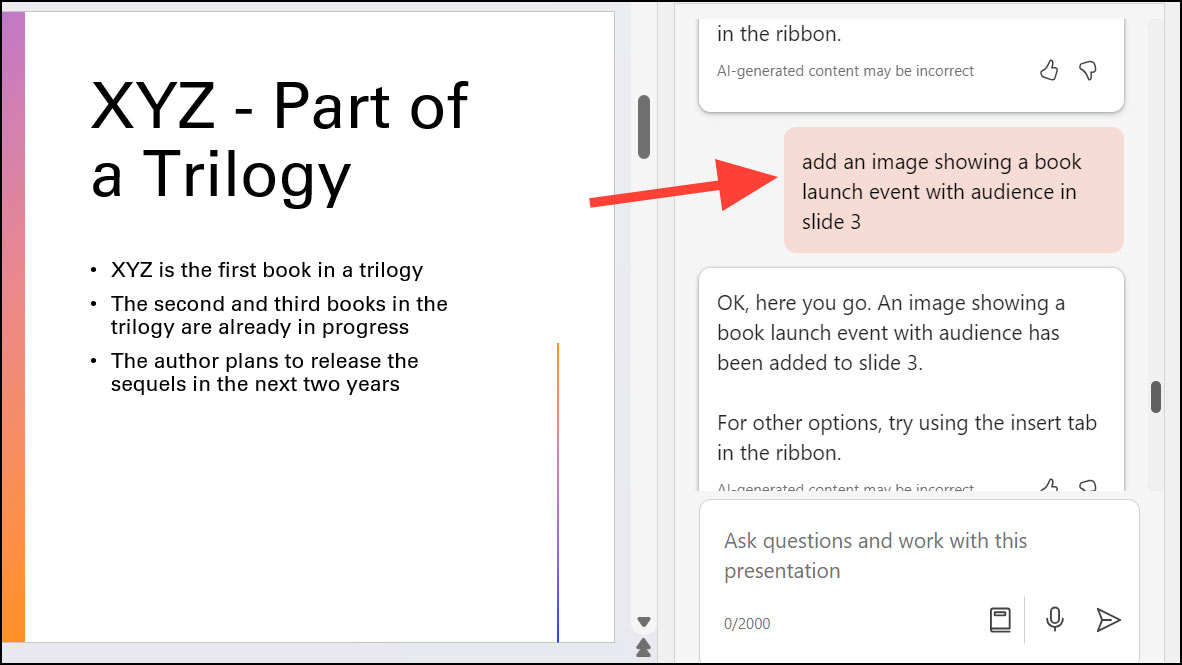
Step 5: Insert Images
When you need imagery, describe what images you want and which slide should contain them. Be specific about slide numbers or simply work with the currently selected slide.
Step 6: Generate Presentation Summary
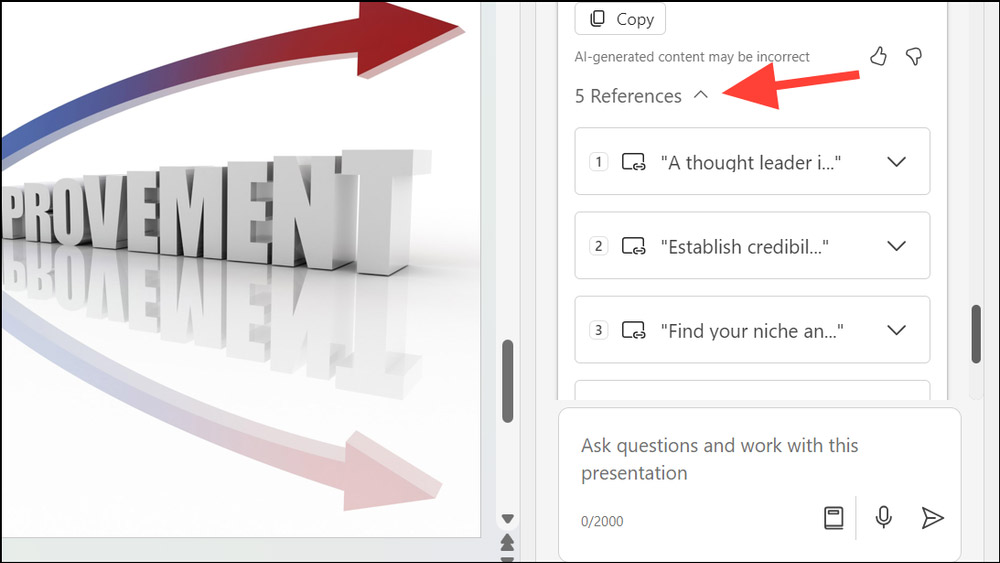
Want a high-level overview? Simply click Summarize this presentation and let Copilot work.

Copilot generates a comprehensive summary along with relevant quotes from your presentation, giving you quick reference material.
Pro tip: Click the View Prompt icon for additional options and refinement tools.

Description: Master Copilot in PowerPoint with our step-by-step guide. Learn to create presentations, generate content, and design slides faster.
Related Articles
- How to Extract Image Prompts from Any Picture for AI Generation
- Create a Brand Context Folder to Make Every AI Output Feel Authentically Yours
- Moving Your Memory and Chat History to Google Gemini
- How to Use Perplexity's Learn Step by Step Mode: A Complete Guide
- Why Claude Cowork Is Being Hailed as 2026's Biggest AI Breakthrough

No Comment to " How to Use Copilot in PowerPoint: A Complete Guide "