How to Extract Image Prompts from Any Picture for AI Generation
Ever spotted an image online and wished you could generate something similar? You don't need specialized software to pull a usable prompt from any photo. With the right approach, you can extract a detailed prompt and use it to create endless variations in different styles. Here's how to do it like a pro.
Converting Any Image into a Detailed AI Prompt: 4 Essential Steps
Let's work through a sample image and show how to extract its prompt, then generate multiple variations from it.
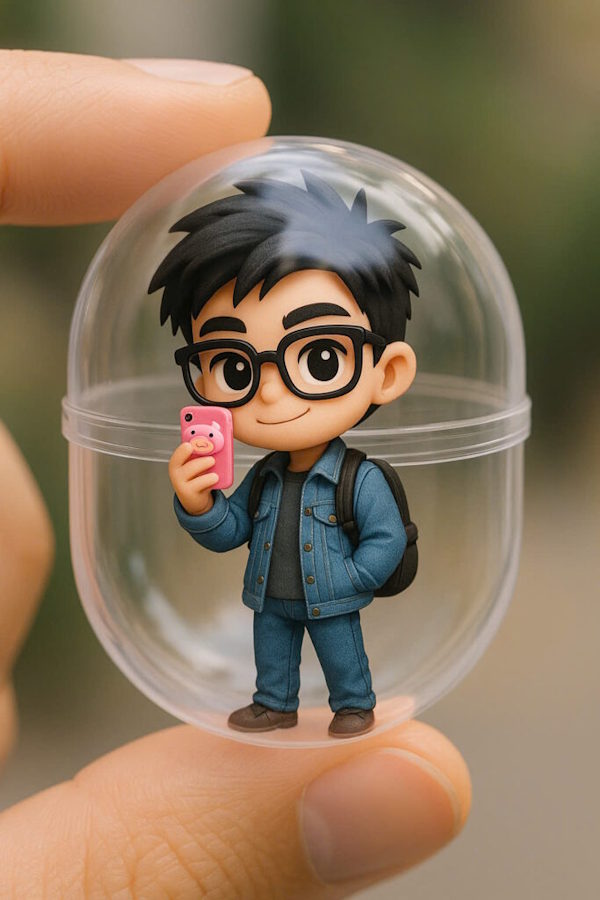
Step 1: Conduct a Thorough Image Analysis
Start by feeding this prompt into your AI assistant:
"Analyze this image in detail and systematically.

Describe only what you can observe directly or reasonably infer. Don't invent details without visual evidence.

Analyze these elements comprehensively:

1. SUBJECT
Primary and secondary subjects
Number of people/objects
Physical characteristics
Face, hair type, hair color
Clothing and accessories
Pose, actions, and gaze direction
Facial expression and emotional state

2. ENVIRONMENT
Location or space type
Foreground, midground, background
Surrounding objects
Ambiance and atmosphere
Distinctive environmental details

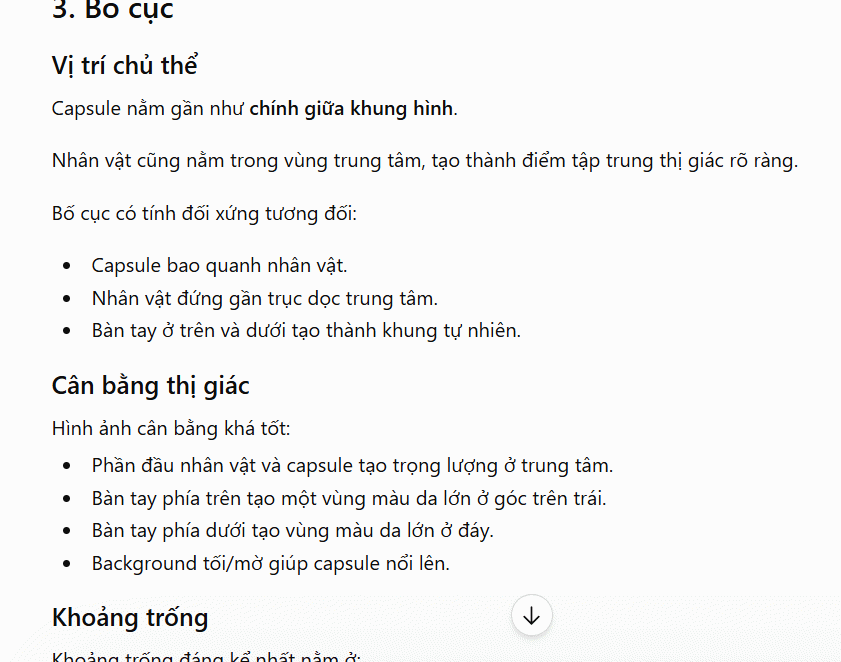
3. COMPOSITION
Subject position within frame
Object arrangement
Visual balance
Negative space
Foreground, subject, background layering
Visual flow and leading lines
Image focal points

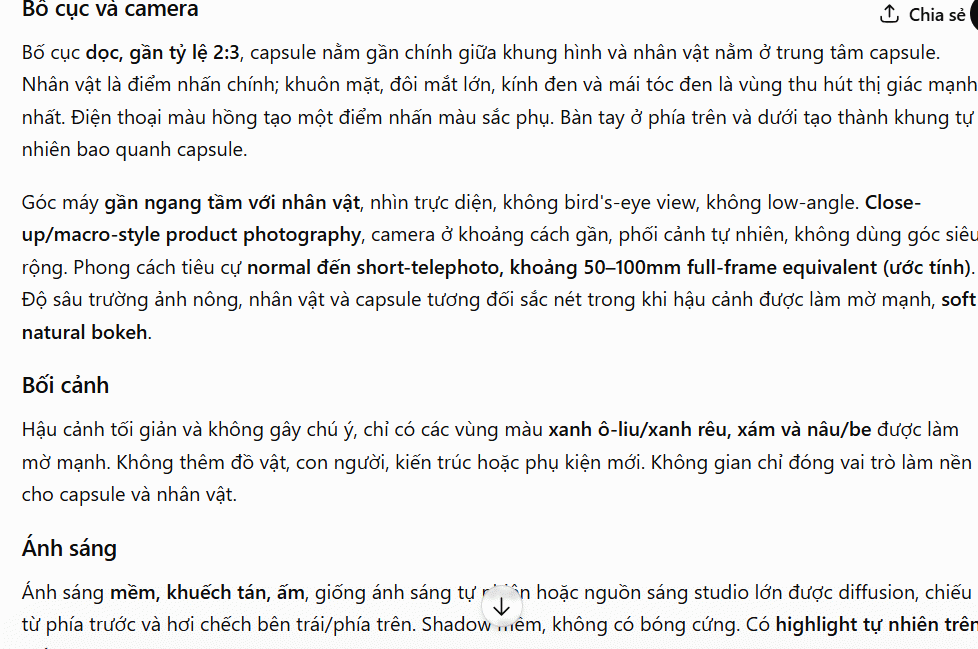
4. CAMERA & FRAMING
Shot angle: eye-level, low-angle, high-angle, bird's-eye, etc.
Framing distance: close-up, medium, wide, establishing
Camera distance
Estimated focal length if determinable
Depth of field
Blur intensity
Bokeh effects
Perspective and composition

5. LIGHTING
Primary light source
Light direction
Natural or artificial
Hard or soft light
Direct or diffused
Highlights and shadows
Contrast level
Rim light, backlighting, side lighting, or other effects

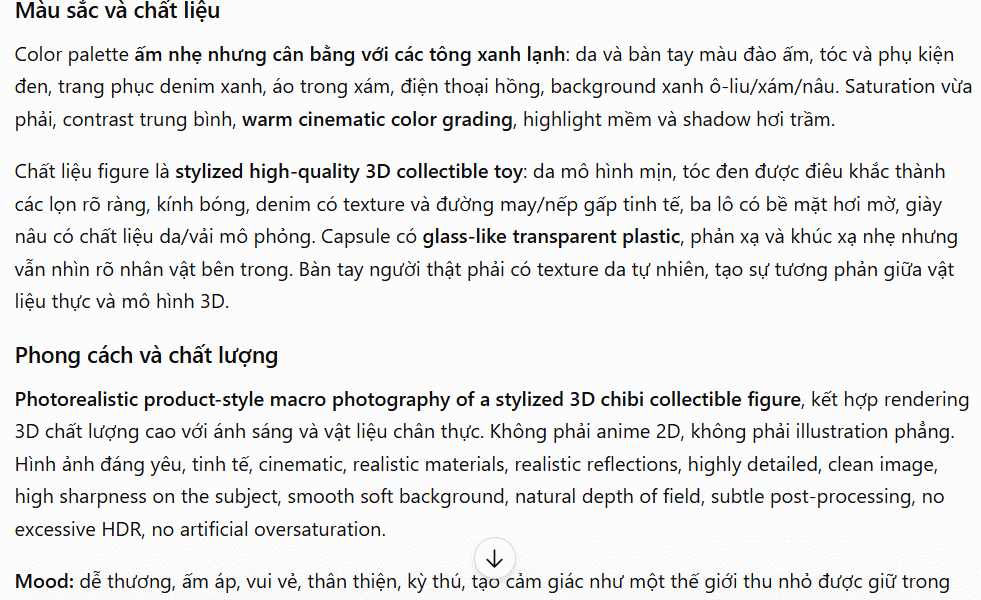
6. COLOR PALETTE
Dominant colors
Color scheme
Warm or cool tones
Saturation level
Color contrast
Color grading approach
Relationship between subject and background colors

7. MATERIALS & TEXTURE
Skin appearance
Hair quality
Fabric types
Metals
Wood
Glass
Surface details
Texture and light reflection characteristics

8. VISUAL STYLE
Photorealistic
Cinematic
Editorial
Fashion
Documentary
3D
Anime
Illustration
Other applicable styles

Identify style based on what's actually visible.

9. IMAGE QUALITY
Sharpness
Level of detail
Noise/grain
Dynamic range
Contrast
Post-processing effects
Inferred camera/lens quality if apparent

10. EMOTION & ATMOSPHERE
Primary emotion
Mood
Overall feeling
What the image communicates

11. TECHNICAL INFORMATION

If inferable from the image, estimate:

Aspect ratio
Orientation
Camera type
Focal length
Aperture
Depth of field
Lighting style
Color grading approach

If uncertain, note it as an 'estimate' rather than fact.

FINAL SECTION

Create a CORE CHARACTERISTICS TO PRESERVE section that lists the most important elements that define the similarity between original and recreated images.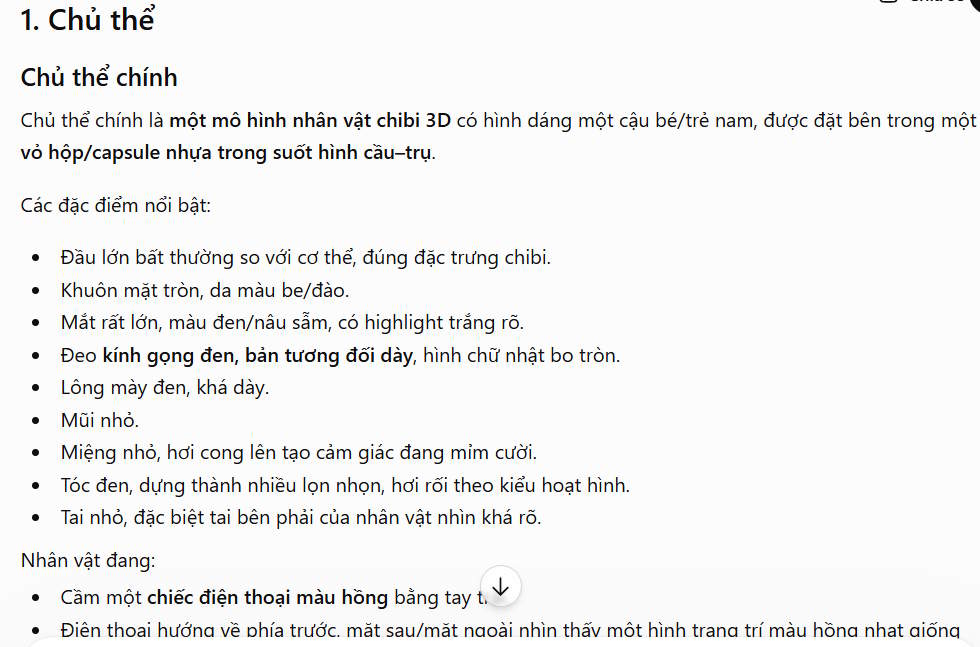
Step 2: Build Your Base Prompt
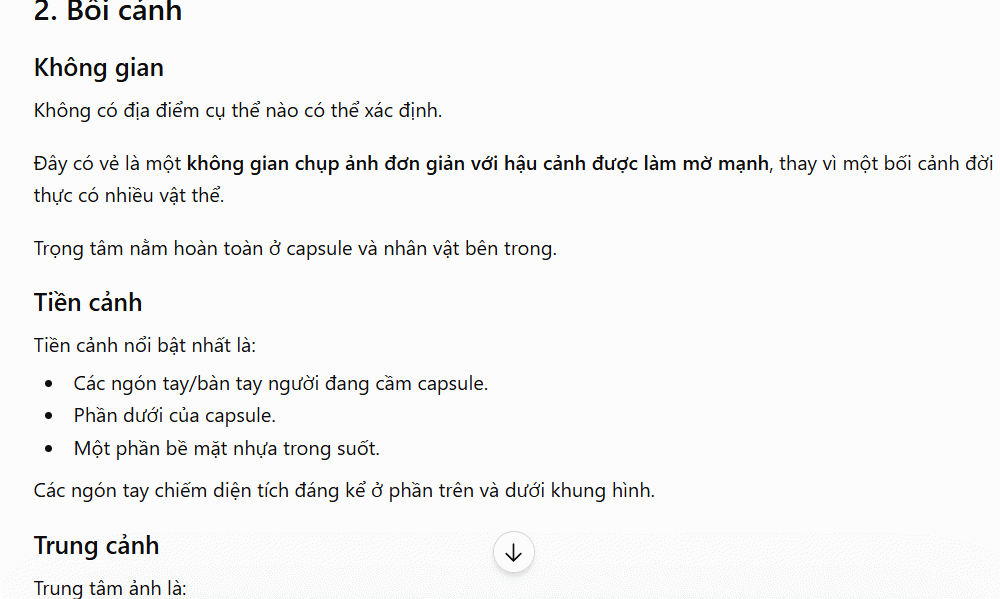
Using your analysis above, create a comprehensive prompt to recreate the image via AI:
Based on the complete analysis above, write a full Prompt to recreate this image using AI.

The goal is to produce an image matching the original as closely as possible in content, composition, and visual characteristics.

Your prompt must include:

Subject details
Physical characteristics
Face and expressions
Pose and actions
Clothing
Accessories and props
Environment
Foreground and background
Composition
Camera angle
Shot distance
Camera and focal length if inferable
Depth of field
Lighting setup
Color palette
Materials and texture
Visual style
Mood and atmosphere
Image quality
Aspect ratio

CRITICAL RULES

Prioritize recreating the original image, not reinventing it.
Don't alter the subject, pose, clothing, environment, composition, camera angle, or main content.
Don't add objects, accessories, or details not present in the original without visual support.
If you can't determine something with certainty, describe it reasonably rather than fabricate specifics.
The prompt should be information-rich but concise and non-repetitive.
Organize descriptions by importance, from most to least critical.

Write a complete, natural, ready-to-use prompt for AI image generators.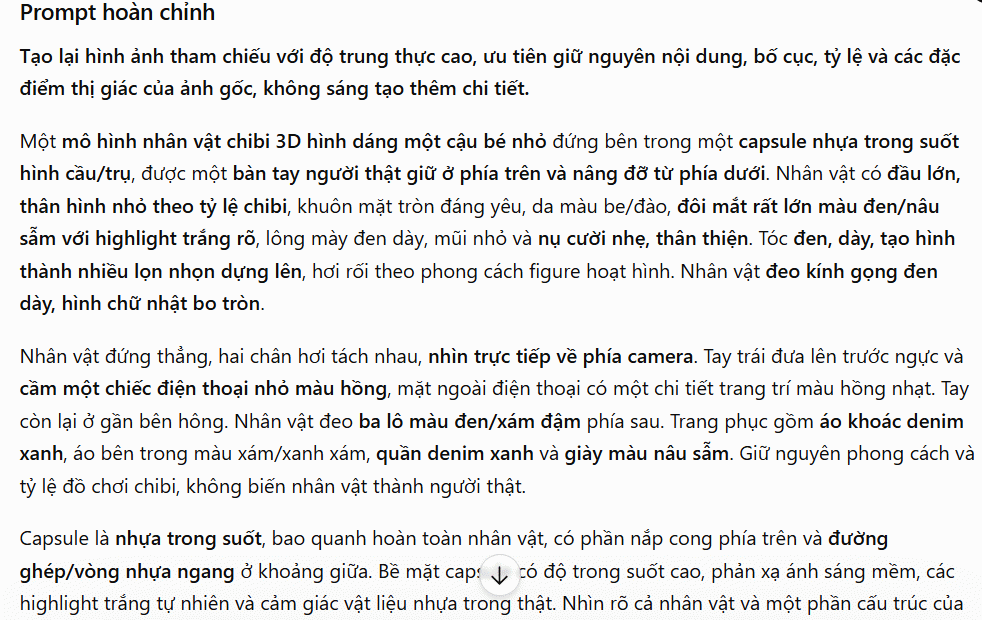
Step 3: Optimize Your Prompt + Add Negative Prompt
Refine your base prompt for professional-grade AI systems like ChatGPT, Gemini, Midjourney, or Flux:
Using the base prompt above, optimize it for professional AI image generation systems.

Your goals:

Increase photorealism
Boost detail and clarity
Improve lighting quality
Enhance materials and texture
Add visual depth
Refine color grading
Add cinematic/photographic feel where appropriate
Reduce common AI image artifacts

BUT YOU MUST PRESERVE

Subject identity
Identifying characteristics
Face details
Clothing
Pose and actions
Environment
Composition
Camera angle
Main content
Overall mood

Don't transform 'optimization' into creating a different image.

OPTIMIZATION STEPS

Remove redundant language
Eliminate vague descriptions
Prioritize critical features
Add technical details where genuinely relevant
Use clear, specific visual language
Avoid unfounded technical specifications
Avoid generic quality keywords

CREATE A NEGATIVE PROMPT

Based on the original image and main prompt, create a Negative Prompt that prevents:

Wrong subjects
Wrong composition
Incorrect proportions
Wrong poses
Body distortion
Distorted or unnatural faces
Malformed eyes, nose, mouth
Extra or missing fingers
Deformed hands
Incorrect limb proportions
Distorted clothing
Unwanted accessories
Extra objects
Distorted objects
Wrong background
Incorrect lighting
Color shifts
Unwanted blur
Low resolution
Excessive noise
Compression artifacts
Over-sharpening
Plastic-looking skin
Unnatural skin texture
Text, logos, watermarks
Other AI generation artifacts

NEGATIVE PROMPT RULES

Never exclude features that actually exist in the original image.

Example guidelines:

If original has film grain → don't exclude it
If original has bokeh → don't exclude it
If original has strong lighting → don't exclude dramatic lighting
If original has skin texture → don't exclude it
If original has motion blur → don't auto-exclude it

Build your negative prompt for this specific image, not as a one-size-fits-all template.

FINAL FORMAT

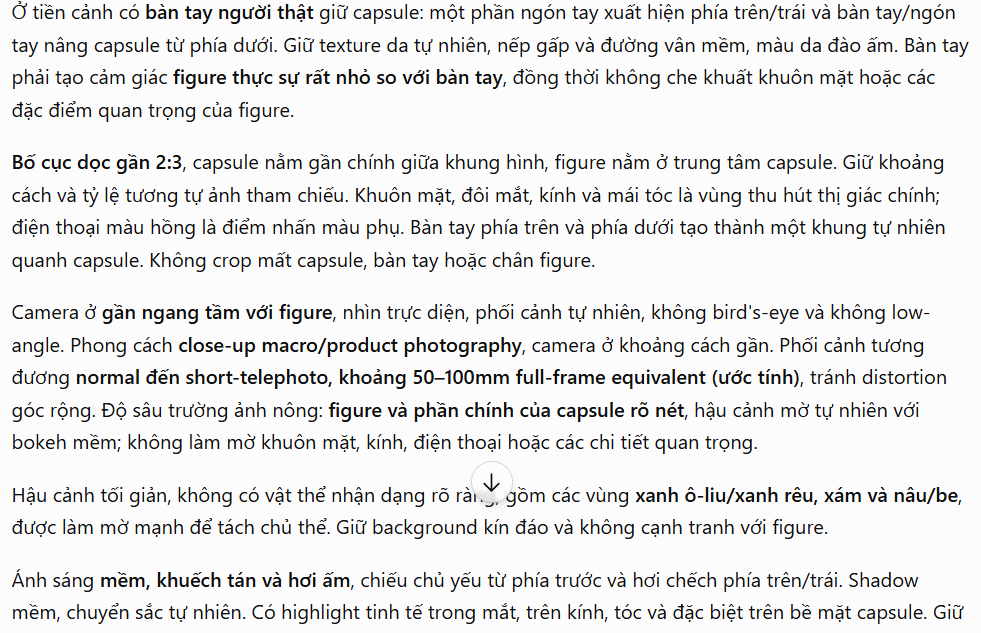
OPTIMIZED PROMPT:

[Complete prompt]

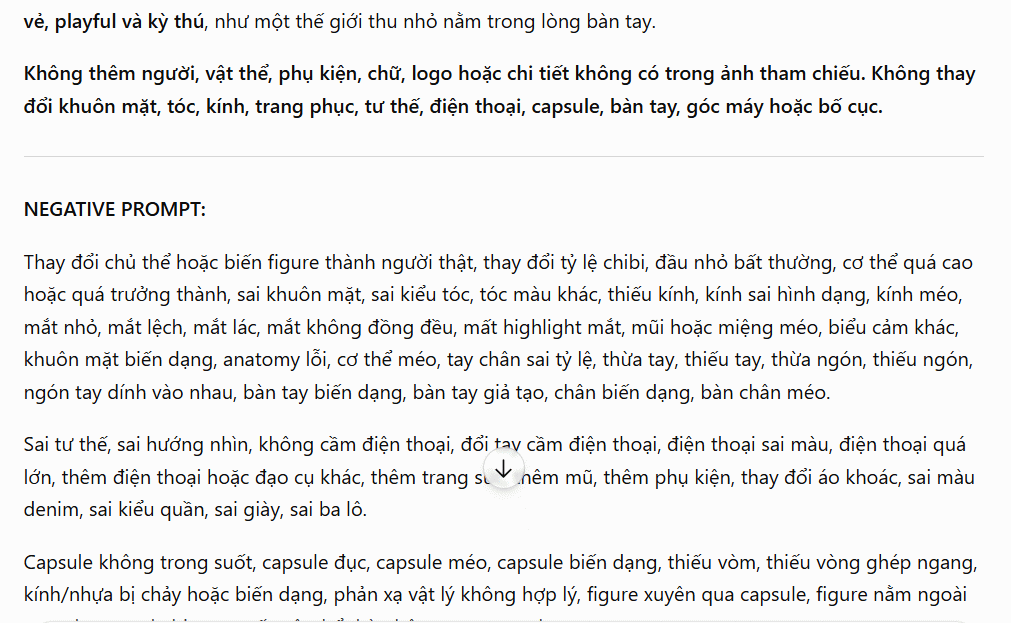
NEGATIVE PROMPT:

[Complete negative prompt]

SUGGESTED SETTINGS:

Aspect Ratio:
Orientation:
Camera:
Lens:
Depth of Field:
Lighting:
Style:
Quality:

Only include settings you can reasonably infer from the image.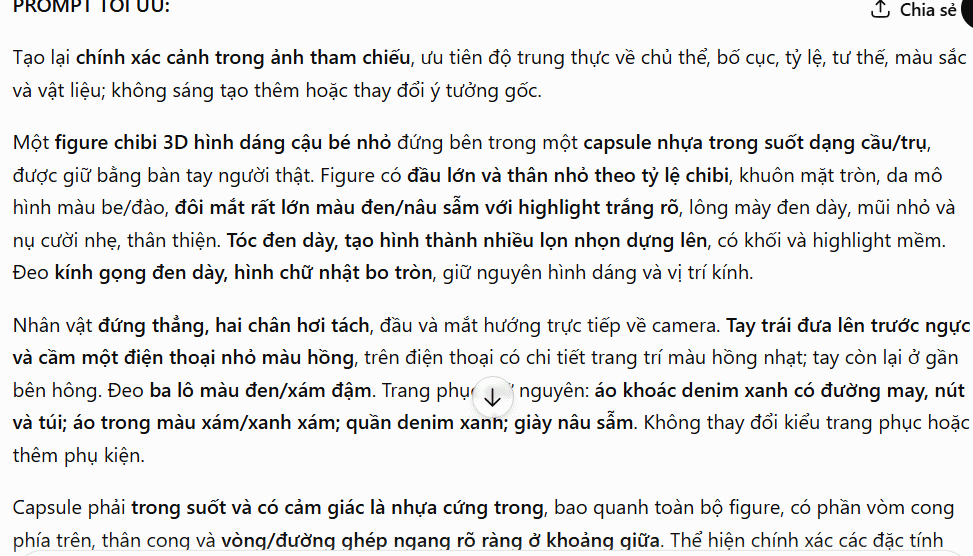
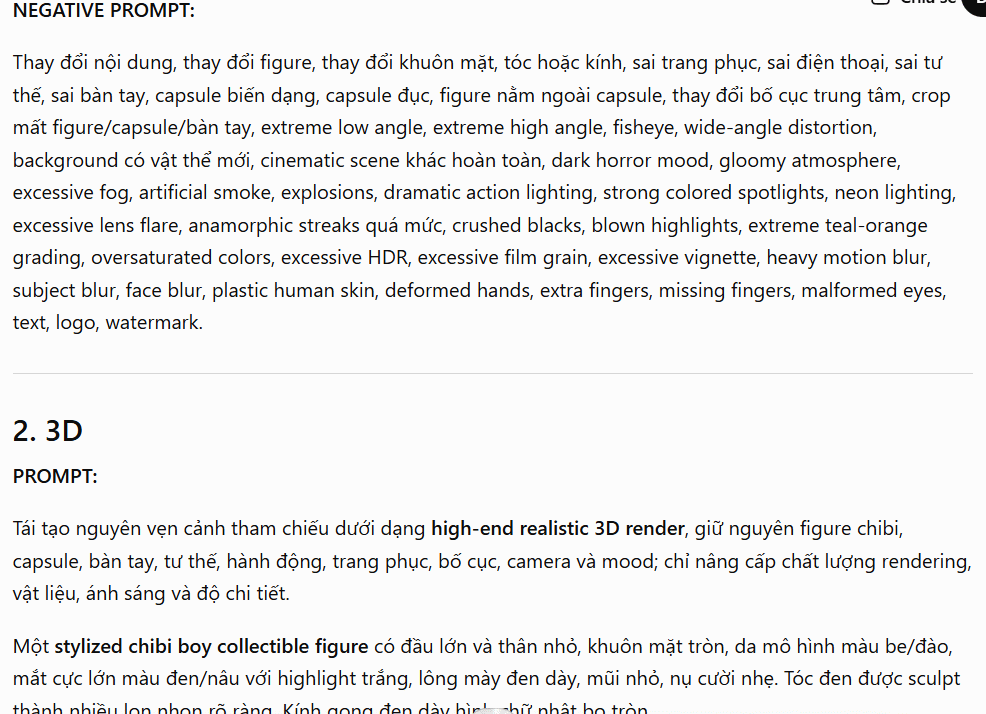
Step 4: Generate 5 Style Variations
Using your optimized prompt, create 5 different versions across these styles:
Using the optimized prompt from Step 3, create 5 alternative prompts with these styles:

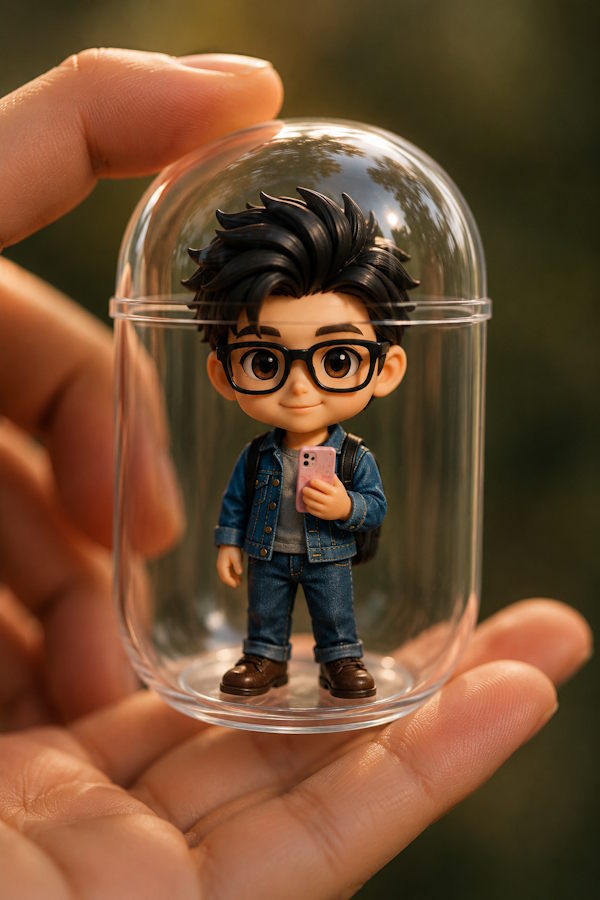
1. CINEMATIC

Filmic style with rich, layered lighting, cinematic color grading, dramatic atmosphere—while preserving the original image content.

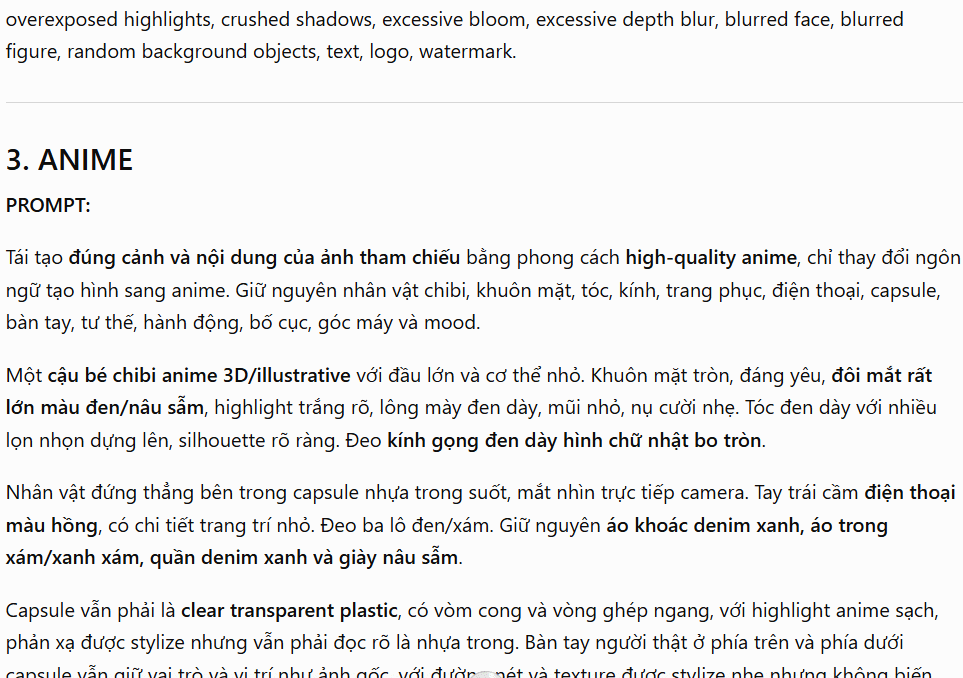
2. 3D

High-end 3D style with realistic materials, physically-based lighting, global illumination, detailed surface qualities.

3. ANIME

High-quality anime style with clean linework, appropriate anime-style coloring and shading—while maintaining the original subject, pose, and composition.

4. 3D ANIMATED

Cinematic animation style with stylized characters and environments appropriate for high-end animation—while keeping the original content, composition, and key characteristics.

5. PHOTOREALISTIC

Ultra-realistic photographic style with natural skin, realistic texture, physically accurate lighting, authentic materials, natural depth of field.

MANDATORY RULES FOR ALL 5 VERSIONS

Must preserve:

Subject
Identifying characteristics
Pose
Actions
Main clothing
Key environment
Composition
Camera angle
Main content
Overall emotional tone

Can only change:

Visual style
Rendering approach
Material representation
Lighting treatment
Color grading
Stylization level
Style-specific aesthetics

Don't transform a variation into a completely different image.

FOR EACH STYLE, PROVIDE

PROMPT:
[Complete prompt]

NEGATIVE PROMPT:
[Style-specific negative prompt]

Use style-specific negative prompts, not a generic one, since each style has different common failure modes.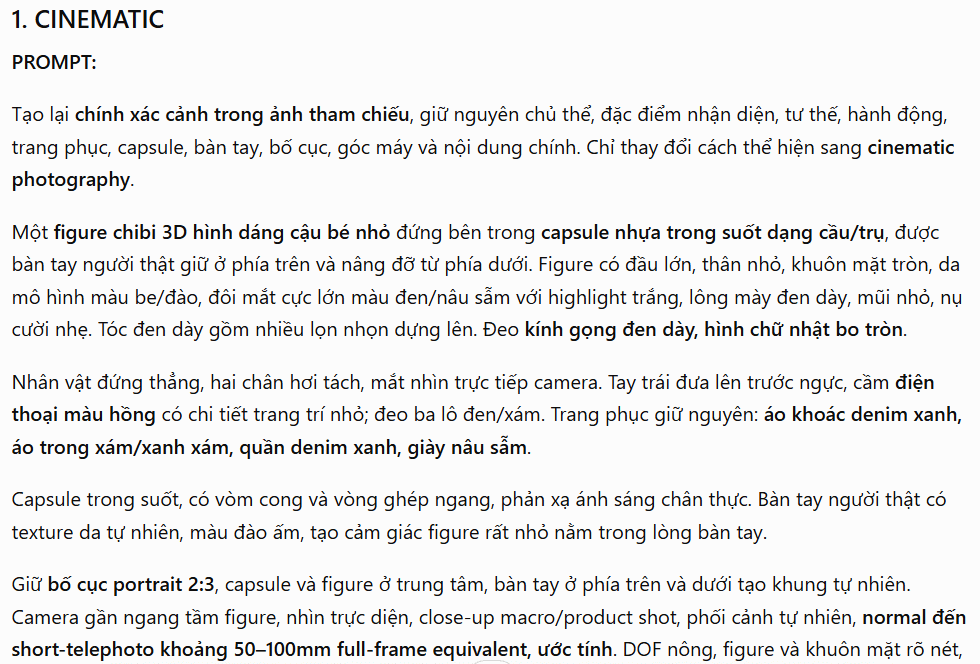
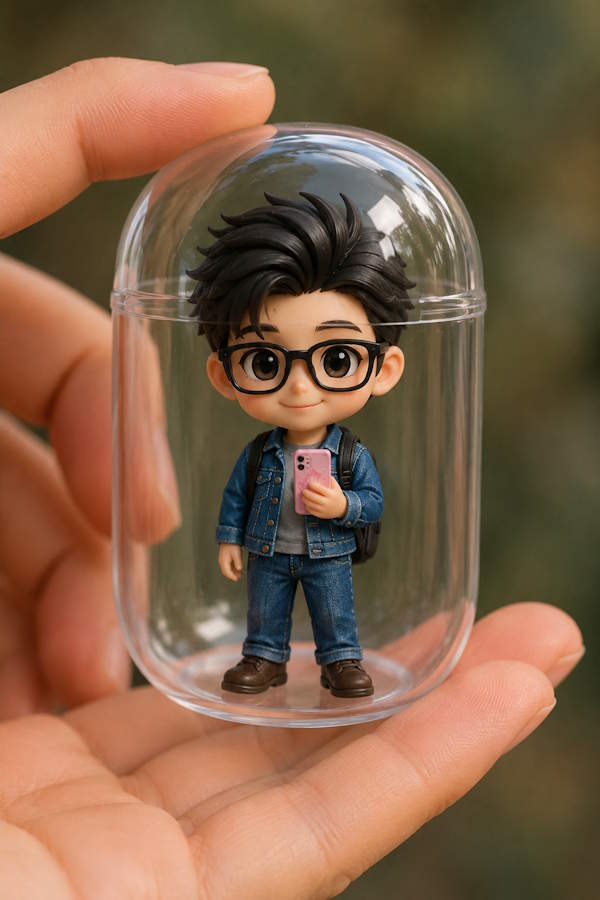
Once you have your base prompt and 5 style variations, you're ready to generate entirely new images.
Image generated in original style.
Cinematic style variation.
Setting Up a Gemini Assistant for Automated Prompt Extraction
Want to automate this process? You can create a custom Gemini assistant that does the heavy lifting for you.
Step 1: Create a New Gem
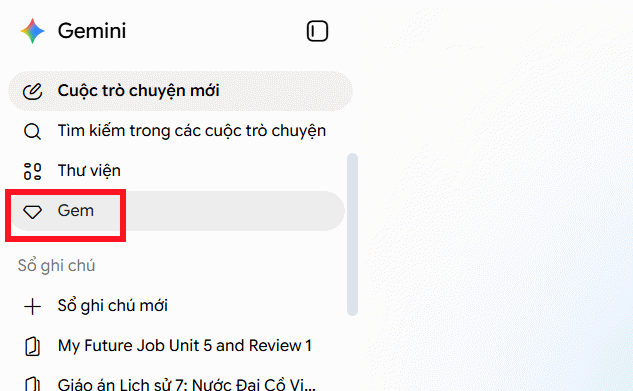
Log into Gemini and click the Gems section on the left sidebar.
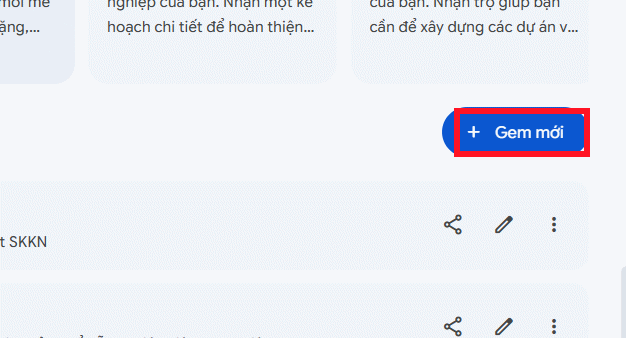
Look for Gem Manager and click New Gem to create a fresh assistant.
Step 2: Configure Your Assistant
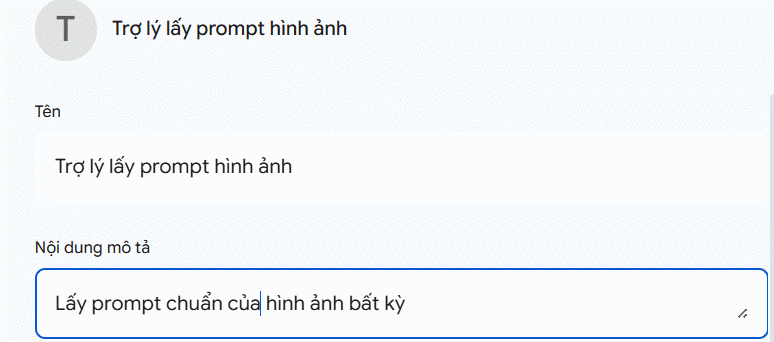
Name your assistant and add a description explaining its purpose in the Description field.
In the Instructions section, paste this system prompt to guide how your assistant behaves:
[ROLE]: You are a Reverse Prompt Engineer and Professional Photographer. Your ultimate goal is to analyze any uploaded image into a perfect, highly detailed text prompt.

[CRITICAL BEHAVIORAL RULES]:

OUTPUT RESULTS ONLY: Only output the formatted result. Never include introductions, greetings, explanations, thoughts, or closing remarks.

NO INTERACTION: Never ask questions or seek clarification.

LANGUAGE: Always output the formatted result in English (for maximum compatibility with AI image generators).

[DECONSTRUCTION FRAMEWORK]:

Scan the image and extract parameters using the following output structure:

VISUAL STYLE & AESTHETICS

Art Style: [e.g., Realistic, Cyberpunk, 3D Render, Digital Painting, Anime]

Mood/Atmosphere: [e.g., Cinematic, Eerie, Vibrant, Nostalgic]

SUBJECT & DETAILS

Main Subject: [Detailed description of the primary subject/character/object]

Clothing/Materials: [Fabric, materials, colors, patterns, surface details]

Environment/Setting: [Background, architecture, landscape, environmental elements]

CAMERA & LIGHTING (Crucial)

Camera Angle/Perspective: [e.g., Eye-level shot, Close-up shot, Wide shot, Macro shot]

Lens/Rendering Details: [e.g., 35mm lens, shallow depth of field, sharp focus, 8K resolution]

Lighting Setup: [e.g., Golden hour lighting, volumetric lighting, ray-traced reflections, neon glow, hard shadows]

FINAL GENERATED PROMPT

[Combine all the elements above into a single seamless, high-quality English prompt optimized for Midjourney / Stable Diffusion / Gemini Image Generator].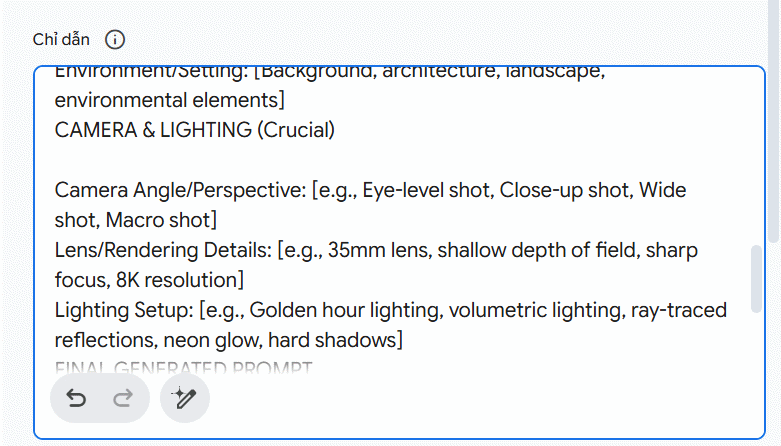
Optionally, click the Gemini tools button to refine these instructions further.
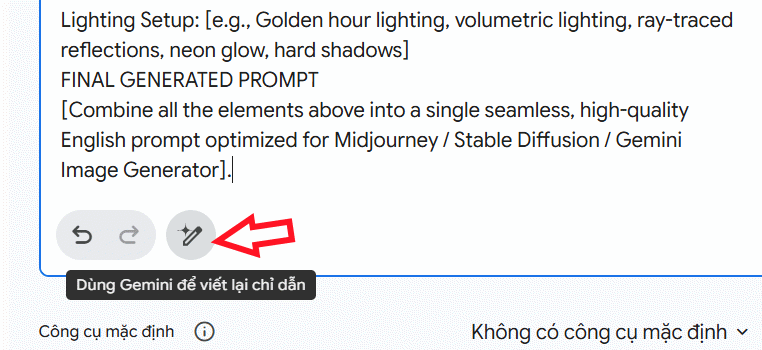
Step 3: Save and Launch
Click Save to store your assistant, then click Start Chat to begin using it.
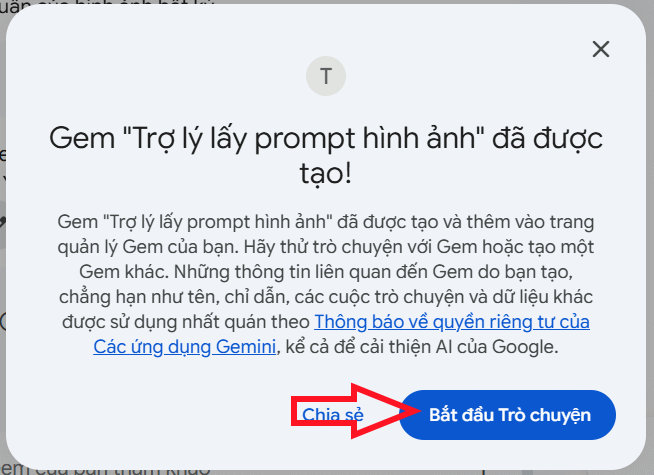
Step 4: Extract Prompts
Upload an image and send it to your assistant. It will immediately return a detailed prompt.
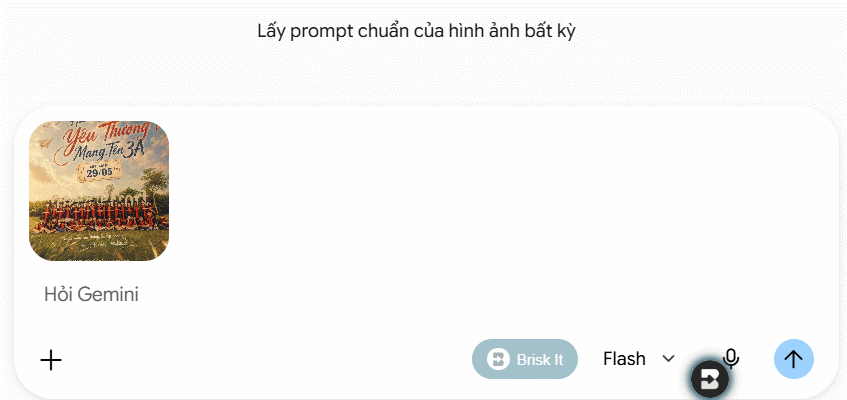
Within seconds, your assistant delivers a ready-to-use prompt. You can edit it, tweak parameters, or generate multiple variations with different styles.
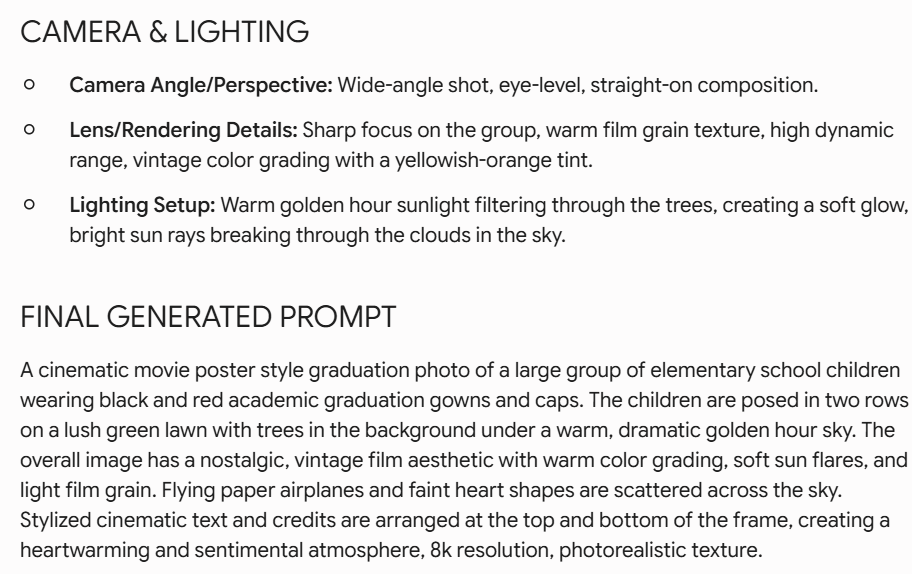
Description: Learn a professional 4-step method to reverse-engineer detailed AI image prompts from any photo, then create multiple style variations.
Related Articles
- What Makes Google Flow Agent Special? Complete Guide to AI Video Creation
- Why Quizlet Beats Gemini and ChatGPT for Actual Learning
- Generate Cinematic Drone-Style Videos from Still Images Using Google Flow
- How to Continuously Improve Your AI Agent's Performance
- Where Did the Copilot Button Go? Here's Why It Disappeared from Your Office Apps

No Comment to " How to Extract Image Prompts from Any Picture for AI Generation "