Google Flow Music: Generate Professional Music Videos with Just a Text Prompt
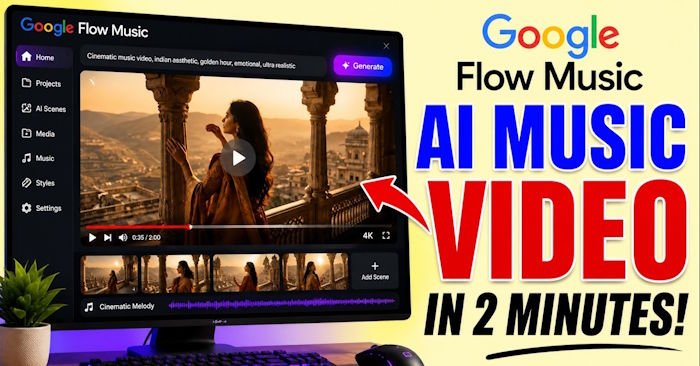
Google Flow Music is an AI-powered platform that lets you generate original music tracks, create accompanying music videos, and customize every aspect of your production. Simply describe what you want using a text prompt, and the tool handles the heavy lifting—generating background music, visuals, scene transitions, and lighting that match your vision perfectly.
Here's what makes it particularly powerful: you can take an AI-generated track you've already created in Google Flow Music and use it as the foundation for your video. The platform will then intelligently design visuals that complement the music. This guide walks you through both scenarios—building a complete music video from scratch when you don't have a track yet, or creating one based on existing AI-generated music.
Creating a New Music Video From Scratch
Step 1:
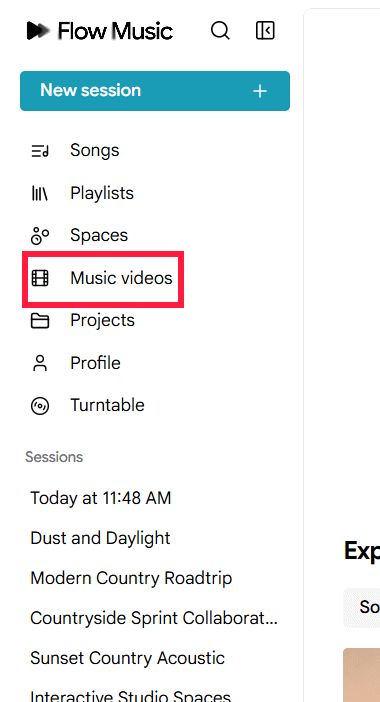
Head to the Google Flow Music website using your Google account. On the left sidebar, click Music videos.
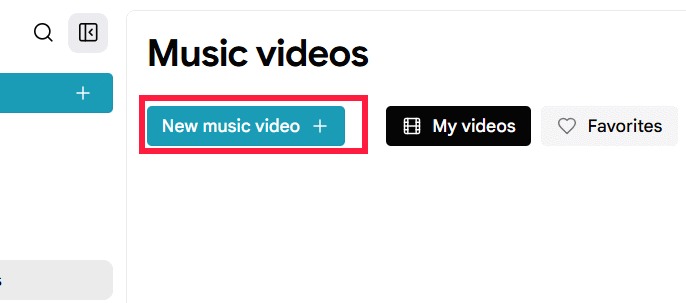
Once you're in the Music videos interface, click New music video to begin.
The platform will show you a complete guide for building a music video. If you want to create something entirely new—asking AI to generate both the music and visuals in one go—you'll need to write a comprehensive prompt that covers these nine elements:
1. Overall concept + 2. Music details + 3. Story content + 4. Characters + 5. Setting + 6. Visual style + 7. Camera work + 8. Choreography + 9. Technical specifications
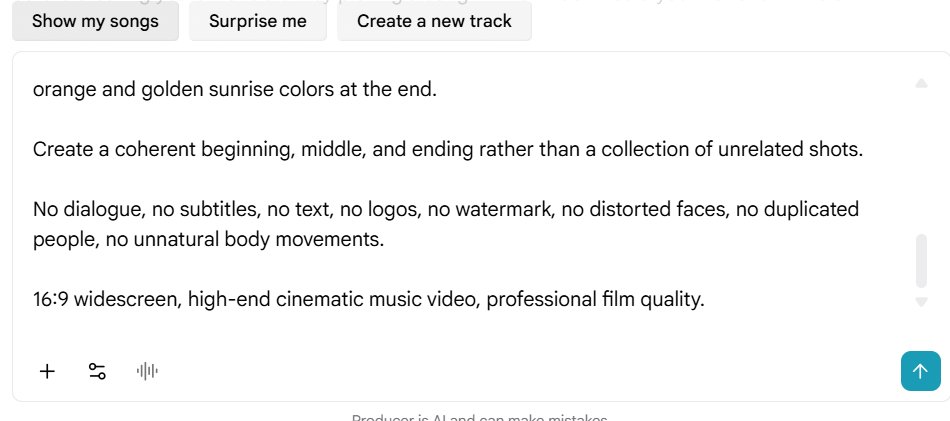
Use this template as your starting point, then customize it for your specific needs.
Create a complete original music video from scratch.

MUSIC

Genre: [music genre]

Mood: [emotional tone]

Tempo: [tempo/BPM]

Instruments: [instruments]

Vocals: [male/female vocals or instrumental]

STORY

Create a music video about [topic/narrative].

The story should have a clear beginning, development, climax, and ending.

CHARACTERS

Main character: [character description].

Keep the character's appearance consistent throughout the video.

SETTING

Locations: [locations/scenery].

Time: [daytime/nighttime/sunrise...]

Atmosphere: [mood/ambiance].

VISUAL STYLE

Style: [cinematic/realistic/anime/fantasy...]

Color palette: [primary colors]

Lighting: [lighting approach]

CAMERA

Use [wide shots/close-ups/tracking shots/aerial shots...].

Camera movement should match the mood and rhythm of the music.

EDITING

Synchronize scene changes, camera movements, and visual pacing with the music.

Build toward an emotional climax and create a satisfying ending.

TECHNICAL

Aspect ratio: 16:9.

High-quality cinematic visuals.

No subtitles, logos, watermark, or unrelated text.
Step 2:
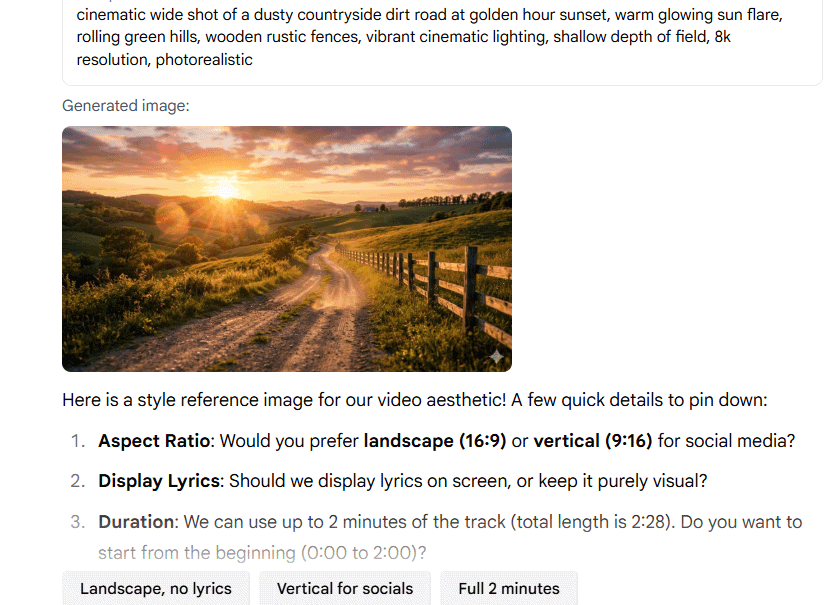
Google Flow Music will parse your prompt and generate background music accordingly. Once the music is ready, you'll select background images. You can either click "I'll upload images" to provide your own, or select "Generate style image" to let AI create imagery that matches your music video concept.
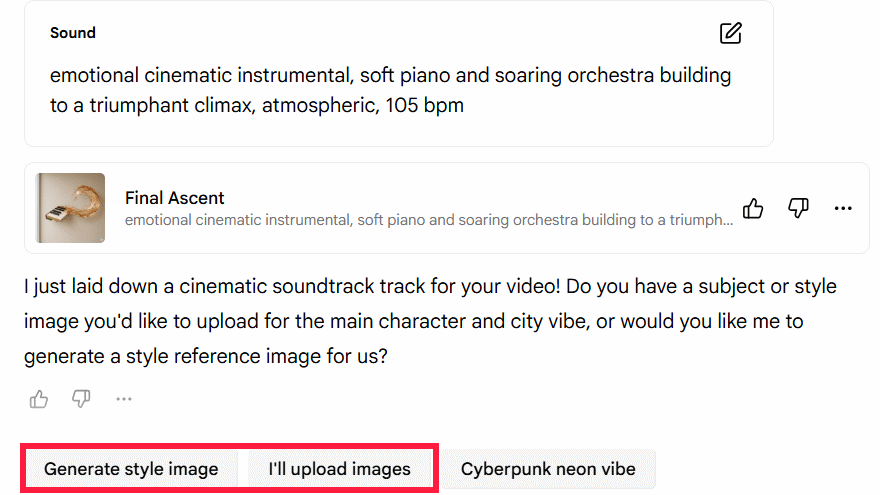
The platform immediately generates images for your music video.
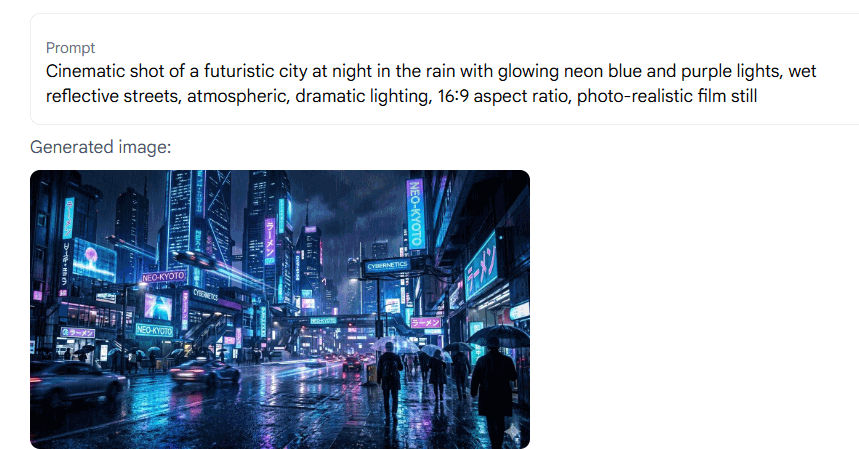
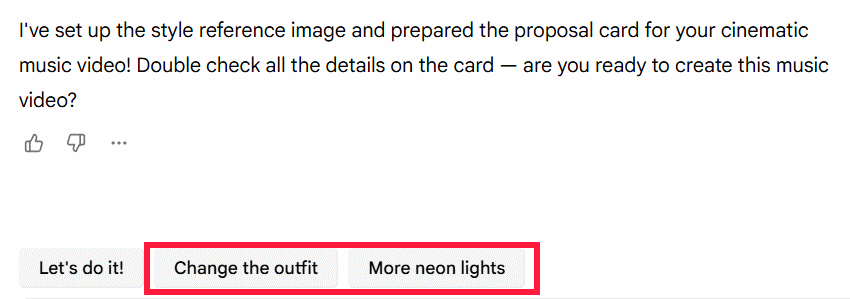
Below the generated image, you'll see options to regenerate if you're not satisfied. Click to swap out images until you get what you want.
Finally, Google Flow Music displays your video specifications: lyric display enabled, 16:9 aspect ratio, 720p quality, 120-second duration, and a credit cost of 1500 credits.
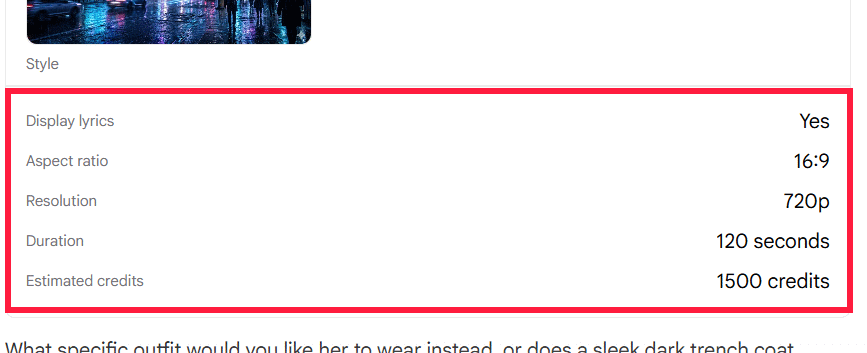
You can enter a custom prompt to adjust the video duration if needed.
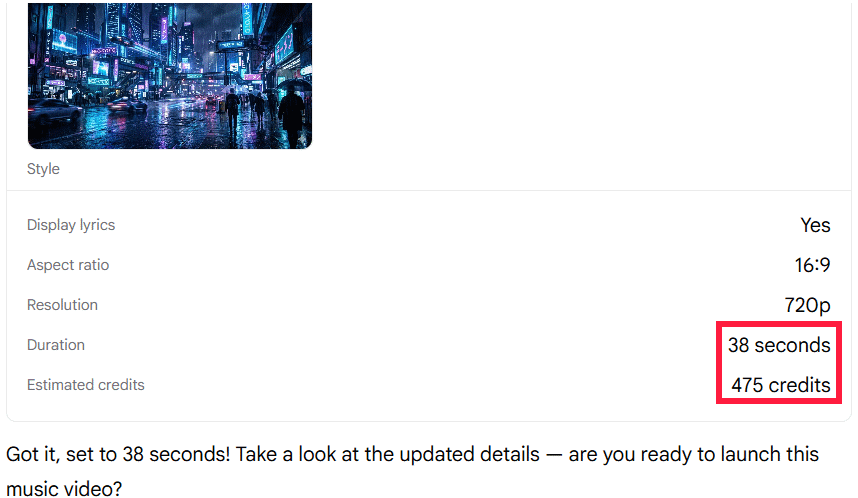
Once you have enough credits and you're happy with your settings, click "Let's do it" to start generating your music video. Wait for the process to complete, then download your finished video.
Creating a Music Video From an Existing Song
Step 1:
In the video creation interface, click the plus icon and you'll see options to upload existing music or record directly on the platform. If your audio file meets Google Flow Music's requirements, it will analyze it and begin generating video content.
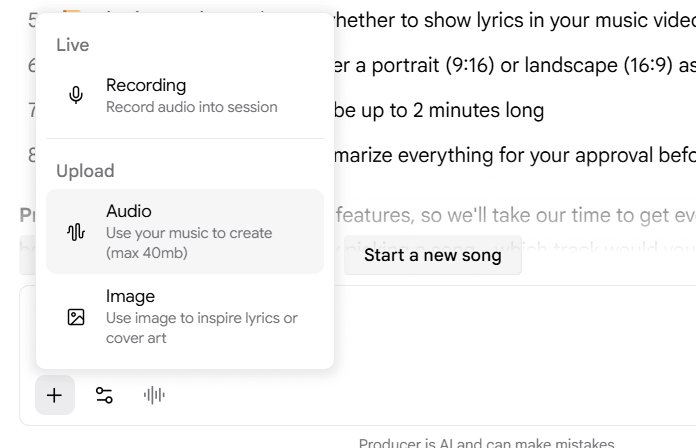
Alternatively, if you've already created music within Google Flow Music, click "Show my songs".
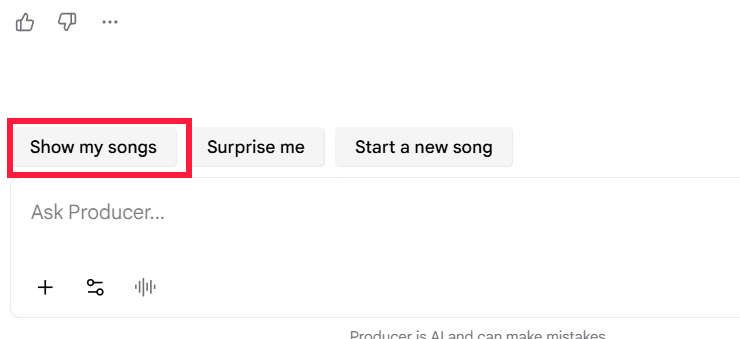
You'll see all your available tracks. Select the song you want to turn into a video, enter a title in the field, and let the tool generate your video.
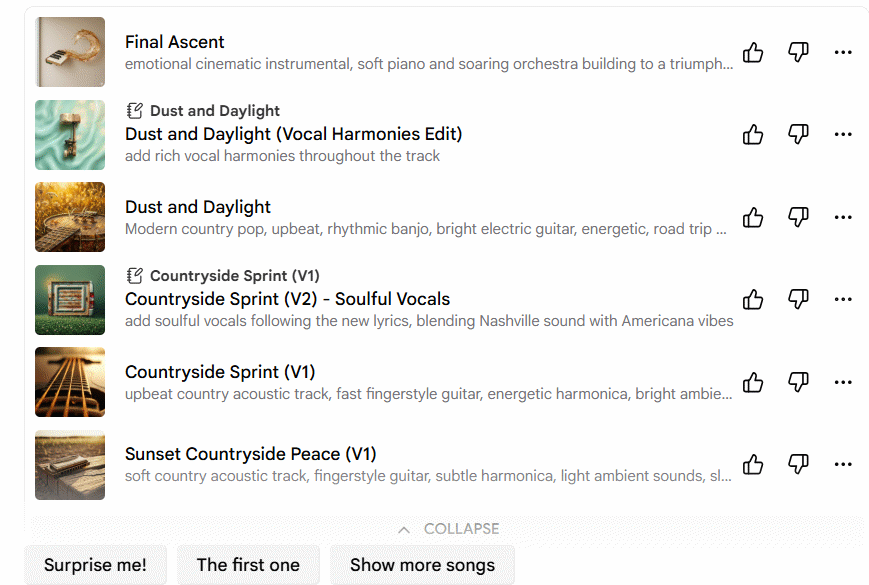
Step 2:
The tool will generate AI imagery based on your song's content and vibe. If you don't have a visual concept in mind, click "No subject image" and let AI suggest options. Alternatively, click "Upload" to provide your own images.
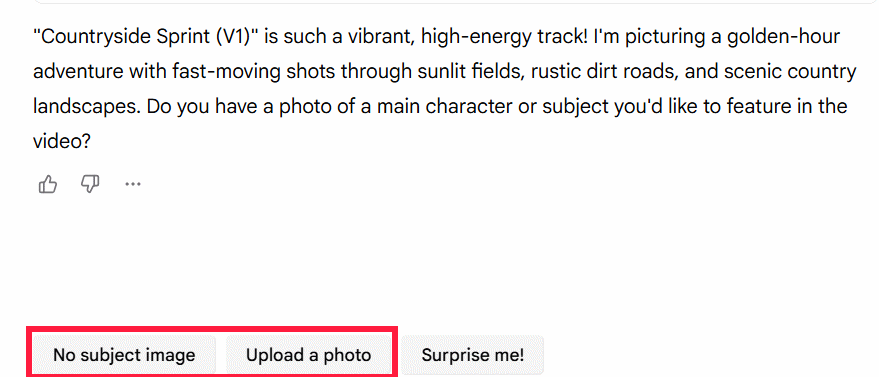
You'll then see suggested image treatments for your music video. Pick one of the suggestions or write your own custom prompt for the visuals you want.
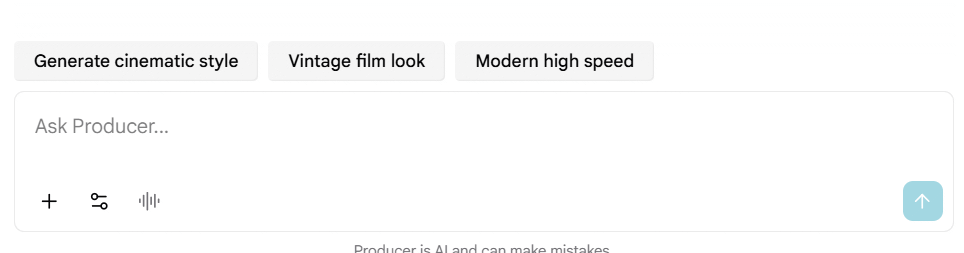
Step 3:
Now you'll see AI-generated imagery matched to your song's mood and melody. Below that are video generation suggestions. Click any suggestion that appeals to you, or write a custom prompt to guide the creation. Once you're ready, request the video and wait for it to render. Download when complete.
Description: Learn how to create AI-powered music videos using Google Flow Music. We break down the process step-by-step, from writing effective prompts to customi

No Comment to " Google Flow Music: Generate Professional Music Videos with Just a Text Prompt "