Build Custom AI Tools in Google Flow Using Simple Commands

Google Flow has rolled out a Tools section that lets you build custom AI instruments on demand—no coding required. Just write a clear command describing what your tool should do, how it should work, and what output you want, and Flow generates the AI tool instantly.
Tools created in Flow can be shared publicly so others can use and test them with ease. What's interesting here is the democratization of tool-building—previously you'd need development skills or hire someone. Below, we'll walk you through creating AI tools in Google Flow and managing the ones you've built.
For a detailed example of an AI tool created with Google Flow, check out our guide on creating a video tool directly in Flow.
How to Create an AI Tool in Google Flow
Step 1:
Open Google Flow and click on the Tools section in the left sidebar. Next to it, select Create New to get started.
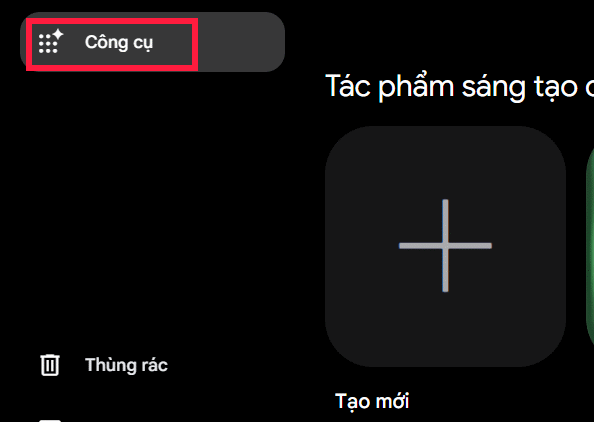
Step 2:
In the new interface, find the prompt box and describe exactly what tool you want to create along with its features. You can write your command in English or Vietnamese—Flow handles both.
For Flow to understand your request accurately, include at least three key elements:
- What the tool does: State the main purpose clearly.
- Required features: Describe what users can do with it.
- Desired interface: If needed, specify buttons, sliders, input fields, or how results should display.
Example:
Create an image editing tool that lets users upload an image, adjust brightness and contrast with sliders, apply a grayscale effect, and download the edited image.Tạo một công cụ chỉnh sửa ảnh đơn giản. Cho phép người dùng tải ảnh lên, điều chỉnh độ sáng, độ tương phản và độ bão hòa bằng các thanh trượt. Thêm nút khôi phục về ảnh gốc và nút tải ảnh đã chỉnh sửa xuống.The more detailed your description, the closer the result matches your vision.
Hit submit to start the tool creation process. Once it's ready, click Save to preserve your changes.
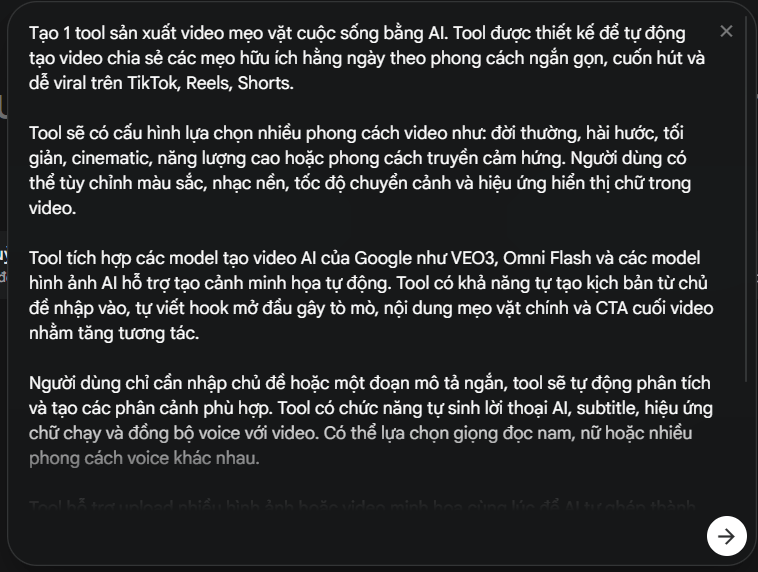
Step 3:
To access tools you've created, click My Tools and you'll see every tool you've built on Google Flow.
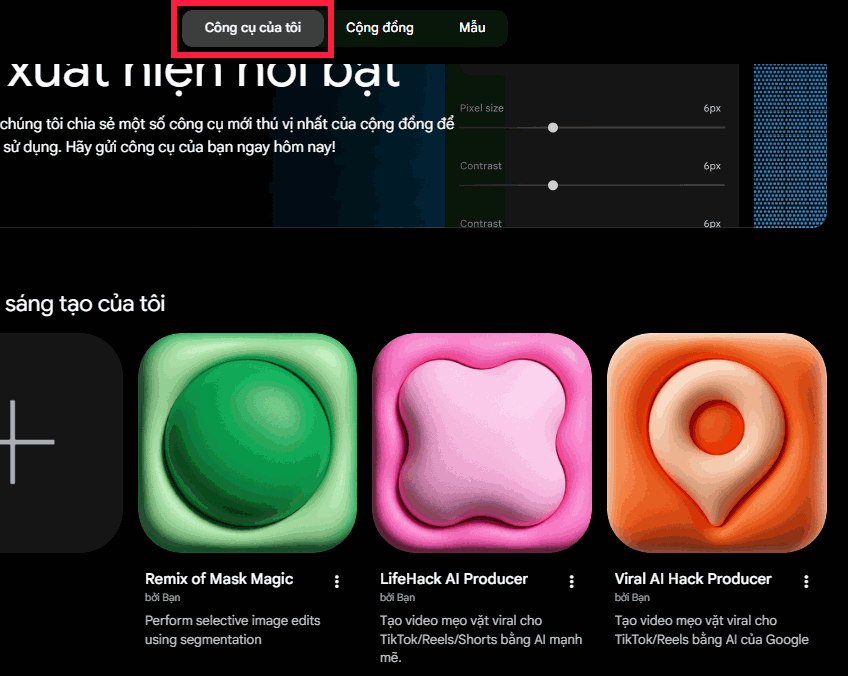
Step 4:
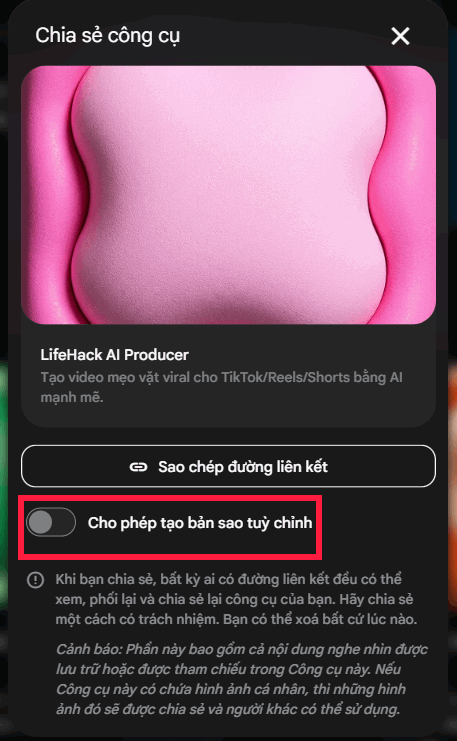
Click the three-dot menu icon on any tool to open the options menu shown below. Here you can generate a sharing link for the tool.
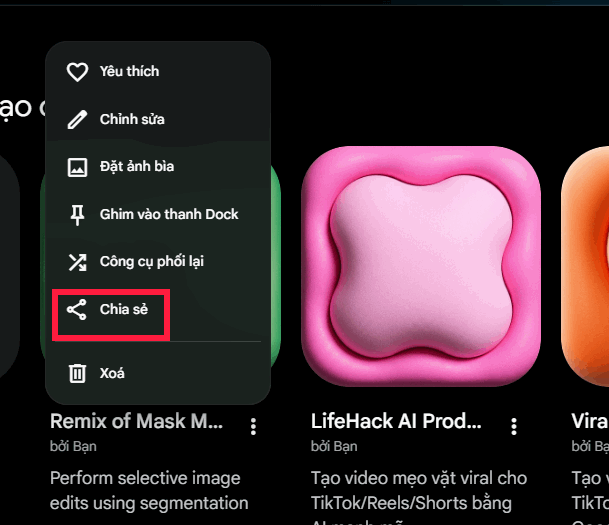
A sharing dialog appears for your AI tool. In this window, you can control whether recipients can duplicate the tool. Click Copy Link to share it with others.
Managing AI Tools You've Created in Google Flow
Step 1:
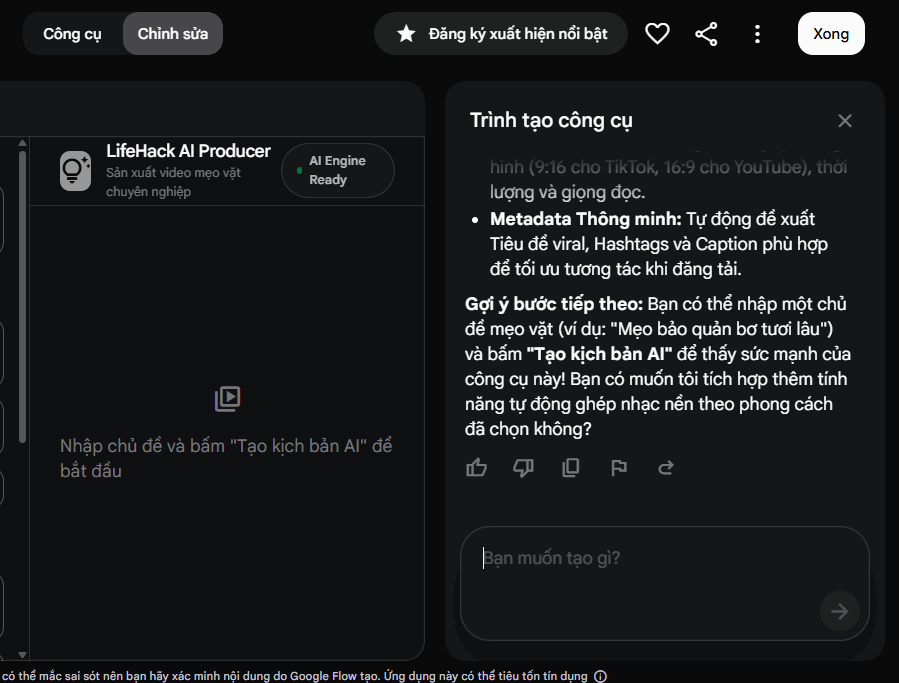
Right-click on the tool you want to edit, then select Edit from the menu. You'll see the tool interface with a frame on the right side where you can input your modification requests.
Type your requested changes and click the arrow icon to preview the updated tool. You can also click the current name and enter a new one if you want to rename it.
Step 2:
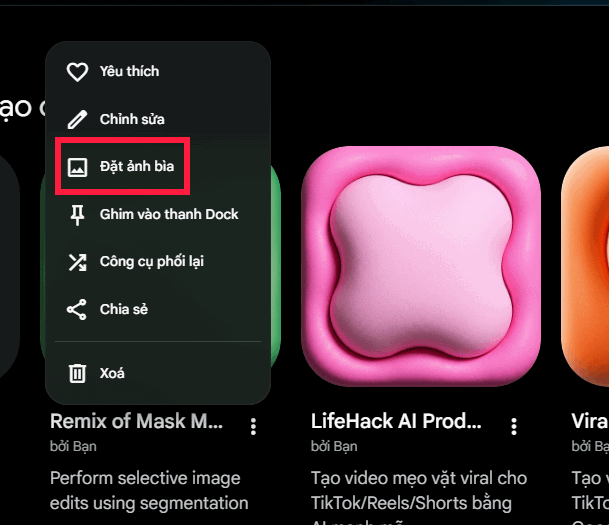
To add a cover image for your tool, click the three-dot menu on the tool and select Set Cover Image.
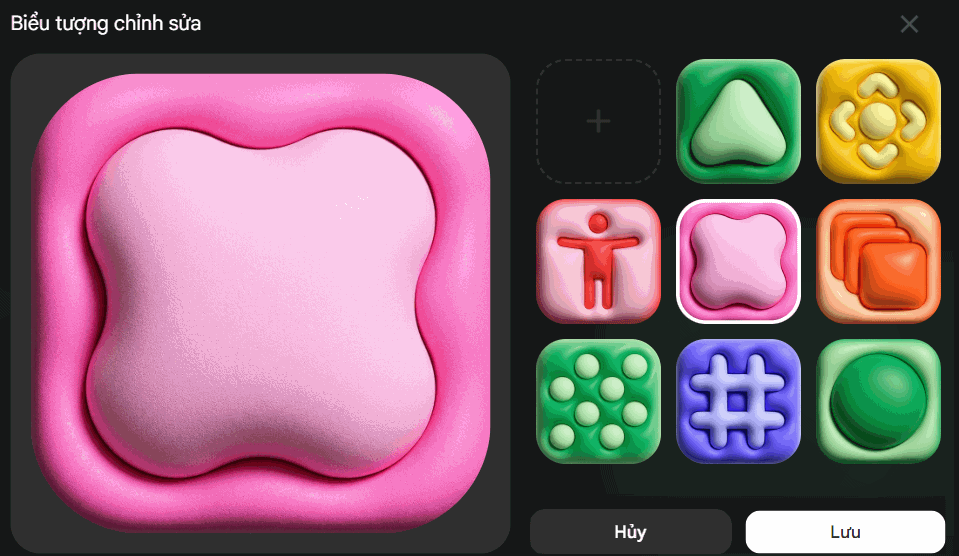
A selection of pre-made cover images appears. You can upload your own image as the cover if you prefer. When done, click Save to confirm.
Tips for Creating AI Tools in Google Flow
To make the process smoother and get tools you'll actually want to use, keep these points in mind:
Test results after each creation: Tools may not work perfectly on the first try. If needed, resubmit your request so Flow can refine it.
Write prompts as specifically as possible: Clearly state the tool's purpose, required features, and how it should operate to deliver results.
Watch your Flow credits: Creating tools doesn't cost credits, but images or videos generated through your tools will consume Flow credits.
Remember creation limits exist: Google sets daily limits on how many tools you can create, so avoid making new tools repeatedly when you could modify existing ones instead.
Verify shared tools first: Before using someone else's tool regularly, test its functionality and output. The real concern is that shared tools may not always work as expected—use Remix Tool to create your own customized version if needed.
Check your active project: Images and videos generated through your tools save to your current project. Make sure you're in the right project before starting to prevent saving files to the wrong location.
Description: Learn how to create AI-powered tools in Google Flow without coding. Write prompts, share tools, and manage them easily.
Related Articles
- How to Create Diagrams with Canva's AI Diagram Maker
- How to Generate Professional Documents, Presentations, and Spreadsheets on Perplexity AI
- Generate Student Assessment Rubrics Instantly with AI on Canva
- Master AI-Powered Writing with Rytr: A Complete Getting Started Guide
- How to Edit ChatGPT-Generated Images Directly in Canva

No Comment to " Build Custom AI Tools in Google Flow Using Simple Commands "