Generate AI Music for Your Canva Videos: A Complete Guide
Canva has evolved beyond just making AI videos—you can now generate custom AI music to accompany your footage. The beauty of this approach is that you can tailor the soundtrack to match your video's specific mood and style by simply describing what you want. Instead of hunting through generic music libraries, you're essentially telling an AI exactly what kind of audio your video needs, which means richer, more personalized soundtracks every time.
What's interesting here is that Canva offers multiple routes to get AI music into your videos. You can generate tracks from scratch using text prompts, leverage the dedicated AI Music app, or upload pre-made AI music files directly. Below, we'll walk through each method so you can pick the approach that works best for your workflow.
Table of Contents
Creating AI Music via Text Prompts in Canva
Step 1:
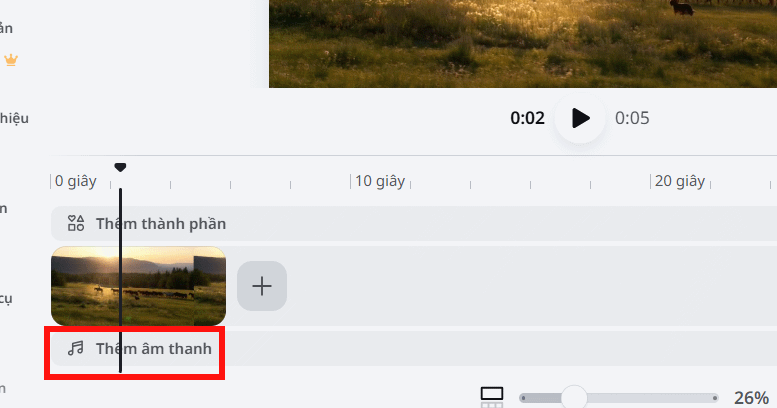
Start by uploading your video to Canva, then right-click on the Add Audio track section at the bottom of the timeline.
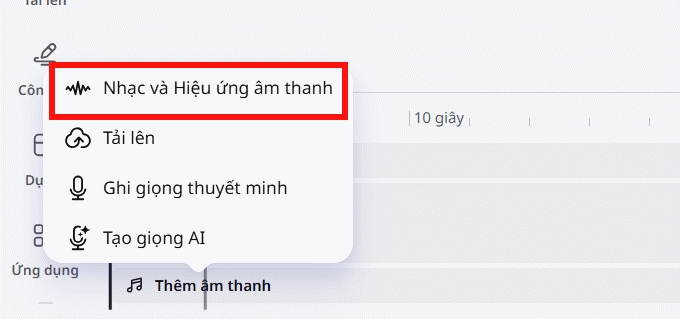
Next, select Music and Sound Effects from the dropdown menu.
Step 2:
Look to the left side of your screen where you'll see a text field for describing your desired background music. This is where you'll input details about the track you want Canva to generate. Be specific about the music genre, style, instruments, and what type of video you're scoring. Once you've written your description, hit the Generate button to create your AI track.
Step 3:
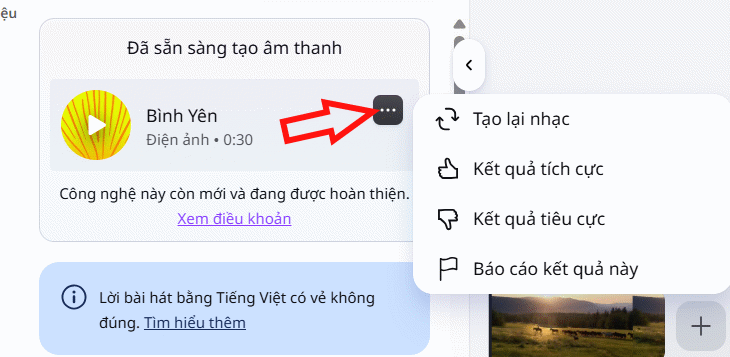
Wait a moment while Canva processes your request. You'll then see the AI-generated track appear. Give it a listen to make sure it matches your vision.
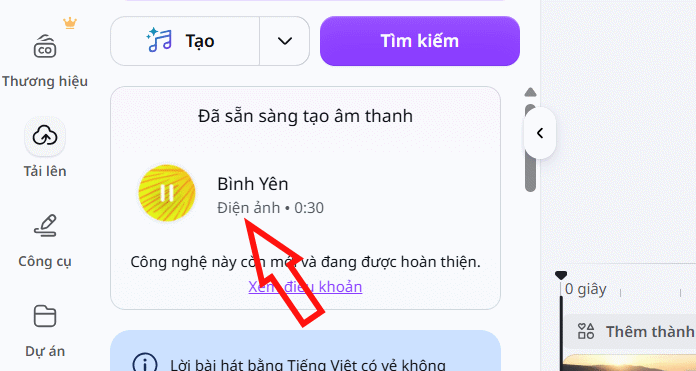
Not quite right? Click the three-dot menu icon and select Regenerate Music to create a fresh version based on your same description.
Step 4:
Once you're happy with the track, add it to your video as you normally would.
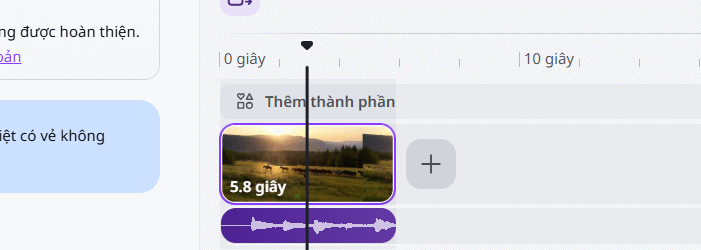
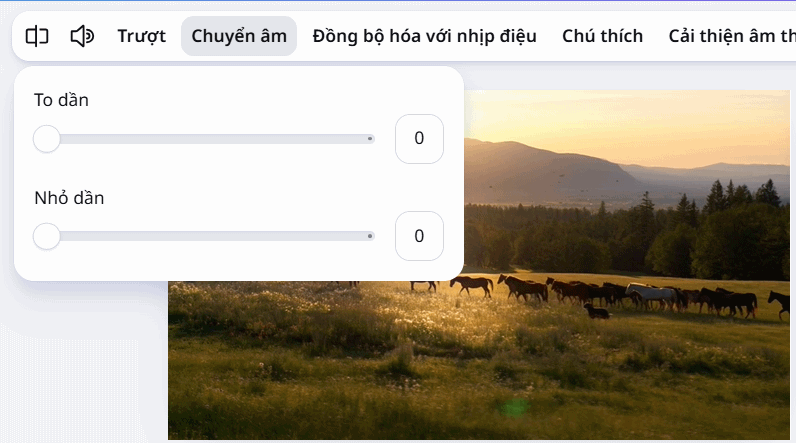
Click on the audio track in your timeline, and you'll see several music adjustment options appear at the top. Fine-tune the audio to get the exact effect you want for your video.
Tips for Writing Effective Music Prompts
The key to getting great AI music lies in how you describe what you want. Canva's system responds to detailed, focused prompts that paint a clear picture of your ideal track.
What Makes a Good Music Prompt?
Your prompt should zero in on these essential elements:
- Genre: cinematic, acoustic, pop, ambient, etc.
- Mood: uplifting, relaxing, dramatic, energetic, etc.
- Tempo: slow, moderate, or fast-paced.
- Instruments: piano, guitar, violin, synth, etc.
- Purpose: travel video music, nature footage, commercial, etc.
For example, if you're scoring a nature documentary, you might write something like:
Soft cinematic background music with no vocals, featuring piano and acoustic guitar with a slow tempo, warm feeling, perfect for nature and wildlife footage.
Making Sure Your AI Music Fits Your Video
Focus on genre, mood, and pacing above all else. If your video contains slow, contemplative scenes, choose gentle, understated music. When you have action sequences or quick cuts, opt for something with punch and momentum.
If your first attempt doesn't land, tweak a couple of elements in your prompt and regenerate rather than starting from scratch. Small adjustments often yield better results.
What Types of Videos Work Best With AI Music?
Here's the real concern: AI-generated music works for virtually any video project you're working on in Canva. The right prompt allows you to create music that fits tutorials, product demos, travel videos, social media content, and more. The versatility comes down to how well you craft your instructions.
Generating Background Music Using Canva's AI Music App
Step 1:
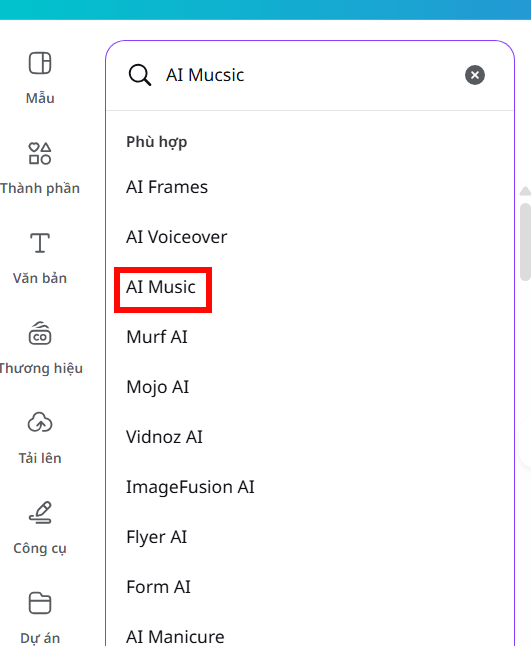
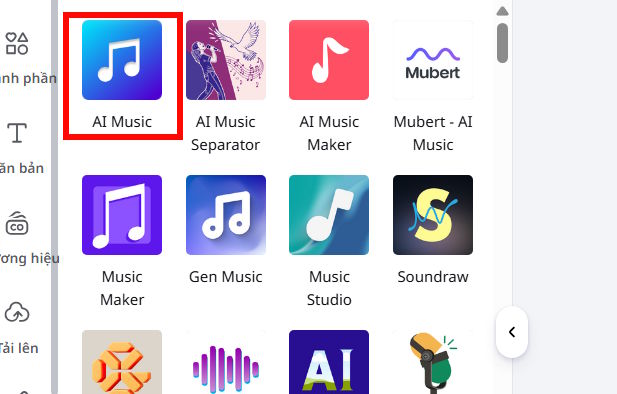
Upload or create your video in Canva. Then click on Apps in the left sidebar. Search for "AI Music" and click on the result that appears.
Step 2:
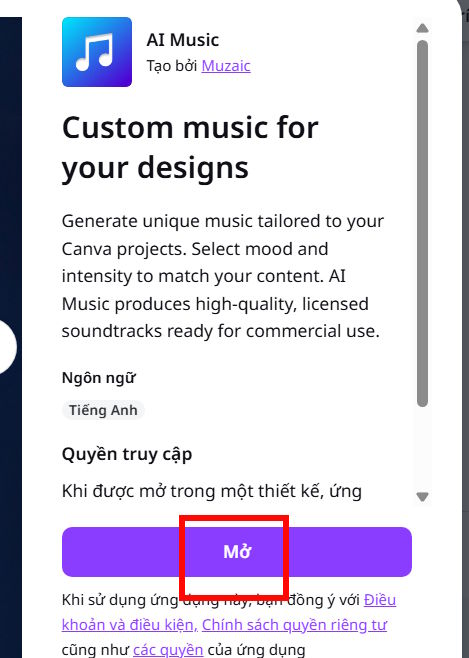
Click on the AI Music app to open it.
Then click Open to launch the app within Canva.
Step 3:
You're now in the AI Music generation interface. If you're using a free Canva account, you're limited to tracks in the Basic section. First, choose a music style that appeals to you.
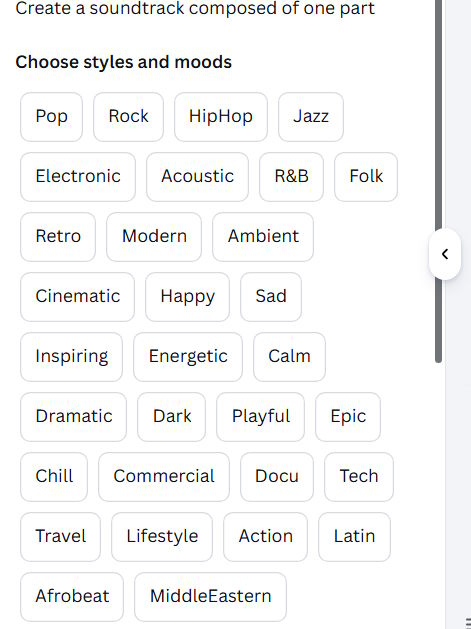
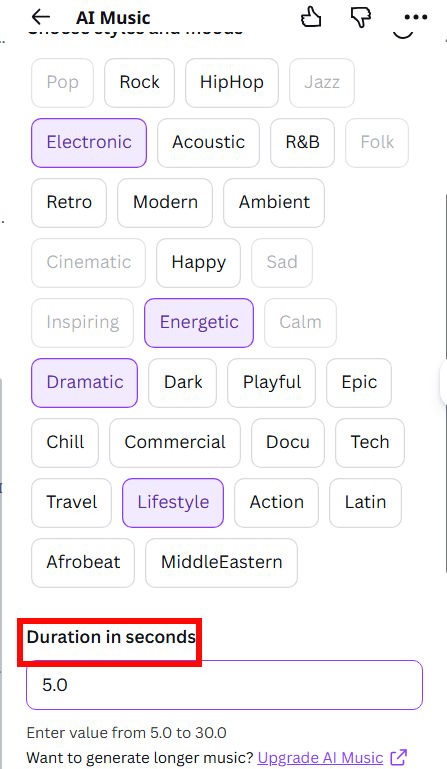
Next, set the duration for your track to match your video length. Manually enter the time and select a duration that fits. You can experiment with multiple styles if you'd like. When you're ready, click Compose to generate your track.
Step 4:
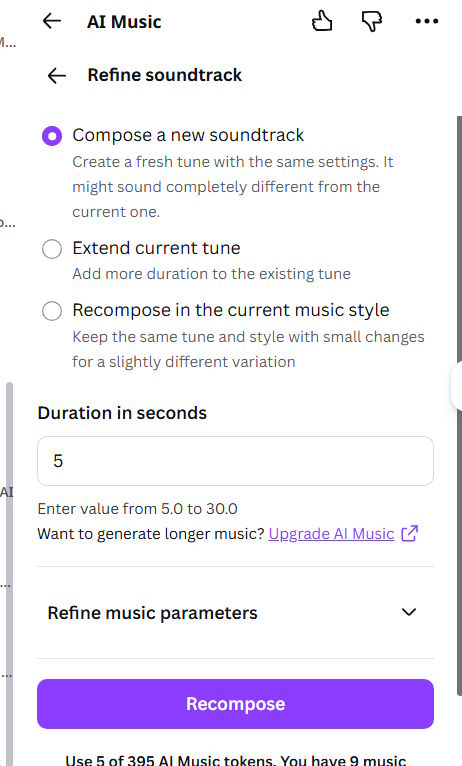
Your generated background track is ready. Preview it by clicking play. If you're not satisfied, click Refine to adjust your parameters and generate again.
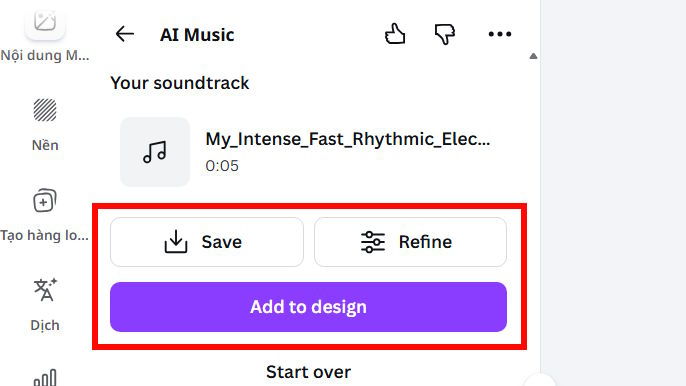
Happy with the result? Click Add to Design to insert it into your video right away. You can also click Save to store it for use in future projects.
Check out this short video example with AI-generated background music created in Canva:
How to Add Music to Videos in Canva
Step 1:
Upload your video to Canva as you normally would. Then click on Apps in the left sidebar of your workspace.
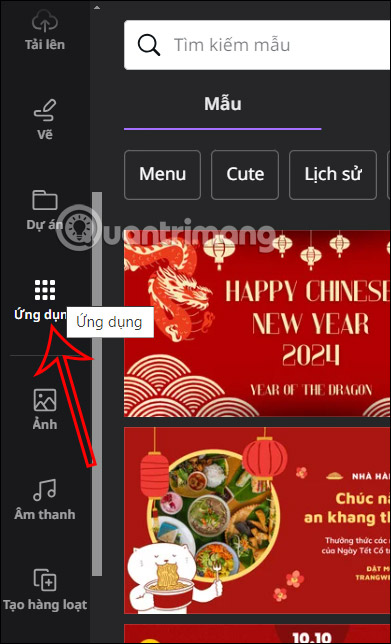
Step 2:
Click on Audio to browse and select music for your video.
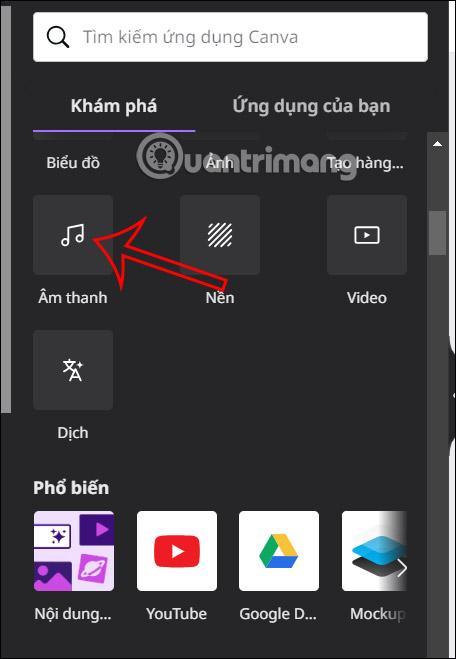
You'll now see Canva's entire audio library ready for browsing. Filter by music style to find something that fits your video.
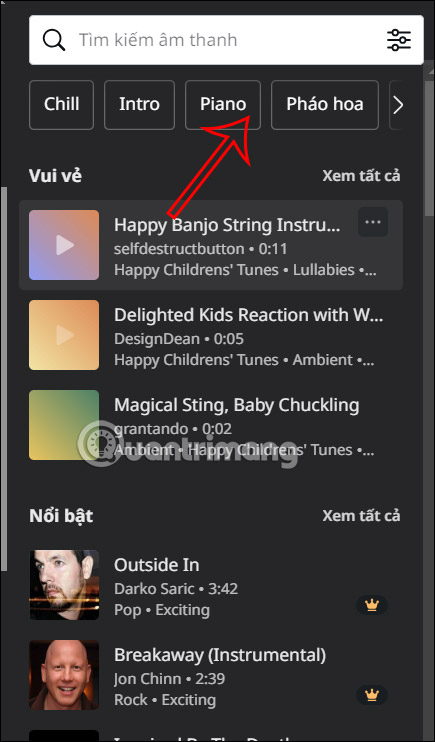
Step 3:
To find a specific track, type the song name into the search box. Results will pop up instantly. Keep in mind that tracks with certain icons are premium and require a Canva Pro subscription.
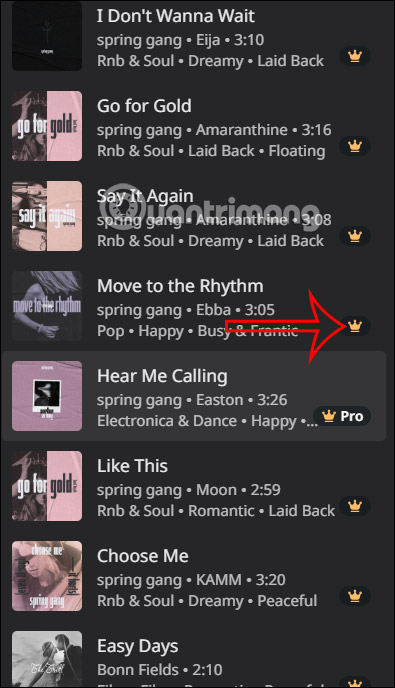
Step 4:
To add a track, simply drag the audio file onto your video in the timeline. Click the Duration button to verify that the audio and video sync up correctly.
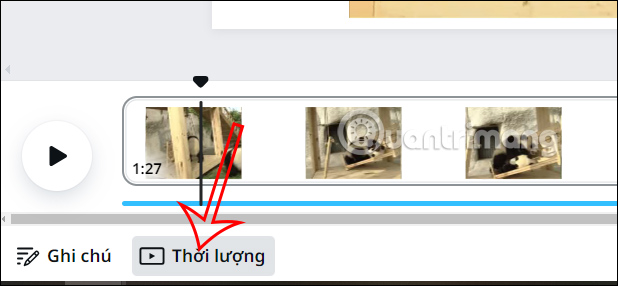
You can adjust which section of the video the audio plays during by moving the audio track along the timeline. Once everything looks good, download your finished video with the audio embedded.
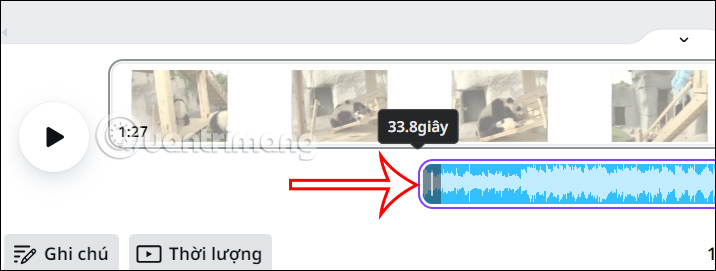
Uploading Your Own Music Files to Canva
Step 1:
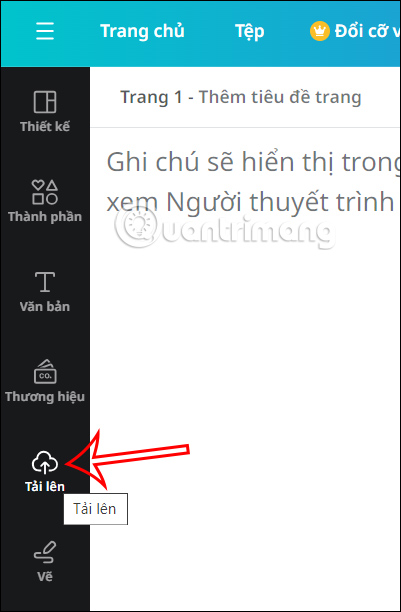
To upload personal music tracks to Canva, click the Upload section.
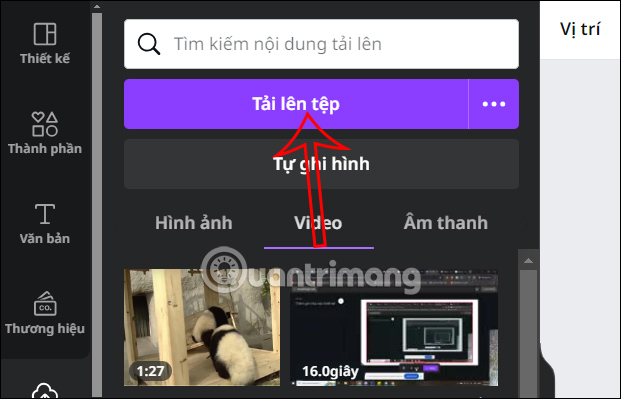
Then click Upload Files to add your own audio. Browse your computer and select the music file you want to insert into your video.
Step 2:
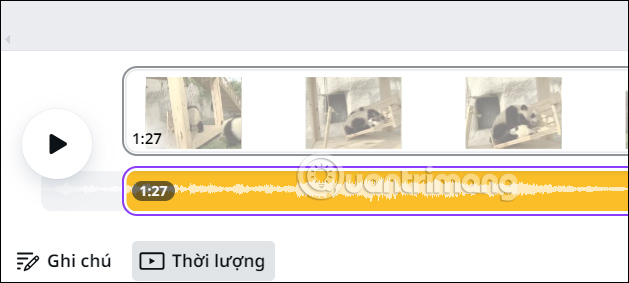
Your uploaded music will appear immediately. Drag the track into your video to add it to the timeline. Position it exactly where you want the audio to play.
Video Tutorial: Adding Music to Canva Videos
Description: Learn how to create custom AI-generated music and add it to your videos in Canva with our step-by-step tutorial.
Related Articles
- How to Edit Videos in Google Flow: A Complete Guide
- Why You Should Downgrade from Copilot and Switch to Claude for Office Work
- ExcelMerger Pro: Combine Multiple Excel Files Into One
- How to Use Perplexity's Learn Step by Step Mode: A Complete Guide
- Claude Pro vs API: Which Option Actually Makes Sense for You?

No Comment to " Generate AI Music for Your Canva Videos: A Complete Guide "