AI News

  • Loading...
Browsing Category " Windows Update "

Security Update KB5011487 fix issue Microsoft OneDrive



Overview

On March 08 2022, Microsoft is released the update KB5011487 for devices running Windows 10 21H2, 21H1, and 20H2 with several fixes and improvements.


➤ How to check for updates on Windows 10
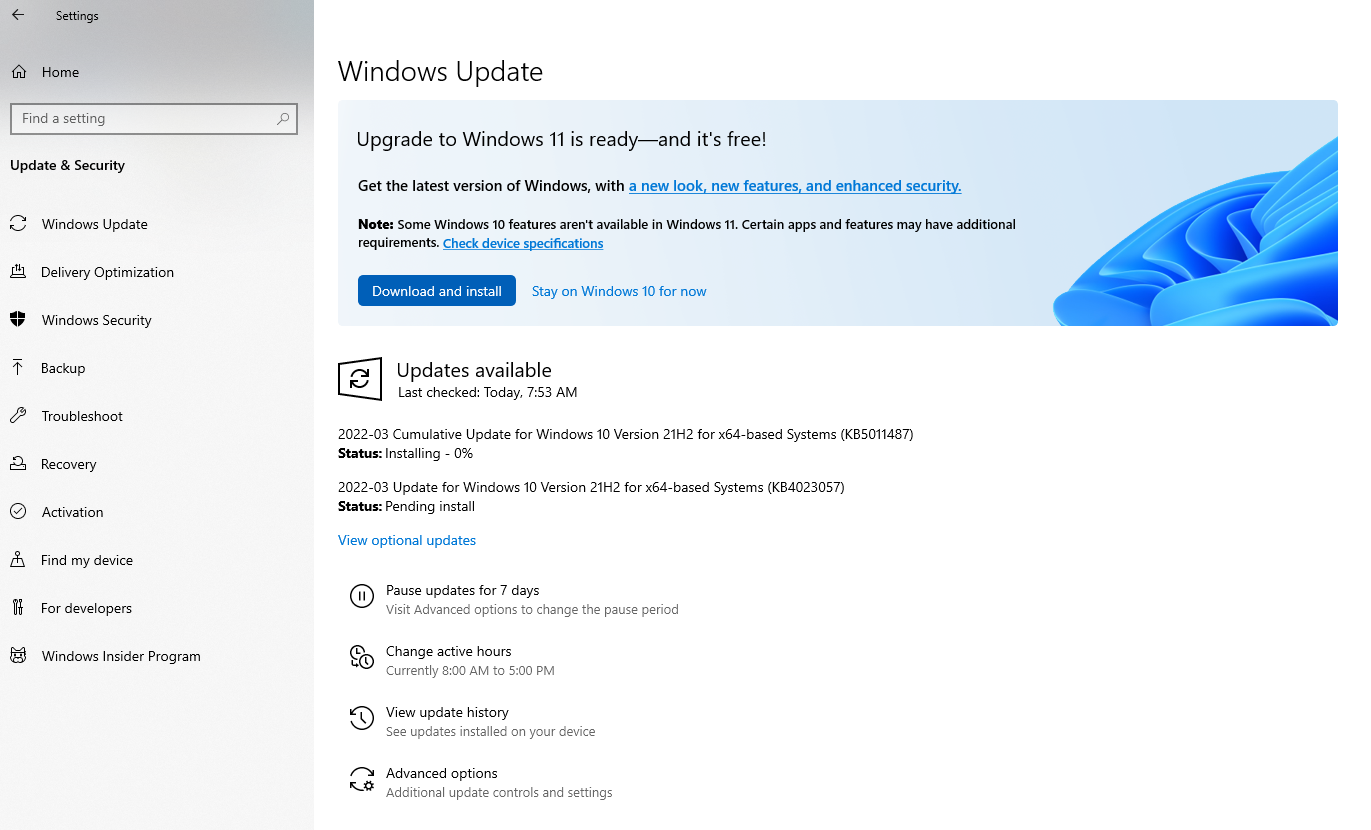
 

Run Windows Update KB5011487 on Windows 10


Improvements and fixes

This security update includes improvements that were a part of update KB5010415 (released February 15, 2022). Plus, it will fix the following problem:

"Addresses a known issue that occurs when you attempt to reset a Windows device and its apps have folders that contain reparse data, such as Microsoft OneDrive or Microsoft OneDrive for Business. When you select Remove everything, files that have been downloaded or synced locally from Microsoft OneDrive might not be deleted. Some devices might take up to seven (7) days after you install this update to fully address the issue and prevent files from persisting after a reset. For immediate effect, you can manually trigger Windows Update Troubleshooter using the instructions in Windows Update Troubleshooter"


This is official information from Microsoft. With this improvement, it will help users who are using online storage applications such as Onedrive, Ondrive for Business...


How to remove update 

Method 1: Windows users can remove the KB5011487 updates using the Command Prompt.

>> You can see detail guide remove update on Windows 10 by Command Prompt

Method 2: Use Settings to remove KB5011487 update.

>> You can see detail guide remove windows update by Settings

Method 3: Use DISM tool to remove KB5011487 update.

>> You can see detail guide remove windows update by DISM Tool


Information about update 

Release Date: March/08/2022 


Pay attention

In case you can't install this update and get an error. Please remove the update.


REMINDER from Microsoft:
Windows 10, version 2004 reached end of servicing on December 14, 2021. To continue receiving security and quality updates, Microsoft recommends that you update to the latest version of Windows 10.

To update to one of the newer versions of Windows 10, please download and install as below:

Important: Use EKB KB5003791 to update to Windows 10, version 21H2.
Important: Use EKB KB5000736 to update to Windows 10, version 21H1.
Important: Use EKB KB4562830 to update to Windows 10, version 20H2.




3 Outstanding improvements in KB5010414 update on Windows 11


KB5010414 updates on February 15, 2022 updated with a few new features as below. Help Windows 11 become more and more perfect:.

Outstanding Improvements 

1. Weather Widget: You can use Weather feature on the left side of the taskbar if the taskbar is aligned in the center. When you hover over the weather, the Widgets panel will appear on the left side of the screen and will disappear when you stop hovering over the area.
 
Weather Widget on the left side of Taskbar
 

2. Microphone: For Microsoft Teams, you can quickly share open application windows directly from your taskbar to a Microsoft Teams call. Beside, you can mute and unmute a Microsoft Teams call from your taskbar. During a call, an active microphone icon will appear on the taskbar so that you can easily mute the audio without having to return to the Microsoft Teams call window.
 

You can set Microphone on Taskbar 
 
3. Clock and date on the taskbar: will be display on other monitors when you connect other monitors to your device.


Other Improvements and Fixes

Significant other improvements and fixes are introduced to the Windows 11. You can read deltail about them on release information KB5010414 from Microsoft.


How to update KB5010414

 
KB5010414 on Windows Updates
 
KB5010414 already installed
 
You can remove this update on here

You can see detail how to get this update by:
1. Check for and install update on Windows 10
2. Download & Install KB5010414 directly from Microsoft Update Catalog. 

How to remove update

➤ You can see detail guide how to remove update on Windows 11

Information about update 

Release Date: February/15/2022

Can fix Error 0x80240439 Windows Update on Windows 10?


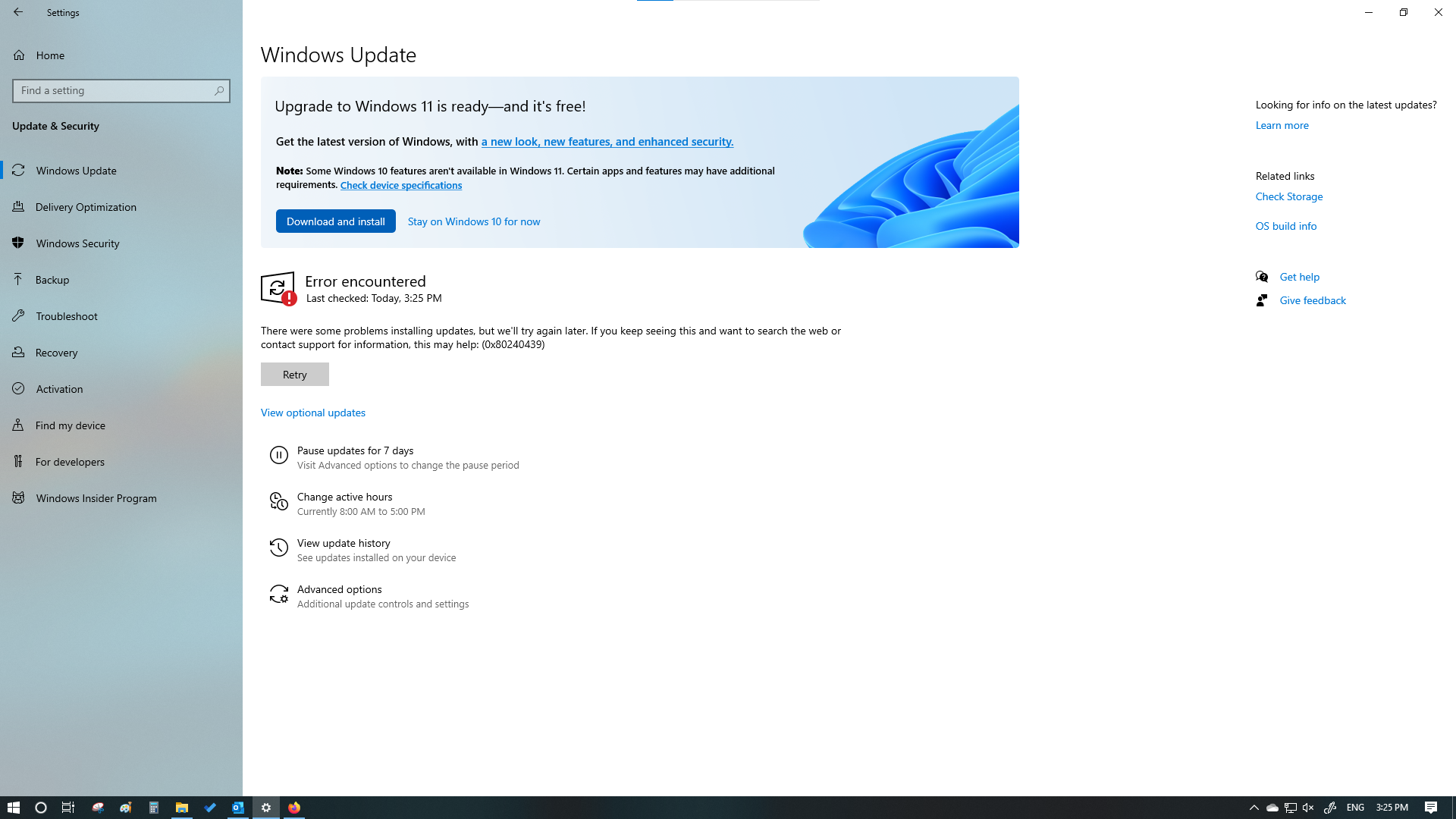
This article is for users who are really looking forward to fixing Windows Update error 0x80240439 on Windows 10. Specifically, the error is as follows:

There were some problems installing updates, but we’ll try again later. If you keep seeing this and want to search the web or contact support for information, this may help: (0x80240439).


I have tried many ways to fix error 0x80240439. However, this error cannot be fixed. The methods I have tried are as follows:

1. Stop/Start update service by Command line 

net stop wuauserv
net stop appidsvc
net stop cryptsvc

net start wuauserv
net start appidsvc
net start cryptsvc

2. Clear files & folder on folder C:\Windows\Software Distribution


3. Restart Windows Update service on services.msc


4. Using DISM on Command line


dism /online /cleanup-image /ScanHealth
dism /online /cleanup-image /CheckHealth
dism /online /cleanup-image /RestoreHealth

5. Using SFC on Command line

sfc /scannow
chkdsk /f C:

6. Run Windows Update Troubleshooter

7. Update latest version Windows by Media Creation Tool
(I updated from Windows 10 PRO version 20H2 to 21H2)


8. Reset proxy (updated 08 March 2022)

I have had success with this method on customer computer. Try resetting the proxy server settings by following the steps below: 

Step 1: Open Command Prompt (by run as Administrator)

Step 2: Type command and hit Enter: netsh winhttp reset proxy

If you have tried the methods or 1 of the above and cannot fix the error 0x80240439. I advise you not to try and waste time to fix this error anymore. Because there are many reasons causing above error. The most common ones include corrupted Windows files, incomplete installation of a Windows Update, and a broken Windows Update.

If you are someone who wants perfection (like me). I recommend that you re-install Windows 10 to the latest version to completely fix the above error. I believe, you have tried to fix the error but this is a system error or a file loss in the system. You can hardly fix it completely.

 
If you have a good and effective solution, please comment below or send it to QTitHow. Thanks for reading the article.

How to uninstall updates on Windows 11 - from Basic to Advanced


As below is 4 methods from basic to advanced to uninstall updates on Windows 11.

➤ How to uninstall update on Windows 10

Method 1 (Basic): Using Settings

Step 1: Click to Windows icon (in the middle of the screen) > Click Settings.


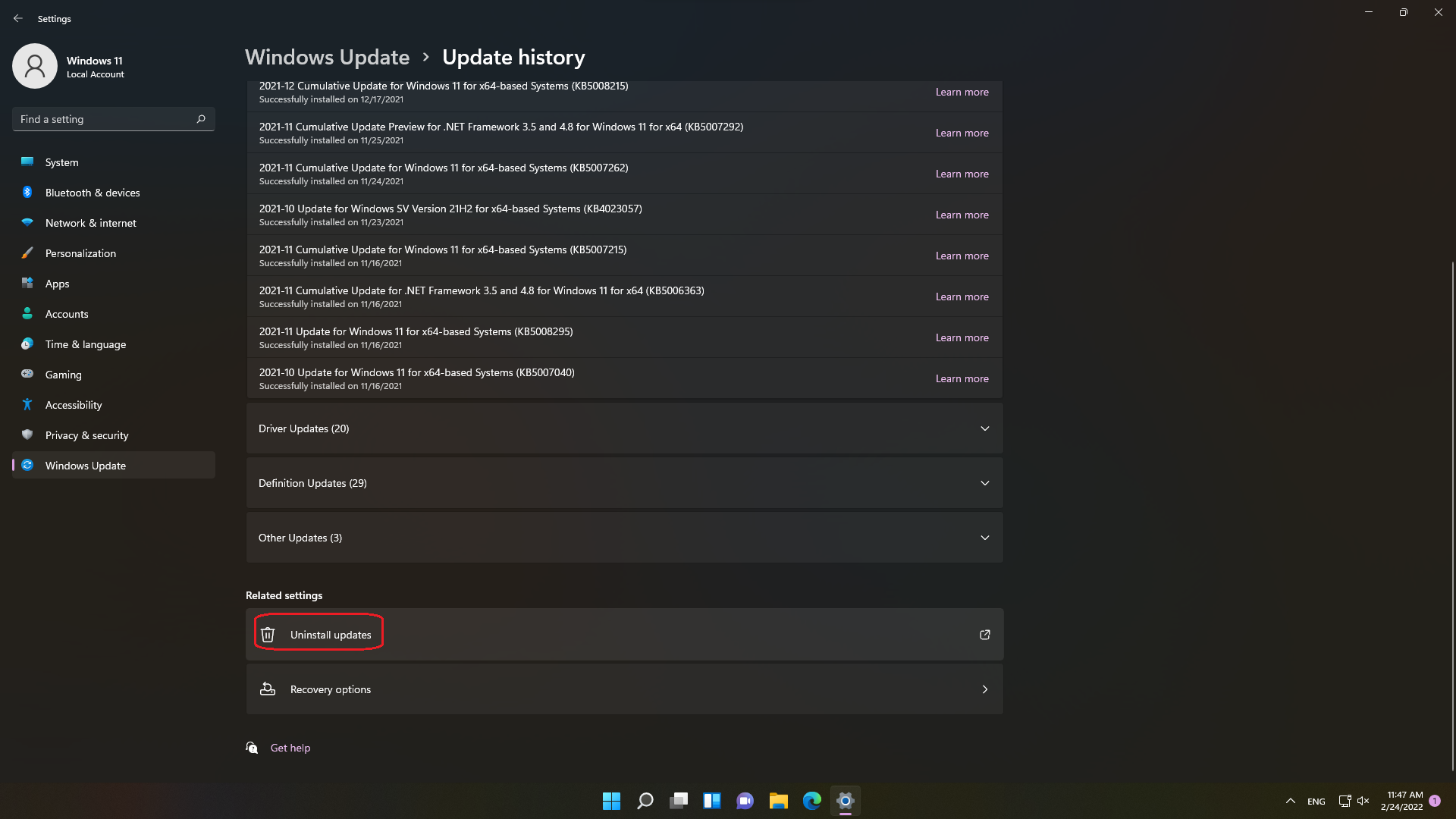
Step 2: Continue, click Windows Update at the bottom left of the screen > Choose Update history


Step 3: Scroll down and select Uninstall updates. Select the update you want to uninstall.


Choose the update and mouse right "Uninstall"


Method 2 (Basic): Using "wusa"

Step 1: Press Windows key and type Command Prompt. And then click Run as administrator.


Step 2: List recent updates by type command line: wmic qfe list brief/format:table. And hits Enter. The propose of this is to help you find the most recent updates.


Step 3: Type the following command to uninstall the update: wusa /uninstall /kb:[id]. Then hit Enter. A dialog box Windows Updates Standalone Installer will appear, please click Yes. See detail as image below:


Method 3 (Advanced): Using "dism"

Most use "dism" to uninstall the latest update on Windows 10.

Step 1: Press Windows key and type Command Prompt. And then click Run as administrator

Step 2: Enter the following command: dism /online /get-packages


 You can copy Packages listing on notepad for easy find

Step 3: Find the Package Identity with the most recent Install time. And then copy name of Package Identity.

➤  How to check OS version on Windows 11

Step 4: Continue, type & enter the command:  

dism /online /get-packageinfo /packagename:[package_ID]


With this command will help you see in more detail the update that you want to uninstall.


Step 5: Type command line as below to uninstall the update:

dism /Online /Remove-Package /PackageName:[package_ID]


 We must to wait 5-10 minutes to complete


 Type Y to start uninstalling


Check if the update has been uninstalled by command line: wmic qfe list brief/format: table
 

Method 4 (Advanced): Using Recovery


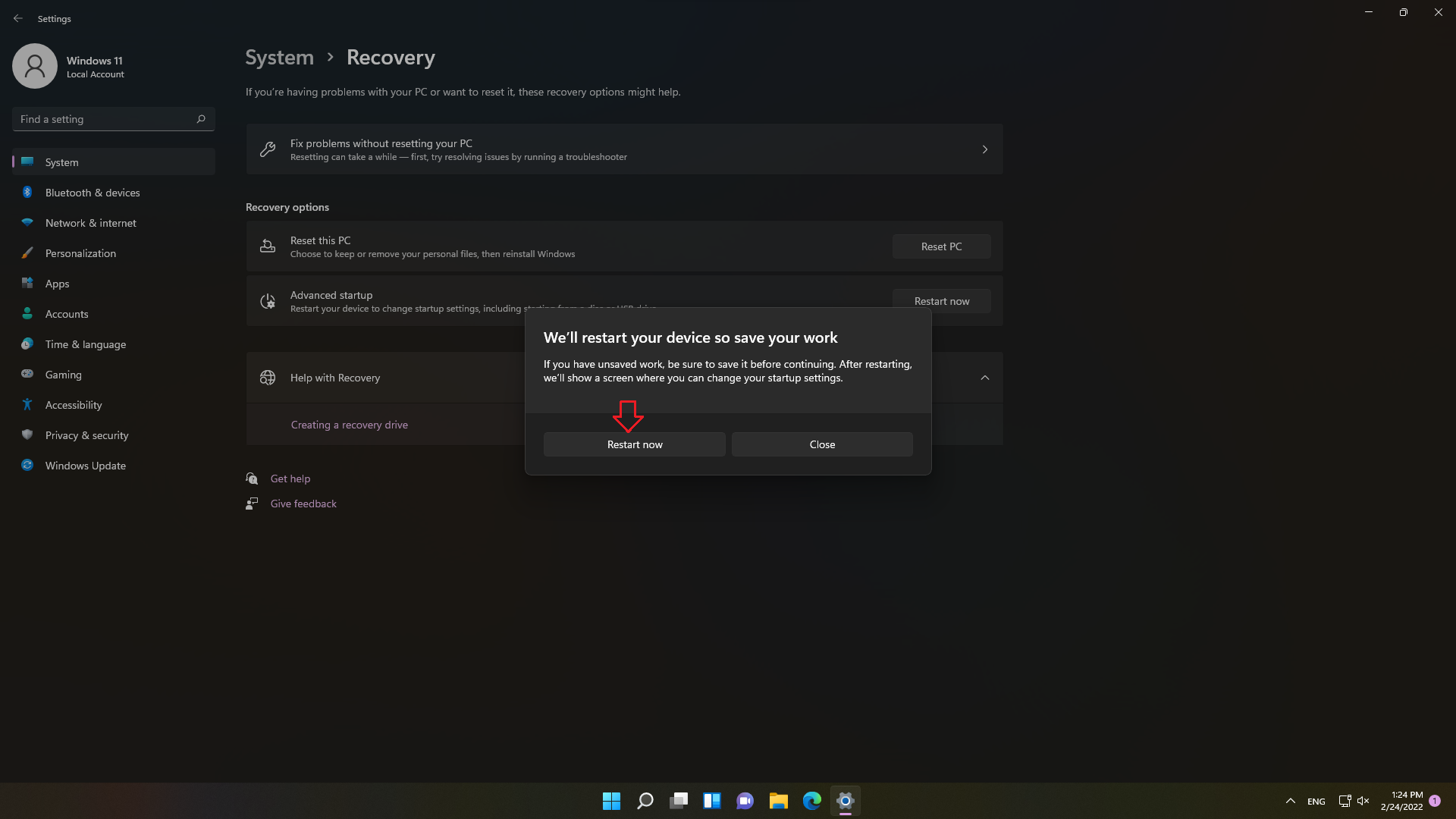
Step 1: Go to Settings > System > Recovery


Step 2: Find to Advanced startup and then click Restart now.


KB5010415 Windows 10 Updates - The "C" preview updates on 15th February 2022


Overview

Microsoft also released updates KB5010415 for Windows 10 version 21H2, 21H1 and 20H2. Along with that is the KB5010427 for Windows 10 version 1809. Please see detail as below:


➤  Security Update KB5011487 fix issue Microsoft OneDrive


Improvements and fixes

The KB5010415 - this is Cumulative update preview, also known as the "C" preview updates. It is optional and do not include any security updates. With this update, it will help Microsoft  to test upcoming fixes to be released in the March 2022 Patch Tuesday. 
You can get this update by check for update on windows 10 or  download directly from Microsoft Update Catalog.


The Windows 10 KB5010415 cumulative update preview includes 35  improvements or fixes. In it, there are 8 important fixes and upgrades yellow highlights as below: 
 
  • New!  Provides the ability to share cookies between Microsoft Edge Internet Explorer mode and Microsoft Edge. 
  • Updates an issue that causes Microsoft Edge Internet Explorer mode to stop working when you press the F1 key. 
  • Updates an issue that affects dialog boxes in Microsoft Edge Internet Explorer mode. 
  • Updates an issue that causes screen readers to describe a back button as "button" rather than "back button".  
  • Updates an issue that sometimes causes the Chinese Simplified Input Method Editor (IME) to become completely unusable.  
  • Updates an issue that causes a mismatch between a Remote Desktop session’s keyboard and the Remote Desktop Protocol (RDP) client when signing in.  
  • Updates an issue that prevents printing from operating properly for some low integrity process apps.  
  • Addresses an issue that causes certificate enrollment to fail with the error message,” 0x800700a0 (ERROR _BAD_ARGUMENTS)”.  
  • New!  Adds support for hot adding and the removal of non-volatile memory (NVMe) namespaces.
  •  Addresses an issue that occurs when Windows Server 2016 runs as a terminal server using certain cloud computing virtual desktop infrastructure (VDI). As result, the servers randomly stop responding after running for a period of time. This also addresses a regression that proactively checks to ensure that the CSharedLock in rpcss.exe is set correctly to avoid a deadlock.
  •  Addresses an issue that affects the Windows search service and occurs when you query using the proximity operator.
  •  Addresses a memory leak in the wmipicmp.dll module that causes a lot of false alarms in the System Center Operations Manager (SCOM) datacenter monitoring system.
  •  Addresses an issue that causes the Remote Desktop Service (RDS) server to become unstable when the number of signed in users exceeds 100. This prevents you from accessing published applications using RDS on Windows Server 2019. 
  • Addresses an issue that returns an error message when you browse for a domain or organizational unit (OU). This issue occurs because of improper zeroing out of memory. 
  • Addresses an issue that causes the Group Policy Management Console to stop working after you close it. The system logs Application Error Event ID 1000 and the error, 0xc0000005 (STATUS_ACCESS_VIOLATION); the failing module is GPOAdmin.dll. 
  • Addresses an issue that fails to show the Startup impact values in Task Manager. 
  • Addresses an issue that affects OpenGL and GPU reparenting in indirect display scenarios. 
  • Addresses an issue that prevents ShellWindows() from returning the InternetExplorer object when iexplore.exe runs in the Microsoft Edge Internet Explorer mode context. 
  • Addresses an issue that causes the improper cleanup of Dynamic Data Exchange (DDE) objects. This prevents session teardown and causes a session to stop responding. 
  • Addresses an issue that might cause a device to stop working when you use more than 50 window trees. 
  • Addresses an issue that affects applications that are written to only integrate with Azure Active Directory (AAD). These applications will not work on machines that are joined to Active Directory Federation Services (ADFS).  
  • Introduces support for Windows Hello for Business Cloud Trust. This is a new deployment model for hybrid deployments of Windows Hello for Business. It uses the same technology and deployment steps that support on-premises single sign-on (SSO) for Fast IDentity Online (FIDO) security keys. Cloud Trust removes the public-key infrastructure (PKI) requirements for deploying Windows and simplifies the Windows Hello for Business deployment experience. 
  • Addresses an issue that might cause BitLocker to damage virtual machine (VM) system files if you expand the BitLocker partition while the VM is offline. 
  • Addresses a remaining issue that might cause the Get-TPM PowerShell command to fail when it attempts to report Trusted Platform Module (TPM) information. The command fails with the error, “0x80090011 Microsoft.Tpm.Commands.TpmWmiException,Microsoft.Tpm.Commands.GetTpmCommand”. 
  • Addresses an issue that prevents you from unloading and reloading drivers when the drivers are protected Hypervisor-protected Code Integrity (HVCI). 
  • Addresses a reliability issue that affects the use of the Remote Desktop app to mount a client’s local drive to a terminal server session. 
  • Addresses an issue that occurs when you try to write a service principal name (SPN) alias (such as www/FOO) and HOST/FOO already exists on another object. If the RIGHT_DS_WRITE_PROPERTY is on the SPN attribute of the colliding object, you receive an “Access Denied” error. 
  • Addresses an issue that prevents administrators and content owners from opening expired Active Directory Rights Management Services (AD RMS) content. 
  • Addresses an issue that disconnects Offline Files on the network drive after you restart the OS and sign in. This issue occurs if the Distributed File System (DFS) path is mapped to the network drive. 
  • Addresses an issue that causes VM Live Migration to fail because vhdmp.sys receives different file control block (FCB) object pointers for the same file. 
  • Addresses an issue that displays the authentication dialog twice when you mount a network drive. 
  • Addresses a memory leak in the Redirected Drive Buffering Subsystem (RDBSS) and the mrxsmb.sys drivers. 
  • Addresses an issue that causes a deadlock in the WebDav redirector. This issue occurs when you attempt to read a file from the local TfsStore, which causes the system to stop responding. 
  • Addresses an issue that prevents Work Folder sync from recovering from the error code 0x80c80003, “Server is currently busy" on the client. This issue occurs even when the HTTP request queue on the server does not indicate a load.


How to remove update 

Method 1: Windows users can remove the KB5010415 updates using the Command Prompt.

>> You can see detail guide remove update on Windows 10 by Command Prompt

Method 2: Use Settings to remove KB5010415 update.

>> You can see detail guide remove windows update by Settings

Method 3: Use DISM tool to remove KB5010415 update.

>> You can see detail guide remove windows update by DISM Tool


Information about update 

Release Date: February/15/2022 


Pay attention

In case you can't install this update and get an error. Please remove the update.


REMINDER from Microsoft:
Windows 10, version 2004 reached end of servicing on December 14, 2021. To continue receiving security and quality updates, Microsoft recommends that you update to the latest version of Windows 10.

To update to one of the newer versions of Windows 10, please download and install as below:

Important: Use EKB KB5003791 to update to Windows 10, version 21H2.
Important: Use EKB KB5000736 to update to Windows 10, version 21H1.
Important: Use EKB KB4562830 to update to Windows 10, version 20H2.


KB5010342 and KB5010345 updates released for Windows 10 on 08th February 2022


Overview

On 08th February 2022, Microsoft released two main cumulative updates for Windows 10 - KB5010342 and KB5010345. In addition, Microsoft also released updates for Windows 10 version 1909, 1809, 1607, 1507. Details are as follows:


Improvements and fixes

Main fixed:

According to the official release note, Microsoft has fixed the error with message:  

“Error: 0x20EF. The directory service encountered an unknown failure”

An issue whereby Lightweight Directory Access Protocol operation could fail if the operation contains the Sam Account Name and User Account Control attributes.

Additionally, Microsoft has fixed some issues as below:

  • Updates daylight savings time to start in February 2022 instead of March 2022 in Jordan. 

 
Special patches for some versions in this update release:


For KB5010359 (OS Build 14393.4946) for Windows 10 version 1607

  • Updates the phone number for Windows Activation for locales that have the wrong phone number.
  • Fixed the error, “IRQL_NOT_LESS_OR_EQUAL”.
  • Fixed issue that causes the improper cleanup of Dynamic Data Exchange (DDE) objects. This prevents session teardown and causes a session to stop responding.
  • Fixed access violation in IKEEXT.dll that occurs on Always On VPN (AOVPN) and DirectAccess servers. The exception code is 0xC000005.
  • Fixed issue that affects Administrative Template settings you configure using a Group Policy Object (GPO). When you change the value of the policy setting to NOT CONFIGURED, the system fails to remove the previous setting. This issue is most noticeable for roaming user profiles.
  • Fixed a memory leak that occurs when you call WinVerifyTrust(). This issue occurs if verification fails for the first signature of a file that has multiple signatures.
  • Fixed a known issue that affects versions of Windows Server that are in use as a Key Management Services (KMS) host. Client devices running Windows 10 Enterprise LTSC 2016 might not activate. This issue only occurs when using a new Customer Support Volume License Key (CSVLK) and after installing updates released April 22, 2021 or later.
  • Adds an audit event to Active Directory domain controllers that identifies clients that are not compliant with RFC 4456. For more information, see KB5005408: Smart card authentication might cause print and scan failures.
  • Fixed an issue that might cause Kerberos.dll to stop working within the Local Security Authority Subsystem Service (LSASS). This occurs when LSASS processes simultaneous Service for User (S4U) user-to-user (U2U) requests for the same client user.


For KB5010358 (OS Build 10240.19204) for Windows 10 initial version released July 2015

  • Fixed the error, “IRQL_NOT_LESS_OR_EQUAL”.


How to get this update 

1. Check for and install update on Windows 10
2. Download & Install KB5010342 and KB5010345 directly from Microsoft Update Catalog.

How to remove update 

Method 1: Windows users can remove the KB5010342 updates using the Command Prompt.

>> You can see detail guide how to remove update on Windows 10 by Command Prompt

Method 2: Use Settings to remove KB5010342 update.

>> You can see detail guide how to remove windows update by Settings

Method 3: Use DISM tool to remove KB5010342 update.

>> You can see detail guide how to remove windows update by DISM Tool


Information about update 

Release Date: February/08/2022 


Pay attention

In case you can't install this update and get an error. Please uninstall the update.


REMINDER from Microsoft:
Windows 10, version 2004 reached end of servicing on December 14, 2021. To continue receiving security and quality updates, Microsoft recommends that you update to the latest version of Windows 10.

To update to one of the newer versions of Windows 10, please download and install as below:

Important: Use EKB KB5003791 to update to Windows 10, version 21H2.
Important: Use EKB KB5000736 to update to Windows 10, version 21H1.
Important: Use EKB KB4562830 to update to Windows 10, version 20H2.


Check for and install update Windows 10 & Windows 11


Checking for and installing Windows updates helps you update with new features, patch security holes from old and current updates. It even helps your computer run faster and more stable.

There are 2 ways you can update Windows:

  1. Use the built-in Windows Updates feature on Windows
  2. Manually download updates from Microsoft.


In my opinion, updating through Windows Update is easier and more convenient.

In this article, I will show you how to use Windows Update feature on Windows 10 and Windows 11. Two popular and latest platforms currently.

And to make sure you're following the steps correctly, you need to know what version of Windows is currently on your computer.


Check for and Install Updates in Windows 10 


Step 1: In Windows 10, press Windows (hotkey) and then choose Settings


Step 2: Click to Update & Security on Windows Settings table


Step 3: Check for new update Windows 10 by click Check for updates


Step 4: After check for updates, you can see Download and install button. Please click this.  


Check for and Install Updates in Windows 11


Step 1: In Windows 11, Click Windows icon (in the middle of the screen ) and then choose Settings


Step 2: Find and click Windows Update


Step 3: Check for new update Windows 11 by click Check for updates


Step 4: After check for updates, you can see Download and install button. Please click this.  


Note: On Windows 10 & 11, in many case after check for updates, or even when you're not using your computer, updates are downloaded & installed automatically. Please pay attention to this.


The above is a guide to help you update Windows on Windows 10 and Windows 11. In general, all updates released by Microsoft help your computer become more secure, anti-hacker, and increase security. However, that is not all. In many cases, that update is the cause of errors: computer crashes, slowness, BSOD, ... So please pay attention when your computer is finished updating. Thank you for following the article.

KB5010793 - Patch fix L2TP VPN connections


Microsoft released KB5010793 (On 17th January 2022) fixed VPN connectivity, Windows Server Domain Controllers restarting.


I/ Overview
On 17th January 2022, Microsoft released KB5010793 Windows Updates to fix security vulnerabilities and bugs for Windows 10 (OS Builds 19042.1469, 19043.1469, and 19044.1469) Out-of-band.

KB5010793 Out-of-band was released shortly after update KB5009543 was released on January 2022.
This update is primarily intended to fix bugs from update KB5009543 (Release 11th January 2022):

  • Updates a known issue that affects VPN connections. 
  • Updates a known issue that causes unexpected restarts on Windows Server domain controllers.


This is an extremely quick and urgent action from Microsoft. Perhaps the above errors have affected many users. Especially business users.
If you are having trouble with KB5009543 Windows Update, please update to this latest update soon.

II/ Known issues in this update 

1. After installing this update, when connecting to devices in an untrusted domain using Remote Desktop, connections might fail to authenticate when using smart card authentication. You might receive the prompt, "Your credentials did not work. The credentials that were used to connect to [device name] did not work. Please enter new credentials." and "The login attempt failed" in red.

Workaround: This issue is resolved using Known Issue Rollback (KIR)


III/ How to get this update 

1. Check for and install update on Windows 10
2. Download & Install KB5010793 directly from Microsoft Update Catalog.

IV/ How to remove update 

Method 1: Windows users can remove the KB5010793 updates using the Command Prompt.

>> You can see detail guide how to remove update on Windows 10 by Command Prompt

Method 2: Use Settings to remove KB5010793 update.

>> You can see detail guide how to remove windows update by Settings

Method 3: Use DISM tool to remove KB5010793 update.

>> You can see detail guide how to remove windows update by DISM Tool


V/ Information about update 

Release Date: January/17/2022 


VI/ Pay attention 

In case you can't install this update and get an error. Please uninstall updates on Windows 10.


REMINDER from Microsoft:
Windows 10, version 2004 reached end of servicing on December 14, 2021. To continue receiving security and quality updates, Microsoft recommends that you update to the latest version of Windows 10.

To update to one of the newer versions of Windows 10, please download and install as below:

Important: Use EKB KB5003791 to update to Windows 10, version 21H2.
Important: Use EKB KB5000736 to update to Windows 10, version 21H1.
Important: Use EKB KB4562830 to update to Windows 10, version 20H2.

Copyright © 2016 QTitHow All Rights Reserved