How to Generate Automatic Document Summaries in Google Docs
Google Docs just rolled out a genuinely useful feature: the ability to auto-generate document summaries without ever touching the Gemini chat window. Here's what makes this interesting—the AI reads through your entire document, identifies the key points, and inserts a clean, structured summary right where you need it. No extra steps. No jumping between tools.
The system works by having AI scan your full document content, extract the most important information, and deliver a concise summary that you can embed directly into your Docs file. Ready to try it? Here's exactly how to do it.
How to Create an Automatic Document Summary in Google Docs
Step 1:
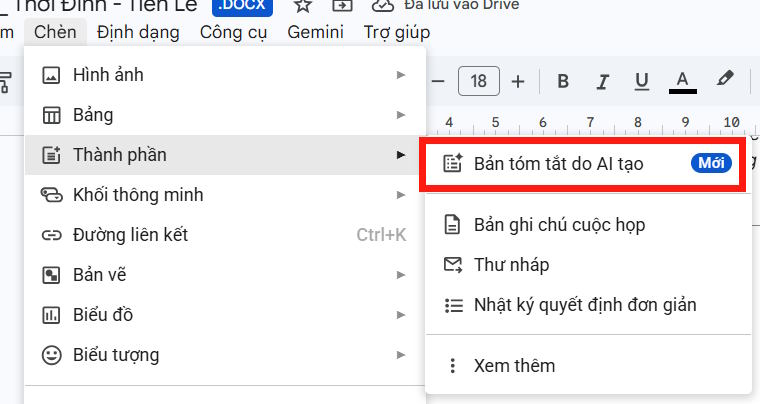
Open the document you want to summarize. Click the exact spot where you'd like to insert the summary. Then navigate to Insert > Elements > AI-Generated Summary Box.
Step 2:
Wait while the AI processes your document. It's analyzing the content, pulling out key points, and building a summary framework. Once complete, you'll see the generated summary appear below.
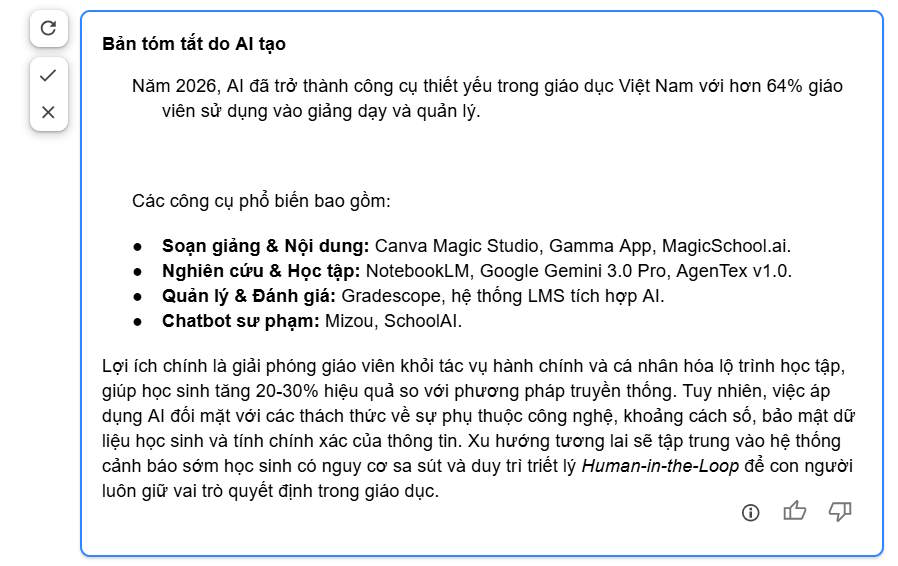
Not happy with the result? Tap the refresh icon to generate a different version.
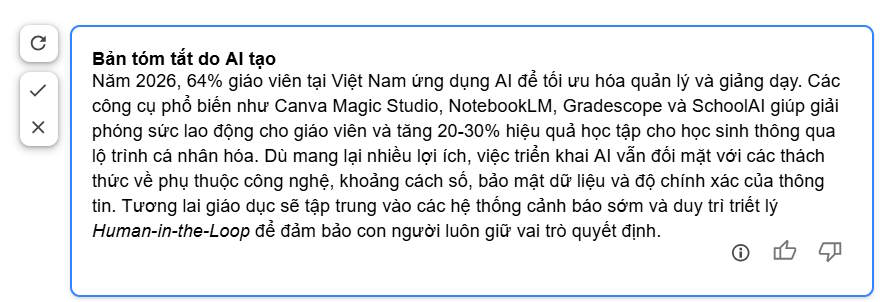
You'll get a fresh summary summary option like this one.
Step 3:
Ready to insert it into your document? Click the checkmark icon to confirm.
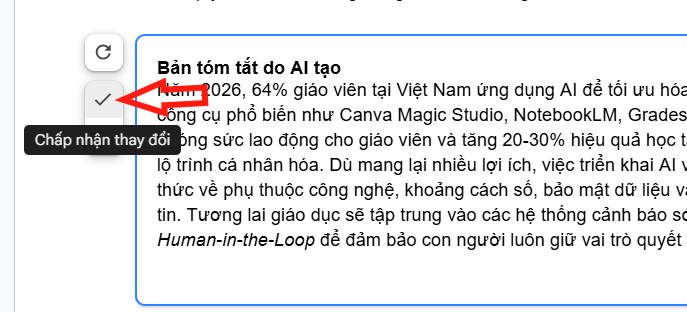
Here's the thing: once it's in your document, Google Docs lets you edit it like any other text. Adjust the wording, tweak the formatting, restructure the layout—whatever works best for you.
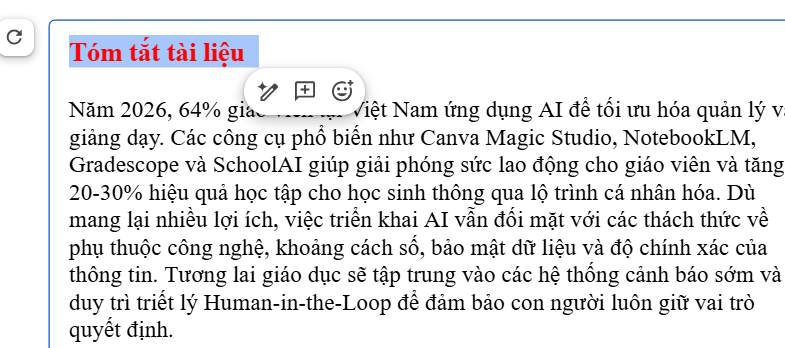
Step 4:
Want to take it further? You can refine the summary using Google's AI writing tools. Highlight the summary text and click the improve/polish icon.
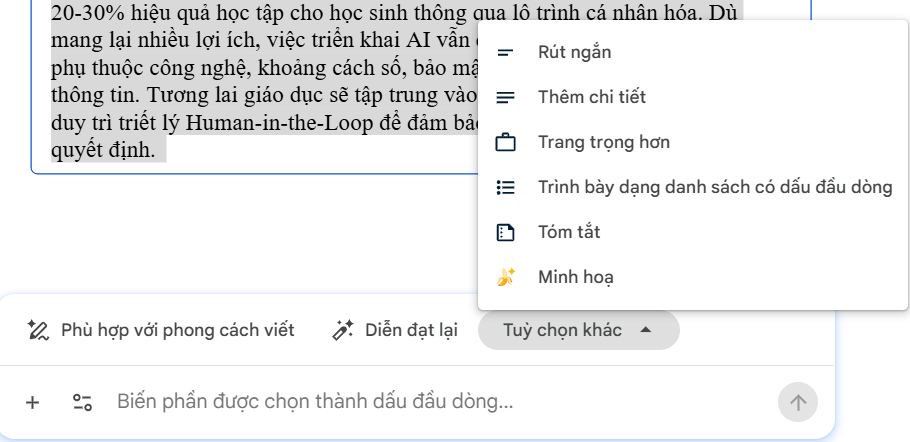
Gemini will rewrite the section in your preferred style. If you like the new version, just hit Accept and you're done.
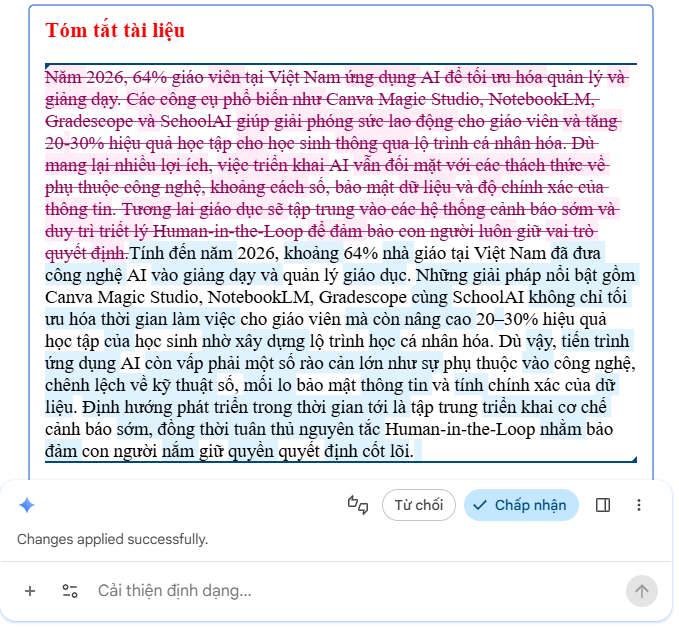
This feature works great for practically any document type—long reports, meeting notes, project plans, research papers. Basically anything where you need to pull out the important stuff fast.
Description: Learn how to use Google Docs' new AI-powered summary feature to automatically create concise summaries of your documents.
Related Articles
- Create Professional Promotional Videos with AI: A Step-by-Step Guide
- Why You Should Downgrade from Copilot and Switch to Claude for Office Work
- Where Did the Copilot Button Go? Here's Why It Disappeared from Your Office Apps
- Create Seamless Repeating Patterns with PatternedAI in Canva
- Google Flow Music: Generate Professional Music Videos with Just a Text Prompt

No Comment to " How to Generate Automatic Document Summaries in Google Docs "