Building Storyboards for AI Video Creation with Google Vids
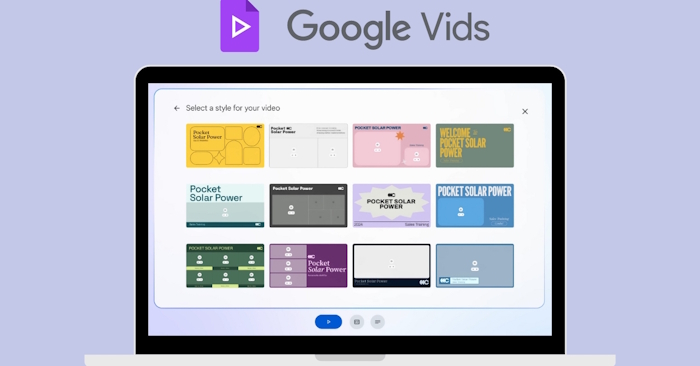
Producing a polished video typically requires significant time investment—brainstorming ideas, writing scripts, designing storyboards, and editing footage. Google Vids changes this equation. With Gemini integration, you can compress the entire workflow into a streamlined, largely automated process. Simply describe the scenes you want, and Google Vids generates a complete storyboard with logically sequenced shots, automatically suggesting visuals, footage, voiceover scripts, narration, and background music. What's interesting here is how much creative heavy lifting the AI handles upfront.
This guide walks you through creating storyboards to build videos on Google Vids.
How to Design Storyboards for Google Vids AI Videos
Step 1:
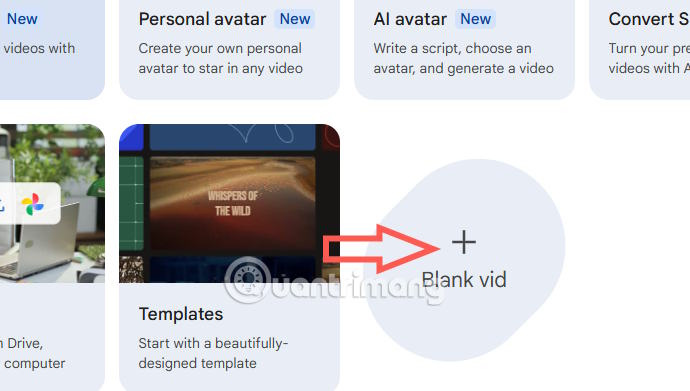
Head to Google Vids and start by creating a blank video.
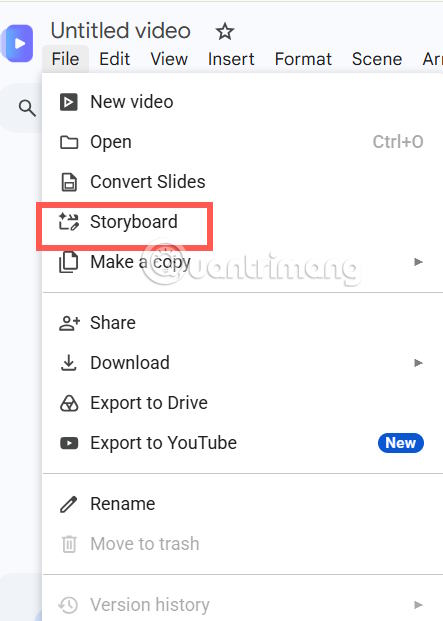
Once you're in the Google Vids interface, click on File, then select Storyboard from the dropdown menu.
Step 2:
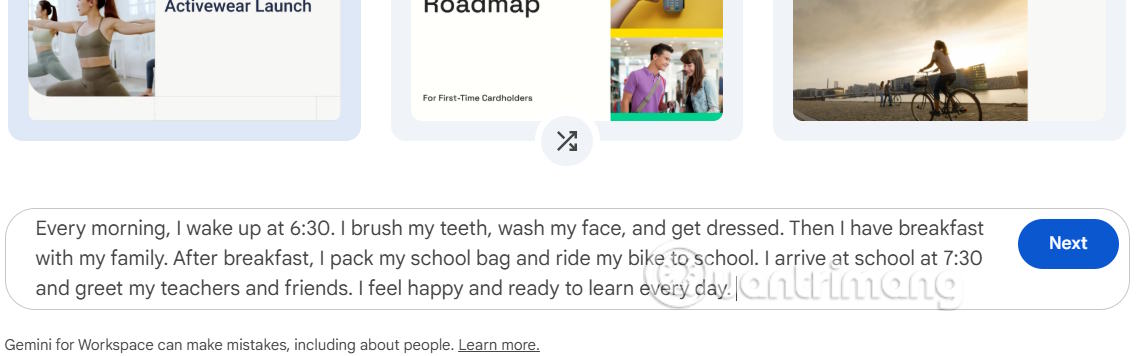
You'll move to a new interface where you can build your storyboard from your input. Enter your description in the text box below—keep in mind that your content needs to be in English.
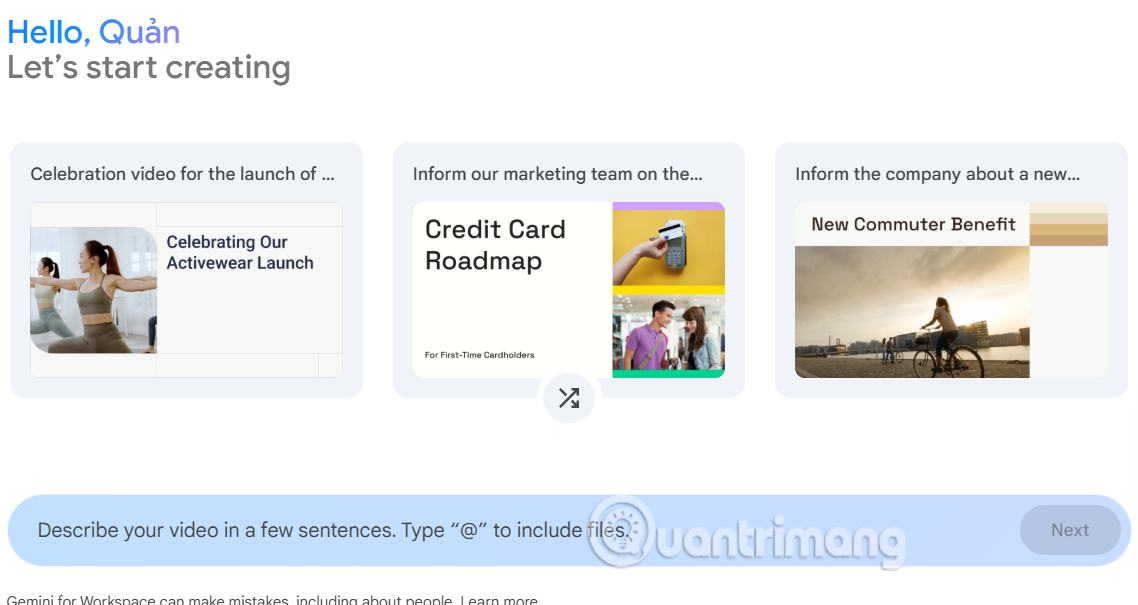
Be specific about which scenes you want to include, or write out the full video content you're planning to produce.
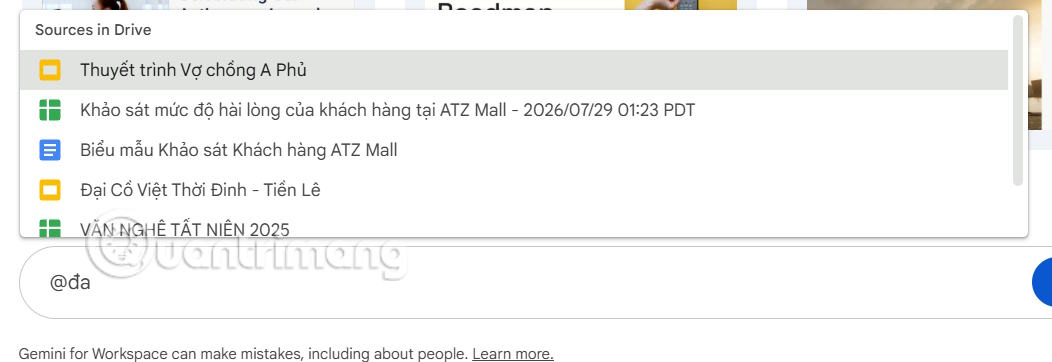
You can also type @ followed by a file name or pick from a list of suggested files in your Drive.
Step 3:
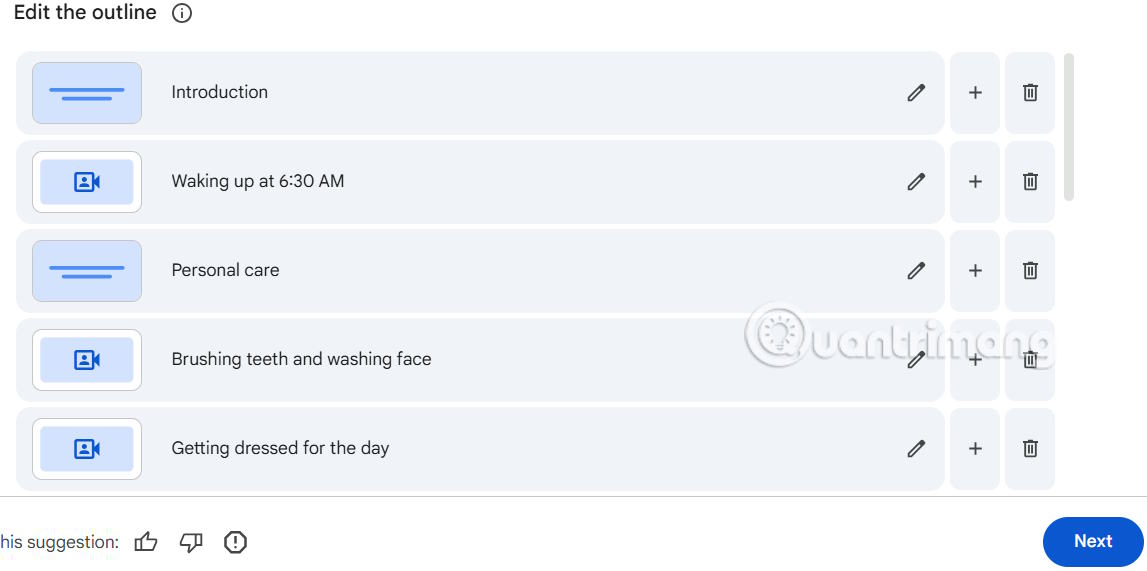
Click Next, and the AI will automatically break down your content into individual scenes. If you don't like a particular scene, hit the X to remove it. Want to adjust something? Just click the pencil icon to edit it to your liking.
Step 4:
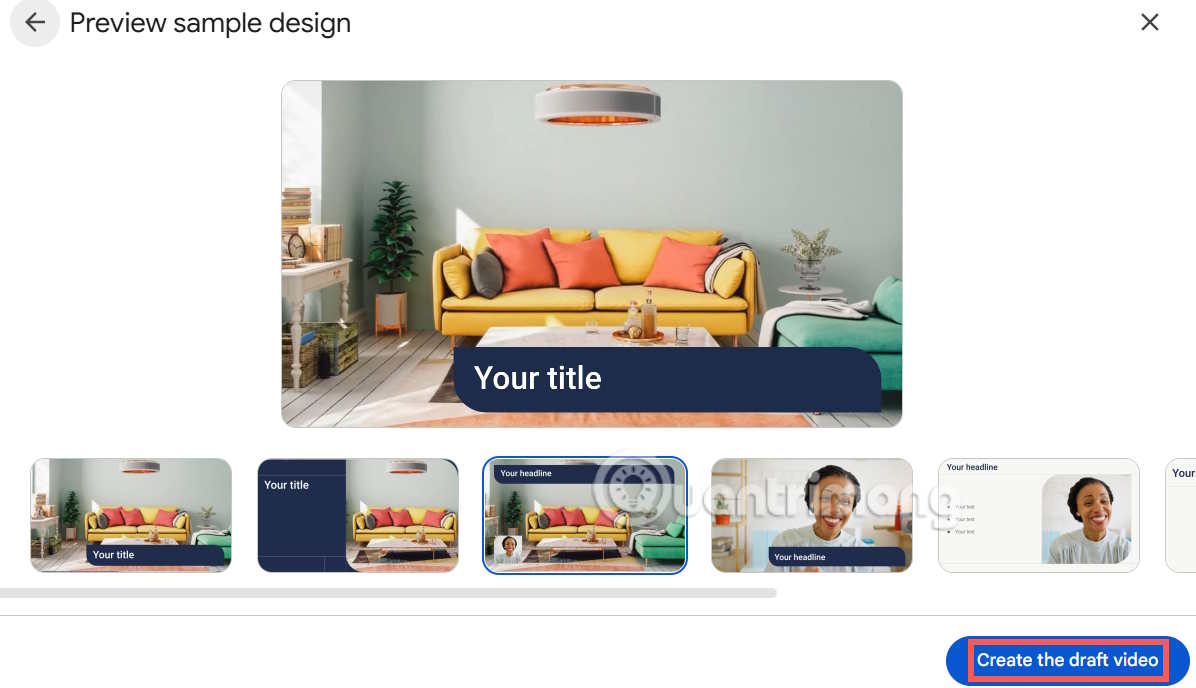
Next, you'll choose the design style you want for your video. Pick a template that matches your video's tone and purpose, then select Next to proceed.
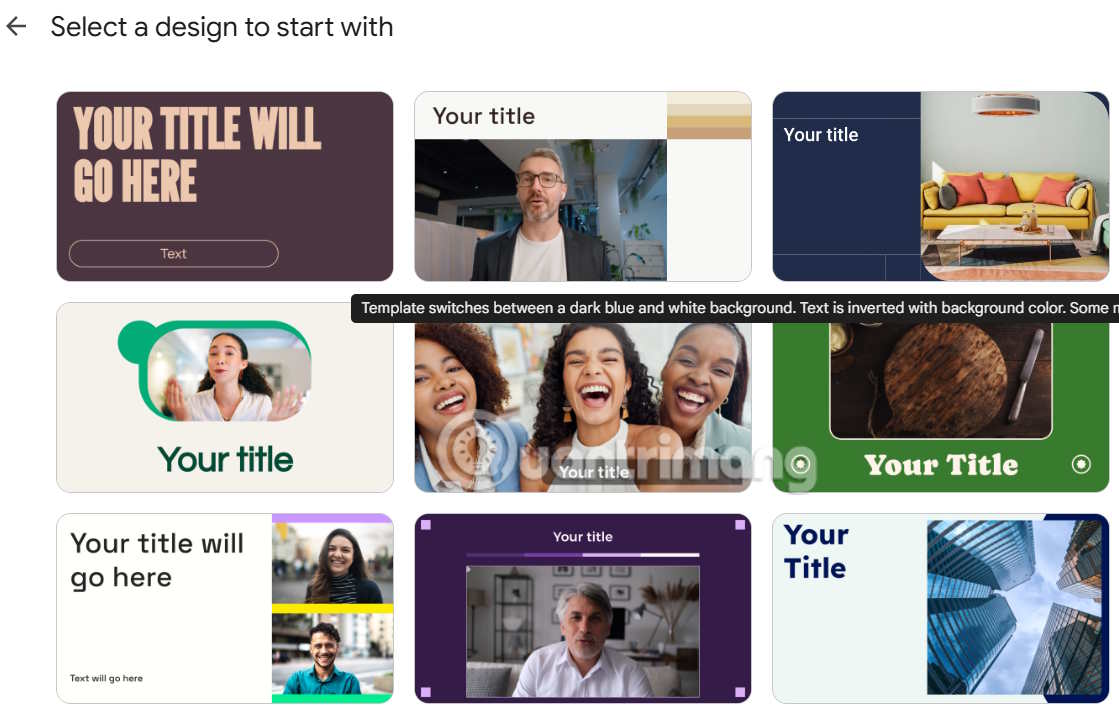
You'll see a preview of how each scene will look. Now click Create the draft video to generate your video from the AI storyboard.
Step 5:
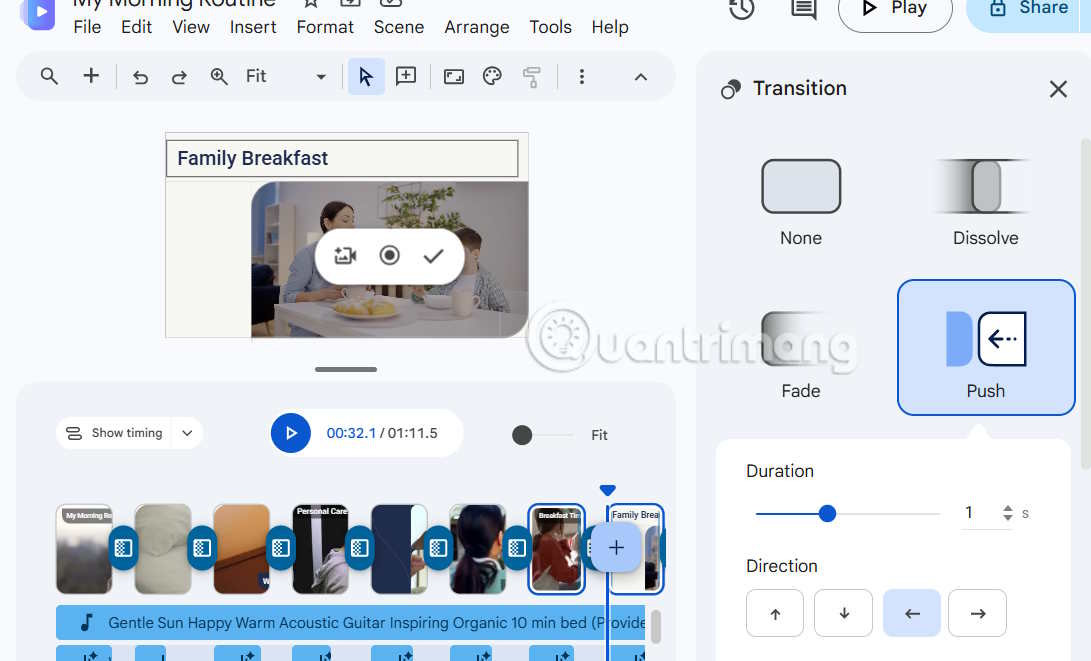
Wait a moment, and your finished video appears—complete with scenes, background music, and voiceover narration based on your original input. The real concern is that you might not need to do anything else, which can feel strange after years of manual video editing.
If you want to change the scene transition effects, click to select and modify them.
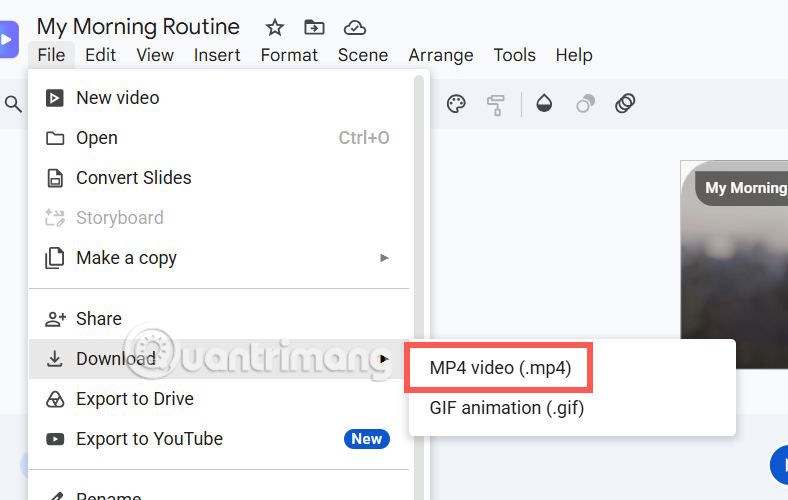
Finally, download your completed AI video and you're done.
Key Tips for Building Storyboards in Google Vids
Write clear, detailed prompts: While Google Vids can auto-generate storyboards, scripts, imagery, and voiceovers, the quality really depends on your initial input. The more specific you are about your topic, target audience, style preferences, and goals, the better the final result will be.
Review the storyboard structure before generating video: AI can propose scenes, but you should verify that the sequence flows logically, stays on-topic, and aligns with your intended purpose. A quick sanity check here saves revision time later.
Choose your source materials carefully: If you're referencing files from Google Drive—like Slides or PDFs—make sure they contain clear, accurate information directly related to your video topic. Better inputs mean better AI outputs.
Match the design style to your audience: Google Vids generates layouts and visuals automatically, but take time to select colors, fonts, and layouts that resonate with your specific viewers—whether they're students, clients, employees, or the general public.
Polish the draft video after AI generation: The AI-generated version is just a starting point. Don't hesitate to tweak the content, visuals, narration, timing, or effects to maximize impact and ensure your message lands correctly.
Video: Building a Storyboard on Google Vids
Description: Learn how to create professional video storyboards using Google Vids' AI-powered features. Complete step-by-step guide with Gemini integration.
Related Articles
- How to Use Copilot to Schedule Reminders and Calendar Events
- How to Change Gemini Live's Voice to Your Preferred Option
- Generate and Edit Images with AI Using Dola
- 5 Desktop Apps That Show How MCP Servers Turn Claude Into a Desktop Automation Tool
- Google Now Lets You Share Gemini Gems — What Does This Mean for AI Teamwork?

No Comment to " Building Storyboards for AI Video Creation with Google Vids "