Generate and Edit Images with AI Using Dola

Among the growing ecosystem of AI tools for creative work, Dola AI stands out for consolidating multiple capabilities into one platform. Instead of juggling different apps for content, images, and videos, you get everything in one place. What's interesting here is how Dola handles both image generation and editing through the same interface—something that still trips up many competitors.
One of Dola's standout features is the ability to generate images from text descriptions and edit them on demand. Rather than designing from scratch, you simply describe your vision with specific instructions and let the AI bring it to life. Here's how to get started.
How to Generate AI Images on Dola
Step 1:
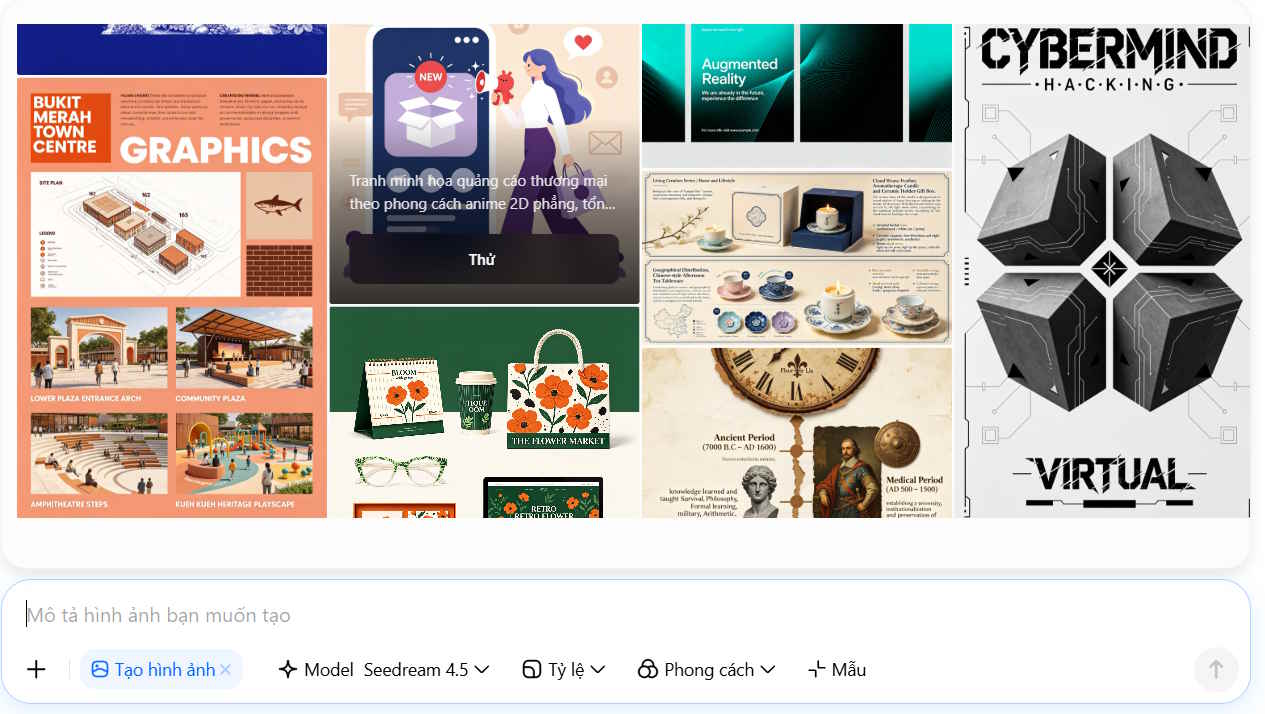
Head to Dola through the link below. Scroll down to the chat section and tap on the Image Generation tool.
https://www.dola.com/chat/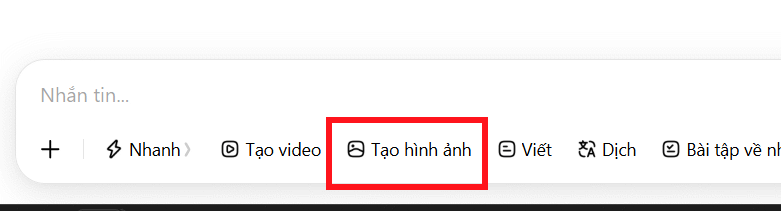
Step 2:
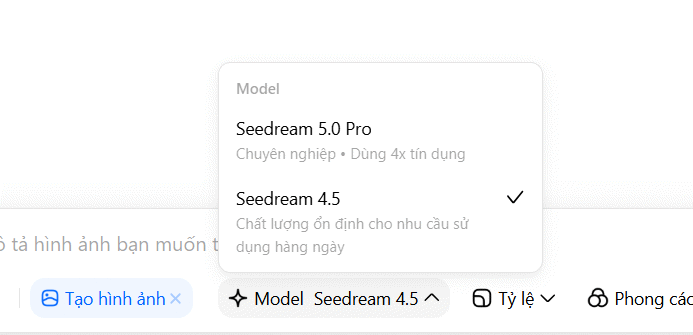
In the chat window, select your image generation model. Dola integrates multiple models including Seedream 5 Pro and Seedream 4.5, both capable of generating images from natural language descriptions and performing complex edits.
- Seedream 4.5: Excels at creating and editing images with high consistency. It performs best with reference images, multiple subjects, and text-heavy content.
- Seedream 5 Pro: The newer generation with stronger prompt comprehension. It understands complex layouts, precise edits, and professional designs like posters, infographics, and information-dense visuals.
Basically, 4.5 prioritizes consistency in generation and editing, while 5 Pro shines when handling intricate ideas and detailed control over modifications.
Fair warning: using Seedream 5 Pro will consume your daily free credits faster.
Step 3:
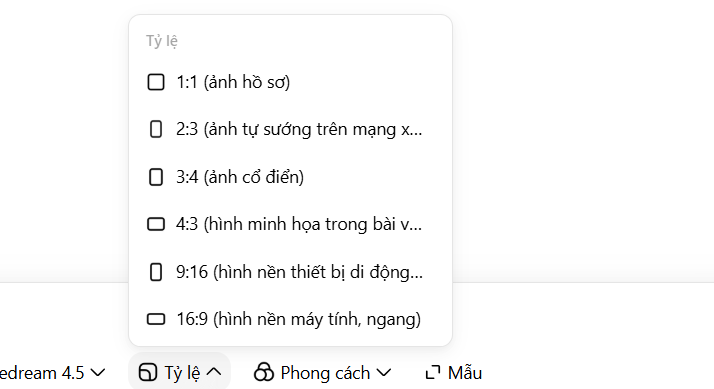
Choose your image dimensions. Here's where Dola gets thoughtful—each size option includes a description of its ideal use case, making it easy to pick the right format for your purpose.
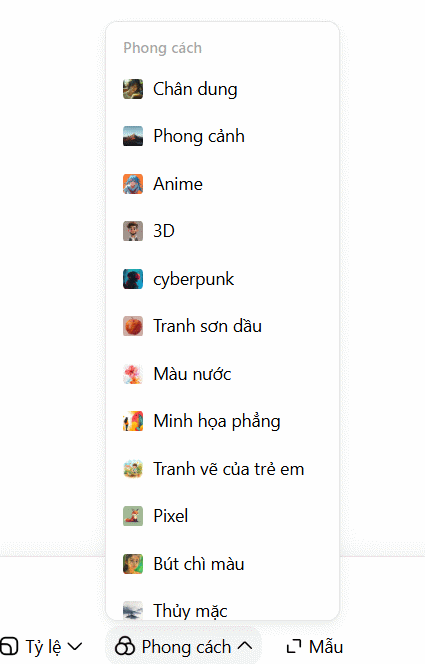
Next, click on Style to access the style menu.
Dola also provides preset image templates to jumpstart your work. Hit Try to use a template's existing prompt as your foundation, then customize it with your own ideas.
Step 4:
Finally, enter your image prompt and send it to Dola. Here's an example prompt:
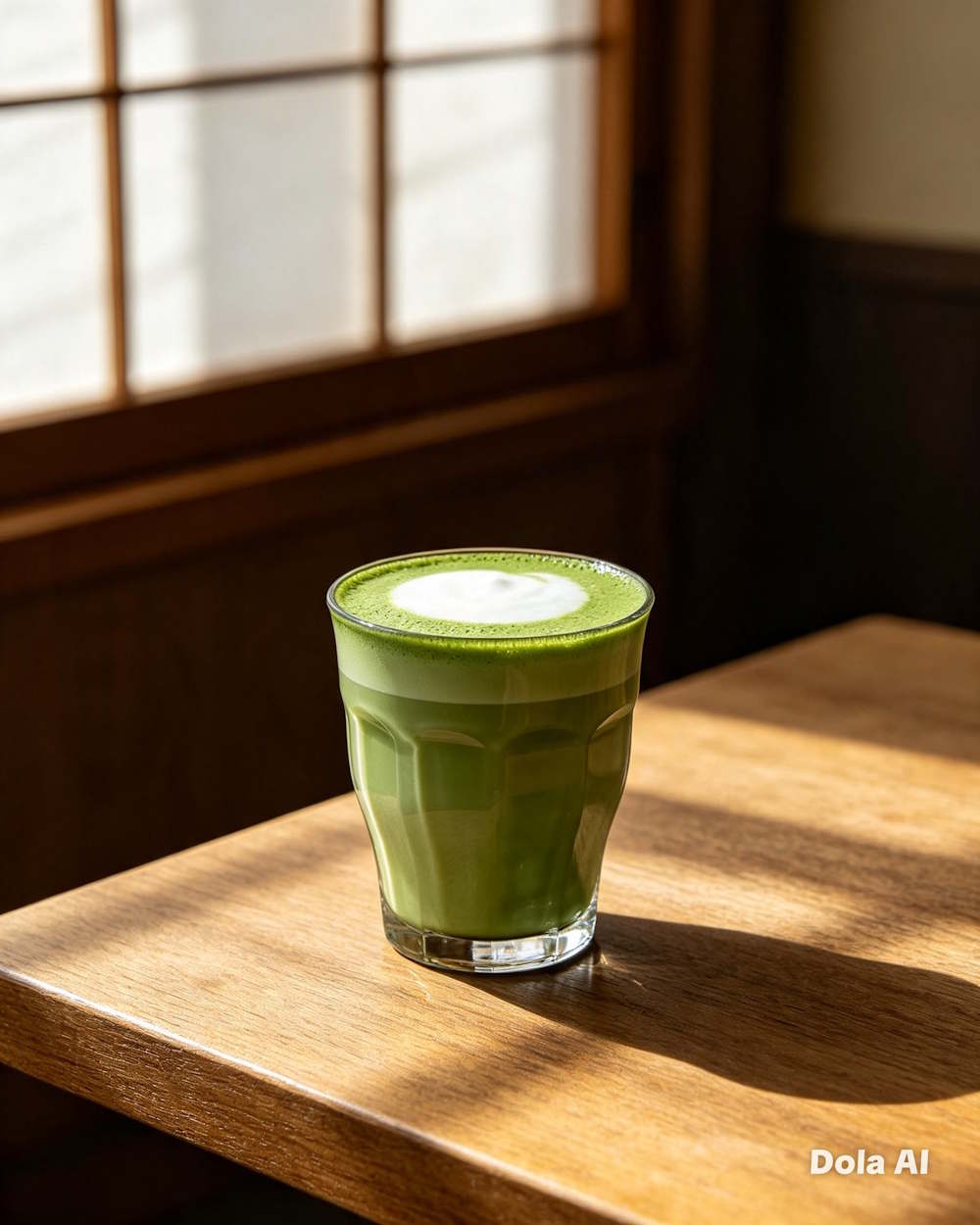
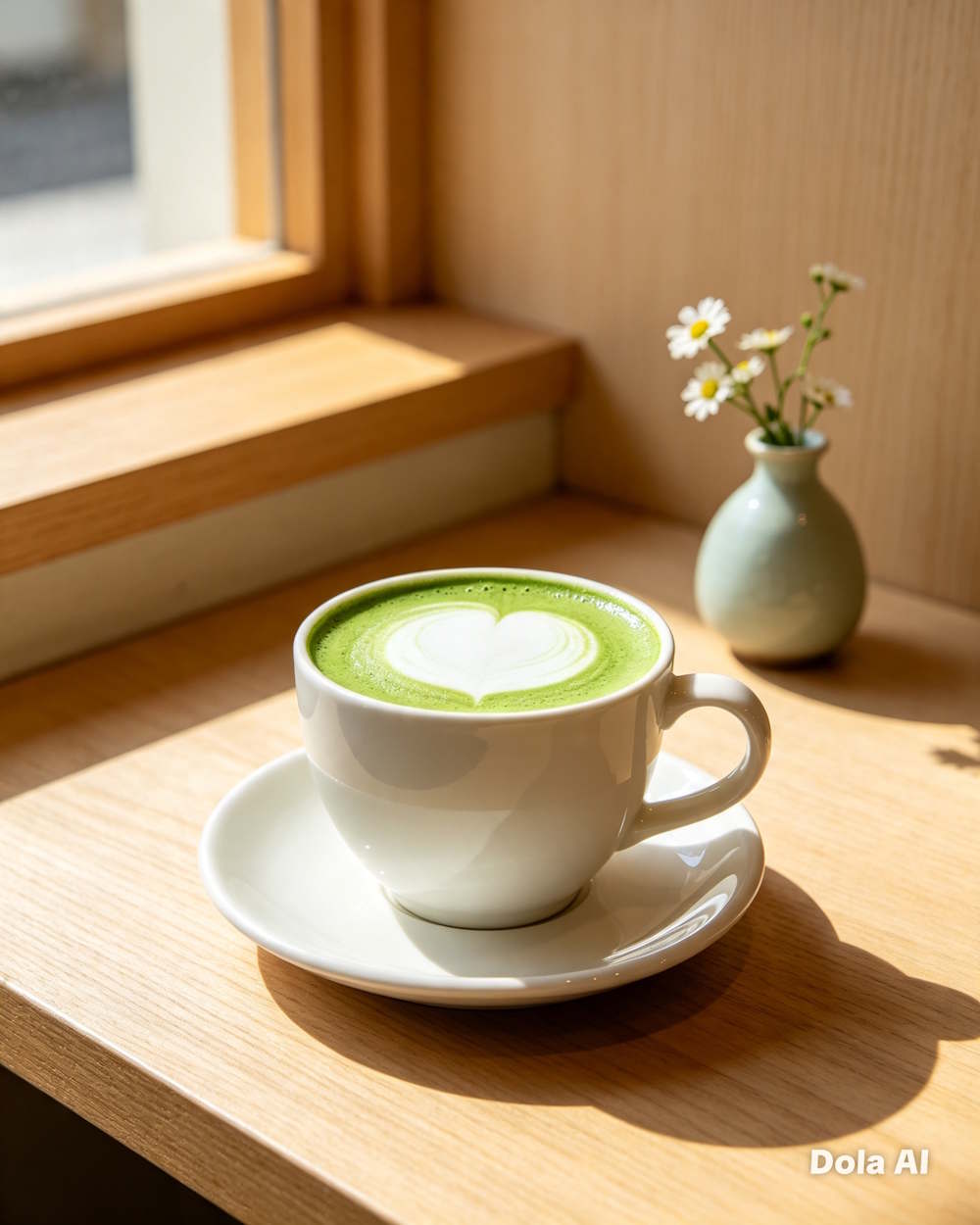
Create an advertising photo of a matcha latte served on a wooden table inside a Japanese-style café. Morning sunlight streams through the window. Color palette of sage green and cream. Minimalist composition, premium feel, authentic product photography, natural lighting, high detail, 4:5 portrait orientation.Wait a moment and Dola AI will return four different image variations for you to choose from.
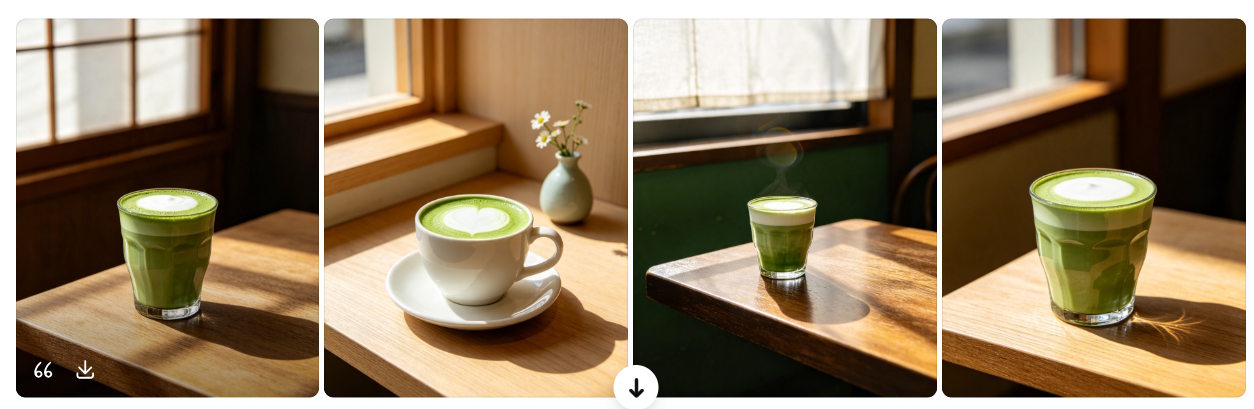
Click any image to download it. Note that generated images will carry a Dola AI watermark.
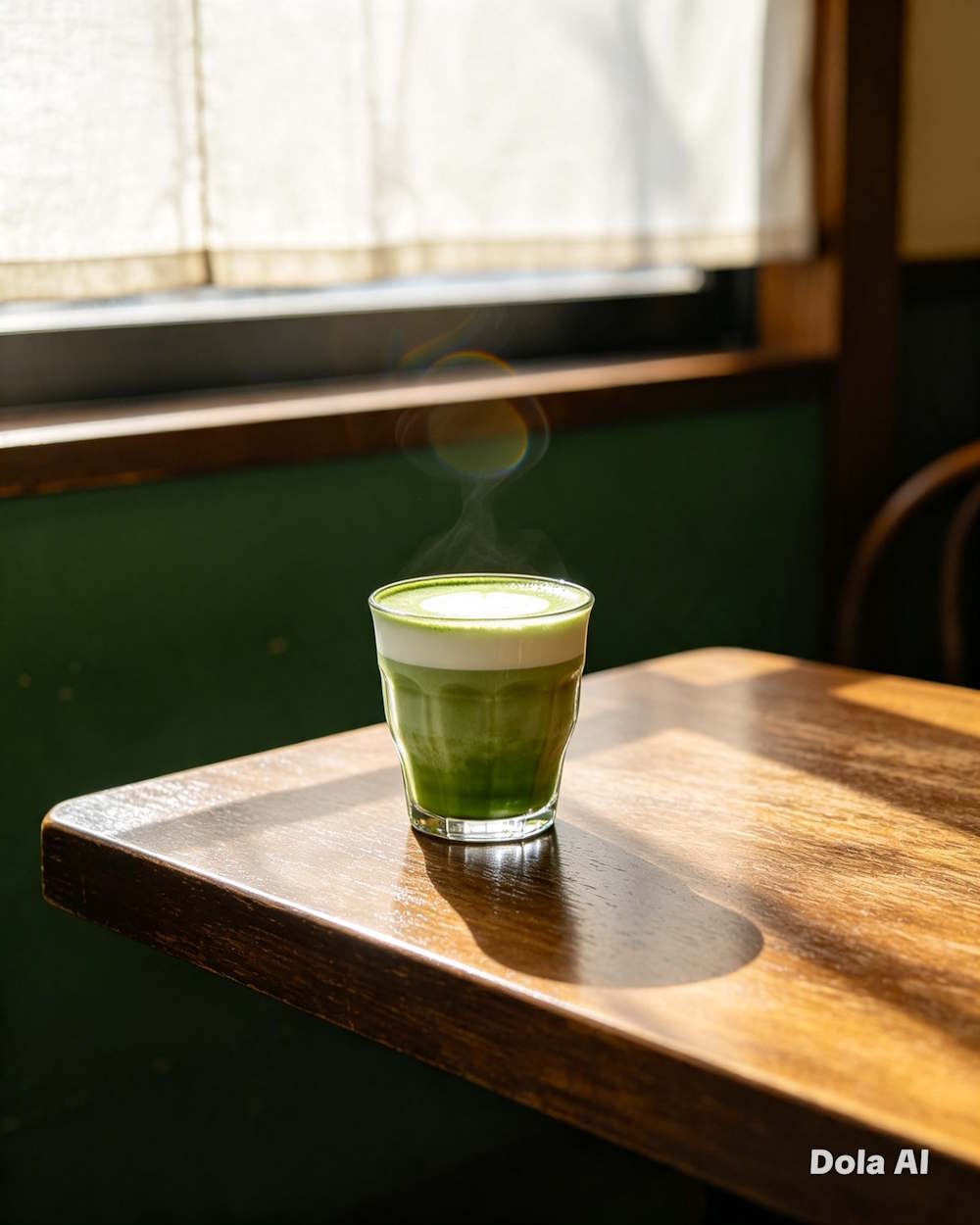
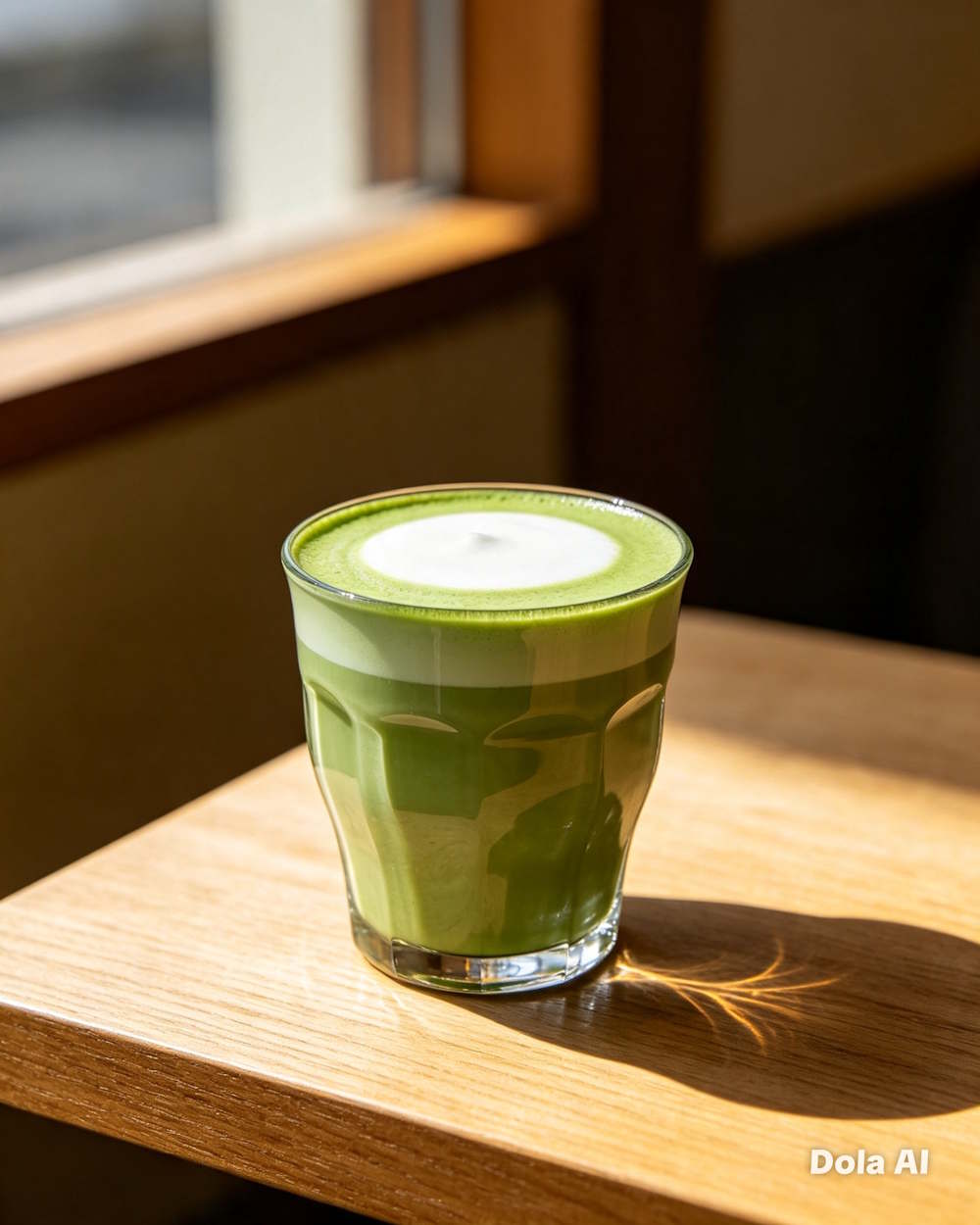
Beyond standard image generation, Seedream 5.0 Pro can also produce infographics, storyboards, blueprints, UI mockups, and information-rich visuals. One heads-up: if your prompt contains Vietnamese text, Dola currently has font rendering issues, so plan accordingly.

How to Edit Images on Dola AI
Once you have a base image, you don't need to start from scratch to make changes. Simply describe your edits through text commands and Dola applies them.
For example, try this editing prompt:
Keep the matcha latte and main composition unchanged. Replace the wooden table with a white marble surface. Add a small plate of matcha pastries beside the cup. Increase natural light while maintaining the minimalist, premium aesthetic.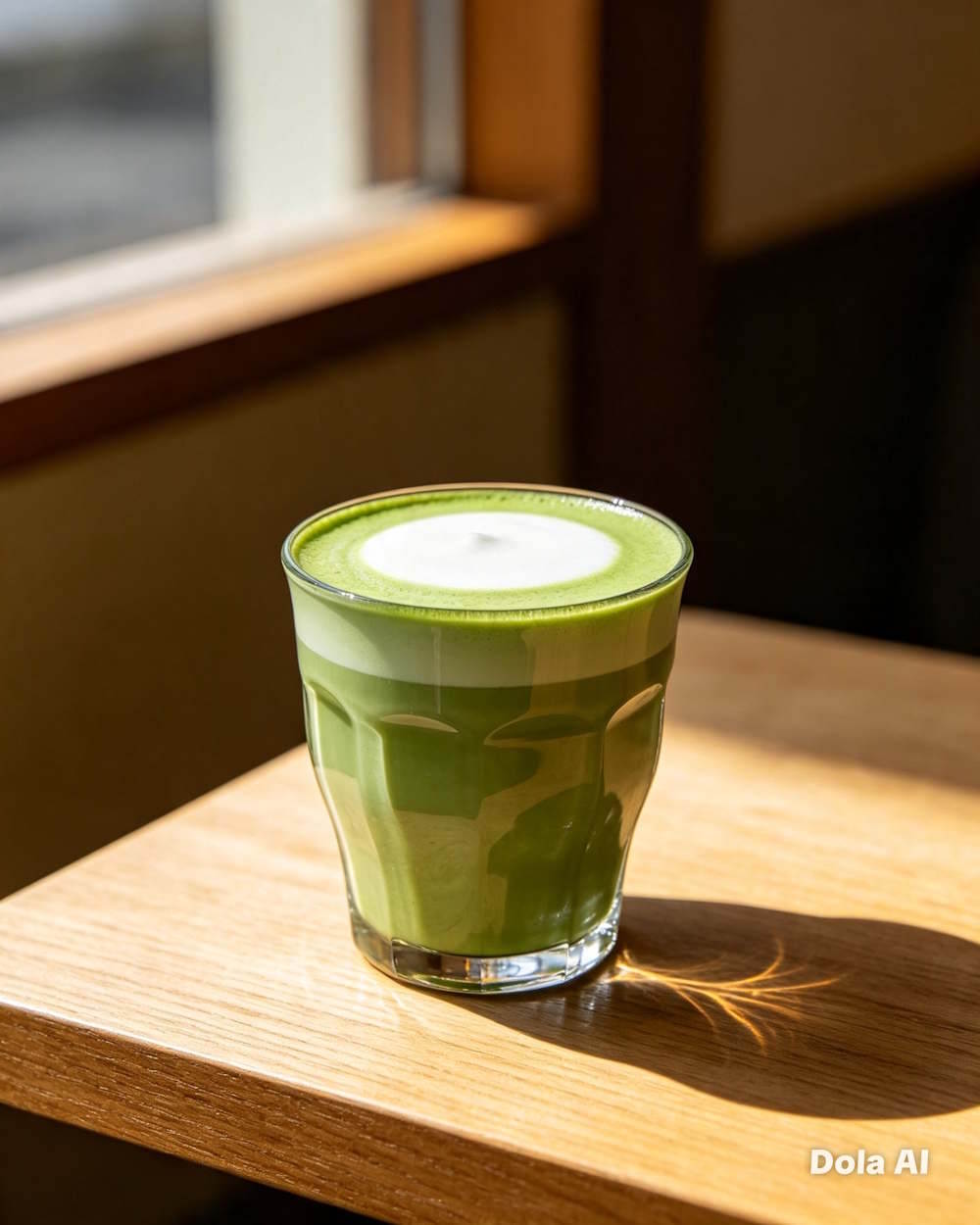
And here's the result after applying your edits:
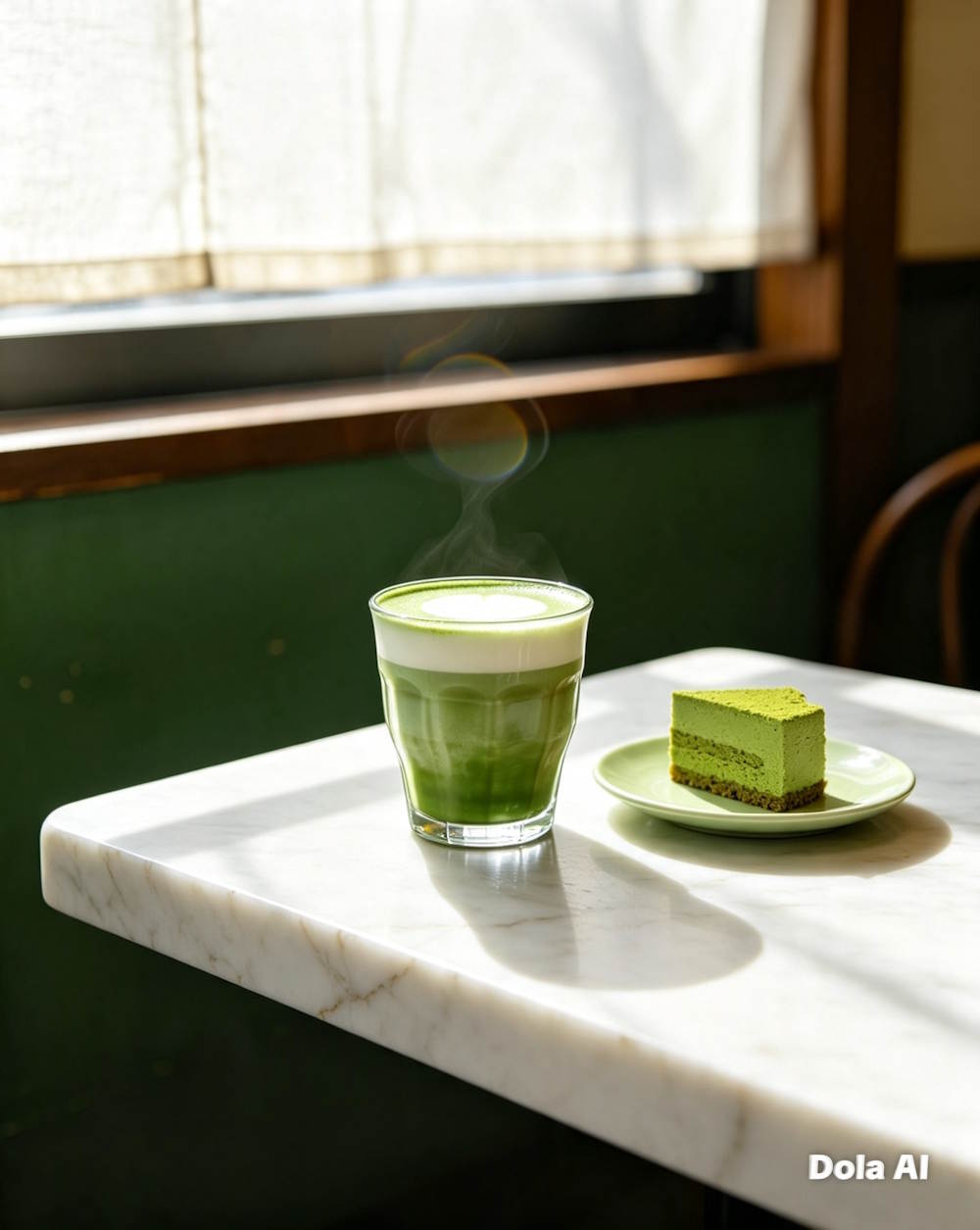
When editing, split your request into two parts: what stays and what changes. For instance: "Keep the product and composition. Change the background and lighting." This approach prevents the AI from accidentally modifying elements you want to preserve.
Description: Learn how to create and edit images with Dola AI. Step-by-step guide covering model selection, prompts, and editing techniques.
Related Articles
- How to Change Gemini Live's Voice to Your Preferred Option
- How to Use Perplexity's Learn Step by Step Mode: A Complete Guide
- Best AI Tools for Microsoft Excel in 2026: Data Analysis, Formulas & Charts
- Google Photos Ask Photos AI vs. Classic Search: Which Photo Finding Tool Works Better?
- Five Hidden Perks of Google AI Pro You're Probably Missing

No Comment to " Generate and Edit Images with AI Using Dola "