How to Clear Your Browsing and Remote Execution Data in Gemini Spark

Gemini Spark automates complex tasks based on your natural language requests. During execution, the system stores certain data—like login credentials when accessing websites or temporary files when analyzing spreadsheets—to streamline future operations. But here's the thing: if that cached data includes sensitive account information, you'll probably want to wipe it clean periodically.
While clearing this data isn't mandatory, it's worth considering if you've handled personal or financial information. Below, we'll walk you through removing both remote browser data and remote code execution files from Gemini Spark.
Clearing Remote Browser Data from Gemini Spark
When Gemini uses a remote browser to complete tasks, it saves browser data—including cookies with your login credentials—for convenience in subsequent sessions. What's interesting here is that you can manually delete all this stored browser data at any time to maintain privacy. This is especially important if you've logged into multiple accounts.
Step 1:
Open Gemini and click the settings gear icon, then select Gemini Spark Settings to access the configuration panel.
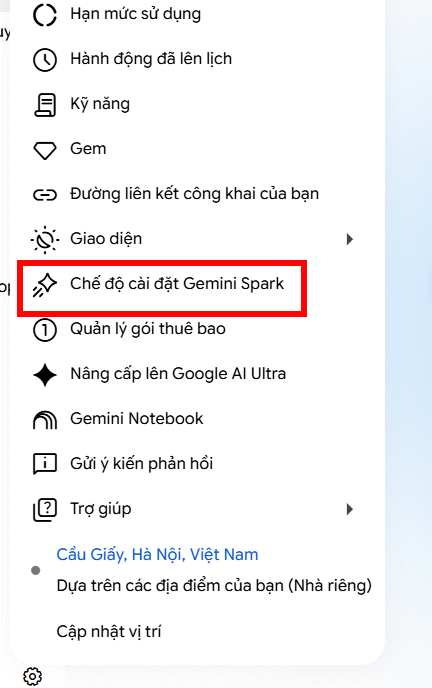
Step 2:
Navigate to the settings interface for Gemini Spark. Look for the Clear Remote Browser Data option and click the Delete button next to it.
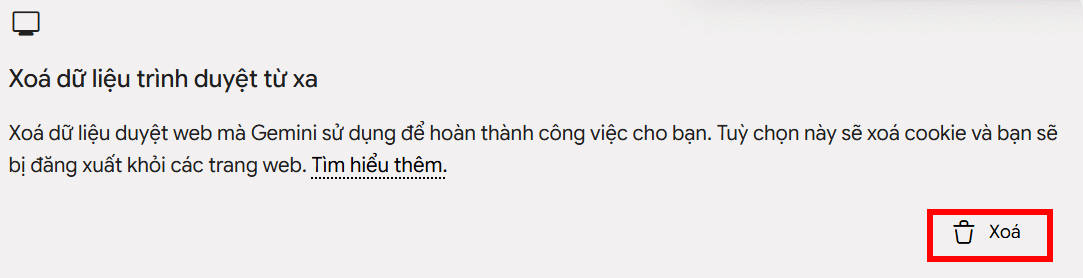
A confirmation dialog will appear, summarizing the browser data from your previous sessions that's about to be removed. Click Delete again to confirm the action.

Clearing Remote Code Execution Data from Gemini Spark
When Gemini runs code or executes complex tasks on a remote machine, it stores execution data and temporary files for faster processing in future sessions. The real concern is that accumulated code execution artifacts can take up space and potentially expose sensitive operational details. You can delete all this remote execution data whenever you want through the Gemini Spark settings. This action wipes out all remote code execution files and cached data from previous work sessions.
Go back to the Gemini Spark settings panel. Under the Clear Remote Code Execution Data section, click the Delete button to proceed.
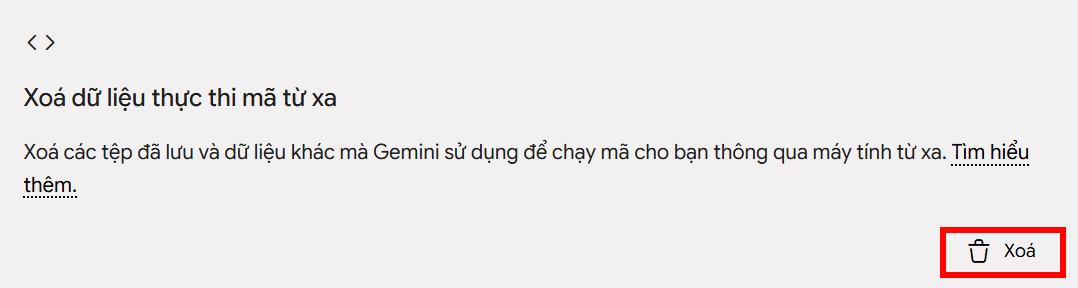
A confirmation message will appear, detailing the remote code execution files and stored data from your previous sessions. Click Delete to finalize the removal.

When Should You Clear Gemini Spark Data?
Technically, clearing data isn't required—keeping cached data actually saves time by eliminating the need to re-fetch information. However, there are specific scenarios where you should seriously consider wiping your Gemini Spark data:
- You've used Gemini Spark to log into critical personal accounts and don't want those credentials stored.
- You've finished working with sensitive or confidential data.
- You want to clean up personal information that Gemini Spark accumulated during your work sessions.
- You're no longer using this Gemini Spark account and want a fresh start.
On the flip side, if you're regularly using the same Gemini Spark account and want to save processing time, there's no harm in keeping the data around. Google doesn't offer automatic deletion by default, so you're completely in control—decide based on your own privacy needs and usage patterns. For frequent users handling non-sensitive tasks, retention makes sense. For those dealing with confidential information, periodic clearing is the safer bet.
Description: Learn how to delete cached browser data and remote code execution files from Gemini Spark to protect your privacy and sensitive information.
Related Articles
- Meta's New AI Can Generate Deepfakes From Your Instagram Photos—Here's How to Protect Yourself
- Why Gemma 4 Is Becoming the Top Free On-Device Chatbot for Your Phone
- How to Verify AI Search Results: A 4-Step Fact-Checking Guide
- Top 6 AI-Powered Browsers That Boost Your Productivity
- Hugging Face: The Python Ecosystem That Revolutionized AI Development

No Comment to " How to Clear Your Browsing and Remote Execution Data in Gemini Spark "