How to Edit Videos on Google Vids Using AI Commands
AI-powered video editing on Google Vids is transforming how creators produce polished content without mastering complex editing software. Powered by Gemini, Google Vids handles the heavy lifting—intelligent editing, layout optimization, image enhancement, effects, and turning rough ideas into finished videos. What's interesting here is that you don't need years of film production experience to get professional-looking results.
Instead of wrestling with complicated editing programs, you can leverage AI tools directly within Google Vids to cut down production time significantly. Whether you're reshaping content, refining shots, or creating videos for presentations, training modules, marketing, or social sharing, the process becomes streamlined and manageable.
In this guide, we'll walk you through how to edit videos on Google Vids using AI, highlight key editing features, show you how to use them effectively, and cover important considerations when incorporating AI into your video creation workflow.
How to Edit Videos on Google Vids Using Gemini Omni
Step 1:
Open Google Vids and click the Video AI option located in the upper right corner of the interface.
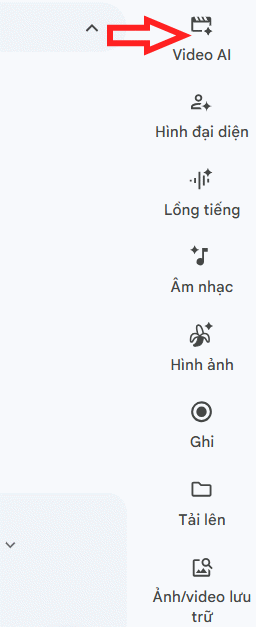
A video creation panel will appear at the bottom. From here, select the Edit option.
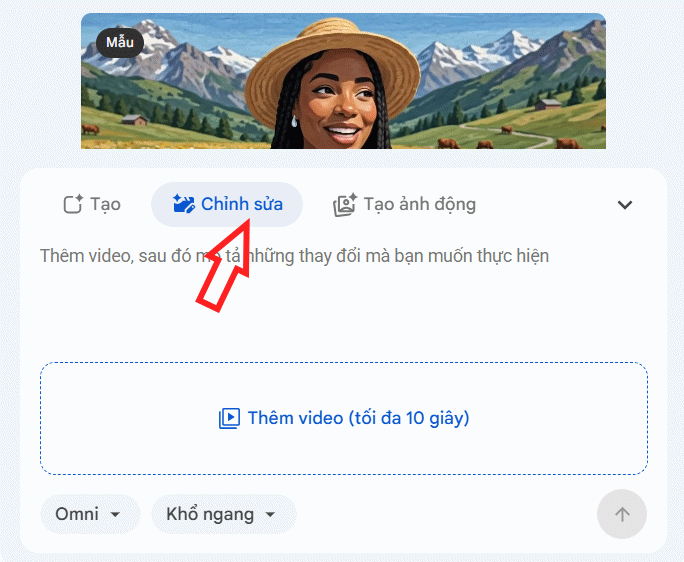
Step 2:
Upload the video you want to edit (maximum 10 seconds), and optionally select a new aspect ratio. Next, you can upload additional images or video clips to merge with your current footage, or type a command describing the style changes or edits you want to make. Keep in mind your commands must be in English. Once ready, click the send icon below to submit your editing request.
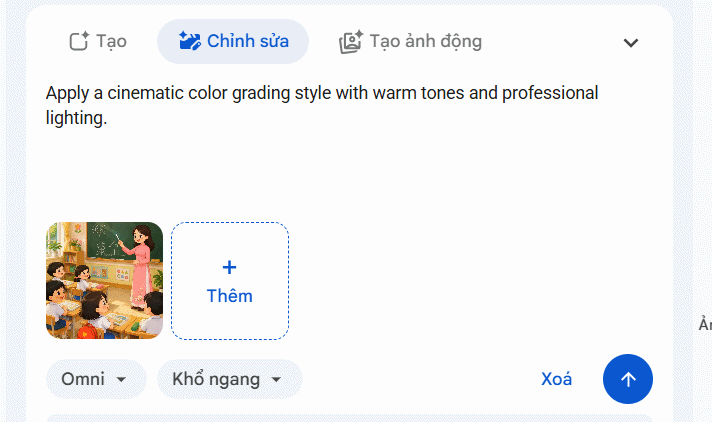
Step 3:
Wait for Gemini to rework your video according to your command. The edited video will have several customization options available. You can extend the video duration, make additional tweaks, or proceed to the next step.

If you want to continue refining the video, simply enter another description and add elements just as you did before. When you're satisfied, you can either download the video or click Insert to add it to your Google Vids project.
In the example below, we used the command "Replace the background with a modern office environment" to further transform the video.
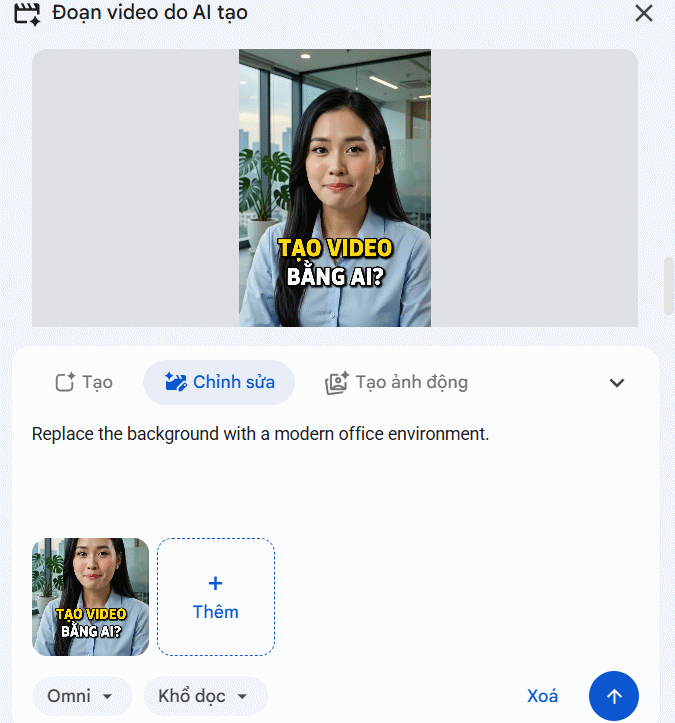
Here's the result—Google Vids generated a new version with a sleeker, more contemporary office backdrop.
Description: Learn how to use Gemini AI to edit videos on Google Vids with simple text commands—no professional editing skills required.
Related Articles
- The Best AI Programming Tools You Should Know About in 2024
- The Best AI Tools for Teachers in 2026: A Practical Guide
- Perplexity vs ChatGPT: Which AI Assistant Should You Actually Use?
- Create a Brand Context Folder to Make Every AI Output Feel Authentically Yours
- Gemini Now Lets You Create Images by Speaking—No Typing Required

No Comment to " How to Edit Videos on Google Vids Using AI Commands "