How to Generate Audio Summaries of Your Google Drive Documents

Google Drive's audio overview is an AI-powered feature that transforms your stored documents into concise spoken summaries. Rather than plowing through pages of text, you can have Gemini create a natural conversation that distills the key points, critical information, and highlights into an easy-to-digest audio format.
Gemini analyzes your document's content, identifies what matters most, and generates an audio summary that lets you absorb information faster than reading ever could. What's interesting here is that this represents a practical application of AI for accessibility — turning dense text-based files into consumable audio content. It complements Gemini's existing document analysis capabilities available through the Ask Gemini feature. Let's walk through exactly how to create these audio summaries.
Creating an Audio Summary of Your Drive Documents
Below are two audio summaries generated from the same document but with different content. You can create multiple versions and pick the one that works best for you.
Step 1:
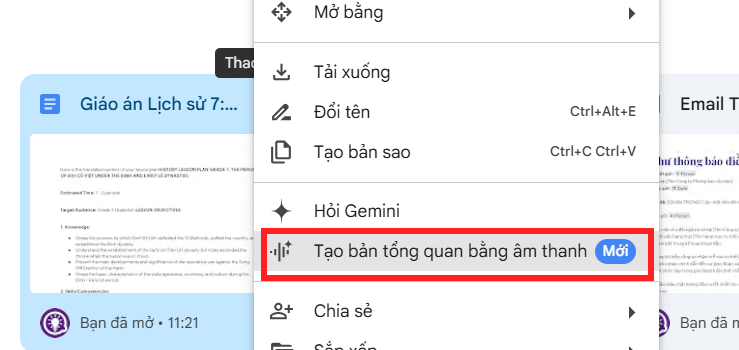
Open your Drive file and click the three-dot menu icon in the options panel. From there, select Create audio overview as shown below.
Step 2:
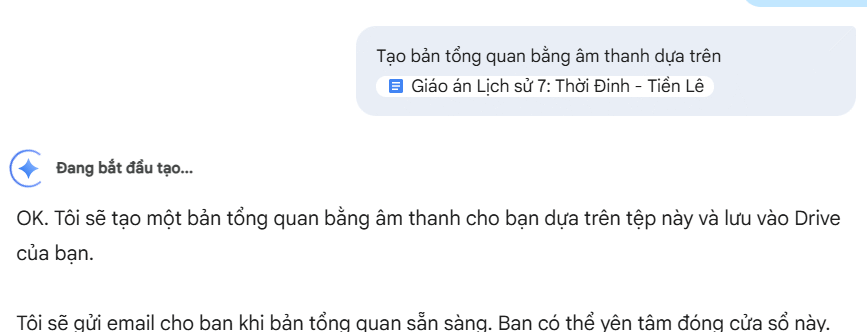
Gemini will notify you that it's processing your document to create an audio summary. Give it a moment — Gemini reads through the content, extracts the essential points, and generates the audio file based on what it found.
The audio file arrives in your email from Gemini.
Step 3:
In your email, click Open audio overview to start listening to your summary.
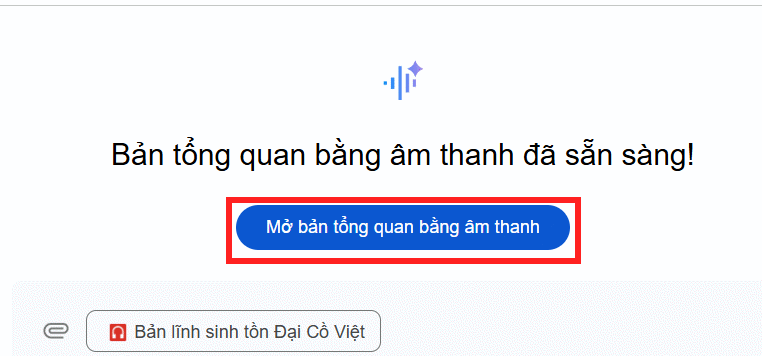
Gemini's audio summaries come formatted as a two-person dialogue, which makes the content more engaging and easier to follow than plain text summaries would be.
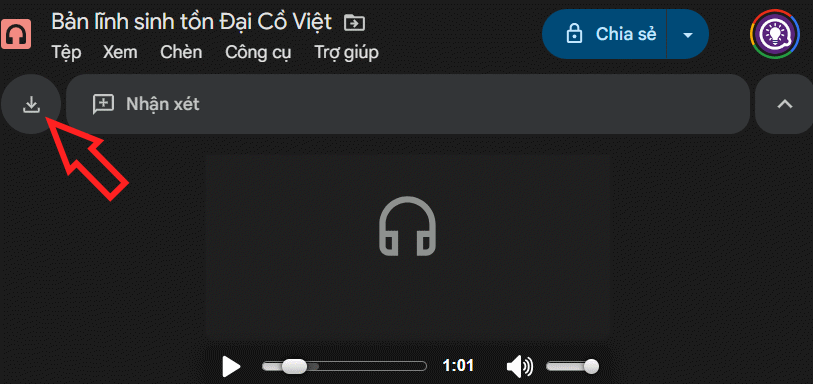
Hit the download icon to save the audio file to your device.
Important Notes About Creating Drive Audio Overviews
- Account requirements: This feature only works with Google accounts or Google Workspace accounts that have Gemini enabled.
- Limited file format support: Audio Overview currently works with compatible documents like Google Docs and PDFs, though support varies by region and account type.
- Saves serious reading time: Gemini automatically creates a spoken summary, letting you grasp the main ideas without reading everything.
- Flexible learning and working: Listen to your overview while commuting, working on other tasks, or multitasking.
- Makes long documents accessible: Perfect for lengthy reports, research papers, textbooks, or meeting minutes.
- Quality depends on source material: The audio summary is only as good as the document itself. Clear, well-structured files produce better results.
- Not a replacement for the original: Audio Overview gives you the condensed version, so you'll still want to read the full document when you need detailed verification or specific information.
- Features may evolve: Google regularly updates which languages, file types, and features are supported depending on your region and account status.
Description: Learn how to use Gemini's AI-powered audio overview feature to convert lengthy Drive documents into engaging spoken summaries.
Related Articles
- How to Seamlessly Transfer Conversations Between ChatGPT, Claude, and Gemini Using ThreadPort
- ChatGPT vs Meta AI: Which AI Chatbot Actually Wins?
- Diffbot Explained: How AI Powers Intelligent Web Data Extraction
- Copilot Studio Now Lets You Connect Bing Custom Search as an Agent Knowledge Source
- How to Use Perplexity's Learn Step by Step Mode: A Complete Guide

No Comment to " How to Generate Audio Summaries of Your Google Drive Documents "