Google Search Canvas: Build, Plan, and Code Apps Directly in Search Results
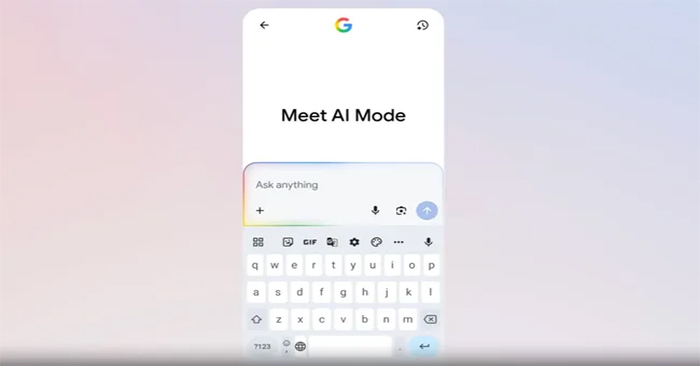
Google has quietly embedded Canvas straight into Search, letting you create and develop content without jumping over to Gemini first. This AI-powered feature lets you build interactive tools, draft documents, and even prototype applications right within your search workflow. What's interesting here is that it removes friction from the creative process — you can iterate on ideas without context switching.
Canvas works identically whether you're using it in Search or Gemini directly. Instead of getting back a text response and calling it a day, Canvas goes further. It develops your concept, helps you write documents, creates schedules, and builds working app prototypes with AI assistance. Here's how to get started with Canvas in Google Search.
How to Use Canvas in Google Search
Step 1:
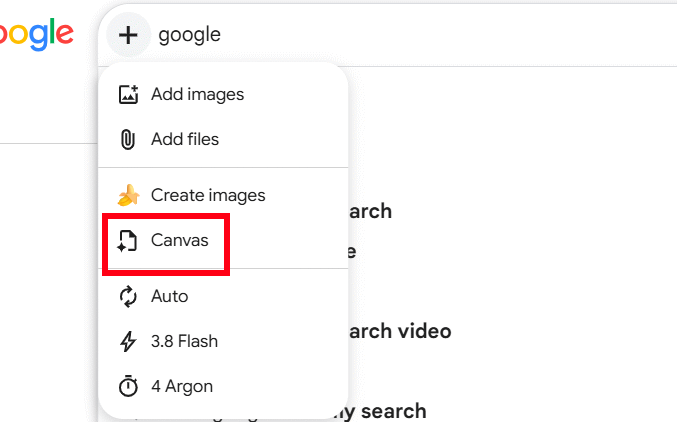
Open Google Search and tap the plus icon, then select Canvas from the menu that appears.
Step 2:
Type in what you want to build or create. Canvas handles a surprisingly wide range of content types:
- Articles and documents: Blog posts, SEO-optimized content, reports, instruction manuals.
- Plans and schedules: Study plans, travel itineraries, marketing calendars, content schedules.
- Educational content: Flashcards, multiple-choice quizzes, practice exercises, study guides.
- Interactive tools: Expense calculators, computation tools, progress trackers.
- Websites and apps: Landing page templates, web interfaces, product prototypes.
- Charts and data: Comparison tables, statistics dashboards, task and budget managers.
- Business content: Business plans, customer analysis, marketing campaigns.
Let's walk through building an interactive game as an example.
Create an interactive quiz game called "Decode the Universe" with 10 questions about planets, the solar system, and astronomy. Each question has 4 options with only one correct answer. After each question, show the result and a brief explanation. The game includes scoring, a progress bar, a results screen, and a replay button.

Design it with a space theme: dark background, planet images, subtle animations, eye-catching colors, and mobile-optimized. Make sure the game runs directly in the browser, all buttons work properly, and the content is factually accurate.
Step 3:
Google's AI analyzes your request and generates the content based on your specifications.
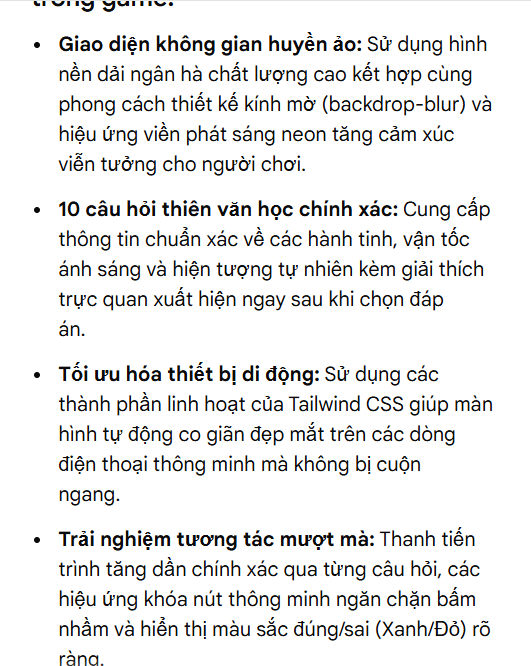
On the right side, you'll see your quiz game rendered live, built exactly to the requirements you specified.
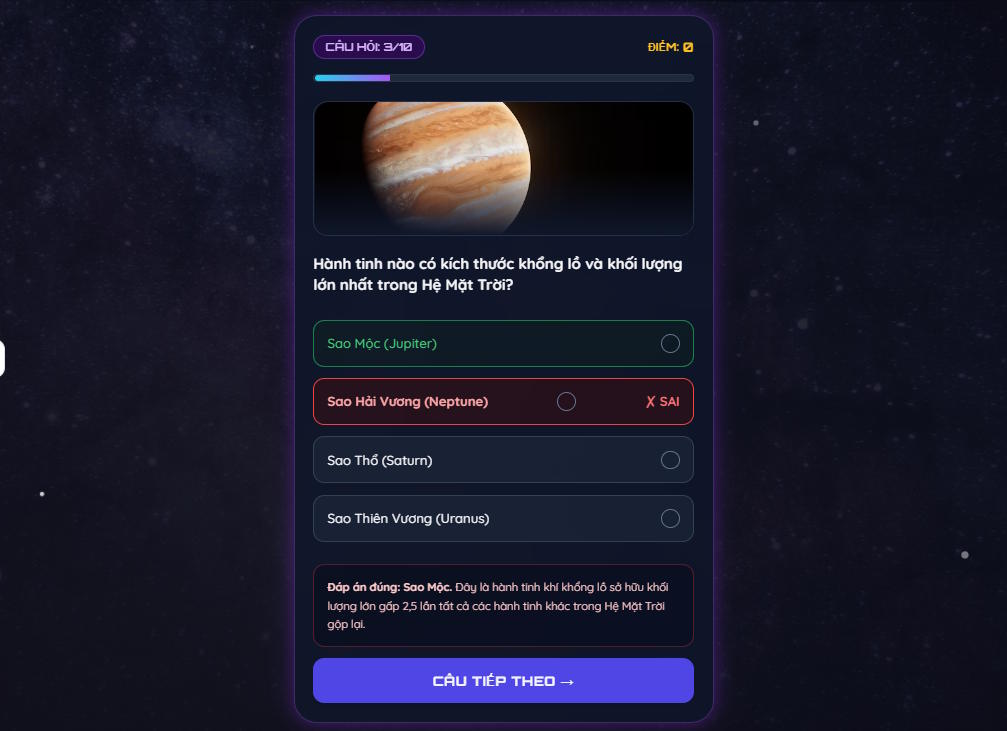
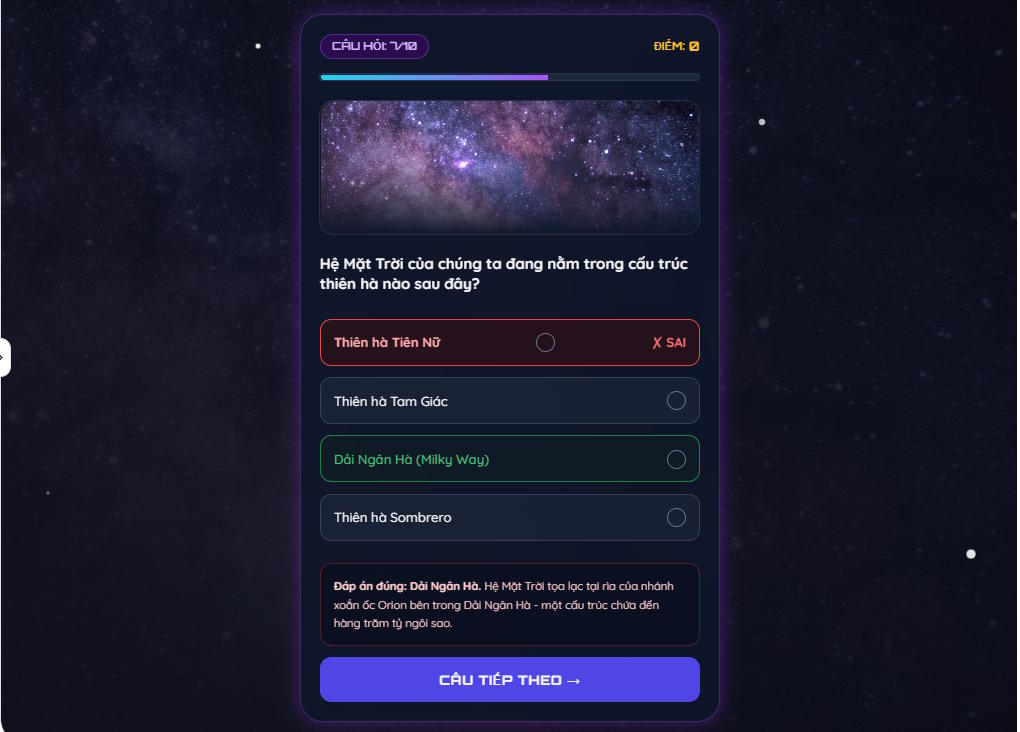
Review the output. If you want to tweak anything or add effects, just type a new command and Canvas updates in real time.
Step 4:
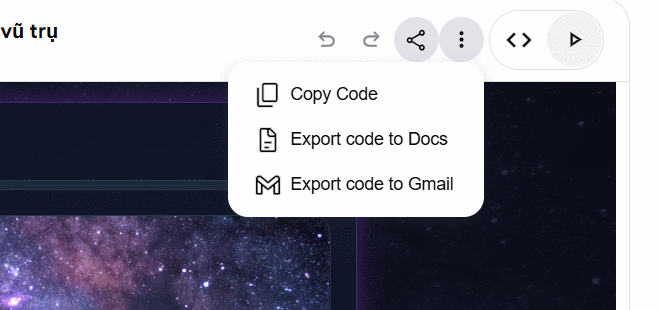
Canvas gives you export options. You can download the code and save it as an HTML file to open and use on your computer like any other webpage.
Tips for Getting the Most Out of Canvas
Canvas doesn't lock you into the first version. You can keep refining it—add features, tweak the design, and iterate until it's exactly what you need. The real concern is writing prompts that actually get you what you want. Here's what to keep in mind.
The more specific your prompt, the better the result
Don't be vague when creating tools with Canvas. Describe what you're building, who will use it, what features it needs, and how the interface should behave. Include specifics about question count, question types, scoring logic, and UI requirements. The more Canvas knows about your target audience and expectations, the closer the first version will be to what you actually want.
Add details about colors, button sizes, result display, and which devices you're targeting. Clear specifications mean fewer revision rounds after Canvas generates that first version.
Break your request into smaller steps instead of asking for everything at once
You don't need to demand a fully-featured app in your first prompt. For complex tools, it's smarter to build a basic version first, then layer in features one at a time. This approach makes it easier to test each function individually and spot bugs as you build.
Keep asking Canvas to refine rather than starting over
If the design or functionality isn't quite right, ask Canvas to adjust it instead of rebuilding from scratch. This saves time and keeps your iterations focused.
Description: Google Canvas is now integrated into Search. Create interactive tools, write documents, and build app prototypes without leaving the search interface.
Related Articles
- Claude Code in Your Terminal: A Beginner's Guide to 10x Faster Development
- Perplexity vs ChatGPT: Which AI Assistant Should You Actually Use?
- 8 Essential Privacy Tips for ChatGPT Users
- Microsoft Copilot vs ChatGPT: Which AI Assistant Should You Actually Use?
- Best Tools for Running LLM Models on Your Personal Computer

No Comment to " Google Search Canvas: Build, Plan, and Code Apps Directly in Search Results "