How to Disconnect Apps from Canva AI
Canva AI lets you connect various third-party applications for seamless integration and content deployment. You might link Canva with Google Drive to generate AI images from your files, or integrate Gmail to build presentations from email content. The possibilities expand your workflow significantly.
As your needs change over time, you'll probably want to review which apps are connected and remove access to those you no longer use. This guide walks you through viewing your connected apps and disconnecting them from Canva AI.
Steps to Disconnect Apps from Canva AI
Step 1:
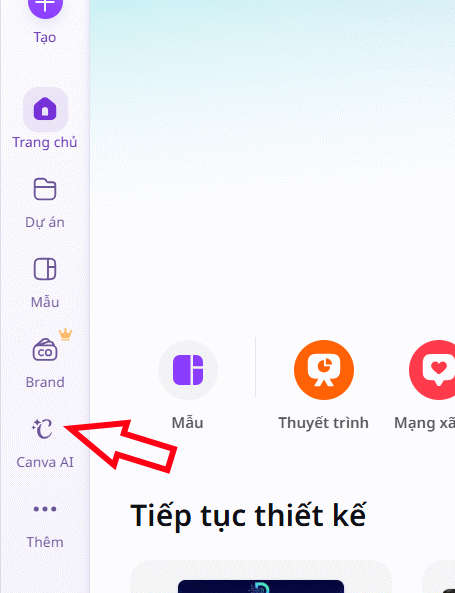
Open your Canva interface and select Canva AI from the left sidebar.
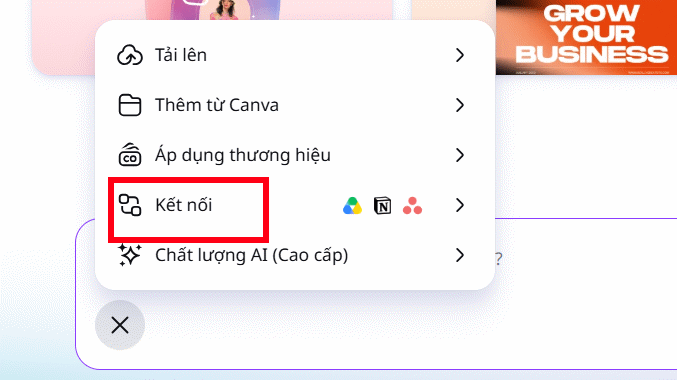
Next, in the chat panel with Canva AI, tap the plus icon and select Connect from the menu.
Step 2:
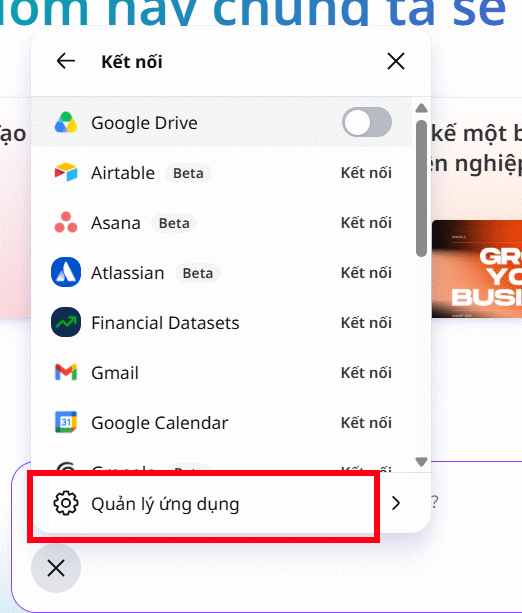
The Connections section shows your active integrations at the top of the list—in this example, Gmail and Google Drive are already connected.
Below that, you'll see all available apps you can enable and connect to Canva AI.
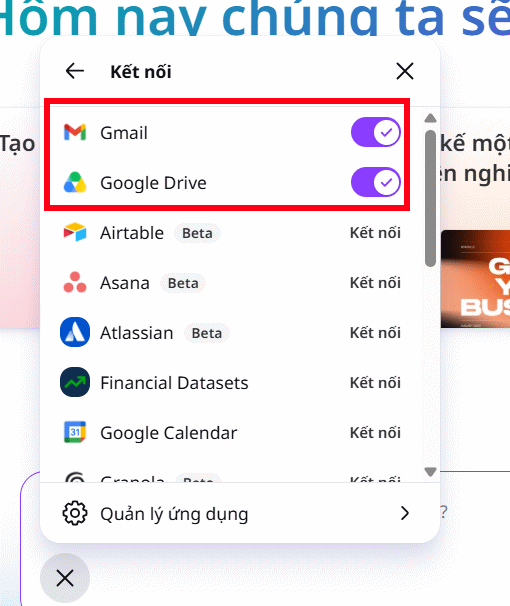
To temporarily pause an app connection, toggle the switch to the left. To fully remove an app's access, click Manage Apps at the bottom.
Step 3:
To completely remove an app from Canva AI, click the Disconnect button next to it.
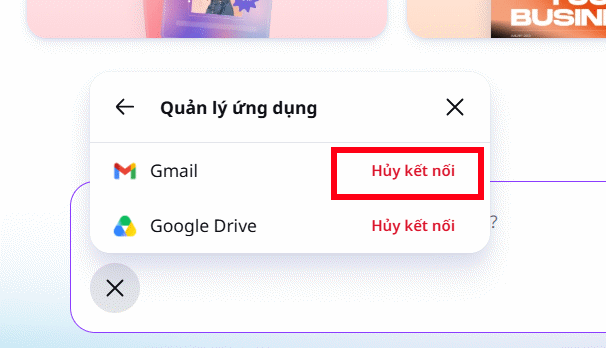
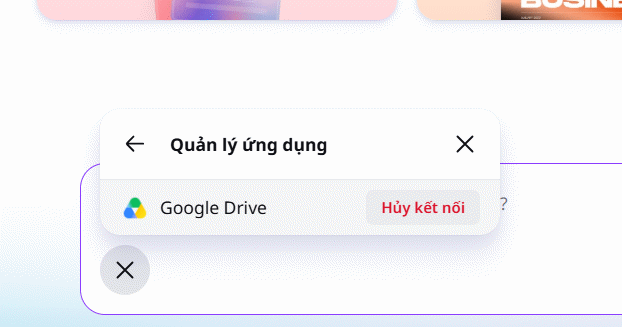
That app will now disappear from your connections list in Canva AI.
Disconnecting permanently removes the app from your account and revokes its access to Canva. If you want to use that app again later, you'll need to reconnect it from scratch.
Best Practices for Managing Connected Apps on Canva AI
Keep your app connections secure and organized with these guidelines:
- Verify your account: Make sure you're signed into the correct Canva account where you originally set up the app connection.
- Understand pause vs. disconnect: Disabling an app feature doesn't necessarily revoke its permissions. Full disconnection is required to remove all access.
- Check third-party settings: If an app was linked through another service's account, you may also need to review permission settings on that service directly.
- Read confirmation prompts carefully: Disconnecting an app could impact workflows that depend on it.
- Only connect trusted apps: Link only apps you recognize and understand the purpose of using.
Description: Learn how to view, pause, and permanently disconnect apps from your Canva AI account with this step-by-step guide.

No Comment to " How to Disconnect Apps from Canva AI "