Why You Should Run AI Agents Inside Windows Sandbox
The first time you let an AI agent run loose on your computer, you'll watch in real-time as it executes commands faster than you can read them. It installs software packages, shuffles files around, tweaks system settings—all on the same Windows installation that holds a decade's worth of tax returns, photo libraries, and work documents. Then comes the moment of truth: the agent runs a cleanup command in a directory you never told it to touch. While no critical data disappeared in this case, the lesson stuck with you: this agent operated with your full permissions, and those permissions could cause serious damage.
Abandoning AI agents isn't realistic right now, so you need a better strategy than just trusting them on your main machine. As it turns out, Windows already includes a built-in solution—a "disposable computer" baked directly into the OS. It's an isolated sandbox environment that spins up in seconds and vanishes completely when you close the window.
Giving Your AI Agent a Throwaway Computer
A pristine Windows desktop that auto-wipes itself when you're done
An AI agent with access to a command-line interface can perform any operation you could perform yourself. Antivirus software won't flag an AI agent that accidentally deletes the wrong folder—there's nothing malicious about the action itself. You could run suspicious programs safely in other ways on Windows, but most alternatives require setting up and maintaining a full virtual machine (VM).
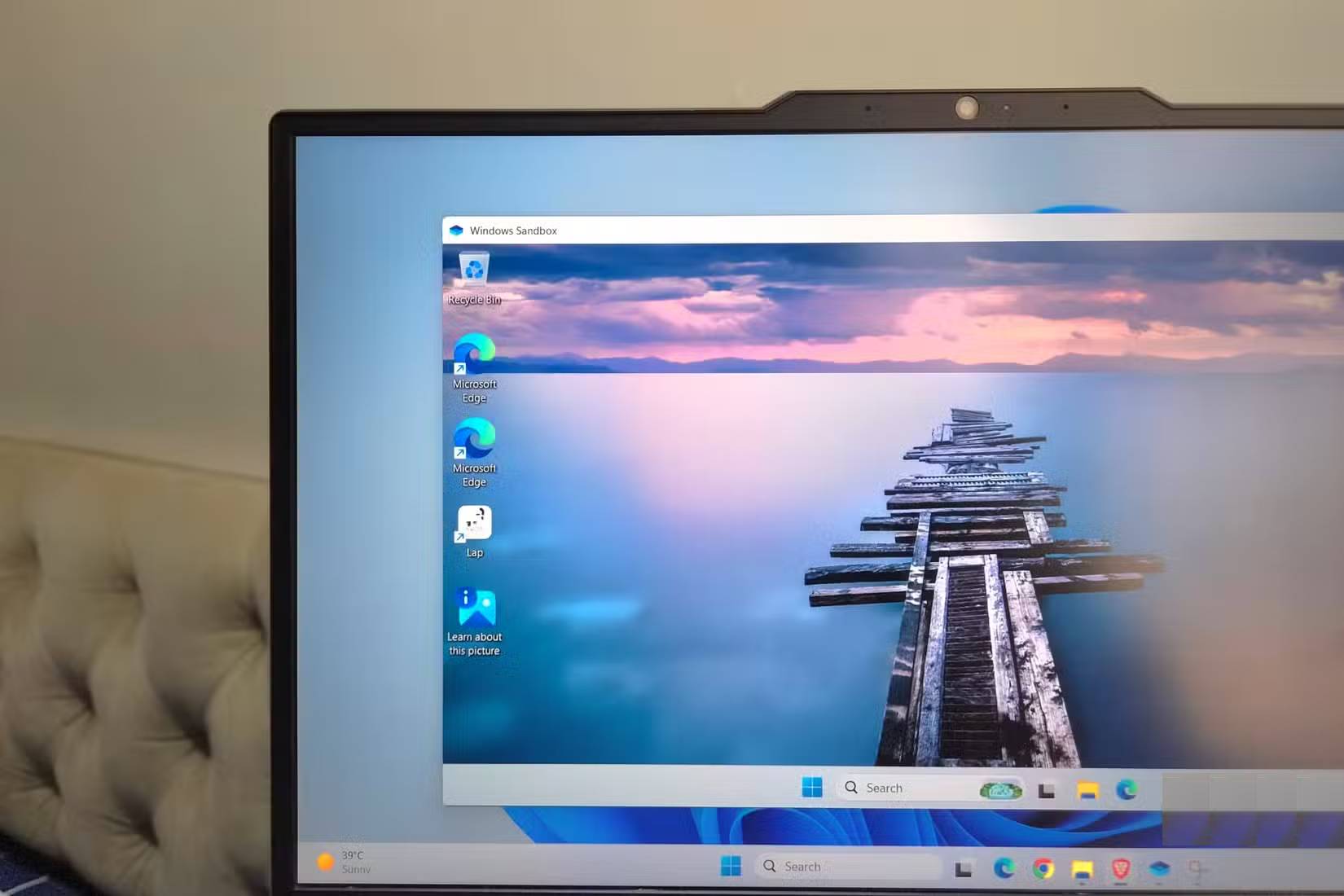
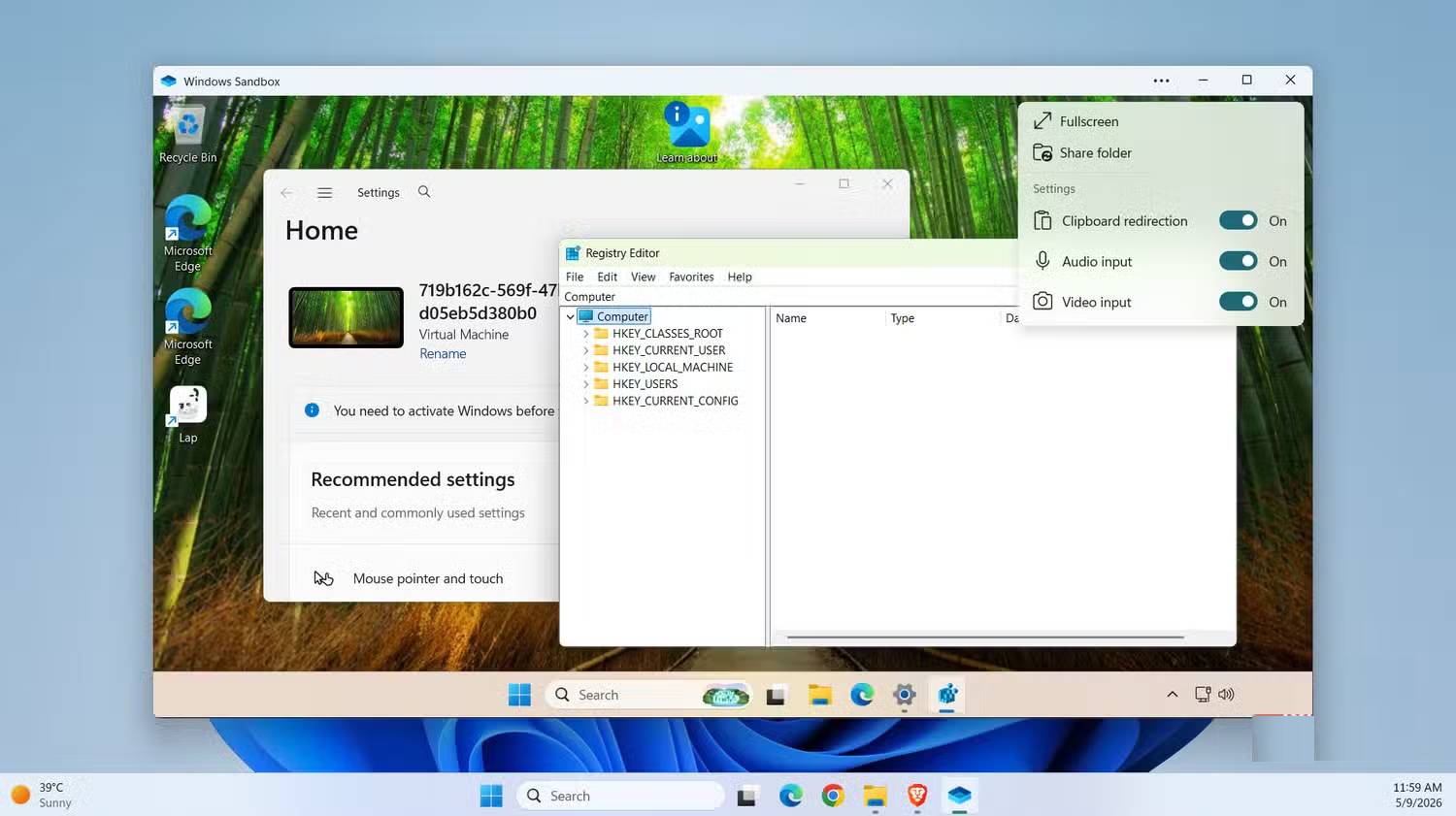
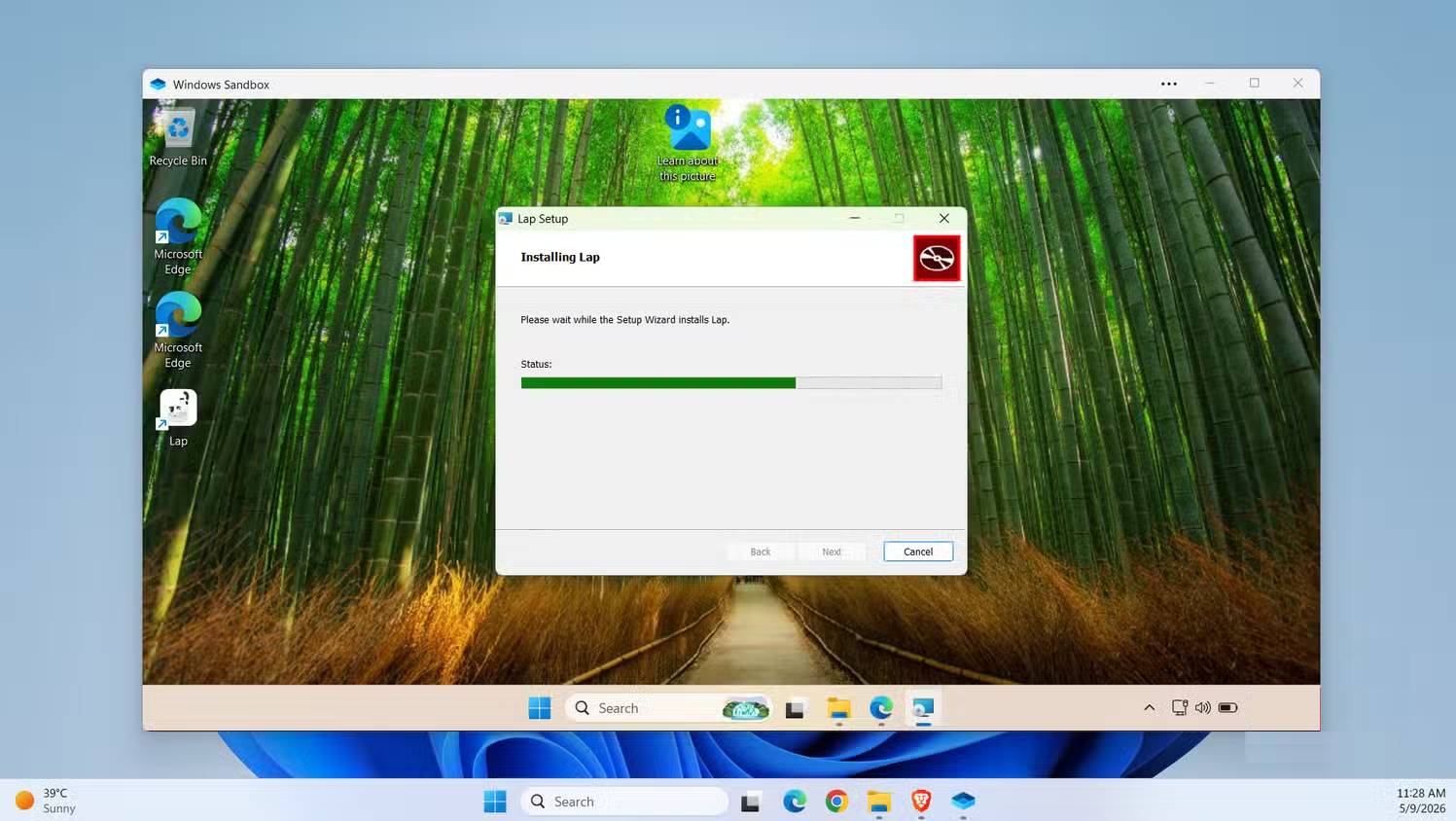
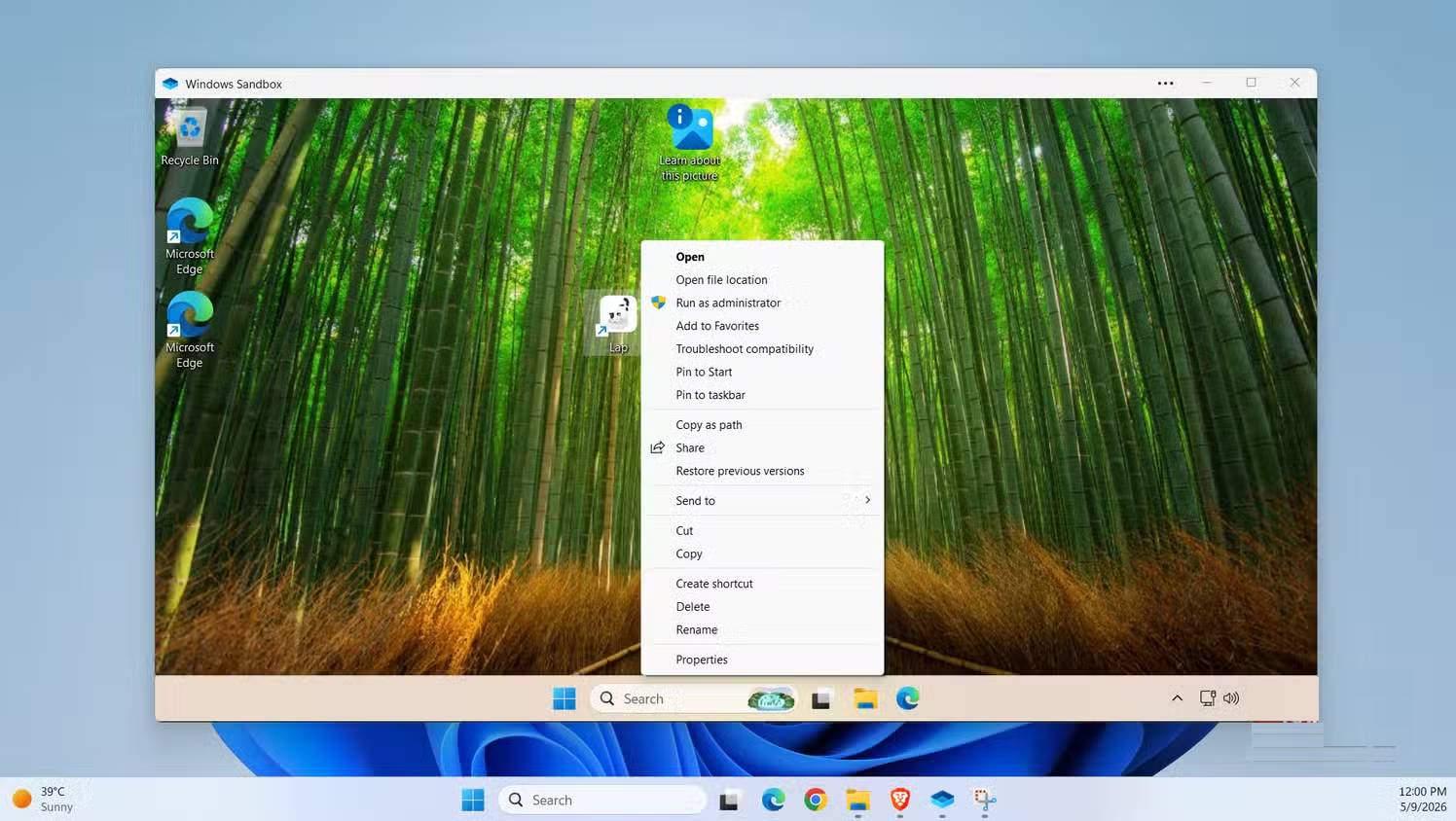
The elegant solution: run your AI agents inside a sandbox—specifically, Windows Sandbox. Think of it as a completely fresh Windows desktop running on Microsoft's hypervisor with its own isolated kernel, completely cut off from your host operating system. When you close the window, everything inside disappears: files, installed software, registry changes—gone. The next time you launch it, you start from a clean slate.
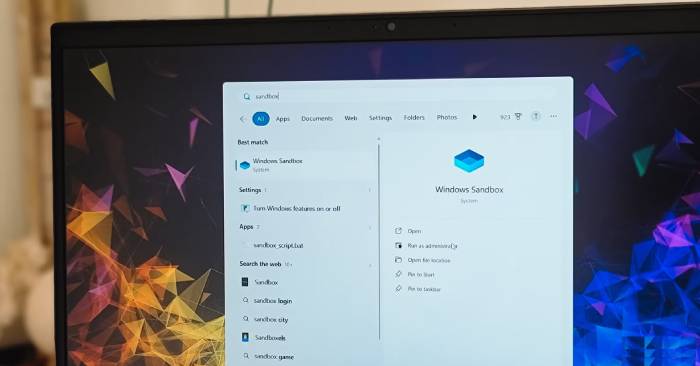
Here's what makes this better than traditional VMs: Windows Sandbox boots in seconds and consumes just 500MB of disk space because it reuses your system's existing Windows files instead of storing a duplicate OS. Enabling it takes minutes through the Windows Features dialog, though you'll usually need to restart your machine to get started.
One catch: Windows Sandbox only works on Pro, Enterprise, and Education editions. If you're running Windows Home, you'll need to explore alternatives.
Creating .wsb Files and Setting Folders to Read-Only
A tiny text file that controls what the agent can see and do
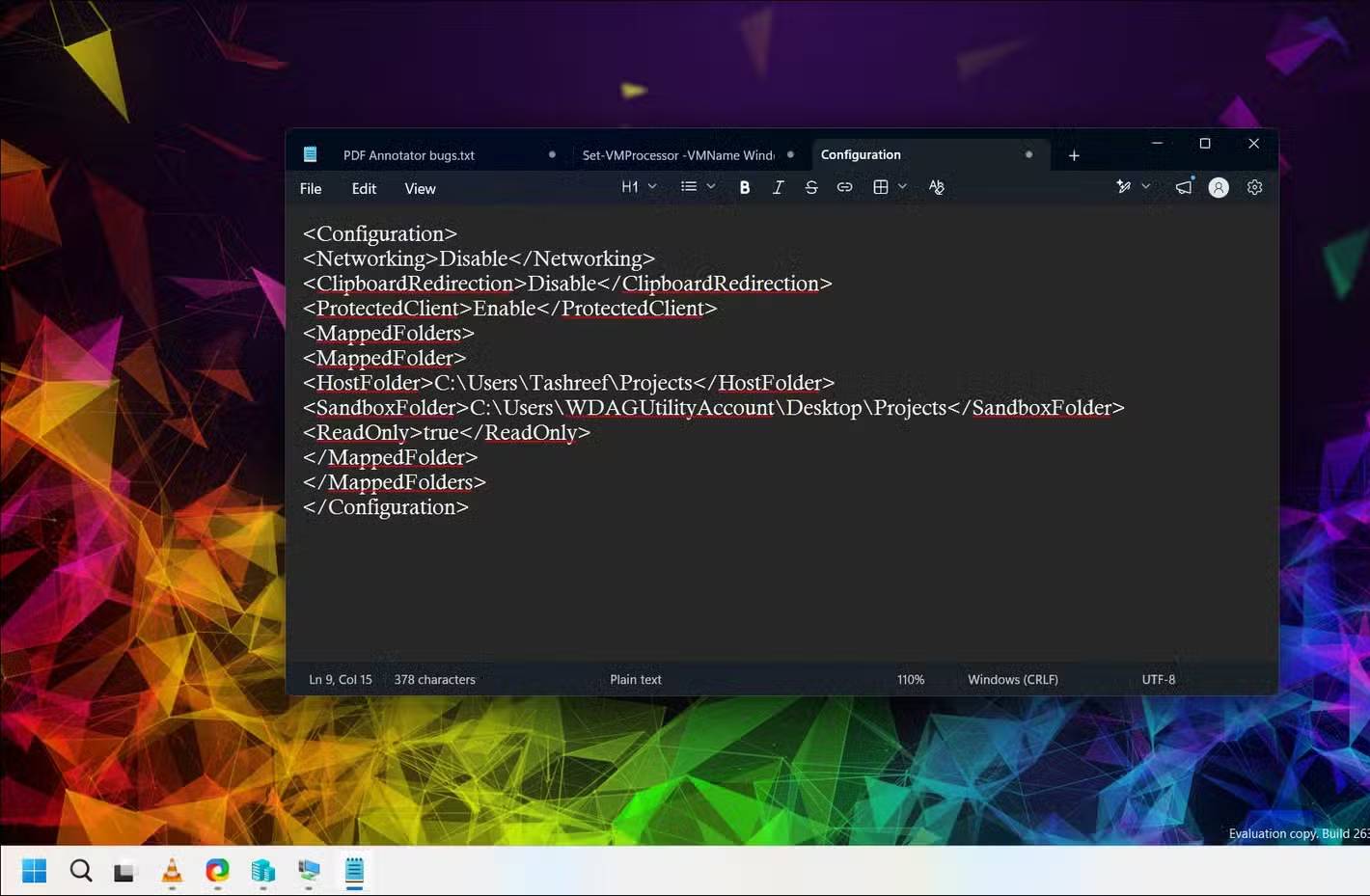
By default, a sandbox is just an empty desktop with internet access. That works fine for testing installers, but AI agents need stricter guardrails. Windows Sandbox reads these rules from a plain-text configuration file with a .wsb extension:
<Configuration>
<Networking>Disable</Networking>
<ClipboardRedirection>Disable</ClipboardRedirection>
<ProtectedClient>Enable</ProtectedClient>
<MappedFolders>
<MappedFolder>
<HostFolder>C:\\Users\\Tashreef\\Projects</HostFolder>
<SandboxFolder>C:\\Users\\WDAGUtilityAccount\\Desktop\\Projects</SandboxFolder>
<ReadOnly>true</ReadOnly>
</MappedFolder>
</MappedFolders>
</Configuration>
Here's what each setting does: `Networking` set to `Disable` cuts off the sandbox's internet connection, preventing anything inside from phoning home or downloading malicious content. `ClipboardRedirection` set to `Disable` blocks data from being copied between the sandbox and your main system through the shared clipboard. `ProtectedClient` adds an extra AppContainer boundary around the sandbox process itself—a safety layer in case any threat breaks through the first line of defense.
The `MappedFolder` block exposes a folder from your real computer inside the sandbox. With `ReadOnly` set to `true`, the agent can read your project files but can't modify anything. That odd-looking path? `WDAGUtilityAccount` is the default user account for every sandbox session, so mapped folders show up on this account's desktop.
If you're running Windows 11 version 24H2 or later, there's also a command-line tool called `wsb` that automates much of this. The `start` command launches a sandbox from a config file, `list` shows running sessions, `exec` runs commands inside the sandbox, and `share` maps folders instantly. The `connect`, `ip`, and `stop` commands handle everything else. One warning though: be careful with `wsb share --allow-write`. This flag grants write permissions to a real folder, and you should only use it when you genuinely need to.
What Doesn't Get Protected?
Important technical details you need to know
The mapped folder feature deserves special attention. If you map a folder with write permissions enabled, any changes the sandbox makes will persist on your real machine even after the session ends.
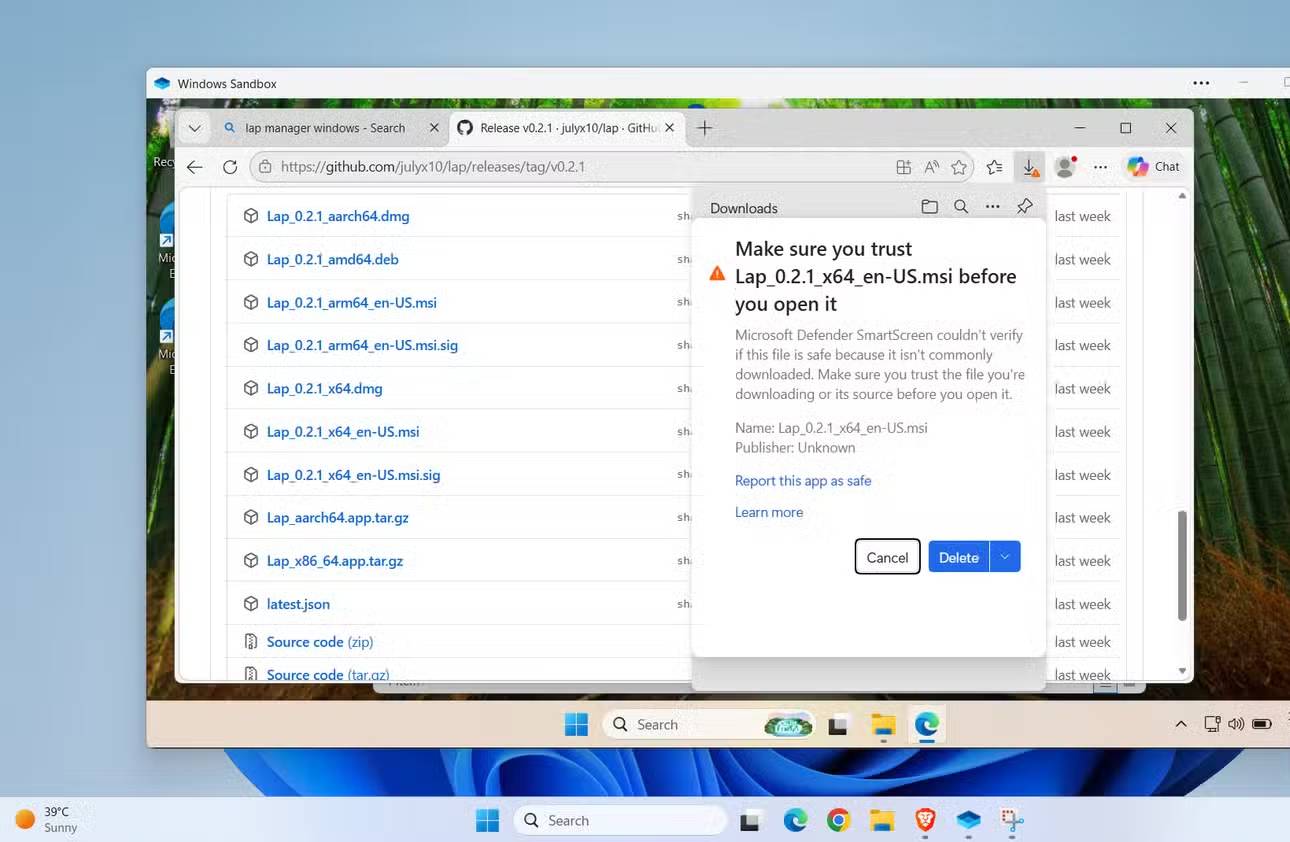
Network access is the second trap. It's enabled by default, so if you launch a standard sandbox from the Start menu instead of using a carefully configured .wsb file, you've just handed the agent full internet access.
There are a few other limitations worth knowing. The graphical interface only lets you run one sandbox at a time. Commands executed in .wsb files can't capture output, meaning you only get an exit code—not what the command actually displayed. All data wipes clean after each session, and windows can be surprisingly stubborn about resizing.
Beyond these quirks, certain workloads simply don't belong in a disposable environment. Anything requiring long-term runtime, persistent storage, or communication between multiple machines should run on a proper VM, Docker container, or LXC setup—tools designed for stable, sustained operations.
Test Your AI Agent Experiments in Sandbox Today
Windows Sandbox excels at short-lived, high-risk, repeatable tasks—which describes AI agent sessions perfectly. A practical setup includes a few .wsb files on your desktop with networking disabled, clipboard sharing blocked, and project folders mapped read-only. Your AI agent gets complete freedom to operate on its virtual machine without threatening your actual system. When work is done, close the window and walk away. What initially sounds like a weakness—losing everything when you close the app—is actually the whole point.
Description: Discover how Windows Sandbox protects your system from rogue AI agents. Learn configuration tips and security best practices.
Related Articles
- The 5 Best AI Recruitment Tools to Transform Your Hiring Process
- Generate Schedule Images with a Single AI Command
- Resolving the Gemini Error 1076: A Complete Troubleshooting Guide
- ChatGPT vs Meta AI: Which AI Chatbot Actually Wins?
- Best AI Image Upscaling Tools to Boost Your Photo Resolution in 2026

No Comment to " Why You Should Run AI Agents Inside Windows Sandbox "