Building Websites with GetLayers AI: A Complete Guide

AI design tools are reshaping how we build websites. GetLayers AI stands out by offering pre-made templates, 3D effects, interactive sections, backgrounds, and gradients that you can feed directly into your web development workflow. The real advantage? Each design comes with a ready-to-use prompt that you can copy into ChatGPT, Claude, Cursor, or Copilot to regenerate and customize the design exactly as you need it.
This guide walks you through using GetLayers AI to create stunning website interfaces powered by artificial intelligence. Whether you're building from scratch or just need to add a specific component, GetLayers simplifies the entire process.
What Is GetLayers AI?
GetLayers AI is a resource library specifically designed for AI-powered web design. The platform organizes design assets into five main categories:
- Templates: Complete website and landing page designs ready to deploy.
- 3D Scenes: WebGL effects, particle animations, fluid simulations, terrain generation, and more.
- Sections: Modular UI blocks like carousels, feature showcases, card layouts, and roadmaps.
- Backgrounds: Both static and animated background elements.
- Gradients: Interactive WebGL-based gradients that respond to cursor movement.
How to Build a Website Using GetLayers AI
Step 1: Access the Library
Head to the GetLayers AI website:
https://www.getlayers.ai/Click on Library to browse the five resource categories. If you're building a complete website from scratch, start with Templates. Already have a site and just need to add specific components? Browse Sections, 3D Scenes, Backgrounds, or Gradients instead.
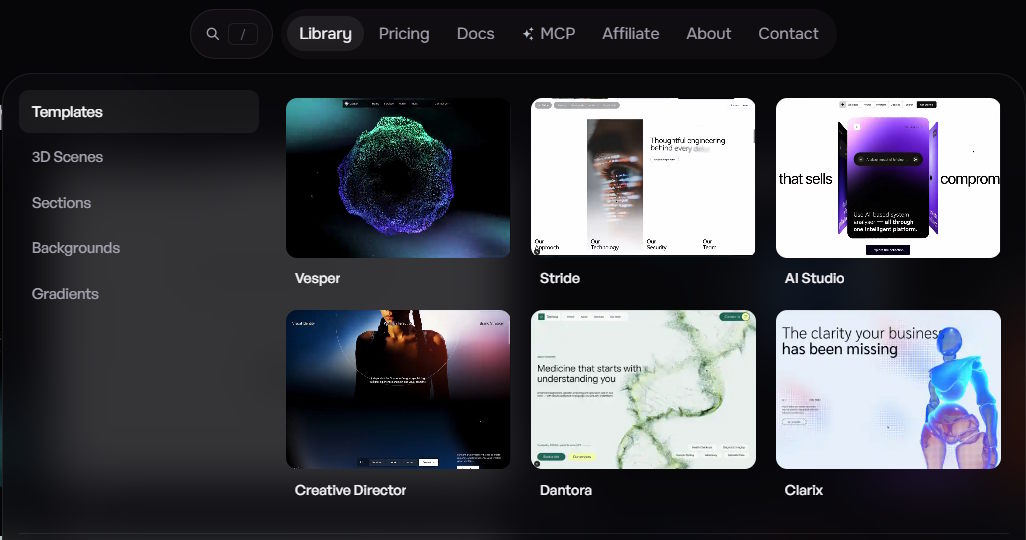
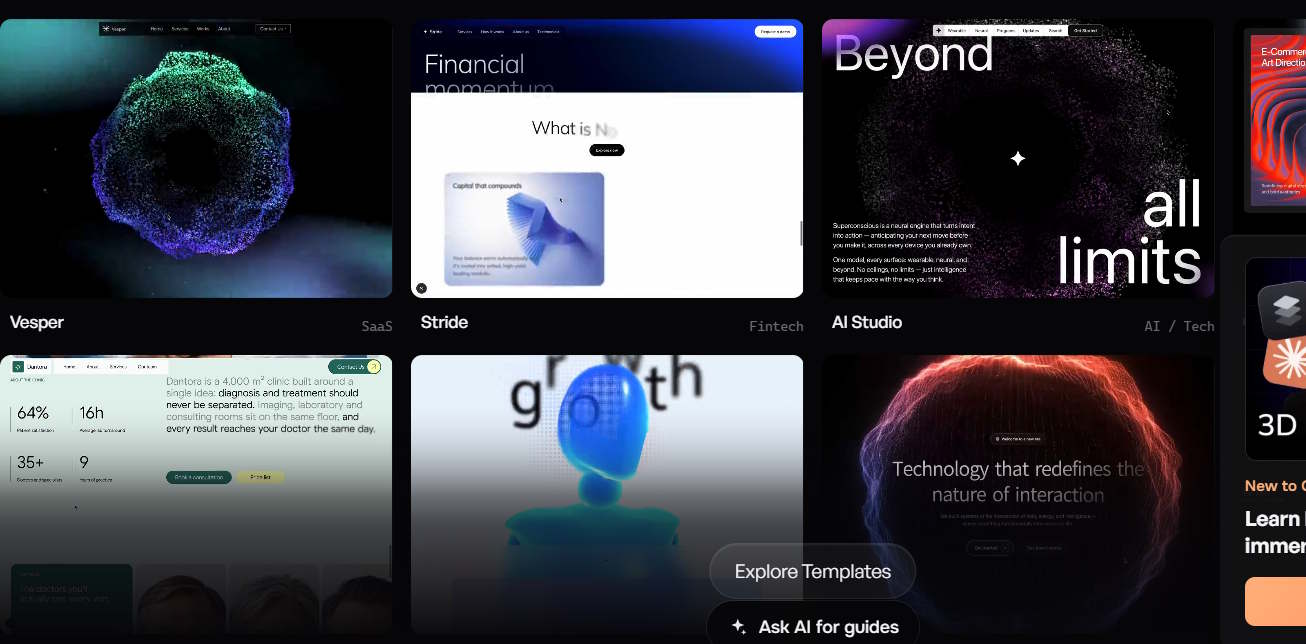
Each category displays design samples. Take time to review the options and find a template that matches your vision.
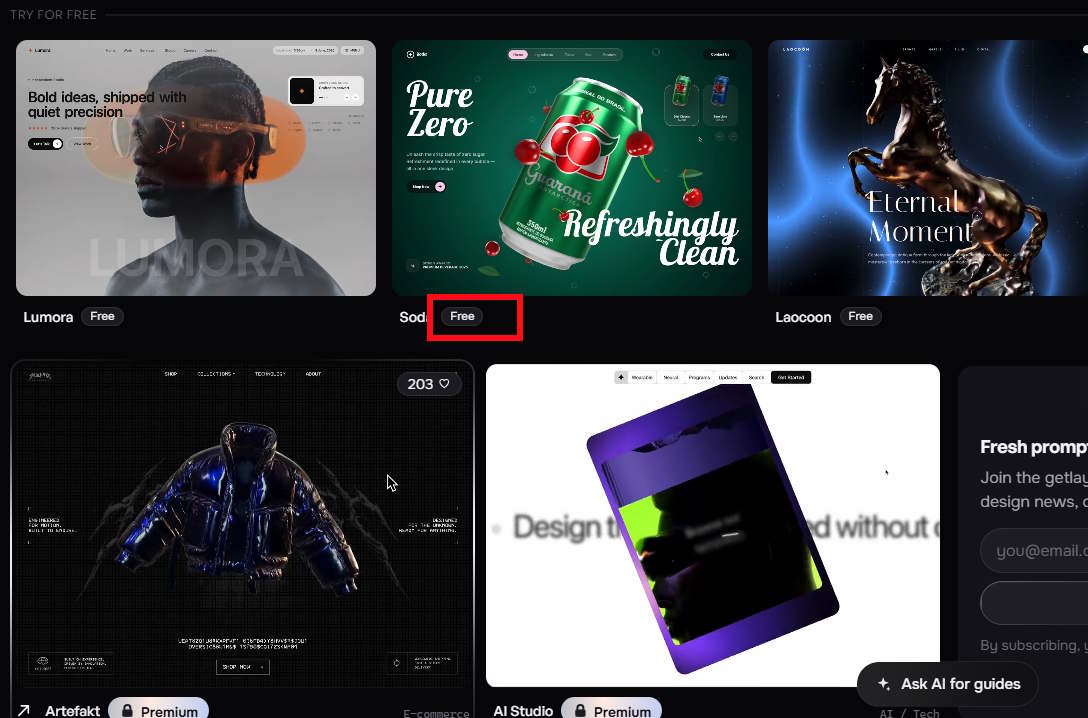
Important note: Free account users should look for templates marked as Free to access the complete prompt.
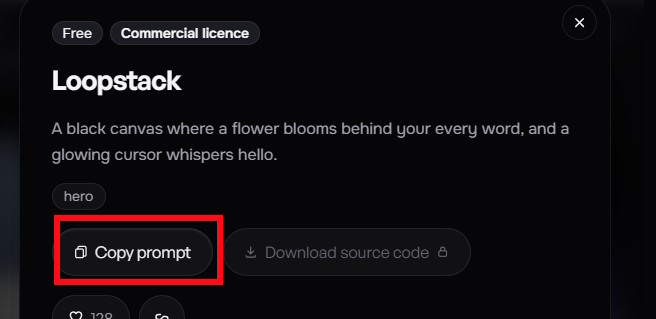
Step 2: Copy the Prompt
Once you've selected a template, click Copy prompt. You now have a professionally crafted prompt built specifically for that design layer.
Step 3: Feed It to Your AI Tool
Open your preferred AI design tool and paste the GetLayers prompt. Consider adding this instruction before the copied prompt:
Use this design in the prompt below to create a website introducing a [platform description].

Maintain the motion style and main layout structure. Change the primary color to [color]. Use Vietnamese for all content. Make the design responsive for desktop and mobile devices. Build using HTML, CSS, and JavaScript.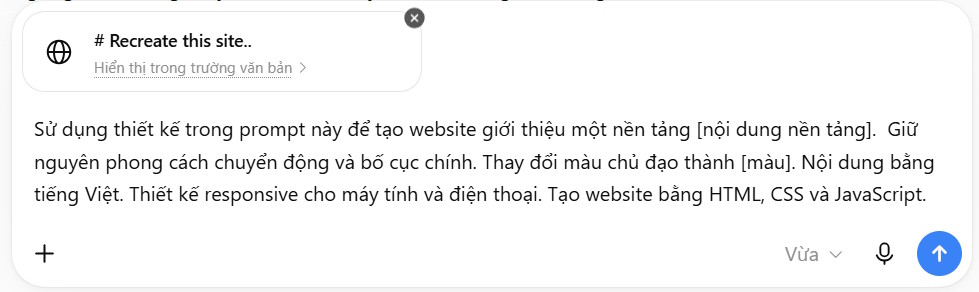
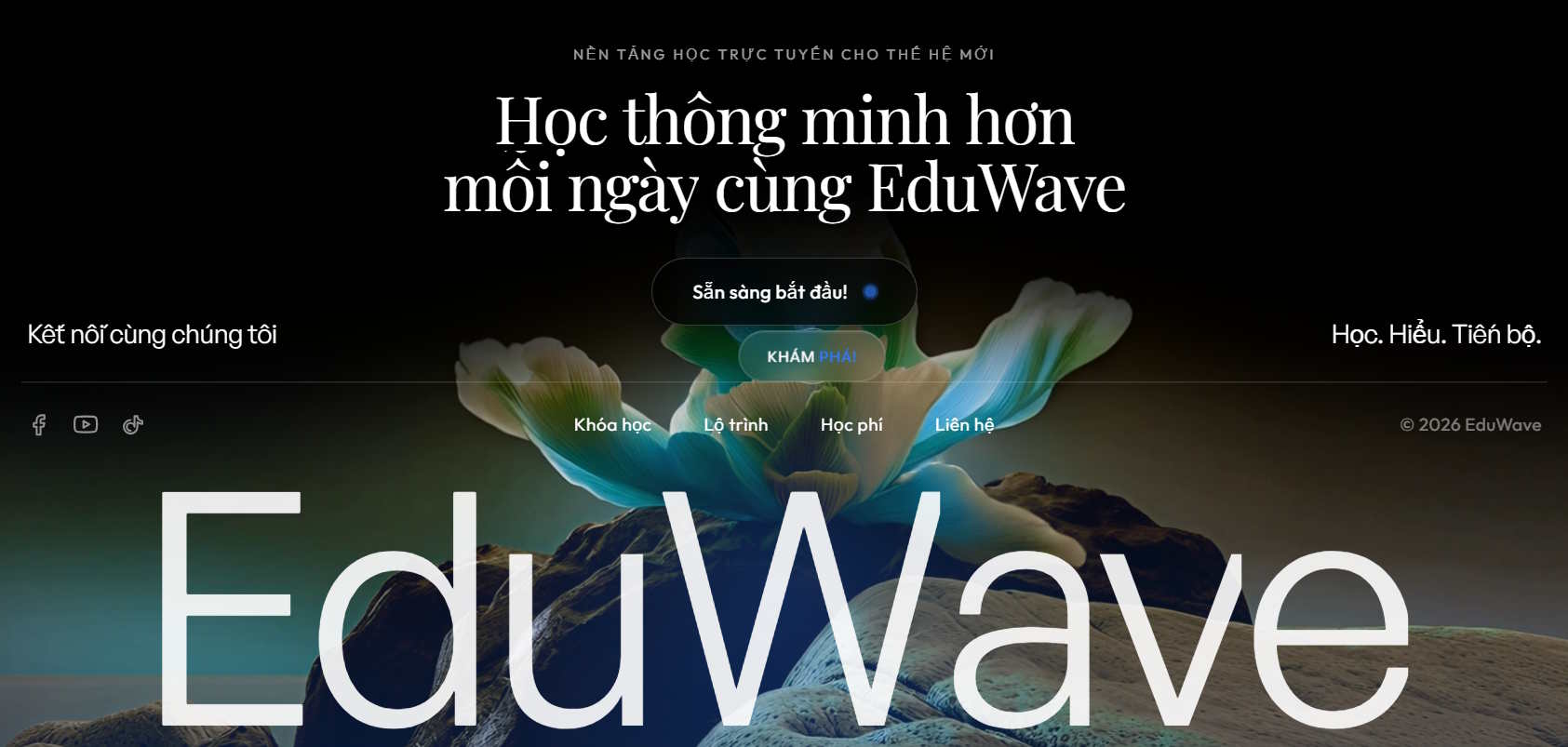
The AI now generates a website interface based on both the GetLayers foundation and your custom requirements. You'll see a live demo preview featuring the components from GetLayers. This is your chance to evaluate the output and request changes.
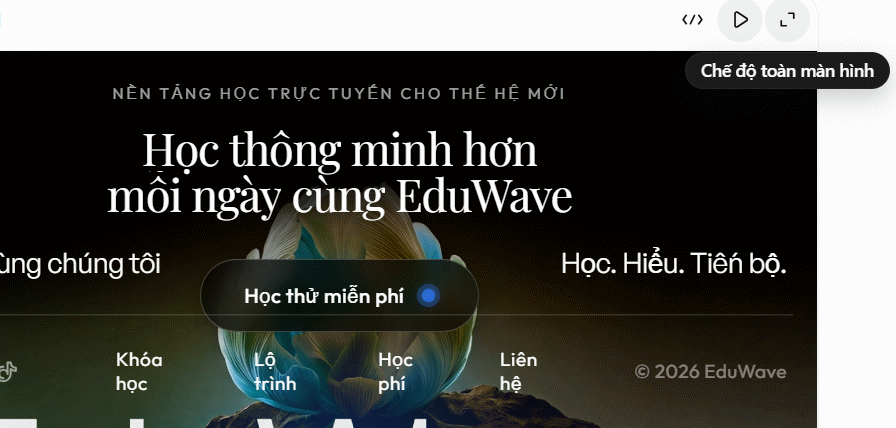
Review the demo carefully. If something isn't quite right, send follow-up prompts to refine it. You can also download the HTML file to test it locally for a better sense of how it performs.
Not satisfied with part of the design? Simply issue another command to make adjustments.
Important Tips for Using GetLayers AI
While GetLayers AI provides a wealth of design resources, keep these best practices in mind:
1. Use GetLayers as Inspiration, Not a Copy-Paste Solution
When previewing a layer, ask yourself if it truly fits your website's purpose. After pasting the prompt into your AI tool, customize the colors, content, images, typography, and layout to match your brand and goals.
2. Clearly Define Your Website's Purpose
Your prompt should explain what the website is for, who your target audience is, what style you want, and which colors best represent your brand. AI produces better results when given clear direction.
3. Don't Overload with 3D Effects
While motion and 3D effects certainly grab attention, what's interesting here is that simpler interfaces with less animation typically perform better. They're easier to scan, navigate, and understand. Heavy effects can actually hurt usability and load times.
4. Always Test on Mobile
After the AI generates your site, send it a prompt to optimize for mobile devices, then test it thoroughly. For any 3D effects, videos, or animations, check loading speed and compatibility on lower-end devices. Your website needs to work smoothly on both desktop and mobile—there's no excuse for a sluggish mobile experience anymore.
Description: Learn how to use GetLayers AI to generate professional website designs with pre-built templates, 3D effects, and AI-powered customization.

No Comment to " Building Websites with GetLayers AI: A Complete Guide "